







Losing essential data from an SD card—whether due to a simple mistake or a sudden system crash—can feel like a digital disaster. Fortunately, the industry offers several powerful tools designed to restore your lost assets. While many users initially search for how to use recuva to recover deleted files, professional environments often demand more advanced algorithms.
In this industry-standard guide, we will explore why recovery is possible, how to diagnose your card’s health, and which professional tools—specifically Recuva and PandaOffice Drecov—offer the best chance for a successful rescue.
The Science of Recovery: Why Your Photos Aren’t “Gone”
Before you attempt to use recuva to recover deleted files, it is crucial to understand the underlying technology. When you delete a photo, the SD card does not immediately destroy the binary data. Instead, it simply removes the “index” or the pointer to that file, marking the space as available for new data.
Specifically, the actual image remains on the storage clusters until it is overwritten. Consequently, the success of your recovery depends entirely on one rule: Stop using the card immediately. If you continue taking new photos, you are physically writing over the old ones, making recovery impossible.
Phase 1: The 3-Step Physical Diagnostic Checklist
Before you download any software, ensure your hardware is communicating correctly. Often, what appears to be a “data loss” event is actually a simple connection failure.
1. Check the Write-Protection Switch: Look at the left side of your SD card. If the tiny plastic slider is in the “Lock” position, the computer cannot read it properly. Flip it up.
2.Verify the Card Reader: A faulty or outdated card reader is a common culprit for “Device Not Recognized” errors. Try a different USB port or a different reader entirely.
3.Clean the Gold Contacts: Use a soft, lint-free cloth (or a tiny amount of isopropyl alcohol) to gently wipe the gold pins on the back of the card. Dust or oil can interrupt the data flow.
Phase 2: Using Recuva to Recover Deleted Files
Recuva, developed by CCleaner, is a free data recovery tool that helps users restore lost or accidentally deleted files. It works with a wide range of file types, including documents, images, videos, and emails, and supports recovery from various storage devices. With Quick Scan for recently deleted files and Deep Scan for more difficult cases, it simplifies the recovery process.
Step-by-Step Guide for Recuva
- Step 1:Start the Wizard. Launch Recuva and follow the on-screen prompts. Select “Pictures” to help the software filter its search engine.
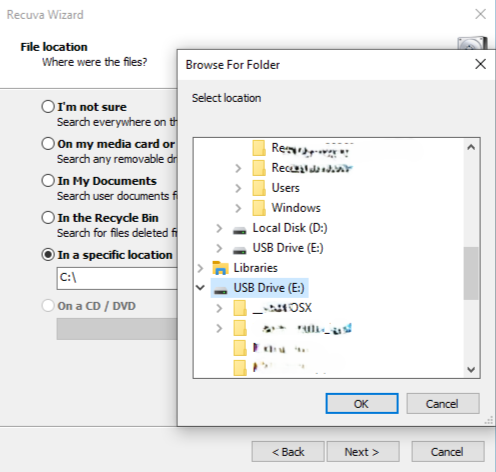
- Step 2:Define the Location. Select “On my media card” so the program knows to target the external SD reader.
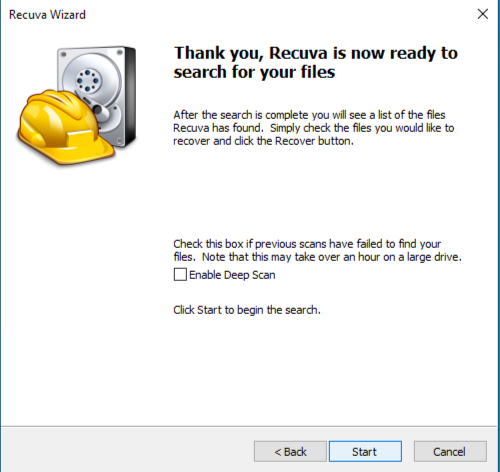
- Step 3:Initiate Scan. Click “Start.” If the photos do not appear, restart and select “Enable Deep Scan”—this is crucial for finding files on cards that have been formatted.
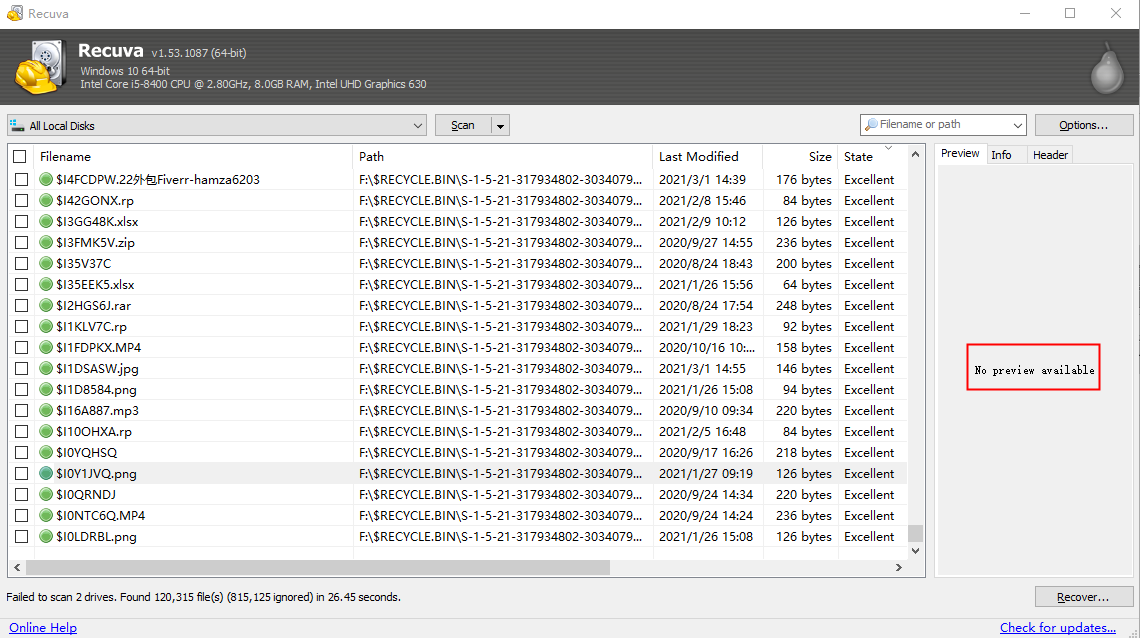
- Step 4:Recover. Look for the green circles (indicating healthy files), check the ones you need, and click “Recover.”
Pros and Cons
- Pros: Entirely free for basic use; very fast for recent deletions; easy-to-use “traffic light” health system.
- Cons: Windows only; struggles with professional RAW files; limited success on severely corrupted file systems.
Phase 3: Using PandaOffice Drecov for Professional Scenarios
While traditional tools are helpful, modern storage media like high-capacity SD cards and SSDs require more advanced handling. PandaOffice Drecov emerges as a powerful alternative that addresses the limitations of older software. It utilizes a proprietary AI-driven scanning engine designed to piece together fragmented data that other programs simply ignore.
If you find that you cannot use recuva to recover deleted files because the SD card appears as “RAW” or “Unallocated,” PandaOffice Drecov steps in as the professional solution. It supports a significantly wider range of professional camera formats (RAW, CR3, NEF) and provides a much more stable environment for large-scale data extraction.
Benefits of the Graphical Approach:
| Feature | Advantage Description |
| Universal Format Support | Supports the recovery of over 1,000 formats, including JPG, PNG, CR2, MP4, MOV, and DOCX. |
| Deep Scan Technology | Capable of retrieving files through sector-by-sector scanning, even if the partition table is missing. |
| Free Preview Function | Allows you to preview photos in full screen before recovery to ensure the files are intact and usable. |
| 100% Data Safety | Employs a “Read-Only” recovery process, ensuring no secondary damage or overwriting occurs on your original SD card. |
- Versatility: It recovers photos, videos, audio, compressed files (ZIP/RAR), and even system files like EXEs.
- Accidental deletion from your computer desktop.
- Files lost after emptying the Recycle Bin.
- Data loss from disk formatting.
- Accidental deletion or formatting of SD cards/U disks.
- Sync error occurring with deleted OneDrive files
- Restore deleted Chrome bookmarked
- Privacy First: All recovery happens locally on your machine, so you don’t have to worry about your private data leaking to the web.
Step-by-Step Guide for PandaOffice Drecov
- Step 1:Select and Analyze. Launch the app and select your SD card. Click “Scan” to begin the automated dual-scanning process.

- Step 2:Filter and Locate. Use the “Filter” sidebar to toggle “Photos” only. You can even filter by file size or date to find specific memories faster.
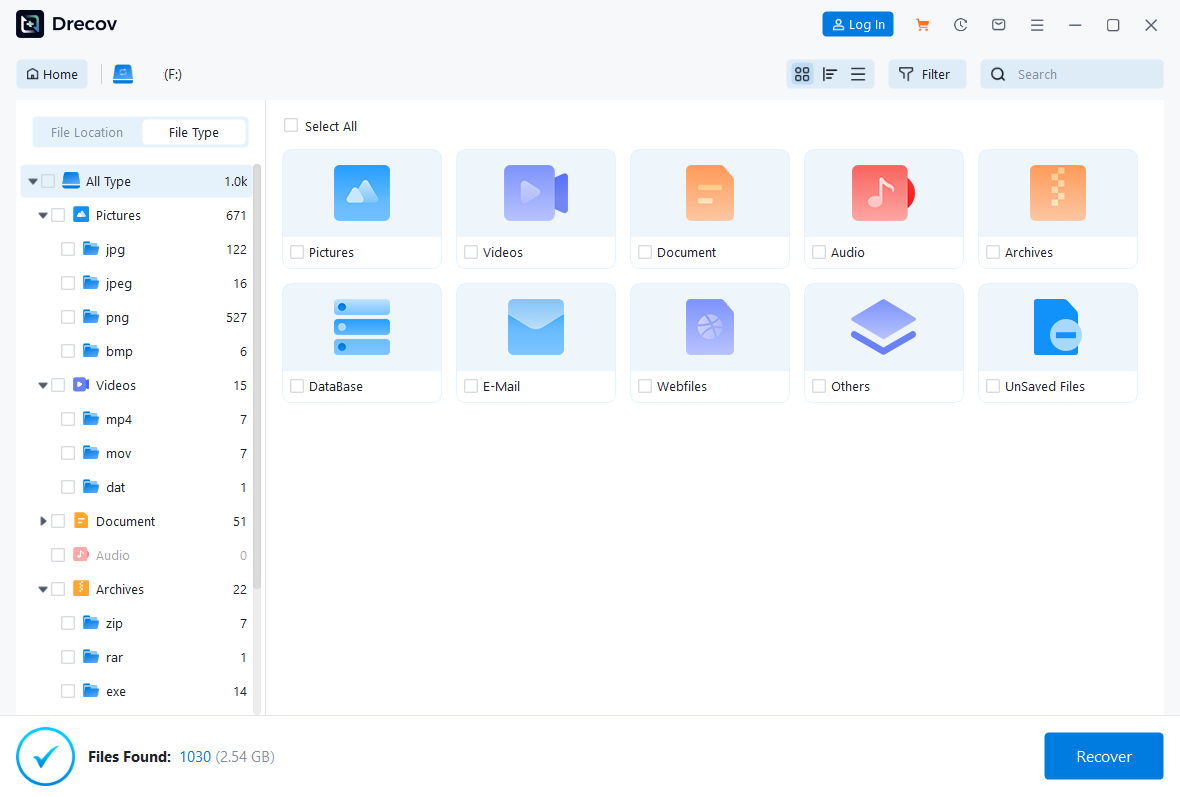
- Step 3:Full-HD Preview. Double-click any image. If you can see the full photo in the preview, the software has successfully reconstructed the file structure.

- Step 4:One-Click Export. Click “Recover” and choose a destination on your local computer hard drive.
🛑 Warning: Never save the recovered files back to the same SD card during this step, as this will overwrite other lost data you might still need.
Pros and Cons
- Pros: Advanced “Video Repair”; superior success rate on corrupted or unallocated cards.
- Cons: Deeper scans take more time than basic tools.
Deep Comparison: Recuva vs. PandaOffice Drecov
| Feature Set | Recuva | PandaOffice Drecov |
| Primary Goal | Quick, simple undelete | Comprehensive data reconstruction |
| RAW Camera Support | Basic (JPEG/TIFF) | Advanced (CR3, ARW, NEF, etc.) |
| Success on RAW Drive | Moderate | High |
| User Interface | Wizard-based | Modern, Professional |
How to use Recuva to Recover Deleted Files from SD Card FAQs
1.Why are my recovered photos “half-grey” or corrupted?
This happens when the data was partially overwritten before you started the recovery. To avoid this, always keep the card empty once you realize files are missing.
2.Can I recover data from a physically snapped SD card?
No software can fix a broken chip. In this case, you must contact a professional data recovery lab which has specialized hardware to read the memory chips directly.
3.Why can’t Recuva find my SD card even though it is plugged in?
This usually happens if the card lacks a drive letter or has a corrupted file system. Open Disk Management (diskmgmt.msc), find your SD card, and ensure it shows a status other than “No Media.” If it is visible but has no letter, right-click the partition and select “Change Drive Letter and Paths” to assign one (e.g., E:). Once assigned, Recuva will be able to target the drive.
4.What should I do if the files found by Recuva are marked with a Red icon?
A red icon indicates that the file’s clusters have been partially or fully overwritten by new data. While you can still try to use recuva to recover deleted files in this state, the resulting photo will likely be corrupted (e.g., half-grey or distorted). If Recuva fails here, we recommend switching to PandaOffice Drecov, as its AI-carving engine is better at piecing together fragmented data that basic tools consider “lost.”
5.Is it possible to recover photos from an SD card that asks to be formatted?
Yes, but do not click “Format.” When Windows gives this prompt, it means the partition table is damaged. You can still use recuva to recover deleted files by using the “Deep Scan” mode, which ignores the corrupted file system and searches for raw data signatures. If the scan fails, PandaOffice Drecov is specifically designed to handle these “RAW” drive scenarios with a much higher success rate.
Conclusion
LearningHow to use Recuva to Recover Deleted Files from SD Card is about choosing the right tool for the specific damage. For simple deletions, Recuva is a fast and free win. However, for professional photographers or severely corrupted cards, PandaOffice Drecov provides the technical depth needed to ensure your memories are returned in high fidelity.






