







The Immediate Crisis: My USB Drive is Corrupt or Formatted!
The fear is real when your computer announces your USB flash disk is “corrupt” or demands you “format the drive.” Many people panic and hit “Yes,” thinking it’s the only way, only to realize later they’ve erased crucial data. Even if you made that mistake, or if your drive simply stopped appearing, there are powerful and straightforward methods for successful USB flash disk recovery. This guide outlines three clear approaches, ensuring a high chance of getting your files back.
Golden Rule for Recovery Success
You must understand the most critical rule:
⚠️ Do NOT perform any actions that write new data to the USB flash disk. Do not save files, do not try to format it (unless explicitly instructed by a recovery specialist), and certainly, do not use it for backups. The moment you recognize the data loss, unplug the drive to maximize the chance of complete USB flash disk recovery.
Three Pathways to Successful Data Retrieval
1. Using a Backup (The Ideal Solution)
This is technically not a recovery method but the most stress-free solution. If you had the foresight to enable File History and include your USB flash disk in the backup scope, the recovery is instantaneous.
- Step 1: Check your primary backup system (e.g., external hard drive, cloud service).
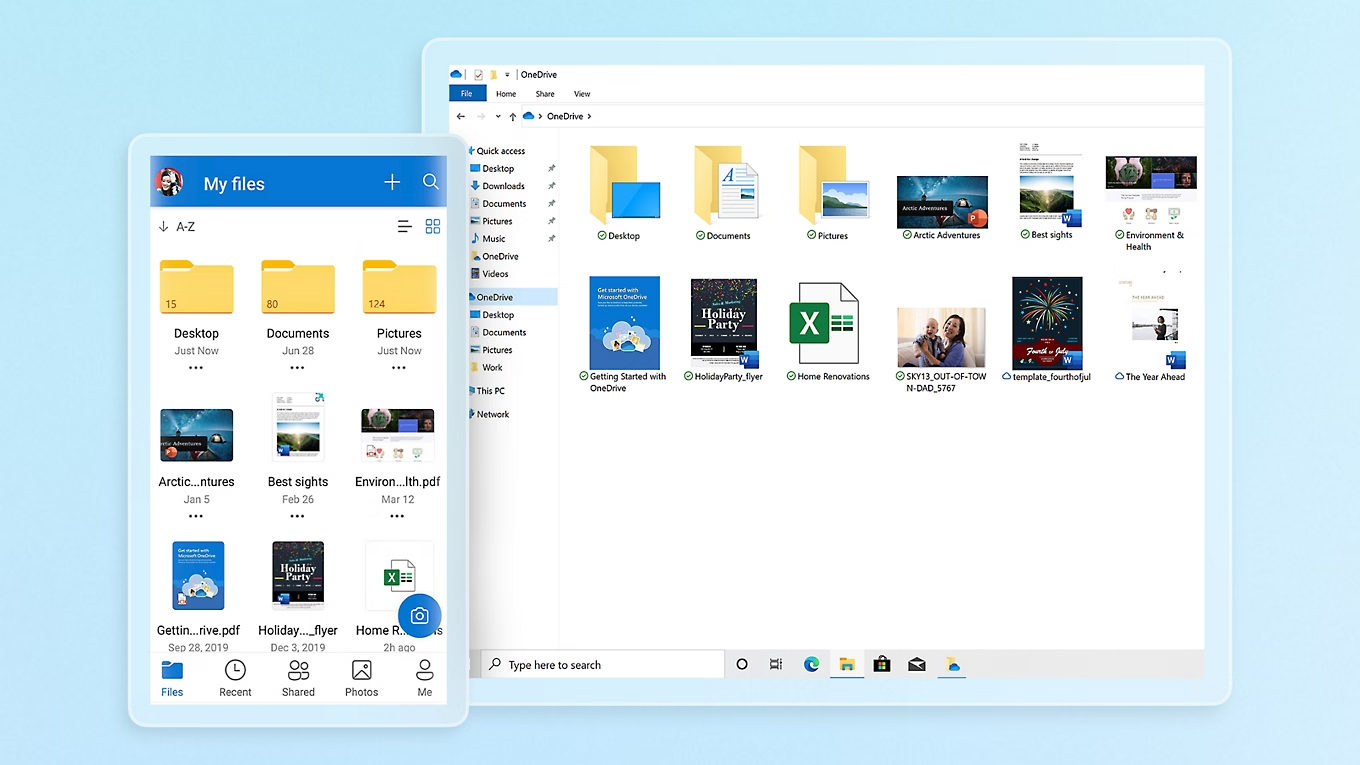
- Step 2: Locate the backup of the specific files or folders from the USB flash disk.
- Step 3: Restore the files to a safe, accessible location on your main computer.
2. Specialized Software Recovery: PandaOffice Drecov
When a backup isn’t available, or the damage is severe (like full formatting), dedicated software is your strongest ally. PandaOffice Drecov is engineered for non-experts, allowing for professional results with minimal effort and no confusing code or complex interfaces.
Why Trust PandaOffice Drecov?
PandaOffice Drecov is known for its exceptionally high data recovery success rate. It’s built to address all common data loss issues, including emptied Recycle Bins, files deleted from the desktop, data lost through disk formatting, and accidental deletion/formatting of SD cards and U-disks. It quickly and reliably recovers hundreds of file formats, including all common types like images, videos, documents, audio, and compressed archives. A key feature is its ability to quickly repair corrupted files, even those showing garbled characters or failing to open. All recovery operations are performed locally, safeguarding your privacy, and the software is trusted through partnerships with leading tech and review platforms such as Trustpilot, Microsoft Store, TechBullion, and Sourceforge.
Simple 3-Step Recovery for Anyone:
- Step 1: Target the USB and Define Search:

- Launch PandaOffice Drecov.
- Clearly select your USB flash disk as the drive to scan.
- Choose to scan for specific file types to focus the search (e.g., only videos and photos). Make sure to check the option to include files from the “Recycle Bin” if that’s where the files ended up initially.
- Step 2: Initiate Deep Scan and Verify Data:
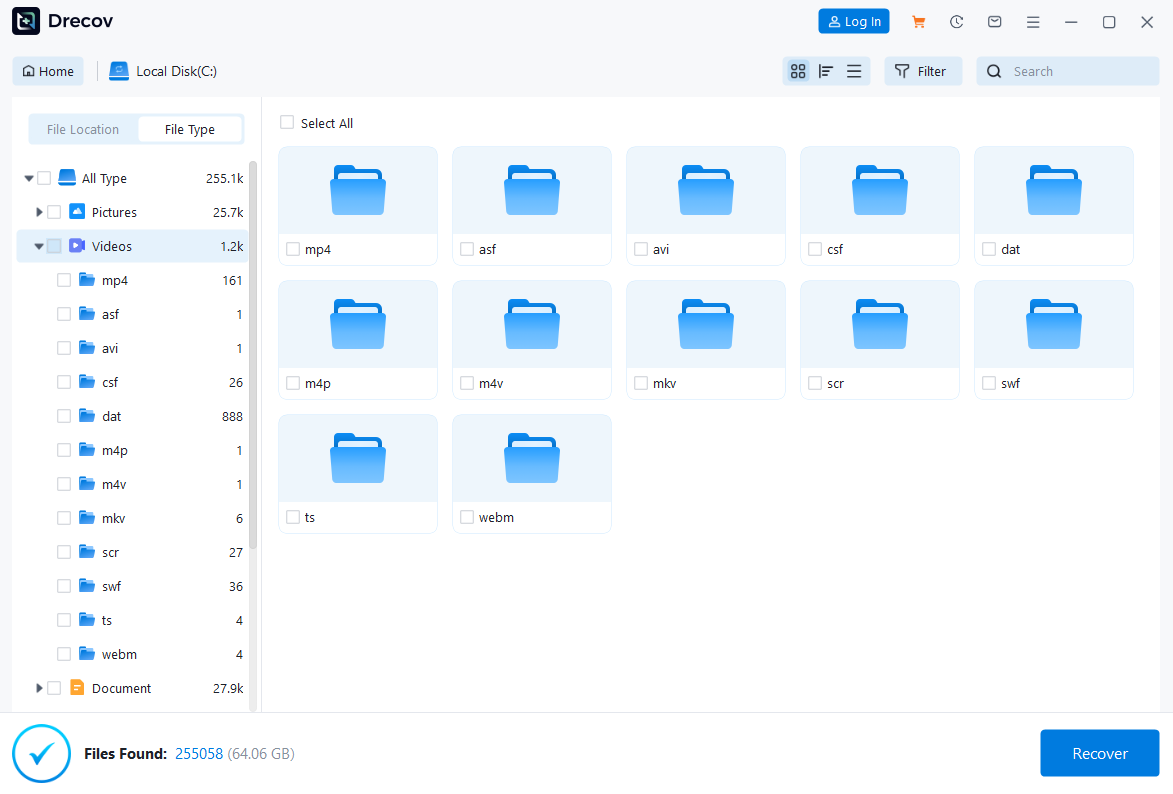
- Click Scan. The software performs a deep, sector-by-sector scan.
- After the scan, review the list of found files. Use the integrated View or preview function to check the files. This step confirms that the data is not corrupted before you proceed.
- Step 3: Complete Recovery and Final Save:

- Select the files you want to retrieve.
- Click Recover.
🚨 It is crucial to choose a save path on your computer’s main hard drive or another safe location—do not save the recovered files back onto the same USB flash disk you are recovering from.
3. Utilizing External Drive Repair Tools
If your drive is physically recognized but completely inaccessible (showing 0 bytes or prompting a format), you might try a repair tool available in the operating system.
- Step 1: Connect the drive.
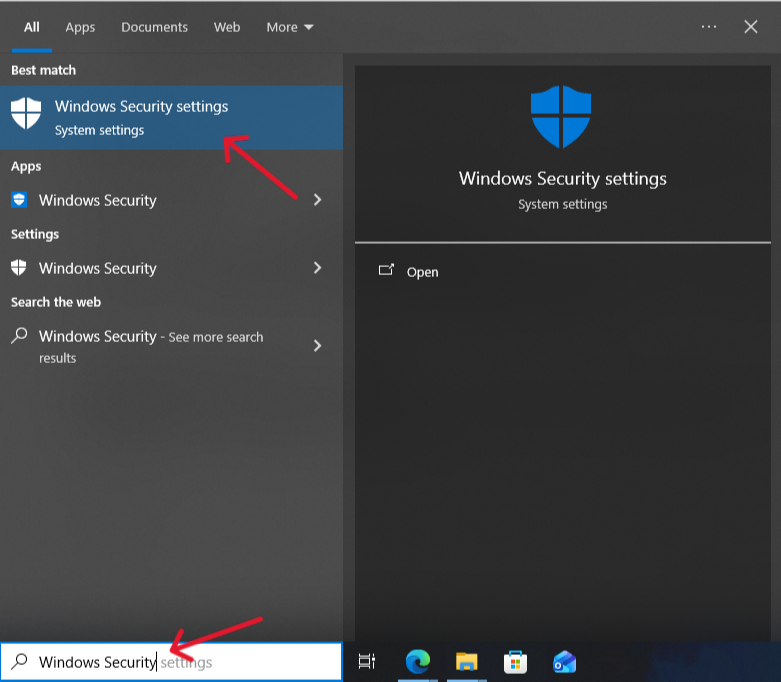
- Step 2: Search for Windows Security and open it.
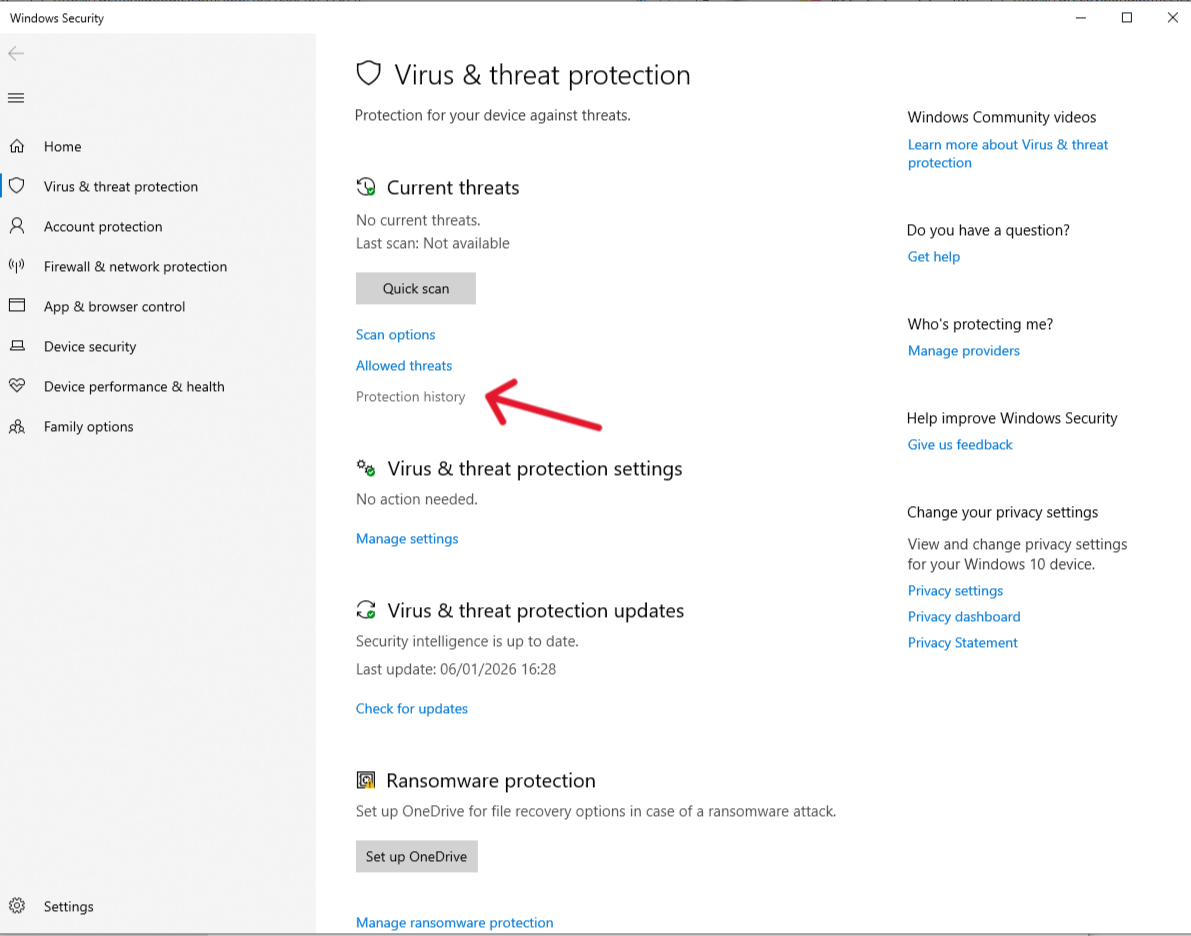
- Step 3: Go to Virus & threat protection, and under Current threats, look for the Protection History to see if the drive was blocked. If a virus caused the data loss, run a scan. A deep virus scan can sometimes repair or unhide files that were compromised.
How Your Deleted Files Stay on the Drive
The secret behind successful USB flash disk recovery lies in the operation of NAND flash memory. Unlike an old-school tape or vinyl record that physically changes when written over, flash memory uses a File Allocation Table (FAT) or Master File Table (MFT) as an index.
When you delete a file, the computer essentially tells the drive, “Forget the name and location of this file, that space is free now.” The actual electronic charges (the data) that form the file remain perfectly intact in the memory cells.
Recovery software bypasses the damaged or empty index and uses advanced techniques to read the raw data from the cells. It specifically searches for known file patterns (signatures) to stitch the fragments back together, making the lost files accessible again. This process is called file carving, and it is the backbone of powerful USB flash disk recovery tools.
Data Education Enhancement
- Clarification on Overwriting: It’s important to stress that the data remains intact until new data is written to that specific sector. This is why the “Golden Rule” is so critical.
- File Carving Detail: File carving is most effective for contiguous (unfragmented) files and involves searching for the file’s header and footer (its signature) to reconstruct it without relying on the file system index.
❓ Frequently Asked Questions
Can I recover data from a formatted USB flash drive?
Yes. Most of the time, Quick Format simply clears the file index (FAT/MFT) and does not erase the actual data. Professional recovery software, such as PandaOffice Drecov, can bypass indexes and directly read and reorganize the underlying data through File Carving.
What should I do if the USB stick shows “Unallocated Space” or 0 bytes?
This is often a sign of severe damage to the file system structure. Never attempt to initialize or format. You should directly use professional data recovery software for a deep scan. The software ignores the corrupted partition information and directly looks for the original file data.
Can a USB flash drive with physical damage (e.g., broken, waterlogged) still recover data?
If it is a slight case damage or a loose interface, the data chip (NAND chip) may still be intact and can be restored by replacing the enclosure or repairing the circuit board. However, if the chip itself is severely damaged (such as a ruptured NAND chip), it will need to be sent to a professional data recovery laboratory for chip-off recovery, which can be very expensive.
Why can’t I save files back to the original USB stick when recovering data?
Saving the recovered files back to the source USB flash drive will cause data overwriting. Once the old data is overwritten by the new data, it will become permanently unrecoverable. Therefore, it is essential to save the recovered files to your computer’s hard drive or other secure storage medium.
Yes. The antivirus software mentioned in step 3 can try to “unhide” or “decrypt”. If the file is deleted but has not been overwritten, data recovery software can find the deleted file record and recover it.
How long does the recovery process take?
Recovery time varies greatly based on drive size, the amount of data, the level of damage (deep scans take longer), and your computer’s speed. Generally, a deep scan on a 64GB drive could take several hours.
What if the software can’t find my files after scanning?
This usually means one of two things: Either the data has been overwritten since the loss event, or the storage chip has physical damage. At this point, consider stopping software attempts and consulting a professional service.
Can recovery software repair corrupted files (e.g., files that open with gibberish)?
Some advanced software can. They often incorporate file repair features that attempt to fix minor corruption in common file types (like JPEG, DOCX) using known file structure rules.
Why do Mac and Windows recovery methods differ?
While the core recovery principle remains the same, the differences lie in their native backup tools (File History vs. Time Machine) and their primary file systems (NTFS/exFAT vs. APFS/HFS+). Nonetheless, professional tools usually support all major file systems.
Conclusion
USB Flash Disk Recovery is highly achievable, provided the crucial rule of not writing new data to the drive is followed. The guide details three pathways: leveraging existing backups (the safest method), using specialized software like PandaOffice Drecov for deep scanning and recovery, or attempting basic system repair tools for accessibility issues. The success of recovery is rooted in the architecture of NAND flash memory, where a “deleted” file merely has its index entry removed (FAT/MFT), leaving the raw data intact until it is eventually overwritten by a new file.






