







Few digital disruptions feel as immediate as opening Chrome and discovering that your bookmarks are missing. Research links vanish. Work resources disappear. Carefully organized folders built over years collapse in seconds. For many users, bookmarks are not optional—they are core productivity assets.If you are looking for A Complete Chrome Bookmark Recovery Guide, you are likely facing one of these situations:
- Chrome sync removed bookmarks across devices
- A browser crash or update wiped bookmark data
- An accidental deletion erased an entire folder
- A system reset or disk issue affected Chrome files
The reassuring truth is that bookmark loss is rarely permanent. By following A Complete Chrome Bookmark Recovery Guide and applying the correct recovery order, most users can restore Chrome bookmarks successfully—even after deletion or sync conflicts.
How Chrome Stores Bookmarks
Any recover deleted Chrome bookmarks begins with understanding how Chrome stores bookmark data.
Chrome saves bookmarks locally in a JSON-formatted database file that includes URLs, folder hierarchy, timestamps, and sync metadata. When a bookmark is deleted, Chrome updates file indexes instead of immediately erasing the underlying data blocks.
Why Bookmark Recovery Remains Possible
- Deleted bookmark records often remain in unallocated space
- Chrome creates automatic backup snapshots
- Sync conflicts may preserve bookmarks on other devices
On HDDs, this data may persist until overwritten. On SSDs, recovery depends on whether the TRIM command has executed. This technical reality explains why A Complete Chrome Bookmark Recovery Guide always emphasizes speed and overwrite prevention.
Immediate Actions During the Golden Window
Method 1: Undo Deletion Using Chrome Bookmark Manager
This is the fastest step in this Guide if the deletion just occurred.
Steps:
- Open Bookmark Manager (
Ctrl + Shift + Oon Windows,Cmd + Shift + Oon macOS) - Press
Ctrl + ZorCmd + Zimmediately
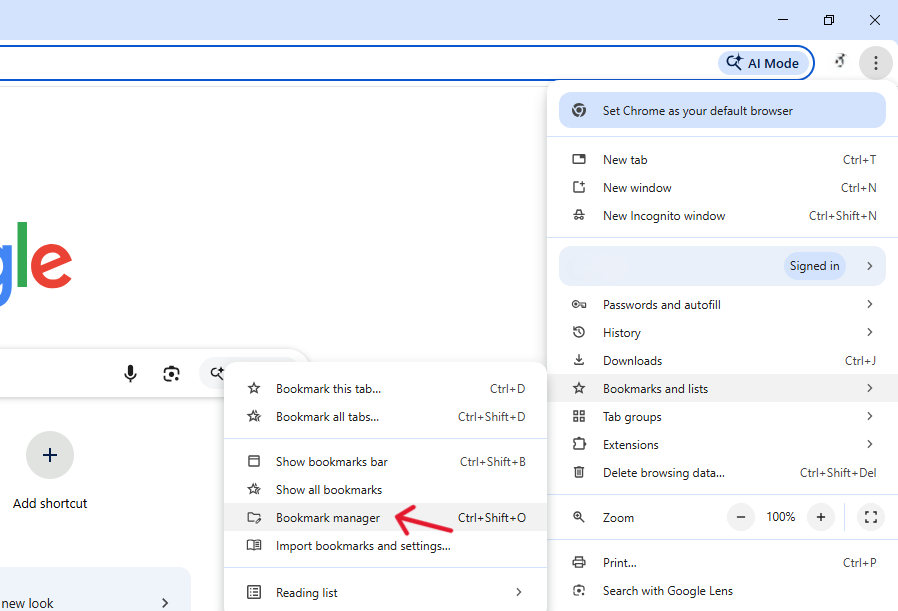
Chrome temporarily stores command history in active memory, which allows instant restoration while the session remains open.
Method 2: Pause Chrome Sync to Recover Bookmarks from Another Device
Chrome Sync spreads deletions rapidly. A Complete Chrome Bookmark Recovery Guide recommends isolating other devices immediately.
Steps:
- Enable Airplane Mode on the secondary device
- Open Chrome without an internet connection
- Export or manually copy bookmarks
- Reconnect after saving the data
This method works well when sync conflicts trigger bookmark loss.
Restore Chrome Bookmarks from Local Backup Files
Locate the Chrome Bookmark Storage Folder
To continue following recover deleted Chrome bookmarks, navigate to:
- Windows 11 / 12
%LocalAppData%\Google\Chrome\User Data\Default - macOS Sonoma / Sequoia
~/Library/Application Support/Google/Chrome/Default
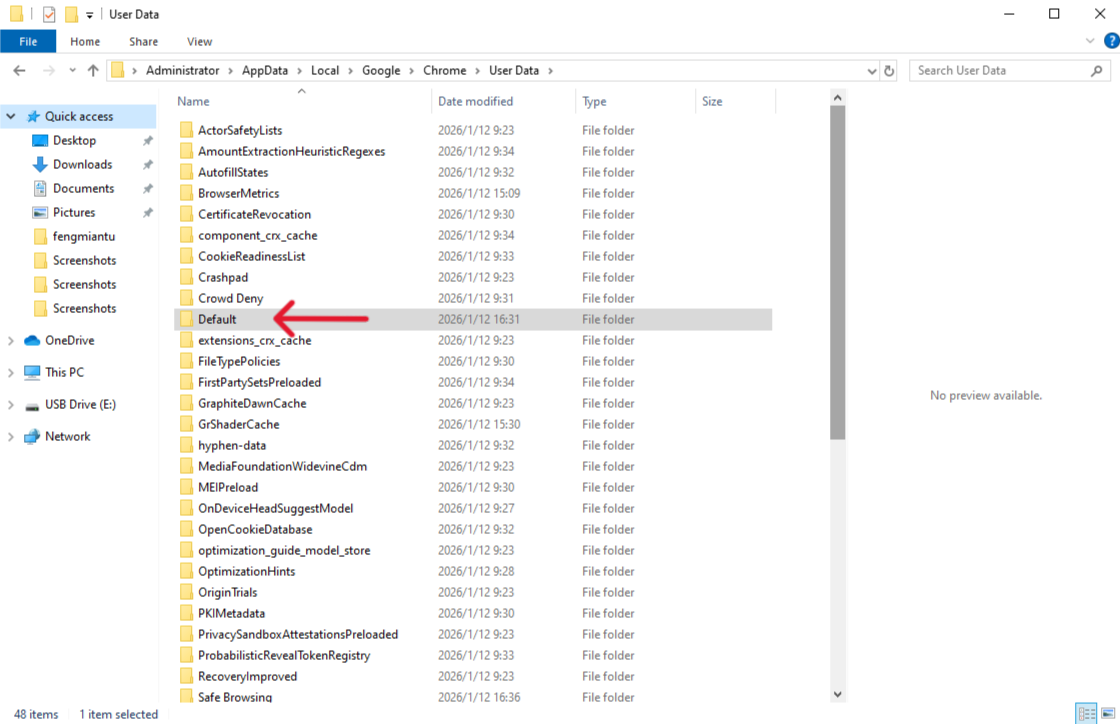
🚨 Note: If you use multiple Chrome profiles, select the appropriate profile folder instead of Default.
Recover Bookmarks Using the Bookmarks.bak File
Chrome automatically generates a backup file named Bookmarks.bak.
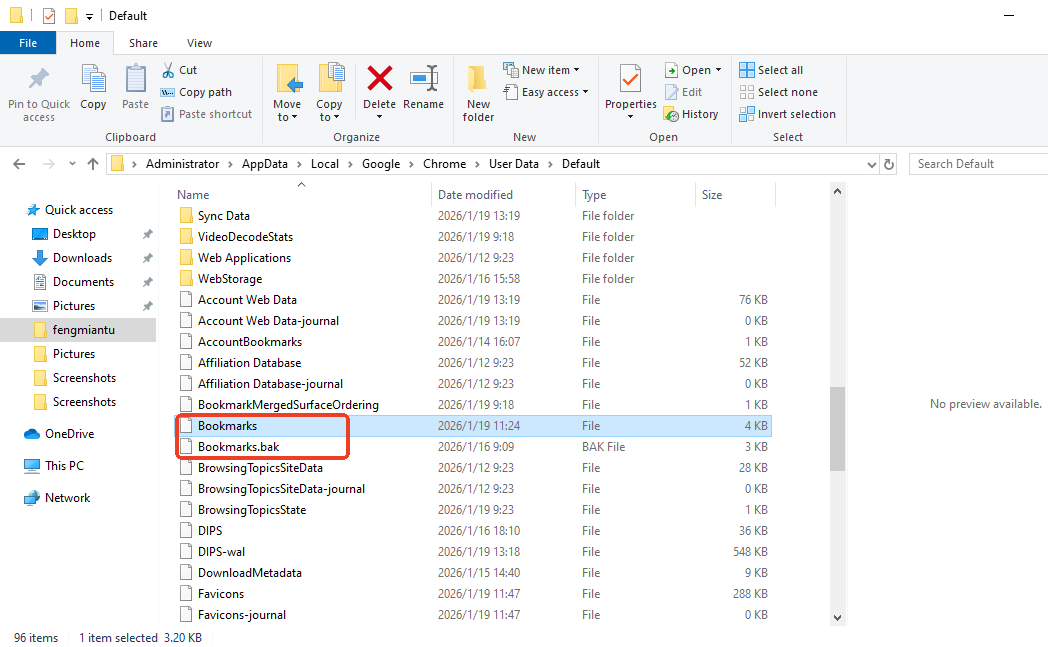
Steps:
- Close Chrome completely and confirm no background processes
- Rename
BookmarkstoBookmarks.old - Rename
Bookmarks.baktoBookmarks - Relaunch Chrome
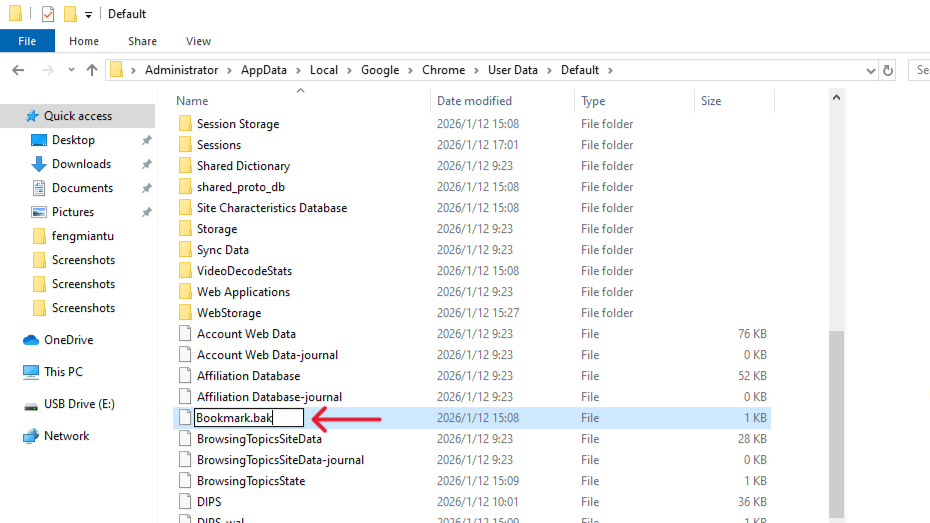
This procedure restores the most recent snapshot and represents a foundational technique in A Complete Chrome Bookmark Recovery Guide.
Using PandaOffice Drecov
When backup files no longer exist or have been overwritten, recovery must move beyond the file system. At this stage, sector-level scanning becomes essential.
Why Use Professional Recovery Tools?
Standard file explorers cannot see “unallocated space.” However, recovery software can identify the unique file signatures of a Chrome JSON database. To effectively retrieve lost data, the tool scans for specific strings of code that define a bookmark entry.
Benefits of the Graphical Approach:
- Versatility: It recovers photos, videos, audio, compressed files (ZIP/RAR), and even system files like EXEs.
- Accidental deletion from your computer desktop.
- Files lost after emptying the Recycle Bin.
- Data loss from disk formatting.
- Accidental deletion or formatting of SD cards/U disks.
- Sync error occurring with deleted OneDrive files
- Privacy First: All recovery happens locally on your machine, so you don’t have to worry about your private data leaking to the web.
🚨 Important Warning: Do not install this on the same drive where the lost files were.
Step 1: Select the Correct Storage Location
Run PandaOffice Drecov from an external USB drive to prevent overwriting system data. Select the system partition where Chrome was installed.
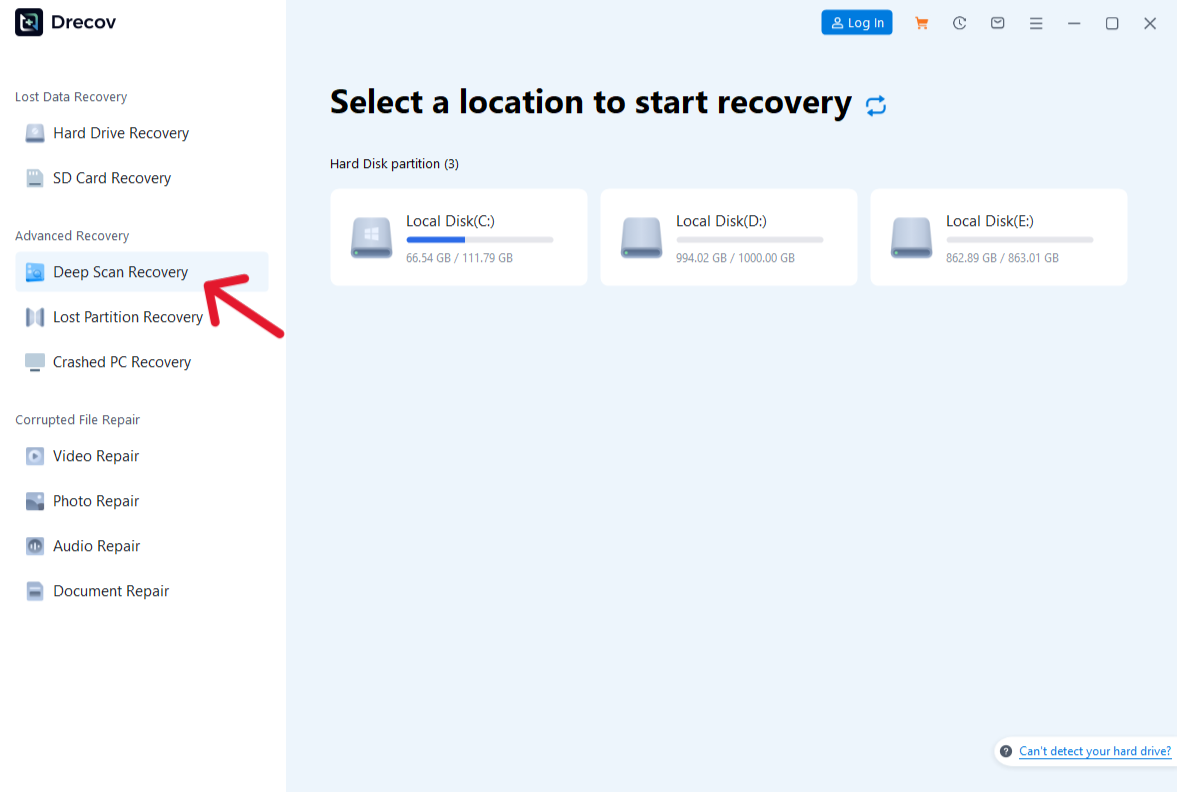
Step 2: Deep Scan for Chrome Bookmark Structures
Enable deep scan mode. PandaOffice DRecov analyzes unallocated disk sectors and identifies Chrome bookmark JSON patterns. Use the keyword filter “Bookmarks” to narrow the scan results.
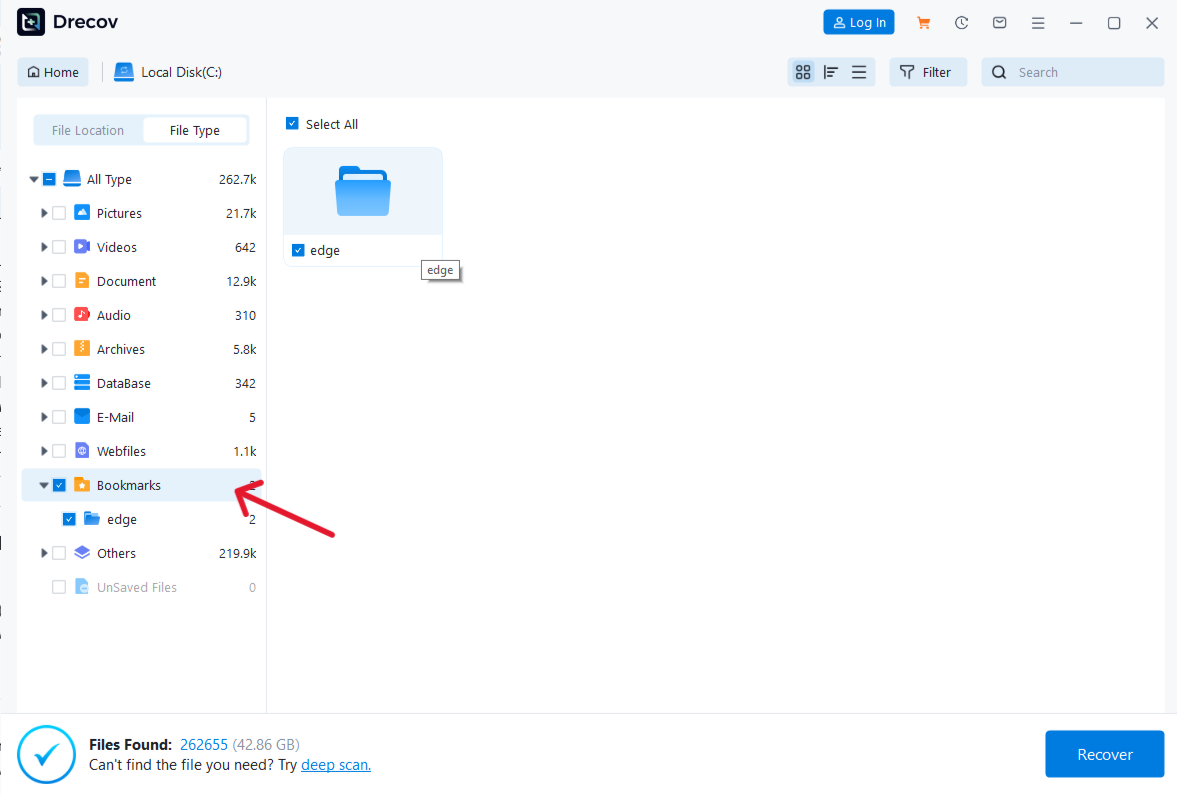
Step 3: Preview and Restore Bookmark Files
Preview files larger than 0 KB to confirm validity. Restore recovered files to an external storage device, then import them back into Chrome.

This three-step process allows users to recover bookmarks even after deletion, crashes, or partial overwrites.
Cloud and Network-Based Recovery Options
Restore Bookmarks Using Google Takeout
Google periodically archives Chrome data.
Steps:
- Open Google Takeout
- Select Chrome data only
- Download and extract the archive
- Import recovered bookmarks into Chrome
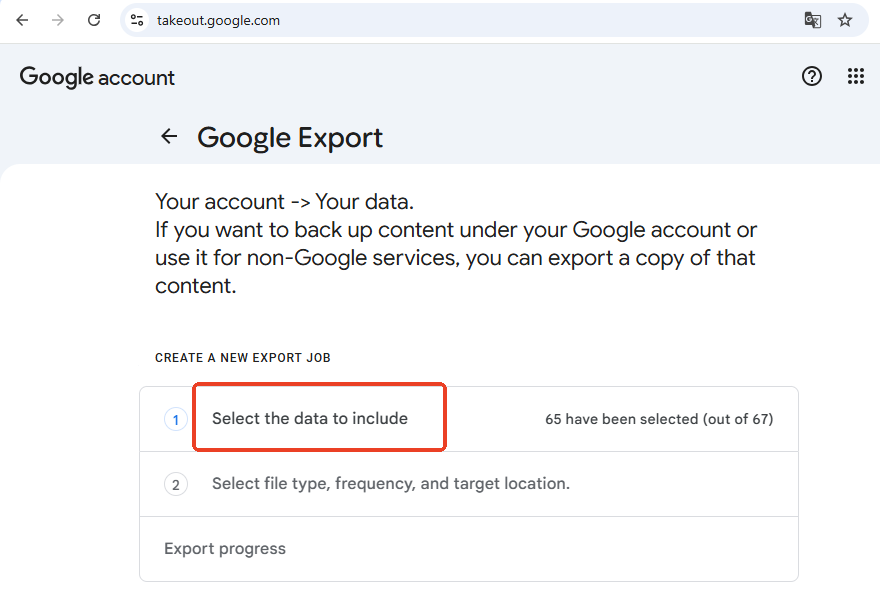
This option works best when deletions occurred recently.
Rebuild Bookmark URLs Using DNS Cache
DNS cache recovery does not restore bookmark files, but it helps reconstruct visited URLs.
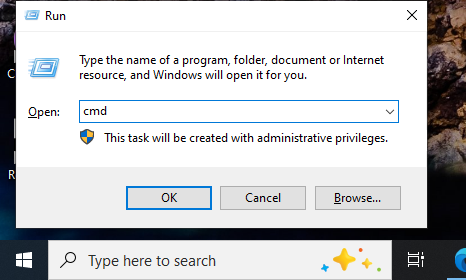
Command (Windows):
ipconfig /displaydns
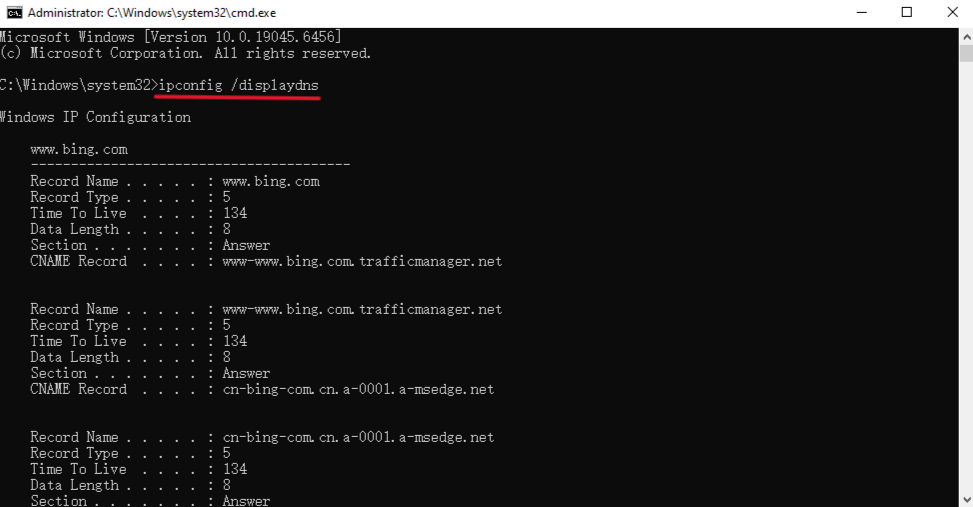
This technique supports manual rebuilding when other recovery methods fail.
Professional Decision Workflow
- Deletion within minutes → Undo action
- Browser closed → Restore from backup file
- Backup overwritten → Sector-level scan
- SSD with TRIM executed → Cloud archive recovery
- No data found → Manual reconstruction
Following this workflow improves recovery success.
How to Prevent Future Bookmark Loss
- Export bookmarks monthly as HTML files
- Store backups in multiple locations
- Use cross-browser bookmark managers
- Enable system restore and version history
Recover deleted Chrome bookmarks FAQs
1. Can I recover bookmarks after reinstalling Windows?
Yes. Reinstalling Windows does not immediately erase all data. If the system drive has not been heavily overwritten and SSD TRIM has not fully executed, deep scan recovery tools can still locate Chrome bookmark database fragments from unallocated disk space.
2. Are Chrome bookmarks permanently stored in the cloud?
No. Chrome Sync does not provide permanent cloud storage. It relies on rolling snapshots that update frequently. Once bookmarks are deleted and sync completes across devices, older versions may no longer be available for restoration.
3. Can I recover bookmarks from a formatted drive?
Yes, in many cases. If the drive was formatted quickly and the original storage sectors remain unoverwritten, sector-level recovery software can scan for and reconstruct Chrome bookmark files.
4. Does Chrome history restore bookmarks?
No, not fully. Chrome history can help identify previously visited URLs, but it cannot restore bookmark folders, names, or organizational structure. History-based recovery requires manual rebuilding.
5. Can mobile Chrome bookmarks be recovered?
Yes. Mobile Chrome bookmarks can be recovered if sync is disabled before the app reconnects to the internet. In some cases, local cache data on the device may still contain bookmark information that can be manually exported or reconstructed.
Conclusion
Bookmark loss feels overwhelming because it disrupts productivity instantly. However, in most situations, the data still exists. By understanding Chrome’s storage behavior and applying the correct recovery sequence, users can restore bookmarks with confidence.
Whether you rely on undo actions, backup restoration, or PandaOffice Drecov’s three-step deep scan, A Complete Chrome Bookmark Recovery Guide provides a reliable path to recovery in 2026.






