







You connect your external hard drive as usual, expecting to access work documents, backup photos, or archived videos. Instead, the drive shows up empty, reports an error, or does not appear at all. Panic sets in quickly, and a familiar question follows: how to recover external hard drive data without causing permanent damage?
External hard drives are widely used because they are convenient, portable, and offer large storage capacity. However, they are also more vulnerable than internal drives. Frequent plugging and unplugging, accidental drops, power interruptions, and improper ejection all increase the risk of data loss. The good news is that in many situations, lost data can still be recovered if you understand the recovery logic and choose the right approach.
This article takes a data recovery science perspective while keeping explanations accessible. You will learn how to recover external hard drive data step by step, understand why recovery works, and discover which methods are safest for different scenarios.
Part 1: How External Hard Drive Data Recovery Works
Why Deleted or Lost Files Are Often Still There
To understand how to recover external hard drive data, it helps to know what happens when files disappear. When you delete files or format an external drive, the operating system typically removes file references rather than erasing the actual data blocks.
A simple analogy is a hotel directory. Removing a guest name from the directory does not immediately empty the room. Until new guests occupy that space, the original contents remain. In data terms, as long as new files do not overwrite the storage sectors, recovery remains possible.
This is why continuing to use an affected external hard drive can significantly reduce recovery success.
Common External Hard Drive Data Loss Scenarios
External drives face both logical and physical risks:
- Accidental file deletion
- Drive formatting or re-partitioning
- File system corruption (RAW drive)
- Unsafe ejection or sudden power loss
- Virus or malware interference
Most users searching how to recover external hard drive are dealing with logical issues, which can often be addressed using software-based solutions.
Part 2: Critical Actions to Take Immediately After Data Loss
Before attempting any recovery method, take these precautions seriously:
- Stop writing new data to the external hard drive
- Do not format the drive, even if prompted
- Avoid running repair tools that modify file systems
- Disconnect the drive safely until recovery begins
These steps preserve recoverable data and significantly improve the success rate of how to recover external hard drive operations.
Part 3: Proven Methods to Recover External Hard Drive Data
The following methods are arranged from simplest to more advanced, helping you choose the most appropriate solution.
Method 1: Verify Connections and Drive Visibility
Sometimes the issue is not data loss but connection failure.
- Step 1: Try a different USB port or cable.
- Step 2: Connect the external hard drive to another computer.
- Step 3: On Windows, press Win + E to open File Explorer and check for hidden or renamed drives.
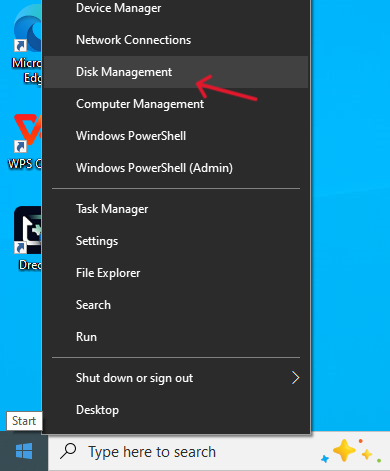
- Step 4: Press Win + X → Disk Management to confirm the drive appears with the correct capacity.
If the drive appears but files are missing, continue to the next method.
Method 2: Recover External Hard Drive Using PandaOffice Drecov (Recommended)
For users asking how to recover external hard drive data safely and thoroughly, professional recovery software offers the highest success rate. PandaOffice Drecov is designed to handle a wide range of external hard drive data loss scenarios.
Key Advantages of PandaOffice Drecov
- Supports deleted, formatted, and RAW external drives
- Read-only scanning protects original data
- Intuitive interface suitable for beginners
- High recovery accuracy for logical data loss
- Versatility: It recovers photos, videos, audio, compressed files (ZIP/RAR), and even system files like EXEs.
- Accidental deletion from your computer desktop.
- Files lost after emptying the Recycle Bin.
- Data loss from disk formatting.
- Accidental deletion or formatting of SD cards/U disks.
- Sync error occurring with deleted OneDrive files
- Privacy First: All recovery happens locally on your machine, so you don’t have to worry about your private data leaking to the web.
Install the software on your internal system drive or a different external storage device. Never install it on the affected drive.
Step-by-Step Recovery Guide
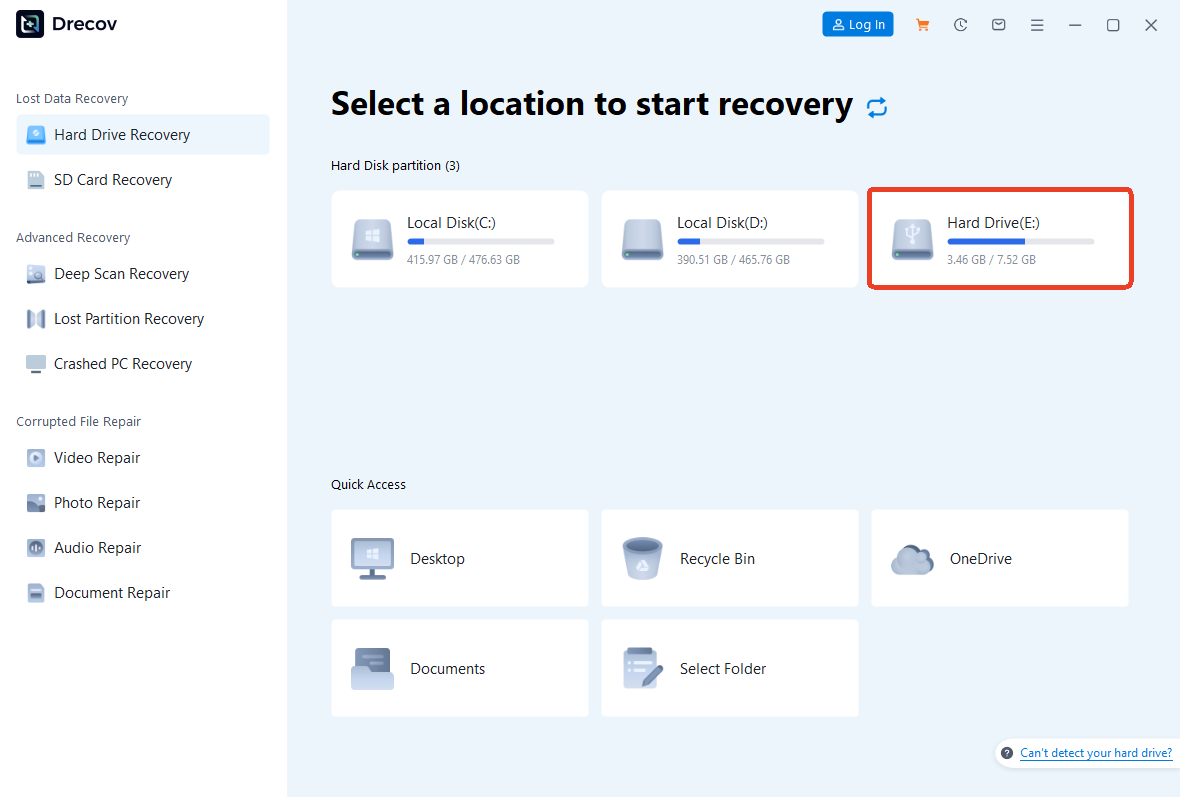
- Step 1: Select the External Hard Drive
- Launch PandaOffice Drecov and choose the correct external drive based on size and label.
- Step 2: Scan the Drive
- Start the scan process. The software performs a quick scan first, followed by a deep scan to locate fragmented files.

- Step 3: Preview and Recover Data
- Preview recoverable files and select those you need. Recover them to a separate storage location.
Warning: Recovering files to the same external hard drive can overwrite remaining data and reduce recovery success.
For most logical data loss cases, this method provides the most reliable answer to how to recover external hard drive data.
Method 3: Recover External Hard Drive Using Recuva
For users looking for a lightweight or free solution, Recuva is a commonly used option. Developed by Piriform, it works best for simple external hard drive recovery scenarios.
When Recuva Works Best
- Recently deleted files on external hard drives
- Minimal file system corruption
- Situations where data has not been overwritten
Step-by-Step Recovery with Recuva
- Step 1: Install Recuva on your internal system drive, not on the affected external hard drive.
- Step 2: Launch Recuva and follow the recovery wizard. Choose specific file types or select All Files.
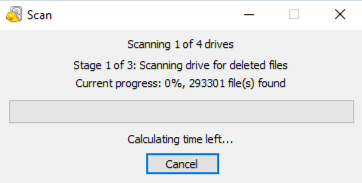
- Step 3: Select the external hard drive as the scan location.
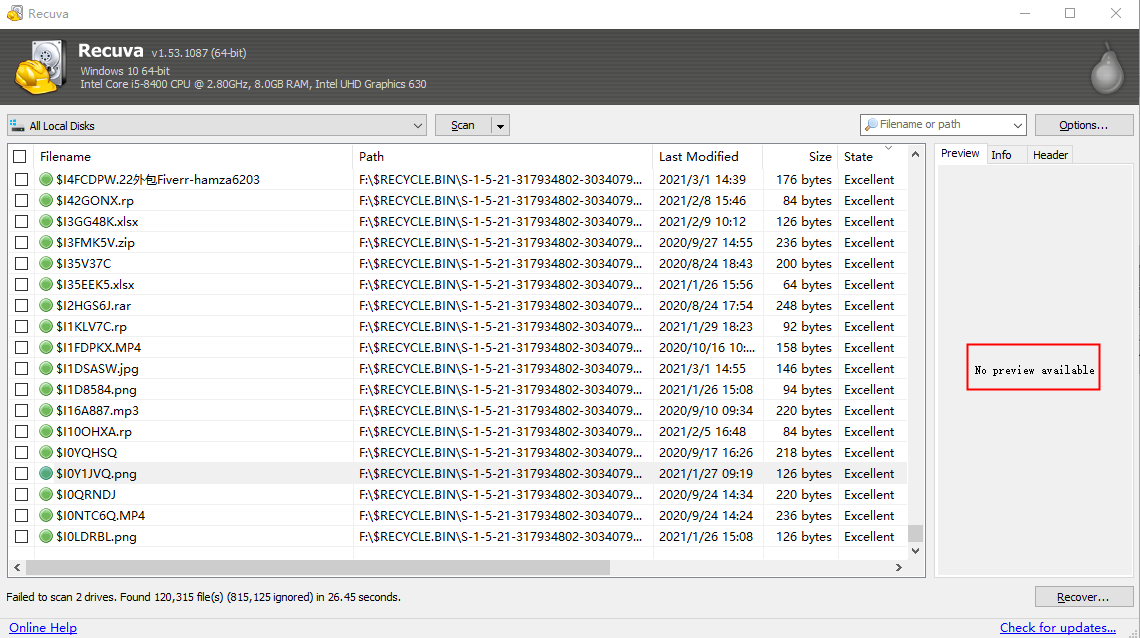
- Step 4: Enable Deep Scan if quick scan results are insufficient.
- Step 5: Recover selected files to a different storage location.
Note: Recuva is suitable for basic recovery tasks but may struggle with formatted or severely corrupted external hard drives.
Method 3: Restore Data from Backups
If you use backups, recovery may already be solved.
Windows File History
- Step 1: Connect your backup drive.
- Step 2: Open Control Panel → File History.
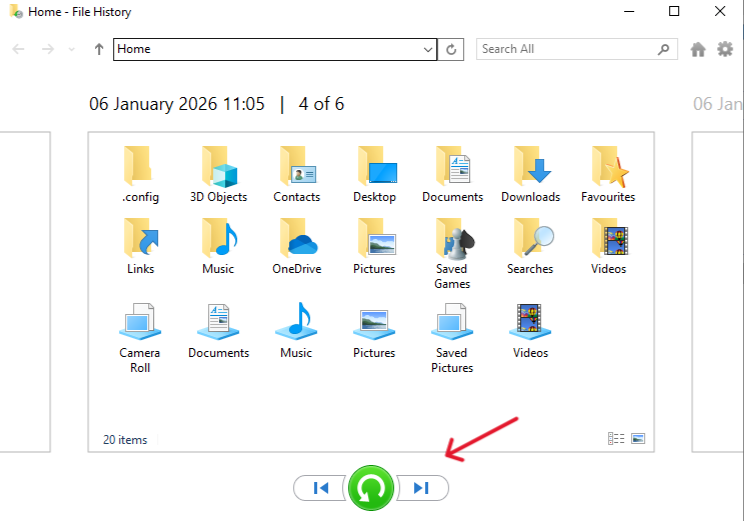
- Step 3: Restore files from a version created before data loss.
macOS Time Machine
- Step 1: Connect the Time Machine disk.
- Step 2: Open Time Machine and browse earlier snapshots.
- Step 3: Restore the required files.
Although simple, backups are often overlooked when users search how to recover external hard drive solutions.
Method 4: Previous Versions and Shadow Copies (Windows)
If System Protection is enabled, Windows may store historical file versions.
- Step 1: Right-click the target folder.
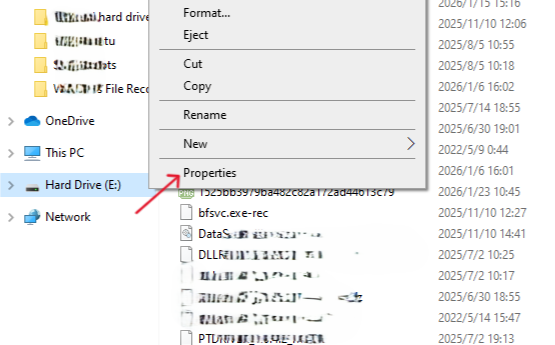
- Step 2: Select Properties → Previous Versions.
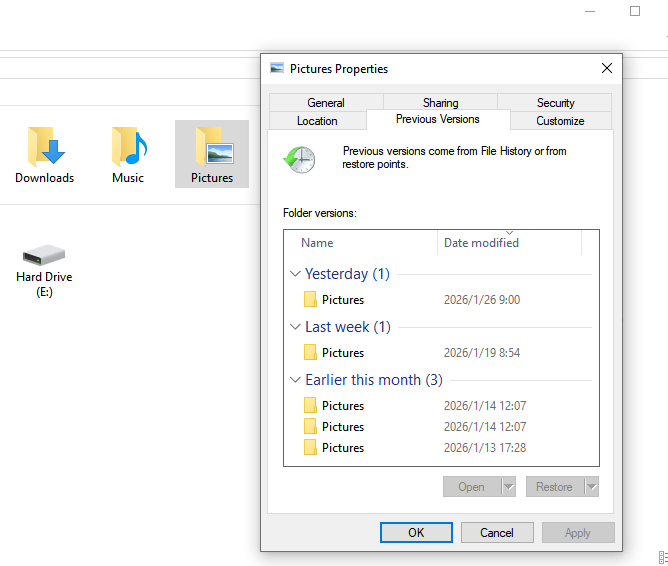
- Step 3: Restore a version dated before the loss.
This method works best for recently changed files rather than fully formatted drives.
Method 5: Professional Data Recovery Services
If the external hard drive clicks, fails to spin, or is not detected, physical damage may be involved. Professional recovery labs use cleanroom environments to repair hardware and extract data.
This option is expensive but sometimes unavoidable for critical data.
Part 4: External Hard Drive Recovery Method Comparison
Recommended Recovery Solutions by Data Loss Scenario
| Data Loss Scenario | Typical Symptoms | Recommended Solution | Why This Works |
|---|---|---|---|
| Accidental file deletion | Files missing but drive accessible | PandaOffice Drecov | Deep scan locates deleted files before overwrite |
| Recently deleted files | Files deleted minutes or hours ago | Recuva | Fast scan effective for simple, recent deletions |
| External hard drive formatted | Drive empty after format | PandaOffice Drecov | Rebuilds file structure after formatting |
| Drive shows as RAW | System asks to format drive | PandaOffice Drecov | Bypasses file system errors to extract data |
| File system errors | Files appear corrupted or unreadable | PandaOffice Drecov | Recovers intact file copies without repairing disk |
| Backup available | Older file versions exist | System Backups | Direct restore with no scanning required |
| Drive not detected | No drive letter or capacity shown | Connection checks / Professional service | May indicate hardware-level issues |
| Clicking or spinning issues | Unusual noises or failure to spin | Professional recovery service | Requires cleanroom hardware repair |
Part 5: Preventing External Hard Drive Data Loss
Preventive habits significantly reduce recovery risks:
- Always eject external drives safely
- Avoid unplugging during read/write operations
- Keep multiple backup copies in different locations
- Periodically check drive health
Exporting Critical Data Regularly
For browser data such as bookmarks:
- Open Chrome Bookmark Manager
- Choose Export bookmarks to save an HTML file
- Store the file on cloud storage or another drive
Prevention reduces the need to search how to recover external hard drive under pressure.
Part 6: Frequently Asked Questions
1.Can I recover data from an external hard drive after formatting?
Yes, formatting usually removes file references rather than erasing data immediately. Recovery software can scan the drive and reconstruct lost files if overwriting is minimal.
2.Why does my external hard drive show as RAW?
A RAW status often indicates file system corruption caused by unsafe removal or power failure. Data recovery software can access underlying data before reformatting.
3.How long does it take to recover an external hard drive?
Recovery time depends on drive capacity, connection speed, and scan depth. Large drives may require several hours.
Conclusion
Data loss from an external hard drive can feel overwhelming, but it is rarely hopeless. By understanding recovery principles and choosing appropriate methods, you can significantly improve success rates. For most logical failures, PandaOffice Drecov offers a practical and user-friendly solution.
When facing data loss, stay calm, protect the affected drive, and apply the recovery method that best fits your situation. Knowing how to recover external hard drive data empowers you to act decisively rather than react emotionally.






