







The Myth of the Permanent Void
Imagine you are finishing a massive project at 2 AM. In a rush to clear disk space, you delete some temporary folders and confidently click “Empty Recycle Bin.” Two seconds later, you realize you accidentally included the master project file. You check the bin, but it is a clean slate. You might think this is a digital dead end, but the truth is far more optimistic. Learning how to Recover Files from Emptied Recycle Bin is a specialized skill that bridges the gap between accidental loss and data restoration.
In the eyes of a standard user, those files are in a digital black hole. However, for an IT professional, those files are simply “unlisted.” This guide explores why “permanent” isn’t actually forever and how you can reclaim your lost work.
Part 1: How Windows Marks Data for Deletion
The reason experts can figure out how to recover files from emptied recycle bin is that “deleting” is mostly a cosmetic change to the system’s database. Your operating system is designed for speed, and physical erasure is a slow process.
The Master File Table (MFT)
Windows uses a system called the Master File Table. Think of this as the “Index” of a massive library. When you save a file, the MFT records its name, size, and exactly where it sits on the hardware. When you empty the Recycle Bin, the OS performs a “logical deletion.” It doesn’t wipe the data; it simply changes the file’s status in the MFT from “Occupied” to “Free Space.”
The Persistence of Magnetic and Electronic States
The actual data—the bits and bytes—remains physically etched on your drive. It stays there in a ghostly state. The computer only overwrites these “free” blocks when it absolutely needs space for a new file. As long as you don’t download a heavy 4K movie or install a new game right after the accident, your file is likely still sitting exactly where you left it.
Part 2: Top Recovery Strategies for Every User
When you need to Recover Files from Emptied Recycle Bin, you should approach the problem in layers, starting with the most modern cloud features and moving toward deep-sector scanning.
Method 1: Check Your Cloud Sync (OneDrive/Google Drive)
Most modern Windows systems automatically sync folders to the cloud. Even if you emptied your local bin, the cloud often keeps a separate “secondary” bin.
- Step 1: Open your web browser and log in to your OneDrive or Google Drive account.
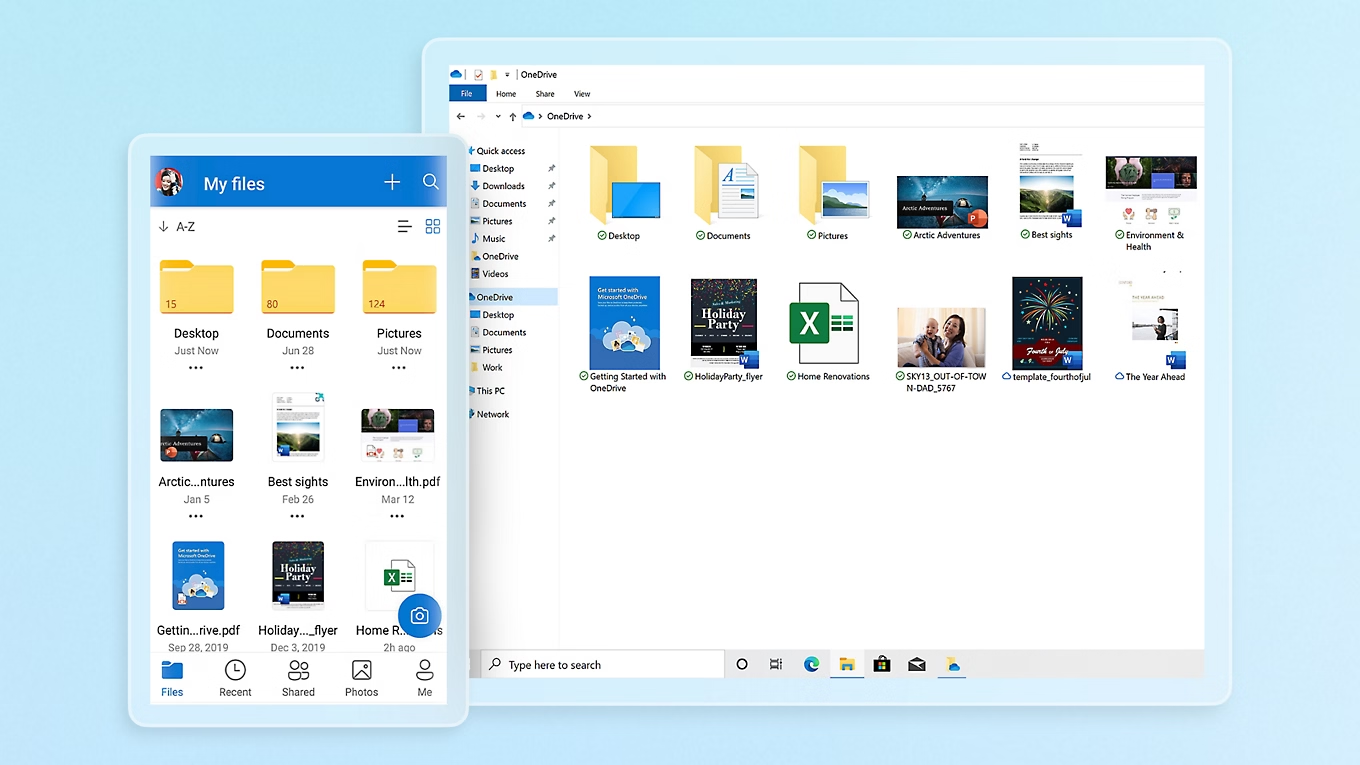
- Step 2: Look for the Recycle Bin or Trash icon on the left-hand menu of the web interface.
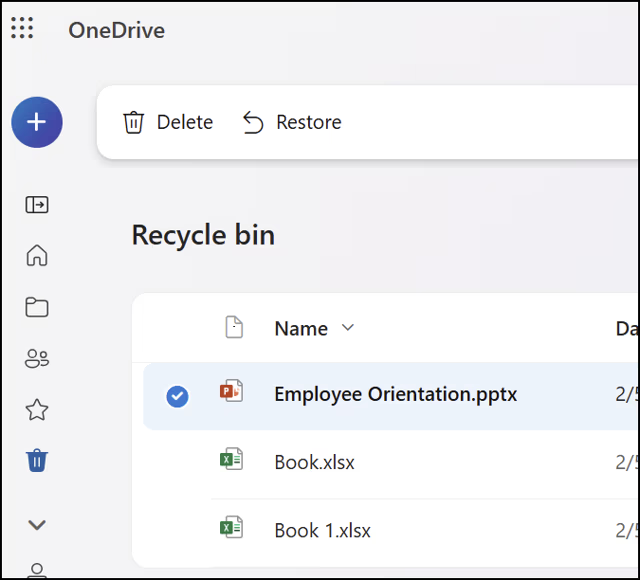
- Step 3: Often, cloud services hold deleted files for 30 days regardless of what you do on your local PC.
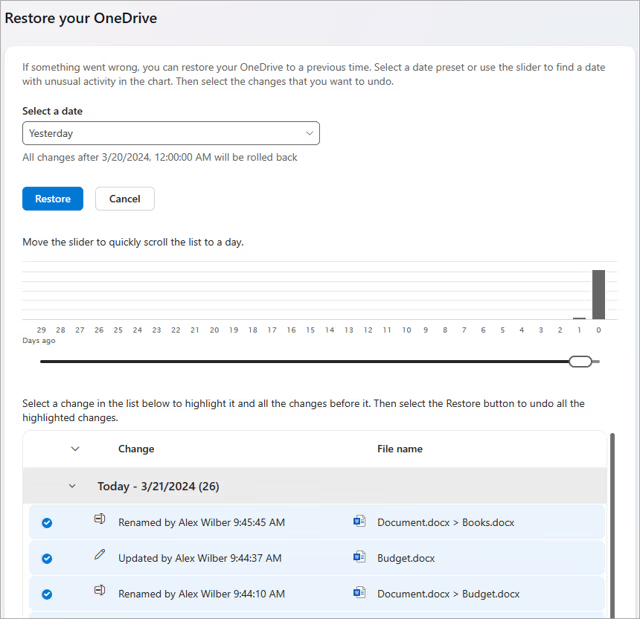
- Step 4: If you find the file, select it and click Restore. It will automatically download back to your computer.
💡 Beginner Alert: Do not rely on the folder icon on your desktop; go directly to the website version (e.g., onedrive.live.com) to see the most accurate “cloud trash.”
Method 2: Professional Deep Scanning with PandaOffice Drecov
If the cloud didn’t save you, PandaOffice Drecov is the most reliable secondary defense. It is designed to scan the “unallocated space” that Windows no longer tracks.
Why is PandaOffice Drecov Highly Recommended?
This software is a favorite among IT professionals, maintaining strong reputations on Trustpilot and collaborating with industry leaders like the Microsoft Store, TechBullion, and Sourceforge. It serves as a comprehensive “safety net,” capable of retrieving everything from accidentally deleted desktop files to formatted SD cards.
- Versatility: It recovers photos, videos, audio, compressed files (ZIP/RAR), and even system files like EXEs.
- Accidental deletion from your computer desktop.
- Files lost after emptying the Recycle Bin.
- Data loss from disk formatting.
- Accidental deletion or formatting of SD cards/U disks.
- Simple for Beginners: You don’t need to know a single line of code. It’s a “point-and-click” experience.
- File Repair: It can often fix files that are “corrupted” or “unreadable” during the recovery process.
- Privacy First: All recovery happens locally on your machine, so you don’t have to worry about your private data leaking to the web.
🚨 Important Warning: Do not install this on the same drive where the lost files were. Use an external USB drive to keep the data safe from being overwritten.
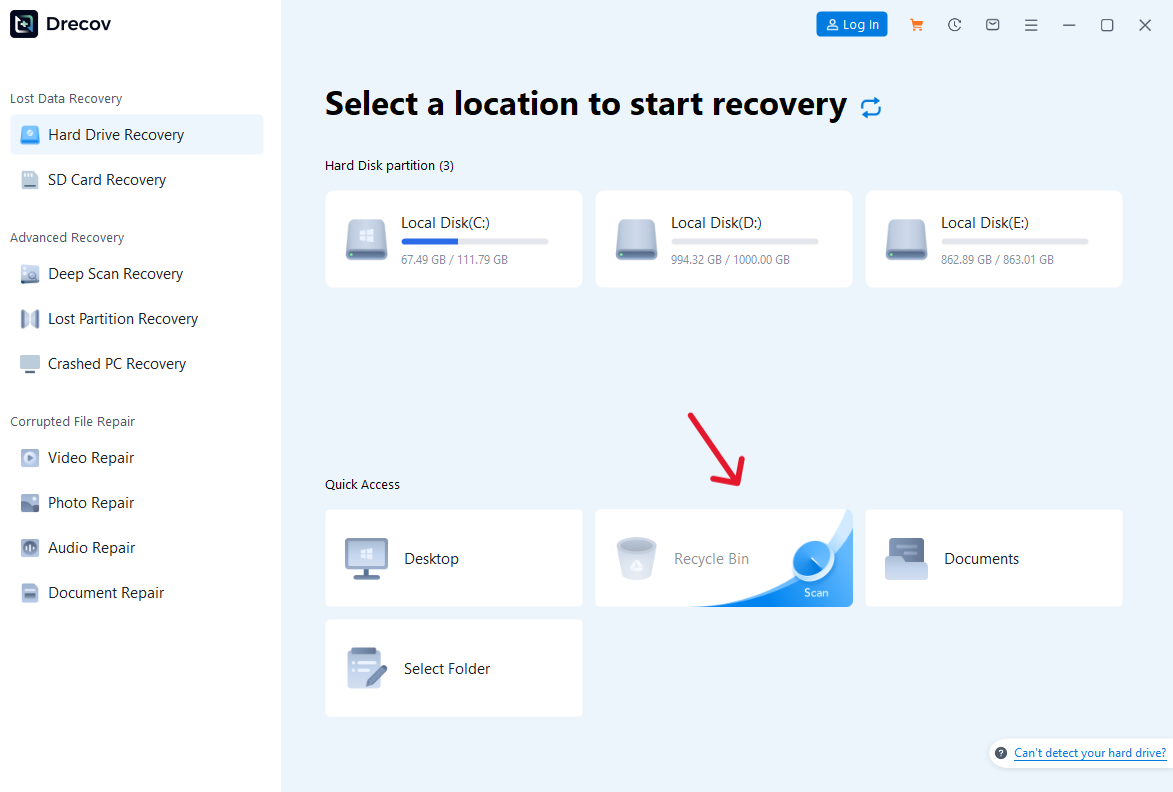
- Step 1: Open the software and choose the Recycle Bin recovery mode from the main screen. This tells the tool to prioritize the “C: Recycle.Bin” directory headers.
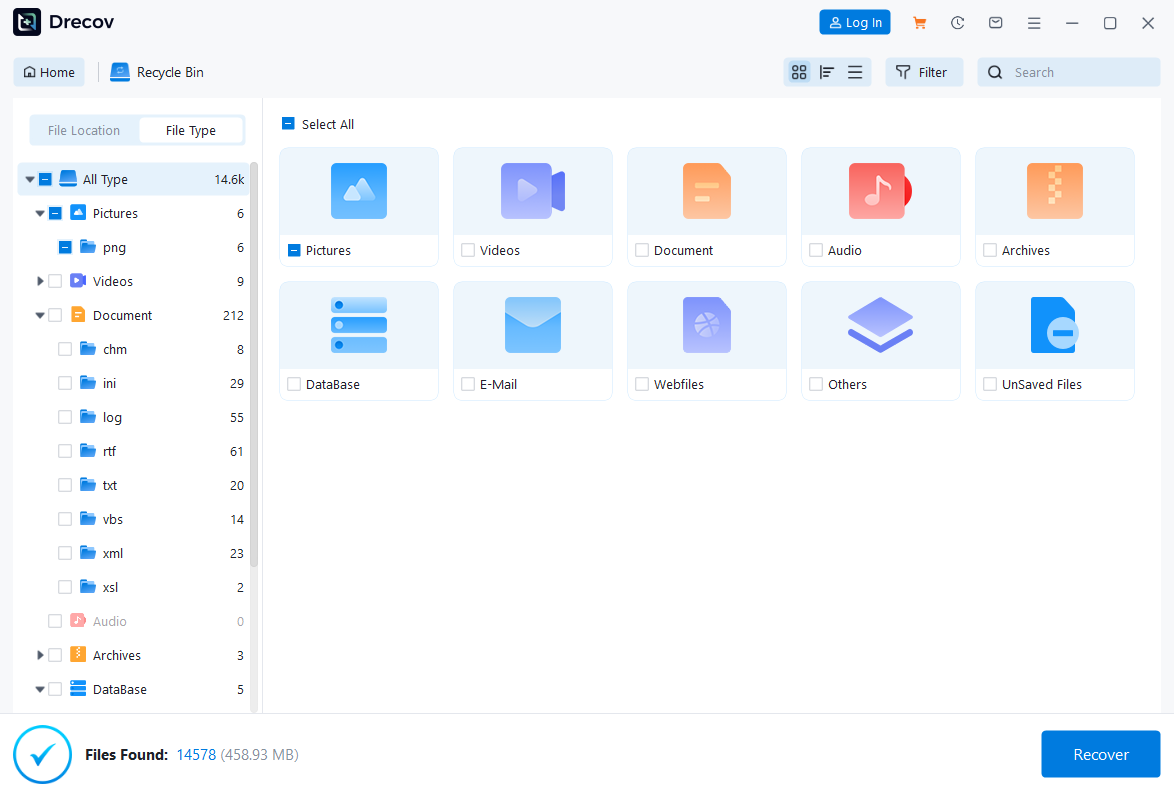
- Step 2: Click Scan. The software will perform a signature-based search, looking for file patterns (like the “JFIF” header of a JPEG or the “PK” header of a Word doc).Once the scan finishes, use the “Filter” or “Search” tool to find your specific file.
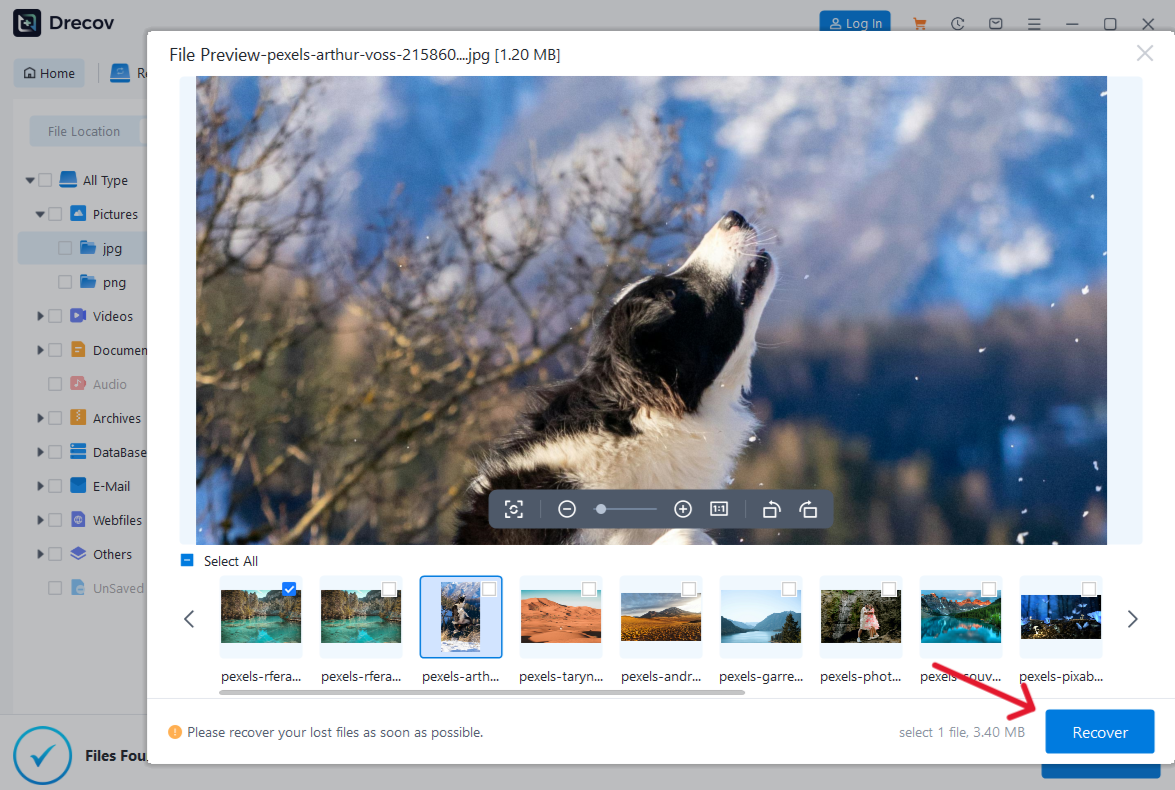
- Step 3: Preview the file to ensure it isn’t corrupted. If the preview looks good, click Recover and save it to an external device.
Method 3: Restoring from a System Image
If you are someone who performs regular system backups, you can roll back the entire state of your drive.
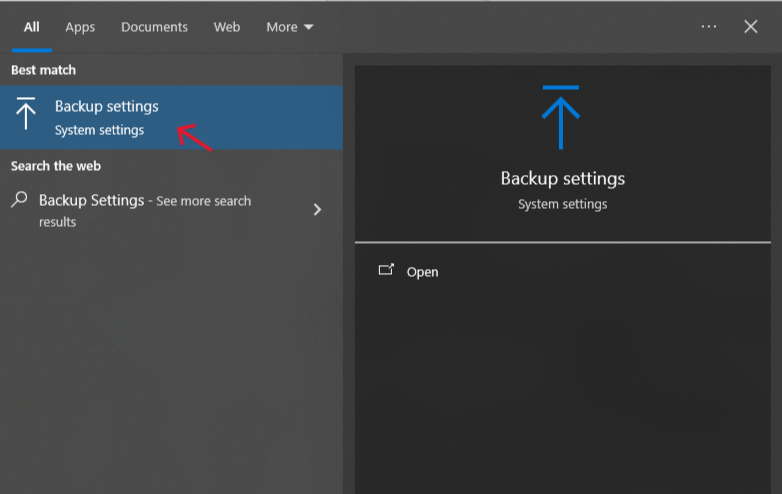
- Step 1: Go to the Start menu and type Backup Settings.
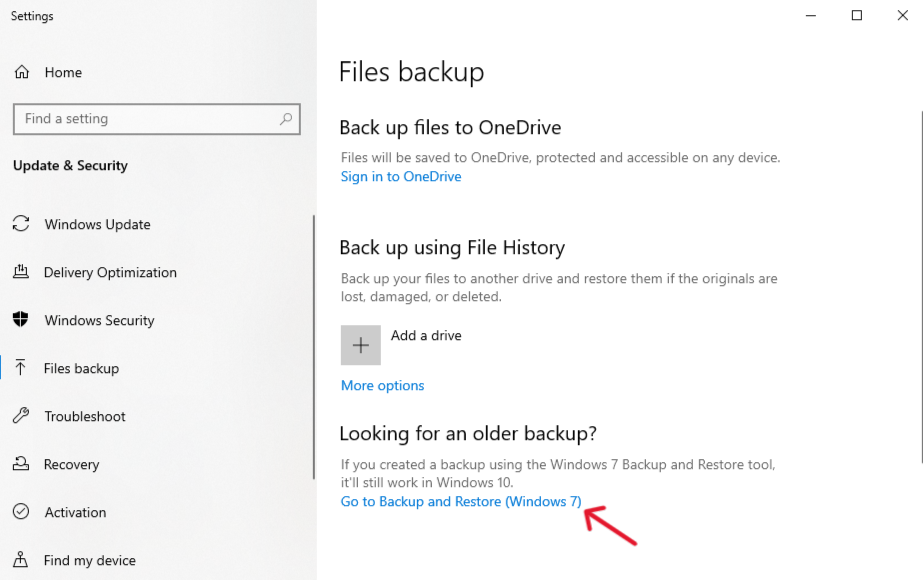
- Step 2: Click on Go to Backup and Restore (Windows 7)—even on Windows 11, this is the name of the tool.
- Step 3: Choose Select another backup to restore files from.
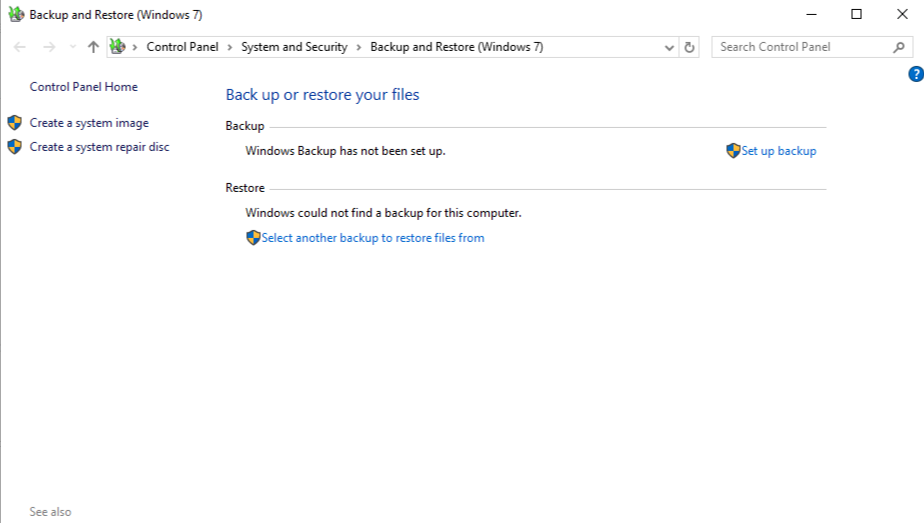
- Step 4: Select the backup created before the deletion and follow the wizard to extract your missing data.
FAQs: Common Questions About Advanced Recovery
Does it matter if I have an HDD or an SSD?
Yes. On an HDD (Hard Disk Drive), files stay until overwritten. On an SSD, a process called TRIM clears “free” blocks periodically. If you have an SSD, you must use PandaOffice Drecov immediately before the TRIM command triggers.
Can I recover files if the Recycle Bin was emptied a month ago?
This depends entirely on your computer usage over that period. If you have used the PC daily for heavy tasks like downloading movies or installing games, the system has likely overwritten the old data. However, if the computer sat idle or you only performed light web browsing, the “invisible” files might still exist. You should run a Deep Scan with PandaOffice Drecov immediately to see what fragments remain, as there is often a surprising amount of data left in the “slack space” of the drive.
Does a “System Restore” bring back my deleted photos?
No, and this is a common trap for many users. System Restore specifically targets system files, registry settings, and hardware drivers to fix software glitches. It does not monitor or “back up” your personal documents, images, or videos. Consequently, performing a System Restore will not help you Recover Files from Emptied Recycle Bin and might actually make things worse by writing new system data over the very files you are trying to save.
What should I do if my computer won’t boot, but I need to recover deleted files from its bin?
This is a tricky situation, but you can still succeed by removing the hard drive and connecting it to another working computer as an external disk. Once you connect the drive via a USB adapter, you can launch PandaOffice Drecov on the healthy computer and select the “External Drive” to scan. This approach is actually safer because it prevents the broken computer’s operating system from writing any new data to the disk during the recovery process.
Is it possible to recover files that were too large for the Recycle Bin and got deleted immediately?
Yes, it is. When you delete a massive file that exceeds the bin’s capacity, Windows simply skips the “trash” stage and marks the space as available right away. Essentially, the system treats these files exactly like those from an emptied bin. Since the physical data still sits on the drive, you can use the same recovery steps outlined in Method 2 of this guide to locate and restore them.
Conclusion: Data is Resilient
The ultimate takeaway for anyone trying to Recover Files from Emptied Recycle Bin is that your computer is designed to be efficient, not destructive. Because it avoids the work of physical erasure, it leaves a window of opportunity for you to rescue your files. By acting quickly and using professional tools like PandaOffice Drecov, you can bypass the “empty” status of your Recycle Bin and bring your data back to life.






