







The Panic Moment: When Your Precious Memories Vanish
It happens to the best of us. When dealing with Free SD Memory Card Data Recovery, you might be excitedly reviewing photos from a recent trip or preparing to back up a client’s important project files stored on your SD memory card. Suddenly, the card errors out, or you realize you’ve accidentally hit the “Format” button instead of “Delete” on a single photo. The screen displays the dreadful message: “Card cannot be accessed,” or worse, “The drive needs to be formatted before you can use it.” A wave of panic sets in as you realize all those irreplaceable moments—the baby’s first steps, the only copy of that presentation, or the entire wedding shoot—seem to have vanished into the digital abyss.
Before you resign yourself to the loss or pay hundreds of dollars to a professional service, take a deep breath. In most cases, the data is still physically present on the card; it’s just the link to the file that has been deleted. With the right tools and a careful, methodical approach, free SD memory card data recovery is often achievable. This guide is your roadmap to getting those files back, step-by-step.
Essential First Steps Before Any Recovery
Your immediate actions are critical and can significantly impact the success of your recovery efforts. Stop using the SD card immediately! Do not take new photos, save new files, or attempt to format it. New data writing over the old, lost data is the primary cause of permanent data loss.
Core Precautions and Safety Tips
- Eject Safely: Always use the “Safely Remove Hardware” option on your computer before physically disconnecting the card. Abrupt removal can corrupt the file system.
- The Write Protection Switch: Check the small physical switch on the side of the SD card adapter. Ensure it is in the “unlocked” position if you plan to save recovered data to a different location.
Never save recovered files back onto the same card!
- Use a Reliable Card Reader: Avoid using the camera itself to connect to the computer, as some cameras may perform unexpected operations. Use a high-quality, external USB card reader for the recovery process.
Method 1: The Simple, Built-in OS Tricks
Sometimes, the “loss” isn’t a corruption but a simple system error or a file attribute change. This is the fastest and easiest path to free SD memory card data recovery.
1. Check Hidden Files
This is particularly useful if your files appear to be missing after the card was used on an infected computer.
- Sept 1: Connect your SD card using a card reader. Note the drive letter (e.g., F:).
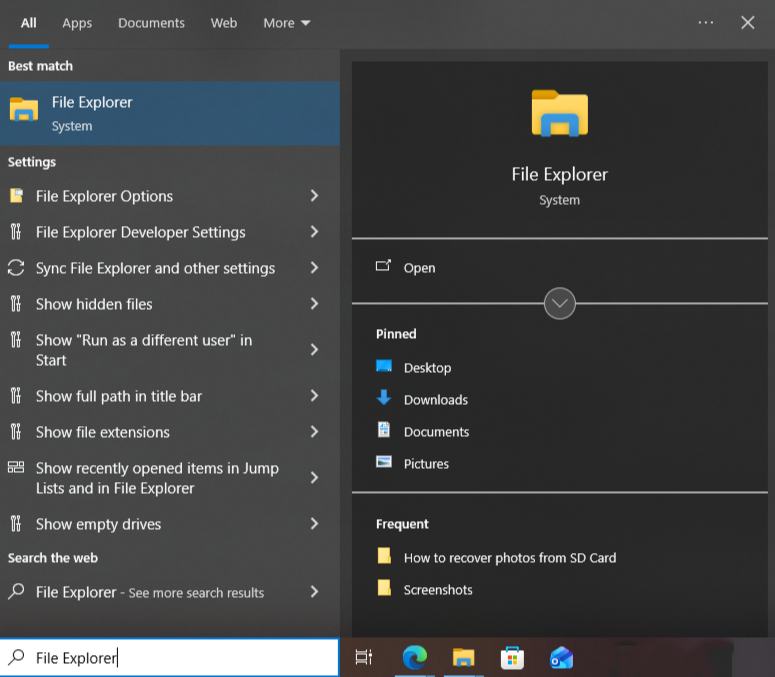
- Sept 2: Open File Explorer and navigate to your SD card drive.
- Sept 3: Click on the “View” tab at the top of the window.
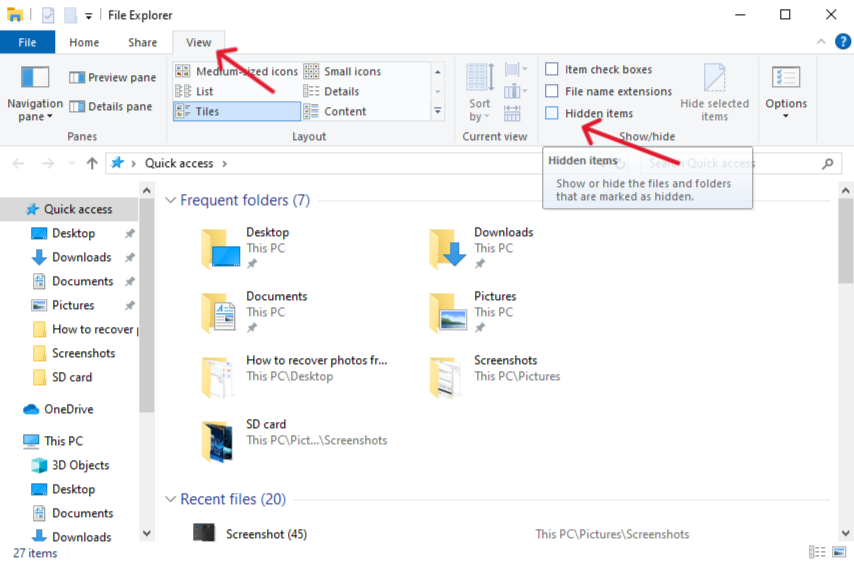
- Sept 4: Look for the “Show/hide” group and check the box next to “Hidden items.”
- Sept 5: If your files were only hidden, they will now appear, possibly in a new folder. Crucially, copy them immediately to your computer’s local drive.
2. Check and Assign a Drive Letter
If your computer detects the card but doesn’t show the drive letter in File Explorer, it can prevent access.
- Sept 1: Press the Windows key + X and select “Disk Management” from the menu.
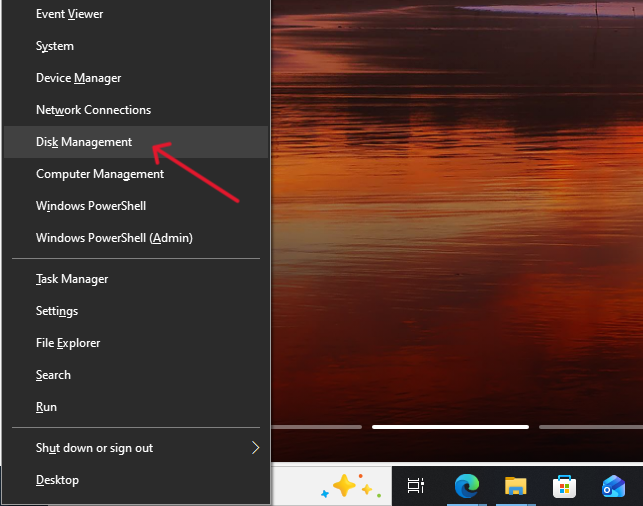
- Sept 2: Locate your SD card (it will typically be listed as “Removable” and show its correct size).
- Sept 3: Right-click on the volume that represents your SD card.
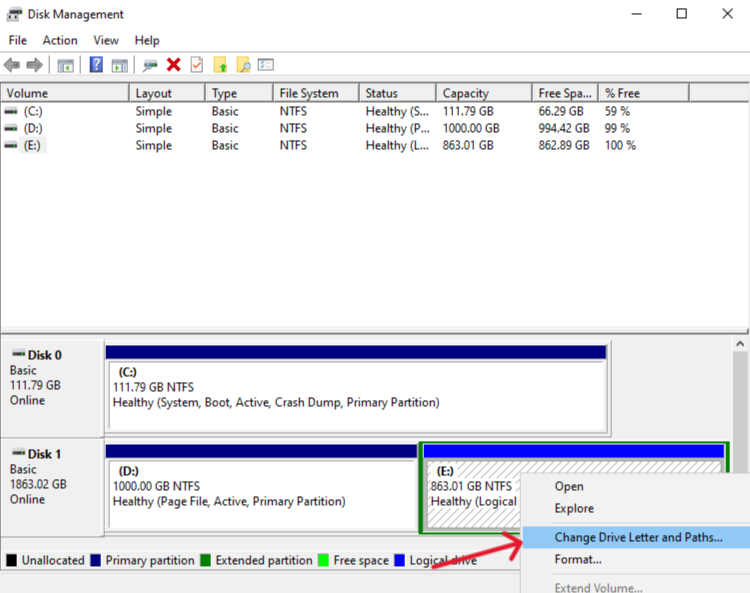
- Sept 4: Select “Change Drive Letter and Paths…”
- Sept 5: Click “Add” (or “Change” if a letter is already assigned) and choose a new, unused drive letter (e.g., G). Click “OK.” Check File Explorer to see if the files are accessible.
Method 2: Professional Recovery
When simple tricks fail, dedicated free SD memory card data recovery software is the next logical step. PandaOffice Drecov is a reliable option known for its user-friendly interface and deep scanning capabilities.
Note: Always download recovery software from the official vendor’s website to avoid malware. The free version typically allows you to scan and preview files.
Procedure for PandaOffice Drecov
- Sept 1: Download and install the PandaOffice Drecov software onto your computer’s local drive (e.g., C:). Do not install it on the SD card!
- Sept 2: Launch the PandaOffice Drecov application. You will be prompted to select the type of files you wish to recover (e.g., Photos, Documents, All File Types). Selecting specific types can speed up the scan.

- Sept 3: The software will display all recognized drives. Carefully select your SD memory card (verify the drive letter and size).
- Sept 4 : Click the “Scan” button. The software will perform a Quick Scan initially. If this fails to find your files, proceed to the “Deep Scan” option, which will take significantly longer but is far more thorough.
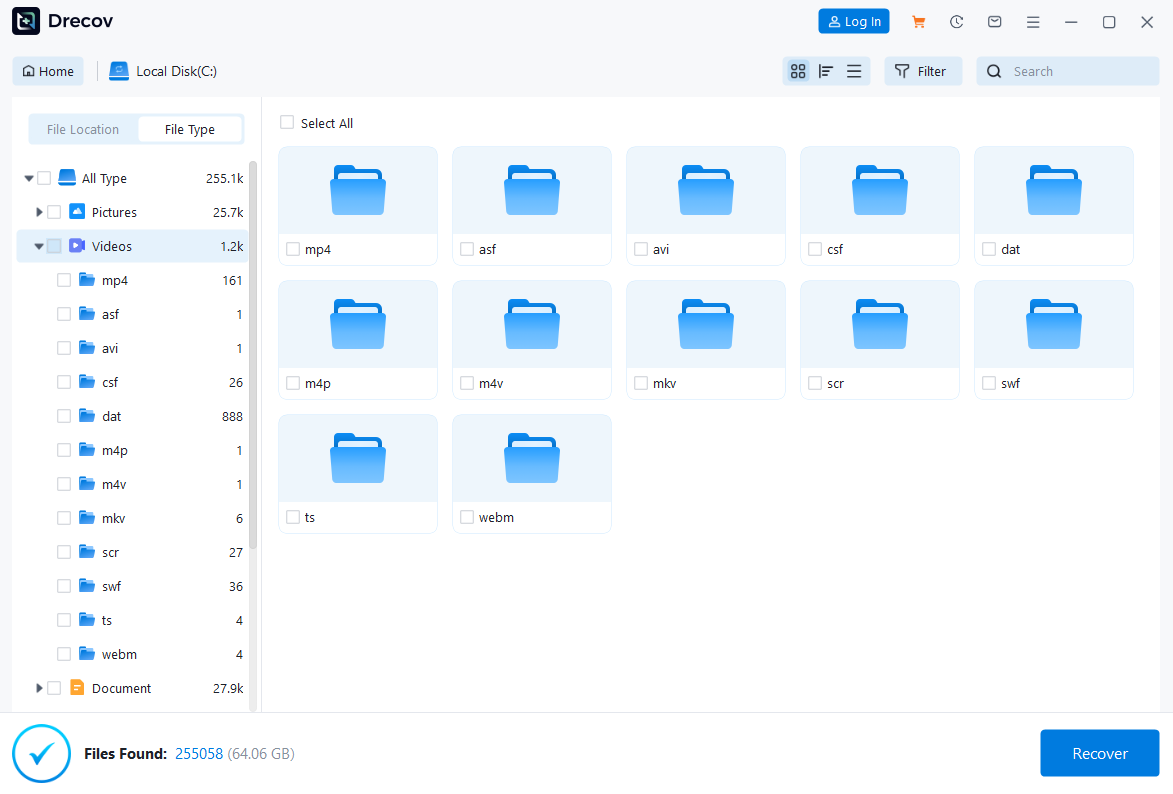
- Sept 5: Once the scan is complete, the recovered files will be organized in a tree structure. Use the preview function to verify the integrity of the files (especially photos and videos).

- Sept 6: Select the files you wish to restore. Click the “Recover” button.
🛑 This is the most crucial step: When prompted to select a destination, choose a location on your computer’s hard drive or an external storage device. Never select the SD card itself!
Method 3: Utilizing the Command Prompt
The Check Disk utility (chkdsk) is a powerful, built-in Windows tool that can repair minor logical errors and bad sectors on a drive, sometimes making data accessible again without needing third-party software for the initial access. This is a purely free SD memory card data recovery method.
Running chkdsk
- Sept 1: Connect the SD card and confirm its drive letter (e.g., F:).
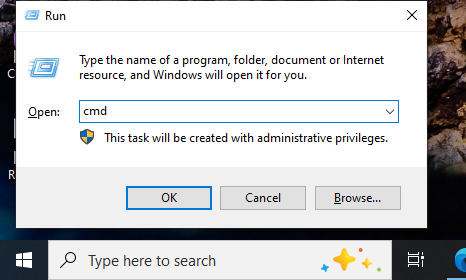
- Sept 2: Press the Windows key + R to open the Run dialog. Type
cmdand press Ctrl + Shift + Enter to open the Command Prompt as Administrator.
- Sept 3: At the Command Prompt, type the following command, replacing F: with the correct drive letter for your SD card: \text{chkdsk F: /f /r}
/ftells chkdsk to fix errors on the disk./rtells chkdsk to locate bad sectors and recover readable information.
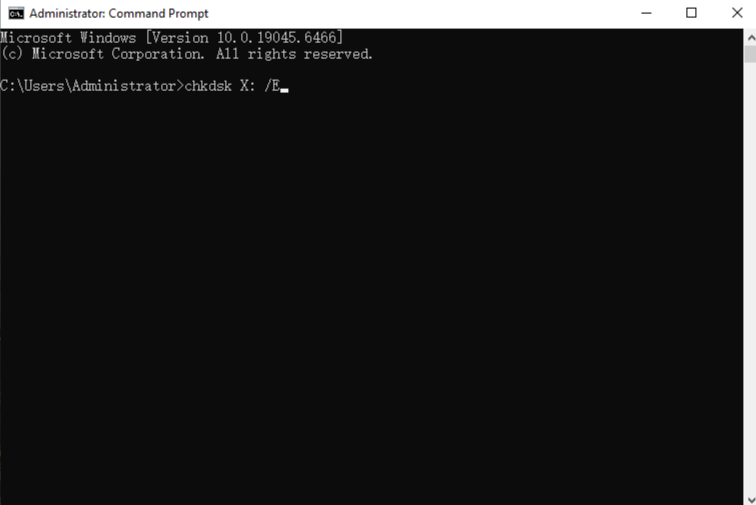
- Sept 4: Press Enter. The process may take a while, depending on the card size and corruption level.
- Sept 5: After the process completes, try accessing your SD card in File Explorer. If successful, immediately copy all files to a secure location on your computer.
Warning: While chkdsk is helpful, it attempts to “fix” the file system. In rare cases of severe corruption, this fix might inadvertently alter or delete the file system structure. Always attempt recovery software first if the card is completely inaccessible.
❓ SD Card Data Recovery Frequently Asked Questions
1. Can I recover data after formatting an SD card?
Yes, absolutely. Quick formatting only erases the file allocation table (FAT), making the data inaccessible but leaving the files largely intact. Recovery software like pandaoffice drecov can scan the sectors directly to reconstruct the files. Full formatting, however, overwrites all sectors, making recovery much more difficult, though not impossible, with specialized tools. Always treat formatted data as recoverable until proven otherwise.
2. Is free data recovery software safe to use?
Most reputable free SD memory card data recovery tools (like the free version of those from well-known vendors) are safe. However, you must download them only from the official developer’s website to ensure you are not installing bundled malware or a cracked version that could further damage your data. Never save the recovered files back onto the same SD card.
3. What does “Write-Protected” mean, and how does it affect recovery?
The write-protect switch on the SD card adapter is a physical lock. When engaged, it prevents new data from being written to the card. This is actually a good thing for recovery, as it prevents accidental overwriting. However, the switch does not prevent recovery software from reading the data. You should ensure it’s unlocked only if you need to use the card again after recovery and safe storage of your files.
4. Why are my recovered photos corrupted or only partially restored?
This usually means that part of the file has been overwritten by new data before you initiated the recovery process (e.g., if you continued to use the card). When a file is recovered, the software attempts to stitch together all its fragments. If one or more fragments were overwritten, the recovered file will be corrupted, showing as a partial image or an unplayable video. Immediate action after data loss is key to preventing this.
5. My computer doesn’t recognize the SD card at all. What can I do?
If the card is completely undetectable by your operating system, Disk Management, and even recovery software, it suggests a severe physical failure (e.g., controller chip failure, power issue). At this point, software recovery methods will not work, and your only option is to consult a professional cleanroom data recovery service. This is the one scenario where free SD memory card data recovery is not possible.
Conclusion
Losing data from an SD memory card is stressful, but it’s rarely a death sentence for your files. The cornerstone of a successful free SD memory card data recovery is speed and precaution.
- Prioritize Safety: Stop using the card the moment you realize the data is missing.
- Start Simple: Always try the basic OS tricks (like checking hidden files or drive letters) first.
- Utilize Powerful Tools: When simple methods fail, confidently use dedicated software like pandaoffice drecov for deep, sector-level scanning.
- Confirm Destination: Always recover files to a separate storage location to avoid overwriting the very data you are trying to save.
By following these structured steps, you greatly increase the probability of successfully retrieving your precious photos, videos, and documents, turning a moment of panic into a successful data rescue mission.






