







Losing important files from an external hard drive is one of the most stressful experiences for computer users. Whether it’s a folder of work documents, cherished photos, or crucial project backups, encountering accidental deletions, drive formatting, or a RAW drive state can make anyone panic. You may wonder: how do I recover files from an external hard drive safely and effectively?
Two widely discussed tools in this space are PandaOffice Drecov and Recuva. Both promise to restore lost data, yet their capabilities, ease of use, and success rates differ. This article provides a thorough brand comparison, helping users evaluate features, practical scenarios, user experience, and cost considerations to make an informed choice.
By the end, you will understand which tool aligns best with your needs, whether you face simple file deletions or complex recovery situations.
Part 1: Recover files from an external hard drive by Both Tools
1.PandaOffice Drecov
Key Advantages of PandaOffice Drecov
- Supports deleted, formatted, and RAW external drives
- Read-only scanning protects original data
- Intuitive interface suitable for beginners
- High recovery accuracy for logical data loss
- Versatility: It recovers photos, videos, audio, compressed files (ZIP/RAR), and even system files like EXEs.
- Accidental deletion from your computer desktop.
- Files lost after emptying the Recycle Bin.
- Data loss from disk formatting.
- Accidental deletion or formatting of SD cards/U disks.
- Sync error occurring with deleted OneDrive files
- Privacy First: All recovery happens locally on your machine, so you don’t have to worry about your private data leaking to the web.
Step-by-Step Recovery:
- Step 1: Install PandaOffice Drecov on your internal system drive or a separate external storage device. Do not install on the affected drive to avoid overwriting recoverable data.
- Step 2: Select the external drive in the software interface. Confirm the drive label and size to ensure the correct selection.
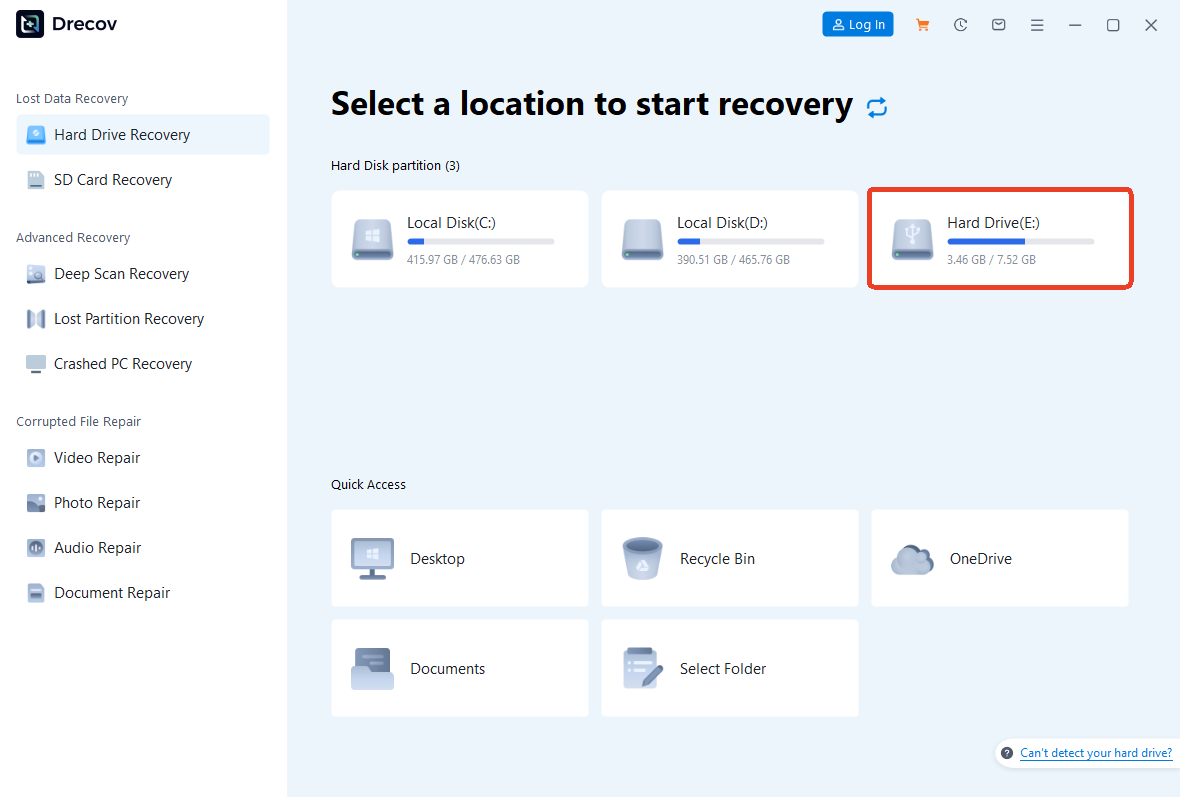
- Step 3: Begin the scan process. PandaOffice Drecov will first perform a quick scan and then a deep scan, reconstructing lost directories and locating deleted or formatted files.
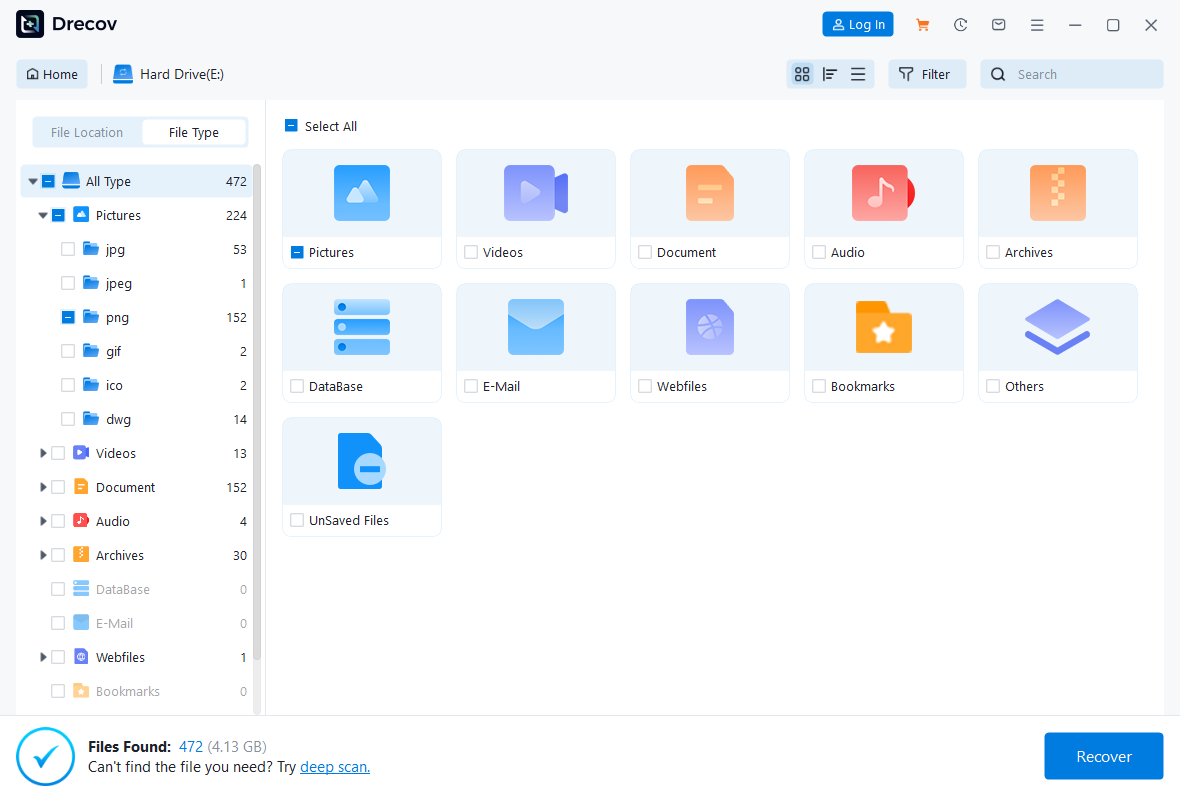
- Step 4: Preview recoverable files. Carefully select the files you want to restore.

- Step 5: Recover the selected files to a different drive or internal storage.
Warning: Avoid restoring to the same external drive to prevent overwriting remaining data.
PandaOffice Drecov targets users requiring reliable, professional-level recovery for logical data loss. It balances advanced capabilities with a user-friendly interface, making it suitable for both beginners and tech-savvy users.
- Pros:
- High recovery rate across multiple data loss scenarios
- Supports complex and formatted drives
- User-friendly interface with guided recovery steps
- Cons:
- Paid software
- Installation requires internal or secondary drive space
2.Recuva
Key Advantages of Recuva
- Recover recently deleted files
- Quick Scan and Deep Scan options
Step-by-Step Recovery:
- Step 1: Launch Recuva. The wizard interface guides you through initial setup.
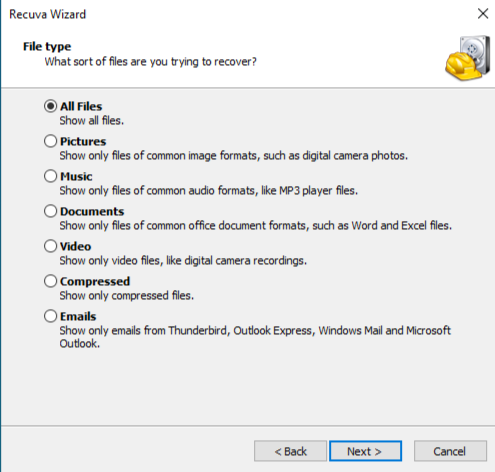
- Step 2: Choose the file types you want to recover, or select All Files if unsure.
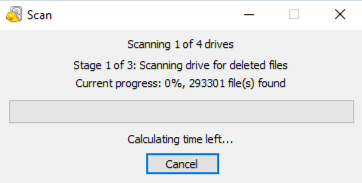
- Step 3: Specify the external hard drive as the scan location. Confirm the correct drive letter.
- Step 4: Start a quick scan. If files are not found, enable Deep Scan to locate older or fragmented files.
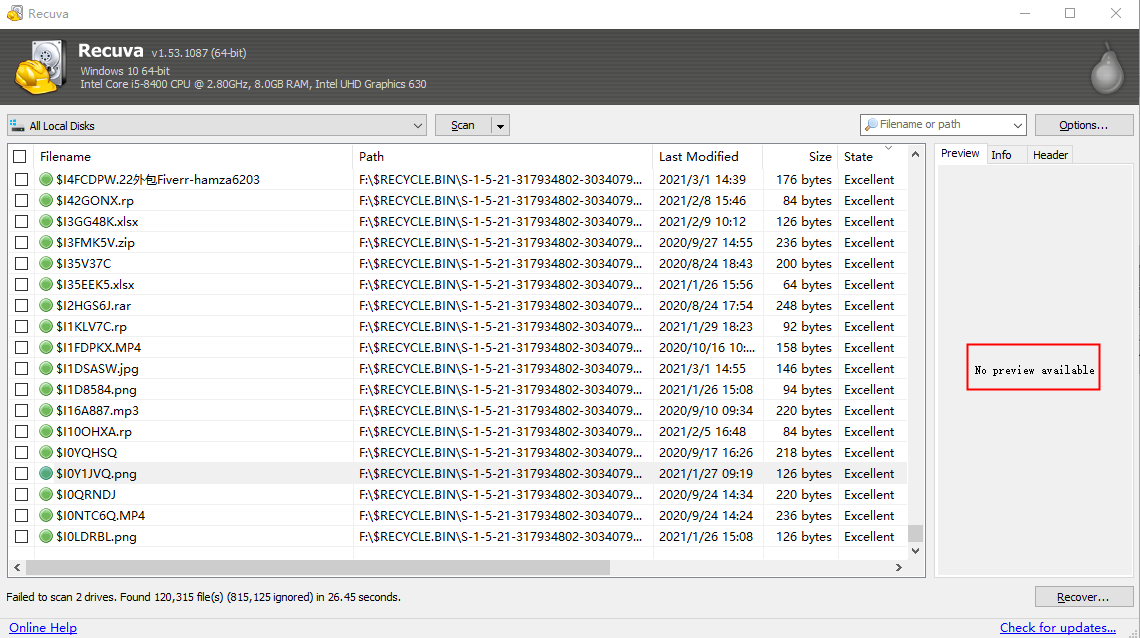
- Step 5: Review the list of recoverable files.
- Step 6: Recover selected files to a different storage device or internal drive. Note: Never recover files to the same external drive to avoid overwriting other recoverable data.
Recuva is highly effective for recently deleted files, offering quick restoration without complex configuration.
- Pros:
- Free version available
- Lightweight and fast for simple recoveries
- Wizard simplifies basic recovery
- Cons:
- Limited support for formatted or RAW drives
- Lower recovery success for fragmented or corrupted files
- Advanced features only in Pro version
- No preview available
Positioning:Recuva is a lightweight solution, free for basic recovery, and suitable for users dealing with straightforward accidental deletions. It is user-friendly but less capable for complex or heavily corrupted drives.
Part 2: Detailed Feature Comparison
| Feature | PandaOffice Drecov | Recuva | Notes |
|---|---|---|---|
| Supported File Types | All common types | Common types | Drecov offers broader file type support |
| Drive Support | External, Internal, RAW, Formatted | Mainly external/internal, not RAW | Drecov handles more complex drive scenarios |
| Recovery Modes | Quick Scan, Deep Scan, RAW Recovery | Quick Scan, Deep Scan | Drecov supports deeper recovery for fragmented files |
| Safety | Read-only scanning | Read-only scanning | Both tools protect original data |
| Ease of Use | Beginner-friendly GUI | Wizard-based GUI | Drecov interface is more intuitive for varied tasks |
| Price | Paid | Free / Paid Pro | Recuva’s free version has feature limitations |
| Success Rate | High | Medium | Measured via real-world recovery tests |
Detailed Analysis
- Supported File Types: PandaOffice Drecov recognizes nearly all common file types, including office documents, media files, archives, and system files. Recuva primarily focuses on common user files like documents, photos, and videos, leaving specialized formats unsupported.
- Drive Support: Drecov works seamlessly with external hard drives, internal drives, and drives showing RAW or formatted errors. Recuva struggles with RAW drives and cannot handle severe logical corruption efficiently.
- Recovery Modes: The Deep Scan and RAW Recovery in Drecov can reconstruct fragmented files that standard scans might miss. Recuva’s Deep Scan is suitable for recent deletions but may fail in complex scenarios.
- Ease of Use: While both tools are user-friendly, Drecov offers a more guided experience with clear recovery steps, making it less intimidating for users attempting how do I recover files from an external hard drive.
- Price and Value: Although Drecov is paid software, the investment is justified for critical data recovery. Recuva provides a free option, ideal for non-critical recovery or users on a tight budget.
Part 3: Real-World Scenarios
Recommended Tool Matrix
| Data Loss Scenario | Recommended Tool | Notes |
|---|---|---|
| Recently deleted files | Recuva | Quick recovery, lightweight option |
| Important deleted files | PandaOffice Drecov | High success rate for critical data |
| Formatted drive | PandaOffice Drecov | Handles complex reconstruction |
| RAW drive | PandaOffice Drecov | Safely bypasses file system errors |
| Corrupted files | PandaOffice Drecov | Extracts readable files without repair |
Part 4: User Considerations
- Functionality vs Cost: Users with simple, recent deletions may find Recuva sufficient. For complex, high-value data recovery, PandaOffice Drecov is the preferred choice.
- Avoid Overwriting: Stop writing new files to the affected drive immediately to increase recovery success.
- Backup Practices: Consider regular backups to minimize dependency on recovery tools.
- Ease of Use: Beginners may prefer Drecov’s guided interface for confidence and accuracy.
Conclusion
Selecting the right tool depends on data loss type, urgency, and file value. For lightweight, recently deleted files, Recuva is effective and free. However, if the external hard drive is formatted, corrupted, or in RAW state, PandaOffice Drecov offers higher reliability, broader file support, and advanced recovery modes.
When asking how do I recover files from an external hard drive, prioritize tools that maximize success while minimizing risk. PandaOffice Drecov stands out as a professional solution for users requiring robust, dependable recovery with step-by-step guidance. For casual or low-risk recovery, Recuva remains a useful alternative.
Ultimately, understanding your specific scenario ensures you select the tool that aligns with your recovery needs, ensuring lost files are safely restored without further complications.






