There is no useful one-word answer to “DiskWarrior equivalent for Windows 11” until you identify the job. Retrieving deleted files, checking an NTFS volume, restoring a backup, and getting Windows to start are different tasks. Choose the required outcome first, then protect important data before a tool modifies its original storage.
DiskWarrior is associated with Mac directory recovery and repair in supported configurations. Its name does not establish a corresponding Windows tool or make an unrelated file scanner an exact replacement. A good choice depends on what you need back and what the source can still do.
Do not transfer a Mac repair promise onto a Windows problem
Alsoft’s DiskWarrior requirements describe its supported Mac environment and Mac OS Extended file-system scope. That is different from a Windows 11 NTFS workflow. Check the actual source format rather than assuming that connecting storage to Windows changes its format or repair requirements.
Define the result in ordinary language
“I need yesterday’s presentation” describes a file-recovery or backup task. “The files are safe, but Windows says the volume has errors” describes a possible file-system assessment. Failure to reach sign-in raises a startup question. Although these problems can occur together, fixing one does not necessarily resolve the other.
Start by recording which files matter, whether a usable backup exists, and whether the source reads consistently. A program producing a cleaner-looking volume is not necessarily returning the original documents. Repair success and recovery success require different verification.
Recognize the limit before comparing features
Repeated disconnections, serious read errors, or physical symptoms place the source outside an ordinary software-selection exercise. Stop repeated direct scans and seek advice about an appropriate image or specialist recovery. No feature list justifies using a failing device as a test platform.
Encrypted data also needs legitimate access. A recovery application does not replace a BitLocker key or account credentials. Resolve that prerequisite before interpreting unreadable results as a failure of whichever tool you selected.
Where Drecov fits—and where it does not
Drecov is Windows data recovery software for missing local files on suitable storage. Read-only recovery mode, Quick Scan, Deep Scan, filtering, and supported previews help locate and assess candidates before saving them elsewhere. Lost Partition Recovery can help with data from a partition that disappeared.
Those capabilities fit a missing-file problem without claiming DiskWarrior-style directory reconstruction. Drecov does not repair physical hardware, fix a Windows driver, or guarantee recovery of overwritten data. The useful advantage in this context is separating extraction of important files from later modifications to their source.
Recovery creates another copy; repair changes the source
For a deleted document, your goal is a usable file on another healthy device. A repair tool may instead change file-system structures so Windows can use a volume. Both can be legitimate, but their order matters when the original holds the only copy.
Formatting creates a new file system. It does not stand in for either a verified recovery or a diagnosis of the original fault. Do not judge an alternative by whether it can make Windows stop asking to format without considering what happened to your files.
⚠ Warning: Install it on a drive different from the one where your data was lost to prevent overwriting.
Match the Windows method to the required outcome
Use the following checklist as a task selector, not a ranking. It compares the result you want rather than pretending all utilities perform the same operation. Protect data before moving from observation to any modifying step.
- Deleted local files: inspect backups and deleted-items locations, then consider Drecov on a stable source if necessary.
- A missing partition containing needed files: assess Lost Partition Recovery before creating a fresh layout.
- A known-good backup: restore a separate copy through the backup system and verify its contents.
- File-system errors after data is secure: evaluate an appropriate Windows check or repair, with the target and effects confirmed.
- Windows cannot start: assess startup recovery separately from retrieving personal files.
- Unreliable physical access: stop ordinary trial-and-error software work and seek the appropriate specialist path.
File-system checking is not deleted-file recovery
Windows includes CHKDSK for file-system checking. Repair switches can modify structures and may require locking the volume. Do not adopt a generic command from an “alternative” list before confirming the target and protecting its important contents.
A successful check does not mean a deleted photograph returned, and a recovered photograph does not establish that the original volume is healthy. Keep these tests separate. The file recovery page explains the missing-file side of the decision.
Startup recovery has a narrower objective
Windows Startup Repair addresses certain problems that prevent the operating system from starting. Access depends on an available recovery environment and may require an encryption key. It is not a deleted-document scanner and should not replace a separate plan for irreplaceable personal files.
When the original Windows installation cannot run recovery software, you need another compatible Windows environment with authorized access to the source. Another computer may be appropriate with technical help. Do not claim that buying a Windows file-recovery application automatically provides every required boot or connection capability.
Recover important files before choosing a modifying repair
When files are readable, normal copying or backup restoration may be enough. Use the following recovery branch for genuinely missing or inaccessible originals on stable readable storage. For a removable source, the USB recovery page covers the related loss situation without turning it into a hardware-repair claim.
Prepare the source and destination before Step 1
Stop avoidable writes to the original location. Prepare another healthy device with enough room and do not install Drecov on the affected partition. Confirm that the source is accessible in Windows and remains stable. Overwriting and SSD TRIM can reduce prospects; repeated disconnects or severe read errors call for imaging advice or professional help.
Step 1: Open Drecov and choose the original loss location
Select the stable volume or former folder that contained the personal data. Use the applicable Lost Partition Recovery mode when the partition itself disappeared. Confirm the source by its identity and expected contents, not only a drive letter remembered from another computer.
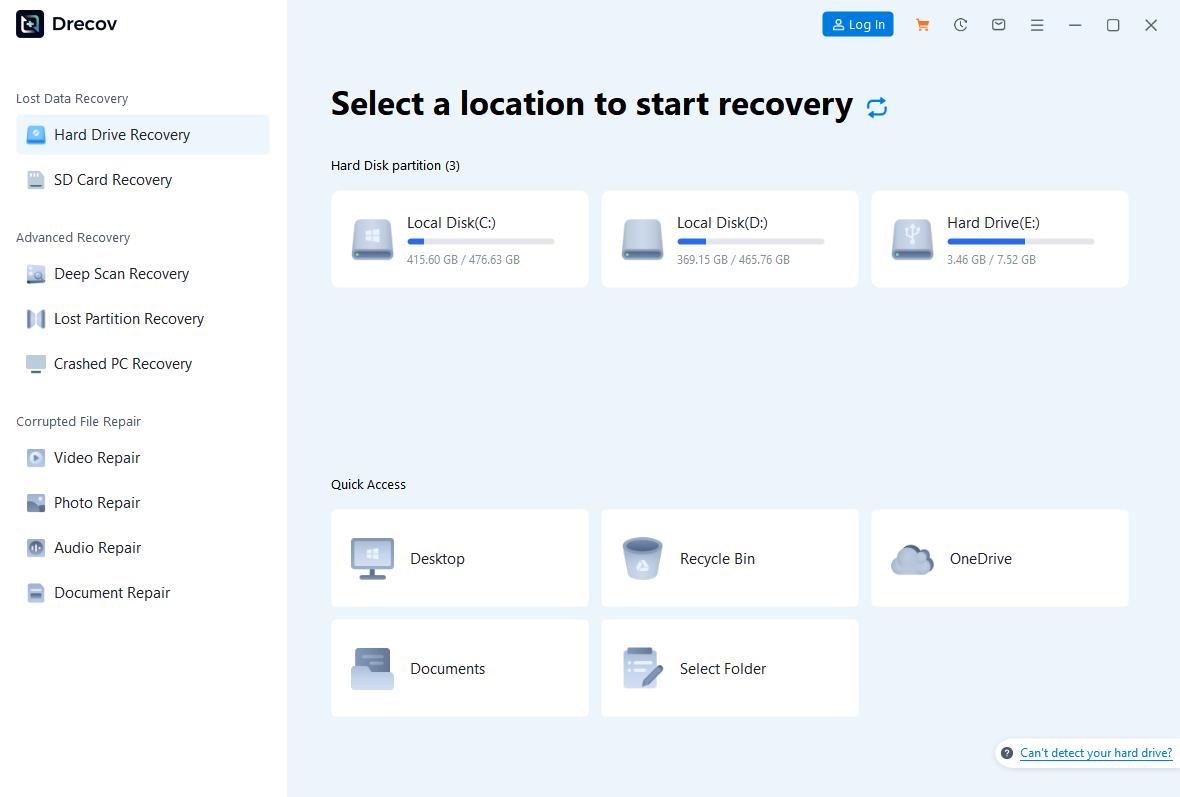
Step 2: Run Quick Scan and identify the files you need
Look for recognizable folders, filenames, and expected document or media types. Prioritize irreplaceable work rather than selecting system files in the hope of repairing Windows. A useful recovery objective is a specific set of files that you can open and verify.
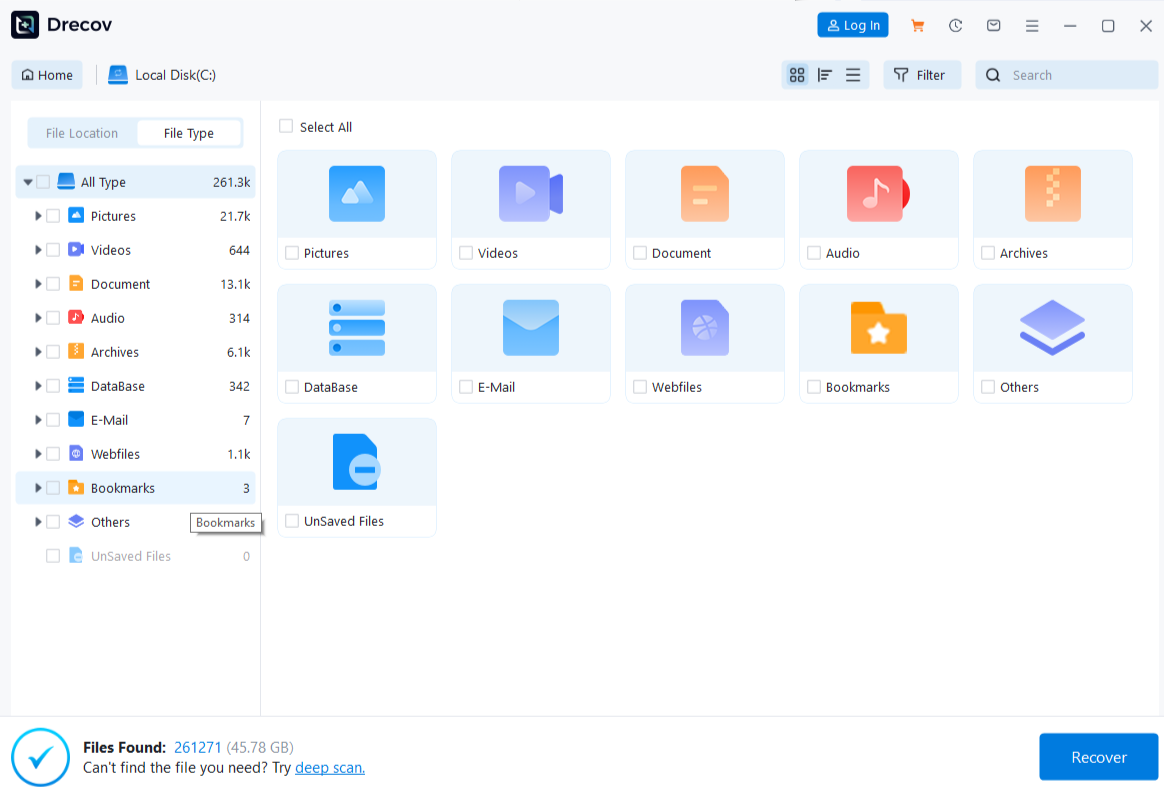
Step 3: Use Deep Scan when necessary and stable
If Quick Scan does not find the desired originals, continue with Deep Scan only while reading remains reliable. Stop if the device starts disconnecting or errors worsen. More scanning does not establish a successful repair and cannot guarantee a complete result.
Step 4: Narrow candidates and preview supported content
Use available type, name, path, and date details to locate plausible files. Preview representative supported candidates before selecting a large group. For photo recovery, check recognizable detail and distinguish small cached images from the original photographs.
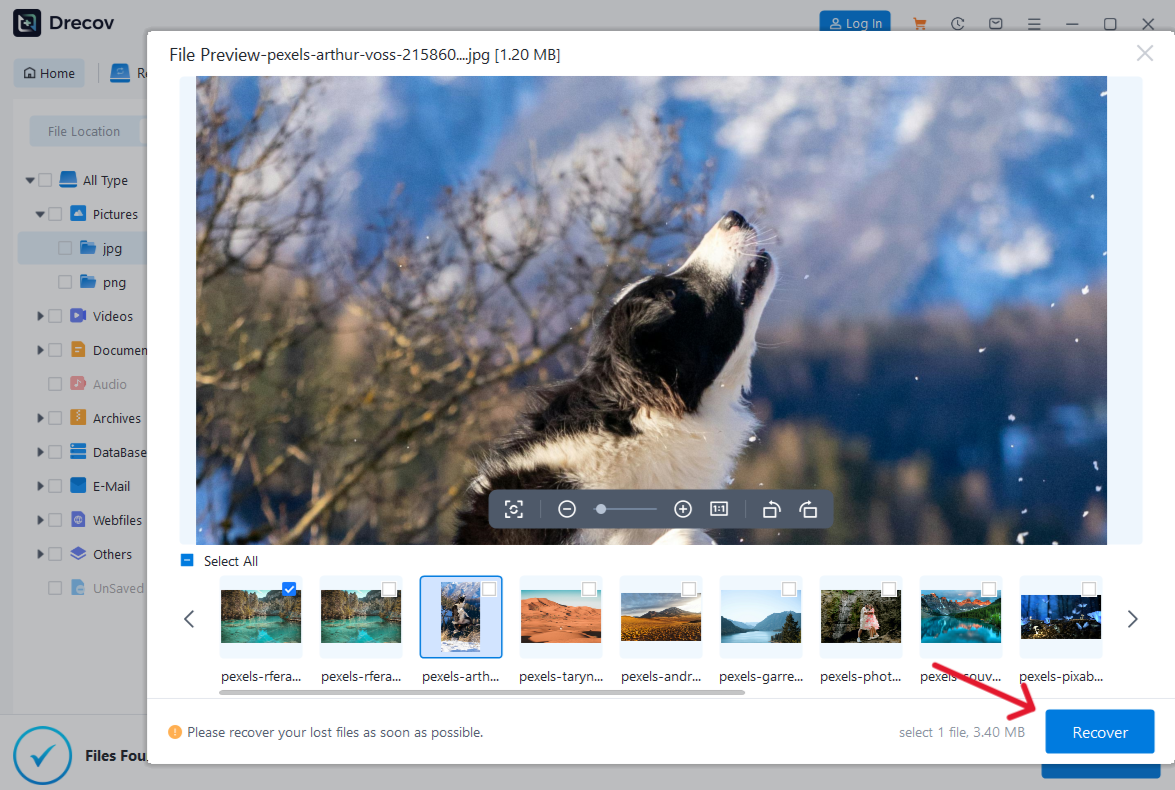
Step 5: Save elsewhere and verify independently
Recover files to the other healthy device, never the source. Check Drecov Folder or Recovery Folder if output is not where expected. Open saved documents in their normal applications and inspect important content. Test media beyond the opening seconds. Finish this assessment before CHKDSK repairs, initialization, partition changes, formatting, or reinstalling Windows.
⚠ Warning: Install it on a drive different from the one where your data was lost to prevent overwriting.
Judge a tool by a verifiable result, not a replacement label
Ask what changes and what remains untouched
Before using any utility, determine whether it reads data, writes repairs to the source, creates an image, or restores a backup over an existing destination. These are concrete effects. A description such as “complete recovery solution” is too broad to answer the safety question.
Check supported operating systems and file systems for the exact task. A tool running on Windows does not automatically support every format attached to it. Likewise, a Mac utility’s documented capability does not transfer to a Windows product simply because both mention recovery.
Choose the tool that matches what is missing
A partition that Windows no longer lists needs a different assessment from a deleted document in an otherwise accessible folder. Identify which description fits before choosing software. Check that the tool can examine that source and save recovered files elsewhere. A scan-duration estimate alone cannot tell you whether your particular files remain recoverable.
Preview can help decide whether a candidate is recognizable, but it does not certify an entire archive or project. Consider what you can actually validate before committing to a large recovery or a destructive repair. Keep logs and copies so you can explain the outcome if further help is needed.
Keep the repair decision separate after recovery
Once the important files are safe, reassess the original storage and the reason it failed. A repaired file system may not address an underlying driver or physical issue. Reusing an unstable source merely because its folders reappeared can put the recovered work at risk again.
Store the verified recovery separately while you investigate. If a backup restore solved the immediate loss, test future backups with an actual sample restore. The strongest long-term improvement is a usable independent copy, not a promise that one utility will handle every future failure.
FAQs about Windows alternatives to DiskWarrior
Can DiskWarrior simply run as a Windows 11 utility?
Its documented platform and file-system scope is Mac-focused. Do not assume a Windows NTFS workflow from the product name or a third-party download label.
Is CHKDSK the same as Drecov?
No. File-system checking and repair differ from extracting missing files to another destination. Protect needed data before source-modifying repair.
Does Lost Partition Recovery rebuild the partition table?
Do not treat those as the same operation. Recovering data from a lost partition does not mean rewriting its partition table. That repair is a separate operation that changes the source.
What if Windows asks me to format?
Cancel while needed data remains unprotected. Establish the source condition and recovery route before creating a new file system.
Should I test several tools on unstable storage?
No. Repeated direct attempts can add unnecessary load. Seek an appropriate imaging or specialist path when access is unreliable.
Conclusion
The right Windows alternative depends on the task, not a familiar Mac product name. Separate backup restoration, file extraction, file-system repair, and startup recovery. Drecov fits missing-file and lost-partition data retrieval on stable accessible storage; save to another device and verify the files before modifying the original.
⚠ Warning: Install it on a drive different from the one where your data was lost to prevent overwriting.