







Which USB recovery software should you try when a flash drive suddenly looks empty? Start with the drive, not a ranking. A USB that stays connected and reports its usual capacity is a reasonable candidate for a scan. One that disconnects, gets unusually hot, or reports a wildly wrong size may need imaging or professional attention before any software search. For a stable drive, the best choice depends on whether you want a guided preview, an image-based workflow, a simple undelete tool, or a free open-source search.
The eight tools below solve different parts of that problem. No comparison can promise to retrieve a particular file. Overwriting, file-system damage, and the USB’s physical condition matter as much as the interface. Here is what each tool lets you do, where it asks more of you, and which first move protects your files.
First, Decide Whether Software Can Read the USB Safely
Open Disk Management and identify the physical USB by its capacity. A steady connection and the expected size are good signs. A file scan may still be possible when File Explorer shows a format prompt or no drive letter. Cancel the prompt. Do not run CHKDSK, initialize the disk, or create a new volume while it holds files you need. Those actions change the source; recovery software should copy files to a different healthy disk first.
A drive that repeatedly drops offline, reports zero or an implausible capacity, has a broken connector, or develops severe read errors is a different case. Switching from one scanner to another will not repair its controller or memory. If the files are valuable, stop direct scans and ask a qualified specialist whether an image can be made. This boundary applies to every product in the comparison, including Drecov.
Also check for a less demanding answer. The file might still exist on the computer that last edited it, in a cloud account, or in a backup made before the loss. If you need a step-by-step diagnosis rather than a software comparison, use the USB data recovery methods guide.
Drecov: Guided Review Before You Export
Consider a stable USB whose project folder is missing. You do not want to export hundreds of anonymous files just to find the right spreadsheet. PandaOffice Drecov offers a visual Windows workflow. Select the source, start with Quick Scan, use Deep Scan if needed, and preview candidates before exporting. The preview is useful when several versions have similar names. Its Lost Partition Recovery mode can also locate files associated with a lost partition on a readable device.
Strengths: A visual scan-and-preview path makes it easier to identify the right files before export. Quick Scan, Deep Scan, and Lost Partition Recovery cover several common logical-loss situations without asking you to repair the source first.
Limitations: It runs on Windows, not macOS or Linux. A preview cannot guarantee that every recovered file is complete, and you should check current license terms before counting on free export.
⚠ Warning: Install it on a drive different from the one where your data was lost to prevent overwriting.
Step 1: Select the affected USB or lost-partition mode
Open Drecov from your Windows computer or another healthy disk, not from the USB that lost data. Match the source by device name and capacity rather than drive letter alone. If the usual volume is gone but the physical USB is visible, inspect the relevant recovery location or Lost Partition Recovery mode. Do not select the system drive simply because it appears first. If neither Windows nor Drecov sees the USB as a disk, stop: the program has no readable source to scan.

Step 2: Run Quick Scan and check the first matches
Start Quick Scan on the selected USB. Look for the missing folder, familiar names, and the correct dates or file types. Seeing files in general is not enough; an older copy of a presentation may be less useful than the missing version. While scanning, watch for disconnects or repeated read errors. Stop the direct scan if the device becomes unstable.

Step 3: Use Deep Scan if the files are still missing
If Quick Scan misses the needed files and the USB remains stable, run Deep Scan. Results after formatting or file-system damage may not retain the original folder paths, so search by type as well as name. If the device has a lost partition, use the corresponding recovery mode to find files; do not treat this as permission to write a new partition table. A longer scan is worthwhile only while the drive continues to read reliably.
Step 4: Filter, browse, and preview useful candidates
Filter by file type or name, then preview several files whose contents you know. Try a photo from a particular event, the first page of a document, or figures in a spreadsheet. If preview is unavailable for a type, export a small set to a separate destination. Prioritize files you cannot download or recreate. This check helps distinguish the version you need from an older file with a convincing name.

Step 5: Recover to a different healthy drive
Select the candidates and choose Recover. Set the destination to a healthy internal disk or a second external drive with enough room. Check that the path is not on the affected USB; writing recovered output there could overwrite other missing files. If the destination fills, choose another healthy disk instead of falling back to the source.
Step 6: Open and verify the exported files
Open a sample in the applications you normally use. Check actual pages, images, or video frames, not only filenames and file sizes. Compare versions where several copies were found. If an item is not in the folder you expected, check the destination you chose and any Drecov or Recovery folder created during export. Make a second copy of the files that matter before trying to repair or reuse the USB.
⚠ Warning: Install it on a drive different from the one where your data was lost to prevent overwriting.
How the Other Tools Handle USB File Loss
Disk Drill: Visual recovery with an imaging route
Disk Drill’s USB recovery describes file previews, filtering, and a byte-to-byte backup tool. The backup can preserve the drive’s current state before a scan. That is useful when a readable USB shows logical errors and you want to scan an image instead of repeatedly reading the original. Creating that image still requires the device to remain readable long enough.
The interface has more recovery and protection features than a bare undelete utility, which gives experienced users options without forcing them into a text console. The trade-off is that the choice between scanning the physical USB, making an image, and selecting a scan mode takes some attention. Disk Drill is not a repair service for damaged electronics. Before choosing it for a large export, verify the current Windows or Mac edition and its free-recovery terms on the vendor’s site; limits can change.
Strengths: Preview and byte-to-byte backup make it useful when you want a visual recovery path and a copy to scan.
Limitations: An image requires enough healthy destination space, and the USB still has to stay readable while the image is made. Check edition-specific export limits before you begin.
EaseUS Data Recovery Wizard: A familiar three-stage flow
EaseUS follows a straightforward select–scan–recover pattern. Its official walkthrough shows a quick scan followed by a deeper search, then filtering, preview, and recovery to another location. That is easy to understand if you have never used recovery software. Windows and Mac versions are available, so it is a practical candidate when a household or team uses both systems.
The deciding question is often not whether the software can display found files but what you can export with the edition you installed. EaseUS distinguishes a Free edition from a Trial edition in its support FAQ; the Trial may allow preview without free recovery. Check the current terms before a long scan. More importantly, do not infer from a successful preview that every other file on the USB is intact. Export a small representative set to another disk and open it.
Strengths: The familiar select–scan–preview flow reduces setup effort, and Windows and Mac editions cover mixed-device households.
Limitations: Free and Trial do not necessarily grant the same export rights. A broad scan can return many versions and partial files, so you still need to verify what you save.
R-Studio: Detailed control for a technical recovery
R-Studio suits work that calls for partition inspection, a disk image, or more detailed control than a basic undelete. Its file recovery FAQ recommends imaging the affected disk when appropriate. The program can preview files and exposes detailed scan and file-system information. Those controls matter when the USB has logical damage and you need to assess what the scan found.
They also raise the learning curve. A user who only wants a deleted document may not need to choose among recognized partitions, scan parameters, and image options. R-Studio is software, not a substitute for a laboratory when a device cannot be read reliably. If a USB is deteriorating, the first task is to assess whether imaging is safe and feasible, not to run every available scan against the original.
Strengths: Disk imaging, file-system detail, and granular scan choices help a technically confident user investigate complex logical loss.
Limitations: More controls mean more chances to choose the wrong source or spend time on the wrong scan. It is excessive for a simple, recent deletion.
Recuva: A lighter first pass for recent deletion
Recuva is appealing when the USB opens normally and you know files were deleted. CCleaner’s capability guide confirms support for USB flash drives and common Windows file systems. The Free edition provides a no-cost route for this basic attempt. Choose the correct USB, scan, inspect the results, and recover selected files to a different disk.
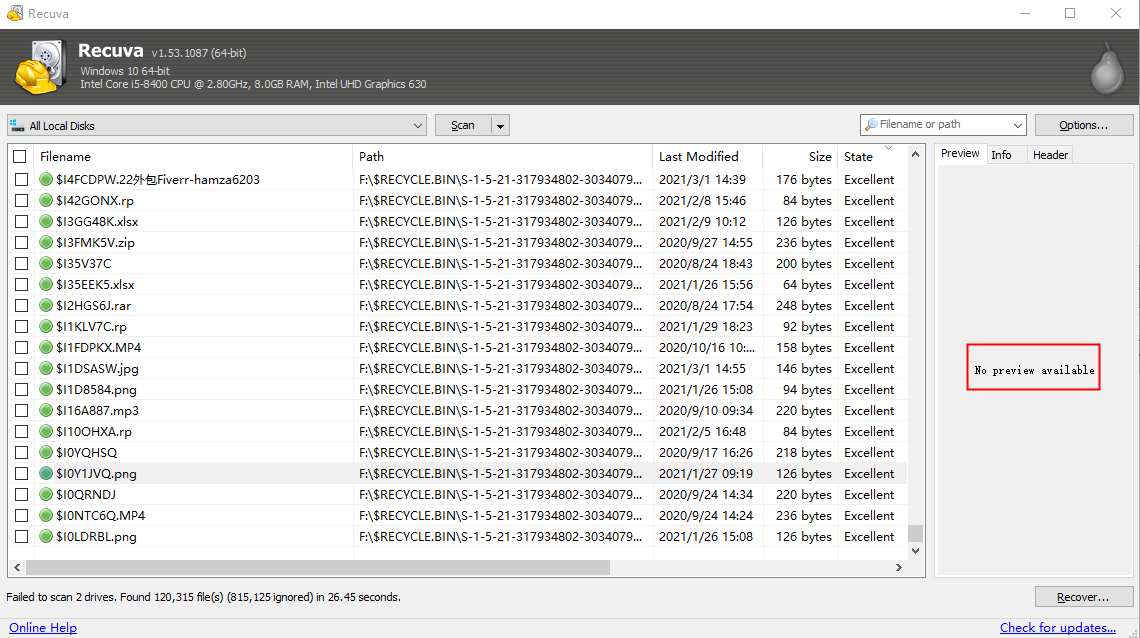
If the first scan misses them, Recuva offers Deep Scan. Its documentation notes that this mode finds a defined set of file types and may return files without original names. That makes one particular document harder to identify among many results. Recuva cannot reverse secure deletion or an overwrite. A physically unstable USB should not face repeated scans just because the software is free.
Strengths: A simple Windows workflow and a free edition make it an approachable first attempt for accidental deletion on a healthy USB.
Limitations: Deep Scan has file-type and filename constraints. It is less useful when you need to reconstruct a damaged partition or identify one file among thousands of unnamed results.
PhotoRec: Open-source recovery when names are already gone
PhotoRec looks for known file signatures rather than trusting the directory structure. It is free and open source and runs on Windows, macOS, and Linux. It can search USB storage even when the file system is damaged or reformatted. QPhotoRec provides a graphical interface for people who prefer not to use PhotoRec’s text menus. Neither choice needs a paid export license.

The cost is time spent sorting. CGSecurity’s documentation explains that PhotoRec does not restore the original names or folder tree. Files recovered by signature can also be incomplete, particularly when fragmented. Use it when preserving the contents matters more than preserving the old organization. For deleted files or a missing partition whose file records are still readable, its companion TestDisk may be worth trying first to copy files with more context. In either tool, save output to another healthy drive and avoid TestDisk’s write or repair commands until the files are safe.
Strengths: It is genuinely free and open source, supports major desktop operating systems, and can search for file contents even after directory information has failed.
Limitations: Sorting recovered files can take longer than scanning; names and folders usually do not survive. Preview and selective export are less convenient than in a visual file browser.
TestDisk: Open-source copying when file records survive
TestDisk’s undelete documentation covers FAT, exFAT, NTFS, and ext2. On a stable USB, you can select the physical disk, inspect the relevant partition, list files, and copy chosen items to a different drive. This is especially appealing when filenames and folders still appear. TestDisk can also inspect lost partitions, but its repair and write functions are a separate decision from copying files.
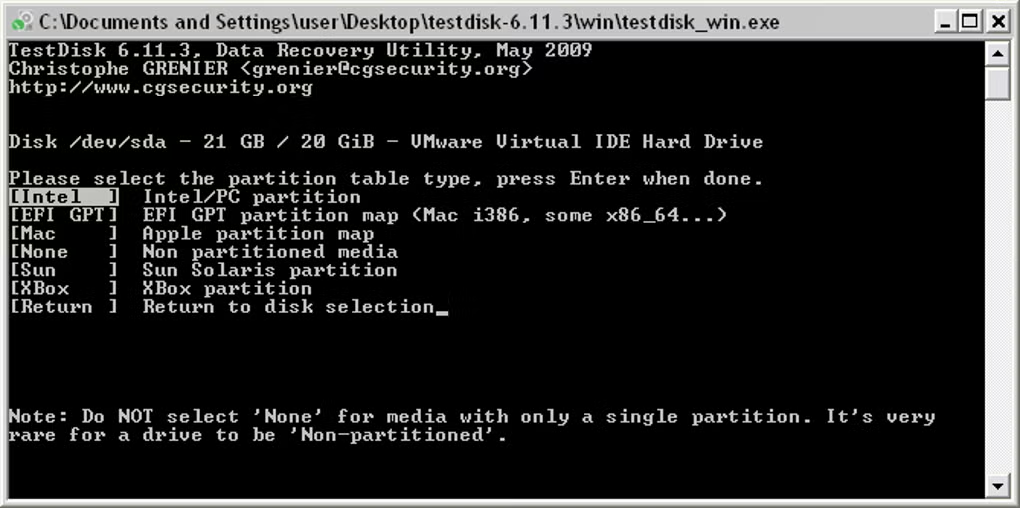
Strengths: It is free, open source, and can preserve more file context than signature carving when file-system records remain readable.
Limitations: The text interface is less forgiving of a wrong disk selection, and not every damaged file system will list usable files. Stay with the list-and-copy path; do not write a partition table to the original USB before recovering what matters.
Windows File Recovery: Microsoft’s command-line option
Windows File Recovery is a free Microsoft command-line app for Windows. It takes a source drive, a different destination drive, a scan mode, and optional filename filters. On an NTFS USB with a recent deletion, try Regular mode. For FAT or exFAT, Microsoft specifies Extensive mode; that mode also fits older deletions, formatting, or corruption on NTFS.
Strengths: No paid export license and no third-party recovery interface. File filters can narrow a search when you know an extension or part of a name.
Limitations: You must identify the correct drive letters and choose a mode; it is not a visual preview-and-select experience. A command cannot compensate for an unreadable USB or overwritten data.
Free and Command-Line Paths Worth Understanding
Run Windows File Recovery without writing to the USB
Install Windows File Recovery from the Microsoft Store onto your PC, not the affected USB. Check the drive letters in File Explorer or Disk Management immediately before running a command. In the examples below, E: is the affected USB and C: is a healthy destination with enough free space. Replace them with your actual letters. The source and destination must differ.
winfr E: C: /extensive /n *.jpg /n *.docxThat command searches a FAT or exFAT USB for JPEG images and Word documents. It also works as an Extensive-mode example for NTFS when a recent-deletion scan is not enough. If the USB is NTFS and the deletion was recent, start instead with winfr E: C: /regular /n *.docx. Confirm the prompt, then check the Recovery folder Windows File Recovery creates on the destination. Open representative results rather than assuming that a recovered filename means an intact document.
Use TestDisk’s copy path, not its repair path
Extract TestDisk to a healthy PC drive, run it, select the USB by capacity, and use its file-list or undelete view for the relevant partition. When it lists the missing file, choose the copy command and select a separate destination. If you cannot identify the physical disk or do not see the expected file system, stop and reconsider the tool. TestDisk also offers partition-writing and boot-sector functions; those modify source metadata and are not required to copy files. Its FAQ describes the list-and-copy route.
When an image comes before another scan
Disk Drill and R-Studio provide imaging workflows; GNU ddrescue is a free, open-source command-line imaging utility for technically experienced users. It is not a file browser or one-click undelete tool. The image needs another disk with sufficient space, and selecting the wrong output device can destroy data there. A USB that repeatedly disconnects or reports a wrong capacity may be unsuitable even for DIY imaging. If the only copy is important, ask a recovery specialist before another direct read.
Commands that do not recover deleted data
When files merely seem absent, use File Explorer’s hidden-items view before a recovery scan. The Windows attrib command can display or change hidden and system attributes on existing files, but changing those attributes writes to the source. It cannot recreate deleted content. Likewise, CHKDSK checks or repairs file-system structures; repair modes can modify the volume. DiskPart clean and formatting are more destructive. Recover or image valuable files first, then consider repair or reuse.
Choose by What Happened, Not by a Universal Winner
The USB opens, and files were recently deleted
Check for a backup before scanning. Recuva offers a simple free first attempt on Windows. Drecov and EaseUS make it easier to review visual results and select versions; Disk Drill offers another preview-based option. TestDisk can copy files when the file-system records still list them. Windows File Recovery offers a command-line route. The deleted-USB-files covers the specific checks for an otherwise healthy drive. Whichever program you choose, stop using the USB and export to another disk.
The USB was formatted, turned RAW, or lost a partition
If the device remains stable and reports its expected capacity, Drecov’s Deep Scan or Lost Partition Recovery mode may help locate files. Disk Drill and R-Studio offer imaging-oriented paths; TestDisk may list files on a lost partition, while PhotoRec can search for content when directory information is gone. Windows File Recovery’s Extensive mode fits a readable formatted or corrupted NTFS volume. The formatted USB guide and RAW USB guide explain those conditions in more depth. Do not format or repartition before extracting the files.
The device will not stay connected
Do not let a software shortlist distract you from the hardware symptom. Try one known-good port or cable when relevant, then stop if the connection remains unreliable or capacity is wrong. Ask a specialist about imaging or professional recovery, especially if this USB holds the only copy. A successful scan on a healthy test drive tells you nothing about what an unstable device will tolerate.
USB recovery software FAQs
Is any USB recovery software completely free?
PhotoRec and TestDisk are free and open source. Windows File Recovery is a free Microsoft app, and Recuva has a free edition for basic recovery. Their workflows differ: PhotoRec may discard names and folders, TestDisk uses text menus, and Windows File Recovery uses commands. “Free scan” or “free preview” on another product does not necessarily mean free export, so read the current edition terms before scanning.
Can software recover files from a USB that asks to be formatted?
Sometimes, if Windows still detects the physical drive at its expected capacity and it stays connected. Cancel the format prompt. A preview-based scan, a disk image, TestDisk’s file list, or PhotoRec’s signature search may help, depending on what file-system information remains. Do not format first: the prompt describes an access problem, not proof that the files are gone.
Should I run CHKDSK before recovery?
Not when the files are more important than making the USB usable again. Repair can change file-system metadata and complicate later recovery. Copy files to another disk or make a suitable image first. After you verify the recovered copy, you can decide whether to repair, reformat, or replace the USB.
Which tool is best when I need the original filenames?
Start with tools that can display file-system records and preview named results. Drecov, Disk Drill, EaseUS, and R-Studio let you inspect candidates visually; TestDisk can preserve more context when it can list the original directory. PhotoRec often loses names and folders because it carves by file signature. No product can restore metadata that has been overwritten.
Can I recover files if the USB is not detected at all?
Software needs a readable device or an existing image. If Disk Management cannot identify the USB, first rule out one bad port or cable. Stop if it still disconnects, shows the wrong size, or has physical damage. A specialist may have options that consumer software does not, but recovery is never guaranteed.
Before paying for a license, compare “free download,” “free scan,” “free preview,” and “free export” on the current product page. These are not interchangeable. The most convincing result is a recovered file you can open and check, not an advertised success rate. Save useful results to another disk, verify a representative set, and make a second copy. Only then decide whether to repair or retire the original USB.
Compare All Eight USB Recovery Tools
This table compares workflows and constraints, not recovery rates. Choose a tool that matches the USB’s condition and your ability to inspect the output. Current license terms and platform features may change; confirm them on each developer’s official site.
| Tool | Best fit | Main strengths | Main limitations |
|---|---|---|---|
| Drecov | Stable, readable USB on Windows; users who want to preview files or search a lost partition. | Guided Quick and Deep Scan, visual preview, Lost Partition Recovery mode, selective export. | Windows only; cannot repair physical damage. |
| Disk Drill | Visual recovery with the option to make and scan a byte-to-byte image. | Preview and imaging in one workflow. | Requires image storage space; edition-specific export limits need checking. |
| EaseUS Data Recovery Wizard | Users who prefer a guided interface on Windows or Mac. | Familiar select–scan–preview flow and filtering. | Free and Trial editions differ; verify export rights. |
| R-Studio | Technically confident users facing complex logical damage. | Imaging and detailed file-system and scan controls. | Steeper learning curve than a basic wizard. |
| Recuva | Recent deletion from a healthy Windows USB. | Simple workflow and free edition. | Deep Scan has file-type limits and may not retain names. |
| PhotoRec | Free, open-source content search when directory records are lost. | Cross-platform signature carving; no paid export license. | Usually loses original filenames and folders; sorting can be substantial. |
| TestDisk | Free, open-source file copying when a readable partition or deleted records can be listed. | Can copy files with more directory context than carving. | Text-menu navigation; write and repair functions require extra caution. |
| Windows File Recovery | Windows users comfortable with commands and a readable USB. | Free Microsoft tool; filters and modes for different file systems. | No visual preview; correct drive letters and mode are essential. |
Conclusion
If the USB is stable, choose the workflow that makes your next decision easier. Drecov is a strong Windows choice when you want to preview named files before exporting or search a lost partition. Recuva fits a simple recent deletion; TestDisk and PhotoRec offer free open-source routes when you can accept their steeper workflows. Use an imaging option before repeated scans when the device is readable but concerning. If it keeps disconnecting, stop and seek specialist advice. Whatever you choose, recover to a different drive and open the files before trusting the result.
⚠ Warning: Install it on a drive different from the one where your data was lost to prevent overwriting.






