







Windows can see your USB drive, but the folder you need has vanished. Perhaps it opens normally; perhaps Windows asks to format it. Either way, pause before clicking Repair or Format. Stop saving files to the USB and check whether it stays connected and shows roughly the right capacity. If it does, look for another copy and then consider a recovery scan. Repeated disconnects, the wrong size, or physical damage call for an end to DIY attempts. That first check matters more than which USB recovery program you choose.
For a stable drive, Drecov lets you preview found files before copying them elsewhere. TestDisk and PhotoRec offer free, open-source alternatives if you are comfortable doing more of the sorting yourself. The methods below cover flash drives and external USB drives that Windows can identify as disks. A phone plugged in by USB may not appear as scannable storage, while a broken connector or failed memory chip needs more than software.
Is Your USB Drive Safe to Scan?
Before installing a tool, see how Windows identifies the USB. Right-click Start and open Disk Management. Find the physical device by its approximate capacity; drive letters can change between computers. Use Disk Management only to inspect it for now. Do not initialize or format a disk that still holds files you need. Microsoft explains how to open the utility in its Disk Management guide.
It opens normally, but some files are gone
The drive shows roughly the expected size and opens without errors. Before assuming the files were deleted, search the folder you copied them to, check whether they were hidden, and look for another saved version. If those checks come up empty, the drive is at least stable enough to consider a scan.
Windows sees the disk, but File Explorer cannot open it
The USB may appear as RAW, lose its drive letter, or show a format prompt while still reporting its normal capacity. Its file-system information could be damaged even though some file contents remain. Cancel the prompt and note the message and reported size. A steady connection may allow you to recover files before trying to rebuild the volume.
It disconnects, shows the wrong size, or has physical damage
If the drive drops out, gets unusually hot, has a bent connector, or reports a wildly wrong capacity, a long scan may fail partway through and make a bad situation worse. For an external drive, try one known-good cable or port. If the problem persists, leave it unplugged and ask a specialist whether imaging or professional recovery makes sense. A file scanner cannot fix damaged electronics.
| What you observe | First reasonable move | When to stop |
|---|---|---|
| Normal capacity; files missing | Check existing copies and hidden files, then consider a read-only scan. | Stop if the connection becomes unstable or new read errors appear. |
| Normal capacity; RAW or format prompt | Cancel the prompt and recover files before changing the file system. | Stop direct scans if the device begins disconnecting or reading unpredictably. |
| Wrong capacity, frequent disconnects, or physical damage | Preserve the device and seek imaging or professional advice. | Do not keep scanning, formatting, or reconnecting it. |
If this is the only copy of something irreplaceable, professional advice may be worth seeking even when Windows detects the drive. Detection says little about its remaining health.
What Should You Check Before Recovery Software?
Before scanning, search the computer where you last edited the files, the destination of your last transfer, email attachments, and cloud storage. If you have a backup, look for a version dated before the loss and restore it to healthy storage. Windows does not automatically back up every removable USB, so check the backup rather than assuming it contains the missing folder.
If the USB opens and its used space still looks plausible, enable View > Show > Hidden items in Windows 11 File Explorer. A file that reappears was hidden, not undeleted. Copy it to a healthy drive before changing attributes or running malware cleanup. If folders have turned into suspicious shortcuts, do not open them. Follow the USB shortcut-file guidance instead.
If none of those checks finds a usable copy, prepare a healthy destination with enough space for recovered files. Keep the affected USB as the source only; saving recovered output there could overwrite other missing data.
When Drecov Fits USB Recovery
A missing photo folder is easier to tackle when you can recognize a few pictures before exporting hundreds of files. PandaOffice Drecov offers that visual workflow on Windows: select the stable USB, run Quick Scan, inspect and preview the results, then copy the files you want to another healthy drive. Deep Scan provides a second search if the first pass misses them.
When a logical error makes the volume inaccessible, Drecov may still locate files on a readable device. Its Lost Partition Recovery mode addresses files associated with a lost partition; it does not rebuild the partition table.
A RAW volume is another reason to try extracting files before repairing the file system, provided the USB remains stable. Preview helps narrow your selection, but only opening the exported copies will tell you whether they are usable. No scanner can restore fully overwritten data or mend failed hardware.
Keep the installation on your Windows computer or another healthy disk, not on the USB that lost data. The source should receive no new downloads, temporary files, or recovered output. If you are unsure which disk is the source, compare its stated capacity and device name in Windows before proceeding.
⚠ Warning: Install it on a drive different from the one where your data was lost to prevent overwriting.
Recover Files From a Stable USB Drive With Drecov
If the USB stays connected and reports its expected size, connect a separate healthy drive with enough room for the recovered files. Then work through the scan and export below.
Step 1: Select the affected USB device or relevant recovery mode
Open Drecov on your Windows computer and find the affected USB in the available locations. Match its capacity to the device in your hand rather than relying only on a drive letter. If its usual volume is missing, look for the physical USB or the relevant Lost Partition Recovery option. With several external drives attached, removing unrelated healthy devices can make the right source easier to identify.
If neither Windows nor Drecov can see the USB as a disk, there is nothing for the software to scan. Check one known-good port or cable, then seek specialist advice if the files matter.

Step 2: Run Quick Scan and inspect the first results
Start Quick Scan on the USB you identified. In the results, look for the missing folder, a familiar project name, or the file type you expect. Finding other files on the drive is not the same as finding the version you need, so check names and dates before moving on.
Keep an eye on the USB while the scan runs. If it disconnects, produces repeated read errors, or becomes unusually hot, stop. A second app will not solve an unstable connection; imaging by a capable specialist may be the safer next move.
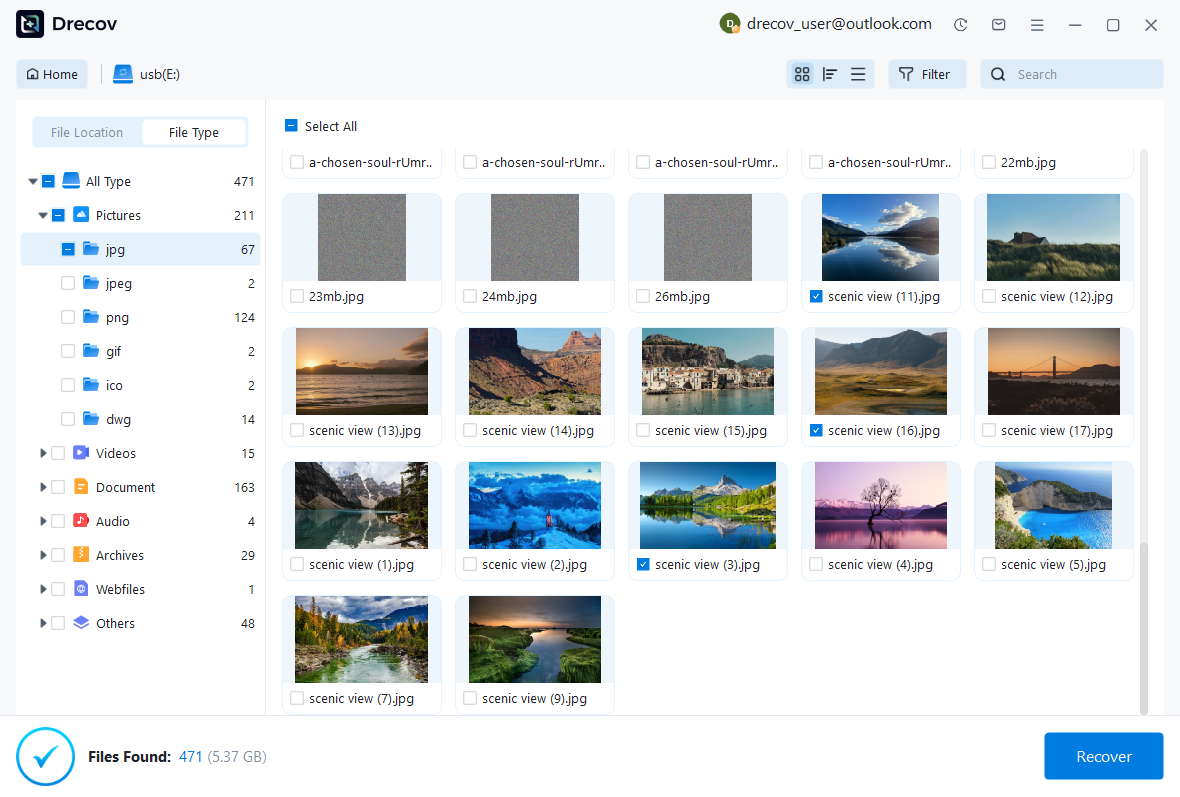
Step 3: Use Deep Scan if the needed files remain missing
When Quick Scan misses the files but the USB remains stable, run Deep Scan. It may find content whose original folder information is incomplete, particularly after a format or file-system error. Results can carry unfamiliar names, so inspect the files rather than relying on the path alone. Scanning takes longer on larger or slower drives; stop if read errors or disconnects begin.
If a partition disappeared, use Lost Partition Recovery when Drecov offers it for the affected device. The immediate goal is to locate and copy the files, not to write a new partition table.
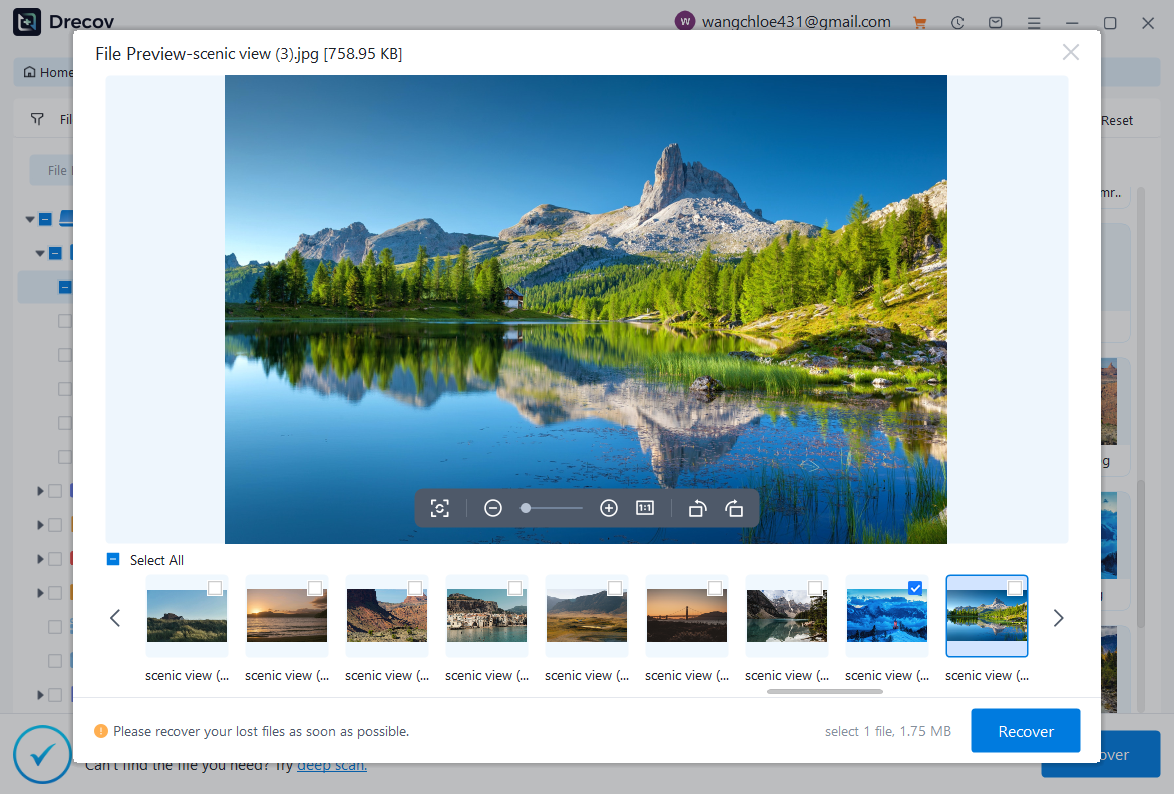
Step 4: Filter, search, and preview the candidates
Filter by file type or name, or browse the folders Drecov displays. Preview a few files you would recognize immediately: a family photo, a spreadsheet with familiar figures, or a document with a distinctive first page. If preview is unavailable for a file type, export one or two candidates to the healthy destination and open them there.
Start with files you cannot easily replace. A small first export also confirms that you selected the right source and destination before recovering a larger set.
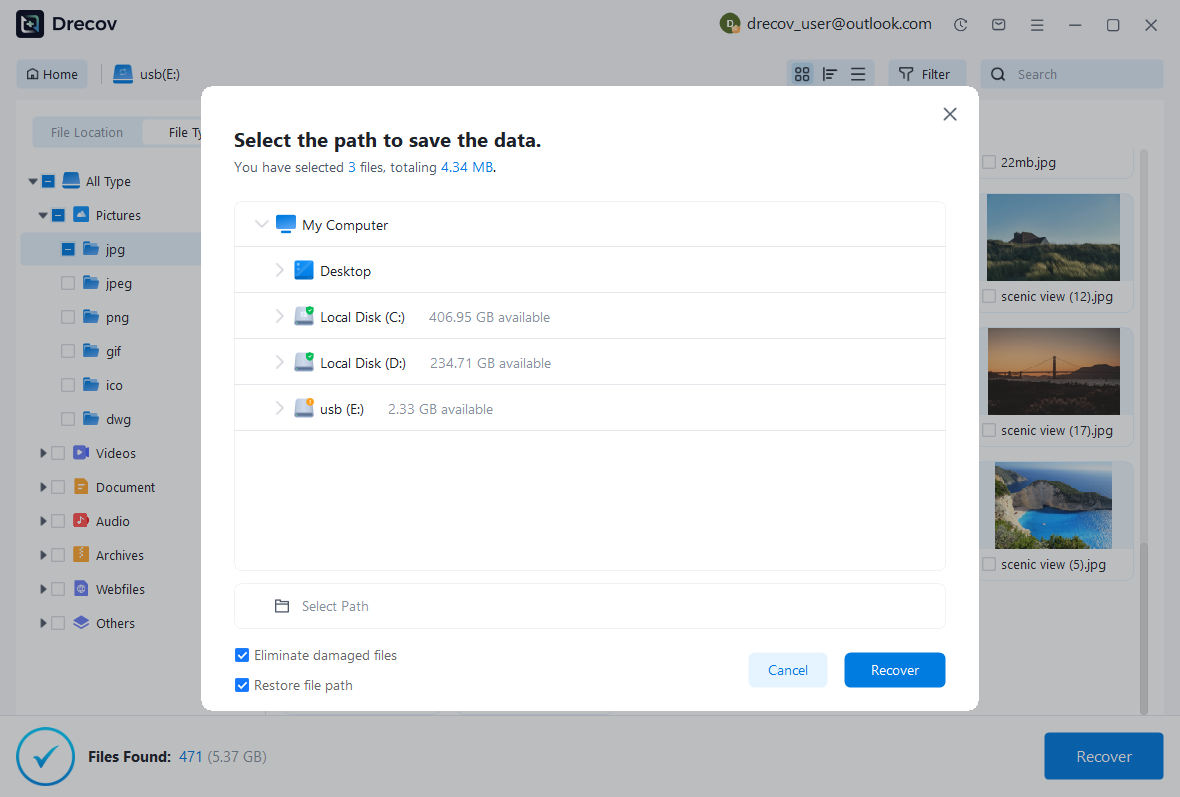
Step 5: Recover to another healthy device
Select the files you want and choose Recover. Set the destination to a healthy internal drive or another external disk with enough free space, then check the path once more before export. Never save recovered files back to the affected USB: new writes could replace data you still hope to find. If the destination fills up, switch to a different healthy disk.
Step 6: Open and verify the recovered files
Open a few recovered documents, photos, and videos in their usual apps. Check the pages, images, or frames you needed; a plausible filename and size are not proof of a complete file. Look at dates and contents if you found several versions. If a file is not where you expected, check the destination you selected and any Drecov or Recovery folder created during export.
Nothing useful after both scans? Confirm that you selected the right physical USB and search by file type as well as name. The original folder path may be gone. If the correct drive still yields no usable files, leave it unchanged while you decide whether specialist assessment is worthwhile; another scan cannot undo an overwrite.
Ready to try the visual workflow? The Drecov USB recovery has the Windows download and current product details.
⚠ Warning: Install it on a drive different from the one where your data was lost to prevent overwriting.
Free Open-Source Ways to Recover Files From a USB Drive
If you prefer a no-cost, open-source route, CGSecurity’s TestDisk and PhotoRec tools are worth knowing about. Download the suite to your computer, never to the affected USB, and keep a separate drive ready for the recovered files. They offer different ways to find data; neither can make a physically failing device safe to scan.
TestDisk: Copy files when the file system still has useful records
TestDisk can list and copy files from some lost partitions and undelete files on supported file systems, including FAT, exFAT, and NTFS. Try it when the USB is stable and you hope to keep original names or folder context. In its text menus, identify the physical USB by capacity, inspect the relevant partition, and use the file-listing or undelete option to copy selected files to another disk. CGSecurity’s NTFS undelete example shows those screens in order.
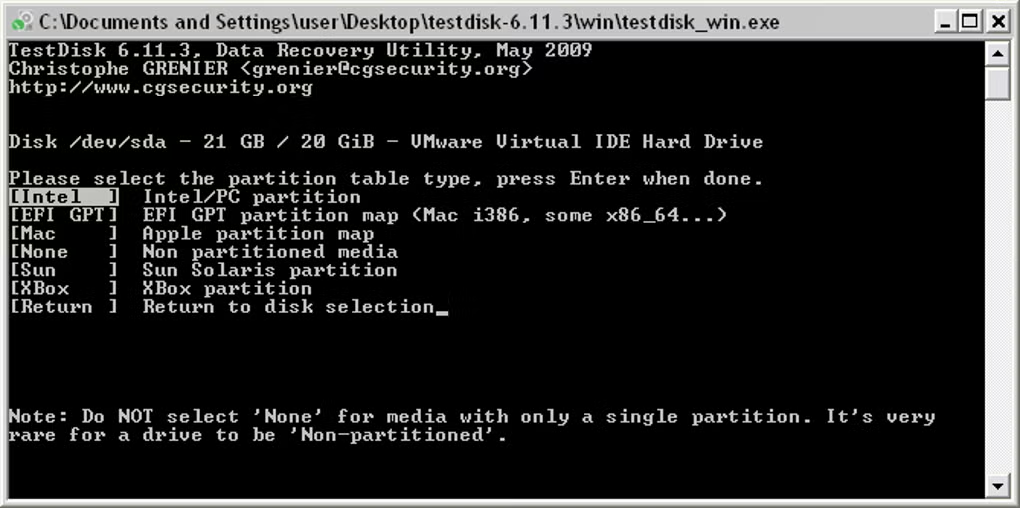
You will also see partition-table and boot-sector repair options in TestDisk. Leave those alone while retrieving files; copy and check the files first. If TestDisk cannot list what you need, PhotoRec can search by file contents instead.
- Open the tool from a healthy drive. Extract the official TestDisk archive to your Windows computer, then run with administrator rights. Choose Create for a log saved away from the affected USB, or None if you do not need one.
testdisk_win.exe - Select the right physical disk. Match the USB by capacity and device name. Accept the detected partition-table type unless you know it is wrong. For deleted files on a visible partition, choose Advanced, select that partition, then Undelete. If a partition is missing, choose Analyse and Quick Search; highlight a found partition and press to list its files.
P - Copy, do not repair. In the file list, select a needed file and press to copy it. Navigate to a folder on a different healthy disk, confirm that destination, and repeat for the files you need. Do not select Write or a boot-sector repair option.
c - Verify the copies. Open representative files from the destination. If the expected names or folders are absent, leave the USB unchanged and consider PhotoRec’s content-based search.
PhotoRec or QPhotoRec: Search by file contents
PhotoRec looks for recognizable file data instead of depending on the damaged directory. It can help after an accidental format or when the file system no longer points to your files. PhotoRec uses text menus; QPhotoRec provides a graphical interface. Select the correct USB and relevant partition or disk, limit file types if you know what is missing, and choose a folder on a different healthy drive for the output. CGSecurity’s PhotoRec walkthrough explains the selection screens.

PhotoRec often assigns generic names and loses the original folders; fragmented files may be incomplete. Open a few recovered files to check them. If TestDisk can copy the same files with their names intact, that saves cleanup.
- Save elsewhere and inspect. Select a folder on a different healthy drive before starting the search. PhotoRec places output in folders. Browse the file types you need and open representative copies; do not assume every item with the right extension is complete.
recup_dir - Start PhotoRec on Windows. Run from the extracted CGSecurity archive with administrator rights. If you prefer the graphical interface, open ; its labels may differ slightly from the text-menu steps below.
photorec_win.exeqphotorec_win.exe - Choose the source. Select the affected USB by its physical capacity, then the partition that held your files. If no usable partition is listed, use the appropriate whole-disk option only after confirming the device. File Opt can narrow the search to file types you need.
- Set the scan scope. Choose Other for a typical FAT, exFAT, or NTFS USB, not the ext2/ext3/ext4 option. Where PhotoRec offers Free for a readable file system, it searches unallocated space for deleted files. Choose Whole after a format or file-system damage, since the old allocation map may no longer be reliable.
Which Recovery Path Fits Your Situation?
Still weighing the options? Match the condition of your drive to the kind of result you need.
| Your situation | Reasonable path | Important limitation |
|---|---|---|
| An intact backup exists | Restore and verify it first. | It must contain the missing version. |
| Stable USB; you want visual previews | Scan and preview with Drecov. | Verify exported files afterward. |
| Stable USB; file records may remain | Copy with open-source TestDisk. | Text menus require careful selection. |
| Formatted USB or damaged directory records | Try open-source PhotoRec/QPhotoRec. | Names and folder structure may be lost. |
| You prefer Microsoft’s free command-line tool | Try Windows File Recovery. | It is free, not open source; syntax and mode matter. |
| Wrong capacity, disconnects, or damage | Stop direct scans; seek specialist help. | Software cannot fix failed hardware. |
Microsoft’s Windows File Recovery documentation covers USB devices and requires different source and destination drives. For FAT or exFAT, it directs users to Extensive mode. The tool is free, but it is not an open-source option or a visual preview workflow.
For any recovery product, check its current licensing terms before you begin. A free download, scan, or preview does not necessarily include free export. TestDisk and PhotoRec are the open-source choices described above; Drecov offers the guided preview workflow.
What Changes if the USB Was Formatted, Turned RAW, or Lost a Partition?
After an accidental format
If you completed a format, avoid saving anything else to the USB. Later writes may replace data you want back. The formatted USB recovery guide covers that situation in detail. If Windows has only suggested a format, cancel the prompt instead.
When the file system appears as RAW
RAW means Windows cannot read the volume’s file system normally. Check the drive’s capacity and connection before scanning; RAW alone says nothing certain about its physical health. The RAW USB recovery article covers the recovery and repair stages. Hold off on CHKDSK or creating a new volume until you have copied out the files you need.
When a partition is missing
When a partition disappears, its drive letter may vanish even though Windows still sees the physical USB. Drecov’s Lost Partition Recovery mode may locate files associated with that partition on a readable device. Copying those files is different from rebuilding the partition table, which changes the drive’s metadata. Make that decision only after verifying recovered copies or securing a suitable image.
If the USB opens normally and you know the files were deleted, the deleted-USB-files tutorial covers that narrower problem. A format prompt, RAW volume, or disappearing device needs a different response.
USB Recovery FAQs
Can I recover files from a USB drive without installing recovery software?
Yes, if an intact copy already exists. Check the computer where you last edited the files, cloud storage, email attachments, and any backup you made before the loss. Windows does not keep a universal undelete history for every USB drive. If no copy exists and the files were deleted from the device, a recovery tool or specialist service may be necessary.
Can USB recovery work after a quick format?
It can, but there is no guarantee. A quick format may replace file-system records while leaving some file contents readable until new writes overwrite them. Stop using the USB immediately and scan a stable device, saving results elsewhere. A full format or later file transfers can reduce what remains recoverable.
Why does the USB appear in Disk Management but not File Explorer?
It may lack a drive letter, show as RAW, or have a missing or damaged partition. Those states differ, so first compare the device’s reported capacity with its label and check whether it stays connected. Do not initialize, format, or create a new volume just to make it appear in Explorer while important files remain on it.
What if recovered USB files have the right names but will not open?
The file record may have survived while the content was overwritten, incomplete, or damaged. Try another recovered version and check a few files of different types. PhotoRec may find a content-based copy when directory-based results are unusable, but it cannot reconstruct data that is no longer present. Keep the source unchanged if the files justify specialist assessment.
Can software recover a USB drive that shows 0 bytes?
Not reliably from that symptom alone. First verify that Windows is reporting the physical USB’s capacity, not just an empty volume. Try one known-good port or cable if appropriate. If the device still reports zero or an implausible capacity, ordinary recovery software may not be able to read its storage; repeated scans are unlikely to help. Ask a specialist if the data is valuable.
Verify the Files Before Repairing or Reusing the USB
Before reusing the USB, open the files you actually needed. Check several slides in a presentation, play part of a video, and inspect more than one photo from the affected folder. A correct filename can still hide an incomplete file. Keep verified copies on healthy storage, then decide whether to troubleshoot or replace the original USB.
CHKDSK changes file-system structures, formatting prepares a new file system, and repartitioning changes disk metadata. Those operations may make a drive usable again, but they do not replace the step of copying out important data first. If the USB has been disconnecting or reporting an abnormal capacity, do not trust it with the only copy of anything important.
Once you have opened and checked the recovered files, make a second copy. If the appropriate scans found nothing usable, leave the USB unchanged while you decide whether to seek specialist help. A drive that opens again is welcome news, but the real finish line is finding your files intact on healthy storage.
⚠ Warning: Install it on a drive different from the one where your data was lost to prevent overwriting.






