To repair flash drive problems, start by asking whether the files are safe—not which command to run. A stick that connects steadily but shows a file-system error calls for a different response from one that disappears, changes capacity, or gets hot. Copy anything readable to a healthy device before attempting a fix. If important files are missing, recover them from the stable source first. Once the data is verified elsewhere, you can diagnose the connection, consider a file-system repair, and decide whether the stick deserves another job or should be retired.
The first failure tells you what to protect
Write down the exact moment the USB stick fails. Does Windows show the right capacity but refuse to open one folder? Perhaps a copy operation stops on a particular file. In another case, the entire drive vanishes when the connector moves. These observations are more useful than a vague “USB broken” label. Such details also tell you whether a software scan is reasonable. A drive that repeatedly disconnects should not be subjected to a long series of tests in the hope that one will work.
Read the symptoms before choosing an action
- Stable drive, some files open: copy the irreplaceable files first, starting with the smallest and most important. Later, investigate individual failures.
- Stable drive, folders missing: avoid new writes and check backups or a recovery scan before any repair command.
- Windows asks to format: cancel the prompt while you still need data. Formatting is not a repair for missing files.
- Wrong capacity or repeated disconnects: stop direct scans and formatting attempts. Controller or media trouble may be involved.
- Drive is completely absent: verify the port and another known-good USB device. If the original stick remains absent, ordinary file software cannot scan it.
Use the same USB port with a known-good stick only when that does not risk another important device. If the good stick works but the suspect one does not, the problem is more likely in the suspect device. A single careful connection check is informative; dozens of reconnects are not. For an unstable or physically damaged stick, professional imaging or recovery is more appropriate than repeated consumer scans.
Extract files before making the drive usable
“Repair” can mean two very different things: regain access to files, or make a storage device reusable. The first task comes before the second. If the stick opens in File Explorer, copy valuable folders to another healthy drive and open representative files there. A completed copy window does not prove that a video plays or that a document contains its pages. Record what copied successfully and which items returned an error; this list guides recovery without writing to the source.
Check any existing backup or synced copy by opening it. If the backup is older, compare timestamps and file sizes with the remaining USB contents. Do not replace a good backup with a newer but corrupted file from the failing stick. When one folder is missing but another is readable, keep the USB out of routine use. Every new save can overwrite material that a recovery tool might otherwise locate. The file recovery overview explains why missing files require a different task from repairing the device.
A partially successful copy deserves a sober decision. If the missing files are critical, stop experimenting when read errors multiply. A specialist can work from an image rather than a deteriorating physical stick. If only replaceable files remain and the device is stable, a cautious software scan may be reasonable. Neither choice requires formatting first. That Windows offers a “repair drive” button does not mean it is safe to use on the only copy of important data.
Use Drecov when the USB is stable but files are missing
Drecov is Windows data-recovery software. For this problem, its useful role is to search the original, correctly detected flash drive for lost files before any source-modifying repair. Read-only recovery mode, Quick Scan, Deep Scan, file filtering, and preview help separate likely candidates from unrelated results. It can also address an actual lost-partition situation through Lost Partition Recovery. These capabilities do not fix a faulty USB controller, repair a connector, or make an unreliable device safe for future storage. More detail on the source-device category appears on the USB data recovery page.
Set aside a different healthy destination with enough room for recovered files. Run the software from the PC or another healthy volume, not from the failing flash drive. If the stick clicks, overheats, drops out, or reports escalating read errors, do not force this workflow. Stop direct scanning and seek an image or professional assessment. The following sequence assumes the USB remains present with a plausible capacity.
⚠ Warning: Install it on a drive different from the one where your data was lost to prevent overwriting.
Step 1: Select the original flash drive
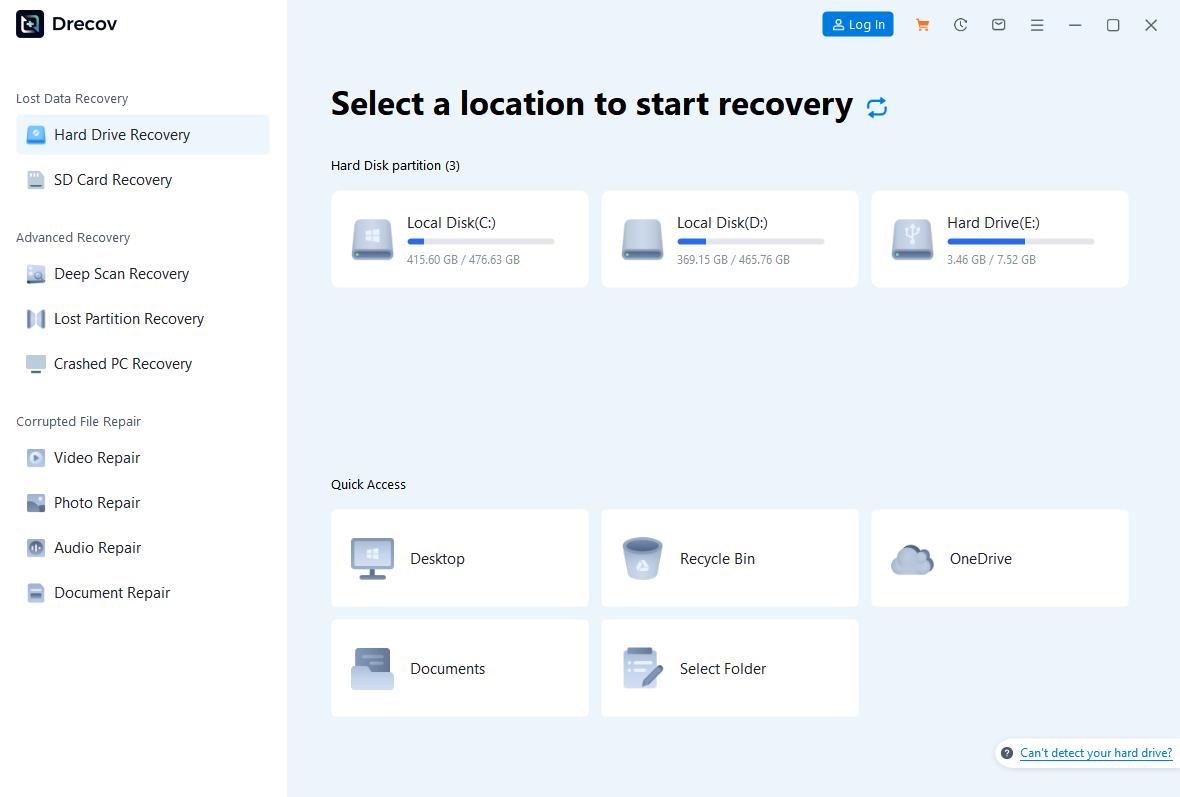
Open Drecov and identify the USB source by capacity and location; its drive letter may have changed since the last connection. Select that original device or volume. If the partition itself has vanished, use the relevant Lost Partition Recovery mode rather than expecting a regular file scan to rebuild a partition table.
Step 2: Run Quick Scan before a deeper search
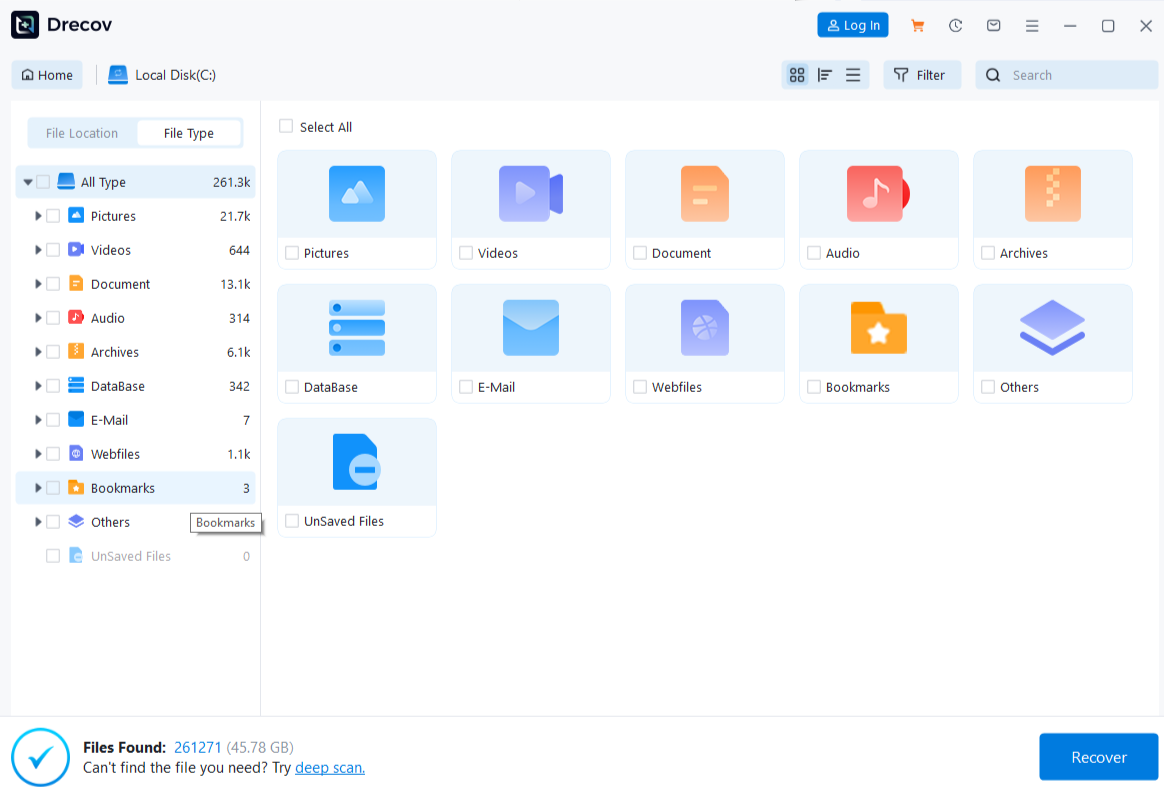
Start Quick Scan. Look for the folders or file types on your missing-file list. A filename in results is only a candidate. The data inside may be partial, overwritten, or older than the version you need. Avoid copying the results back onto the USB while scanning or reviewing.
Step 3: Try Deep Scan only while the drive stays stable
If Quick Scan misses the targets and the device remains consistently connected, run Deep Scan. This deeper search can reveal further candidates, but it cannot guarantee that overwritten content survives. A new disconnect or severe read error is a reason to stop, not a prompt to restart the scan repeatedly.
Step 4: Filter, preview, and save elsewhere
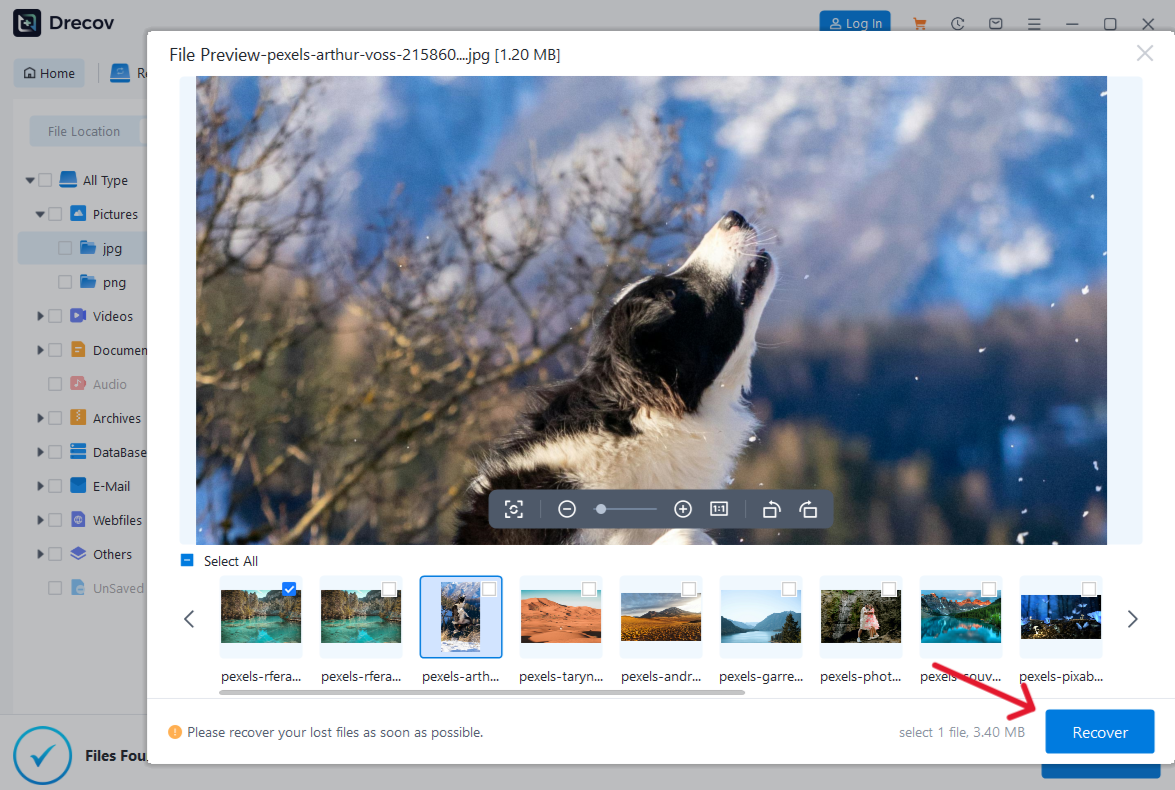
Filter by type, path, or name where available. Preview several supported documents, photos, or media files to judge whether the candidates are plausible. One successful preview does not certify the entire set. Recover selected files to the separate healthy device, never to the source USB. If output is not where expected, check the Drecov Folder or Recovery Folder on the chosen destination. Open the recovered files and sample the most important ones before any repair attempt.
⚠ Warning: Install it on a drive different from the one where your data was lost to prevent overwriting.
Diagnose the connection and Windows state
Once your files are safe, distinguish a bad connection from a file-system fault. Try one direct port on the computer rather than a loose hub. Look at This PC and Disk Management: does the stick appear with the expected capacity, and does it have a drive letter? Disk Management can describe a volume without making its files accessible. Avoid initializing an “unknown” disk or creating a new volume merely to see whether that helps; those changes can destroy recovery clues.
If Windows shows a device error in Device Manager, note the exact code before changing a driver. A driver problem may affect recognition, but it is not proof that the stored files are healthy. Conversely, a stick that reads on one computer but not another may point to a host port, power, or policy issue. Test a second computer only after protecting data and without allowing that system to format or “repair” the USB automatically.
When the same physical stick fails on two known-good ports and another USB device works in both, suspicion shifts toward the stick. A drive that intermittently changes capacity or disappears under light use is a poor repair candidate. Even if it becomes readable for a moment, use that window for a copy or controlled recovery, not for a sequence of write-heavy repair attempts. Hardware fault symptoms should change the objective from reuse to data preservation.
Repair a protected copy—or retire the stick
File-system tools can modify directories and allocation records. Microsoft’s CHKDSK reference states that repair switches such as /f change errors on the volume; on FAT file systems, repairs can affect the file allocation table and lead to data loss. This is why a command belongs after recovery or a verified backup, not at the top of a USB repair list. Do not run a copied command with an assumed drive letter. Confirm the exact device and understand the effect first.
If you have a complete image and know how to work on it, test file-system repair on the image or another copy. That preserves the source for another recovery attempt if the repair changes file names or folder structure. If you only have a verified backup and no need to preserve the old USB state, you may use Windows’ repair interface on the original volume, provided it remains stable. Recheck the files afterward. A successful message does not restore a missing photo that was already overwritten.
Formatting is a different decision. It discards the current file-system view and prepares the stick for new use; it does not retrieve missing data. Once you have verified everything you need elsewhere, a format may reset a logically confused but physically stable device. Choose a file system supported by the destination equipment and test the stick with disposable files. For loss that happened during an earlier format, the formatted USB recovery page addresses that specific event. If any write test fails, the stick should be retired rather than trusted again.
Prove a reused drive with a write-and-read test
Do not judge success by whether a drive icon appears. Copy a small, nonimportant test file onto the USB, safely eject it, reconnect it, and open that exact file. Repeat with one larger test file if the intended use involves large videos or archives. Compare the copy with the original by opening both or, if you know how, checking a file hash. This tests the path you actually care about: write, removal, reconnect, and read.
Next, repeat the test in the device that will use the stick. A computer may read NTFS while a television or camera does not. If a device rejects the stick but Windows’ write-and-read test passes, investigate compatibility rather than calling the flash memory broken. Recurring errors on both Windows and the receiving device call for replacing the USB. Never store the only copy of a family photo or work document on a device that has already failed a simple verification.
Keep a separate backup even after a successful test. Flash drives are convenient for carrying data, not ideal as the sole archive. A reliable result today says that this limited test passed; it does not predict the remaining life of memory cells or the controller. Use the original incident as a reason to establish a second copy, not as evidence that the repaired stick is permanently trustworthy.
FAQs
Can I repair a flash drive without formatting it?
Sometimes. A host port or drive-letter problem may be resolved without a format, while a file-system repair may modify the volume. Protect files first. A physically failing stick cannot be made reliable by changing the file system.
Why does Windows keep asking me to repair the drive?
Windows may have detected a file-system inconsistency, but the prompt alone does not identify its cause. Cancel it until the files are backed up or recovered. Recurring prompts after verification suggest you should stop trusting the stick.
Does CHKDSK recover deleted files?
No. CHKDSK checks and, with repair switches, changes file-system structures. Deleted-file recovery is a separate task. A repair may even change how orphaned data appears, so recover needed files before running it.
Should I keep using a USB stick after one successful format?
Only if it remains stable and passes write, eject, reconnect, and read tests, and even then keep another copy. Wrong capacity, repeated disconnects, or recurring read errors are reasons to replace it.
What if Drecov finds filenames but the files will not open?
Try another candidate or an older backup. Preview and test representative recovered files. A visible name does not prove that all content survived; overwriting or physical failure can leave incomplete results.
Conclusion
To repair flash drive problems safely, decide first whether you are saving files or trying to reuse the device. A stable, correctly detected stick may allow backup or Drecov recovery before any file-system change. Confirm results on another healthy drive, then test the connection, consider a protected repair, and verify the USB with a real write-and-read cycle. If the stick disconnects, changes capacity, or fails that test, retire it; no software command can turn unstable hardware into dependable storage.
⚠ Warning: Install it on a drive different from the one where your data was lost to prevent overwriting.