USB drive data recovery software can help when files disappear from a flash drive that Windows still detects reliably. Start by checking existing copies, then choose a tool that can search the original USB and save elsewhere. A scan showing your filenames is encouraging, but the job ends only when the saved files open correctly. If recovery stops at the saving stage, check the destination before assuming the USB needs another scan.
Keep the original flash drive out of everyday use while you investigate. Downloads, copied folders and a new installation image can replace data you still need. The safest next step depends on whether files remain readable, the device stays connected, and you have somewhere healthy to put the results.
Decide whether the USB needs recovery software at all
The files still open
Copy the important folders to another healthy device and open several examples there. Normal copying is simpler than scanning when the originals remain accessible. Include linked project materials, not just the main document or editing project. Once the copy passes inspection, you can investigate why the USB looked empty or behaved differently on another computer.
Files disappeared, but the device stays available
Check the original computer, any backup, and folders where you previously copied the USB contents. Deletion from removable storage may bypass the Windows bin. By contrast, a copy you deleted from the PC might still qualify for ordinary Recycle Bin recovery. Establish which copy you lost before choosing a source to scan.
When no usable copy remains, software can search a stable USB for surviving file information or content. Formatting and later writes affect what remains. Neither a familiar filename nor a large results count proves that the complete file survived.
The device repeatedly disappears
Stop direct scans if the USB disconnects, becomes unusually hot, or produces persistent serious read errors. Try a straightforward connection check only while the device behaves safely. Continued instability calls for advice about imaging or professional recovery, not a sequence of competing scanners. Do not format the device merely to make a program recognize it.
What Drecov can do for missing USB files
Drecov is Windows data recovery software for missing local files. Its read-only recovery mode, Quick Scan and Deep Scan provide a way to examine a stable, accessible USB. Filters, file location information and supported previews help you choose what to recover. You then save selected results to another healthy device rather than writing them back onto the source.
For a USB containing documents, photos and recordings, that means finding the original folders or recognizable files before selecting everything. Lost Partition Recovery can help search for data associated with a missing partition. This capability is not partition-table repair, and the program does not fix broken connectors or failing flash memory. For other loss scenarios, consult the USB recovery overview.
⚠ Warning: Install it on a drive different from the one where your data was lost to prevent overwriting.
Choose USB drive data recovery software by the job
Look for a workflow you can follow without changing the source. The relevant differences are how a tool identifies files, how you narrow the results, and what you can verify before relying on them. A supported feature is more useful than an unexplained promise about speed or recovery percentages.
| Approach | Useful starting point | Check before proceeding |
|---|---|---|
| Drecov | A Windows user needs guided scanning, filtering and supported previews. | The USB must remain stable and accessible; prepare a separate output device. |
| Windows File Recovery | A user is comfortable with a command-line recovery tool. | Choose the appropriate mode and filters from the official instructions. |
| Recuva | A Windows user wants to assess its file search, including its documented damaged or reformatted disk option. | Confirm that it recognizes the source; recover to a separate destination. |
| PhotoRec | File-content recovery is useful when the original file-system information is unavailable. | Expect limitations with original filenames and folder structure. |
Microsoft describes Windows File Recovery as a command-line application and requires different source and destination drives. Read its instructions before choosing a mode; a command written for another drive layout can target the wrong place. Other tools, including Recuva and PhotoRec, have their own procedures. Switching tools does not remove the need to identify the USB and protect its remaining data.
Before committing to any USB drive data recovery software, check its current recovery conditions and the formats you need. Do not assume a scan, a preview and saving results have identical availability. Keep any purchase decision separate from claims that a program can restore overwritten content.
Recover a small, useful set before selecting everything
Prepare the source and a separate destination
Stop writing to the USB and check independent backups first. Install Drecov somewhere other than the source device, then prepare another healthy device with enough free space. Record the USB capacity and identifying label so you do not confuse it with the destination. If access becomes unstable, stop and obtain imaging or specialist advice before further scanning.
Step 1: Open Drecov and choose the original USB
Select the device or location that contained the missing files. Use the current device identity rather than a drive letter remembered from another computer. If the partition disappeared, choose the applicable Lost Partition Recovery mode. Creating a replacement partition first would change the source before you have secured its files.
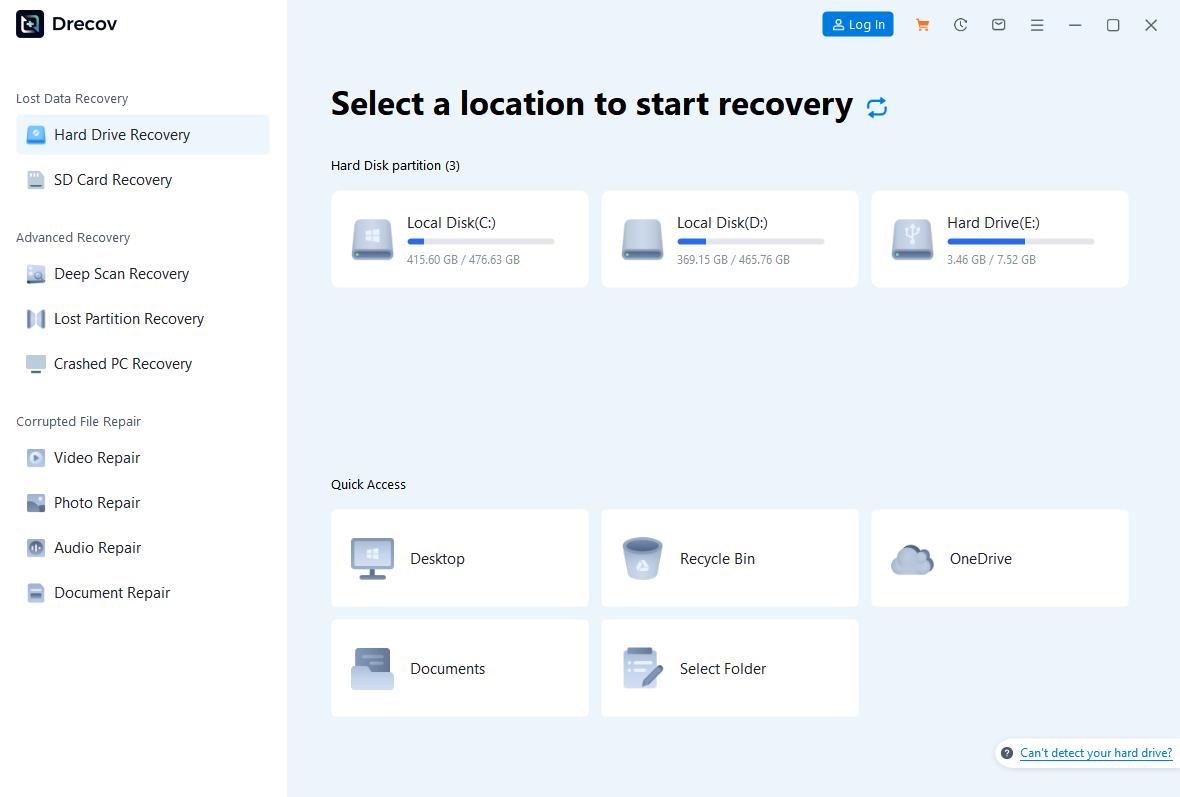
Step 2: Run Quick Scan and look for familiar content
Inspect recognizable folders, filenames and expected file types. A school project might require documents plus images; a recording session might include separate audio and video. Select a few important examples rather than the entire results list. Their contents will tell you more than the total number of entries.
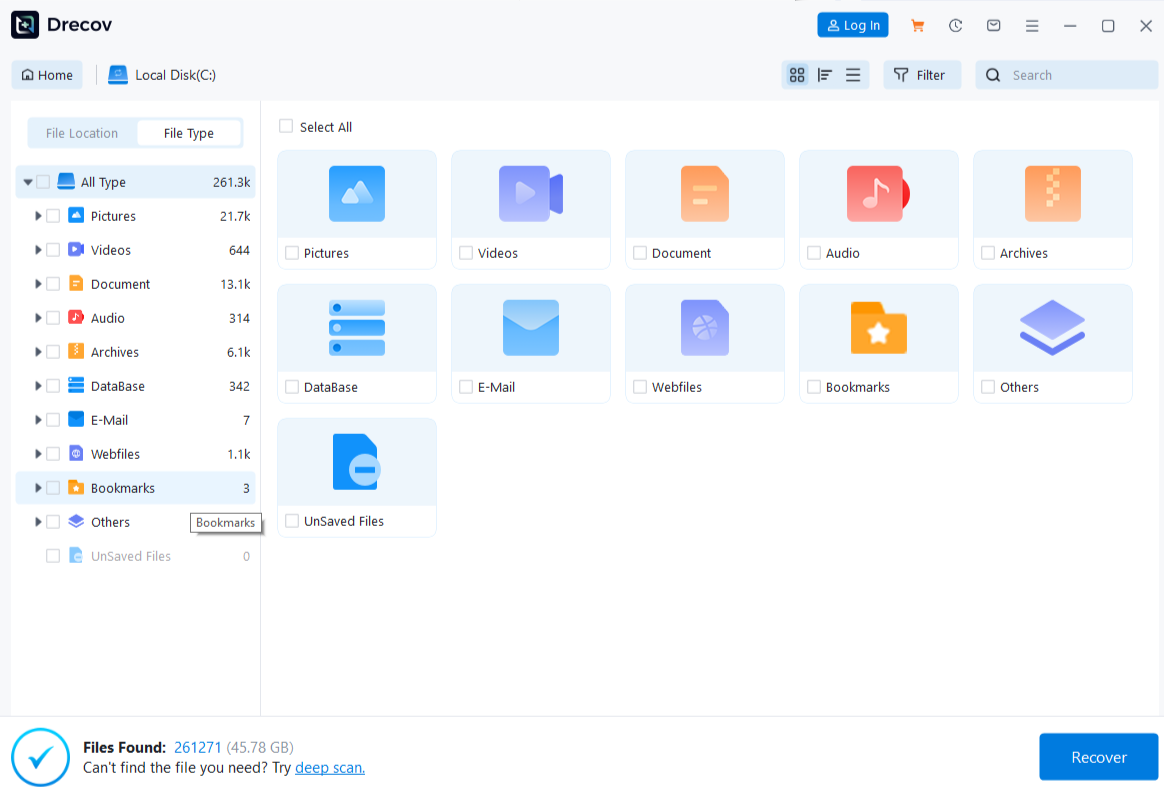
Step 3: Use Deep Scan only when needed and stable
Continue with Deep Scan if Quick Scan does not locate the files and the USB remains reliable. Stop when read errors or disconnects appear. A longer search cannot recreate data that later writes fully replaced. Keep the purpose specific: locating the missing originals, not repeatedly scanning simply because the first list looked unfamiliar.
Step 4: Filter the results and preview representative files
Use available names, types, paths and dates to narrow the search. Preview supported examples and inspect recognizable details. One readable page does not confirm every page in a document, and a video thumbnail does not establish its full duration. Retain several plausible versions if you cannot yet identify the newest complete copy.
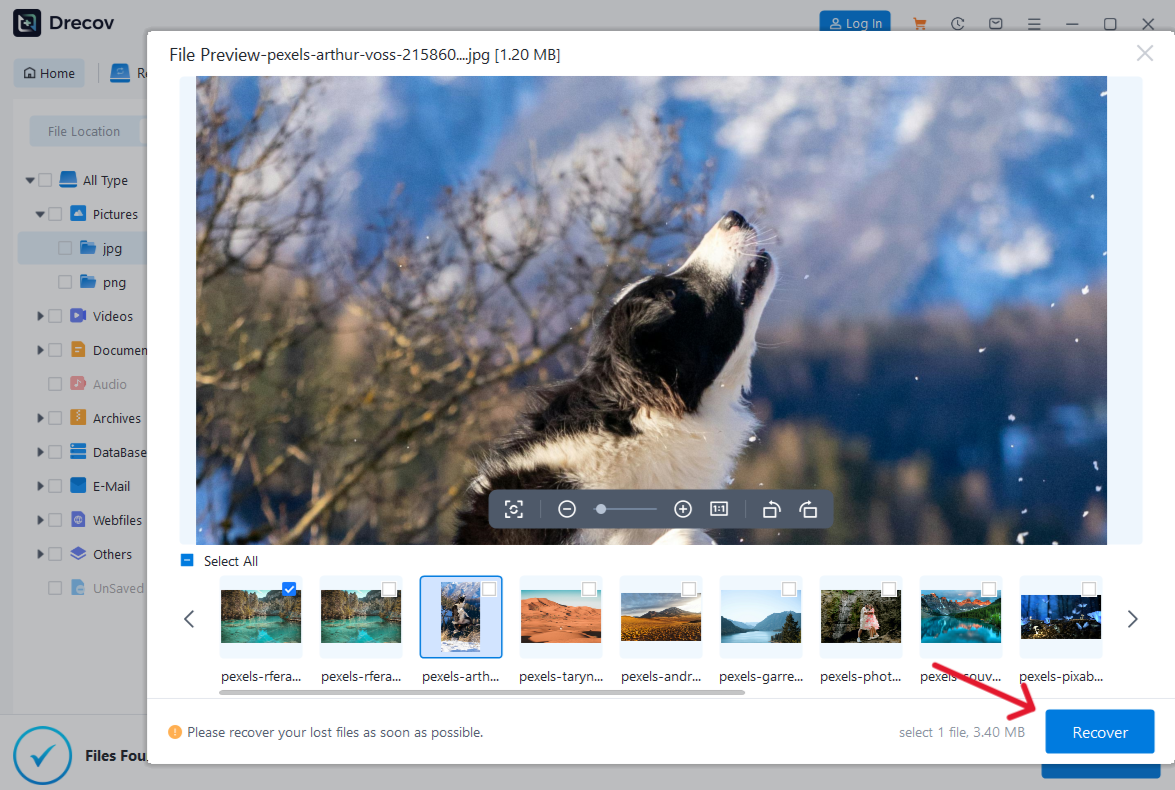
Step 5: Save elsewhere and verify the recovered copies
Recover to the other healthy device, never the original USB. If the recovered USB files do not appear in the destination you selected, look there for Drecov Folder or Recovery Folder. Open documents, inspect photo dimensions, play important video passages and test archives. After verification, you can consider source repairs, CHKDSK, initialization or formatting. General file recovery also requires that separation between extracting data and repairing storage.
⚠ Warning: Install it on a drive different from the one where your data was lost to prevent overwriting.
When a scan finds files but cannot save them
Read the message before scanning again
Note whether failure happens before copying begins, during one file, or after several successful saves. Record the exact message and the destination path. Cancel any attempt to save back to the USB. A destination problem does not justify modifying the source or discarding results that may still be useful.
Check destination space and folder access
Open the destination in File Explorer and inspect its free space. The selected files can need more space than the small scan database or preview suggests. On that healthy destination only, create and remove a harmless test file to check write access. Use a normal folder you control rather than a protected system directory.
Check the destination file system if small documents save but a large video fails. FAT32 cannot hold an individual file of 4 GiB or more. Choose another healthy destination that supports the file size instead of reformatting a drive containing needed data. Available capacity and maximum individual file size are different limits.
Separate a bad candidate from a failing device
Try saving one small, important candidate to a verified destination. If only one item fails, keep other successful copies and record which item caused trouble. Repeated source disconnects or read errors change the decision: stop direct recovery and seek help. A payment or feature message needs the software’s current terms, not another scan or an assumption that the file itself is damaged.
FAQs
Can USB drive data recovery software fix a broken flash drive?
No. File recovery software needs access to readable storage. Broken connectors, repeated disconnects and serious hardware symptoms require a different assessment. Do not keep reconnecting a physically damaged device to complete a scan.
Should I format the USB so recovery software can open it?
Not while you need its files. Formatting changes storage information and can reduce recovery options. Decline a format prompt, identify the device and evaluate recovery without preparing a new file system first.
Does a preview mean the whole file is good?
It helps identify a candidate, but it does not validate every page, frame or archive member. Save to another device and test the parts that matter to your work.
Why can small files save while one video fails?
Check free space, folder access and the destination’s individual file-size limit. A read problem in that particular candidate is another possibility. The exact error helps distinguish these cases.
Should I run every recovery program I can find?
Repeated scans do not guarantee more usable files. Start with a suitable method, preserve successful output and reassess any new errors. Unstable sources need protection rather than more scanning.
Conclusion
Choose USB drive data recovery software around the files you need and the condition of the source. Drecov offers a Windows workflow for scanning, locating, previewing and saving recoverable data from a stable USB. If saving fails, examine the destination and the exact error before repeating the search. Verified copies on another device—not a promising scan list—are what let you safely move on.
⚠ Warning: Install it on a drive different from the one where your data was lost to prevent overwriting.