

Recover a Freeplane map without flattening its structure
To recover Freeplane mind maps, preserve the native map and identify the missing component first. You may have lost a branch, an entire map, a linked document, or only the view of a folded section. A PDF can preserve readable content while losing editable node relationships. Therefore, decide whether your recovery needs a working map or merely the information visible in an earlier export.
Record the map’s filename, expected central node, a distinctive branch, and the location where you last saved it. Also note whether the map was new and unsaved or an existing document with later edits. Those cases have different candidate sources. A previously saved map can have backups that an entirely new map never acquired.
Preserve the map and its surroundings
Copy the existing map, nearby backup candidates, and relevant linked files to a separate recovery folder. Keep their original names and directory relationships in an untouched source copy. Then perform experiments on another copy. This makes it easier to distinguish a pre-existing candidate from a file created by your own recovery session.
If the application still displays useful content, save that content under a new map name before closing it. Also export a readable reference if practical. The native map preserves editability, while the reference helps you compare visible branches later. Do not let a successful export replace the only surviving editable copy.
Native route 1: inspect surviving autosave candidates
- Check the existing Freeplane backup preferences and configured locations.
- Preserve candidate autosave files before launching repeated editing sessions.
- Open a copied candidate through Freeplane’s normal file interface.
- Compare the missing branch and save an accepted map under a new name.
Freeplane can keep automatic save material according to its backup settings. Depending on configuration, files may be near the map or in a dedicated backup directory. Inspect the settings actually used by that installation rather than assuming a universal folder. Changing the preference now does not recreate a file that was never written.
Treat retention as a condition
Autosave material is temporary protection, and cleanup behavior can depend on normal saves or application exits. Preserve what currently exists before repeatedly opening, saving, and closing maps. If no candidate survives, state that limitation. An enabled checkbox is evidence of a setting, not proof that a recoverable version of the missing branch remains.
Compare candidate contents rather than selecting solely by modification time. A newer map might contain the unwanted deletion, while an older candidate retains the branch you need. Keep both until you compare their useful differences. Saving the accepted recovery to a separate filename prevents your inspection from replacing a still-useful alternative.
Native route 2: open an existing backup map
- Locate the backup directory used by the original installation.
- Copy the relevant map backups to a separate test folder.
- Open candidates one at a time and inspect a distinctive node.
- Preserve the best complete map and document any newer changes it lacks.
An existing map backup may preserve a useful milestone before an accidental edit. Its value depends on what the map contained when that backup was created. A familiar filename alone cannot establish completeness. Compare the central topic, branch structure, notes, and a known recent addition before adopting the candidate.
Compare branch content and metadata
A restored branch can include more than its visible node labels. Inspect rich notes, attributes, links, icons, and any meaningful formatting. For a project planning map, a missing status attribute may matter as much as a missing sentence. Use concrete examples from the affected branch to check whether the native structure survived.
If the backup is older but useful, preserve the current map separately and merge carefully in a working copy. Review copied branch links and relationships afterward. This is a deliberate combination of surviving versions. Do not assume that a visual copy automatically recreates every cross-reference or identifier exactly as it existed before the incident.
Native route 3: reopen the correct existing map
- Search the expected project locations for native map files and known names.
- Compare the full path of each candidate with the location shown by Freeplane.
- Open a copied candidate and unfold the relevant branches.
- Confirm the distinctive content before deciding that the map is missing.
A recent-file entry can point to an older copy, a moved document, or a location that is temporarily unavailable. Another map with the same filename may still contain the work. Record full paths rather than relying on the recent-file label. This distinguishes a navigation problem from genuine deletion of the native document.
Inspect folding, focus, and any active filtering that affects the current view. A branch outside the visible area may still exist in the map. Search for a distinctive node phrase and inspect the path to it. If the content survives, restore the intended view or organization without unnecessarily replacing the entire document from backup.
Also inspect the map’s root and important child counts. A map that looks smaller may simply open at a different level of detail. Conversely, finding one familiar node does not prove every branch survived. Compare the specific missing branch and its descendants, including any notes that carry details absent from the visible labels.
Native route 4: reconstruct from an existing structured export
- Preserve the original export and identify its format and creation date.
- Create a separate recovery map rather than overwriting the surviving native map.
- Use a supported import route where the export format permits it.
- Compare hierarchy, text, notes, and links, documenting anything rebuilt manually.
A structured export can preserve useful hierarchy when the native map is unavailable. However, a supported import does not guarantee that every Freeplane feature returns. Attributes, special formatting, scripting, or relationships may differ. Treat the result as a reconstruction unless you have evidence that the full native document survived intact.
Use flat references honestly
A PDF or image may help reconstruct labels and branch order, but it does not contain an editable map merely because the diagram looks complete. Create nodes manually where necessary and record the reference used. If the export hides folded content, do not invent the unseen descendants. Mark the missing detail and seek another source.
For a document-style export, compare headings and indentation before inferring hierarchy. Some exports emphasize readable order rather than exact node relationships. A section that appears next to another in the output may not have been its child. Check another reference or surviving native fragment before claiming that the original structure has returned.
Recover linked documents as a separate task
A native map can survive while links to spreadsheets, images, or reference documents break after a folder move. Inspect a representative link and compare its intended target with the current file location. Then test the target independently. The map can restore navigation only when the referenced material still exists or you recover it separately.
Keep relative paths meaningful
If a map and its documents originally traveled together, preserve their folder relationship when copying them for recovery. Moving only the map can break relative links without damaging the map itself. Compare the old and new directory structure before rewriting dozens of links. A corrected folder placement may solve the problem more reliably than individual edits.
When a target truly moved, update the link in a working map and test it from the map’s saved location. Avoid accepting a link that works only while a temporary recovery directory exists. The final accepted map should open the intended document from its planned long-term location, with any necessary path changes recorded.
Inspect notes that are absent from the visible diagram
Node labels often summarize information that lives in a note or detail area. After recovery, open those panels for important nodes and compare their full content. A map can look correct at normal zoom while missing the paragraphs that made it useful. Include at least one heavily annotated node in your verification sample.
Preserve formatting that carries meaning
A checklist or decision map may use color, icons, and attributes to express status. Compare those features against a surviving reference rather than focusing only on text. If a reconstruction loses them, restore the meaning deliberately and record the change. A visually tidy map is not necessarily a faithful representation of the earlier planning state.
Also test links inside rich notes, not only the node’s primary hyperlink. Those embedded references can point to separate documents or web resources. An imported note may display the correct words while a target changes or becomes unavailable. Keep content restoration and reference validation as separate acceptance checks.
Handle protected branches without damaging the source
If the map contains encrypted or password-protected content, preserve the original file and use the legitimate credentials through Freeplane’s supported interface. A protected branch that does not display readable text is not automatically corrupt. Do not delete protection information or edit the native file in an attempt to expose the content.
Separate access from data survival
First confirm that the expected branch exists and that the correct password opens a known candidate. Then compare its notes and descendants. If you no longer have the required secret, a recovered map file may remain inaccessible. Storage recovery can retrieve bytes, but it cannot guarantee that protected content becomes readable without the necessary credentials.
Record which portions you could verify and which remain locked. That distinction matters when deciding whether a backup is complete enough for continued work. A recovered map may satisfy one planning task while leaving a protected research branch unresolved, so avoid describing the entire document as fully checked.
Work through a lost project branch example
Suppose a map still opens but an entire planning branch disappears after a cleanup. Save the current map under a new name and search for a distinctive node phrase. Check folding and filtering first. If the branch truly is absent, compare autosave and backup candidates created before the cleanup rather than rebuilding immediately.
Retain valid later work
The older map may contain the missing branch while lacking new decisions added elsewhere. Preserve both maps and copy the verified branch into a working recovery candidate. Then compare cross-links, notes, and status attributes. Do not replace the entire map with the older version if that would discard useful later work unnecessarily.
Once the combined map passes inspection, save it under a clear accepted filename. Close and reopen that file, then revisit the recovered branch and one unrelated recent branch. The first check confirms the target returned. The second helps reveal whether your merge unintentionally removed or altered content outside the original recovery scope.
Choose evidence for large-map verification
For a large map, use a sample that covers the affected branch, a deeply nested section, a linked document, a rich note, and an attributed node. Compare each with independent evidence where available. A total node count can help, but identical counts do not prove that the same content occupies the same relationships.
Record gaps rather than hiding them
If an export restores labels but not notes, record that limitation. If links work only for some folders, list the missing targets. This allows continued work with a clear understanding of what remains uncertain. It also prevents a partial map from replacing the only source that still contains a difficult-to-recover feature.
Keep the untouched source files and the accepted working map separately. Add a short note identifying the backup milestone, copied branches, and manually reconstructed sections. That record makes later questions easier to answer and helps another person distinguish actual recovered content from changes made during the repair.
Build a branch-level inventory for a Freeplane recovery
Before comparing map candidates, choose several branches that define the map’s purpose. For each, record a distinctive node, a child relationship, a note, and an important reference. This gives the comparison a manageable structure. A map with the correct central topic can still omit the decision branch or research note that motivated the recovery in the first place.
Use a concrete planning-map example
Consider a project map with a schedule branch, a risks branch, and a reference branch. An older backup may preserve the risks while missing a newly assigned deadline. Compare those facts separately. You can then decide which source supplies each accepted part instead of ranking the maps by overall visual similarity or choosing the latest timestamp automatically.
Include an intentionally unusual node in the sample, such as a decision with a rich note or an attribute that controls your workflow. Simple labels are easy to reconstruct and can create false confidence. The unusual node tests whether the candidate preserves the native features that make this particular map more than a plain outline.
Compare saved state with the current view
A map’s stored hierarchy and its current presentation are related but different. Folding and filtering can change what you see without removing nodes. Search the content and inspect the path to a result before rebuilding a missing branch. If the branch survives, record the view change that revealed it so the apparent loss does not recur unnecessarily.
Check a deep descendant rather than only its parent
A visible branch label does not prove that its children and notes survived. Expand the branch and compare a known deep descendant. Then inspect one sibling relationship. These checks can reveal a partial map candidate whose high-level outline looks complete while its detailed planning or research material is absent.
If a filter affects the result, preserve the map and adjust the view in a working copy. Compare node visibility with the unfiltered hierarchy. Avoid saving an accidental reorganization while you are merely trying to reveal content. Keeping view diagnosis separate from structural editing makes the recovery evidence easier to interpret.
Preserve cross-links when combining branch candidates
A useful map can connect related ideas across branches rather than expressing everything through parent-child hierarchy. When you copy a recovered branch, inspect those relationships explicitly. Follow an important connection and compare the intended target. A branch can retain its own labels while a relationship points to an obsolete or unavailable node elsewhere.
Keep a relationship checklist for important decisions
For a decision map, list the connections that support the conclusion: a risk points to a mitigation, a requirement points to evidence, or a task points to an owner. Test those links after the merge. This validates the map’s meaning, which can matter more than matching its colors or preserving the exact position of each visible node.
If you reconstruct a relationship manually, record the evidence used. A PDF may show a curved line but hide its endpoint behind a folded branch. Do not guess the connection and present it as recovered structure. Keep uncertain relationships marked until another source or the map’s author confirms the intended destination.
Examine attributes as data rather than decoration
Attributes can carry dates, status, identifiers, or other structured values. Select a node whose attributes matter to the workflow and compare the actual values. A map can display the correct label while losing the status that determined how you filtered or reviewed it. Include those values in the acceptance checklist rather than treating them as optional formatting.
Check values after a structured import
An import may preserve the visible text while converting or omitting metadata. Inspect dates, numeric values, and labels in the reconstructed map. If you restore them manually from a reference, record that step. This distinguishes a fully preserved native node from a readable reconstruction whose structured information required additional work.
For maps with formulas or scripted behavior, preserve the source before evaluating anything unfamiliar. Review the intended calculation or action in an appropriate controlled context. A recovery file should not become an excuse to run unknown scripts. Keep content verification focused on the map’s legitimate expected behavior and document any dependency you cannot validate.
Restore linked-file access after a folder move
Suppose a mind map opens correctly after you move a project directory, but its budget spreadsheet no longer opens from the reference node. Inspect the stored link and the spreadsheet’s new path. Compare the old folder relationship with the new one. The spreadsheet may be intact, making this a path repair rather than recovery of deleted map content.
Test links from the final saved location
A relative link can work in a temporary folder and fail after you move the accepted map. Save the working map in its intended project structure, then open the linked document through the node. Test another link in a nested folder. This catches path assumptions before you discard temporary recovery directories or hand the map to someone else.
If the linked file is genuinely missing, retain its reference and identify the specific source needed. A restored node cannot supply the contents of an unavailable spreadsheet. Record the map as structurally recovered with an unresolved external document, and continue that separate recovery task without deleting the only surviving evidence of its original location.
Use exports to recover information at the right level
A document-style export may preserve paragraph content and heading order. An image may preserve layout. A structured outline may preserve hierarchy. Compare what the actual file contains before selecting an import or reconstruction approach. No single flat export should be assumed to preserve encrypted branches, attributes, rich notes, relationships, and all other native features.
Rebuild from the strongest source for each feature
Use a native backup for node relationships when it survives, a document export for a missing paragraph, and an image for an otherwise unknown layout detail. Keep those sources distinct in your record. A carefully documented combination can produce a useful map while avoiding the unsupported claim that one export restored every part of the original document.
For uncertain text, preserve the original reference and mark unreadable words rather than inventing them. A recreated node can support continued planning even when a historical phrase remains unknown. Making that uncertainty visible helps a reviewer decide whether the reconstruction meets the current need or requires more evidence.
Check a map after changing machines or installations
A copied map can depend on resources and settings outside its own file. Compare custom icons, linked documents, and any special behavior in the destination environment. A document that opens with standard text may still lose meaningful presentation cues. Record which differences affect meaning and which are merely cosmetic before spending time rebuilding appearance.
Avoid using appearance as the only quality test
A new font or zoom setting can make the map look unfamiliar without losing content. Conversely, a familiar layout can hide missing notes and broken links. Use your branch inventory to separate these outcomes. This keeps recovery work directed at information and relationships rather than making a partial map look convincingly complete.
After you choose the accepted file, create a fresh native copy and open it from a separate test location with the intended resources. Revisit the deep descendant, attributed node, rich note, and linked document from your inventory. This repeatable test provides a practical definition of success for the specific map you recovered.
When storage recovery can help Freeplane maps
PandaOffice Drecov may help retrieve deleted native map files, existing backup maps, exports, or linked resources from readable storage. It cannot infer hidden node notes from a flattened screenshot or recreate unsaved content that never reached disk. Use surviving native candidates first and minimize new writes to the affected location while investigating missing files.
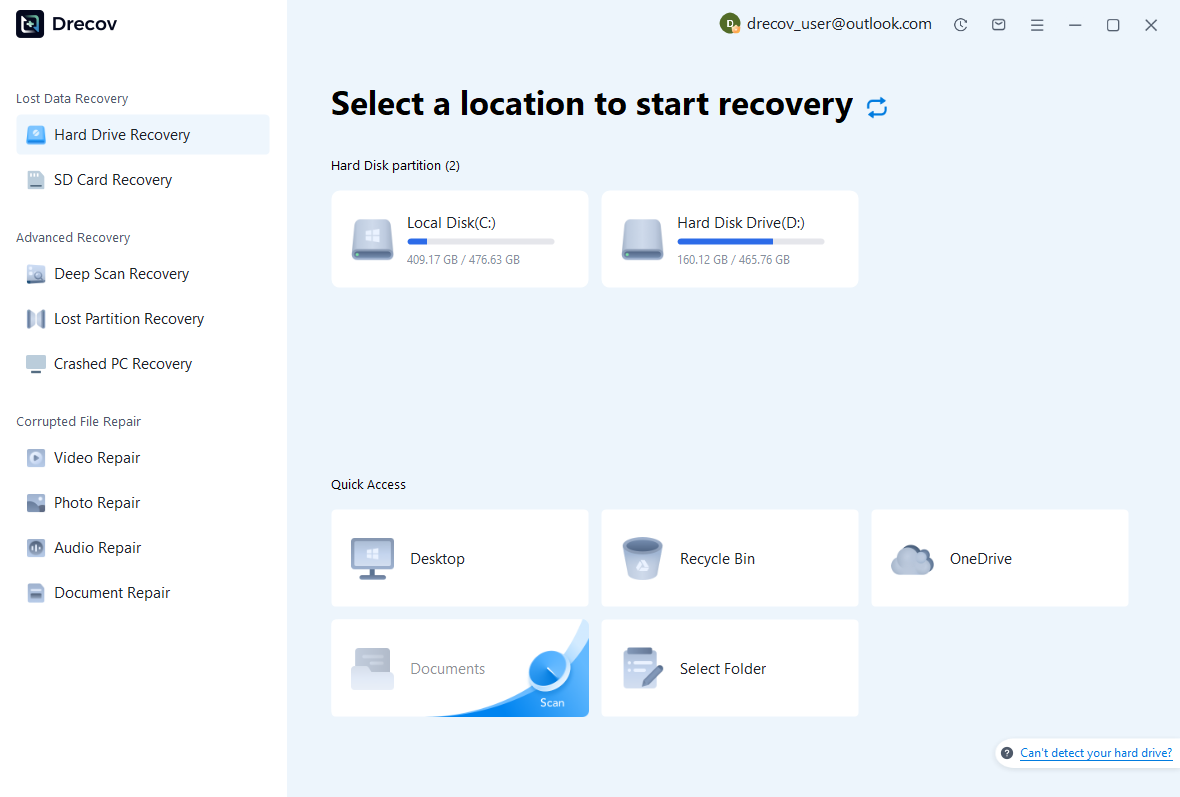
Step 1: identify the map and backup locations
Select the drive or partition that held the native map, configured backup directory, or linked project documents. Record which source each scan targets. Plan a different healthy destination for recovered output. If the source repeatedly disconnects or reports hardware read failures, assess that condition before proceeding with a routine software recovery attempt.
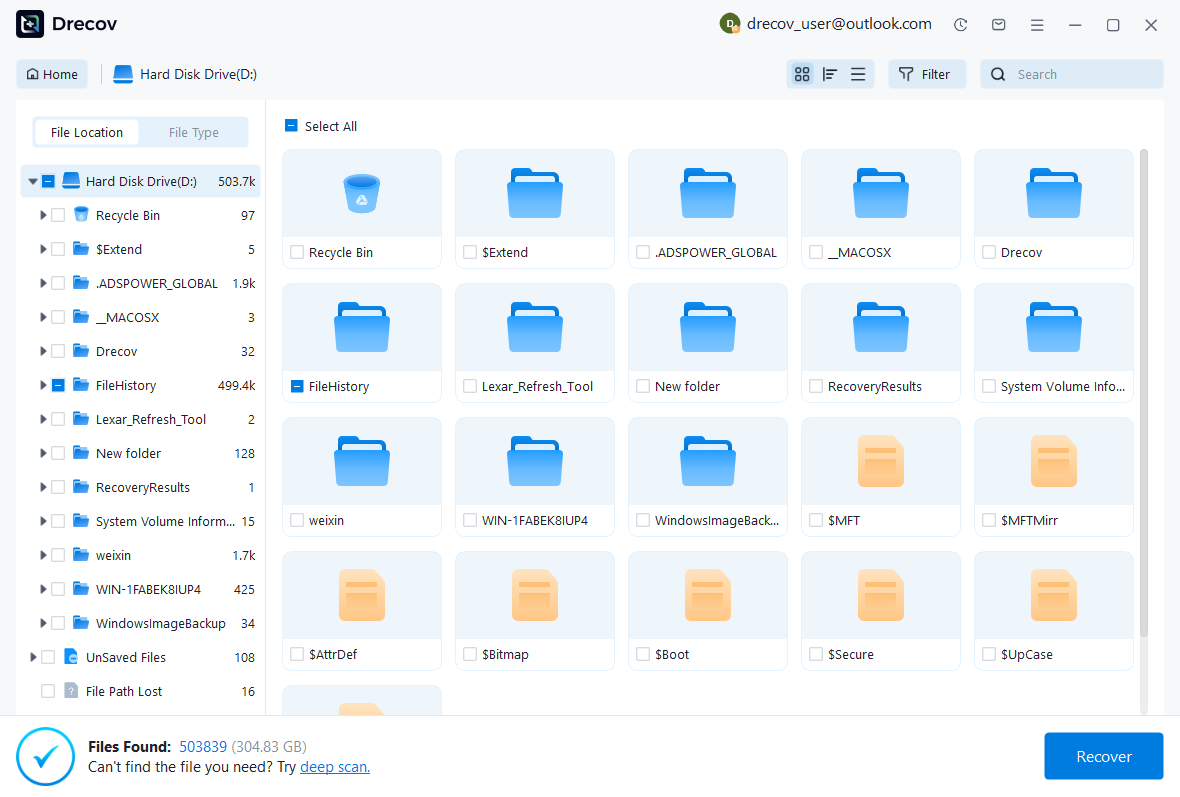
Step 2: compare native map candidates
Review available names, paths, sizes, dates, and supported previews. Preserve plausible native maps and related resources without combining them immediately. A file containing recognizable node text may still lack important branches or notes. Keep alternatives until Freeplane can open a working copy and you can compare the incident-specific structure.
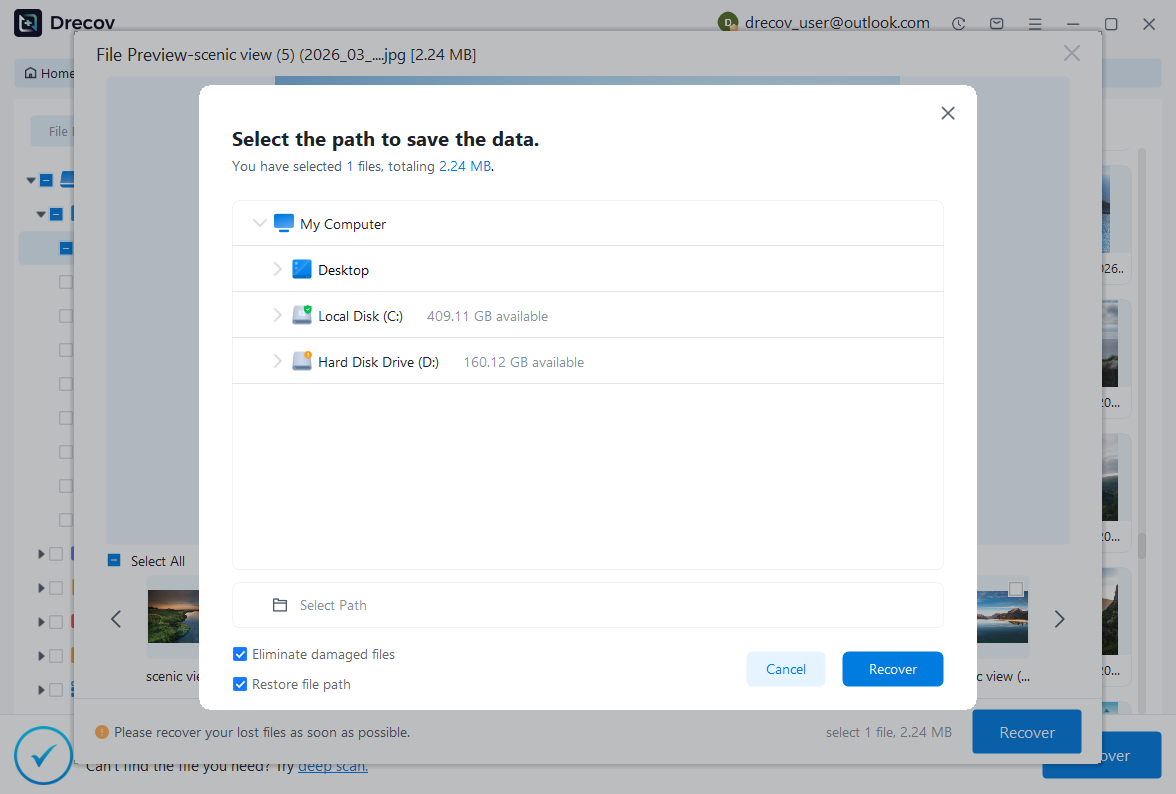
Step 3: restore elsewhere and test the map
Recover selected files to separate healthy storage and preserve an untouched set. Open a working native map in Freeplane, then inspect the root, missing branch, notes, attributes, and important links. Save the accepted result under a new filename and reopen it. Document any reconstructed hierarchy or unavailable linked documents before returning it to ordinary use.
Keep an editable and reviewable recovery
Retain the accepted native map alongside a readable reference export and a brief recovery record. Test that a copied native map opens with its important linked resources available. This gives you a practical restoration path for the map’s structure, rather than relying only on an image that preserves its appearance.
Related recovery resources
Explore the relevant recovery options: Hard drive recovery, External hard drive recovery.
For another recovery case and its practical checks, read the related recovery guide.
Check the vendor guidance for the installed version: official recovery documentation 1, official recovery documentation 2.