If a flash drive is not showing up after you copied files, do not format it just to make the icon return. First check whether the transfer finished and whether the destination copy opens. Then compare File Explorer with Disk Management: a stable volume without a letter, a RAW volume, a wrong-capacity device and a completely absent device require different decisions. Preserve any readable files before changing settings. Recovery software can search a stable, recognized source for missing files; it cannot repair a USB stick that keeps disconnecting or never becomes visible to Windows.
Use the interrupted transfer as your first clue
Write down exactly when the flash drive disappeared. Did the copy dialog finish, freeze on one file or close after an error? Was the USB being written to or read from? Check the destination folder on the healthy computer drive without touching the USB again. Open several copied files, including a large one. A folder with the expected names can still contain incomplete photos, videos or archives if the transfer stopped early. If the destination copy is complete, you may not need to take any risk with the source.
While the stick is still plugged in, avoid repeated unplug-and-replug cycles. A brief Explorer delay does not mean the device has failed, but repeated disconnect sounds or a changing capacity suggest instability. Stop heavy operations and check one direct port instead of a hub. When important files exist only on the stick and it still drops out, a specialist can assess imaging before you attempt more scans. Scanning an unstable source repeatedly may cost the remaining readable time.
Separate missing files from a missing drive icon
A drive icon can disappear while Windows still knows about the device. Conversely, Explorer may show a letter but the folder contains no expected files. These are different problems. If the letter exists, do not jump to partition tools; inspect the original folder, hidden items only if relevant, the destination copy and backups. When Explorer shows no volume at all, use Disk Management to identify its state. Never infer that the contents were erased merely because an icon is missing.
Compare the two Windows views before changing anything
Press Win+X and open Disk Management. Locate the USB by its expected capacity and, when possible, its label. Keep other removable devices disconnected so you do not mistake one for another. Note whether you see a healthy partition, RAW status, unallocated space, a wrong size or no disk at all. Do not click Initialize or create a new volume while files matter. These actions write storage metadata and cannot serve as a safe first recovery step.
A healthy recognized volume without a drive letter is the narrowest, least alarming state. It may be possible to assign a letter after you confirm the device is stable and identified correctly. A RAW or unallocated display is not proof that the files are gone; it means Windows cannot present the old file system normally. Repeated disappearance or an implausible capacity calls for hardware-oriented caution, not a longer list of software commands. Note the exact status before deciding.
Microsoft’s drive-letter guidance explains how to add a letter to an eligible volume and warns that the option can be unavailable when a volume is not ready. It also warns against changing letters for Windows or application volumes. The procedure is not a fix for every missing USB. Use it only for the stable volume you have positively identified; if it is grayed out, do not force the issue with a destructive command.
Choose the next move from the state you found
Healthy volume, correct capacity, no letter
After protecting any other available copies, right-click the confirmed USB volume in Disk Management and open Change Drive Letter and Paths. Choose Add if that option is available, select an unused letter and confirm. Return to Explorer and see whether the folder opens. Do not assign C: or alter a system or application volume. If the letter appears but Windows asks to format the stick, cancel the prompt and return to data protection. A letter only changes how Windows exposes the volume; it does not repair a damaged file system.
RAW or unallocated, but stable and correctly sized
Leave the partition structure alone. Check for a backup or complete destination copy first. If important files remain absent, a file-recovery scan may locate candidates without creating a new file system. Do not run CHKDSK, format, initialize or use DiskPart clean before you have secured the data you need. Those operations may change the source. See the USB data recovery page for the distinction between searching for files and making the stick usable again.
Absent, unstable or wrong capacity
Try one known-good port and compatible cable if the stick uses a separate connection. If the state remains wrong, stop direct scanning. A software scanner cannot reliably work with a device that Windows never exposes as a stable source. For important files, ask a specialist about imaging or physical diagnosis. Repeated formatting prompts, new partition attempts or firmware experiments do not substitute for protecting the evidence already on the device.
Use Drecov only when the USB stays readable enough
Drecov is Windows data-recovery software that can search a stable, recognized flash drive for files missing after a transfer or for data on an inaccessible logical volume. Quick Scan and Deep Scan provide two search paths; filters and preview help identify candidates, which should be saved to a different healthy disk. Lost Partition Recovery applies to missing partition data, not to repairing the partition table or the physical USB controller. Drecov cannot make an unrecognized or failing device electrically stable and cannot guarantee recovery of overwritten files.
Check the destination folder before scanning. If the transfer completed and the files open there, make a backup instead of searching for duplicates. When some files are missing, identify their original folder or type so you know what to look for. Install recovery software away from the source partition and prepare a separate destination. Stop if the USB disconnects during even a light read. The file recovery overview explains how the original location determines the scan.
Search the original USB without writing back to it
⚠ Warning: Install it on a drive different from the one where your data was lost to prevent overwriting.
Step 1: open Drecov and select the original USB.
Match capacity and label, not just the drive letter, which may have changed.
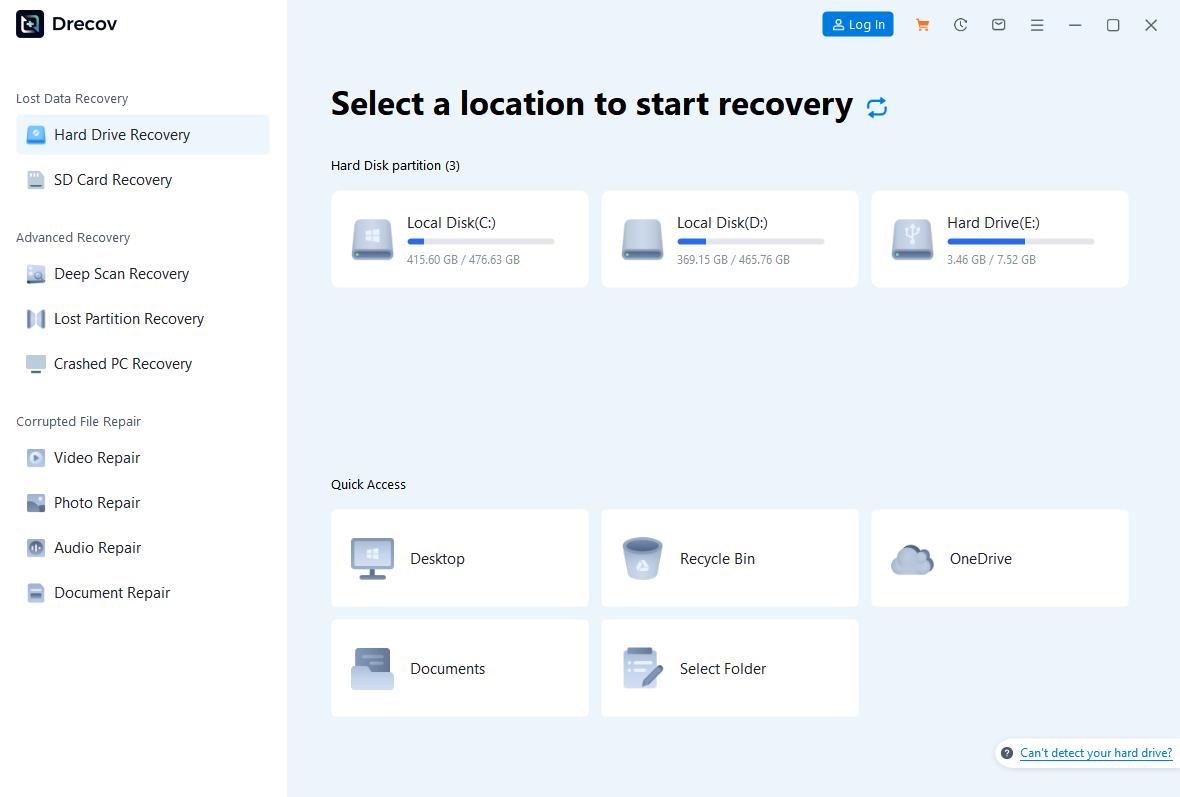
Step 2: run Quick Scan.
Check the former folder and file types involved in the interrupted transfer.
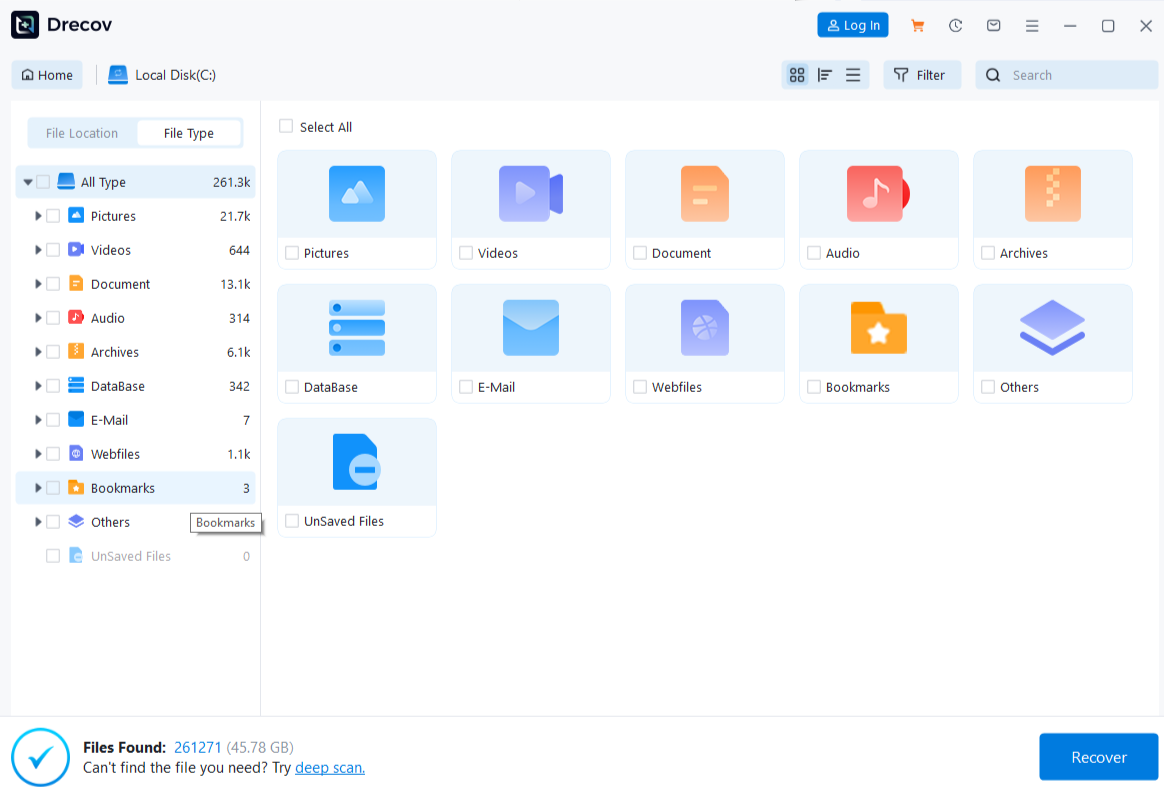
Step 3: run Deep Scan only if necessary and stable.
Stop if the device drops out or read errors grow.
Step 4: filter and preview candidates.
A thumbnail or the first seconds of a video are not proof of a complete file.
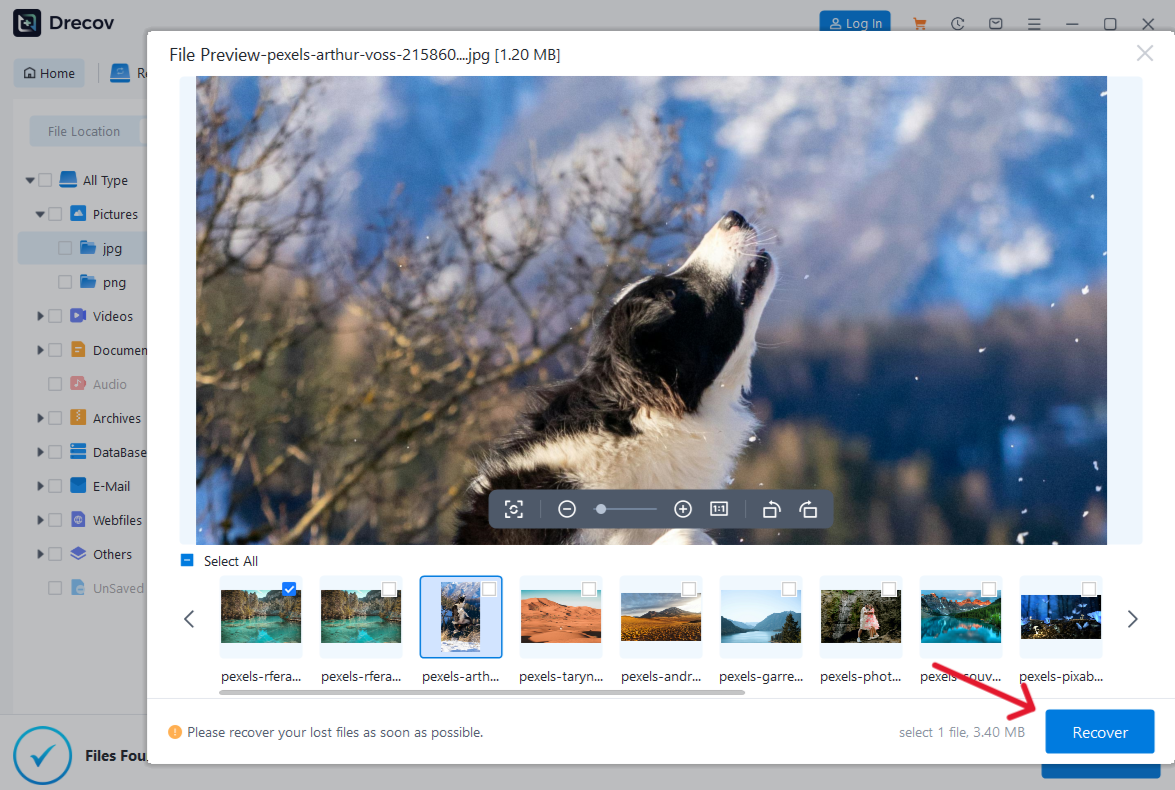
Step 5: recover to the prepared healthy disk.
Never select the USB source as the output.
Step 6: open the saved files outside the scan.
If you cannot find them, check Drecov Folder or Recovery Folder at the destination.
Compare a recovered file with the transfer destination. If both have the same truncation, look for the original on another computer or backup. For images, the photo recovery page helps distinguish an original from a leftover thumbnail. Keep the USB untouched until the essential files have been verified.
⚠ Warning: Install it on a drive different from the one where your data was lost to prevent overwriting.
Verify the copy before you decide whether to reuse the USB
Make a list of the items that mattered before the transfer. Check that representative documents open, a large archive can be read and a video plays past its middle. Treat folder counts as a rough clue; hidden items and duplicates can make counts misleading. If a file still fails, preserve the source and note its name rather than repeatedly overwriting the destination with uncertain versions. A successful Windows copy message is not a substitute for opening the result.
Once the files are safe on another device, you may test the flash drive for reuse. A device that needed a drive letter may work normally after reconnection. Yet a RAW or unstable stick should not become the sole place for important data again. Formatting creates a new file system, so it belongs after recovery and verification, not before. If the stick continues to disappear, replacing it is usually a safer storage decision than relying on a momentary improvement.
Keep the recovery destination and a second backup separate. If the original USB was used for a camera export or a work deliverable, note where the source copy still lives. That record can be more valuable than a long scan when the problem recurs. Do not delete the transfer destination until you have checked it against the actual files the reader expects to keep.
FAQs
Why is the USB in Disk Management but not Explorer?
It may lack a drive letter, or Windows may not recognize its file system. Read the volume status and capacity before choosing a response.
Will assigning a drive letter erase the USB?
Adding a letter to a correctly identified, eligible volume is different from formatting. It does not cure RAW status or physical instability, and you should avoid changing system or application volumes.
Should I click Format when the letter returns?
No, not while important files remain unprotected. Cancel the prompt, preserve any available copies and consider a stable-source recovery route.
Can Drecov find files if the USB never appears?
No software scan can use a source that Windows cannot access as stable storage. Stop repeated tests and consider imaging or professional assessment.
Did the transfer delete my original files?
Usually a copy operation leaves the originals in place, but verify both locations. A move or an interrupted application workflow may behave differently.
Conclusion
When a flash drive is not showing up after a transfer, the missing icon is only the first clue. Confirm the destination copy, then compare Explorer with Disk Management and act on the actual state. A stable volume without a letter may need a careful assignment; RAW, unstable or absent storage requires a different path. If important files remain missing on a stable recognized USB, Drecov can search the original device and save candidates elsewhere. But it cannot repair a failing connector. Finish by opening the recovered files on another healthy drive, not merely by making the USB icon reappear.
⚠ Warning: Install it on a drive different from the one where your data was lost to prevent overwriting.