When Windows says “the last USB device you connected malfunctioned,” identify that device before trying storage fixes. The notice can refer to a flash drive, phone, hub, keyboard or another accessory; it does not prove that files were deleted. If the device holds irreplaceable data, stop repeated plugging and unplugging. Try one known-good port or cable, then check whether Windows recognizes the device consistently. A data-recovery scan is appropriate only if it is a stable, identifiable storage device with files you cannot otherwise access.
Identify the device behind the notification
Look at what you connected immediately before the alert. A USB headset or mouse cannot be helped by scanning for deleted files. By contrast, a camera may expose its storage differently from an ordinary flash drive. If several things are attached through one hub, disconnect nonessential accessories safely and reconnect only the suspected device once. Label the physical item and write down whether its light turns on, whether Windows makes a connection sound and whether it disappears again. Those observations guide the next step better than the wording of the alert alone.
Do not assume that the last device you touched is the failed component. A loose hub cable can make every attached accessory appear to reconnect. Likewise, a weak port may cause a drive to disconnect during a transfer. If a storage device was writing when the alert appeared, avoid a second transfer until you know whether the original files and destination copies are intact. Open the copied files on a healthy disk if they are available. A file icon without readable content is not proof of a complete copy.
Check one simple connection before software changes
Use a direct port on the computer instead of the hub. For a device with a removable cable, try one known-good compatible cable. Avoid bending the connector or forcing it into a damaged socket. If the device becomes stable, copy important readable data to another drive and verify a few files before making driver or file-system changes. Clicking sounds, repeated disconnects, unusual heat or an incorrect capacity mean you should stop direct tests. A specialist may need to image the storage medium before further work.
Find out what Windows can actually see
Open Device Manager from the Start menu and look for the device you just connected. Note its displayed name and any warning symbol. Open Properties to read the Device status code rather than guessing from the notification. Microsoft’s USB troubleshooting guidance shows this exact malfunction message and directs readers to the Device Manager code. The code is diagnostic evidence, not permission to erase or initialize a storage device.
If the item is a flash drive, also open Disk Management and identify it by capacity. A healthy-looking volume with the expected size is different from a device absent from the disk list. “Unknown,” wrong capacity or repeated appearance and disappearance signals a different risk from a missing drive letter. Write down the state before taking action. Do not choose a disk by number alone: the numbers can change after devices are connected or removed. Compare capacity and physical connection each time.
When the notification belongs to a non-storage accessory
A keyboard, webcam or headset may need its manufacturer-supported driver or a different port. Drecov cannot repair its controller or USB protocol. Such a generic USB warning is no reason to initialize disks, run CHKDSK or look for recovery software. If the accessory is managed by work IT, ask the administrator before uninstalling drivers or changing policies. Keep the diagnosis confined to the item that actually failed.
If it is a storage device, protect the readable files
A flash drive that appears steadily in File Explorer and opens its folders gives you a chance to make a simple copy. Begin with documents or photos that cannot be replaced. Copy to a healthy internal or external destination; do not move and delete the originals. Open several copied items, including a larger video or archive if those matter. If a copy fails on one file, note its name and try other readable files rather than repeatedly forcing the same error. Repeated read errors may indicate a weakening device.
Before any repair command, ask whether another complete copy exists. A backup, a synchronized folder or the computer from which files were originally transferred may already solve the data problem. If the device became inaccessible after an interrupted copy, do not accept a Windows prompt to format it just to remove the warning. Formatting writes new file-system information and is not a file-recovery step. CHKDSK can modify file-system structures. When important files remain at risk, recover or image first.
Some users only need to reconnect a phone for charging. Others need to retrieve the only copy of a project from a USB stick. Those are not the same task. If the device never appears as stable storage, a software file scan cannot reach it. The USB data recovery overview applies to a recognized storage source, not an electrically failing connector.
Use Drecov only in the stable-storage branch
Drecov is Windows data-recovery software. It can search a recognized PC drive, USB stick or external drive for missing local files with Quick Scan and, when needed, Deep Scan. Filters and preview help you inspect candidates before recovery to a separate healthy destination. Lost Partition Recovery can search for data from a lost partition, but it does not fix USB hardware, install drivers or guarantee the restoration of overwritten data. If the alert refers to a mouse or to a flash drive that vanishes every few seconds, Drecov is not the next step.
First locate the original storage device where the files disappeared. Do not install the program on that source or write new copies to it. Prepare another disk with enough space for results. If important files are still readable, copy them before scanning. Check whether the drive remains visible with the expected capacity during an ordinary read. When it does not, stop and consider imaging or professional recovery. The broader file recovery page explains why the source and recovery destination must differ.
Search for missing local files without repairing the drive
⚠ Warning: Install it on a drive different from the one where your data was lost to prevent overwriting.
Step 1: open Drecov and select the original USB storage location.
Match its capacity and label; do not select another disk because it happens to have a familiar letter.
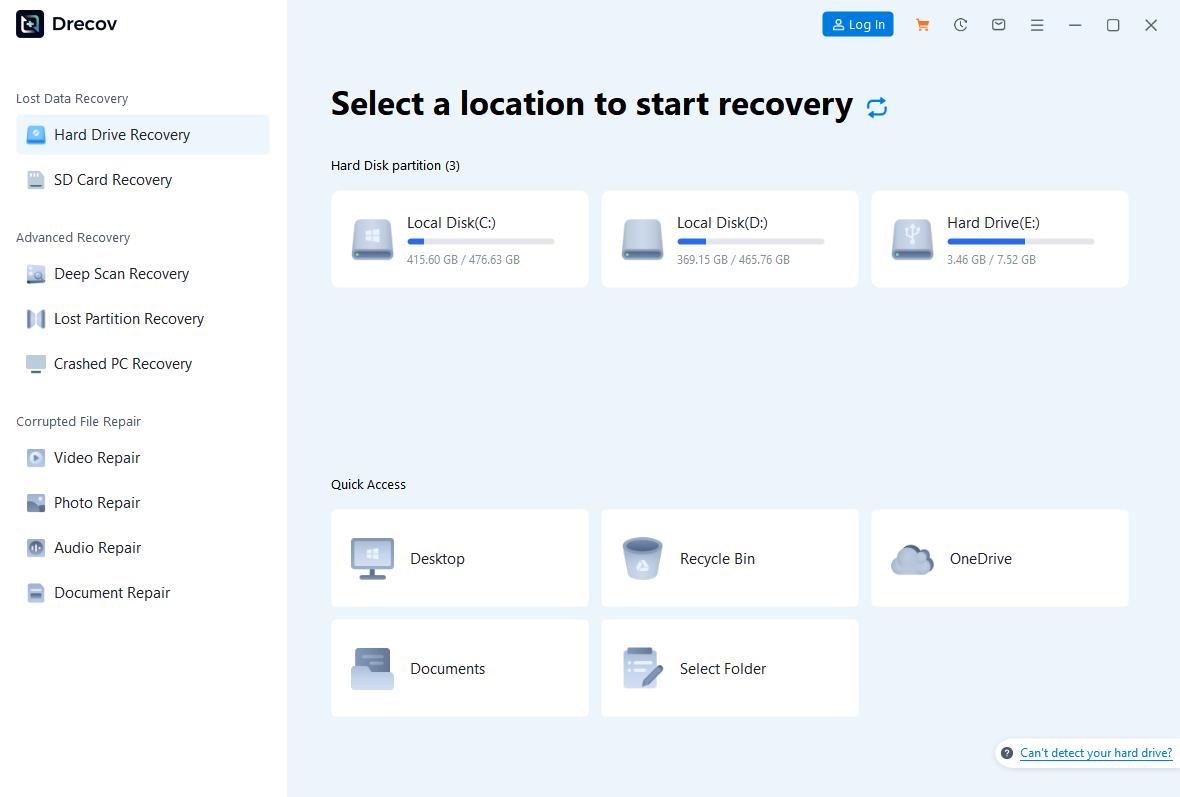
Step 2: start Quick Scan.
Look for the former project folder and representative file types.
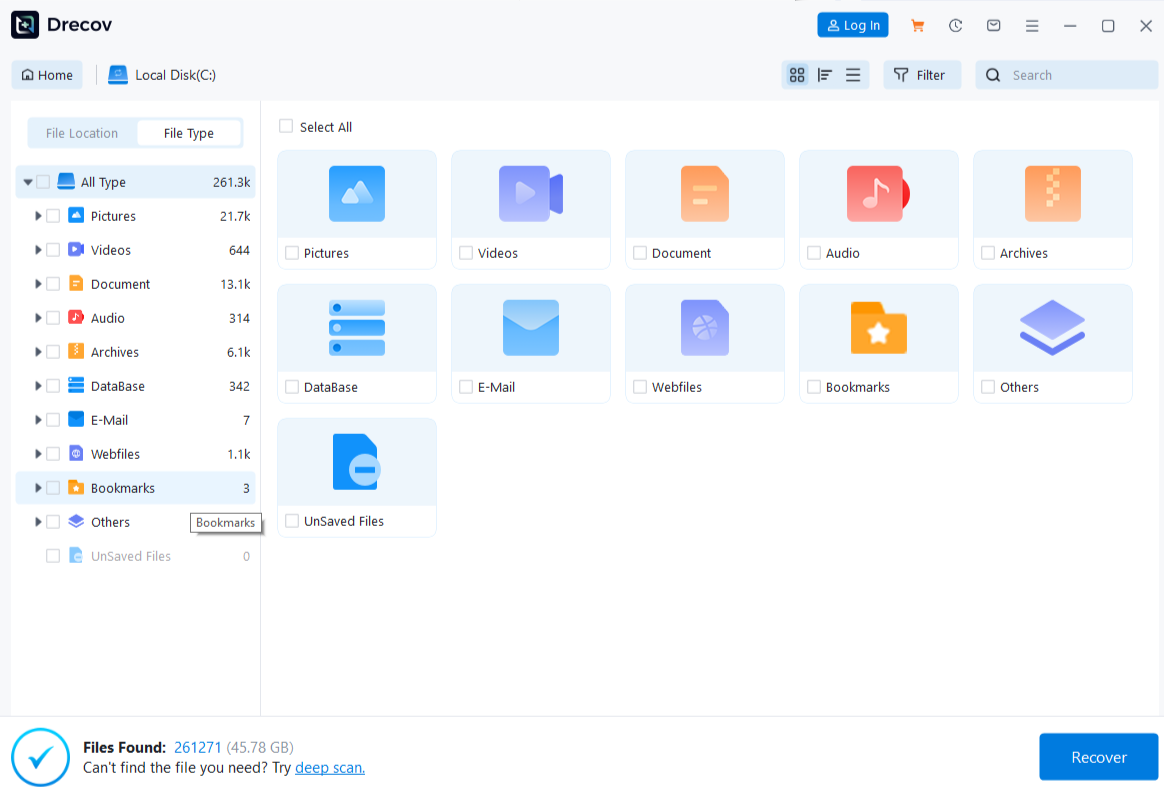
Step 3: consider Deep Scan only if needed.
Continue only while the device stays recognized and stable.
Step 4: filter and preview candidates.
Names, former paths and file types help, but a preview may show only part of a file.
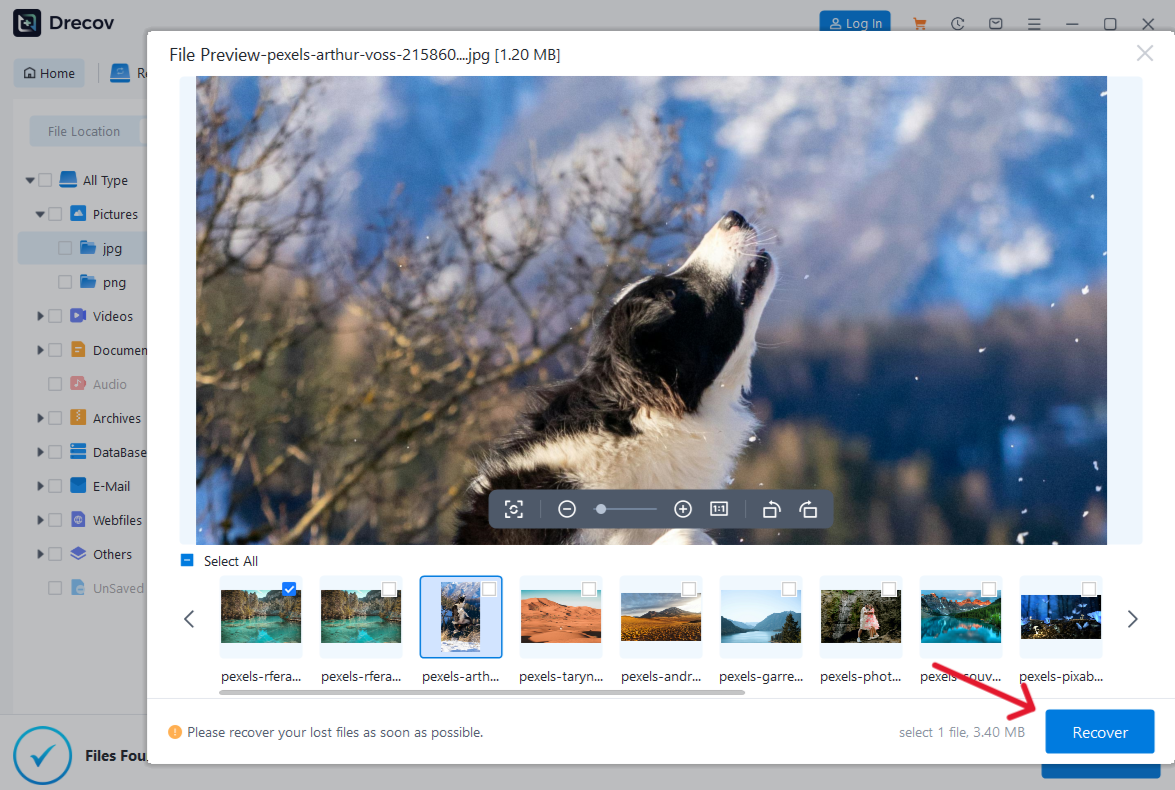
Step 5: recover selected files to the separate healthy disk.
Never choose the affected USB as the output.
Step 6: open and verify the output.
If it is not in the selected folder, check Drecov Folder or Recovery Folder at the destination.
For photos, compare recovered originals with any thumbnails already copied. A thumbnail cannot replace a full-resolution image. The photo recovery page covers that distinction. Only after you have verified the needed files should you consider whether the storage device is worth repairing or replacing.
⚠ Warning: Install it on a drive different from the one where your data was lost to prevent overwriting.
What to do when the device stays unrecognized
If one direct port and one known-good cable do not produce a stable, correctly identified storage device, avoid repeating the same connection test for hours. Another computer may help distinguish a host-port issue, but do not run repair software there until the files are protected. Record whether the device appears in firmware, Device Manager and Disk Management, and whether its capacity is correct. This record makes a professional assessment more useful than a list of attempted fixes.
Do not initialize an “unknown” disk on the assumption that this will reveal its old files. Initialization writes metadata. A format prompt is also not evidence that the drive is empty. If the device drops out under minimal reading, further scanning can worsen its condition. Seek advice about creating an image or specialist recovery before the source deteriorates. For a non-storage accessory, follow the relevant manufacturer or IT support route instead.
When the files are already safe and the physical device is inexpensive, replacement may be more sensible than trusting it again. A drive that works briefly after reconnecting can still fail during the next transfer. Keep two verified copies of important files in different locations. The goal is not merely to clear a Windows toast; it is to preserve data and understand whether the device can be relied on.
FAQs
Does the notification mean my files were erased?
No. It says Windows could not recognize the last USB device. The affected item might not even be a storage device. Check its identity and storage state first.
Should I format the flash drive when Windows asks?
Not while important files may still be on it. Formatting writes to the device. Protect or recover the data from a stable source before considering reuse.
Can Drecov fix an unknown USB device?
It recovers files from stable, recognized storage. Hardware controllers, cables, ports and drivers remain outside that scope; an unrecognized drive cannot serve as a scan source.
What if Device Manager shows an error code?
Record the exact code and device name. Follow the manufacturer’s or Microsoft’s guidance for that code after securing data, rather than applying unrelated fixes.
When should I stop trying at home?
Stop if the storage device disconnects repeatedly, shows a wrong capacity, clicks or produces severe read errors. Repeated scans are not a safe substitute for imaging or specialist evaluation.
Conclusion
“The last USB device you connected malfunctioned” is a starting observation, not a diagnosis of lost files. Identify the item, test one sound connection and see whether Windows recognizes stable storage. Readable files should be copied to another drive and verified. When a stable USB drive has missing files, Drecov can search the original location and save candidates to another disk; it cannot repair the USB hardware or make an unrecognized device appear. If the device remains unstable, stop direct scans and protect the chance of a safer recovery.
⚠ Warning: Install it on a drive different from the one where your data was lost to prevent overwriting.