
Recover the Anki collection you actually need
To recover Anki decks, identify whether the missing item is a note, a generated card, a deck, its review history, or an attached media file. Those objects have different recovery sources. A collection backup can restore cards and scheduling while leaving images absent. A copied audio folder can restore pronunciation recordings without bringing back a deleted note or its review log.
Begin with a distinctive card example and the expected deck name. Also record the profile and device where you last saw the correct information. A deck list that looks empty may reflect the wrong profile or a different account. Therefore, establish the current context before restoring an entire collection and replacing useful recent reviews.
Protect current reviews before rolling back
Export the current collection through Anki’s supported export interface and include media when available and appropriate. Preserve that package separately from older recovery candidates. If another device may contain the only intact collection, keep it offline before launching Anki. Otherwise, synchronization may propagate the same deletion or overwrite the surviving state you hoped to inspect.
Record the time of the unwanted change and the last review session you want to preserve. A backup from yesterday may restore the missing deck but omit today’s study progress. That tradeoff matters. Keeping the current export allows you to compare both states and plan a selective recovery instead of accepting every older value automatically.
Native route 1: restore an existing automatic backup
- Open Anki’s profile selection and choose the affected profile.
- Use the available backup restoration interface to inspect dated backups.
- Select a candidate from before the unwanted change.
- Compare the recovered collection before resuming synchronization or study.
Automatic backups can preserve collection information, including notes and review data, but they do not include media files. The interface and backup format vary across Anki versions. Use the documented restoration workflow for your installed version rather than renaming archive contents or directly replacing a database while Anki is open.
Compare content and scheduling separately
Search for a distinctive missing note and inspect the generated cards. Then review representative scheduling information and recent review history. A collection that restores the right text may still predate an important study session. Decide explicitly whether you need that older state or want to recover only selected content into the current collection.
Anki disables automatic synchronization and backups after restoring a backup so you can examine the result. Do not rush past that inspection stage. Preserve the recovered candidate, check the intended cards, and understand the next synchronization direction before reconnecting. A correct local restore can still lead to a wrong remote result if you choose the wrong source afterward.
Native route 2: restore an existing collection package
- Locate a previously exported collection package and preserve its original file.
- Use a separate recovery profile when comparing an uncertain package.
- Import through Anki’s supported interface and inspect the import warning and scope.
- Check notes, cards, review information, and included media before adopting the result.
A full collection package and a single deck package serve different purposes. A collection import can replace the receiving collection, so do not casually test it in the only live profile. A separate profile gives you a controlled place to assess the package while keeping your current study state available for comparison.
Read package scope before importing
Check whether the package includes scheduling information and media. A deck shared for another learner may intentionally omit the original review history. Conversely, a personal recovery export may preserve more information. The extension and filename alone do not tell you which options the exporter selected, so inspect actual cards and media after import.
If a useful deck exists only inside an older collection, inspect that collection separately and plan an appropriate selective export. Review import behavior for your Anki version before moving it back. This is a controlled transfer between surviving states, not a guarantee that Anki will automatically merge every review event and conflicting field exactly as you intend.
Native route 3: preserve a surviving device collection
- Disconnect the candidate device from the network before opening Anki.
- Inspect the target notes and representative review history locally.
- Export an appropriate collection package, including media where needed.
- Compare the export in a separate recovery profile before choosing any synchronization direction.
A second device can be a useful recovery source when it has not yet received the unwanted change. However, its existence does not guarantee that it contains the latest useful state. Compare the actual card content and study dates. A device used only occasionally may retain the missing deck but lack weeks of later edits.
Do not guess upload versus download
If you intend to replace the server collection from a verified local source, confirm the documented one-way synchronization choice carefully. Download and upload move different states. Preserve the current and recovered collections first. Then make the decision using evidence about which side contains the accepted collection, rather than assuming that the newest device should always win.
Also distinguish collection synchronization from media synchronization. Notes can appear before every image or audio file finishes transferring. Wait for the relevant process to complete, then test the actual resources. A visible card front with a broken image icon may represent a media problem rather than a failed collection restore.
Native route 4: reconnect surviving media files
- Locate the affected profile’s actual collection.media folder.
- Preserve its current contents before copying any recovery files.
- Compare the exact filenames referenced by representative notes.
- Restore verified original files and test them through card previews.
Anki stores note and scheduling information separately from its media directory. An automatic collection backup therefore cannot supply missing images or recordings on its own. Look for a complete profile backup, an export that included media, or another device with the original files. Keep candidate sources separate until you know which resources the cards reference.
Preserve exact resource names
A card can reference an image or sound by a precise filename. A visually similar file with a different name will not necessarily reconnect automatically. Inspect the underlying field content for a representative card and compare the resource name. Preserve original capitalization and extension where practical rather than renaming an entire recovered folder speculatively.
Test audio inside Anki and in an appropriate external player. For images, inspect readable resolution and the actual subject. A small preview or unrelated file with the same name can create false confidence. If several candidates share a filename, compare their contents before copying one over an existing resource.
Use the browser to search across the intended collection rather than judging only the study screen. Suspended cards, filtered decks, buried cards, and deck options can change what appears for study without deleting the underlying notes. Compare the note count and card count separately, because one note can generate more than one card.
Check the model behind the card
If a note survives but one expected card does not, inspect its note type, templates, and relevant field values. A template condition or empty field may explain the difference. Preserve the current note before editing templates broadly. A global template change can affect many cards and complicate a recovery that originally concerned only one example.
For a cloze note, compare the actual cloze markers and the intended generated cards. A missing marker can change which card exists while leaving the visible text mostly intact. Recover the correct field content from a surviving source, then confirm the generated cards. Do not restore the entire collection if a verified local correction solves the specific problem.
Separate deleted notes from lost study progress
An older backup can recover a deleted note while reverting scheduling for other cards. Start by deciding which loss matters most. If the current collection contains valid recent reviews, preserve it before testing the older backup. Then inspect whether a selective content recovery can meet your need without unnecessarily replacing unrelated scheduling information.
Make the acceptance decision explicit
Suppose a deck disappeared after a mistaken import, but you completed a long review session afterward. Compare the pre-import backup and the current export in separate profiles. List the missing notes and the later reviews you want to retain. This gives you a concrete basis for choosing between a full rollback and a carefully reviewed selective transfer.
Do not assume that combining two collections will preserve every scheduling detail automatically. Import behavior depends on package content and version. Read the relevant prompts and test representative cards before applying the chosen approach broadly. If exact historical review records matter, retain both source collections even after you have restored usable study content.
Inspect media reports before removing anything
Anki’s media checking tools can identify references and files that deserve attention. Treat the report as diagnostic evidence during recovery. Do not immediately remove every file labeled unused, because a restored older note set may reference files that the current collection does not. Keep a copy of the media directory until the accepted collection is settled.
Check more than one card face
A resource can appear only on the answer side, in an extra field, or under a conditional template. Preview both sides of representative cards and exercise the relevant field combinations. A quick look at the question side can miss a missing explanation image or pronunciation recording that students need during actual review.
For large collections, sample different note types and media sources. Include the affected deck, older imported material, and recently edited cards. Record which sample passed and which resources remain missing. This is more informative than declaring the collection complete because the total media file count resembles an earlier screenshot.
Recover from a text export with realistic limits
A surviving text export can preserve field content and may support rebuilding notes. It does not automatically preserve the complete collection structure, scheduling history, templates, or original identifiers. Import a copy into a separate recovery profile and map fields carefully. Then inspect representative notes before treating the result as ready for study.
Watch separators and HTML content
A separator mismatch can shift fields and create plausible but wrong cards. Compare the original column structure and inspect line breaks, tags, and media references. Keep the original export unchanged. If you need to clean it, save a new working file and document the transformation so you can explain how the reconstructed notes relate to the source.
A text-only reconstruction can still be useful when no complete collection survives. Label its limits clearly: restored vocabulary content, reconstructed cards, or missing review history. That description helps you choose appropriate study settings and prevents a rebuilt deck from masquerading as the original long-term learning record.
Work through an accidental deck replacement
Imagine an import replaces useful field text in a language deck. First export the current collection and identify a distinctive damaged note. Restore the most relevant earlier backup in a separate recovery context. Compare the exact field values, not merely the deck title. Then check whether the older version includes the explanation and media you need.
Test a selective repair on a small sample
Before transferring the entire recovered deck, test a few representative notes using the supported export and import workflow. Inspect duplicate handling, field updates, tags, and scheduling choices. If the result differs from your intention, stop and review the package options rather than repeating the import with more notes and hoping the outcome improves.
After accepting the transfer method, compare a known repaired note and an unrelated current note. The first check shows that the missing content returned. The second helps reveal unintended changes outside the recovery target. Keep both the pre-repair export and the recovery source until you finish the full collection review.
Validate the collection as a study tool
A usable recovery should support actual review, not just database opening. Preview several note types, play audio, inspect answer formatting, and compare representative due information. Check the deck hierarchy and any important filtered deck workflow. Record missing resources or historical gaps before resuming ordinary study and synchronization.
Preserve a tested recovery package
Export the accepted collection with the media required for your use. Import a copied package into a separate test profile and repeat the incident-specific checks. This exercise shows that your recovery source contains useful data and resources. A package that exists on disk but has never been tested remains an assumption rather than a demonstrated restoration path.
Keep the original backups and current-state export until you are confident that the accepted collection meets your needs. Also note the Anki version used for the successful restore. Package compatibility can matter across devices, so testing the intended destination is more useful than relying on a filename that simply says final.
Use an Anki recovery matrix before replacing a collection
List the sources you actually possess: automatic collection backup, personal collection package, shared deck package, intact device, media folder, and text export. Beside each, record whether you verified notes, scheduling, templates, and media. This makes the tradeoffs visible. A source that solves missing card text may still be unsuitable for restoring a long review history.
Separate note identity from visible wording
Anki updates and duplicate handling depend on more than how a card looks. Two notes can share a question while representing different records or import histories. Inspect the supported import summary and representative notes after a test transfer. Do not infer that an unchanged-looking question means the underlying note and all its scheduling relationships stayed identical.
If you need only a corrected definition, a carefully reviewed field repair may be more appropriate than replacing the entire collection. Preserve both the original field and recovered text first. Then check the generated card and any related templates. This keeps a narrow content problem from unnecessarily changing unrelated study progress across many decks.
Inspect note types after a deck returns
Select a note from each important note type and preview all its generated cards. Compare field names, template conditions, styling, and any cloze behavior. A deck can appear in the list while a template change makes its cards blank or incomplete. Recovering the note data alone does not establish that every card renders as intended.
Test long and unusual field values
Include a note with line breaks, accented characters, mathematical notation, or multiple media references where relevant. These examples expose import mapping and rendering problems that a short plain-text card might hide. Compare the underlying field content with the visible front and answer. A readable first line does not prove that the rest of the explanation survived.
For a text reconstruction, inspect separators and quoting before importing a large file. An extra delimiter inside a definition can shift later fields. Test a small sample in the recovery profile, then review the mapping. Keep the original export unchanged so you can correct the import method without losing the evidence of how the fields were originally arranged.
Review scheduling consequences with concrete cards
Choose a mature card, a new card, and a recently reviewed card from the affected deck. Compare their relevant scheduling information between current and backup states. This shows the practical cost of rollback. It is more informative than saying the backup is only one day old, because that day may contain substantial review work for a particular learner.
Decide what counts as an acceptable result
For an exam tomorrow, restoring the missing content may matter more than preserving every due date. For long-term research into study behavior, exact historical records may be essential. State the goal before choosing a recovery path. A usable deck and a complete historical learning record are different deliverables, and each needs its own evidence.
If you choose to accept older scheduling, record the source date and preserve the newer collection export. That leaves a reference for later questions. Do not manually invent missing review events to make totals match an earlier expectation. Reconstructed study settings can support continued learning without pretending to restore historical events that no source retained.
Investigate missing media by the reference itself
Open a representative note and inspect the image or sound reference in its field. Compare that exact name with the preserved media folder. A renamed file, a changed extension, or a different export option can explain why an otherwise intact note shows no resource. This investigation should precede broad copying or cleanup of the media directory.
If a sound file exists and plays externally but not in Anki, inspect format and playback support for the intended client. If the file does not exist anywhere you checked, return to backup or device recovery. Those findings require different solutions. Replacing the note text will not repair an absent recording, and repeated media checks will not recreate its bytes.
Check the same card on the intended study device after the accepted collection and media have transferred. Desktop success does not guarantee that another client handles every file identically. Record any device-specific issue separately from the data recovery outcome, so a playback compatibility problem does not cause another unnecessary collection rollback.
Handle a partial deck package carefully
An existing package can contain only one deck, selected notes, or a milestone created for sharing. Inspect its actual scope in a separate profile. Compare a known note near the start and another near the end of the missing material. A large package can still omit the particular subdeck you need, while a small package may preserve precisely the lost lesson.
Tags and deck structure can affect how you organize and select cards. Verify important nested decks and representative tags after import. A restored vocabulary list may be usable while its original organization remains incomplete. Record that gap and rebuild deliberately rather than presenting a flat imported list as a complete restoration of the earlier study setup.
When several packages overlap, test the intended import order on a recovery copy. Inspect the resulting notes and summaries after each step. Avoid importing every candidate into the live collection at once, because the final mixture can make it difficult to identify which package supplied an outdated field or duplicate note.
Create a media-inclusive protection test
After accepting the recovered collection, export a personal recovery package with the appropriate media and scheduling options. Import a copy into a separate test profile and inspect the incident deck. Play a sound, open an image, and compare a recent card’s history. This checks the specific information your earlier backup may have omitted.
Keep a recovery source outside the active profile
An automatic backup inside the same storage location can help with an editing mistake but may not survive loss of that storage. Preserve a verified package separately using your chosen backup arrangement. The important check is that the package restores the actual collection and resources, not merely that a backup process reports successful completion.
Document the export options and compatible Anki version alongside the package. Future recovery becomes easier when you know whether the file represents a whole collection, a selective deck, or content without scheduling. That short record prevents a later user from choosing the wrong import scope and accidentally replacing a useful current collection.
When storage recovery can help Anki files
PandaOffice Drecov may help retrieve deleted local collection packages, profile backups, database files, or original media from readable storage. It cannot recreate review events that never survived anywhere or generate missing audio from a card’s text. Prefer the existing backup and device routes first, and avoid unnecessary new writes to the affected storage while investigating deleted files.
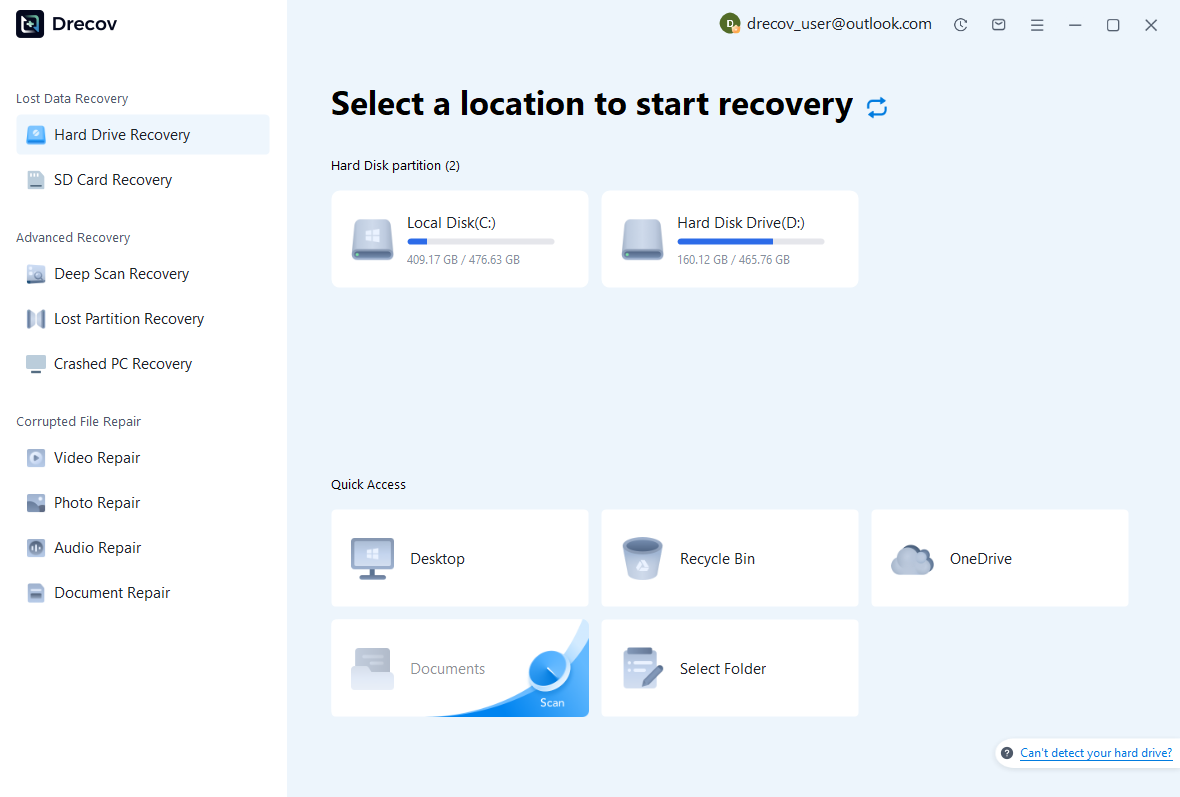
Step 1: locate the collection or media source
Choose the drive or partition that held the relevant Anki profile, export package, or media backup. Record which component you are trying to recover. Keep recovered output on other healthy storage. If the source repeatedly disconnects or reports hardware read errors, assess that condition before treating it as a routine software recovery case.
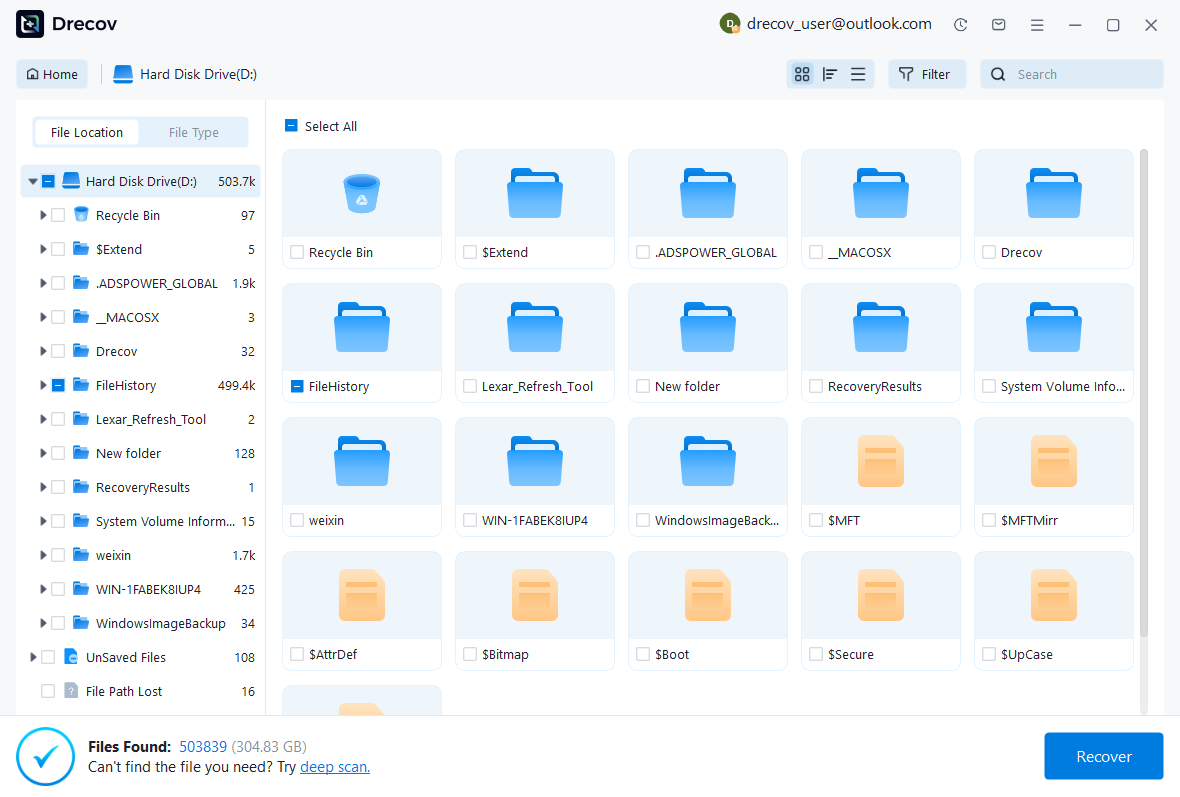
Step 2: inspect candidate packages and resources
Compare available paths, sizes, dates, and supported previews. Preserve plausible collection and media candidates without combining unrelated versions immediately. A database filename does not prove the missing deck exists inside it. Likewise, an audio file count does not prove that the specific pronunciation recordings referenced by your notes survived.
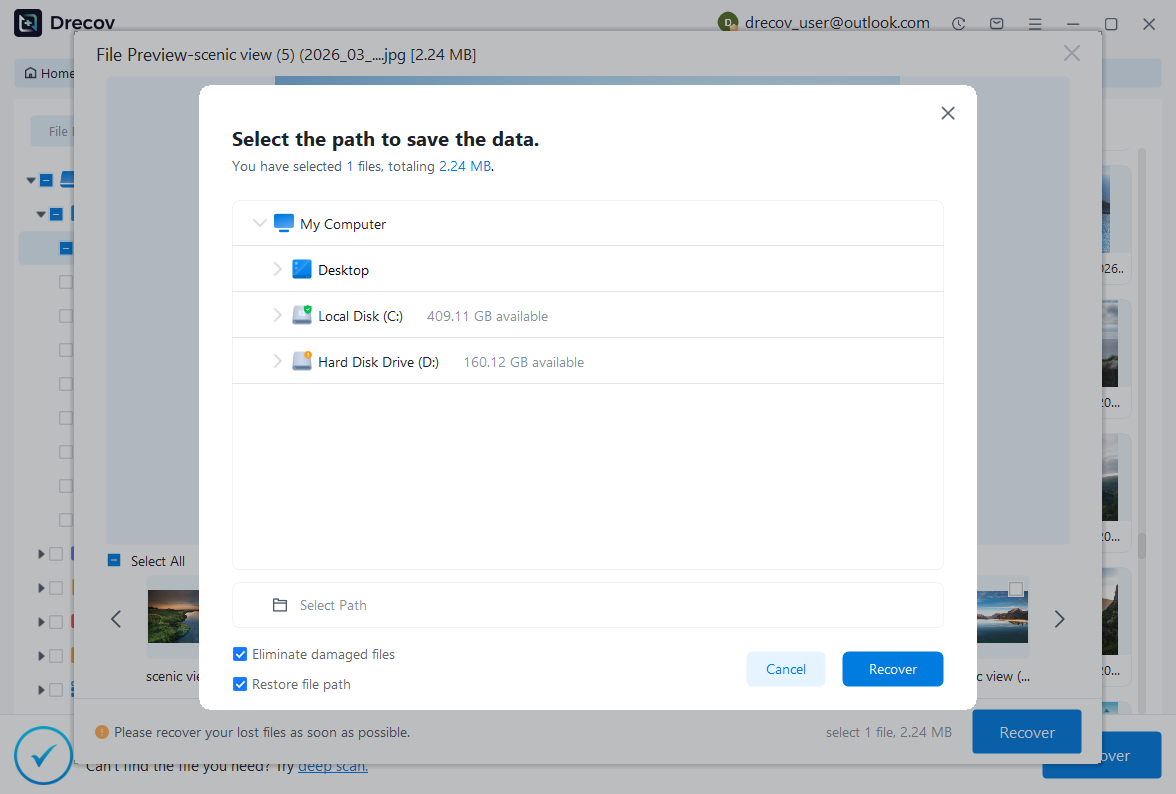
Step 3: restore elsewhere and verify through Anki
Recover selected files to a separate destination and keep an untouched source set. Import a copied package into a recovery profile or assess a complete profile through the supported workflow. Compare note fields, generated cards, scheduling, deck structure, and media playback. Record any reconstruction or missing review history before returning the collection to ordinary synchronization.
Keep content and learning history connected
Save a short recovery record identifying the accepted package, profile, important restored decks, and known historical gaps. Then retain a tested export that includes the resources you rely on. That combination gives you both a usable study collection and an honest account of how much of its earlier learning history survived.
Related recovery resources
Explore the relevant recovery options: Hard drive recovery, External hard drive recovery.
For another recovery case and its practical checks, read the related recovery guide.
Check the vendor guidance for the installed version: official recovery documentation 1, official recovery documentation 2, official recovery documentation 3, official recovery documentation 4.