Recover the right Joplin note and its resources
To recover Joplin notes, first identify whether the text, notebook structure, attachment, or entire local profile is missing. These are different recovery targets. A revision may recover an earlier paragraph without restoring an attachment that no longer exists. An existing JEX archive may contain a useful notebook milestone while omitting later edits. Therefore, preserve what survives before importing or synchronizing anything.
Start with a concrete example: a note title, distinctive sentence, notebook name, and expected attachment. Also record which device last displayed the correct content. This turns a vague complaint about missing notes into checks you can repeat. A successful import message alone cannot establish that the version you need actually returned.
Preserve the current state before testing
If Joplin still opens, export the surviving notes to a separate JEX file through the application’s export function. Keep that new safety export distinct from older recovery archives. Then preserve the local profile with Joplin fully closed, including its resource directory. Do not move database components between profiles while the application is running.
If another device might contain an older intact copy, disconnect it from synchronization before opening Joplin there. Otherwise, it may receive the same unwanted changes immediately. This does not make synchronization a backup system. It simply protects a surviving candidate long enough to inspect and export its content deliberately.
Native route 1: restore an available note revision
- Open the affected note in the desktop application.
- Open its note information and inspect Previous versions when available.
- Compare a revision from before the unwanted edit.
- Use Restore and inspect the restored note before changing the original.
Joplin’s Note History can retain earlier note states when the feature was active and the relevant revision remains. The desktop interface provides access to those versions. However, enabling history now cannot create revisions for yesterday’s lost work. Also avoid assuming every keystroke has a separate saved version; compare actual content at the available timestamps.
Keep the recovered text separate
Joplin restores a revision as a separate note rather than silently replacing the current note. Use that separation to compare both versions. For example, an earlier revision may contain a lost research paragraph while the current note includes useful new citations. Copy only the verified material you need, and preserve both notes until the comparison is complete.
Check headings, lists, internal links, and any embedded attachment references in the restored note. The text may return while the linked resource remains unavailable. Record that as a partial recovery. Keeping content and resource checks separate prevents a readable paragraph from hiding the fact that an important supporting document still needs attention.
Native route 2: recover a deleted note from retained history
- Preserve the closed profile before investigating retained revisions.
- Identify the deleted note’s actual internal note ID from reliable evidence.
- Open the command palette and use restoreNoteRevision followed by that ID.
- Inspect the note placed in the Restored Note notebook.
The documented restoreNoteRevision command can help when history still contains a revision for a deleted note and you know its internal ID. This route has prerequisites. A title is not an ID, and a random identifier from an attachment does not identify the note. Do not repeatedly guess values or change the original database to make the command work.
Find identifiers without editing the database
For advanced investigation, Joplin’s documentation describes finding the relevant item ID in retained database information. Perform that inspection on a preserved copy with an appropriate read-only tool. Keep the original database untouched. If you cannot confidently associate an ID with the intended note, ask for application-specific help rather than modifying revision or deletion tables.
After the command reports success, open the restored content and compare its distinctive sentence and expected date. A recovered revision may predate the final work. Also inspect its resources independently. The command can recover retained note information; it cannot recreate a revision that expired or restore attachment bytes that no surviving source contains.
Native route 3: import an existing JEX archive safely
- Locate a JEX archive created before the loss and preserve the original file.
- Create a separate Joplin recovery profile through the supported profile interface.
- Import the copied archive using File, Import, JEX.
- Compare notebooks, notes, tags, and representative attachments before merging anything.
A JEX export is a useful portable source for note content and associated resources. Importing it into the live profile immediately can create confusing duplicates. A separate recovery profile gives the candidate a clear boundary. Avoid configuring synchronization in that test profile until you understand which collection of notes it contains and what you want to retain.
Check the backup plugin’s actual output
If the Backup plugin was already configured, inspect its destination and dated output folders. Use the actual existing JEX archive rather than assuming the plugin ran successfully. A settings folder, log, or empty backup directory does not prove that note content survived. Compare archive dates with the incident and preserve several plausible milestones when available.
A note export and a complete application environment preserve different things. Treat note history, plugins, preferences, and synchronization configuration as separate recovery questions. Do not expect importing a JEX file to recreate every historical revision or restore all software settings. Verify the notebook content first, then restore other components through their supported procedures when needed.
Native route 4: recover the correct existing profile
- Record which profile the current Joplin window uses.
- Locate the older profile or device copy without moving its contents.
- Preserve a complete closed copy, including database and resources.
- Inspect through the supported profile workflow or export from the intact original environment.
An empty-looking installation may simply be using a different profile. Check the application’s profile information and account context before declaring the database deleted. A newly created profile can be healthy but contain none of your old work. Conversely, a directory with a familiar name can hold only configuration files, so compare the actual content.
Keep database and resources together
The local database stores note information, while the resource files provide attachment content. Recovering just one component can leave an incomplete collection. Preserve their directory relationship and avoid combining a recent database with an arbitrary older resource folder. That mixture may produce notes with missing files or resources that no visible note references.
When a complete older profile opens successfully, export a portable recovery archive before making changes. Then compare its contents with the current collection. If the profile requires migration to a newer Joplin version, perform that work on a copy. Preserve the original profile so you can revisit it if conversion changes behavior or reveals an incompatibility.
Diagnose a missing attachment before replacing the note
Open a note that should contain the missing file and inspect the link or embedded resource reference. Then check whether another note uses the same attachment. A missing preview can reflect an unavailable resource, an unsupported viewer, or a damaged file. Download or open the original attachment through the application when possible and test it independently.
Distinguish content loss from display trouble
If the file opens externally but not in the note preview, the attachment bytes may be intact. Record that finding and investigate the display path rather than replacing the note. If the file is zero bytes or fails in its native application, keep the reference and investigate another backup or device copy. These outcomes require different repairs.
For images, compare full resolution rather than accepting a small visible thumbnail as proof. With PDFs, open more than the first page and test a distinctive passage. For audio, check duration and playback at several positions. Those practical tests establish whether the resource supports the note’s intended use after recovery.
Inspect synchronization conflicts with a content comparison
When a conflict copy survives, compare it with the main note before deciding which version to keep. Start with the paragraph you know disappeared. Then compare later edits, tags, and attachment references. Neither the newer modification time nor the conflict label establishes which text is more complete for your purpose.
Merge deliberately rather than by timestamp
Suppose a laptop contains a corrected table while a desktop contains a missing interview quotation. Preserve both notes, create a new comparison note, and bring across the verified sections. Record where each section came from. This is a manual merge of surviving content, not an automatic restoration of one complete historical note.
After the merge, inspect internal links that point to the older notes. A readable replacement can still leave navigation pointing at an obsolete copy. Keep the source notes until you have checked the links and confirmed the accepted version on a second controlled view. Only then decide how to organize the redundant material.
Recover notebook structure without confusing it with note content
An archive can contain the expected text but arrange it under different notebooks than you remember. Search for a distinctive sentence across the recovery profile, then inspect the note’s actual location. A moved note does not require disk recovery. Reconstruct the intended notebook structure only after you know which content already survives.
Select a few notes with meaningful tags and internal links. Follow the links and compare their destinations with the expected subject. A migration can leave two similarly named notes in different notebooks. The title alone may look correct while the link reaches an older or incomplete version, so validate the relationship directly.
If you manually rebuild notebook organization, keep a small mapping of old and new locations. This helps when another collaborator asks where a source note went. It also makes the recovery reviewable: you can distinguish restored text from organizational changes you made after the incident, rather than attributing both to the backup.
Handle encrypted collections through the supported application
If the collection uses end-to-end encryption, confirm that the proper keys and credentials are available in the legitimate Joplin environment. Preserve the profile and existing exports before changing encryption settings. A database file that contains unreadable encrypted content does not automatically mean corruption, and renaming it will not remove encryption.
Separate decryption from recovery
First establish whether the application can unlock a known surviving note. Then compare the affected material. If decryption succeeds for one note but not another, record the exact status and available resource information. Avoid bulk changes while you are still deciding whether the problem concerns synchronization, key availability, missing files, or damaged content.
A storage scan may retrieve encrypted files but cannot supply a missing secret or infer the original note text from them. Keep that limitation visible in your recovery notes. When you regain access through the supported account and key workflow, export a verified recovery copy and test it before returning the profile to ordinary synchronization.
Work through an accidental rewrite example
Imagine that a long meeting note now contains only its final paragraph. Preserve the current note and record a distinctive phrase from the missing section. Check Previous versions first. If a useful revision survives, restore it separately and compare the current ending. This avoids losing a valid late correction while bringing back the earlier discussion.
Compare archive and revision candidates
If history lacks the required text, import the last existing JEX into a separate profile. Search by the distinctive phrase and compare its timestamp with the meeting. You might recover the full earlier note but lose a later action list. Preserve both sources and assemble a clearly named accepted note with the differences recorded.
Finally, open each attachment referenced by that note. A restored discussion that links to an unavailable spreadsheet is incomplete for someone reviewing the meeting. Keep the spreadsheet problem on the recovery checklist instead of marking the entire case finished solely because the note’s word count now resembles the original.
Verify a restored collection with representative samples
Choose samples that exercise different features: a plain text note, a note with a PDF, an image-heavy note, a tagged note, and a cross-linked pair. Compare their contents with independent evidence. The sample should include the notes most important to the incident, rather than only the easiest notes to open.
Record what the comparison actually establishes
A successful sample supports confidence in the tested content, but it does not prove every note and resource survived. Record the scope of your check and list known gaps. For a large research collection, prioritize attachments and links that support current work. You can then broaden the review without silently assuming completeness.
Also search for duplicate titles after any import. Compare note bodies before deleting or consolidating copies. Two notes with the same title can represent separate research items or different milestones. Keep uncertain duplicates in a clearly marked recovery notebook until their relationship is understood, rather than treating every repeated name as an import error.
Preserve evidence when no complete note survives
If you find only fragments, retain them with their original source and date. A paragraph from an exported document, an attachment annotation, or a copied quotation can still be useful. However, describe the result as a reconstruction from those materials. Do not present new wording as text restored from Joplin history.
Set a useful stopping point
Decide what the immediate task requires: the exact historical wording, a usable reference collection, or a readable working note. Those goals lead to different acceptance checks. If the exact wording matters, an inferred replacement does not satisfy it. If continued work is the priority, a documented partial reconstruction may still meet the practical need.
Before returning to normal use, keep the untouched archives and a fresh export of the accepted collection in separate locations. Reopen a copied export in a test profile and inspect the incident note again. This final test shows that your chosen recovery source can actually restore useful content rather than merely occupying a backup folder.
Build a Joplin recovery decision from the actual symptom
A useful first decision is whether the note exists at all. Search a distinctive phrase across the correct profile, not just the current notebook. If the note exists with an earlier body, inspect revisions. When the body is correct but a file is unavailable, investigate resources. If many unrelated notes vanish together, compare profile and synchronization context before treating each note as a separate deletion.
Compare a renamed note with a deleted note
A title change can make a note disappear from your usual search even though its body and internal identity remain. Search a phrase from inside the note and inspect its notebook. This is especially helpful when notes share broad titles such as Meeting or Research. Finding the original content this way avoids importing an archive and creating another ambiguous copy.
If the phrase search returns several candidates, compare the internal links and attachments associated with each. A copied note may share most of the text while serving a different research purpose. Keep both until you know which one other notes reference. The accepted recovery should preserve the intended information relationship, not simply whichever copy appears first in the results.
Check attachment identity during a JEX restore
Choose a note with an attachment whose content you can recognize independently. Open that resource from the imported recovery profile and compare a specific page, image detail, or recording segment. A matching attachment label is insufficient when several files have the same display name. The actual bytes and usable content determine whether the supporting evidence survived.
Preserve relationships when selecting notes for return
If you recover only a subset of notes, inspect links between that subset and the remaining collection. A recovered literature note might link to a source summary outside the subset. Record whether that destination already exists in the live profile and whether the link points to it correctly. Selective recovery needs relationship checks that a single-note text comparison cannot provide.
Do not manually rename resource files to resemble attachment titles. Joplin manages references through its own identifiers and data model. Use supported import and export workflows for transferring content. Keep any low-level investigation read-only and confined to preserved copies, so a helpful attachment candidate cannot disrupt the original collection’s existing references.
Plan a merge when several devices disagree
Create a small comparison table outside the notes: device, profile, distinctive content, last known useful edit, and attachment result. This exposes what each candidate actually contributes. One phone may retain an interview quotation, while a desktop has a corrected bibliography. Neither device should become the authority solely because it synchronized most recently.
Establish the accepted text before reconnecting
Work offline with the preserved candidates long enough to decide which content belongs in the accepted note. Keep a separate merged note and identify copied passages. Only after you verify that text and its resources should you plan how to return to synchronization. This prevents an unresolved comparison from turning into another round of conflicting updates.
A manual merge can also reveal contradictory facts rather than merely missing text. Preserve the original wording and note the conflict instead of silently choosing the newest sentence. Recovery preserves evidence; resolving research disagreements is a separate editorial decision. Keeping that distinction makes the result more useful to someone who must later audit the source material.
Assess what a dated JEX archive cannot contain
Compare the archive’s creation milestone with the chronology of the missing note. If the note was created afterward, that archive cannot restore it. If the note existed but received later attachments, the text and resource outcomes may differ. This simple timeline avoids spending time re-importing the same archive in the hope that a later version will appear.
Use independent evidence for late changes
An emailed export, document draft, or copied quotation can establish that a later paragraph existed. Preserve it with its date and context. If you rebuild the note from that evidence, label the reconstructed section. The wording may be accurate, but the native note’s original edit history and identifiers may still be unavailable.
For a recurring meeting note, compare a specific agenda item rather than relying on total length. Two revisions can have similar word counts while covering different decisions. A distinctive action owner, quotation, or attachment provides a stronger acceptance check and makes it easier to identify the best surviving milestone.
Define a useful attachment sampling plan
A large notebook may contain hundreds of resources. Start with the incident’s most important files, then include different formats and dates. Test a recent PDF, an older image, a linked office document, and an audio note if those types occur. This sample can reveal a whole missing resource generation or directory without requiring you to open every file immediately.
Investigate patterns in missing resources
If all failed resources belong to one time range, compare that range with backup and synchronization milestones. If only one file type fails, test those files in their native applications. The pattern can distinguish missing data from a viewer limitation. Record the evidence before making broad changes to resource folders or import settings.
A successful sample should lead to a scoped statement: the tested notes and resources work. It should not become an unsupported claim that every item is complete. For important collections, maintain a short unresolved list and broaden checks as work resumes. That makes the recovery both practical and honest about what you have verified.
Prepare a stable return to ordinary note-taking
Choose one accepted collection state and preserve a tested export before reconnecting other devices. Confirm account context and synchronization settings through Joplin’s supported guidance. Keep older devices isolated until their useful content is safely exported and you understand how they will receive the accepted state. This reduces the chance of reintroducing an unwanted older edit.
Retain the recovery record with the collection
Record which archive restored which notes, which revisions supplied missing paragraphs, and which attachments remain unavailable. Keep this record outside any note that might itself be replaced during synchronization. A short independent account helps explain later discrepancies and prevents someone from deleting an older source that still contains the only evidence for a reconstructed section.
Once ordinary use resumes, test a fresh exported copy of a small representative collection in a separate profile. Include the note that triggered the incident. This demonstrates that the new protection workflow preserves the content and resources you care about, rather than relying on a setting that has never produced a usable restore.
When storage recovery can help a Joplin collection
PandaOffice Drecov may help retrieve deleted local JEX archives, profile files, or attachment resources from readable storage. It cannot rebuild expired Note History from nothing or recover text that never reached persistent storage. Use the surviving revision and export routes first, and reduce new writes to the affected storage while checking deleted file candidates.
Step 1: identify the profile or archive storage
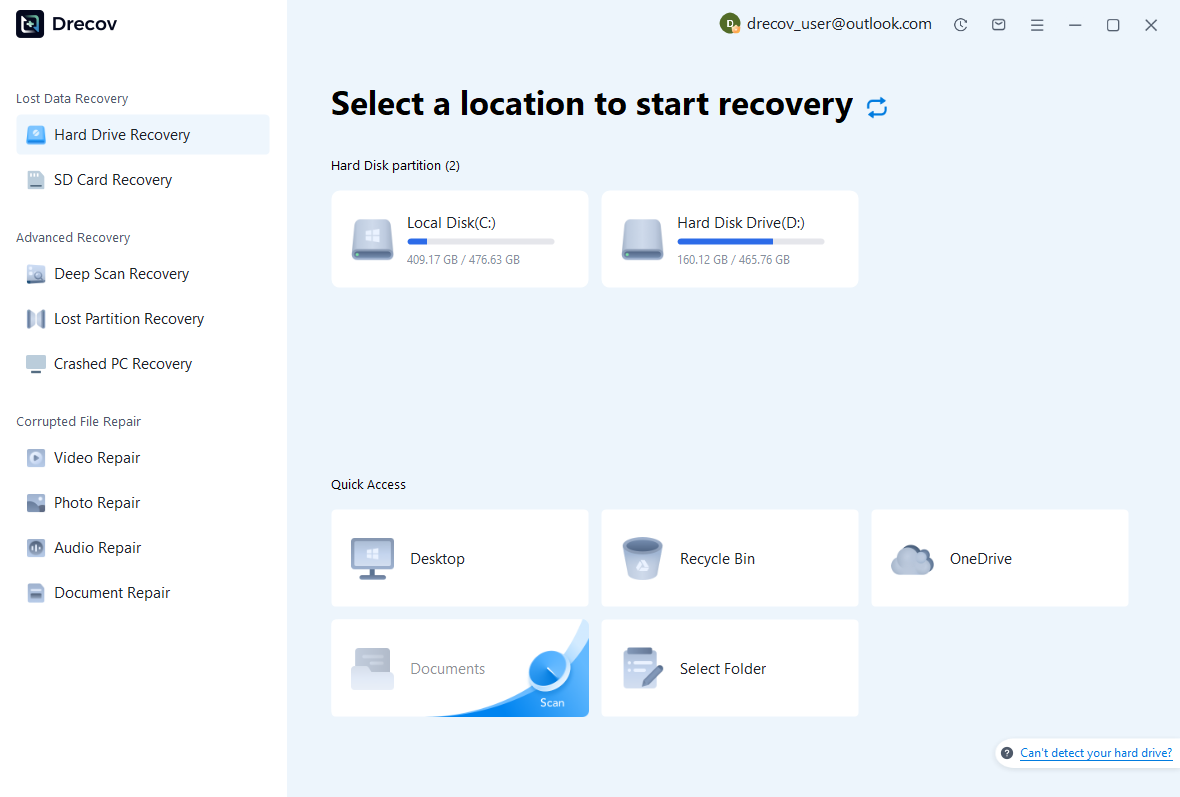
Select the drive or partition that held the relevant Joplin profile, resource directory, or exported archive. Keep the exact target in view rather than scanning for any document with a familiar title. Plan a separate healthy destination for recovered files. If the source reports repeated hardware read failures, assess that condition before running routine software scans.
Step 2: compare archive and resource candidates
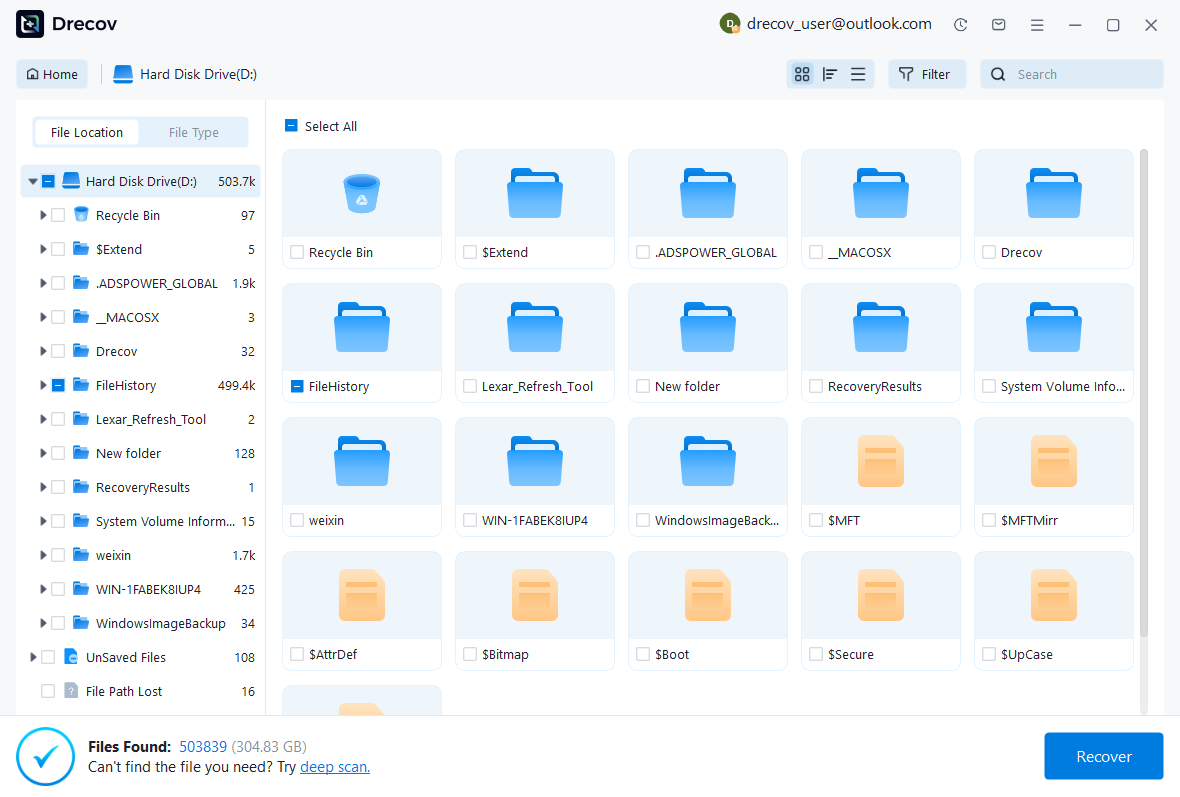
Inspect available paths, file sizes, dates, and supported previews. Preserve plausible archives and complete profile candidates without merging components from unrelated versions. A readable attachment does not prove its note survived. Likewise, a database filename does not establish that the database contains the missing text or all its associated resources.
Step 3: restore elsewhere and inspect through Joplin
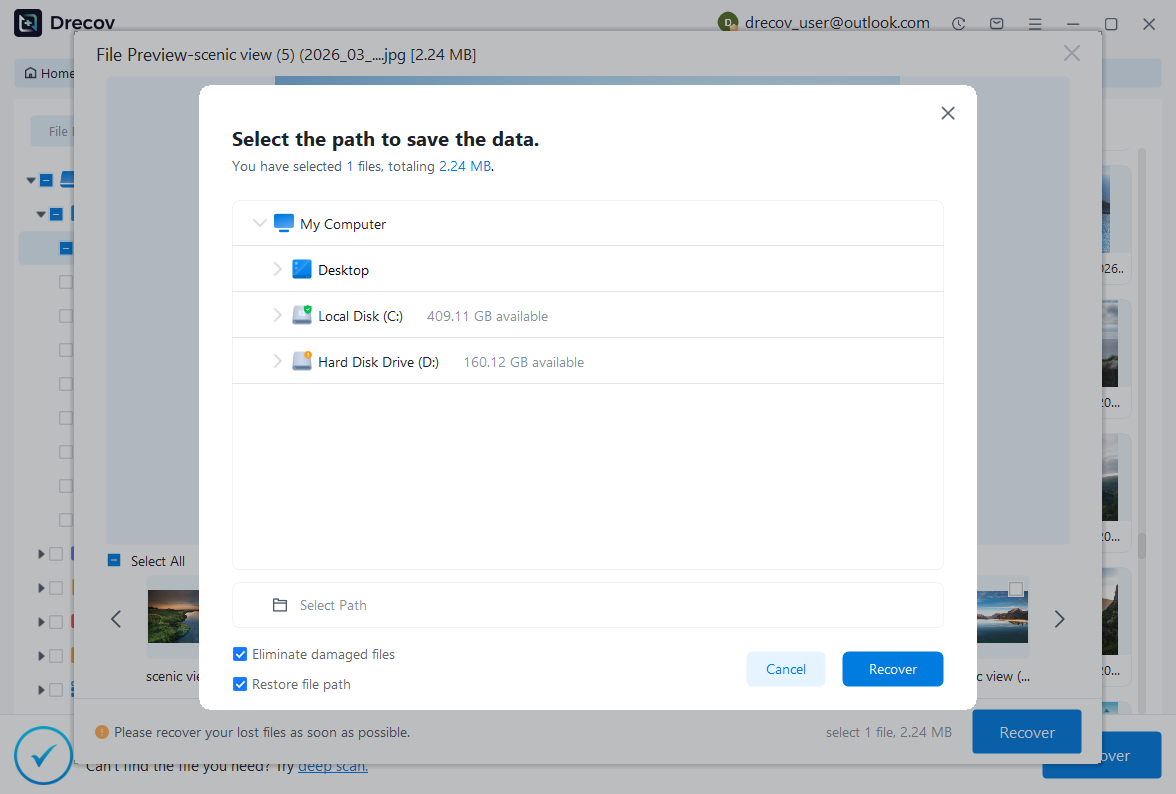
Recover selected files to other healthy storage and retain an untouched set. Import a copied JEX into a separate recovery profile, or assess a complete profile through the supported application workflow. Compare the target text, notebook structure, tags, links, and attachments. Record missing components explicitly before promoting the recovered collection to ordinary use.
Keep the accepted note collection testable
Save a short record of the recovered note IDs, source archives, important revisions, and attachment checks. Then export the accepted collection and test a copied restore. This gives your future self a practical route back to the verified notes, instead of depending on a synchronization state that may change again.
Related recovery resources
Explore the relevant recovery options: Hard drive recovery, External hard drive recovery.
For another recovery case and its practical checks, read the related recovery guide.
Check the vendor guidance for the installed version: official recovery documentation 1, official recovery documentation 2, official recovery documentation 3.