To backup USB flash drive files before replacing the stick, make a copy to a different healthy device and prove that you can open it. Do not move the files or erase the old USB first. Identify which folders matter, choose a destination with enough free space, copy them, and test a few documents, photos, and videos. When Windows reports read errors or files are missing, separate that problem from ordinary backup. A stable drive may allow recovery; one that repeatedly disconnects needs a safer imaging or professional route.
Decide what a useful USB backup must preserve
A backup is a copy you can restore, not merely a completed progress bar. Think about what the flash drive contains. For family photos, filenames and folders may be enough if the full images open. A portable project may also depend on linked assets, subfolders, and configuration files. If the stick contains an application installer, you may be able to download a fresh copy, while an original recording may be irreplaceable. Let those differences guide what you verify after copying.
Choose a destination that is genuinely separate
A new folder on the same USB stick is not a backup. Use an internal PC drive, a healthy external drive, or another storage location that will remain available if the old stick fails. Check free space against the USB’s used space, not just its advertised capacity. Name the destination folder with the source label and date, such as a plain-English “Family USB copy,” so you can recognize it later. Avoid storing the only copy in a temporary Downloads folder that may be cleaned automatically.
Before copying, open the USB in File Explorer and note its label, drive letter, capacity, and top-level folders. If Windows asks to format the USB, cancel. Formatting prepares storage for new use and can remove the current file-system view; it does not back up anything. If the USB gets hot, changes capacity, clicks, or disconnects during browsing, stop direct access and consider an image or professional assistance. A normal copy is for a stable, readable source.
Make a folder copy without changing the source
Connect the old USB and the healthy destination to the PC. In File Explorer, open the USB, select the folders you need, choose Copy, then paste into the prepared destination folder. Do not choose Cut or Move: a move can remove files from the source after transfer, leaving less room to correct an incomplete backup. For a large collection, copy in manageable groups rather than one enormous selection. Start with the most valuable items so a late error does not delay everything.
Wait until File Explorer finishes and read every warning. If Windows skips a file, record its exact path and reason. A message that a filename is too long is different from a source read error. You may be able to copy a path-length problem by shortening the destination path, but do not rename or restructure the source as your first response. If another app has the file open, close that app and retry only the affected item after confirming the USB is stable.
For experienced readers: use a copy log carefully
Microsoft’s Robocopy reference documents a tool that can copy directory trees and report skipped or failed files. It is useful when a large USB collection needs a clear log. However, some switches delete destination items or move files from the source. In particular, do not paste a generic /MIR, /MOVE, or /PURGE command into a backup job you have not designed. A beginner can use File Explorer and a written error list instead; the point is to preserve the source and identify incomplete copies.
Once the copy finishes, do not disconnect the old stick yet. Compare the visible folder structure, representative file sizes, and a few modification dates. A mismatch may be normal if temporary files were excluded, but it deserves investigation when an expected project folder is absent. Keep the source in its original state while you decide whether the backup is complete.
Handle a USB that copies only some files
A partially readable USB is a recovery problem, not merely a slow backup. Save the folders that copy cleanly, then note which files failed. Repeated attempts at the same unreadable area may make an unstable device worse. If the drive disconnects, changes capacity, or reports escalating I/O errors, stop and seek imaging or professional recovery. Do not format, initialize, run CHKDSK, or use DiskPart clean to make the copy dialog disappear; those operations change source data or metadata.
If a specific file will not open but the device stays stable, check whether another known copy exists on a PC, cloud account, or older backup. An old version may be better than a damaged file with a current timestamp. Compare actual content before replacing anything. If an entire folder has vanished, avoid writing new data to the stick. File-recovery software may be able to search for deleted entries, but it cannot restore information already overwritten.
Some people assume File History automatically backs up everything on every plugged-in USB stick. Do not rely on that assumption. Check the actual backup destination and restore interface for the files you need. A portable drive used mainly for file transfers often needs a deliberate copy workflow. Judge the backup by the tested destination, not by a setting that may never have included the removable source.
Use Drecov for missing files, not as a backup scheduler
Drecov is Windows data-recovery software. In this situation, it becomes relevant when the old flash drive is stable and recognized but some files are missing or inaccessible through an ordinary copy. Read-only recovery mode, Quick Scan, Deep Scan, filters, and preview help locate candidates before you retire the stick. Lost Partition Recovery is available when a partition itself has disappeared; that does not mean Drecov repairs the partition table or the USB’s physical hardware. The USB recovery overview describes the source-device path, while the file recovery page addresses lost individual files.
Keep the backup destination separate from the old USB and leave enough room for recovered output. Run Drecov from the PC or another healthy volume; never install it on the source drive. If the USB is physically unstable, a direct scan is not the next step. Consider professional imaging so subsequent work can use a preserved copy instead of repeatedly stressing the original.
⚠ Warning: Install it on a drive different from the one where your data was lost to prevent overwriting.
Step 1: Select the old flash drive as the source
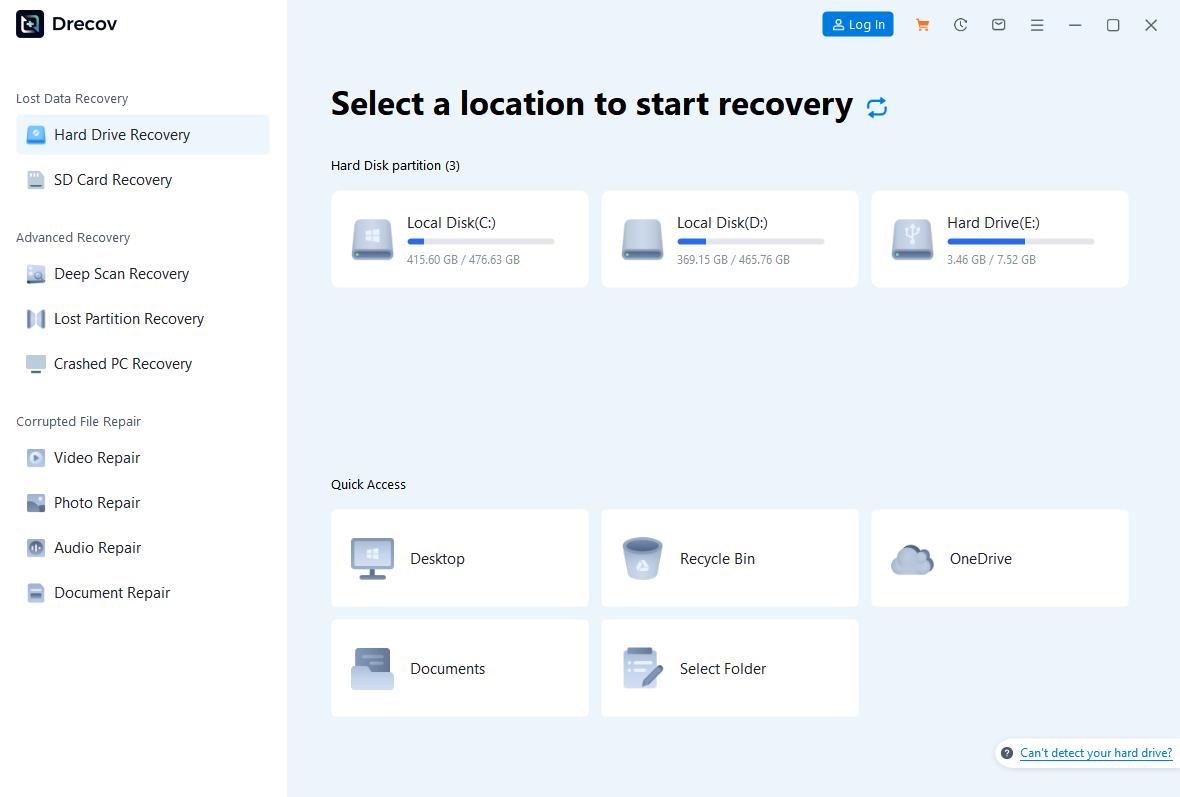
Open Drecov and choose the original USB by its capacity and location. Confirm that it is the stick from which files are missing. A drive letter can change between connections, so do not choose from memory alone. If the entire volume has disappeared, assess Lost Partition Recovery rather than assuming a basic file scan can rebuild its layout.
Step 2: Use Quick Scan to look for the missing set
Start Quick Scan. Compare results with your list of skipped files and vanished folders. Search by familiar filenames, paths, and file types. A found name is only a candidate until the content is checked. Preserve the original USB unchanged during this stage.
Step 3: Deep Scan only while the source remains stable
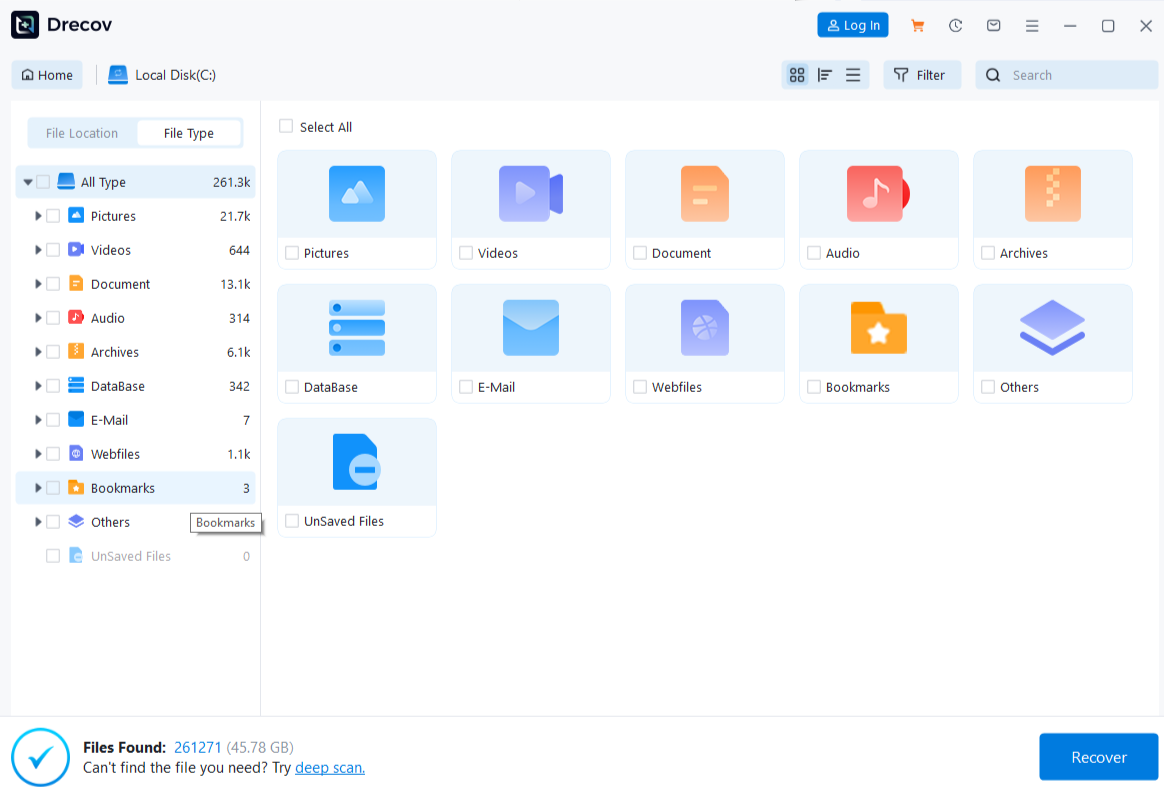
If Quick Scan misses the files and the device remains reliably connected, use Deep Scan. Stop when read errors multiply or the USB disappears. A deeper search can locate more candidates, but it cannot guarantee a complete result or recover fully overwritten data.
Step 4: Preview, save elsewhere, and verify
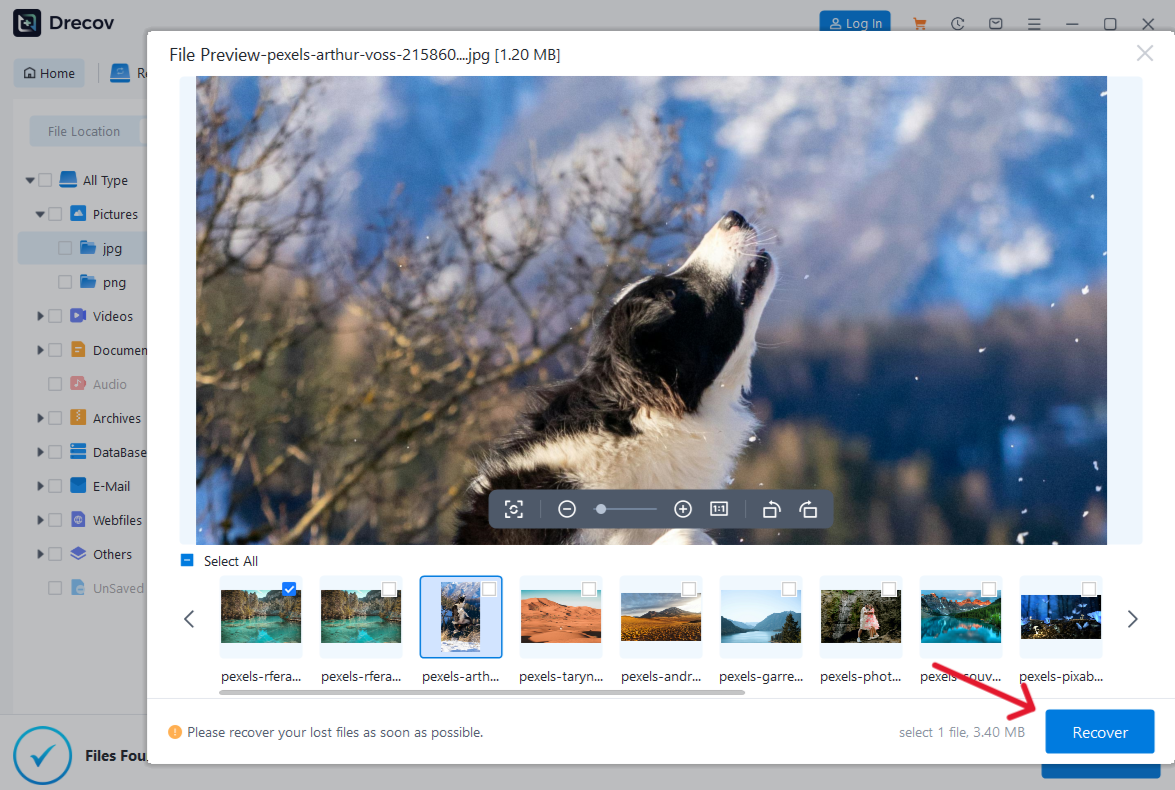
Filter by former folder, name, and type where available. Preview representative supported files to judge whether they are usable. Recover selected results to the healthy destination, never back to the USB. If output is missing from the expected location, check the Drecov Folder or Recovery Folder there. Open a sample of restored documents, images, and media files. Add verified files to the backup set only after that check.
⚠ Warning: Install it on a drive different from the one where your data was lost to prevent overwriting.
Test the backup by restoring samples
Open the destination folder on its own, with the old USB disconnected. Can you browse the same folder hierarchy and open the files you care about? This simple test catches shortcuts that still point to the original drive and copies that did not finish. Inspect at least one file from each important category. A video should play beyond its first second; a document should contain the expected pages; a photo should open full-size. For an archive, test extraction of a copy rather than relying only on its filename.
Compare counts and sizes for large groups, but do not treat exact totals as the only measure. Temporary files, hidden items, and duplicate versions can affect a count. What matters is whether a person can retrieve the required work from the destination when the USB is gone. Note any folder that remains incomplete and the reason. If necessary, repeat a small copy from a stable source, not the entire job with risky move or purge options.
After verification, make a second independent copy of irreplaceable material if practical. One new USB stick is still one point of failure. Keep the old device aside until you are confident the backup and recovered files cover the needed collection. Label both copies clearly, and avoid overwriting the verified set during later cleanup.
Retire or repurpose the old flash drive
If the old USB produced read errors or disconnections, retire it. A successful final copy does not prove the hardware is healthy. Do not use it as the only storage location for a future project. If it was stable and you simply want to repurpose it, first confirm that all needed files exist on the tested backup. Then choose a file system supported by the device that will use it. Formatting before that point risks removing files you forgot to copy.
Should an accidental format happen before you make a copy, the formatted USB recovery path describes the different loss event. Leave the stick unused as soon as you notice the mistake; new writes may overwrite older content. Recovery must save to another healthy device, not back to the newly formatted source.
Finally, decide how the backup will stay current. If this USB is used for a school project or portable work folder, make a dated copy after each significant change and periodically test a file from it. A backup plan need not be complicated, but it should name the source, the separate destination, and a simple verification habit.
FAQs
Is copying a USB flash drive the same as making an image?
No. A folder copy collects accessible files. By contrast, an image captures storage at a lower level and may be useful when a failing device needs specialist recovery. Do not repeatedly image unstable hardware without the right tools and judgment.
Should I move files instead of copying them?
Copy first. Moving can remove source files after transfer, which makes an incomplete job harder to correct. Delete the old copy only after the destination has been opened and verified.
Why did the backup finish but a video will not play?
The source video may already have been damaged, or the copy may be incomplete. Compare size and try a different known-good player on a copy. Keep the original USB untouched while checking other versions.
Can Drecov back up my USB automatically every day?
Drecov is a data-recovery tool, not a verified scheduled-backup service. Use a separate backup workflow for routine copies; use recovery when files are genuinely missing on a stable source.
What if Windows asks me to format the old stick?
Cancel while needed data remains. A format is not a backup. Check whether another system can read the files, then consider recovery or specialist imaging according to the device’s stability.
Conclusion
To backup USB flash drive contents before replacement, copy from the old stick to a separate healthy destination, record any failed items, and prove that the saved files open with the source disconnected. If the USB is stable but files have disappeared, Drecov can search the original device and restore selected results elsewhere before you retire or format it. Repeated disconnects or severe read errors change the plan: stop direct scans and seek a safer imaging or professional path. A tested copy, not a progress bar, is the backup worth keeping.
⚠ Warning: Install it on a drive different from the one where your data was lost to prevent overwriting.