







Imagine this: you plug in your external hard drive to grab an important presentation, years of family photos, or a client’s project you promised to deliver today. The drive spins up, the indicator light blinks… and then nothing. The folder is empty. Or worse, the system asks you to format the drive before you can use it. At that moment, one question starts looping in your head: how can I recover data from a hard drive without making things even worse?
This situation is far more common than most people think. External hard drives are often used as portable vaults for valuable data, yet they are exposed to accidental deletion, sudden power loss, improper ejection, file system corruption, and even physical damage. The good news is that data loss does not always mean data is gone forever. In many cases, recovery is possible if you understand what is happening behind the scenes and act carefully.
This guide is designed to walk you through the process step by step. We will start with the basic principles of data recovery, then move on to practical methods you can use right away. Along the way, we will explain how can I recover data from a hard drive in plain language, without overwhelming technical jargon. Whether you are a casual user or someone who relies on external drives for work, this article will help you make informed decisions.
Part 1: Understanding the Basics of Hard Drive Data Recovery
What Really Happens When Files Are Deleted
To understand how can I recover data from a hard drive, it helps to know what happens when you delete a file. Many people imagine that deletion instantly wipes data from the disk. In reality, most operating systems do something far less dramatic.
Think of your hard drive as a large library. Each book represents a file, and the library catalog tells you where every book is stored. When you delete a file, the system usually removes the entry from the catalog, not the book itself. The shelves still hold the book, but the system no longer knows it exists.
As long as new data does not overwrite that space, the original file content remains intact. This is why timing matters so much in data recovery. The sooner you stop using the affected drive, the higher your chances of success.
Logical vs. Physical Data Loss
Not all data loss scenarios are the same. Broadly speaking, they fall into two categories:
- Logical data loss: Caused by accidental deletion, formatting, file system errors, or virus attacks. In these cases, the hardware still works, and recovery is often possible with software tools.
- Physical data loss: Caused by mechanical failure, severe overheating, water damage, or electrical issues. These cases often require professional recovery services.
This guide focuses mainly on logical data loss, which is where most users asking how can I recover data from a hard drive will find solutions they can apply themselves.
Why Immediate Action Matters
Once you realize data is missing, the most important step is to stop using the affected hard drive immediately. Continuing to copy files, install software, or even browse the drive can overwrite the very data you are trying to recover.
In simple terms: recovery works best when you give the original data space to breathe.
Part 2: Key Precautions Before You Start Recovery
Before jumping into specific methods, take a moment to review these essential precautions. They can significantly improve your recovery outcome.
- Do not format the drive, even if the system suggests it.
- Do not run disk repair tools like CHKDSK unless you fully understand the risks.
- Avoid installing recovery software on the affected drive.
- Use a different computer if possible to minimize background writes.
Keeping these points in mind lays the groundwork for safely answering the question: how can I recover data from a hard drive without making the situation worse.
Part 3: Practical Methods to Recover Data from a Hard Drive
In this section, we will explore several recovery methods, ordered by practicality and effectiveness for most users. Each method includes clear steps and warnings where needed.
Method 1: Check the Basics Before Advanced Recovery
Sometimes, what looks like data loss is actually a connection or visibility issue.
- Step 1: Try a different USB port or cable. Faulty cables are more common than people realize.
- Step 2: Connect the hard drive to another computer.
- Step 3: Open File Explorer on Windows (press Win + E) or Finder on macOS and check whether the files appear under a different drive letter or name.
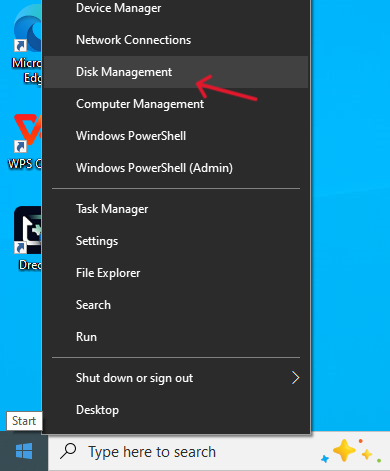
- Step 4: On Windows, open Disk Management by pressing Win + X → Disk Management. Confirm that the drive appears and has a recognized file system.
If the drive shows up correctly but files are missing, move on to the next method.
Method 2: Recover Data Using PandaOffice Drecov (Recommended)
When users ask how can I recover data from a hard drive in a safe and efficient way, dedicated recovery software is often the best answer. PandaOffice Drecov is designed to handle common data loss scenarios on external hard drives with a simple, guided process.
Why Choose PandaOffice Drecov
- Supports recovery from deleted, formatted, or inaccessible drives
- User-friendly interface suitable for non-technical users
- Read-only scanning process to protect original data
- High success rate in logical data loss scenarios
- Versatility: It recovers photos, videos, audio, compressed files (ZIP/RAR), and even system files like EXEs.
- Accidental deletion from your computer desktop.
- Files lost after emptying the Recycle Bin.
- Data loss from disk formatting.
- Accidental deletion or formatting of SD cards/U disks.
- Sync error occurring with deleted OneDrive files
- Privacy First: All recovery happens locally on your machine, so you don’t have to worry about your private data leaking to the web.
Download and install PandaOffice Drecov on a healthy internal drive or a different external drive. Never install recovery software on the affected hard drive.
Step-by-Step Recovery with PandaOffice Drecov
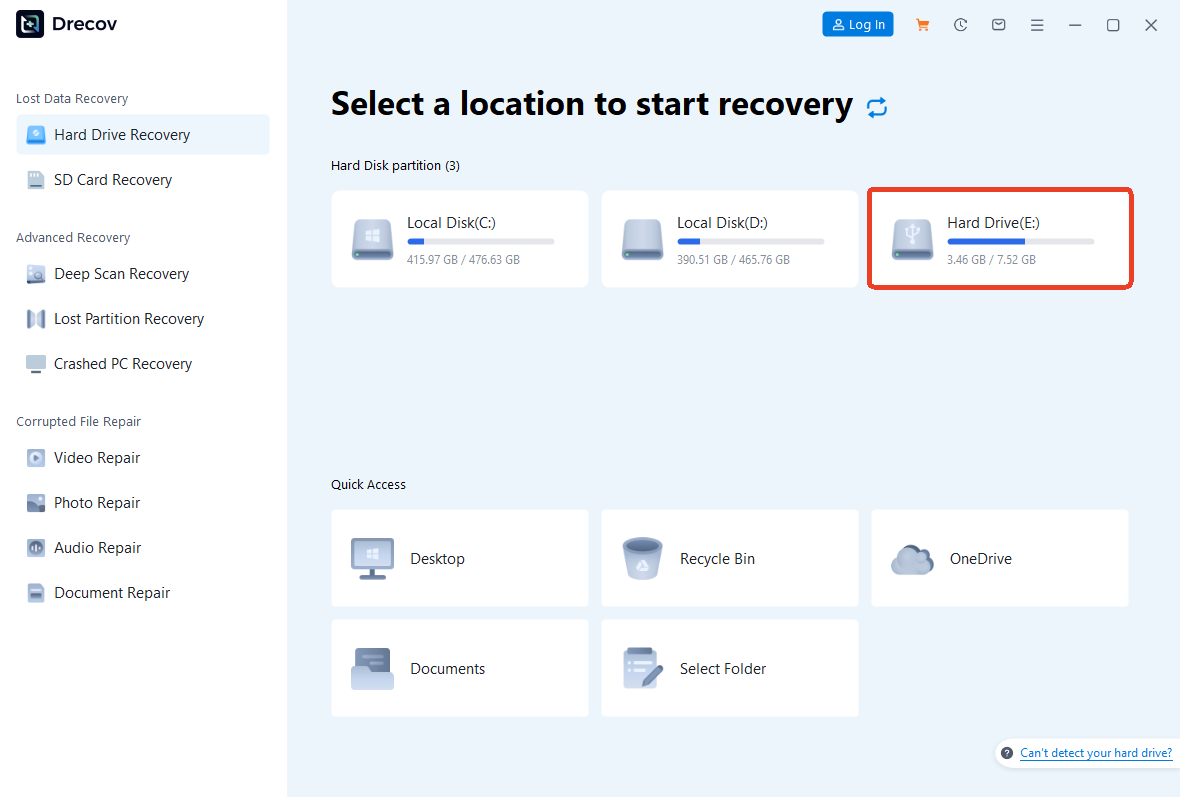
- Step 1: Launch the Software and Select the Drive
Open PandaOffice Drecov and choose the external hard drive where data was lost. Confirm the correct drive by capacity and label.
- Step 2: Start the Scan
Click the Scan button to begin. The software will perform a quick scan followed by a deeper scan if needed. You can preview recoverable files during this process.
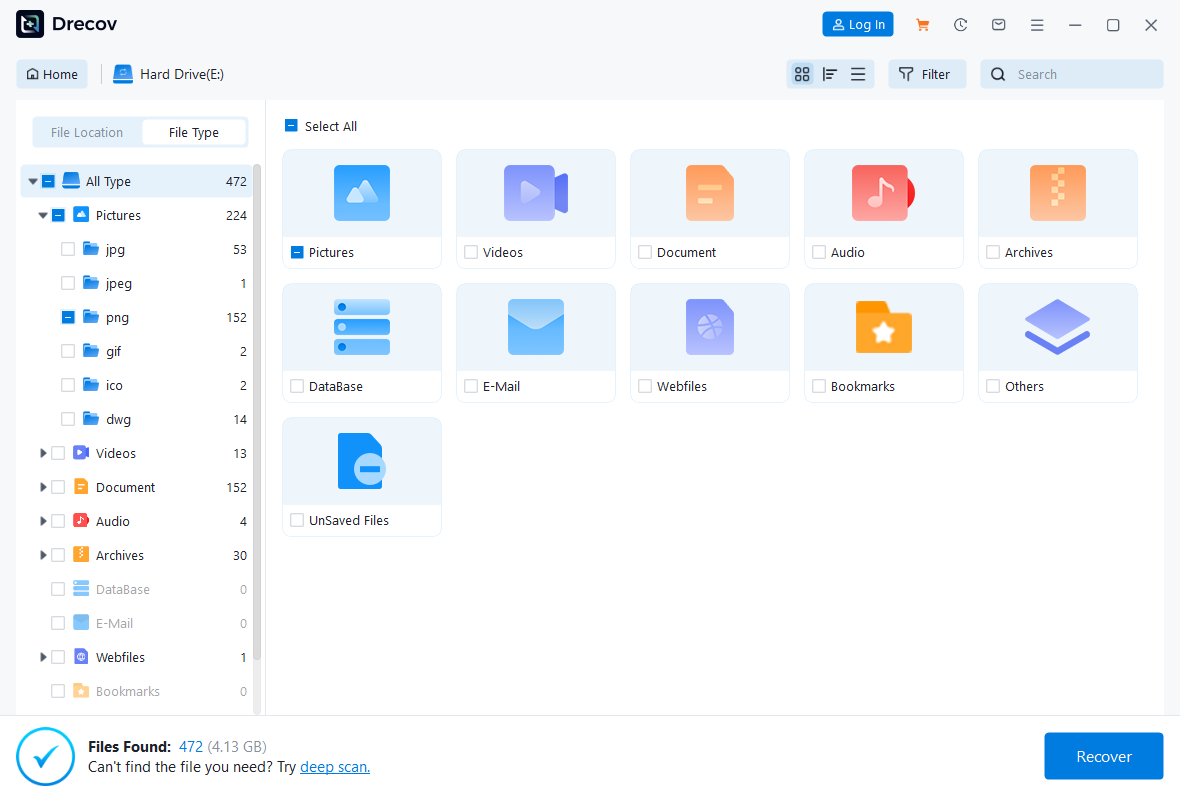
- Step 3: Preview and Recover Files
Select the files you want to recover and choose a safe destination on a different drive. Confirm the recovery process and wait for completion.

Important Tip: Always recover files to a different storage location to avoid overwriting remaining data.
For most everyday users, this method provides the clearest and safest answer to how can I recover data from a hard drive after accidental loss.
Method 3: Restore from System Backups
If you regularly back up your data, recovery may be simpler than expected.
Windows File History
- Step 1: Connect the backup drive.
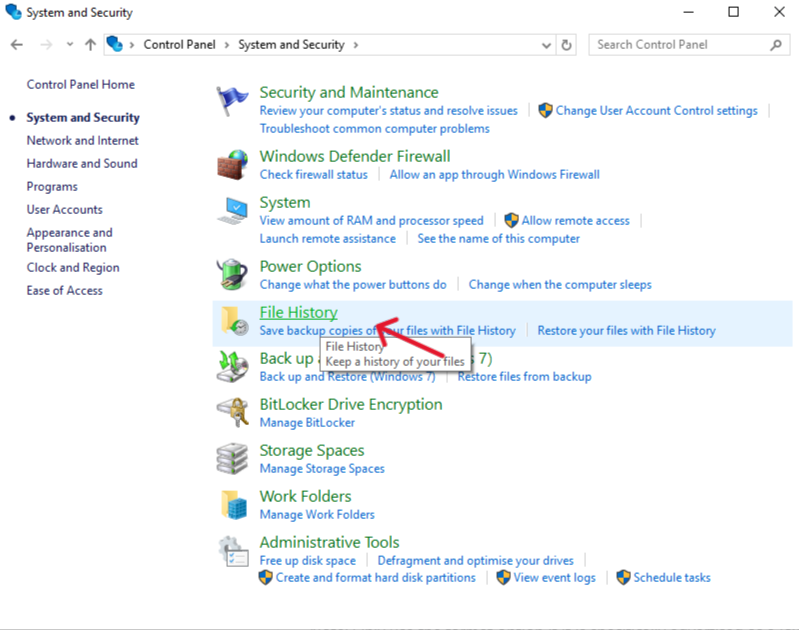
- Step 2: Open Control Panel → File History.
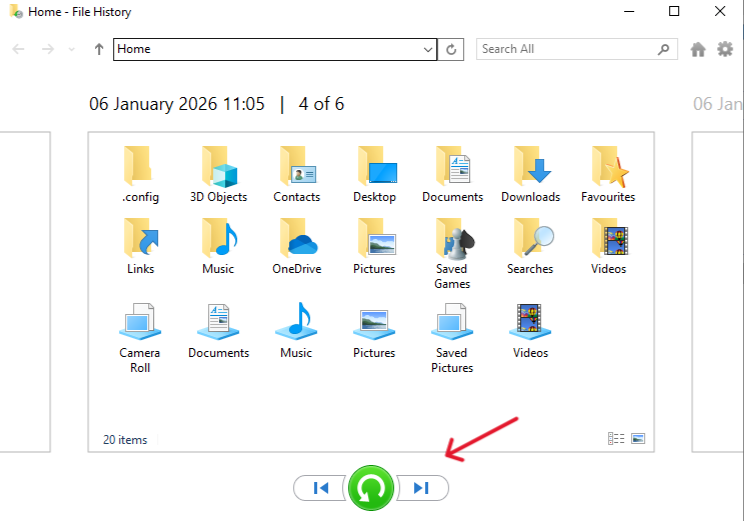
- Step 3: Select Restore personal files and browse available versions.
macOS Time Machine
- Step 1: Connect the Time Machine backup drive.
- Step 2: Open Time Machine from the menu bar.
- Step 3: Navigate to the date before data loss and restore files.
Backups are often overlooked when people ask how can I recover data from a hard drive, yet they can be the fastest solution.
Method 4: Use Previous Versions or Shadow Copies (Windows)
If System Protection is enabled, Windows may store previous versions of files.
- Step 1: Right-click the affected folder.
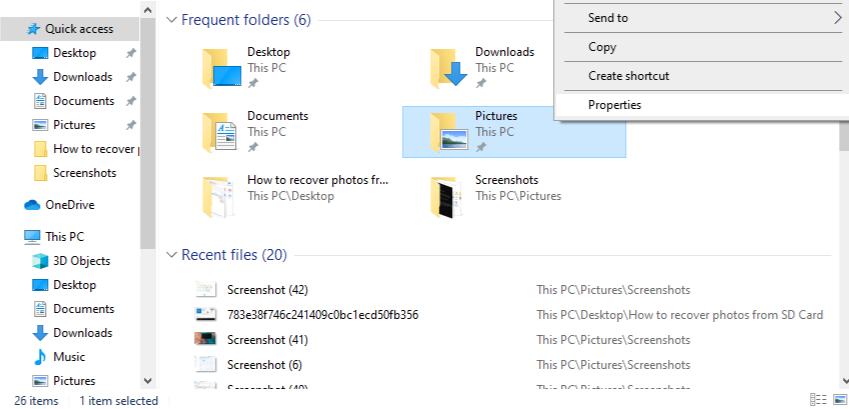
- Step 2: Select Properties → Previous Versions.
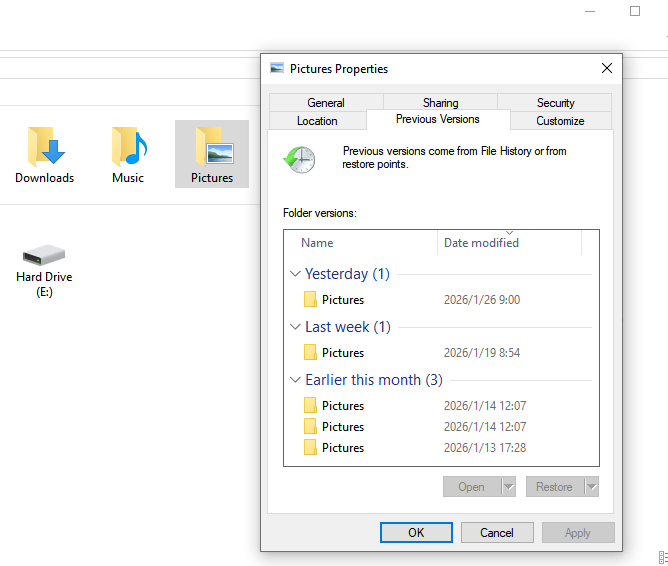
- Step 3: Choose a version created before the data loss and click Restore.
This method works best for recently modified or deleted files.
Method 5: Seek Professional Data Recovery Services
If the drive makes unusual noises, fails to spin up, or is not detected at all, professional help may be required.
Professional services operate in cleanroom environments and can address physical damage. While costly, they may be the only viable option in severe cases.
Part 4: Comparing Data Recovery Methods
| Method | Difficulty | Cost | Success Rate | Best Use Case |
|---|---|---|---|---|
| Basic Checks | Low | Free | Low–Medium | Connection or visibility issues |
| PandaOffice Drecov | Low | Moderate | High | Deleted, formatted, or inaccessible drives |
| System Backups | Low | Free | High | Users with recent backups |
| Previous Versions | Medium | Free | Medium | Recently changed files |
| Professional Services | High | High | Variable | Physical damage |
PandaOffice Drecov stands out by combining ease of use with strong recovery capabilities, making it a practical answer to how can I recover data from a hard drive for most users.
Part 5: Preventive Measures to Avoid Future Data Loss
Prevention is always easier than recovery. Here are practical steps you can take:
- Create regular backups using built-in tools or cloud services
- Safely eject external hard drives before unplugging
- Avoid using external drives as the only storage location
- Periodically check drives for errors
Exporting Important Data Regularly
For browser-based data like bookmarks, export them periodically as HTML files:
- In Chrome, open Bookmark Manager → Export bookmarks.
- Store the HTML file on a separate drive or cloud storage.
These habits reduce the chances of asking how can I recover data from a hard drive in a moment of panic.
Part 6: How Can I Recover Data from a Hard Drive FAQs
1.How can I recover data from a hard drive that asks to be formatted?
Avoid formatting. Use recovery software like PandaOffice Drecov to scan the drive and recover files first.
2.Can I recover data from a hard drive after it has been formatted?
Yes, in many cases you can. Formatting usually removes file system references rather than erasing data immediately. As long as the formatted space has not been heavily overwritten, recovery software like PandaOffice Drecov can scan the drive and reconstruct lost files.
3.What should I do if my hard drive shows up but files appear corrupted or unreadable?
First, stop opening or copying the corrupted files. Avoid running repair tools that may modify the file system. Instead, use data recovery software to extract readable copies of the files to another drive, then verify their integrity.
3.How long does hard drive data recovery take?
Scan time depends on drive size and condition. Recovery may take minutes or several hours.
Conclusion
Data loss can be stressful, but it does not have to be the end of the story. By understanding how storage systems work and following the right steps, you can greatly improve your chances of success. For most logical data loss scenarios, tools like PandaOffice Drecov provide a reliable and user-friendly solution.
The next time you find yourself asking how can I recover data from a hard drive, remember to pause, protect the affected drive, and choose the recovery method that matches your situation. With the right approach, lost data often finds its way back.






