







Accidentally hitting the “Delete” button is a heart-sinking moment, but realizing you’ve also cleared the trash folder is even worse. If you are wondering how to recover a photo deleted from recently deleted, you aren’t alone. Data loss is a common digital headache, but in the world of data forensics, “deleted” rarely means “gone forever”—at least not immediately.
This comprehensive guide will walk you through the mechanics of storage, the golden rules of file retrieval, and the specific steps required to get your memories back using various platforms and professional tools like PandaOffice Drecov.
Understanding the “Recently Deleted” Folder
What Happens When You Delete a Photo
To master how to recover a photo deleted from recently deleted, you first need to understand how operating systems handle data. When you delete a photo from your main gallery, it moves to a temporary holding area (the “Recently Deleted” or “Trash” folder). At this stage, the file is still fully intact and taking up storage space.
However, once you empty that folder, the OS performs a “logical deletion.” It doesn’t scrub the binary code of the image off the drive. Instead, it marks the sectors occupied by that photo as “available.” It’s like a library removing a book’s entry from the index card catalog while the book itself remains on the shelf. The book only disappears when a new book is placed directly on top of it.
How Long Photos Stay in Recently Deleted
Most modern systems provide a safety window. On iOS and macOS, this is typically 30 days. Google Photos offers 60 days if the items were backed up, or 30 days if they weren’t. Once this timer expires, the system automatically triggers a permanent deletion. Knowing how do you recover photos from recently deleted after this timer hits zero requires moving beyond simple interface tricks and into deeper recovery territory.
Is Recovery Possible After Permanent Deletion?
The Truth About Permanent Deletion
Many users assume that “Permanent Deletion” is the end of the road. In reality, it is simply the point where the operating system stops protecting the file. As long as you haven’t saved new high-resolution videos or large apps that might overwrite those specific disk sectors, the “ghost” of your photo remains.
Factors That Affect Recovery Success
Several variables determine whether you will successfully learn how to recover a photo deleted from recently deleted:
- File Fragmentation: Large files spread across non-contiguous sectors are harder to reconstruct.
- TRIM Commands: On modern SSDs, the TRIM command proactively clears deleted blocks to maintain speed, making recovery much harder than on traditional HDDs.
- Encryption: If your device is encrypted (like most modern iPhones), recovery without a backup or functional OS is significantly more complex.
Immediate Actions to Take After Deletion
Stop Using Your Device
The absolute first rule of how to recover a photo deleted from recently deleted is to cease all activity. Do not take new photos, do not update apps, and turn off your Wi-Fi/Cellular data to prevent background syncing. Every megabyte of new data written to the device is a “bullet” that could hit your deleted photo’s remains.
Why Timing Is Critical
Data recovery is a race against the “Overwrite.” According to industry statistics, the probability of successful raw data recovery drops by nearly 25% every 24 hours of active device use. If you act within the first hour, your chances are remarkably high.
How to Recover Photos on iPhone
Using iCloud Backup
Apple’s ecosystem is built on redundancy. Even if you emptied the “Recently Deleted” album, a previous iCloud Backup might contain the file. This is often the most reliable way to figure out how do you recover photos from recently deleted without third-party software.
Step-by-Step Restore Process
- Step 1: Check your last successful backup date by going to Settings > [Your Name] > iCloud > iCloud Backup.
- Step 2: If the backup date is before you deleted the photo from the trash, you must erase your iPhone. Go to Settings > General > Transfer or Reset iPhone > Erase All Content and Settings.
- Step 3: Follow the on-screen setup prompts until you reach the Apps & Data screen.
- Step 4: Select Restore from iCloud Backup and sign in with your Apple ID.
- Step 5: Choose the relevant backup and wait for the restoration to complete.
Risks of iCloud Recovery
The primary risk is data regression. You will lose any messages, photos, or settings created after the backup point. Always ensure you’ve manually saved recent important documents elsewhere before performing a full restore.
How to Recover Photos on Android
Using Google Photos Backup
Android users often find that their photos are double-saved. Even if the local “Recently Deleted” folder is empty, check the Google Photos Web Portal.
- Open the Google Photos app.
- Tap Library > Bin.
- If the photo was synced to the cloud, it might still be there even if the local gallery was cleared.
Using File Recovery Apps
For photos stored on an SD card or internal memory that wasn’t backed up, you may need a specialized Android recovery tool. These apps scan the cache and thumbnails (which are often saved separately) to piece together the lost image.
Using Data Recovery Software: PandaOffice Drecov
When built-in backups fail, professional-grade software like PandaOffice Drecov is the most effective solution. It is designed to bypass the OS file system and read the raw storage bits.
⚠ Warning: Install it on a drive different from the one where your data was lost to prevent overwriting.
How to Use PandaOffice Drecov for Photo Recovery
If you are struggling with how to recover a photo deleted from recently deleted, follow these precise steps:
- Step 1: Connect the Source. Connect your smartphone via USB or insert your camera’s SD card into a card reader. Ensure the device is recognized by your computer.

- Step 2: Select Location. Launch the program and select the specific drive or folder where the photos were originally stored.
- Step 3: Scan for Data. Click the “Scan” button. PandaOffice Drecov will perform a “Quick Scan” followed by a “Deep Scan.” The Deep Scan is essential for items deleted from the “Recently Deleted” folder as it looks for file signatures rather than just file entries.

- Step 4: Filter and Preview. Use the filter sidebar to select “Images” and file types like .JPG or .PNG. The software allows you to preview the photos before recovery to ensure they aren’t corrupted.

- Step 5: Recover. Select the photos you wish to save and click “Recover.” Always save the recovered files to a different drive (e.g., save to your Desktop if recovering from an SD card).
Pro Tip: If you see a thumbnail in the preview but the image looks distorted, the file may be partially overwritten. PandaOffice Drecov will still try to pull as much data as possible, but some quality loss may occur in these specific instances.
For more specific guides on external storage, check out these resources:
- How to recover deleted photos from an SD card
- How do you recover deleted photos from an SD card
- How to recover deleted photos from SD card
Recovering Photos from Computer Backups
Windows Backup Options
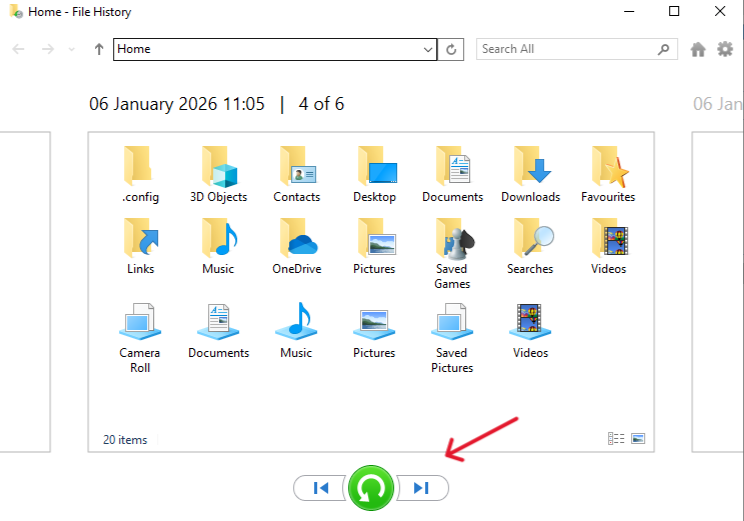
If you have ever synced your phone to your PC, Windows might have a copy. Check the File History feature.
- Type “Restore your files with File History” in the taskbar search.
- Look for the folder where your phone imports go (usually
C:\Users\[Username]\Pictures). - Use the arrow buttons to go back in time to find the deleted photo.
Mac Time Machine Recovery
For Mac users who backup their iPhones to their computers, Time Machine is a lifesaver.
- Connect your backup drive.
- Open the folder where your Photos Library is stored.
- Enter Time Machine and navigate to a date before the “Recently Deleted” folder was emptied.
- Select the Library and click Restore.
When to Consider Professional Recovery Services
If the storage device is physically broken (e.g., a snapped SD card or a phone that won’t turn on), software alone cannot help. Professional “Clean Room” services can cost anywhere from $300 to $2,000, depending on the severity. This should be your last resort if the photos are of extreme sentimental or legal value.
Tips to Prevent Future Photo Loss
- The 3-2-1 Rule: Keep 3 copies of your data, on 2 different media types, with 1 copy off-site (Cloud).
- Enable Automatic Cloud Sync: Use services like iCloud, Google Photos, or OneDrive.
- Physical Backups: Once a month, transfer your phone photos to a physical external hard drive.
Recover a photo deleted from recently deleted FAQs
1. Can I recover a photo after deleting it from Recently Deleted?
Yes, but you must use data recovery software like PandaOffice Drecov or restore from a backup created before the deletion occurred.
2. How long do I have before recovery becomes impossible?
There is no set time, but once the storage space is filled with new data, the old photo is overwritten. In active devices, this can happen in a matter of days or even hours.
3. Are recovery apps safe to use?
Reputable desktop software is safe. However, avoid “free” mobile apps that ask for excessive permissions, as they often fail to recover data and may compromise your privacy.
4. Does factory resetting a phone make photos unrecoverable?
On most modern encrypted devices (iPhone/Android), a factory reset wipes the encryption keys, making previous data virtually impossible to recover without a prior cloud backup.
Conclusion
Learning how to recover a photo deleted from recently deleted is a valuable skill in the digital age. While it feels like a permanent loss, the architectural nature of digital storage usually leaves a window of opportunity. Whether you rely on the robust scanning of PandaOffice Drecov or the safety net of an iCloud backup, the key is to act fast and stop writing new data to the device.






