







Understanding How to Boot Computer in Recovery Mode
What Is Recovery Mode and Why It Matters
Boot computer in recovery mode refers to starting your Windows system in a specialized troubleshooting environment called WinRE. This environment provides access to advanced tools that help fix startup problems, repair corrupted files, and restore system functionality.
When Windows fails to load properly, knowing how to boot computer in recovery mode can save your system from a complete reinstall. Instead of losing important data, you can use built-in tools like Startup Repair, System Restore, and Command Prompt to resolve issues efficiently.
Another advantage of learning how to boot computer into recovery mode is that it allows troubleshooting outside the main operating system. This means even if Windows is unbootable, you still have access to recovery tools.
In modern systems, recovery mode is an essential safety feature for both beginners and advanced users. It ensures that system errors can be diagnosed and fixed without requiring professional intervention in most cases.
⚠️Warning: Avoid interrupting system repairs once started, as this may cause further system corruption.
Common Situations That Require Booting into Recovery Mode
Typical Causes of System Startup Failure
There are several real-world scenarios where users need to boot computer in recovery mode. Understanding these situations helps you act quickly and avoid permanent damage.
One common cause is failed Windows updates. If an update is incomplete or incompatible, your system may fail to boot correctly. Recovery mode allows you to uninstall updates and restore stability.
Corrupted system files are another major reason. These files can be damaged by malware, sudden shutdowns, or disk errors. In such cases, recovery tools can repair or replace damaged components.
Hardware issues, such as failing drives or memory problems, can also prevent Windows from loading. While recovery mode cannot fix hardware directly, it helps diagnose the issue.
Incorrect configurations—like boot misconfigurations—are also a frequent cause. Recovery mode allows users to restore default settings or fix boot records.
Lastly, users often need recovery mode when resetting their PC or troubleshooting login problems.
⚠️Warning: If your system repeatedly crashes, avoid continued usage and begin recovery immediately to prevent data loss.
How to Boot Computer in Recovery Mode (Step-by-Step Methods)
Method 1: Boot Computer in Recovery Mode via Settings
Test Environment:
- Windows 10 Pro (22H2)
- System accessible with admin rights
- No external tools required
If your computer is still functioning, this is the simplest way to boot computer in recovery mode.
Start by opening the Start menu and selecting Settings. Navigate to “Update & Security,” then click on “Recovery.” Under “Advanced startup,” click “Restart now.”
Your computer will reboot into the Advanced Startup screen. From there, select “Troubleshoot” and then “Advanced options.”
This method is safe, direct, and recommended for most users. It provides full access to recovery tools without needing external media.
Learning how to boot computer into recovery mode this way is especially useful for proactive troubleshooting.
⚠️Warning: Save all work before restarting to avoid losing unsaved data.
Method 2: Use Shift + Restart from Power Menu
Test Environment:
- Windows 10 Home Edition
- Accessible login screen
- Functional keyboard
This is a fast and practical way to boot computer in recovery mode without navigating system settings.
Click the Start menu, select the Power icon, then hold down the Shift key and click “Restart.” Keep holding Shift until the system restarts.
You will be directed to the Advanced Startup menu. Choose “Troubleshoot” and then “Advanced options.”
This method works even if you are stuck on the login screen, making it extremely versatile.
For users wondering how to boot computer into recovery mode quickly, this is one of the best options.
⚠️Warning: Ensure your keyboard is working properly, or the shortcut may fail.
Method 3: Enter Recovery Mode After Boot Failure
Test Environment:
- Windows 10 system with startup failure
- Forced shutdown simulation
- No login access
If your system cannot start normally, you can still boot computer in recovery mode by triggering automatic repair.
Turn on your PC and interrupt the startup by holding the power button. Repeat this process two or three times.
Windows will detect the repeated failures and launch “Automatic Repair.” From there, click “Advanced options” to access recovery tools.
This method is essential when your system is completely unbootable.
Understanding how to boot computer into recovery mode in such scenarios ensures you always have a recovery pathway.
⚠️Warning: Avoid excessive forced shutdowns, as they may damage system files.
Method 4: Boot Computer in Recovery Mode Using Installation Media
Test Environment:
- Bootable Windows 10 USB/DVD
- BIOS/UEFI access
- Non-bootable system
When all else fails, external installation media can help you boot computer in recovery mode.
Insert the bootable USB or DVD and restart your computer. Enter BIOS/UEFI and set the device as the primary boot option.
Once the setup screen appears, select your language and click “Next.” Then choose “Repair your computer” instead of installing Windows.
This will open the recovery environment where you can troubleshoot system issues.
This method is highly reliable and works even when internal recovery options are unavailable.
Learning how to boot computer into recovery mode using external media is critical for severe system failures.
Method 5: Boot Computer into Recovery Mode Using Command Prompt
Test Environment:
- Windows 10 Pro (22H2)
- System accessible via desktop or Safe Mode
- Administrator privileges enabled
Another effective way to boot computer in recovery mode is by using Command Prompt. This method is particularly useful for advanced users or IT professionals who prefer direct commands.
To begin, open Command Prompt as an administrator. Then type the following command:
shutdown /r /o /f /t 0
Press Enter, and your computer will immediately restart into the Advanced Startup environment.
Once rebooted, select “Troubleshoot” and then “Advanced options” to access recovery tools.
This method is fast and bypasses multiple manual steps, making it ideal for scripting or remote troubleshooting. It is also helpful when system settings are partially inaccessible.
For users learning how to boot computer into recovery mode, this approach offers a powerful alternative when graphical options are limited.
⚠️Warning: Make sure all applications are closed before running the command to avoid data loss.
Method 6: Access Safe Mode from Recovery Environment
Test Environment:
- Windows 10 system in recovery environment
- Keyboard input available
- No hardware issues
Safe Mode is a diagnostic startup option that can be accessed after you boot computer in recovery mode.
From the Advanced Startup screen, select “Troubleshoot,” then “Advanced options,” followed by “Startup Settings.” Click “Restart.”
After rebooting, you will see a list of options. Press:
- F4 for Safe Mode
- F5 for Safe Mode with Networking
- F6 for Safe Mode with Command Prompt
Safe Mode loads only essential drivers, which helps identify software conflicts or problematic drivers.
This method is especially useful when your system crashes during normal startup but still functions in a minimal environment.
Understanding how to boot computer into recovery mode and then access Safe Mode is critical for diagnosing deeper system issues.
⚠️Warning: Some features and drivers are disabled in Safe Mode, so functionality will be limited.
Recover Lost Data After Boot Issues Using Professional Tools
Method 7: Recover Data with Pandaoffice Drecov After Entering Recovery Mode
Download DrecovTest Environment:
- Windows 10 system with boot issues
- Secondary storage or external drive available
- Pandaoffice Drecov installed on working system
When system failures occur, data loss is a major concern. After you successfully boot computer in recovery mode, recovering important files should be a priority.
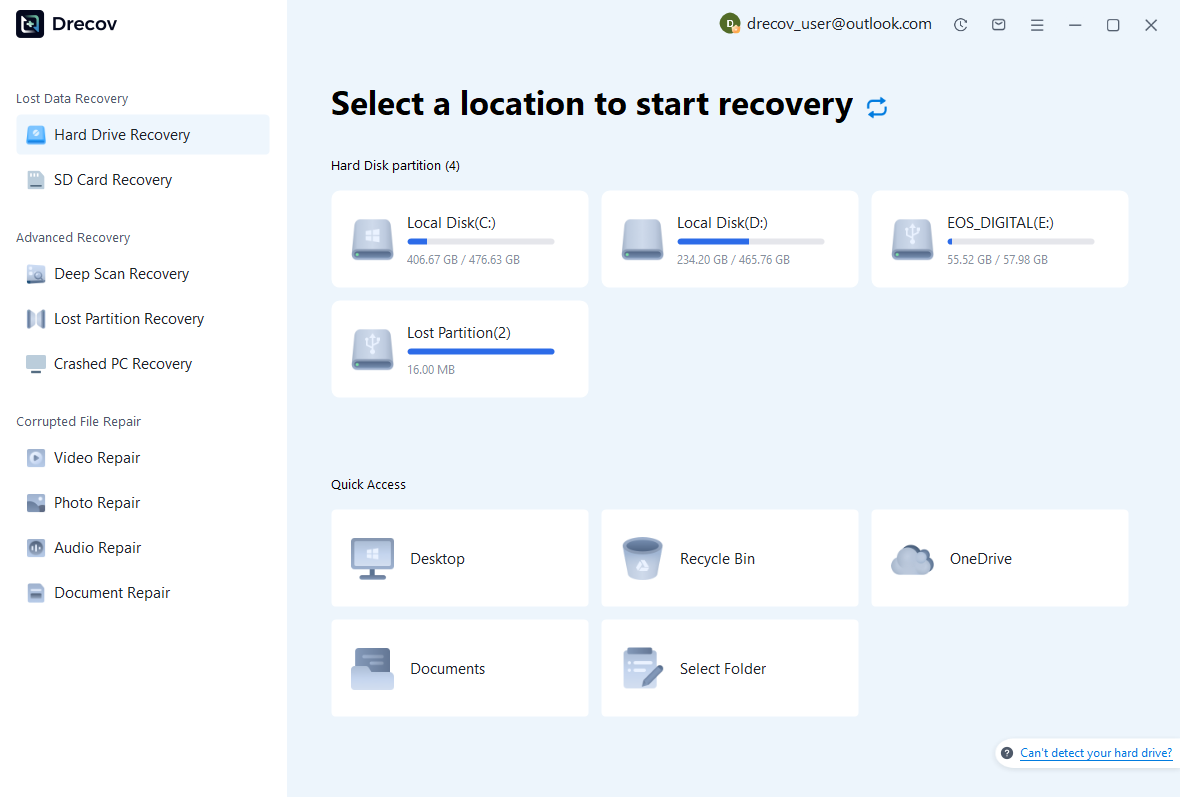
This is where Pandaoffice Drecov becomes extremely useful. It is a professional data recovery tool designed to retrieve lost files from crashed or unbootable systems.
- To begin, remove the affected storage drive and connect it to another working computer. Install Pandaoffice Drecov and launch the program.
- Select the affected drive and start a deep scan. The software will analyze recoverable files including documents, images, and videos.
- Preview the files and choose the ones you want to restore. Save them to a secure location different from the original drive.
This method ensures that even if your system cannot be repaired, your data remains safe.
For users searching how to boot computer into recovery mode and protect data, combining recovery mode with professional software provides the best outcome.


Why Choose Pandaoffice Drecov?
Pandaoffice Drecov stands out as a powerful and user-friendly solution for handling various data loss scenarios. Whether you need to reset PC to earlier date, perform a recover deleted Blink video, or figure out how do I recover an overwritten Excel file, Drecov provides reliable and efficient recovery tools in one place. It also excels at recovering photos from SD cards, making it ideal for photographers and everyday users alike. Even complex situations like Illustrator unsaved file recovery are handled with advanced scanning algorithms that maximize file retrieval success. With its intuitive interface, deep scan technology, and high recovery rate, Pandaoffice Drecov ensures your lost data can be restored quickly and safely without requiring technical expertise.
Frequently Asked Questions About Booting into Recovery Mode
Can I boot computer in recovery mode without logging in?
Yes, you can boot computer in recovery mode without logging in by using the Shift + Restart method from the login screen or by interrupting the boot process multiple times. These approaches allow access to recovery tools even if login credentials are unavailable.
What should I do if recovery mode does not appear?
If recovery mode fails to load, try using installation media or the Command Prompt method. In some cases, system recovery files may be corrupted, requiring external boot tools.
Understanding how to boot computer into recovery mode through multiple methods ensures you always have a backup solution.
Does recovery mode delete my files?
No, entering recovery mode does not delete your data. However, certain actions like “Reset this PC” may remove files depending on the option selected. Always back up important data before performing major repairs.
How many times should I force shutdown to trigger recovery?
Typically, interrupting the boot process 2–3 times is enough to trigger automatic repair. Avoid excessive attempts, as they may harm your system.
Key Takeaways for Booting Computer into Recovery Mode
Best Practices and Final Tips
Learning how to boot computer in recovery mode is an essential skill for handling Windows system issues effectively. Whether your system is partially functional or completely unbootable, there are multiple ways to access recovery tools.
The easiest method is through system settings, while the Shift + Restart shortcut offers a faster alternative. For unbootable systems, forced restart and installation media provide reliable entry points.
Advanced users can use Command Prompt for quick access, while Safe Mode helps diagnose deeper issues.
Most importantly, always prioritize data safety. If system errors occur, use tools like Pandaoffice Drecov to recover critical files before attempting major repairs.
By mastering how to boot computer into recovery mode, you ensure that system failures can be managed efficiently without unnecessary data loss or downtime.
⚠️Warning: Always create regular backups to minimize risks during system failures.





