







I’m in need of some urgent help. My USB flash drive has suddenly become corrupted, and I can’t access any of the files on it. I’m using a Windows 10 PC, and every time I try to open the drive, I either get an error message saying the drive needs to be formatted, or it just doesn’t show any of my files.—From Microsoft Store
Understanding Thumb Drive Data Loss
Why Files Are Lost on a Thumb Drive
Losing data on a USB storage device can happen for various reasons, making it crucial to know how to recover deleted files from thumb drive. Thumb drives, also called USB flash drives, store data in portable memory, which makes them prone to accidental deletion, formatting, and corruption.
Even when files appear deleted, the underlying data may still exist on the device until overwritten. This is why prompt action is important if you want to recover files from thumb drive successfully.
⚠️Warning: Avoid saving new files to the thumb drive immediately after deletion, as this reduces the chance of full recovery.
Common Scenarios for Thumb Drive Data Loss
Users may lose files from thumb drives due to several situations:
- Accidental Deletion: Pressing delete unintentionally or clearing a drive completely.
- Corruption or Virus Attack: File system errors or malware can make files inaccessible.
- Formatting the Thumb Drive: Users often format drives to fix errors, unknowingly removing important data.
- Improper Ejection: Removing the thumb drive without safely ejecting can lead to lost or corrupted files.
Understanding these causes is the first step toward successfully how to recover deleted files from thumb drive.
Why Recovery Is Possible
How Deleted Files Remain on the Drive
When a file is deleted from a thumb drive, the operating system usually removes the reference to the file but leaves the data on the device until it is overwritten. This is why tools and methods designed to recover deleted files from USB thumb drive can retrieve data even after deletion or formatting.
Quickly identifying the loss and using the right recovery method increases the likelihood of restoring files intact, whether it’s documents, images, videos, or other file types.
Methods to Recover Files from a Thumb Drive
Method 1: Use Pandaoffice Drecov for USB Recovery
Test Environment: Windows 11, 64GB USB thumb drive, multiple file types including images, documents, and videos.
When standard recovery options fail, Pandaoffice Drecov offers a reliable solution to recover deleted files from thumb drive. This software scans your USB drive to locate files that are lost but not yet overwritten.
Download DrecovSteps include:
- Install Pandaoffice Drecov on a separate drive to avoid overwriting deleted files.
- Connect the affected thumb drive and select it for scanning.
- Choose a deep or quick scan depending on data volume.
- Preview and selectively restore files to a safe location.
Why Choose PandaOffice Drecov?
When it comes to reliable file data recovery, PandaOffice Drecov offers a balanced combination of performance, ease of use, and broad compatibility. Whether you’ve lost important business files or personal memories, it provides an efficient way to restore data from various loss scenarios, including system crashes, accidental deletion, and formatted drives.
For users looking for advanced Photo Data Recovery Software, PandaOffice Drecov supports a wide range of image formats and storage devices. It can recover high-quality photos from SD cards, cameras, and internal drives while preserving original resolution and file structure. This makes it especially useful for photographers and everyday users alike.
If you are dealing with storage device issues, its external hard drive recovery capability ensures that data can be retrieved from USB drives, HDDs, and SSDs with minimal effort. The software performs deep scans to locate hidden or lost files, even in complex situations like partition loss.
In addition, PandaOffice Drecov excels in Document Recovery, helping users restore essential files such as Word, Excel, and PDFs. It also supports powerpoint recovery, allowing you to retrieve unsaved or deleted presentation files quickly—ideal for professionals working under tight deadlines.
With an intuitive interface, preview functionality, and powerful scanning modes, PandaOffice Drecov simplifies the recovery process while maintaining high success rates.

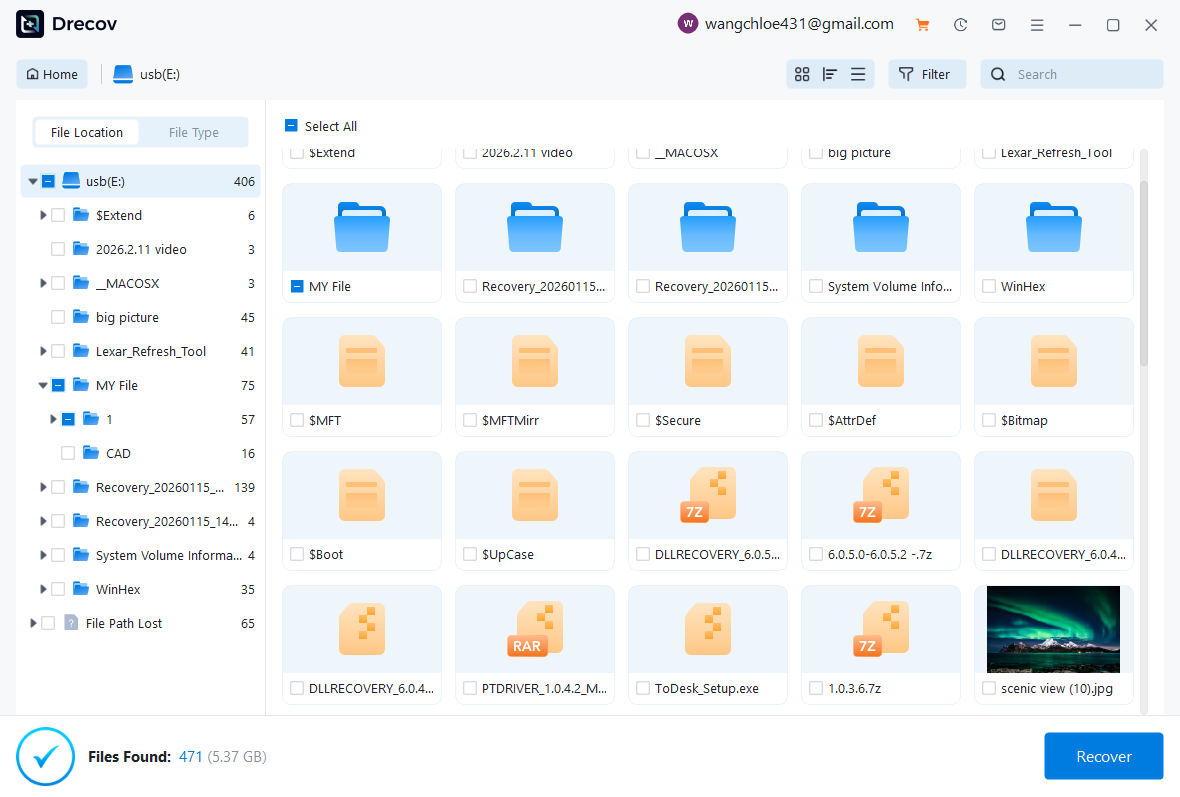

This method ensures high recovery rates while maintaining file integrity, ideal for how to recover deleted file from thumb drive scenarios.
⚠️Warning: Do not write new data to the thumb drive before recovery to avoid overwriting files.
Method 2: Check the Recycle Bin on Your PC
Test Environment: Windows 10, USB thumb drive recently connected and files deleted.
In some cases, files deleted from a thumb drive while connected to a Windows PC may still be recoverable from the Recycle Bin.
- Open the Recycle Bin on your computer.
- Search for files recently deleted from the USB drive.
- Right-click and choose “Restore” to return them to their original location.
This is a simple and safe method for users who need to how to recover files from thumb drive quickly without additional software.
Method 3: Recover from Backup Copies
Test Environment: Windows 11, files on thumb drive also backed up to external storage.
If you maintain backup copies of your thumb drive files, recovery is straightforward. Simply access your backup drive or cloud storage to restore lost content.
This approach allows users to recover deleted files from USB thumb drive efficiently and prevents the need for complex recovery software, especially when dealing with important documents or media files.
Method 4: Use Previous Versions Feature (Windows)
Test Environment: Windows 10, system restore points enabled, NTFS file system.
Windows sometimes maintains previous versions of files and folders, even from external devices like USB drives. To restore:
- Connect the thumb drive to your PC.
- Right-click the folder where files were stored.
- Select “Restore previous versions” and choose the version to recover.
This method is particularly useful for users trying to how to recover files from corrupted thumb drive or restore earlier edits.
Method 5: Recover Using File History or Backup
Test Environment: Windows 11, File History enabled for external drives.
Windows File History can track changes and backups of files stored on external drives. If File History is enabled:
- Open “Control Panel → File History.”
- Navigate to the thumb drive folder and select files to restore.
- Recover them to the original or a new location.
This method supports recover deleted files from thumb drive safely and efficiently, especially for document recovery.
Method 6: Scan for Temporary or Hidden Files
Test Environment: Windows 10, thumb drive connected, recent files lost.
Some deleted files may still reside in temporary or hidden directories, making recovery possible without specialized software.
- Enable “Show hidden files” in File Explorer.
- Browse for temporary files on the USB thumb drive.
- Copy and restore relevant files.
This method is effective for recovering recently deleted files, particularly for how to recover deleted files from USB thumb drive after accidental deletion.
Method 7: Deep Scan for Lost Files
Test Environment: Windows 11, 128GB USB thumb drive, variety of file types including media, documents, and archives.
When files are not recoverable via basic methods, performing a deep scan allows users to recover deleted files from thumb drive more effectively. Deep scanning examines each sector of the storage device to locate traces of deleted or formatted files.
Most recovery tools, including Pandaoffice Drecov, offer a deep scan mode to ensure even hidden or partially overwritten files can be retrieved. Users can preview recoverable files and restore only those needed, making this method efficient for how to recover deleted file from thumb drive scenarios.
⚠️Warning: Deep scans can take several hours depending on the size and condition of the drive.
Method 8: Recover Files from Corrupted Thumb Drives
Test Environment: Windows 10, thumb drive showing as RAW or inaccessible.
Corrupted thumb drives can prevent access to files, but recovery is still possible. Steps include:
- Do not format the drive immediately.
- Use professional recovery software capable of reading RAW partitions.
- Scan the drive and preview recoverable content.
This method is essential for users wondering how to recover files from corrupted thumb drive, as standard file access or copy operations may fail.
Method 9: Restore Specific File Types
Test Environment: Windows 11, multiple file types including images, videos, and Office documents on a thumb drive.
Sometimes users want to recover only specific types of files, such as photos or presentations. Recovery software allows filtering by file type:
- Photos: Scan for
.jpg,.png,.bmp, and other image files. - Documents: Recover Word, Excel, or PDF files efficiently.
- PowerPoint Recovery: Locate
.pptand.pptxfiles for presentations.
This selective approach saves time and ensures critical files are recovered first, useful when how to recover files from thumb drive quickly.
Method 10: Use File Carving for Severely Damaged Drives
Test Environment: Windows 10, 64GB thumb drive physically intact but heavily corrupted.
File carving scans the raw data of the storage device to locate files without relying on the file system. This advanced technique can recover deleted files from USB thumb drive when partitions or directories are damaged.
While more technical, it increases recovery success for lost photos, documents, and videos that other methods cannot detect.
⚠️Warning: File carving may require more advanced software and can take longer than typical scans.
Troubleshooting and Prevention Tips
How to Avoid Data Loss on Thumb Drives
- Always Safely Eject: Avoid unplugging while data is being transferred.
- Keep Backups: Use cloud storage or local backups to reduce dependence on recovery.
- Check for Viruses: Run antivirus scans to prevent file corruption.
- Limit Formatting: Only format drives when necessary and back up before doing so.
Following these practices reduces the need to recover files from thumb drive after accidental deletion or corruption.
Signs You Should Attempt Recovery Immediately
- Files disappear suddenly after deletion.
- Drive shows as RAW or inaccessible.
- Thumb drive was formatted by mistake.
- Files cannot be accessed due to corruption.
Immediate action increases the likelihood of successful how to recover deleted files from thumb drive results.
FAQ About Thumb Drive File Recovery
Can I Recover Files After Formatting a Thumb Drive?
Yes, formatted files are not immediately erased. By using deep scan recovery tools, users can recover deleted files from thumb drive even after formatting, as long as new data hasn’t overwritten the original files.
Is It Safe to Use Recovery Software on a USB Drive?
Yes, provided you install the recovery software on a different drive. Tools like Pandaoffice Drecov are designed to safely scan and restore files without altering existing data.
How Long Does Recovery Take?
Recovery time depends on drive size, number of lost files, and scan method. Deep scans may take several hours, whereas quick scans usually take minutes.
What If Files Are Partially Overwritten?
Partially overwritten files may still be partially recoverable. Preview features in recovery software allow users to check file integrity before restoration, ensuring valuable data is recovered safely.
Conclusion: Best Practices for Recovering Files from Thumb Drives
Losing data from a thumb drive can be stressful, but multiple recovery options exist. From simple methods like checking the Recycle Bin or backups to advanced approaches such as deep scans, file carving, and using Pandaoffice Drecov, users can recover deleted files from thumb drive effectively.
Key takeaways:
- Stop using the drive immediately to prevent overwriting lost files.
- Start with simple recovery options before moving to advanced tools.
- Prioritize critical file types for faster restoration.
- Maintain regular backups and practice safe ejection to minimize future data loss.
By following these methods and precautions, you can ensure efficient recovery of lost data and prevent further thumb drive disasters.





