







Micro SD cards are widely used in smartphones, cameras, drones, gaming consoles, and portable devices. Despite their convenience, they are vulnerable to accidental deletion, formatting errors, file system corruption, virus attacks, and even physical damage. When important photos, videos, or documents disappear, many users urgently search for how to recover data from a micro sd card.
The good news is that data is often recoverable. In most cases, deleting files does not immediately erase the actual data. Instead, the system marks the storage space as available for new data. Until overwritten, recovery remains possible. By acting quickly and using the right approach, you can successfully recover a micro SD card and restore lost files.
This comprehensive guide explains the most effective recovery methods, including built-in system solutions and professional SD memory card recovery software such as Pandaoffice drecov. Whether your micro SD card was accidentally formatted or shows as corrupted, you’ll find step-by-step solutions below.
⚠️Warning: Stop using the micro SD card immediately after data loss. Continued use may overwrite recoverable files and reduce success rates.
I’ve heard about various data recovery software options available online, but I’m unsure which one would be the most effective or user-friendly to recover data from SD Card. Are there any particular programs or services that you would recommend? Something straightforward is more welcomed, as I’m not very tech-savvy. Additionally, if anyone has tips on what to do or not do during the recovery process, I’d greatly appreciate it!—From Microsoft Store
Common Causes of Micro SD Card Data Loss
Before learning how to recover data from a micro SD card, understanding what caused the issue can help determine the best recovery method. Data loss scenarios vary depending on how the card was used and handled.
Accidental Deletion
One of the most frequent causes is accidental deletion. Files may be removed unintentionally from a phone, camera, or computer. In this case, recovery is usually possible if no new data has overwritten the storage sectors.
Accidental Formatting
Formatting a micro SD card erases the file allocation table. Although files appear gone, they may still be recoverable with professional SD memory card recovery software.
File System Corruption
Improper removal, sudden power loss, or malware infection can corrupt the file system. The card may display messages such as “You need to format the disk before using it.”
Physical Damage
Exposure to water, bending, or electrical failure can damage hardware components, making recovery more difficult.
⚠️Warning: If your micro SD card shows signs of physical damage (burn marks, broken connectors), avoid repeated insertion attempts and seek professional assistance.
Understanding the cause helps determine whether you can recover a micro SD card using software or require hardware repair.
Preparation Before Attempting Micro SD Recovery
Proper preparation significantly improves the chances of successful micro SD recovery. Acting carefully prevents additional data loss.
1. Stop Using the Card Immediately
When files are deleted, the storage sectors become available for reuse. Writing new data to the card can overwrite the lost files permanently.
2. Avoid Formatting Before Recovery
If your device prompts you to format the card, do not click “Format” immediately. Formatting may complicate the recovery process.
3. Use a Reliable Card Reader
A faulty card reader may cause your micro SD card to appear corrupted. Try another USB port or reader before assuming severe damage.
4. Connect to a Windows PC
Most recovery procedures require a computer connection. Insert the micro SD card via an adapter and confirm it appears in Disk Management.
If your system recognizes the card—even if inaccessible—there is a high probability you can recover a micro SD card successfully.
⚠️Warning: Never attempt DIY hardware disassembly. Opening the micro SD card will likely cause irreversible damage.
Taking these precautions increases the effectiveness of recovery tools like Pandaoffice drecov.
Method 1: Recover Micro SD Card Files Using Pandaoffice drecov
The most effective way to recover data from a micro SD card is by using professional SD memory card recovery software. Pandaoffice drecov is designed to scan storage devices deeply and retrieve lost files from deleted or formatted partitions.
Download DrecovWhy Choose Pandaoffice drecov?
- Deep scanning technology
- Supports formatted micro SD card recovery
- Recovers photos, videos, documents, and more
- Preview before recovery
- User-friendly interface
Steps to Recover a Micro SD Card
- Install Pandaoffice drecov on your computer.
- Insert the micro SD card.
- Launch the software and select the SD card drive.
- Click Scan to begin analysis.
- Review scan results and preview files.
- Select desired files and click Recover.
- Save recovered data to a different drive.
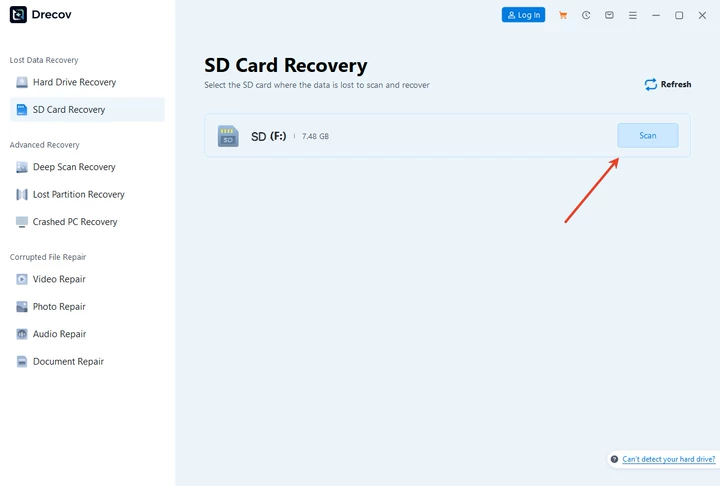


This method works even if the card was accidentally formatted or files were permanently deleted.
⚠️Warning: Always save recovered files to a separate storage device to avoid overwriting remaining data.
Using professional SD memory card recovery software significantly increases the likelihood of restoring important files.
Method 2: Recover Deleted Files from Recycle Bin (If Applicable)
If you deleted files from a micro SD card while it was connected to a Windows PC, they may still exist in the Recycle Bin.
Steps to Check Recycle Bin
- Open Recycle Bin on your desktop.
- Search for deleted files from the SD card.
- Right-click the file.
- Select Restore.
If files were deleted directly from a smartphone or camera, they will not appear in the Recycle Bin. In such cases, you must rely on SD memory card recovery software.
This method is limited but worth checking before performing advanced recovery.
⚠️Warning: Emptying the Recycle Bin permanently deletes files unless recovery software is used afterward.
For most users researching how to recover data from a micro SD card, this is the quickest first step.
Method 3: Use CHKDSK to Fix Logical Errors
If your micro SD card shows errors or becomes inaccessible, running CHKDSK may repair file system problems.
Steps to Run CHKDSK
- Insert the micro SD card.
- Open Command Prompt as Administrator.
- Type:
chkdsk X: /f(Replace X with your SD card drive letter.) - Press Enter.
CHKDSK scans for logical file system errors and attempts to repair them. If corruption is minor, this method can restore access to files.
However, CHKDSK does not recover deleted files. It only repairs structural issues.
⚠️Warning: In rare cases, CHKDSK may remove corrupted file fragments. Consider backing up recoverable files first using Pandaoffice drecov.
For users exploring how to recover data from a micro SD card, CHKDSK is useful when the issue stems from logical corruption rather than deletion.
Method 4: Recover Data from a Formatted Micro SD Card
Accidentally formatting a micro SD card is one of the most common causes of data loss. Many users format the card when they see an error message, not realizing the action removes the file system structure. Fortunately, even after formatting, you can often recover a micro SD card using professional tools.
When a quick format is performed, Windows only removes the file index but does not erase the actual data blocks. This means that reliable SD memory card recovery software can scan the card sector by sector and reconstruct lost files.
Steps to Recover After Formatting
- Stop using the card immediately.
- Install Pandaoffice drecov on your computer.
- Insert the formatted micro SD card.
- Select the card within the software.
- Run a deep scan.
- Preview discovered files.
- Recover selected items to another storage device.
The sooner you act, the higher the recovery success rate. This method is highly effective for users searching how to recover data from a micro sd card after accidental formatting.
⚠️Warning: A full overwrite format significantly reduces recovery chances. Avoid performing additional formats after data loss.
Method 5: Recover Data from a RAW Micro SD Card
Sometimes a micro SD card appears as RAW in Disk Management. This indicates file system corruption, making the card unreadable. You may receive prompts asking you to format the card before use.
Before formatting, attempt recovery first.
How to Handle RAW SD Cards
- Open Disk Management and confirm the file system shows RAW.
- Do not format the card yet.
- Use Pandaoffice drecov to scan the RAW partition.
- Recover files to another drive.
- After recovery, format the card to restore usability.
RAW conditions often result from improper removal or sudden power interruption. Using specialized SD memory card recovery software is usually the safest approach in this situation.
If CHKDSK reports that the file system type is RAW, recovery software becomes essential.
⚠️Warning: Formatting a RAW card before recovery may overwrite recoverable sectors.
Users asking how to recover data from a micro sd card in RAW condition should prioritize data extraction before attempting repairs.
Method 6: Recover Data from Physically Damaged Micro SD Cards
Physical damage presents a more complicated scenario. Signs include the card not being detected, overheating, or visible connector damage.
Software-based SD memory card recovery software works only if the card is recognized by the computer. If it does not appear in Disk Management at all, hardware failure may be involved.
Steps to Attempt Basic Recovery
- Try a different card reader.
- Test another USB port.
- Use another computer.
- Check for visible debris on connectors.
If the card becomes detectable, immediately use recovery software to extract files.
However, if the micro SD card remains unrecognized, professional data recovery services may be required. DIY attempts like disassembling the card are strongly discouraged.
⚠️Warning: Opening or bending a micro SD card can permanently destroy the memory chip.
In physical damage cases, your ability to recover a micro SD card depends largely on whether the internal memory chip remains intact.
Troubleshooting Common Micro SD Recovery Issues
Even when using professional tools, users may encounter problems while trying to recover data from a micro sd card.
Card Not Showing Up
- Check Disk Management.
- Update USB drivers.
- Try another card reader.
Scan Finds No Files
- Ensure deep scan mode is selected.
- Avoid writing new data to the card.
- Retry scanning on another computer.
Recovered Files Are Corrupted
Corrupted recovered files may result from overwritten sectors. In this case, partial recovery may be the only option.
Using high-quality SD memory card recovery software improves scanning depth and reconstruction accuracy.
⚠️Warning: Repeated scanning is safe, but writing new data to the card is not.
Understanding these troubleshooting steps can improve success rates when attempting to recover a micro SD card.
How to Prevent Micro SD Card Data Loss in the Future
Once you successfully recover a micro SD card, prevention should become a priority.
Safely Remove the Card
Always use the “Safely Remove Hardware” option in Windows before ejecting the card.
Avoid Interruptions
Do not remove the card while transferring files.
Use Reliable Antivirus Protection
Malware infections can corrupt file systems.
Back Up Regularly
Store important data on external drives or cloud storage.
Replace Aging Cards
Micro SD cards have limited write cycles. Frequent usage eventually leads to wear.
If you ever need to search again for how to recover data from a micro sd card, following these preventative practices will reduce the likelihood of future data loss.
⚠️Warning: Cheap or counterfeit SD cards are more prone to sudden failure.
Final Thoughts
Losing data from a micro SD card can be stressful, but in most cases, recovery is possible. Whether the issue involves accidental deletion, formatting, RAW errors, or corruption, using reliable SD memory card recovery software like Pandaoffice drecov provides a strong chance of success.
Acting quickly, avoiding overwriting data, and selecting the appropriate recovery method significantly improve outcomes. By following the steps outlined in this guide, you can confidently recover a micro SD card and restore important files.
Understanding how to recover data from a micro sd card ensures that unexpected data loss does not become permanent.





