







Formatting an SD card to FAT32 is a common task for anyone looking to make their memory card compatible with a wide range of devices, from cameras and gaming consoles to Raspberry Pi and car audio systems. FAT32 is a file system that offers excellent compatibility across different operating systems and devices, making it a popular choice for SD cards. Whether you are dealing with a micro SD card or a full-size SD card, knowing how to format a SD card as FAT32 can save you time and prevent compatibility issues. In this guide, we will cover step-by-step instructions, common problems, and the best tools for formatting SD card to FAT32, ensuring that even beginners can complete the process safely.
When you format an SD card, it erases all data stored on it. That’s why understanding the right method and precautions is essential. In this article, we will explore both system-level methods for Windows and Mac, software solutions for more control, and how to recover data if something goes wrong. By the end of this guide, you will know how to format SD card FAT32 efficiently and safely.
Why You Might Need to Format an SD Card to FAT32
Formatting an SD card to FAT32 can solve a variety of problems and unlock new possibilities for your devices. Some common reasons include:
- Device compatibility: Certain devices, like older cameras, game consoles, or media players, only support FAT32. If your SD card is formatted as exFAT or NTFS, it may not be recognized.
- File system errors: SD cards can develop errors over time due to improper ejection, power loss, or virus attacks. Formatting to FAT32 can restore functionality.
- Preparing a new card: Brand new SD cards often come preformatted with exFAT. Changing them to FAT32 ensures compatibility with a wider range of devices.
- Storage management: FAT32 is ideal for smaller SD cards, usually under 32GB, and is simple to manage across multiple devices.
However, it’s important to note that FAT32 has limitations. The maximum file size it supports is 4GB, and the maximum volume size is 2TB. If you plan to store files larger than 4GB, exFAT may be a better choice. Despite this limitation, FAT32 remains the go-to option for most devices due to its universal support.
Common Causes of SD Card Issues That Require Formatting
Many users ask, “How do I format a SD card?” only after encountering errors or device recognition problems. Some of the most common causes include:
Improper Removal or Ejection
Removing an SD card without safely ejecting it can lead to file system corruption. When the card is in use, files may not be completely written, causing data loss or errors that require formatting.
Virus or Malware Infection
SD cards can be infected by viruses or malware, especially when connected to multiple computers. Some malware hides files or damages the file system, making the card unreadable without reformatting.
File System Corruption
Over time, SD cards experience wear and tear. Errors can occur due to bad sectors, fragmented data, or sudden power loss. Formatting to FAT32 repairs these issues and restores the card to a usable state.
Compatibility Issues
An SD card preformatted as NTFS or exFAT may not be compatible with certain cameras, consoles, or car audio systems. Reformatting to FAT32 ensures the card works universally.
Before formatting, it is crucial to back up important data. Formatting erases everything, and while recovery tools exist, prevention is always better. If you accidentally format your SD card without backup, solutions like PandaOffice Drecov can help recover lost files efficiently.
How to Format an SD Card to FAT32 on Windows
Windows provides several ways to format SD card FAT32, ranging from the built-in File Explorer to Command Prompt for advanced users.
Method 1 – Using File Explorer
- Insert your SD card into your computer.
- Open This PC or My Computer.
- Right-click the SD card and select Format.
- In the File System dropdown, select FAT32.
- Choose a Volume Label (optional).
- Check Quick Format if desired.
- Click Start and wait for the process to complete.
Pros:
- Simple and user-friendly
- Quick formatting
Cons:
- Only works for SD cards up to 32GB
- May fail on larger SD cards
Method 2 – Using Command Prompt
For larger SD cards or advanced control:
- Press Windows + R, type
cmd, and press Enter. - Type
diskpartand press Enter. - Enter
list diskto see connected drives. - Identify your SD card and type
select disk X(replace X with your SD card number). - Type
cleanto erase the card. - Type
create partition primary. - Type
format fs=fat32 quick. - Type
assignto mount the card.
Pros:
- Works for larger SD cards
- More control over formatting
Cons:
- Requires careful attention; selecting the wrong disk can erase important data
How to Format an SD Card on Mac
Mac users also have easy options for formatting SD card to FAT32, using Disk Utility or Terminal.
Method 1 – Using Disk Utility
- Insert the SD card into your Mac.
- Open Disk Utility (Applications > Utilities > Disk Utility).
- Select your SD card from the left sidebar.
- Click Erase.
- Choose MS-DOS (FAT) as the format and Master Boot Record as the scheme.
- Click Erase and wait until the process is complete.
Pros:
- Easy to use
- Works for most SD card sizes
Cons:
- Slightly slower on large SD cards
Method 2 – Using Terminal
- Open Terminal (Applications > Utilities > Terminal).
- Type
diskutil listto identify your SD card. - Enter
diskutil eraseDisk FAT32 NAME MBRFormat /dev/diskX(replace NAME and X appropriately). - Press Enter to format.
Pros:
- Full control over the formatting process
- Useful for troubleshooting issues
Cons:
- Terminal commands may be intimidating for beginners
Using Software to Format SD Card to FAT32
Sometimes, system tools are not enough, especially for SD cards larger than 32GB or when encountering errors. Third-party software provides extra functionality and reliability.
Recommended Tool – GUI FAT32 Formatter
A reliable software-based solution allows you to:
- Format SD cards of any size to FAT32
- Handle corrupted or partially damaged SD cards
- Offer a graphical interface for easy operation
Steps:
- Download and install a FAT32 formatter.
- Insert your SD card.
- Select the SD card and choose FAT32 as the file system.
- Click Start to format.
This approach is particularly helpful when default system tools fail or the SD card is unusually large.
What to Do If You Accidentally Format Your SD Card
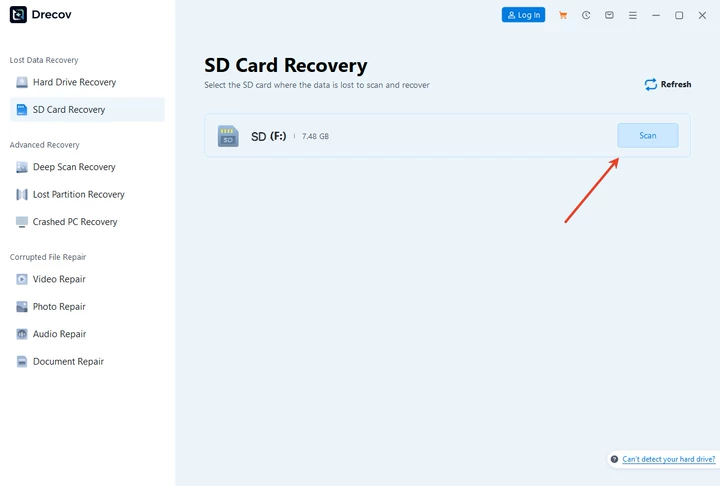
Accidental formatting is a common problem. Luckily, data recovery software can retrieve lost files. PandaOffice Drecov is a trusted solution to recover data from formatted SD cards. The recovery process is simple and consists of three steps:
Download Drecov- Scan – Connect your SD card and run Drecov to scan for lost files.
2. Preview – Check the recoverable files to ensure important data is intact.

3. Recover – Select the files you need and save them to a safe location.
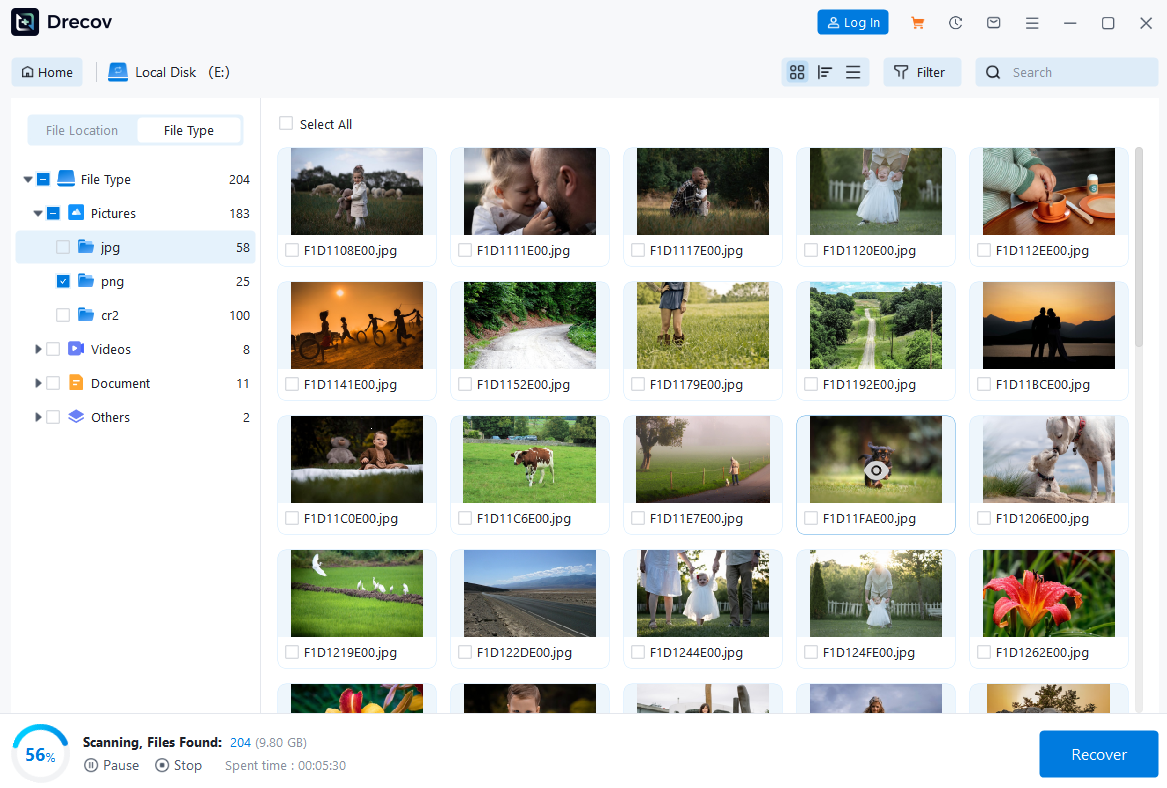
Using software like Drecov ensures that even if you mistakenly formatted your SD card, you can restore photos, videos, documents, and other critical files quickly and safely.
Comparison: System Formatting vs. Software Formatting
| Feature | System Tool | Third-Party Software |
|---|---|---|
| Ease of Use | High | High |
| Advanced Options | Limited | Extensive |
| Large SD Cards (>32GB) | Often fails | Supports all sizes |
| Corrupted Cards | Limited repair | Better repair options |
| Recovery Support | None | Integrated or compatible with recovery tools |
For most beginners, system tools are sufficient. However, if you face issues like corrupted cards, large capacity SD cards, or failed formats, software tools provide a safer, more reliable alternative.
FAQs
Q1: How do I format a micro SD card to FAT32?
A1: You can use system tools like Windows File Explorer, Command Prompt, or Mac Disk Utility. For larger cards, third-party software ensures compatibility and safety.
Q2: How do I format a SD card on Mac?
A2: Open Disk Utility, select the SD card, click Erase, choose MS-DOS (FAT), set Master Boot Record, and click Erase.
Q3: How do I format a SD card FAT32 on Windows?
A3: Right-click the SD card in File Explorer, select Format, choose FAT32, and click Start. For larger cards, use Command Prompt or third-party software.
Q4: How do u format a SD card if it is corrupted?
A4: Try system-level formatting first. If it fails, use reliable software like a FAT32 formatter. Always back up data or recover files with PandaOffice Drecov.
Q5: How to format a SD card to FAT32 without losing data?
A5: Backup your files before formatting. If you forget, you can recover lost files afterward using PandaOffice Drecov.
Conclusion
Learning how to format an SD card to FAT32 is essential for ensuring compatibility and maintaining healthy storage. Whether you are using Windows, Mac, or third-party software, there are clear, step-by-step methods to safely complete the process. Always remember to back up your data before formatting. If data loss occurs, tools like PandaOffice Drecov make recovery simple with three easy steps: scan, preview, and recover. By following these practices, you can maintain your SD cards efficiently, minimize errors, and ensure your files remain safe. Formatting your SD card FAT32 doesn’t have to be complicated—it just requires the right approach and careful execution.





