







Bridging the Gap from Deletion to Recovery
Losing photos from an SD card is a digital disaster we all dread. These small, inconspicuous storage chips—whether nestled in your DSLR, drone, action camera, or smartphone—are the custodians of irreplaceable memories and professional work.However, a momentary lapse, an accidental format, or an unsafe ejection can make these treasured images vanish in an instant, leaving many users searching for a reliable solution on how to recover deleted photos from an SD card.
Industry data shows that over 12 billion SD cards have shipped globally, with well over 70% primarily dedicated to housing precious photos and videos. As storage capacity grows, so does the volume of vital data we entrust to these tiny devices.
The frustrating reality is that many users, in a state of panic, inadvertently take actions—like continuing to use the card or repeatedly attempting formatting—that severely jeopardize the chances of a successful recovery.
✨ But here is the critical good news:
In the vast majority of scenarios, your deleted or formatted photos on an SD card are not permanently gone.
By arming yourself with the correct knowledge and utilizing a professional-grade recovery utility, you stand an excellent chance of retrieving your files safely and effectively. This comprehensive guide on how to recover deleted photos from an SD card moves beyond theory, offering validated, step-by-step instructions—the same techniques trusted by data recovery experts in 2025.
Why Do Photos “Disappear”? Understanding Data Loss Scenarios
To effectively recover your photos, it’s essential to understand why they vanished in the first place. When you delete a file or perform a quick format on an SD card, the core image data isn’t immediately erased; rather, the file system’s metadata is simply updated.
The Mechanics of File Systems
● Deletion : The operating system or device simply marks the file’s space as “free” or “available to be overwritten.” The original binary data of the photo remains physically on the storage chip until new data is written over it.
● Quick Formatting: This operation only rebuilds the file system table (e.g., FAT or exFAT), wiping the directory entries clean. Crucially, it does not perform a full-sector wipe of the stored data.
SD Card Photo Loss Scenarios Classified by Recovery Success Rate
Understanding the type of data loss is critical, as recovery success varies significantly depending on the underlying cause. The table below classifies common SD card photo loss scenarios based on real-world recovery probability observed in professional data recovery practice.
| Loss Scenario | Typical Situation | Estimated Recovery Success Rate |
| Quick Format | SD card formatted in a camera or device without overwriting data | ★★★★★ |
| Accidental Deletion | Photos deleted while browsing on a camera, phone, or computer | ★★★★★ |
| File System Corruption | SD card prompts “You need to format the disk” or photos become inaccessible | ★★★★☆ |
| Interrupted Write Operations | Power loss during shooting, recording, or file transfer | ★★★☆☆ |
| Partial Data Overwrite | Continued shooting or recording after deletion or formatting | ★★☆☆☆ |
| Physical Damage | Water damage, broken contacts, severe wear or chip failure | ★☆☆☆☆ |
🔎 How to Interpret These Recovery Rates
● ★★★★★:Photo data usually remains intact. Only directory or file system metadata is lost, making software-based recovery highly effective.
● ★★★★☆:Data blocks are mostly preserved, but file structure may be damaged. Deep scanning significantly improves recovery success.
● ★★★☆☆:Some files may be incomplete due to interrupted writes. Recovery is possible but results may vary.
● ★★☆☆☆:Portions of photo data have likely been overwritten. Only partial recovery is typically achievable.
● ★☆☆☆☆:Physical damage requires professional lab recovery and may not be cost-effective.
The Golden Rules of Recovery: Before You Start
🛡️ Before you initiate any recovery action, you must strictly adhere to these three golden rules—the non-negotiable standards used by data recovery professionals—to maximize your success rate:
1.STOP USING THE CARD IMMEDIATELY
This is the most crucial step. As soon as you realize data is missing, eject the card from your device (camera, phone, drone). Any write operation—even taking a single new photo—risks overwriting the lost data you wish to retrieve.
2.Ensure Read-Only Access
The entire recovery process must be non-destructive. This means the recovery software must only read data from the SD card. Never attempt to write the recovery software or the recovered files back onto the same card.
3.Use a Dedicated Card Reader
Connecting the SD card to your computer via a reliable, external card reader often provides a more stable and faster scanning environment compared to connecting the device (e.g., the camera) directly via USB cable.
🛠️ Step-by-Step Recovery: Utilizing PandaOffice Drecov Safely
PandaOffice Drecov is highly regarded by power users for its robust Deep Scan capability, making it a premier choice for how to recover deleted photos from an SD card thanks to its comprehensive support for various proprietary RAW photo formats.
Step 1: Preparation and Connection
● Insert your SD card into a high-quality external card reader.
● Connect the reader to your Windows computer.
● Install and launch the PandaOffice Drecov.
Step 2: Select the SD Card and Initiate Scan
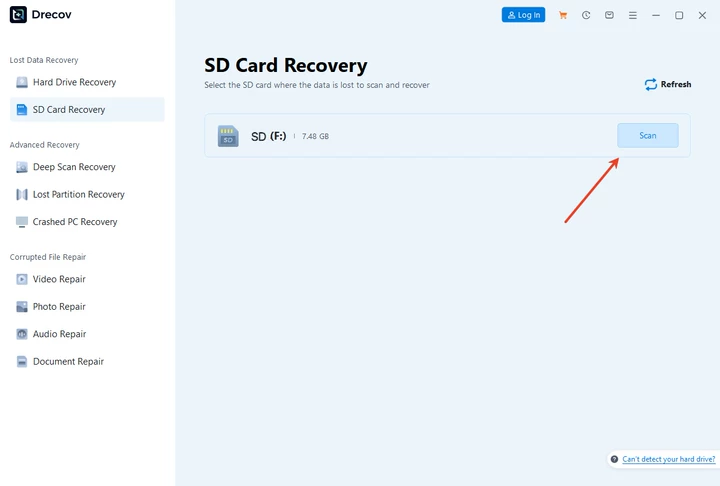
● Upon launch, the software will display all recognized drives, including your removable media.
● Carefully select your SD card (verify by drive letter or capacity, e.g., “Drive F:”).
● Click “Scan” , The software will begin with a quick scan.
Step 3: Execute the Deep Scan
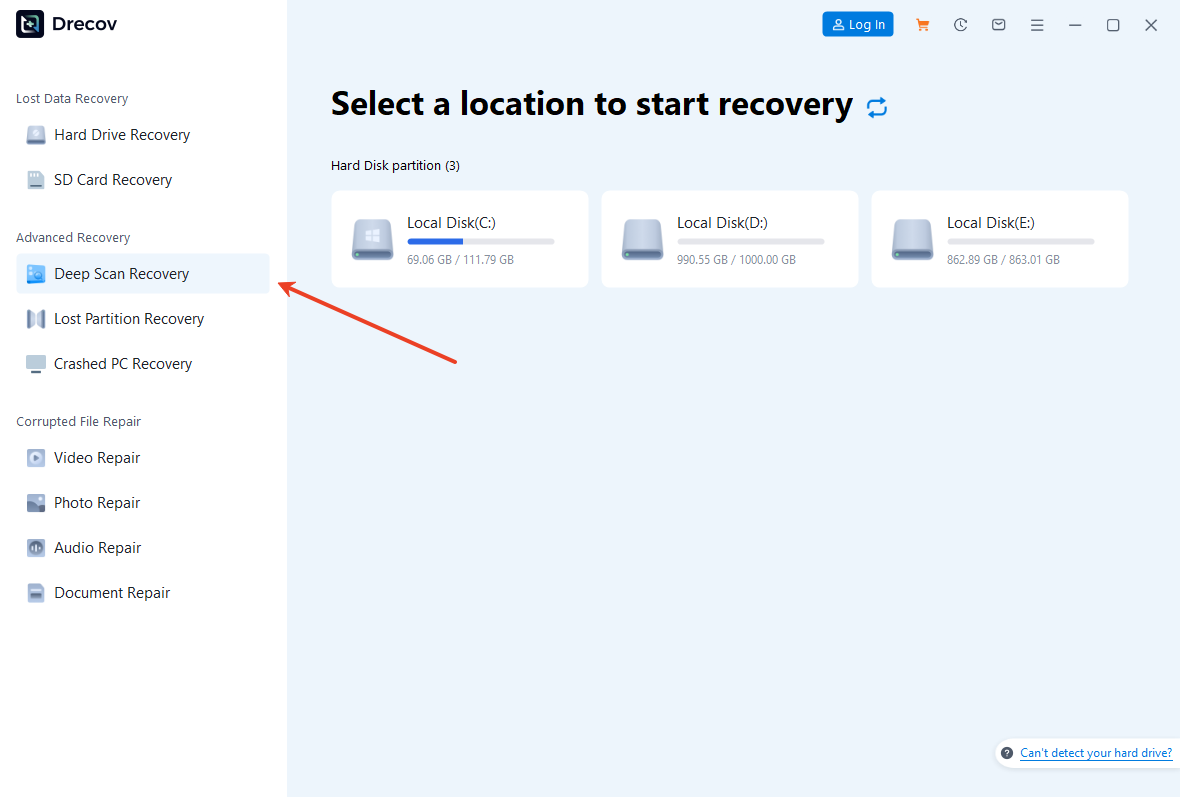
● If the quick scan doesn’t yield all your missing files, immediately switch to the “Deep Scan” mode.
● The Power of Deep Scan: This advanced mode bypasses the corrupted or missing file system and scans the storage chip sector-by-sector. It reconstructs files by identifying the unique File Header and Footer signatures—a method highly effective for recovering RAW files and data lost due to formatting.
● Allow the deep scan to complete. This process may take anywhere from a few minutes to several hours, depending on the card’s size and speed.
Step 4: Preview, Filter, and Final Recovery
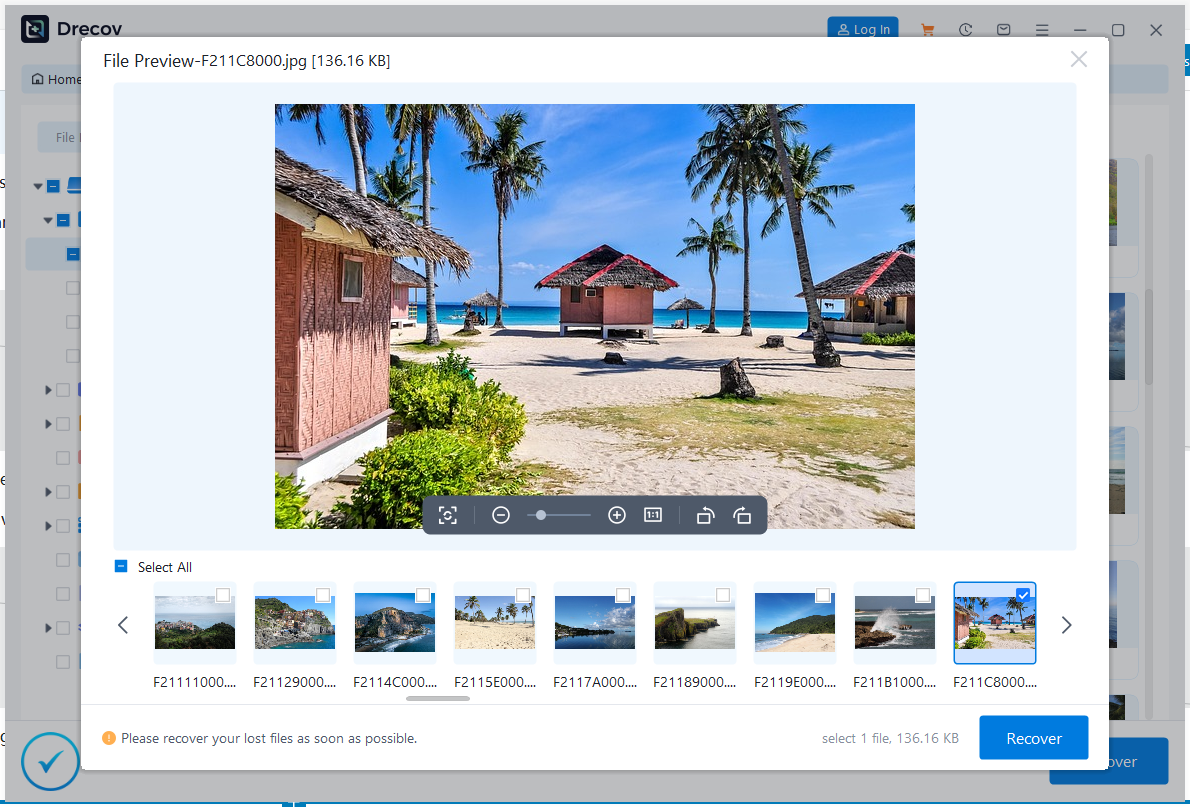
● Review the scan results,which are typically grouped by file type (e.g., JPG, PNG, CR2) or original folder structure.
● Use the Preview feature to verify that the photo is intact, this confirms the data hasn’t been overwritten.
● Filter the files you need, then click “Recover.”
🚨 When prompted, select a completely different storage location (e.g., your desktop, an external hard drive, or a USB stick) to save the recovered files. Absolutely do not save them back onto the SD card you are recovering from.
📈Advanced Insights into RAW File Recovery
Professional photographers often shoot in RAW formats such as Canon’s CR2/CR3, Nikon’s NEF, and Sony’s ARW. From a data recovery perspective, RAW files typically have a higher recovery success rate than JPEG files, especially after accidental deletion or formatting.
● Size Advantage
RAW files are significantly larger and tend to occupy continuous or highly concentrated blocks of storage space on the card.
● High Integrity
RAW file structures are generally robust and independent. Even if the file system metadata is lost, a deep scan can more easily identify their Magic Number at the beginning and end of the file, allowing for accurate reconstruction.
● The Fragmentation Challenge
The primary obstacle is file fragmentation. If the original file was scattered across many different storage blocks, only highly sophisticated deep scanning algorithms can correctly reassemble all the pieces.
Real-World Case: Recovering 1,200+ Photos After an SD Card Was Accidentally Formatted
After a wedding shoot, a professional photographer accidentally formatted an SD card directly in the camera. The SD card had a capacity of 256GB and contained both JPEG and RAW photos.

Recovery process:
- Immediately stopped using the SD card
- Connected the card to a computer using a card reader
- Scanned the entire SD card with PandaOffice Drecov in Deep Scan mode
- Filtered the results by file type and shooting date
- As a result, 1,238 photos were successfully recovered, with over 90% of the RAW files fully intact.
This case clearly demonstrates that even after formatting, photos still have a very high chance of recovery—as long as the data has not been overwritten.
Is My Photo Privacy Safe During the PandaOffice Drecov?
Your photo privacy remains fully protected when using PandaOffice Drecov.
PandaOffice performs a read-only scan, meaning it does not modify, upload, or transmit any data from your SD card. All scanning and recovery processes take place locally on your computer, and your photos are never accessed by third parties or stored on external servers.
In addition, you have complete control over:
● Which files are scanned
● Which photos are previewed
● Which items are recovered and saved
This ensures that your personal or professional photos remain private, secure, and under your control throughout the entire recovery process.
❓How to Recover Deleted Photos from SD Card FAQs:
1.How soon should I recover deleted photos from an SD card?
The sooner, the better. The first 24–72 hours after deletion offer the highest recovery success rate. That said, photos can still be recoverable weeks later—as long as the SD card hasn’t been overwritten with new data.
2.The recovered photo file is the right size, but it won’t open or view. Why?
This usually indicates severe file fragmentation or partial overwrite. The file’s header may have been recovered, but the main data blocks in the middle or end were overwritten or lost. The software attempted to stitch together an incomplete file, making it unrecoverable in a usable state.
3.Why do recovered photos sometimes lose their original file names?
When photos are deleted or the card is formatted, file system metadata can be lost.The image data itself may still be intact, which is why recovery works—but filenames may need to be reorganized manually using preview, date, or file size.
4.I formatted the card and then took new photos. Can I still get the old ones back?
It depends on the degree of overwrite . The new photos will consume some of the storage space previously held by the old data. However, any old photos in sectors not yet touched by the new files are still recoverable. You must use Deep Scan mode, which will attempt to recover the intact fragments.
5.I deleted photos on a Mac, can I recover them using a Windows PC?
Absolutely. The photo data resides on the physical SD card chip, independent of the operating system that initiated the deletion. PandaOffice Drecov is cross-platform compatible and will work as long as the SD card is recognized by the computer.
6.If my SD card is physically broken or bent, can software help?
No. Data recovery software is designed only for logical damage (deletion, format, file system errors). If the SD card is physically damaged (e.g., broken casing, bent contacts, or the card is not recognized by any computer), you must contact a specialized data recovery lab for potential chip-off recovery.
Conclusion
SD card photo recovery is not a mystical process; it’s a rigorous, scientific one. Remember the critical steps: Stop Use Immediately, Connect Safely, and Perform a Deep Scan.
📌 Your Immediate Action Plan: Download and run the Deep Scan feature on PandaOffice Drecov now to confirm your data’s status and maximize your chances of a full retrieval.
Losing precious photos from an SD card can be distressing, but in most cases, deleted photos are not lost forever. From casual snapshots to professional shots, PandaOffice Drecov helps you recover a wide range of photo types with intuitive workflows and powerful scanning abilities. Whether you’re dealing with accidental deletion, formatting errors, corruption, or device crashes, this guide gives you the step-by-step roadmap to reclaim your memories.






