







In the digital age, our lives are documented through thousands of snapshots. From the morning latte to monumental life events, Google Photos has become the default vault for these memories. However, as storage limits tighten and privacy concerns grow, many users find themselves asking: how do I delete Google photo files effectively without losing what matters most? This comprehensive guide will walk you through every nuance of managing, deleting, and—if necessary—recovering your digital imagery.
Understanding Google Photos Before Deleting
Before we dive into the “how-to,” we must understand the “what” and “where.” Google Photos is not merely a gallery app on your phone; it is a sophisticated cloud synchronization service.
What Google Photos Actually Stores
Google Photos acts as a centralized hub for your visual media. When you wonder how do I delete Google photo entries, you are interacting with a system that stores high-resolution images, 4K videos, screenshots, and even metadata like GPS locations and device information. Because Google uses advanced AI, it also creates “clusters” of data, such as facial recognition profiles and thematic albums, which are stored alongside your raw files in the Google Cloud.
How Sync Works Across Devices
The most critical concept to grasp is Synchronization. When “Backup & Sync” is enabled, your physical device (phone or tablet) and the Google Cloud act as a mirror. If you delete a photo on your Android device while synced, the cloud copy vanishes. Conversely, if you go to the web interface and delete a photo, it will likely be removed from your phone’s local gallery as well. Understanding this “mirror effect” is the first step in mastering how do I delete Google photo content without accidental data loss.
Reasons You Might Want to Delete Google Photos
Privacy and Security Concerns
In an era of data breaches, many users prefer to keep their sensitive documents or private family moments offline. Deleting photos from the cloud ensures that your personal life isn’t sitting on a server, reducing your digital footprint and enhancing your overall cybersecurity posture.
Storage Management
Since Google ended its unlimited free storage policy, every megabyte counts. Your 15GB free tier is shared across Gmail, Google Drive, and Photos. High-resolution videos can eat through this quota in weeks. Learning how do I delete Google photo records is often the only way to keep your Gmail account from bouncing incoming emails due to a full “Disk.”
Things to Know Before You Delete Photos
Backup and Data Safety
Never start a mass deletion without a fallback. Before you execute the steps for how do I delete Google photo, ensure you have a physical backup on an external hard drive or a secondary cloud service.
Difference Between Delete and Remove
- Delete: Moves the file to the Trash/Bin.
- Remove from Album: Keeps the photo in your main library but takes it out of a specific collection.
- Archive: Hides the photo from your main grid but keeps it searchable and stored in the cloud.
How to Delete Photos from Google Photos on Desktop
The desktop browser (photos.google.com) is the most powerful environment for managing your library. If you are looking for the most efficient answer to how do I delete Google photo, the web interface is your best bet.
Step-by-Step Instructions
- Step 1: Open your preferred web browser and navigate to the official Google Photos website. Log in with your Google credentials.
- Step 2: Hover your mouse over the first photo you wish to remove. A small Checkmark icon will appear in the top-left corner of the image thumbnail. Click it.
- Step 3: Once your selection is highlighted in blue, look at the top right of the screen. Click the Trash Can icon.
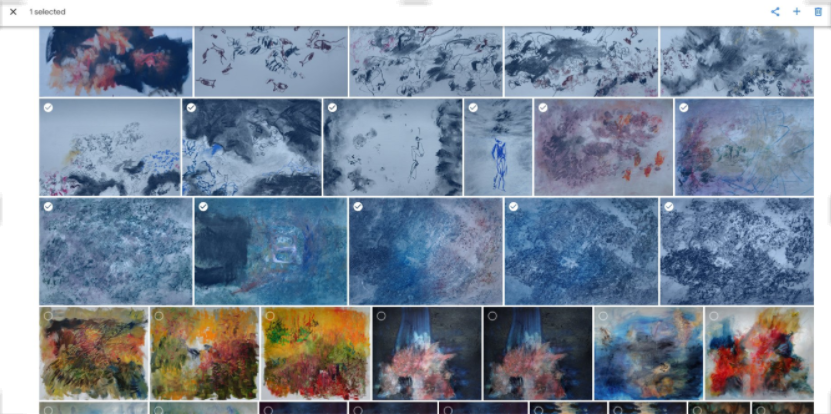
- Step 4: A confirmation prompt will appear. Click Move to Trash. Note that these items will stay in the Trash for 60 days (if backed up) or 30 days (if not) before being permanently erased.
How to Delete Google Photos on Mobile Devices
Managing photos on the go is common, but the process differs slightly between operating systems.
Android Method: How to Delete Google Photos
- Step 1: Open the Google Photos app on your Android device.
- Step 2: Long-press on a photo to enter selection mode.
- Step 3: Drag your finger across multiple thumbnails to select them rapidly.
- Step 4: Tap the Delete (Trash) icon at the bottom of the screen and confirm by tapping Move to Trash.
iPhone Method: How to Delete Google Photos
- Step 1: Launch the Google Photos app on your iOS device.
- Step 2: Tap and hold a photo, then slide your finger to select multiple items.
- Step 3: Tap the Bin icon.
- Step 4: iPhone users will see an extra prompt: “Allow Google Photos to delete this photo?” You must tap Delete to confirm the sync with your iCloud/System gallery.
How to Delete All Photos at Once
If you want a fresh start, the “Select All” feature is hidden but accessible. On a desktop, select the very first photo in your library. Scroll to the bottom of your entire timeline (this may take a while to load). Hold Shift and select the very last photo. Click the Trash icon. This is the fastest way to resolve the query of how do I delete Google photo libraries in their entirety.
How to Permanently Delete Photos (Empty Trash)
Moving items to the trash doesn’t immediately free up storage. To reclaim space instantly:
- Step 1: Click the Trash tab on the left sidebar (Desktop) or under Library > Trash (Mobile).
- Step 2: Click Empty Trash in the top right corner.
- Step 3: Confirm the permanent deletion.
Warning: Once you empty the trash, Google cannot recover these files through its standard interface.
How to Delete Google Photos Account Data
Using Google Takeout Before Deletion
Before nuking your entire history, use Google Takeout. This allows you to export all your photos into a ZIP file. It is the professional’s choice for data safety.
Using Google Account Settings
To delete the Photos service entirely without deleting your whole Google account:
- Step 1: Go to your Google Account Data & Privacy section.
- Step 2: Scroll to “Data from apps and services you use.”
- Step 3: Under “Download or delete your data,” select Delete a Google service.
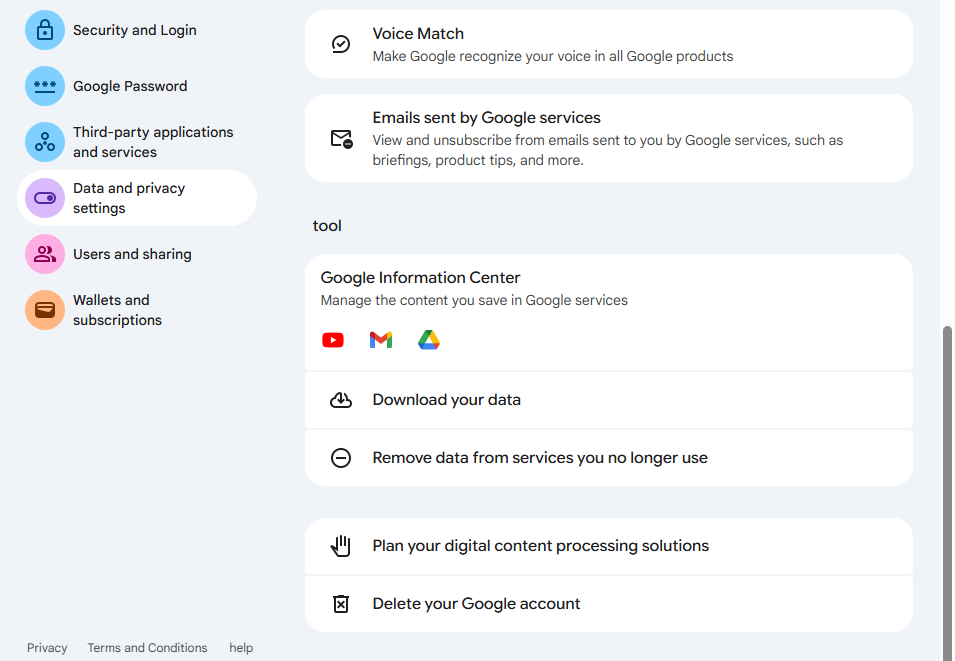
- Step 4: Sign in and click the Trash icon next to Google Photos.
The Expert’s Safety Net: Data Recovery with PandaOffice Drecov
Sometimes, in the rush to answer how do I delete Google photo, we make a mistake. We empty the trash, only to realize we deleted the only copy of a wedding photo or a child’s first steps. This is where professional data recovery tools like PandaOffice Drecov become essential.
If the photos were once stored on your PC, SD card, or hard drive, they might still be recoverable even after being deleted from the cloud.
⚠ Warning: Install it on a drive different from the one where your data was lost to prevent overwriting.
Step-by-Step Data Recovery with PandaOffice Drecov
Step 1: Select the Location
Launch the software. You will see a list of drives. Select the drive where the photos were originally stored (e.g., your C: Drive or External SD Card). Click Start Scan.

Step 2: Scanning and Filtering
PandaOffice Drecov will perform a Deep Scan. Use the File Type filter on the left sidebar to select “Photos” or “Images.” You can also search for specific file extensions like .JPG or .PNG.

Step 3: Preview and Recover
Double-click a file to Preview it. This ensures the file isn’t corrupted. Once confirmed, select the photos and click Recover.
Warning: Never save the recovered photos back onto the same drive they were lost from. This prevents “data overwriting,” which can permanently destroy the files you are trying to save.
After successfully recovering your local files, you might want to learn more about specific recovery scenarios. For instance, if your photos were on an external storage device, check out this guide on how to recover deleted photos from SD card. Additionally, for those moving between cloud platforms, understanding how to recover deleted OneDrive files is equally vital for a complete data management strategy.
Common Problems When Deleting Photos
- Photos Reappearing: This usually happens because you have multiple devices syncing to the same account. If you delete a photo on your phone but your tablet has “Backup” turned on, it might re-upload the file.
- Grey Boxes in Gallery: This indicates a thumbnail cache error. Clearing the app cache in your phone settings usually resolves this.
- Storage Not Updating: Google’s storage meters can take up to 24-48 hours to reflect a large deletion. Be patient!
Tips to Manage Google Photos Better
- Use the “Free Up Space” Feature: This deletes photos from your phone’s local storage that have already been safely backed up to the cloud.
- Disable Social Media Folders: Go to Settings > Backup > Device Folders and toggle off WhatsApp or Instagram folders to avoid backing up “junk” memes.
- Search by Size: Use the Google Storage management tool to find and delete large videos first.
How To Delete Google Photos FAQs
1. Can I delete Google Photos without deleting them from my phone?
Yes. You must first turn off “Backup & Sync” in the Google Photos settings. Then, use a web browser on a PC to delete the photos from photos.google.com. They will remain on your phone’s local memory.
2. How long do deleted photos stay in Trash?
If the photo was backed up, it stays for 60 days. If it wasn’t backed up, it stays for 30 days.
3. Can I recover permanently deleted photos?
Standard Google tools cannot. However, if the photos existed on your local hard drive or SD card, professional software like PandaOffice Drecov can often retrieve them.
4. Is there a way to delete everything quickly?
The “Shift-Click” method on the desktop site is the fastest way to select and delete thousands of photos at once.
5. Will deleting photos free up Google storage?
Yes, but only after you Empty the Trash. Items in the Trash still count against your storage quota until they are purged.
Conclusion
Mastering the process of how do I delete Google photo content is about balancing convenience with caution. Whether you are performing a routine cleanup to save storage or a total account wipe for privacy, the tools provided by Google—and the recovery safety net provided by PandaOffice Drecov—ensure you remain in control of your digital legacy. Remember: delete with intent, backup with frequency, and never panic if a mistake happens.






