







Few things are more frustrating than plugging in your flash drive and seeing the dreaded notification: USB device not recognized. You need that file immediately, but your computer acts as if the hardware simply doesn’t exist. This error is a common headache for Windows and Mac users alike, often appearing at the most inconvenient times.
However, you should not panic just yet. In the vast majority of cases, this problem is purely software-related and entirely fixable. Even if the situation looks dire, your precious data is likely still sitting on the drive, waiting to be accessed. In this comprehensive guide, we will break down every solution step-by-step so you can solve the mystery of your computer not finding USB drives quickly—and, more importantly, without risking your data.
What Does “USB Device Not Recognized” Mean?
When your operating system displays the USB device not recognized alert, it essentially means there is a communication breakdown. The computer detects that something has been plugged into the port, but it cannot identify the device or establish a stable data connection. Consequently, the drive will not appear in File Explorer or Finder.
Common Error Messages You May See
Depending on your version of Windows or macOS, the wording might vary slightly. You may encounter:
- “USB device not recognized: The last USB device you connected to this computer malfunctioned, and Windows does not recognize it.”
- “Unknown USB device (Device Descriptor Request Failed).”
- “The device has malfunctioned and Windows does not recognize it.”
- “USB device not recognized Windows 10/11.”
Why This Problem Happens More Often Than You Think
USB drives are designed for portability, which means we plug and unplug them constantly throughout the day. This convenience, unfortunately, makes them vulnerable to wear and tear. Furthermore, because USB technology relies on a complex stack of drivers and power management protocols, even a small software glitch can trigger a warning. Think of it like a door handle that is turned hundreds of times; eventually, the latch might stick.
Main Causes of Your Computer Not Finding USB Devices
Before we dive into the fixes, it is vital to understand why the hardware failure occurs. Identifying the root cause allows you to choose the most effective repair method for how to fix USB device not recognized errors.
Physical Connection Issues
Sometimes the simplest explanation is the right one. Dust buildup in the USB port, a loose internal connector, or a frayed cable can prevent a solid connection. If the pins don’t touch perfectly, the handshake between the device and the PC fails.
Outdated or Corrupted USB Drivers
Drivers act as the essential translators between your hardware and the operating system. If these “translators” become outdated or the files become corrupted due to a system crash, Windows will fail to understand what you’ve plugged in. For more advanced insights, you can check official documentation on Microsoft’s hardware support page.
Power Supply Problems
USB ports provide electricity to power the device. If your laptop is running on a low battery or if your power plan is too aggressive, the system might not supply enough voltage to initialize the drive properly.
File System Corruption
If a USB drive is pulled out while it is still writing data, the file system (like NTFS or FAT32) can become “dirty” or corrupted. When this happens, the partition table becomes unreadable, and the system reports an error. In such cases, you might find that your USB error is fixed but you still need to restore your unreadable drive.
Quick Fixes You Should Try First
Before attempting more advanced technical repairs, you should always start with these “low-hanging fruit” solutions. These often resolve the glitch in seconds.
Restart Your Computer
It may sound like a cliché, but “turning it off and on again” works for a reason. Restarting your PC flushes the memory, resets the USB controllers, and clears temporary software glitches that might be blocking the connection.
Try Another USB Port
Switch the device from a front-panel port to a rear port (on a desktop) or try a port on the opposite side of your laptop. If the device works elsewhere, you know the original port is the culprit.
Test the USB Device on Another Computer
This is the ultimate diagnostic test. If the drive works on a different laptop, the issue lies with your computer’s software. If it isn’t recognized anywhere, the USB drive itself is likely failing.
Proven Solutions for How to Fix USB Device Not Recognized in Windows
If the quick fixes failed, we need to look at the system settings. Windows provides several built-in tools to refresh the connection and force the OS to see the hardware.
Use Device Manager to Reinstall Drivers
The Device Manager is your command center for hardware. Reinstalling the driver is the most common fix.
- Step 1: Open Device Manager. Press Windows + X on your keyboard and select Device Manager from the list.
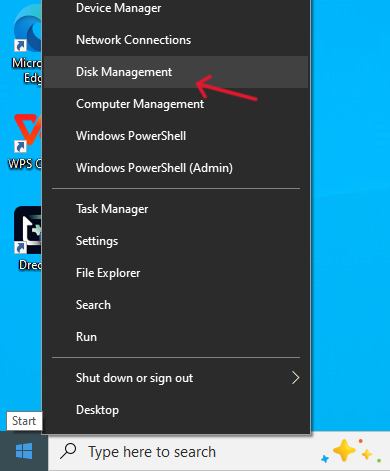
- Step 2: Uninstall Unknown USB Device. Scroll down and expand the Universal Serial Bus controllers section. Look for an entry labeled Unknown USB Device (often marked with a yellow exclamation triangle).
- Step 3: Restart and Reconnect. Right-click the problematic entry and select Uninstall device.
Warning: Do not check “Delete the driver software” unless absolutely necessary. Unplug your USB drive, restart your computer, and plug the drive back in. Windows will automatically attempt to reinstall a fresh copy of the driver.
Update USB Root Hub Drivers
Sometimes the hub that controls all your ports is the issue.
- In Device Manager, expand Universal Serial Bus controllers.
- Right-click on USB Root Hub (USB 3.0).
- Select Update driver and click Search automatically for drivers.
Disable USB Selective Suspend
Windows tries to save power by “suspending” idle USB ports, which can cause recognition errors.
- Open the Control Panel and go to Power Options.
- Click Change plan settings > Change advanced power settings.
- Find USB settings > USB selective suspend setting.
- Change the status to Disabled for both “On battery” and “Plugged in.”
- Click Apply and OK.
Troubleshooting a Computer Not Finding USB Drives on Mac
Apple users are not immune to these connectivity hurdles. If your Mac isn’t seeing the drive, try these hardware resets.
Reset SMC
The System Management Controller (SMC) handles power and hardware initialization.
- Shut down your Mac.
- For Intel Macs, hold Shift + Control + Option and the Power button for 10 seconds.
- Release all keys and restart.
Reset NVRAM/PRAM
NVRAM stores settings like peripheral connections.
- Restart your Mac and immediately hold Option + Command + P + R.
- Keep holding for about 20 seconds until you hear the second startup chime.
Check Disk Utility
Go to Applications > Utilities > Disk Utility. If your drive appears in the left sidebar but is “greyed out,” select it and click the Mount button at the top.
Fixing Issues via Disk Management
If your drive is detected by the hardware but doesn’t show up in “This PC,” the issue is likely with the drive’s volume or letter assignment.
Assign a Drive Letter
A drive without a letter is like a house without an address; Windows doesn’t know how to find it.
- Step 1: Right-click the Start button and select Disk Management.
- Step 2: Look for a disk that has no letter (e.g., “Removable”).
- Step 3: Right-click the partition and select Change Drive Letter and Paths.
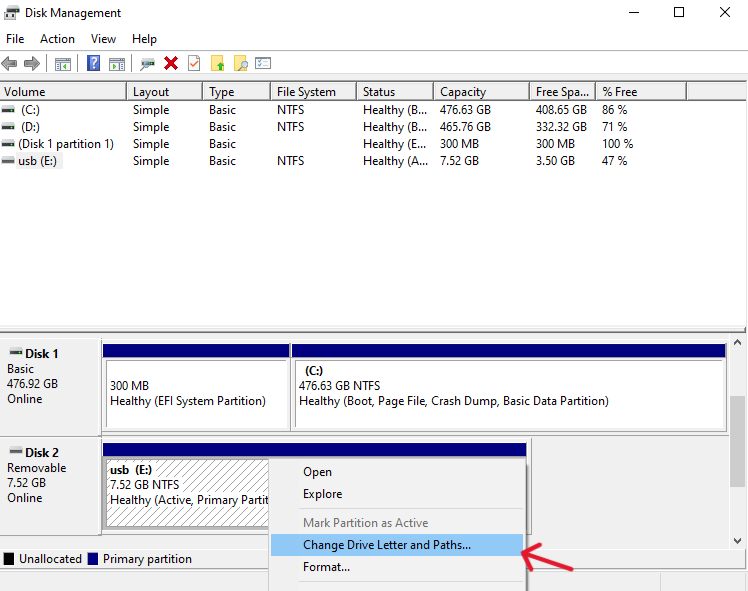
- Step 4: Click Add, choose a letter (like Z: or M:), and click OK.
Initialize Disk
If a new drive shows as “Not Initialized,” it hasn’t been set up for use.
- Step 1: Right-click the disk name (e.g., Disk 2) in Disk Management.
- Step 2: Choose Initialize Disk.
- Step 3: Select GPT (for newer systems) or MBR and click OK.
Warning: This will erase all data. Only do this if you have a backup or have already recovered your files. Right-click the drive in Disk Management, select Format, and choose FAT32 or exFAT.
How to Recover Data When Your Computer Is Not Finding the USB
When the error persists and you absolutely need your files, it is time to use professional tools. Even when Windows cannot “see” the drive in a traditional sense, the data usually remains intact on the flash memory chips. Sometimes, the problem manifests as folders missing from a flash drive effectively hidden by system errors.
Introducing PandaOffice Drecov for Data Recovery
For users facing a stubborn recognition scenario, PandaOffice Drecov is a highly recommended tool. It is designed to perform deep-sector scans that bypass standard Windows file system errors. It can “talk” to the USB controller even when File Explorer remains blank.
Step-by-Step Recovery Guide
- Step 1: Connect Drive – Plug in your “unrecognized” USB drive.

- Step 2: Select Device – Launch the app and select the drive from the list. If it’s missing, use the “Deep Scan” feature.

- Step 3: Scan and Preview – Click Scan. Once complete, you can preview images and documents to ensure they are healthy.

- Step 4: Save Files – Click Recover and select a destination folder on your local hard drive (never save back to the failing USB).
Preventing Future USB Device Not Recognized Errors
The best way to deal with a failing drive is to prevent it from happening in the first place.
Safely Remove Hardware
It is tempting to just yank the drive out. However, doing so can interrupt a background write process, causing the file system to become corrupted. Always use the “Safely Remove Hardware” icon in the system tray.
Avoid Interrupting Write Operations
Never unplug a drive while the LED light is blinking or while a file transfer window is active. This is the primary cause of partition table failure.
Regularly Update Drivers
Check for Windows Updates frequently. Microsoft often releases “Optional Updates” that include motherboard chipset and USB controller patches which improve stability.
Scan for Malware
Some viruses specifically target the “Autorun” and partition tables of USB drives. Use a reputable antivirus to scan your drive regularly to prevent logical damage.
When to Replace Your USB Device
Sometimes, the error is a sign of terminal failure. You should consider replacing your drive if:
- The metal connector is loose or wobbly.
- The drive becomes extremely hot to the touch within seconds.
- It makes a “clicking” sound (common in external HDDs).
- Flash memory has a limited number of write cycles. If you’ve used the drive daily for over 5 years, it may simply be at the end of its life.
How to fix USB Device not recognized FAQs
1. Why does my USB device not recognized error keep appearing?
This usually indicates a conflict between your computer’s power management and the USB controller. Disabling “USB Selective Suspend” often fixes recurring alerts.
2. Can I fix USB device not recognized without formatting?
Absolutely. Reinstalling drivers through the Device Manager or assigning a new drive letter in Disk Management can resolve the issue without touching your data.
3. Is my data lost if the USB is not recognized?
Usually, no. Unless the flash memory chip itself is physically cracked or burned, tools like PandaOffice Drecov can typically retrieve the files.
4. Why does my USB work on another computer but not mine?
This confirms the USB drive is healthy. The problem lies with your computer’s drivers, a faulty port, or a software conflict within your operating system.
5. How do I know if my USB drive is physically damaged?
If there is visible bending, if the device isn’t detected by any computer (including in the BIOS/UEFI), or if it smells of burnt electronics, it is likely physically damaged.
Conclusion
Dealing with a USB device not recognized error is undoubtedly stressful, especially when your work or personal memories are on the line. However, by following this guide—from basic restarts to advanced driver reinstallation and using tools like PandaOffice Drecov—you can almost always recover your access.
The key takeaway is to remain calm. Do not rush to format the drive or throw it away. Start with the software fixes first, and only move to hardware replacements once you have safely backed up your data. Treat your USB devices with care, and they will serve you reliably for years to come.






