Home » USB Driver Not Detected? 5 Fast Fixes to Save Your Data
USB Driver Not Detected? 5 Fast Fixes to Save Your Data
Struggling with a usb driver not detected error? This comprehensive guide provides expert solutions for usb flash drive not detected issues. From driver updates to professional data recovery using PandaOffice Drecov, we walk you through every step to restore your hardware and save your files.
The sinking feeling you get when you plug in a thumb drive and nothing happens is universal. You hear the chime, but the drive doesn’t appear in File Explorer. Or worse, there is no sound at all. When a usb driver not detected error occurs, it often feels like your precious photos, documents, and backups have vanished into a digital void.
However, in the world of data recovery, a drive that isn’t showing up is rarely a “dead” drive. Usually, it is a communication breakdown between the hardware and the software. This guide will walk you through every possible solution, from simple port cleaning to advanced data recovery using PandaOffice Drecov.
Understanding Why Your USB Driver Not Detected Error Occurs
Before we dive into the fixes, we must understand the “why.” Your computer relies on a complex handshake between the physical USB port, the Universal Serial Bus controllers, and the specific driver software for your device. If any link in this chain breaks, you get a usb driver not detected notification or simply total silence.
Common culprits include:
Physical Damage: A bent connector or a fried circuit board.
Driver Conflicts: Outdated or corrupted USB mass storage drivers.
Power Supply Issues: The port isn’t providing enough juice to spin a mechanical drive.
File System Corruption: The drive is recognized as hardware, but the partition is “RAW.”
Phase 1: Preliminary Checks
Before we start changing system registries, let’s rule out the obvious. You would be surprised how often a usb driver not detected issue is solved by a simple puff of air or a different port.
Step 1: The Port Swap
Plug your USB into a different port. If you are using a desktop, avoid the front-panel ports. These are often connected by thin wires that can fail. Plug the device directly into the motherboard ports at the back.
Step 2: Check for Physical Debris
Dust and lint are the enemies of connectivity. Use a flashlight to inspect the USB male connector and the computer’s female port. A toothpick or compressed air can clear obstructions that prevent the pins from touching.
Step 3: Test on Another Device
Is the problem the USB or the PC? Plug the drive into a laptop or a smart TV. If it works there, your computer’s software is the culprit. If it doesn’t work anywhere, the drive’s firmware or hardware may be failing.
How to Fix USB Flash Drive Not Detected: Software Solutions
If the hardware seems fine but you are still facing a usb driver not detected error, we need to look at how Windows interacts with the device.
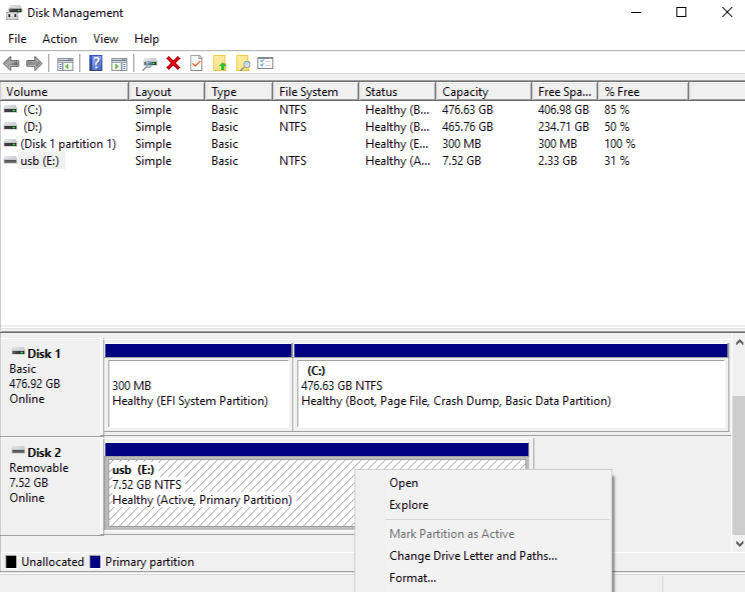
Step 1: Use Disk Management to Force Recognition
Sometimes Windows sees the drive but doesn’t know what to call it.
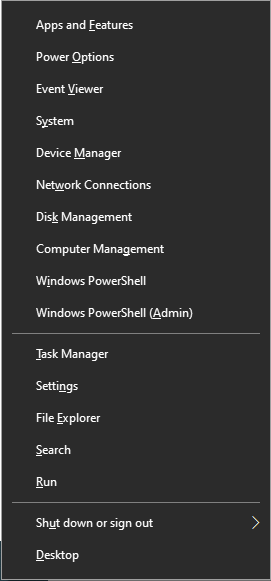
1. Right-click the Start button and select Disk Management.
2. Look for a disk labeled “Removable” with a black bar (Unallocated) or a drive letter missing.
3. Right-click the drive and select Change Drive Letter and Paths.
4. Click Add, choose a letter (like ‘Z’), and click OK.
Step 2: Uninstall and Reinstall USB Controllers
If the controller software is “glitched,” the usb driver not detected error persists regardless of which drive you plug in.
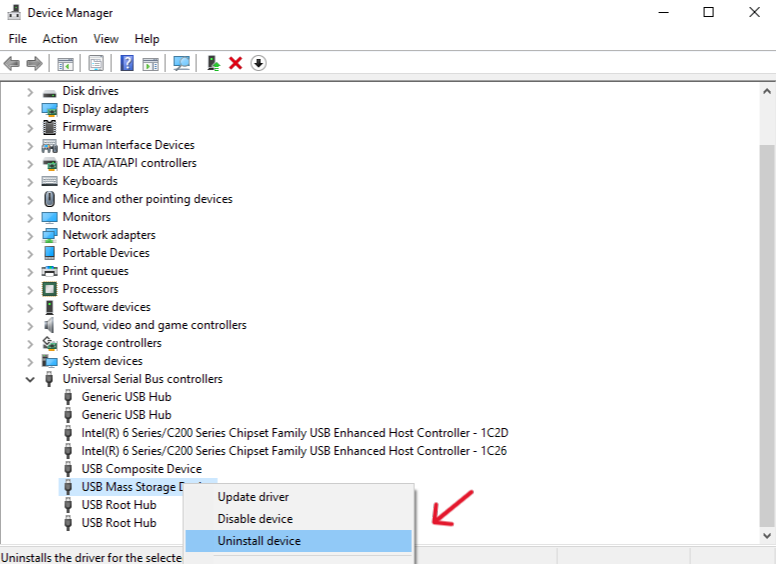
1. Press Win + X and select Device Manager.
2. Expand the Universal Serial Bus controllers section.
3. Right-click USB Mass Storage Device and select Uninstall device.
4. Unplug the USB, restart your computer, and plug it back in. Windows will automatically reinstall the driver.
Phase 2: Advanced Troubleshooting for USB Flash Drive Not Detected
When the basic steps fail, we have to go deeper into the system settings. This is where we address the usb driver not detected issue by tweaking power management and updating the BIOS/UEFI.
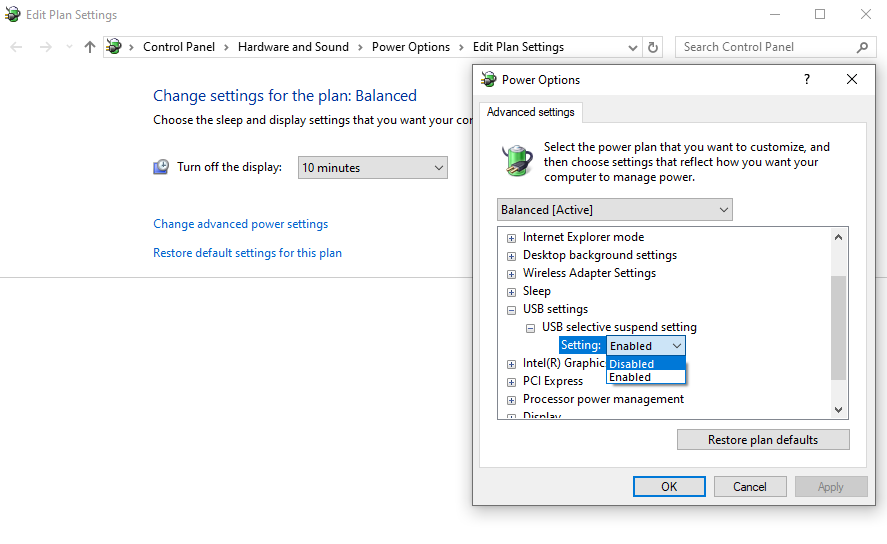
Step 1: Disable USB Selective Suspend
Windows tries to save power by putting USB ports to “sleep.” Sometimes, it forgets to wake them up.
1. Open Control Panel > Hardware and Sound > Power Options.
2. Click Change plan settings next to your active plan.
3. Click Change advanced power settings.
4. Find USB settings > USB selective suspend setting.
5. Set it to Disabled and click Apply.
Step 2: Update the Chipset Drivers
The chipset on your motherboard manages the communication between all components. If the chipset drivers are old, you might find your usb driver not detected frequently. Visit your motherboard manufacturer’s website (like ASUS Support or Dell Support) to download the latest INF utility.
Phase 3: Recovering Data from an Unreadable Drive with PandaOffice Drecov
If you have tried everything and the usb driver not detected error has evolved into a “Format Disk” prompt, do not click format. Formatting will wipe your data. Instead, use a professional-grade tool like PandaOffice Drecov to extract your files first.
PandaOffice Drecov is designed to bypass the standard Windows file explorer and communicate directly with the drive’s sectors. Even if the file system is RAW, this tool can reconstruct your folders.
⚠ Warning: Install it on a drive different from the one where your data was lost to prevent overwriting.
Step-by-Step Data Recovery with PandaOffice Drecov
Step 1: Connect and Launch
Ensure your USB is plugged in, even if it doesn’t show up in “My PC.” Launch the PandaOffice Drecov application. On the home screen, you will see a list of available drives.
Step 2: Select the Target Drive
Locate your USB drive in the list. It may appear as “Lost Partition” or “External Disk.” Select it and click the Scan button.
Warning: Do not save the PandaOffice Drecov software itself onto the USB drive you are trying to recover. Always install the software on your main C: drive to avoid overwriting data.
Step 3: Deep Scan for Files
The software will begin a “Quick Scan” followed by a “Deep Scan.” This process analyzes every bit of data. While the scan runs, you can see a real-time preview of recovered photos and documents.
Step 4: Filter and Preview
Once the scan is complete, use the sidebar to filter by file type (e.g., .jpg, .docx, .mp4). Double-click a file to see a preview. This ensures the file is healthy and not corrupted.
Step 5: Recover to a Safe Location
Select the files you need and click Recover.
Key Operation Point: Always choose a destination folder on your computer’s internal hard drive or a different external drive. Never recover the files back onto the faulty USB drive.
Phase 4: Fixing the “USB Driver Not Detected” via Command Prompt
For those who are comfortable with a text-based interface, the Command Prompt (CMD) offers powerful tools to reset drive attributes that might be causing the usb driver not detected glitch.
Step 1: Using the CHKDSK Command
This utility checks the file system metadata for errors.
Type cmd in the Windows search bar, right-click, and Run as Administrator.
Type chkdsk X: /f (Replace X with your USB’s drive letter).
Press Enter. Windows will attempt to fix any structural errors on the drive.
Step 2: Using Diskpart to Clear Attributes
Sometimes a drive is marked as “Read Only” or “Hidden” at a system level.
In the CMD window, type diskpart and press Enter.
Type list disk to identify your USB (look for the size, e.g., 14GB for a 16GB drive).
Type select disk # (Replace # with your disk number).
Type attributes disk clear readonly.
Type exit.
Summary of Recovery and Repair Paths
Symptom
Primary Cause
Recommended Action
No sound when plugged in
Physical Port/Cable
Try Rear USB Ports
Sound heard, but no drive letter
Partition Error
Disk Management (Assign Letter)
“Device Not Recognized” Popup
Driver Corruption
Uninstall in Device Manager
Drive shows as RAW
File System Failure
PandaOffice Drecov Recovery
Lights on, but drive is empty
Hidden Files/Virus
CMD attrib command
Maintaining Your USB Drive Health
To avoid the usb driver not detected headache in the future, follow these “pro-user” habits:
Always Eject Safely: Clicking “Safely Remove Hardware” ensures all write operations are finished. Pulling it out abruptly can cause “Dirty Bits” in the file system.
Avoid Public Computers: Malware on public library or print-shop PCs can corrupt the boot sector of your USB.
Keep it Cool: USB drives can overheat during large transfers. If the drive feels hot, unplug it and let it cool down.
Once you have successfully recovered your data using PandaOffice Drecov, you can proceed to format the drive to make it usable again. Right-click the drive in Disk Management, select Format, and choose FAT32 (for compatibility) or exFAT (for large files).
Dealing with a usb driver not detected error is a test of patience, but with the right tools and a systematic approach, your data is almost always recoverable. Whether the issue is a simple driver update or a complex partition failure, software like PandaOffice Drecov acts as your safety net.