







Videos are one of the most cherished forms of data, whether they are family memories, professional projects, or important personal content. Losing them from your hard drive can be stressful. Fortunately, with the right tools, you can easily recover lost videos. This article will guide you through various methods to recover videos from a hard drive, including using PandaOffice Drecov, a professional data recovery software.
Why Do Videos Get Lost from Hard Drives?
Understanding the causes of video loss can help you prevent future data loss. Some common reasons include:
1.💻Accidental Deletion
It’s easy to accidentally delete videos, especially when cleaning up your hard drive or mistakenly selecting the wrong files. Although you might think the files are gone, the system typically marks them as “deleted,” and you can still recover them unless new data overwrites them.
2.📝Hard Drive Failure
Physical damage to the hard drive, such as bad sectors or circuit failure, can cause videos to become inaccessible. The drive may not recognize or the file system may become corrupted.
3.🔍Formatting the Hard Drive
When you format your hard drive, all files, including videos, are erased. However, the system does not permanently wipe them; it only marks them as free space. If new data doesn’t overwrite this space, you can still recover the videos.
4.🌐Virus or Malware Attacks
Malicious software can corrupt video files, making them unreadable or inaccessible. Without the proper recovery tools, you may lose these files permanently.

How to Recover Videos from Hard Drive (Recovery Methods)
Here are three effective methods for recovering videos from a hard drive:
Method 1: Using PandaOffice Drecov (Recommended Solution)
PandaOffice Drecov is a powerful and easy-to-use data recovery tool that specializes in recovering videos and other files from hard drives. Follow these simple steps to recover your videos:
- Step1:Download and Install PandaOffice Drecov
Begin by downloading the software from the PandaOffice website and installing it on your computer. - Step2:Select the Hard Drive
Open PandaOffice Drecov and choose the hard drive where your videos were stored.

- Step3:Scan for Lost Videos
Click on “Start Scan” to begin the scanning process. The software will analyze the selected hard drive and search for deleted or lost video files.

- Step4:Preview and Recover
Once the scan is complete, you’ll see a list of recoverable files. Preview your videos to ensure they’re the correct ones, then click “Recover” to restore them to a safe location on your computer.

💡PandaOffice Drecov is fast, reliable, and guarantees a high recovery rate for lost videos, even from damaged or formatted drives.
Method 2: Using Windows File History (For Windows Users)
If you’re using a Windows PC and have enabled File History, you may be able to recover your videos through this built-in backup feature.
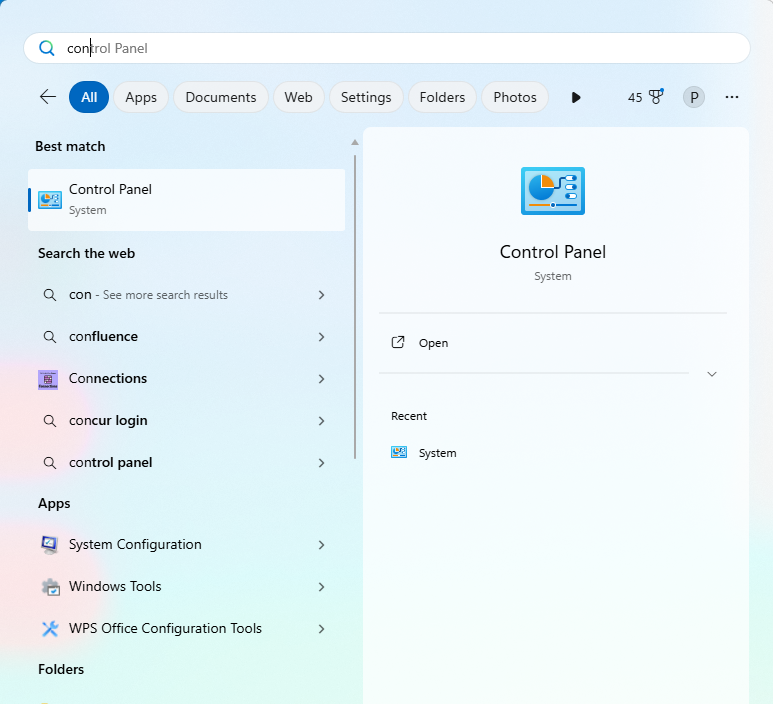
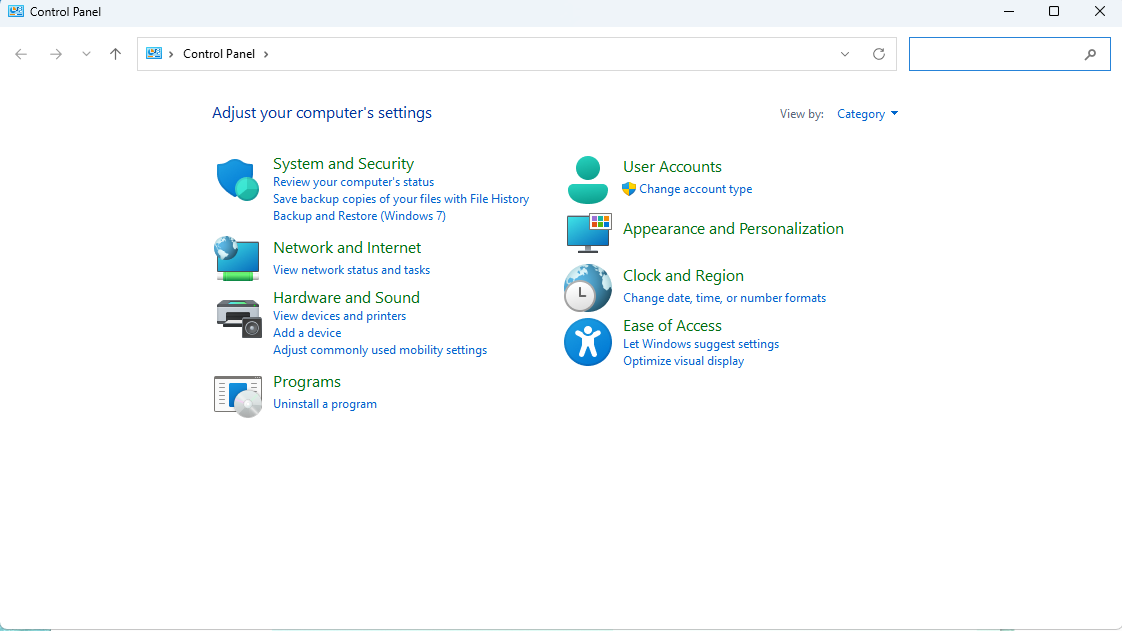
- Open File History
Go to “Control Panel” > “System and Security” > “File History.” Click on “Restore personal files” on the left side.
- Browse and Select the Folder
Browse through the folders where you originally stored your videos. Look for the version of the folder that contains the lost videos.
- Restore Your Videos
Once you find the correct version, click the green “Restore” button to recover your videos.
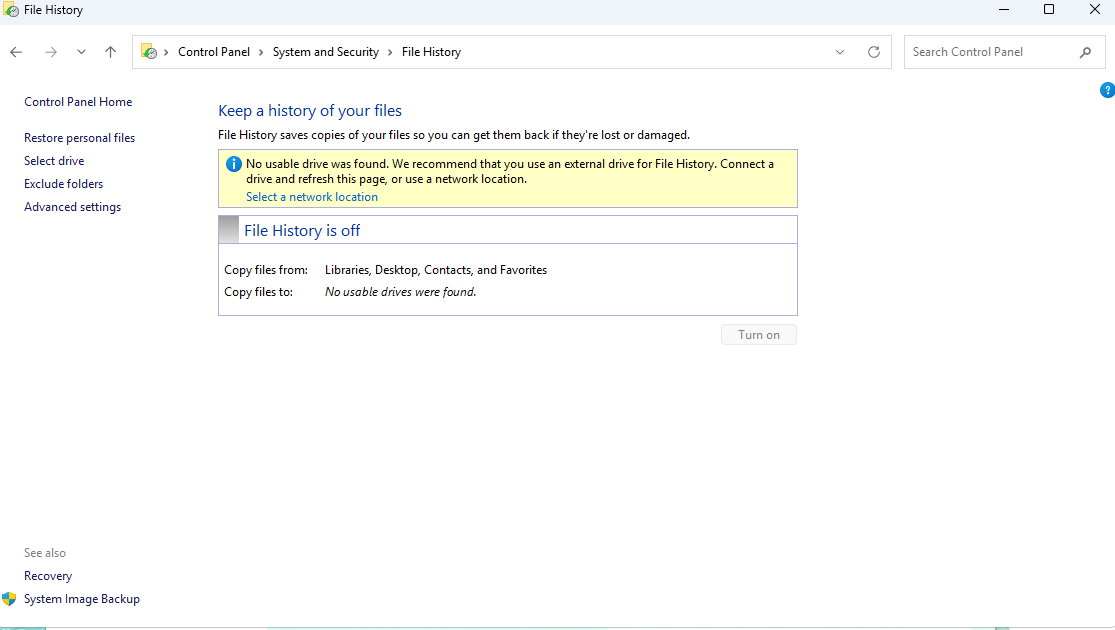
⚠️This method only works if you have previously set up File History and backed up your files.
Method 3: Using Command Prompt (For Advanced Users)
For advanced users, you can try recovering videos using Command Prompt, which may help recover files from a damaged or corrupted drive.
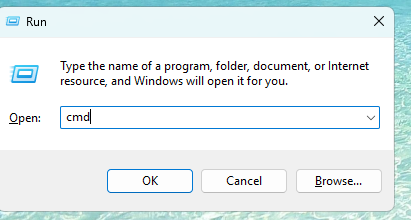
- Open Command Prompt
Press “Windows + R,” type “cmd,” and hit Enter to open Command Prompt.
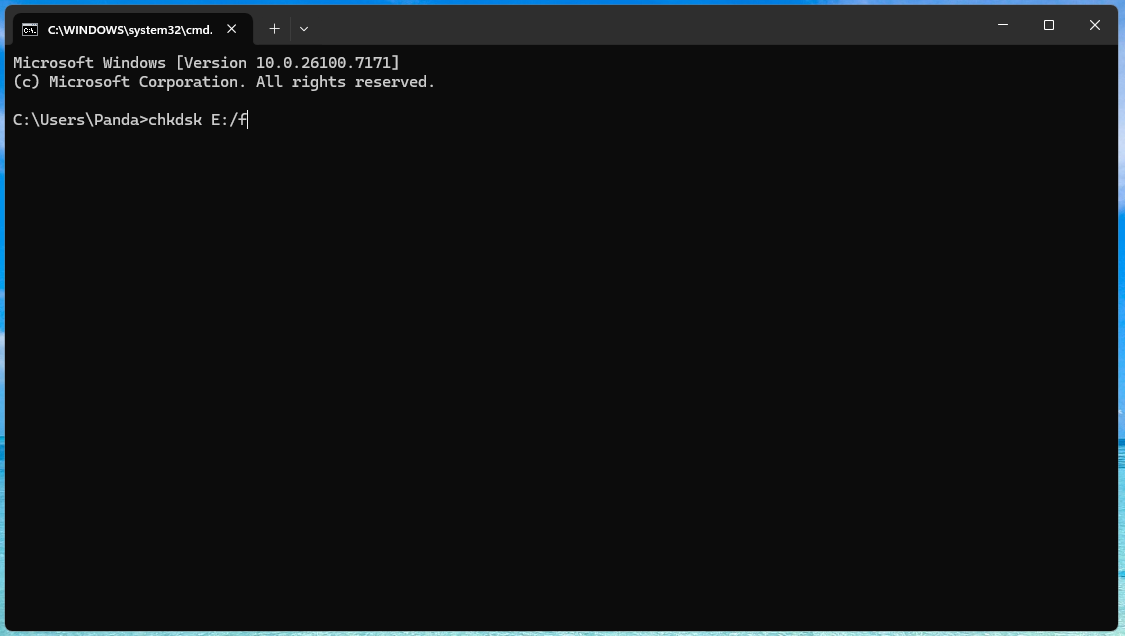
- Use the CHKDSK Command
In Command Prompt, type the following command and press Enter:chkdsk X: /f(Replace “X” with the letter of your hard drive.)
- Recover Files
The CHKDSK utility will scan your drive and attempt to repair any file system errors. Once done, check if the lost videos can be accessed.
💡This method works best for repairing minor file system errors but may not recover videos if the files are severely damaged.
Why Choose PandaOffice Drecov for Video Recovery?
While the above methods may work in certain situations, PandaOffice Drecov is the most effective solution for recovering videos from hard drives. Here’s why:
- High Recovery Rate: PandaOffice Drecov uses advanced scanning algorithms to recover videos from even severely damaged or formatted drives.
- Easy-to-Use Interface: We designed this software for both beginners and professionals, and it comes with an intuitive interface that guides you through the recovery process step-by-step.
- Supports Multiple File Formats: It can recover videos in various formats, including MP4, AVI, MOV, and more, making it a versatile tool for all video recovery needs.
- Safe and Secure: PandaOffice Drecov ensures that no data is overwritten during the recovery process, preventing further damage to your hard drive.
🔑If you want a quick and hassle-free way to recover your lost videos, PandaOffice Drecov is the best choice.
FAQ on Data Recovery from Hard Drive Videos
To recover lost videos from a hard drive, you can use data recovery software like PandaOffice Drecov. By scanning the hard drive, PandaOffice Drecov can locate and recover deleted or lost video files. The recovery process is simple — you just download and install the software, select the hard drive where the videos were stored, and start the scan.
Yes, you can still recover videos even after you format a hard drive. Formatting marks the space as available, but it doesn’t immediately overwrite all data. By using professional data recovery tools like PandaOffice Drecov, you can recover videos from a formatted hard drive as long as new data has not overwritten the space.
If your hard drive sustains physical damage, recovering lost video files can be more challenging, but it’s still possible.
Recovering lost videos from an external hard drive follows the same process as an internal hard drive. You can use data recovery software like PandaOffice Drecov to scan the external drive and recover the lost videos. Whether the loss is due to accidental deletion, a virus attack, or hard drive failure, data recovery software can help you retrieve the videos.
The time required to recover videos from a hard drive using PandaOffice Drecov depends on the size of the drive and the scan depth. Typically, recovering lost videos takes about 10-30 minutes. If the drive is large or there are complex issues, the process may take a bit longer, but it is usually fast and efficient.
Conclusion
Recovering lost videos from your hard drive doesn’t have to be a nightmare. Whether you’re using PandaOffice Drecov, File History, or Command Prompt, there are multiple ways to restore your valuable videos. For the best results, PandaOffice Drecov is the most reliable and user-friendly option available. Download PandaOffice Drecov today and start recovering your lost videos!






