







If you’re staring at your ps4 controller won’t connect to ps4 with usb, you’re not alone. It’s one of the most frustrating issues gamers face, especially when you just want to jump into a game. This problem can come out of nowhere — one minute your controller pairs perfectly, the next it’s unresponsive through USB and wireless alike. But don’t panic. By the end of this guide, you’ll understand why it happens and how to fix it without spending money on a replacement.
In this deep-dive article, we’ll break down every possible cause and walk you through practical fixes, from the simplest reset to advanced troubleshooting. We’ll also talk about long-term prevention tips so you can avoid this headache in the future.
Why Your PS4 Controller Won’t Connect via USB
There’s nothing more irritating than plugging in your PS4 controller — usually a simple and reliable action — only to watch it sit there like a paperweight. What makes this issue confusing is that sometimes the controller looks connected but the PS4 doesn’t respond.
If your ps4 controller won’t connect to ps4 with usb, that means the system isn’t recognizing the device. From the PS4’s perspective, that USB cable isn’t carrying any communication data — maybe power, but no commands or inputs. That can happen for a variety of reasons ranging from faulty cables to corrupted controller memory. Before diving into fixes, let’s quickly understand how the connection should work.
What It Looks Like When There’s a Connection Issue
Here are some symptoms you might be experiencing:
- The controller spins or vibrates briefly when connected, then nothing.
- The light bar doesn’t light up at all, or it pulses orange (charging) but doesn’t turn blue (paired).
- The PS4 shows an error message like “USB Device Not Recognized.”
- The controller connects wirelessly, but not through the USB cable, making it impossible to sync a new console.
- The PS button doesn’t respond when pressed.
How PS4 Controllers Are Supposed to Connect
PS4 controllers — officially known as DualShock 4 — can connect in two ways:
- Wireless Bluetooth Linking: Used most often after initial pairing for everyday gaming.
- USB Connection: Essential for initial pairing, charging, and low-latency wired play.
When you plug in the controller, the PS4 should recognize the controller and assign it a user ID. If it doesn’t, something is blocking that “handshake” between the hardware and the software.
Common Reasons the Controller Won’t Connect
Faulty USB Cable
It may sound obvious, but not all USB cables are created equal. Some cables only charge and don’t transmit data. Others are so worn out that internal wires have broken. If the ps4 controller won’t connect to ps4 with usb, the cable is the first thing you absolutely should check.
Dirty or Damaged USB Port
The PS4’s USB ports take a lot of abuse from repeated plugging and unplugging. Dust, grime, or bent pins can stop data transfer even if charging still works. Similarly, the micro-USB port on the controller itself — especially in older units — can be loose or worn down.
Controller Battery Problems
The DualShock 4 has an internal rechargeable battery. If that battery is completely drained or failing, the controller may not function properly even when connected via USB. Sometimes, the PS4 won’t power the controller correctly if the battery can’t hold voltage.
Corrupted Bluetooth Pairing Data
Believe it or not, old wireless pairing data stored in the controller can sometimes interfere with new USB connections. This is rare, but it can happen when the controller has been paired with other devices like PCs or phones.
Software or Firmware Glitches
Just like computers, the PS4’s firmware can glitch. A minor update mishap or corrupted configuration file can block USB recognition. This is often where ps4 connect usb storage issues start appearing as well, as the system struggles to manage any USB-connected peripheral.
Basic Troubleshooting Steps
Inspect Your USB Cable
Swap the cable out for another data-capable USB cable. Many users assume any micro-USB cable will work, but “charge-only” cables lack the internal wiring for data sync. You want a cable designed for data transfer — like the one that came with your original controller.
Try a Different USB Port
It’s possible that one specific USB port on your PS4 is damaged. Try plugging into the other port. If you are using a USB hub, remove it and plug the controller directly into the console’s front ports to ensure a stable connection.
Power Cycle Your PS4
This is the classic “turn it off and back on again” but with a twist:
- Turn off the PS4 completely (not Rest Mode).
- Unplug the power cable from the back for at least 30 seconds.
- Plug it back in and turn it on.
- Attempt the connection again.
PS4 Connect USB Storage Intermediate Fixes
Resetting the PS4 Controller
The DualShock 4 has a tiny reset button on the back. This is a “hard reset” for the controller’s internal logic.
- Turn off the PS4.
- Locate the small hole near the L2 button.
- Use a paperclip or toothpick to hold the button down for 10 seconds.
- Plug the controller back into the PS4 with a known-good USB cable and press the PS button.
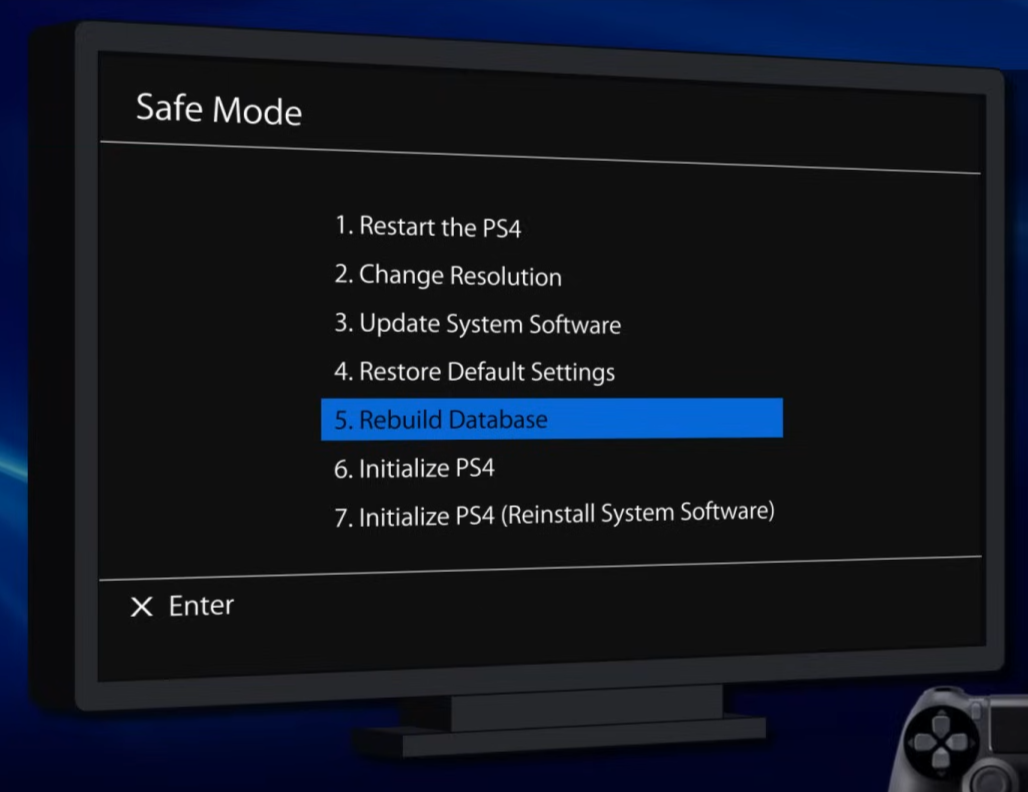
Rebuilding the PS4 Database
If your ps4 controller won’t connect to ps4 with usb, the problem might be a corrupted system index. Rebuilding the database is like “defragging” your console.
- Turn off the PS4.
- Hold the power button until you hear two beeps (about 7 seconds).
- Connect your controller via USB.
- Select “Rebuild Database” from the menu.
Updating System Software
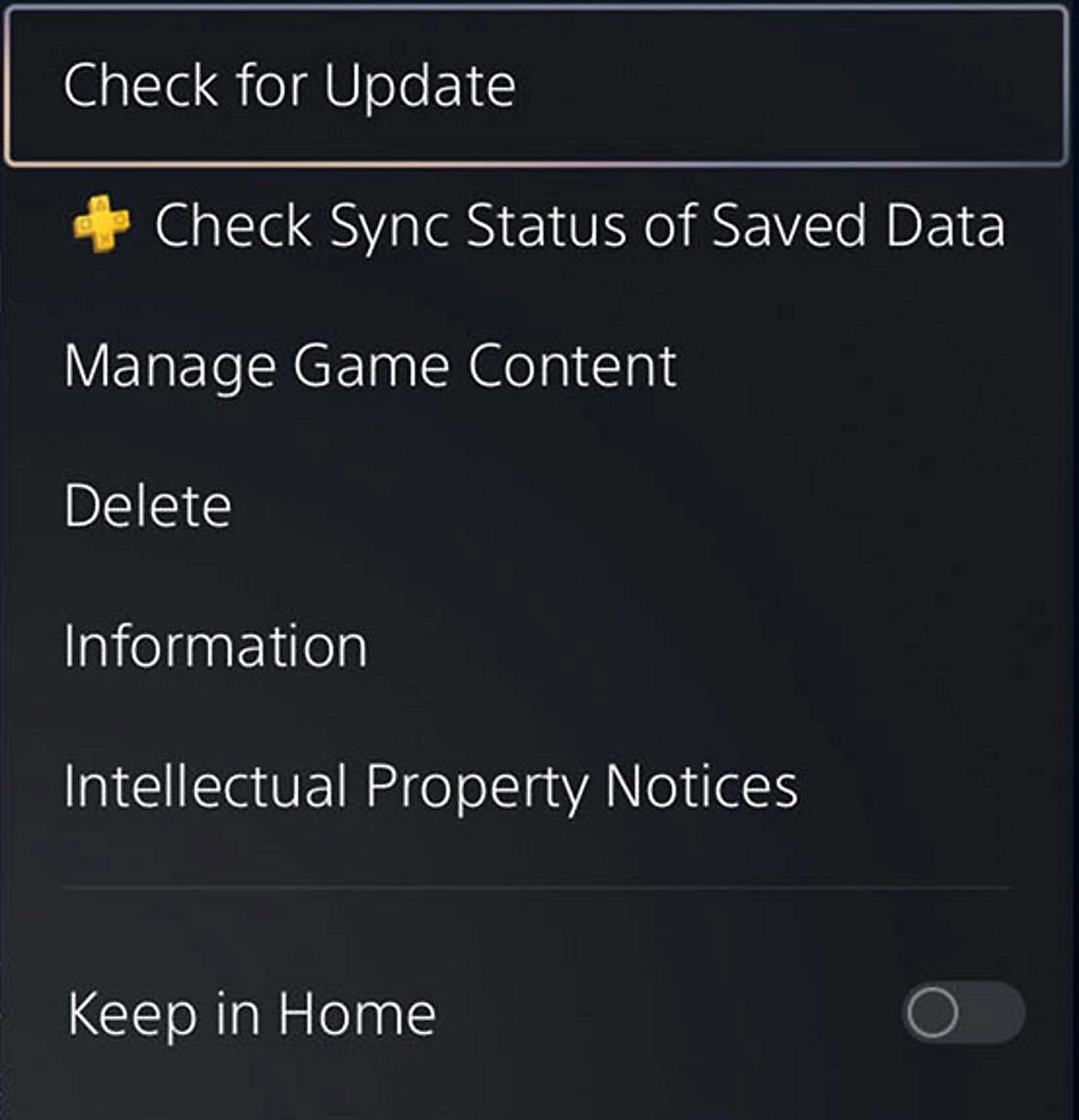
Ensure your PS4 is running the latest version. Sony often releases patches for peripheral compatibility. You can check for updates in Settings > System Software Update.
The Hidden Danger: Data Loss and USB Issues
While troubleshooting your controller, you might encounter issues where the console asks you to re-initialize or format. This can lead to the loss of saved games, screenshots, or even extended storage data. If you have been using usb storage on ps4 to save your game library and suddenly find the files missing or the drive unreadable, you need a professional recovery solution.
Recovering Missing Files with PandaOffice Drecov
If your controller issues led to a system crash or you accidentally formatted your usb storage on ps4, PandaOffice Drecov is the premier tool for recovering lost data. It is designed to handle “Device Not Recognized” errors and accidental deletions with ease.
⚠ Warning: Install it on a drive different from the one where your data was lost to prevent overwriting.
Step-by-Step Data Recovery Guide
- Step 1: Connect the Drive to a PC. Unplug your USB drive from the PS4 and connect it to a Windows computer.

- Step 2: Launch PandaOffice Drecov. Open the software. You will see a list of available drives. Select the USB drive that was previously used with your PS4.

- Step 3: Scan for Lost Data. Click the “Scan” button. The software will perform a Deep Scan to locate fragments of game saves, media, and system files.
Note: Deep scanning may take several minutes depending on the size of your usb storage on ps4. Do not unplug the drive during this process.
- Step 4: Preview and Filter. Once the scan is complete, browse the folders. PandaOffice Drecov allows you to preview images and text files to ensure they are intact.
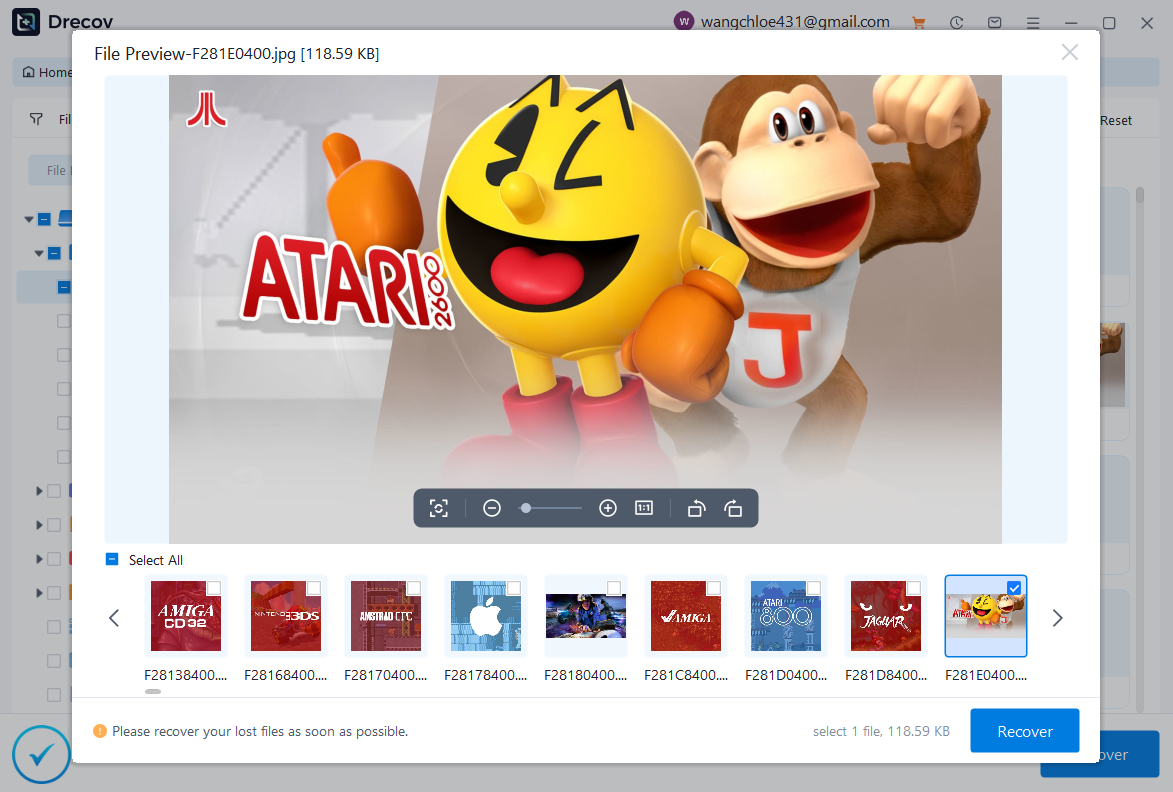
- Step 5: Recover Files. Select the files you wish to save and click “Recover.”
Warning: Always save the recovered data to a different drive (like your computer’s desktop) to avoid overwriting the original data on the USB stick.
PS4 USB Storage: Advanced Connection Fixes
Safe Mode Options
If the controller works in Safe Mode but not in the standard dashboard, it is almost certainly a software conflict. In Safe Mode, try “Restore Default Settings.” This resets your system preferences without deleting your games.
Testing on Another PS4
The “Process of Elimination” is your best friend. If your ps4 controller won’t connect to ps4 with usb even on a friend’s console, the controller’s internal USB port or mainboard is likely fried.
Using Alternative Connection Methods
If you can get into the menu using a different controller or a media remote, try pairing the broken controller via Bluetooth manually:
- Go to Settings > Devices > Bluetooth Devices.
- On the problematic controller, hold Share + PS Button until the light bar flashes.
- Select the “Wireless Controller” from the list.
Deep Dive: Managing USB Storage on PS4
When your controller fails, you might also realize your ps4 connect usb storage setup is acting up. The PS4 is very picky about how USB devices are handled.
| Feature | Requirement |
| USB Version | USB 3.0 or later |
| Storage Capacity | 250 GB minimum, 8 TB maximum |
| Connection | Must be connected directly to the PS4 port |
| Format | Must be formatted as Extended Storage |
If you are experiencing errors with your external drive, it might be due to a file system error. For more expert tips on fixing these issues, check out this guide on USB drive not showing up – how to diagnose and fix it like a pro.
Formatting and Hidden Files
Sometimes, a drive used for usb storage on ps4 becomes unreadable because it wasn’t formatted correctly to FAT32 or exFAT before being assigned as extended storage. If you need to fix a high-capacity drive, learn the 4 fast ways to format USB to FAT32, even on 128GB sticks.
Furthermore, if your PS4 says the drive is full but you can’t see the files, they might be marked as hidden by a system glitch. You can use the command prompt to fix this; here is how to show hidden files on USB via CMD in seconds.
If you’ve already lost data during a failed update or a “database rebuild,” don’t panic. There are ways how to recover folders missing from flash drive effectively using tools like PandaOffice Drecov.
When the Problem Is Hardware Related
USB Port Damage on the PS4
If you look closely into the PS4 USB ports and see silver pins that are bent or touching each other, you have a hardware short. This will prevent any controller from connecting.
Official Support Link: For hardware repairs, visit the PlayStation Support.
Controller Port or Cable Damage
The micro-USB port on the DualShock 4 is notorious for becoming “loose.” If you have to hold the cable at a specific angle to get it to charge, the port’s solder joints are likely failing.
Battery Replacement
If your controller only works when plugged in and immediately dies when disconnected, the battery is dead. You can find replacement batteries online, but ensure they match the specific model number (CUH-ZCT1 or CUH-ZCT2) on the back of your controller.
Preventing USB Connection Problems
- Proper Cable Management: Avoid wrapping the cable tightly around the controller, as this puts tension on the internal copper wires.
- Cleaning Ports Safely: Use a can of compressed air once a month to blow out the dust from the PS4 ports and the controller port.
- Updating Software Regularly: Always install the latest Sony firmware to ensure the “handshake” protocols between the USB bus and the controller remain functional.
PS4 USB Storage Connection FAQs
1. Why won’t my PS4 controller connect even though the light turns orange?
The orange light indicates the controller is receiving power (charging). However, if the ps4 controller won’t connect to ps4 with usb, it means the “data” pins in the cable or port are not working. You need a data-sync cable, not just a charging cable.
2. Can I use a phone charger cable for my PS4 controller?
Yes, provided it is a data-capable micro-USB cable. However, some very cheap phone cables are “power only” and will not allow the controller to sync with the console.
3. What do I do if my PS4 controller light bar is white and won’t connect?
A solid white light usually means the controller is searching for a signal but can’t find its paired console. Try the “Hard Reset” method using a paperclip in the small hole on the back of the controller.
4. Can a faulty USB port on the PS4 cause the controller to disconnect during gameplay?
Absolutely. If the port is loose or dirty, the connection can flicker. This is often solved by cleaning the port with compressed air or switching to the second USB port on the front of the console.
5. Does rebuilding the database delete my games?
No. Rebuilding the database is a safe procedure that only reorganizes the file system. It is a highly recommended step if your ps4 controller won’t connect to ps4 with usb or if the system feels sluggish.
Conclusion
If your ps4 controller won’t connect to ps4 with usb, it is usually not a death sentence for your hardware. Most connection problems boil down to simple fixes like changing a cable, performing a hard reset, or rebuilding the system database. By following a logical path of troubleshooting — from the easiest (swapping cables) to the most advanced (Safe Mode initialization) — you can get back to gaming without the cost of a new controller.
Remember, if your troubleshooting leads to accidental data loss on your usb storage on ps4, tools like PandaOffice Drecov are available to help you recover your precious game captures and saves. Keep your ports clean, your cables high-quality, and your firmware updated to ensure a smooth, wired-or-wireless gaming experience.






