







Maintaining a clean digital workspace is a priority for many modern users. Whether you are a minimalist designer or a professional seeking to reduce visual clutter, knowing how to delete recycle bin on desktop environments is a frequent request. However, because the desktop recycle bin is a fundamental system component, “deleting” it isn’t as simple as dragging it to another folder.
In this comprehensive guide, we will explore the technical nuances of Windows icon management, provide step-by-step instructions to delete recycle bin from desktop views, and introduce professional tools like PandaOffice Drecov to ensure your data remains safe even when your safety net is hidden.
Understanding the Recycle Bin
What Is the Recycle Bin
If you’ve used a Windows computer for even a short time, you’ve definitely seen the desktop recycle bin sitting quietly in the corner. It is one of those default icons that feels permanent—like it’s part of the system’s DNA. But what exactly is it? At its core, the Recycle Bin acts as a temporary storage space for deleted files. Instead of instantly erasing files from your system, Windows sends them to this digital “trash can,” giving you a chance to recover them if needed.
Think of it like a safety net. Imagine accidentally deleting an important document—without the Recycle Bin, that file would be gone forever. With it, you get a second chance. This simple feature has saved countless users from losing valuable data over the years. It is not just about convenience; it is about protection.
What makes the Recycle Bin unique is that it doesn’t actually delete files immediately. Instead, it holds onto them until you manually empty it or until storage limits force older files to be removed. This behavior is what makes many users hesitant about how to delete recycle bin on desktop screens, even if they find it visually unnecessary.
Why It Exists on Your Desktop
The reason the desktop recycle bin sits directly on your main screen isn’t random. Microsoft designed it this way for easy access. The desktop is the most visible and frequently used area of your computer, so placing the icon there ensures you can quickly recover deleted files or empty it when storage runs low.
But here’s the thing—not everyone likes that. Some users prefer a minimalist desktop with zero clutter. Others simply never use the icon directly, preferring keyboard shortcuts like Shift + Delete. Over time, this has led to a common question: can you actually delete it?
The answer isn’t as straightforward as you might think. While you can’t completely remove the Recycle Bin from the Windows system architecture, you can definitely hide or disable it. For most users, learning how to delete recycle bin on desktop visibility is more than enough to achieve a clean, distraction-free workspace.
Can You Actually Delete the Recycle Bin
System Limitations Explained
Here’s where things get interesting. The Recycle Bin isn’t just another shortcut or app icon—it’s a core shell element of the Windows operating system. That means you can’t truly “delete” the underlying software in the traditional sense. It’s deeply integrated into how Windows handles file deletion, so removing the code entirely would break essential system functions.
Think of it like trying to remove the engine from a car while expecting it to still run. The system relies on this directory to manage deleted files safely. Without it, every deletion would become permanent instantly, which could lead to serious data loss issues. This is why Microsoft provides specific settings to delete recycle bin from desktop visibility rather than a “Uninstall” button.
Difference Between Remove and Disable
It’s important to understand the difference between removing and disabling the Recycle Bin. When you look for how to delete recycle bin on desktop, you are usually looking to remove the icon. Removing it simply hides the visual shortcut—the folder is still there, working behind the scenes.
Disabling it, on the other hand, changes how file deletion works. You can configure Windows to bypass the Recycle Bin entirely, meaning files are erased the moment you hit delete. Most users only need to remove the icon, not disable the feature. Hiding it gives you a cleaner desktop without sacrificing the safety net it provides.
How to Remove Recycle Bin from Desktop in Windows 10/11
Using Desktop Icon Settings
The most straightforward way to address how to delete recycle bin on desktop clutter is through the built-in system settings. This method is safe, official, and easily reversible.
Step-by-Step Instructions
- Step 1: Right-click on any empty space on your desktop and select Personalize from the context menu.
- Step 2: In the Settings window that appears, click on Themes in the left-hand sidebar (or the main area in Windows 11).
- Step 3: Scroll down or look to the right side for a link labeled Desktop icon settings. Click it.
- Step 4: A new small window will pop up. Find the checkbox next to Recycle Bin.
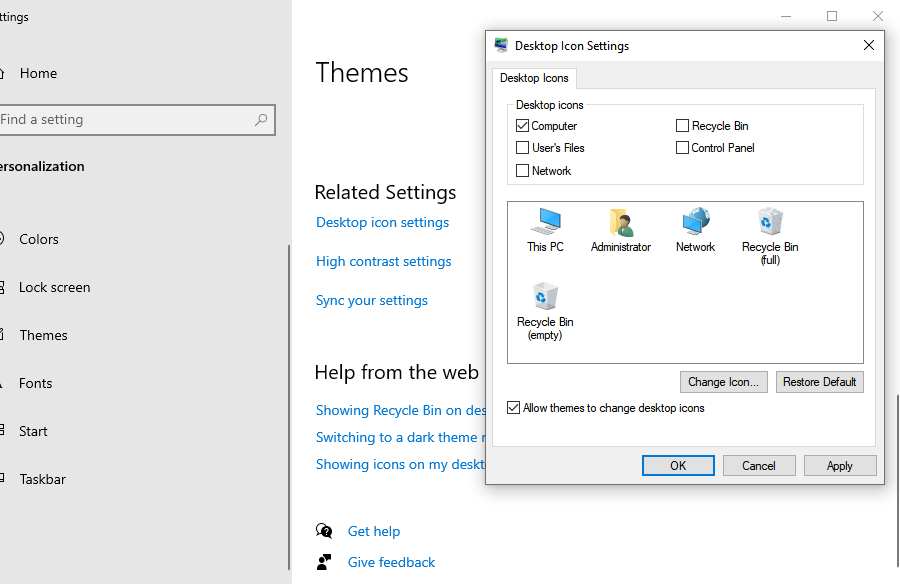
- Step 5: Uncheck the box to delete recycle bin from desktop visibility.
- Step 6: Click Apply and then OK. The icon should now be gone.
Restoring It Later
If you ever find that you miss the convenience of the icon, you can bring the desktop recycle bin back using the exact same path. Simply re-check the box in the Desktop Icon Settings menu, and it will reappear exactly where it was before.
Alternative Methods to Hide Recycle Bin
If the standard settings don’t work or if you prefer a more technical approach, there are other ways to manage how to delete recycle bin on desktop icons.
Using Registry Editor
For advanced users, the Registry Editor offers a way to remove the icon by modifying the system’s database.
- Step 1: Press
Win + R, typeregedit, and hit Enter. - Step 2: Navigate to:
HKEY_LOCAL_MACHINE\SOFTWARE\Microsoft\Windows\CurrentVersion\Explorer\Desktop\NameSpace. - Step 3: Find the key
{645FF040-5081-101B-9F08-00AA002F954E}.
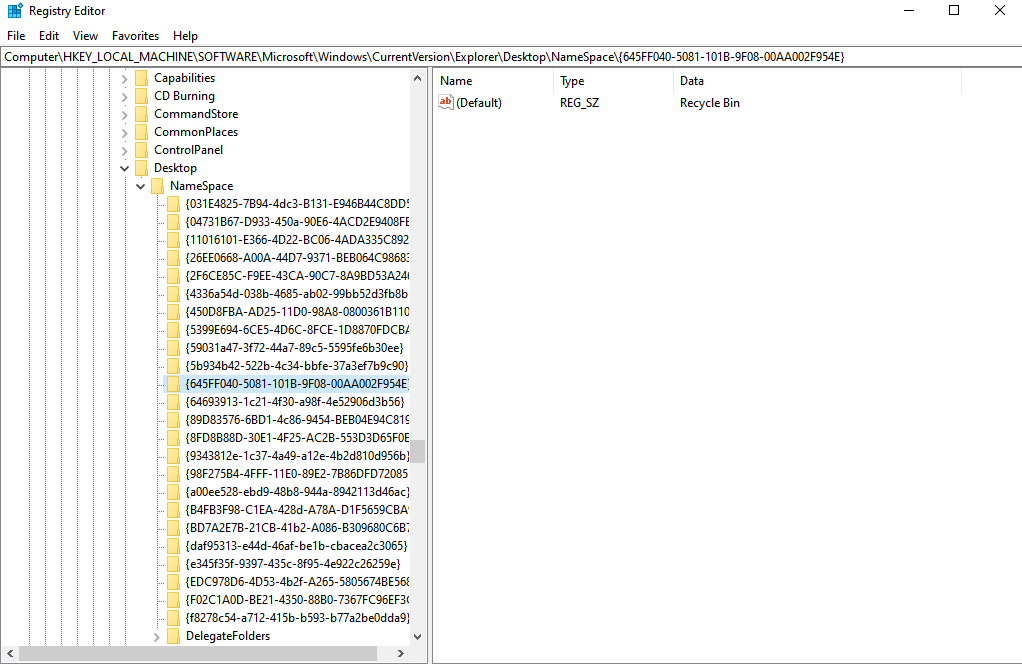
- Step 4: To hide it, you would typically delete this key (after exporting a backup!).
Warning: Modifying the registry is risky. Only do this if you have a full system backup.
Using Group Policy Editor
If you are on Windows Pro or Enterprise, the Group Policy Editor is a powerful tool to delete recycle bin from desktop settings across the whole system.
- Step 1: Type
gpedit.mscin the Start search and press Enter. - Step 2: Go to User Configuration > Administrative Templates > Desktop.
- Step 3: Find the policy named Remove Recycle Bin icon from desktop.
- Step 4: Double-click it, set it to Enabled, and click Apply.
Data Safety: Using PandaOffice Drecov for Recovery
When you delete recycle bin from desktop icons, you lose the visual reminder to check your deleted files. This increases the risk of accidental permanent loss. If you empty the bin or bypass it and realize you need a file back, professional software like PandaOffice Drecov is your best solution.
PandaOffice Drecov is a powerful data recovery tool designed to retrieve lost, formatted, or deleted files from any storage medium. Whether you’ve emptied your desktop recycle bin or suffered a system crash, this tool can help.
⚠ Warning: Install it on a drive different from the one where your data was lost to prevent overwriting.
How to Recover Data with PandaOffice Drecov
- Step 1: Select Location. Launch the software. On the main interface, select the drive (usually C:) where your desktop recycle bin was managed.

- Step 2: Scan for Files. Click the Scan button. PandaOffice Drecov will perform a deep scan to find traces of files that have been marked as deleted by the system.

- Step 3: Preview and Filter. Once the scan is complete, use the search and filter functions to find your specific documents or photos. You can preview files to ensure they are intact.

- Step 4: Recover. Select the files you want to get back and click Recover. Choose a safe destination (like an external USB drive) to save the recovered data.
Warning Prompt: Never recover files back to the same partition where they were lost, as this can overwrite the data and make recovery impossible.
Why Users Want to Remove the Recycle Bin
Cleaner Desktop Appearance
Let’s be honest—first impressions matter, even for your desktop. A cluttered screen can feel overwhelming, especially if you spend hours working on your computer. Learning how to delete recycle bin on desktop layouts can instantly make your workspace look more professional.
It’s like decluttering your desk in real life. When everything is neat and minimal, it’s easier to focus. For many users, aesthetics are the primary reason they seek to delete recycle bin from desktop views.
Reducing Distractions
Every icon on your desktop competes for your attention. Even something as small as the desktop recycle bin can become a distraction, especially if you’re aiming for a minimalist setup. By removing it, you eliminate one more visual element, helping you stay focused on what truly matters. This is particularly useful for professionals, gamers, and creatives who rely on a clean workspace to maintain concentration.
Can You Delete Recycle Bin Permanently?
The short answer is no. As we discussed, the Recycle Bin is a core system service. Even if you follow all the steps on how to delete recycle bin on desktop screens, the underlying C:\$Recycle.Bin folder remains.
However, you can effectively “disable” it by right-clicking the Recycle Bin icon (before you hide it), selecting Properties, and choosing the option “Don’t move files to the Recycle Bin. Remove files immediately when deleted.” This makes every deletion permanent, so proceed with extreme caution!
How to Access Recycle Bin After Removing It
Even if you successfully delete recycle bin from desktop views, you will eventually need to empty it or restore a file. Here is how to find it:
- File Explorer: Open any folder and type
Recycle Bininto the address bar, then hit Enter. - Run Command: Press
Win + R, typeshell:RecycleBinFolder, and press Enter. - Start Menu: Simply hit the Windows key and type “Recycle Bin.”
For more detailed guides on locating your trash folder, check out these resources:
- Where is Recycle Bin in Windows 10?
- Windows 10/11: How to remove the Recycle Bin from Desktop
- Where do I find Recycle Bin in Windows 10?
Common Problems and Fixes
Sometimes, even after following the guide on how to delete recycle bin on desktop, the icon might persist. This is often due to a cached icon setting.
- Fix 1: Restart your computer. This forces Windows to reload the desktop configuration.
- Fix 2: Change your “Theme.” Sometimes a specific desktop theme overrides your manual icon settings.
- Fix 3: Check for Windows Updates. Occasionally, a bug in an older version of Windows 10 prevents icon settings from saving correctly.
Tips for Managing Desktop Icons Efficiently
Beyond learning how to delete recycle bin on desktop, you can optimize your workspace using these tips:
- Use the Taskbar: Pin your most-used apps to the taskbar instead of having shortcuts on the desktop.
- Auto-Hide Icons: Right-click the desktop, go to View, and uncheck Show desktop icons for an instantly blank canvas.
- Folders: Group similar shortcuts into a single “Tools” or “Apps” folder to reduce the number of items on your screen.
How to delete Recycle Bin on Desktop FAQs
1. Can I completely delete the Recycle Bin?
No, it is a core system feature. You can only hide the icon or disable its function.
2. Will removing the icon delete my files?
No, learning how to delete recycle bin on desktop only affects the icon’s visibility. Your deleted files remain safely in the bin until it is emptied.
3. How do I restore the Recycle Bin icon?
Go to Settings > Personalization > Themes > Desktop icon settings and check the Recycle Bin box.
4. Can I disable the Recycle Bin entirely?
Yes, in the Recycle Bin Properties, you can select “Don’t move files to the Recycle Bin.”
5. Is it safe to remove the Recycle Bin from the desktop?
Absolutely. It is a standard customization option provided by Microsoft.
Conclusion
Mastering how to delete recycle bin on desktop is a small but impactful step toward a cleaner, more productive computing environment. By using the Desktop Icon Settings, you can easily delete recycle bin from desktop clutter without losing the functionality of the system.
However, a clean desktop should never come at the cost of data security. Always remember that once the icon is gone, you might forget to check for accidentally deleted files. In such cases, having a tool like PandaOffice Drecov is essential for peace of mind. It ensures that even if you’ve gone “full minimalist” and emptied your bin, your precious memories and important work documents are never truly lost.






