







Losing precious memories captured on your camera or smartphone can feel like a digital catastrophe. Whether you accidentally hit “Delete All” or your device suddenly prompts you to format a corrupted card, the anxiety remains the same. However, modern data recovery technology has advanced to a point where a “deleted” photo is rarely truly gone. In this comprehensive guide, we will explore the industry-standard methods and the top five software tools to master the task of how to recover deleted photos from an sd card.
Before we dive into the technical steps, remember the golden rule of data recovery: Immediate cessation of use. When you delete a file, the SD card simply marks that space as “available.” If you continue taking pictures, the new data will overwrite the old images, rendering them unrecoverable.
1. PandaOffice Drecov
PandaOffice Drecov has rapidly ascended as the preferred choice for professionals and casual users alike. Its sophisticated algorithm specializes in deep-sector scanning, which is essential when you are trying to figure out how to recover deleted photos from an sd card that has been formatted or corrupted.
Benefits of the Graphical Approach:
| Feature | Advantage Description |
| Universal Format Support | Supports the recovery of over 1,000 formats, including JPG, PNG, CR2, MP4, MOV, and DOCX. |
| Deep Scan Technology | Capable of retrieving files through sector-by-sector scanning, even if the partition table is missing. |
| Free Preview Function | Allows you to preview photos in full screen before recovery to ensure the files are intact and usable. |
| 100% Data Safety | Employs a “Read-Only” recovery process, ensuring no secondary damage or overwriting occurs on your original SD card. |
- Versatility: It recovers photos, videos, audio, compressed files (ZIP/RAR), and even system files like EXEs.
- Accidental deletion from your computer desktop.
- Files lost after emptying the Recycle Bin.
- Data loss from disk formatting.
- Accidental deletion or formatting of SD cards/U disks.
- Sync error occurring with deleted OneDrive files
- Privacy First: All recovery happens locally on your machine, so you don’t have to worry about your private data leaking to the web.
Step-by-Step Recovery Guide
- Step 1: Connection and Recognition. Insert your SD card into a reliable card reader and launch PandaOffice Drecov. On the main dashboard, locate your card under “External Devices.”

- Step 2: Initialize Scanning. Click the “Scan” button. The software automatically initiates a dual-layered scan: a Quick Scan for recently deleted items and a Deep Scan for fragmented data.
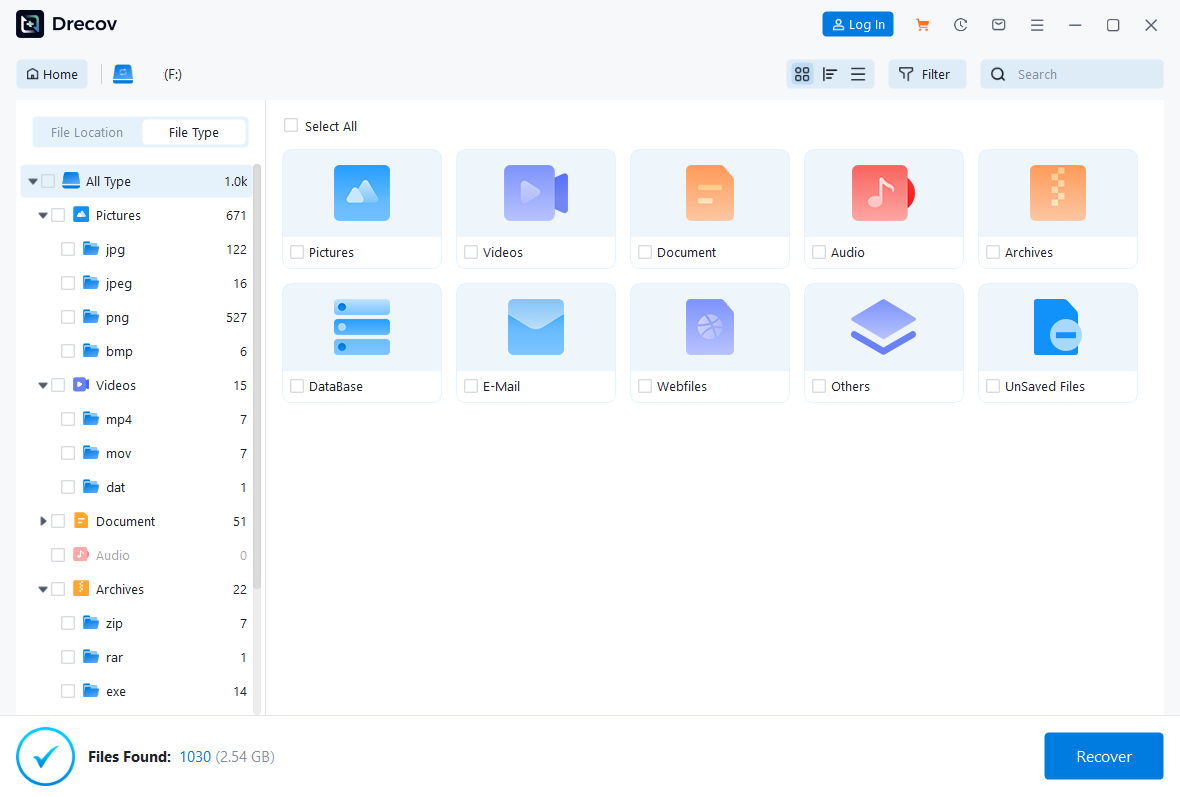
- Step 3: Real-time Filtering. While the scan progresses, use the “File Type” sidebar to select “Pictures.” You don’t have to wait for the full scan to finish if your photos appear early.

- Step 4: Preview and Validate. Double-click any image to open the high-definition preview window. This ensures the file is intact before you proceed.
- Step 5: Secure Export. Select the desired photos and click “Recover.” Always save these files to your computer’s local drive, never back onto the same SD card.
💡 Pro Tip: PandaOffice Drecov features a “Session Save” function. If you have a massive 512GB card, you can pause the scan and resume it later without losing progress.
🎬 Need a Visual Walkthrough?
If you prefer a step-by-step visual demonstration, watch our comprehensive video tutorial below. This 1-minute guide covers everything from connecting your device to the final export, showing you exactly how to recover deleted photos from an sd card using the PandaOffice Drecov interface.
Pros and Cons
- Pros: Exceptional success rate with RAW image formats (CR3, NEF); highly intuitive user interface; superior file preview capabilities.
- Cons: The full version requires a subscription; deep scanning high-capacity cards can be CPU-intensive.
2. Recuva
Developed by the creators of CCleaner, Recuva is a household name in the Windows ecosystem. It remains a top recommendation for those seeking a straightforward answer to how to recover deleted photos from an sd card without a steep learning curve.
Step-by-Step Recovery Guide
- Step 1: The Wizard Mode. Upon launching, the Recuva Wizard will guide you. Select “Pictures” as the file type to streamline the engine.
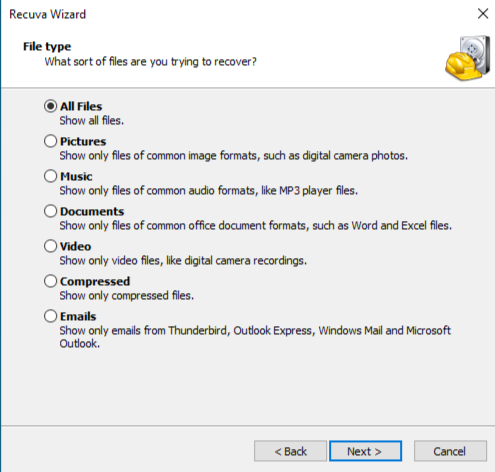
- Step 2: Path Selection. Choose “On my media card or iPod” or specify the exact drive letter of your SD card.
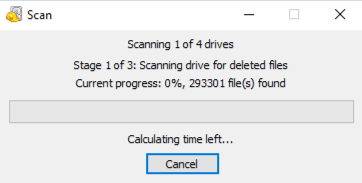
- Step 3: Surface Scan. Click “Start.” Within minutes, a list of files will appear.
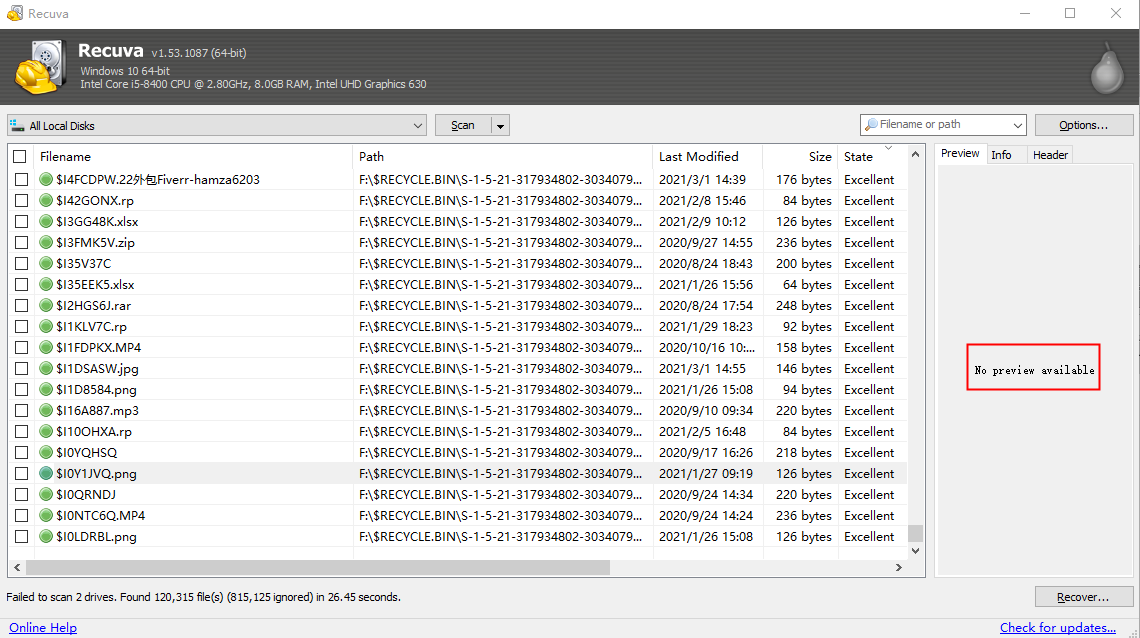
- Step 4: Analyze Health. Recuva uses a traffic-light system. Green indicates excellent health, while red suggests the data is likely overwritten.
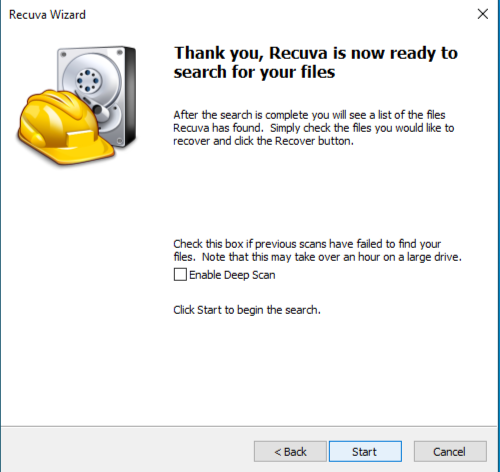
- Step 5: Advanced Mode (If needed). If the initial scan fails, switch to “Advanced Mode” and check “Deep Scan” to perform a more thorough search of the card’s clusters.
⚠️ Warning: Avoid installing Recuva directly onto the drive you wish to recover. Always run the installation on your C: drive to protect the external SD card’s data integrity.
Pros and Cons
- Pros: Completely free for basic recovery; Quick and Deep Scan options; Supports multiple file types
- Cons: Windows only; struggles with severely corrupted “RAW” file systems; limited support for specialized professional video formats.
3. TestDisk
When an SD card becomes “unreadable” or “unallocated,” the problem often lies in the partition table rather than the files themselves. TestDisk is a powerful open-source tool designed to fix these structural issues, effectively teaching you how to recover deleted photos from an sd card by repairing the card’s “map.”
Step-by-Step Recovery Guide
- Step 1: Create Log. Open
testdisk_win.exe. Select “Create” to start a new log file.
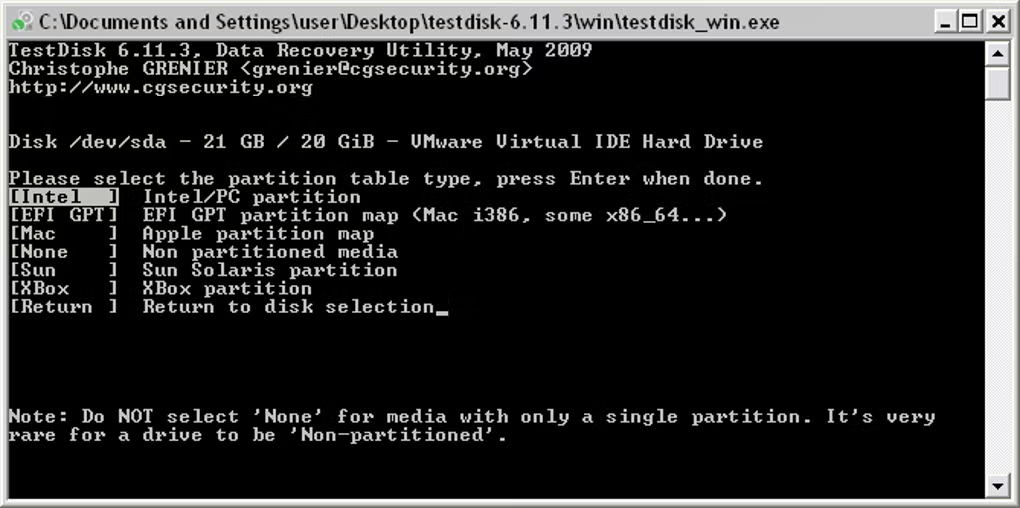
- Step 2: Select Media. Use the arrow keys to select your SD card from the list. Choose the partition table type (usually “Intel” for FAT32 cards).
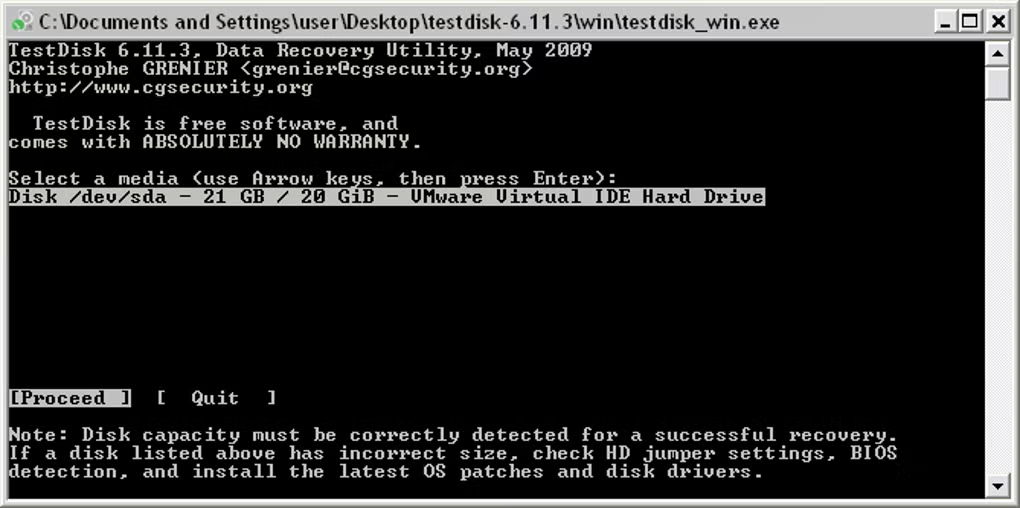
- Step 3: Analyze. Select “Analyse” and then “Quick Search.” TestDisk will look for missing partitions.
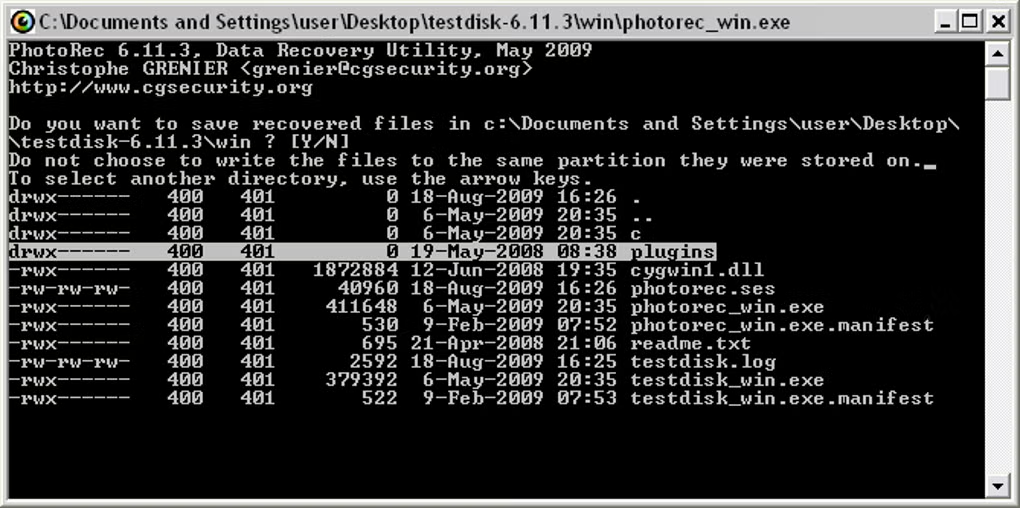
- Step 4: File Navigation. If a partition is found, press “P” to list the files. You can browse through folders to find your deleted photos.
- Step 5: Copy Data. Highlight the photos or folders and press “C” to copy them. You will then need to select a destination on your hard drive to paste them.
Pros and Cons
- Pros: Capable of recovering entire lost partitions; works on almost every operating system (Windows, Mac, Linux)
- Cons: Command-line interface is intimidating for beginners; no image preview; a single wrong command can lead to further data loss.
4. PhotoRec
A companion to TestDisk, PhotoRec ignores the file system entirely and focuses on the underlying data signatures. PhotoRec recovers lost or deleted files from SD cards and other storage devices, including memory cards, USB flash drives, hard drives, and more. It supports micro SD card recovery and SD card recovery of a wide range of file systems like FAT, NTFS, exFAT, ext2/3/4, HFS+, UFS, and others.
Step-by-Step Recovery Guide
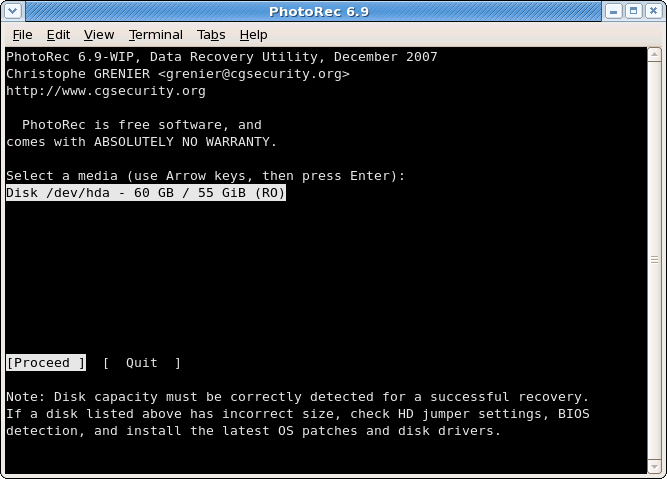
- Step 1: Select Drive. Run
photorec_win.exe. Identify your SD card by its size (e.g., 64GB).
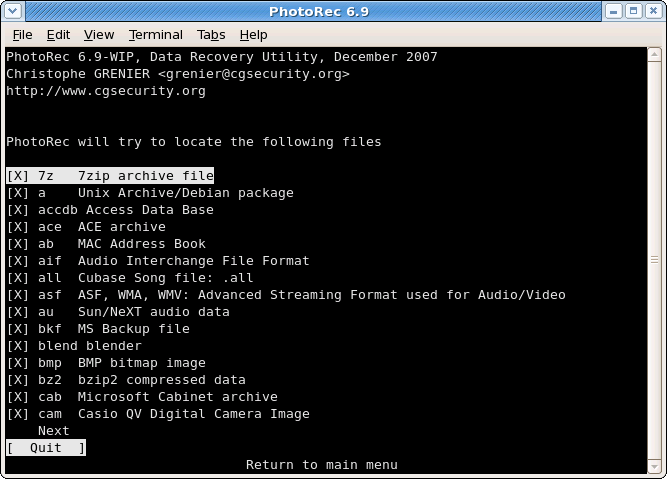
- Step 2: File Opt. Before scanning, go to “File Opt” and ensure the file extensions you need (like .jpg or .png) are selected.
- Step 3: Choose Search Area. Select the “[Whole Disk]” option to ensure every sector is checked, regardless of partition status.
- Step 4: Pick a Destination. PhotoRec will ask where to save the recovered files. Choose a folder on your PC.
- Step 5: The Recovery Marathon. Press “C” to start. PhotoRec will dump everything it finds into the destination folder.
Pros and Cons
- Pros:Free and open source; Bypasses damaged file systems; Supports many file systems
- Cons: No graphical interface; Does not recover original filenames (files will be named
f12345.jpg); can take a very long time; generates a lot of “junk” data along with the photos.
5. Windows File Recovery Tool
Microsoft’s official entry into the recovery market is a robust command-line app. It provides a secure, “built-in” feel for users who are hesitant to download third-party software while researching how to recover deleted photos from an sd card.
Step-by-Step Recovery Guide
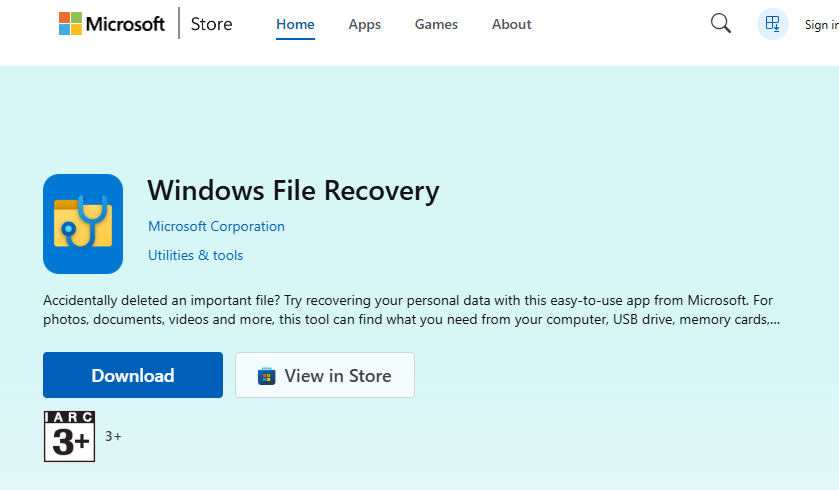
- Step 1: Installation. Download “Windows File Recovery” from the Microsoft Store.
- Step 2: Choose Mode. For SD cards (FAT32/exFAT), you must use the “Extensive” mode.
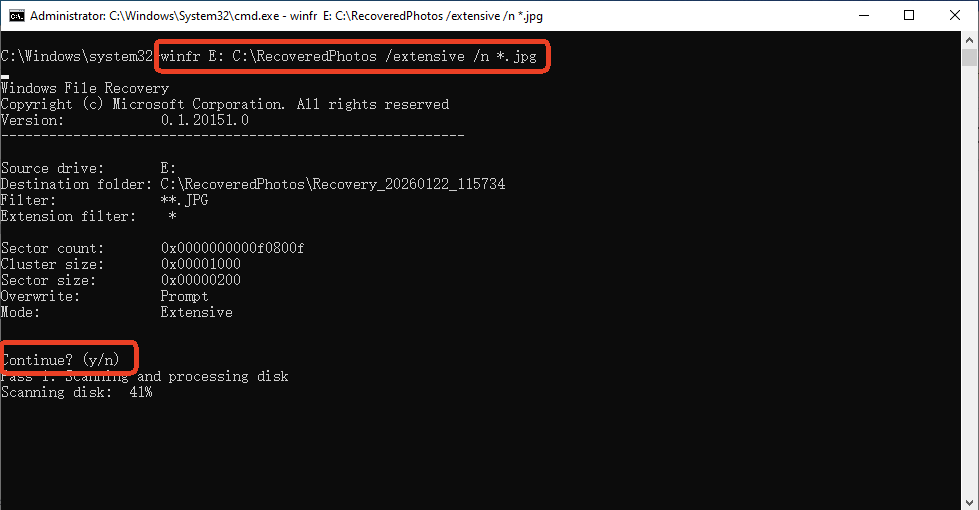
- Step 3: Execute Command. Open the app and type:winfr E: C:\RecoveredPhotos /extensive /n *.jpg(Replace “E:” with your SD card’s drive letter).
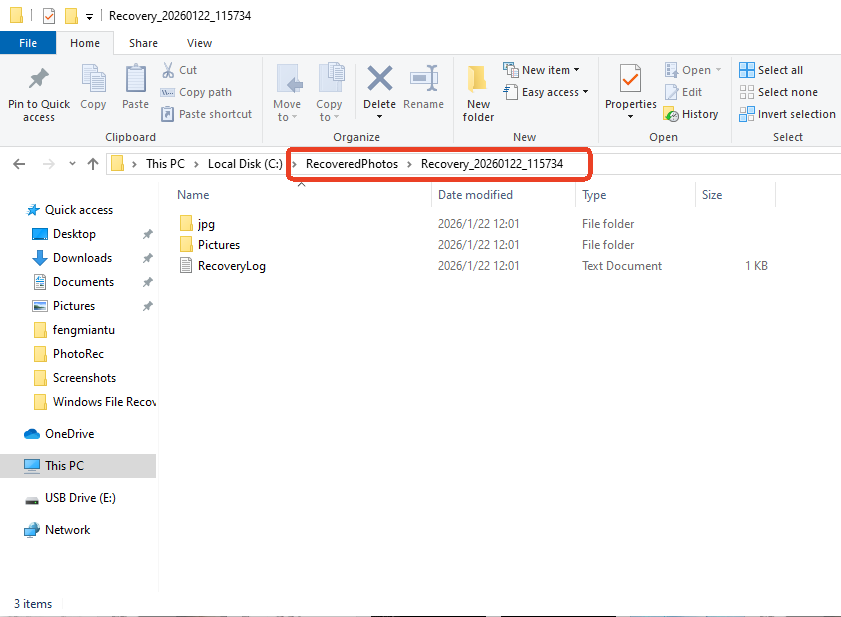
- Step 4: Confirmation. Press “Y” to start the process. The tool will create a recovery folder on your C: drive.
- Step 5: Review. Once finished, the tool automatically opens the destination folder for you to inspect the results.
Pros and Cons
- Pros: Trusted Microsoft product; no ads or upsells; clean and efficient.
- Cons: No graphical interface; requires Windows 10/11; users must manually type paths and extensions.
Comparative Analysis: Which Software Should You Choose?
To simplify your decision on how to recover deleted photos from an sd card, we have compiled a deep comparative table highlighting the strengths and weaknesses of each tool.
| Software | User Interface | Recovery Logic | Best For | Success Rate |
| PandaOffice Drecov | High-End GUI | Signature + File System | All-round professional use | ⭐⭐⭐⭐⭐ |
| Recuva | Simple Wizard | File System Based | Recent accidental deletes | ⭐⭐⭐ |
| TestDisk | Command Line | Partition Repair | Fixing “Card needs formatting” | ⭐⭐⭐⭐ |
| PhotoRec | Command Line | Raw Signature Scan | Severely damaged/Old cards | ⭐⭐⭐⭐⭐ |
| Win File Recovery | Command Line | Windows Native | Users avoiding 3rd party apps | ⭐⭐⭐ |
Conclusion
Mastering how to recover deleted photos from an sd card requires a blend of patience and the right toolkit. While software like Recuva or Windows File Recovery serves well for simple deletions, more complex scenarios involving corruption or formatting demand the raw power of PhotoRec or the polished, high-success algorithms of PandaOffice Drecov.
Key Takeaways for a Successful Recovery:
- Stop writing data to the card the moment you suspect a loss.
- Use a high-quality card reader; a loose connection can cause permanent corruption during a scan.
- Prioritize software with previewing like PandaOffice Drecov to save time and ensure the data is worth saving.
- Always back up your recovered photos to two different physical locations (e.g., your laptop and a cloud drive).
Data loss is stressful, but it doesn’t have to be permanent. By following the structured steps outlined in this guide, you have the best possible chance of reclaiming your digital life.






