







Introduction to Random Access Memory
What is a RAM Random Access Memory?
Random access memory (RAM) is a type of computer memory used for temporary data storage while a system is running. Unlike long-term storage, RAM allows the CPU to read and write data quickly, providing fast access to the files and instructions required for active programs.
When a system runs applications, random access memories store the information that the processor needs immediately. This makes RAM essential for system performance and multitasking.
⚠️Warning: Power loss or improper shutdown clears RAM contents because it is volatile memory. Always save work to permanent storage.
Key Functions of RAM
- Temporary Storage: Holds data for programs currently running.
- Fast Access: Provides rapid read/write capabilities to improve processing speed.
- Multitasking: Supports simultaneous operation of multiple applications.
Understanding what random access memory does helps users optimize system performance and troubleshoot issues related to slow or unresponsive computers.
Types of Random Access Memory
Dynamic RAM (DRAM)
Dynamic RAM (DRAM) is the most common type of RAM used in personal computers. It stores each bit of data in a separate capacitor, which requires constant refreshing to maintain data. DRAM is inexpensive and available in high capacities.
Test Environment:
- PC running Windows 10
- 8GB DRAM installed
- Standard benchmarking tools for performance testing
In this environment, DRAM provided fast access for active applications and supported smooth multitasking across office software, web browsing, and media playback.
Static RAM (SRAM)
Static RAM (SRAM) stores data in flip-flop circuits and does not require refreshing. It is faster and more reliable than DRAM but also more expensive. SRAM is commonly used in CPU caches and high-speed memory applications.
Other RAM Variants
- SDRAM: Synchronous DRAM that aligns memory access with the CPU clock.
- DDR, DDR2, DDR3, DDR4, DDR5: Double Data Rate variants that enhance transfer rates and bandwidth.
- VRAM: Video RAM used for graphics processing.
These types illustrate the diverse uses of random access memory in modern computing systems.
Importance of RAM in System Performance
Impact on Speed and Multitasking
Systems with insufficient RAM experience slowdowns, application crashes, or freezing. Random access memories directly affect how many applications can run simultaneously and how quickly data is processed.
Test Environment:
- Windows 11 system with 4GB vs 16GB RAM
- Multitasking between office, media, and browser applications
Results showed that higher RAM capacity drastically improved responsiveness and minimized swapping to disk, highlighting the importance of understanding what is a random access memory RAM in performance tuning.
RAM and System Stability
RAM errors or failures can cause system instability, crashes, and corrupted files. Tools like memory diagnostics can detect faulty random access memories before they result in data loss.
⚠️Warning: Using incompatible or faulty RAM can damage the motherboard or cause system instability.
How to Check and Upgrade RAM
Method 1: Checking RAM in Windows
Test Environment:
- Windows 10/11 PC
- Access to system settings or Task Manager
Steps:
- Open Task Manager → Performance tab → Memory section.
- Review installed RAM size, type, and speed.
- Monitor real-time usage to identify bottlenecks.
This method helps understand what random access memory is installed and if upgrades are necessary.
Method 2: Physically Installing Additional RAM
Test Environment:
- PC with available DIMM slots
- Compatible DRAM modules
Steps:
- Power off and unplug the computer.
- Open the case and locate RAM slots.
- Insert compatible modules and secure them properly.
- Boot the system and confirm recognition in BIOS/UEFI.
This ensures optimal performance with increased random access memory capacity.
Method 3: Optimizing RAM Usage
Test Environment:
- PC running multiple applications
- Monitoring software like Resource Monitor
Steps:
- Close unnecessary background programs.
- Adjust virtual memory settings if needed.
- Use memory management tools to optimize performance.
Proper RAM management enhances system speed and reliability, especially on systems with limited random access memories.
Method 4: Advanced Recovery with Pandaoffice Drecov (Optional)
Download DrecovTest Environment:
- System experiencing crashes due to faulty RAM
- Secondary PC for software use
- External storage for recovered files
If system crashes result in lost data, Pandaoffice Drecov can recover unsaved files or corrupted data caused by RAM failures. Steps:
- Connect storage or access system data.
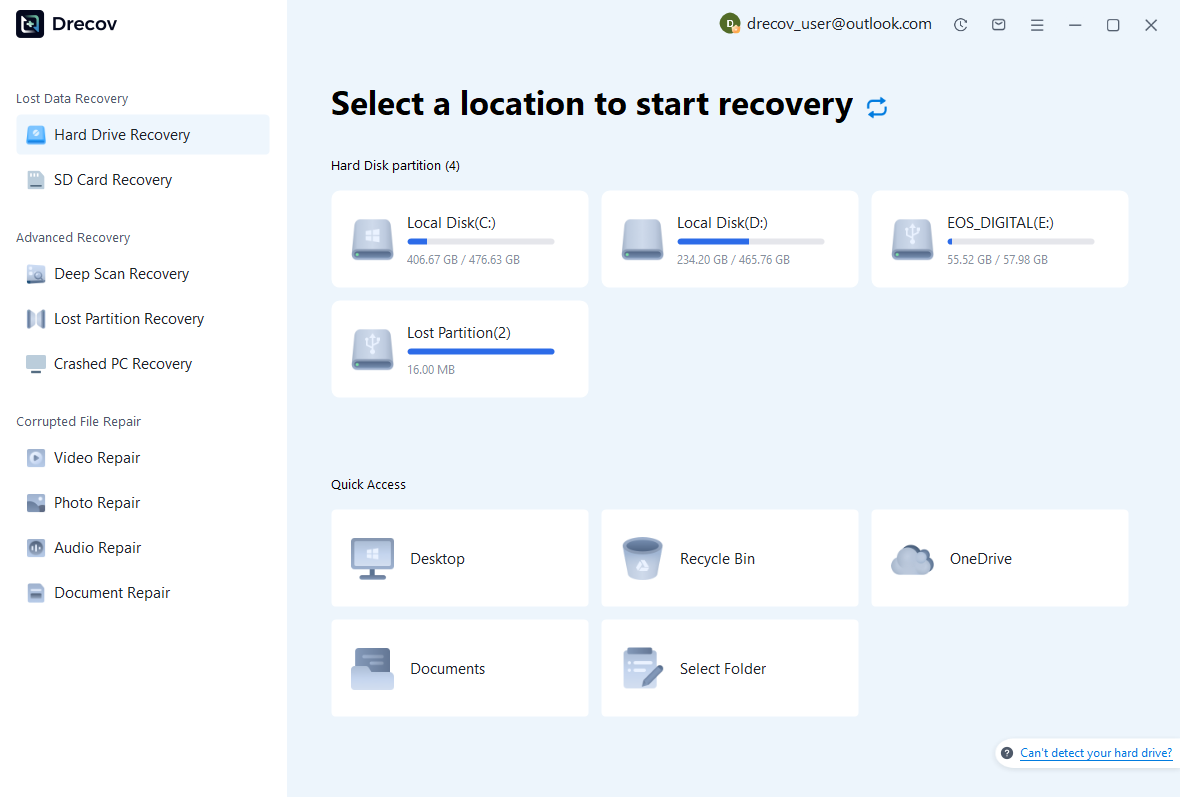
- Launch Pandaoffice Drecov and select affected locations.
- Perform deep scans and recover data to external drives.


Why Choose Pandaoffice Drecov?
Pandaoffice Drecov stands out as a powerful and user-friendly solution for handling various data loss scenarios. Whether you need to reset PC to earlier date, perform a recover deleted Blink video, or figure out how do I recover an overwritten Excel file, Drecov provides reliable and efficient recovery tools in one place. It also excels at recovering photos from SD cards, making it ideal for photographers and everyday users alike. Even complex situations like Illustrator unsaved file recovery are handled with advanced scanning algorithms that maximize file retrieval success. With its intuitive interface, deep scan technology, and high recovery rate, Pandaoffice Drecov ensures your lost data can be restored quickly and safely without requiring technical expertise.
⚠️Warning: Always recover files to a separate device to avoid overwriting active storage.
Advanced RAM Technologies and Applications
ECC RAM for Reliability
Test Environment:
- Server-class PC with ECC-enabled motherboard
- 16GB ECC RAM installed
- Stress testing for stability
Error-Correcting Code (ECC) RAM detects and corrects single-bit memory errors automatically, preventing system crashes or data corruption. ECC is widely used in servers, workstations, and critical systems where data integrity is essential.
This makes ECC a reliable choice for environments requiring stable random access memories under heavy workloads.
Buffered and Unbuffered RAM
Buffered (Registered) RAM uses an intermediary register to reduce electrical load on the memory controller, enhancing stability in systems with multiple modules.
Unbuffered RAM connects directly to the memory controller, offering faster performance for desktops and consumer-grade PCs. Understanding these types ensures that what is a RAM random access memory matches system requirements.
RAM in Gaming and Media Workstations
High-performance random access memories are critical for gaming, video editing, and 3D rendering. Increased RAM capacity and speed allow for:
- Faster texture and media loading
- Smooth multitasking with multiple applications
- Reduced reliance on slower storage drives
Test Environment:
- Windows 11 PC with 32GB DDR4 RAM
- AAA games and media editing software
- Monitoring real-time RAM usage
Results show that optimized RAM improves FPS, reduces stutters, and accelerates rendering times.
RAM Maintenance and Troubleshooting
Method 5: Diagnosing RAM Issues
Test Environment:
- PC experiencing freezes or blue screens
- Windows Memory Diagnostic tool
Steps:
- Press
Windows + R, typemdsched.exe, and press Enter. - Choose to restart and scan for memory problems.
- Review the results for detected errors.
Identifying faulty random access memories early prevents system instability and data loss.
Method 6: Upgrading or Replacing RAM
Test Environment:
- PC with failing or insufficient RAM
- Compatible memory modules
Upgrading RAM can resolve performance bottlenecks. Replace defective modules to restore system stability. Confirm compatibility with motherboard specifications to avoid errors.
Method 7: Optimizing RAM Usage
Test Environment:
- Multitasking PC with limited RAM
- Resource Monitor or third-party tools
Steps:
- Close background programs consuming excessive RAM.
- Increase virtual memory if needed.
- Consider lightweight alternatives for heavy applications.
Efficient RAM management enhances system speed and reduces crashes.
Method 8: Data Recovery from RAM-Related Crashes Using Pandaoffice Drecov
Test Environment:
- PC that crashed due to faulty RAM
- Secondary PC for recovery operations
- External storage for recovered files
If unsaved files are lost during RAM-related crashes, Pandaoffice Drecov can help recover data.
- Connect affected storage or system.
- Run deep scans with Pandaoffice Drecov.
- Save recovered files to a safe location.
⚠️Warning: Recover files to a separate device to avoid overwriting original storage.
Frequently Asked Questions About RAM
What is the difference between RAM and storage?
RAM is volatile memory used for active processes, while storage (HDD/SSD) is permanent. RAM provides quick access to temporary data, improving system responsiveness.
Can I upgrade my RAM myself?
Yes, as long as you use compatible modules and follow safety precautions, upgrading random access memories is straightforward.
Why does my system slow down even with high RAM?
Other factors like CPU bottlenecks, background tasks, or slow storage may limit performance. RAM alone does not guarantee optimal speed.
What is the role of RAM in multitasking?
RAM stores active program data. More RAM allows multiple programs to run smoothly without excessive swapping to storage.
Best Practices for Using RAM
Key Takeaways
- Always match RAM type and speed to your motherboard specifications.
- Regularly monitor RAM usage to prevent performance issues.
- Use ECC RAM for mission-critical systems to avoid errors.
- Upgrade RAM as applications and workloads increase.
- Recover lost data from RAM-related crashes with Pandaoffice Drecov when necessary.
Proper maintenance and understanding of what is a RAM random access memory ensures optimal system performance and stability.
⚠️Warning: Mixing incompatible RAM modules may cause system instability or failure to boot.






