







Managing modern AI agents requires more than just knowing how to install them; you must also master the art of the clean exit. If you are reading this, you are likely looking for the most effective way to perform an openclaw delete directory operation while ensuring your system remains secure and clutter-free. OpenClaw is a powerful tool, but its deep integration into your operating system means that a simple “delete” key press rarely finishes the job.
In this comprehensive guide, we will explore the intricate file structure of OpenClaw, the security implications of leftover data, and the precise commands needed for a total wipe. Furthermore, we will delve into professional data recovery methods using tools like PandaOffice Drecov, just in case you accidentally remove a directory you actually needed.
Understanding OpenClaw and Its File Structure
What Is OpenClaw?
OpenClaw is a rapidly growing open-source AI agent designed to automate tasks, integrate with various applications, and act like a personal assistant running directly on your machine. It connects to services like messaging apps, APIs, and local system tools, which makes it incredibly powerful. However, this power also makes it potentially risky if you do not handle the software properly during removal.
You can think of OpenClaw like a digital octopus with tentacles reaching into different parts of your system. It can read files, write data, execute commands, and even interact with external services. That flexibility is exactly why users love it, but it is also why performing an openclaw delete directory task incorrectly can leave behind sensitive data. When you install the agent, it creates multiple directories to store configurations, logs, memory files, and cached data. These directories often sit quietly in your system, especially under hidden folders like ~/.openclaw. Many users assume uninstalling the tool removes everything, but that is rarely the case in complex AI environments.
Where OpenClaw Stores Its Data
To perform a successful openclaw delete directory operation, you must first know where the “octopus” has hidden its ink. OpenClaw primarily stores data in local directories, most commonly:
~/.openclaw(The main configuration and storage hub)~/.openclaw/workspace(Where active tasks and temporary files live)- Legacy folders like
~/.clawdbot(Used in older versions or specific forks)
These folders contain everything from conversation memory to API tokens and task queues. Imagine uninstalling an app but leaving behind its diary, passwords, and activity logs—that is essentially what happens if you do not delete these directories manually. The files persist even after the CLI tool is gone, which means sensitive information can still exist on your machine. Understanding these locations is the first step toward a clean system and effective data recovery planning.
Why You Need to Delete OpenClaw Directories Properly
Security Risks of Leftover Files
Here is the uncomfortable truth: uninstalling OpenClaw alone does not fully remove its footprint. Residual files can still contain API keys, OAuth tokens, chat history, and system-level permissions. Security researchers frequently find that leftover directories hold sensitive configurations even after the main software is gone. If a malicious actor gains access to your machine, or if malware scans your home folder, those leftover openclaw delete directory candidates could become a goldmine of information.
Hidden Data You Might Miss
The tricky part of this process is that many of these directories remain hidden from the average user. On Linux and macOS systems, any folder starting with a dot (.) is invisible unless you explicitly toggle hidden files. Even if you think everything is gone, there is a high probability that data still exists in hidden config folders, temporary directories, or custom paths. It is like cleaning your room but forgetting what is under the bed—everything looks tidy until you dig deeper and find the mess.
OpenClaw Delete Directory Commands Explained
Default Directory Locations
Before you start running commands, you need to verify the targets. On most Unix-like systems, you should check the following:
- Home Directory:
/home/username/.openclaw - Application Support (macOS):
~/Library/Application Support/OpenClaw - Local Binaries:
/usr/local/bin/openclaw
Core Deletion Command (rm -rf)
The primary weapon for an openclaw delete directory task is the rm -rf command. This command stands for “remove” with the “recursive” and “force” flags.
- -r (recursive): Deletes the directory and every file or sub-folder inside it.
- -f (force): Ignores nonexistent files and never prompts for confirmation.
Example Commands for Linux/macOS
Open your terminal and execute the following to ensure total removal:
rm -rf ~/.openclaw
rm -rf ~/.openclaw/workspace
rm -rf ~/.clawdbot
Please be extremely careful. The rm -rf command is like a bulldozer; it is incredibly effective, but you must ensure you are demolishing the right building. If you accidentally delete the wrong path, you will need to pivot immediately to data recovery strategies.
Step-by-Step Guide to Delete OpenClaw Directory
Following a structured approach ensures that you don’t miss any dependencies. Here is the safest workflow:
- Step 1: Uninstall OpenClaw. Start by removing the main application via its built-in uninstaller. This helps stop active background processes that might lock files. Use the command:
openclaw uninstall --all --yes --non-interactive
This stops services, removes binaries, and deletes core files. However, remember that this step alone is rarely enough to clear user data.
- Step 2: Locate Remaining Directories. Next, check for leftover directories by listing all files in your home folder, including hidden ones:
ls -a ~
Look specifically for .openclaw or .clawdbot. If you want to be thorough, use the find command:
find ~ -name "*openclaw*"
This helps uncover any directories that might have been missed by the standard uninstaller.
- Step 3: Delete Directories Manually. Once identified, remove them using the manual command:
rm -rf ~/.openclaw
If you used custom paths during your initial setup, you must target those specifically as well. This step ensures the complete removal of all stored data and configurations.
Recovering Accidentally Deleted Data with PandaOffice Drecov
Sometimes, in the heat of a system cleanup, we get a little too aggressive with the rm -rf command. If you performed an openclaw delete directory operation only to realize you deleted a folder containing critical work files or unique AI training data, do not panic. Data recovery is possible if you act quickly.
PandaOffice Drecov is a professional-grade recovery tool designed to retrieve lost partitions, deleted directories, and formatted data. It is particularly effective for recovering files deleted from the command line, as those do not go to the Recycle Bin or Trash.
⚠ Warning: Install the software on a different drive than the one where the data was lost. If you lost data on your C: drive, install Drecov on an external USB or a D: drive to prevent overwriting the deleted sectors.
Step 1: Select the Target Location
Launch the program. You will see a list of available drives and partitions. Select the drive where your OpenClaw directory used to reside (usually the System or Home drive). Click “Start Scan”.

Step 2: Use the Deep Scan Feature
While a quick scan finds recently deleted files, a Deep Scan is better for directory structures removed via terminal commands. Let the scan reach 100%. You can filter the results by searching for “openclaw” or the specific file extensions you lost (e.g., .json, .log, .py).
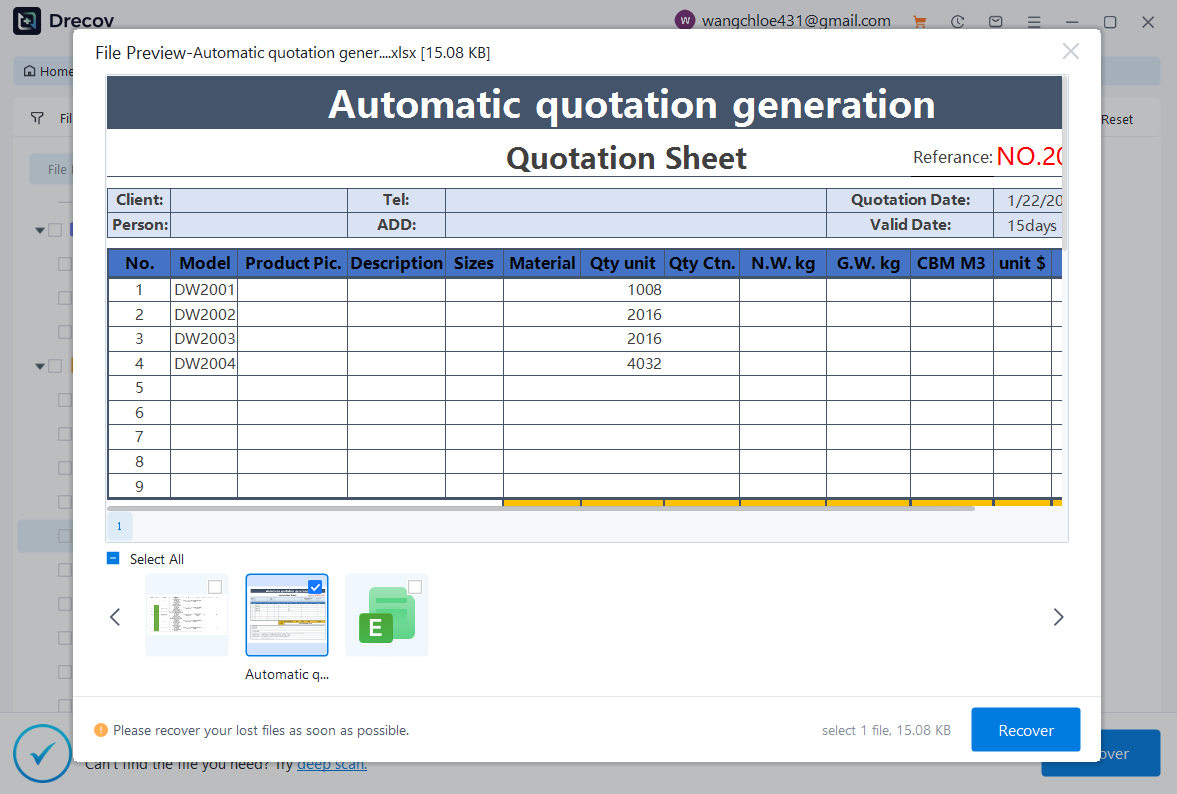
Step 3: Preview and Recover
PandaOffice Drecov allows you to preview files before committing to the recovery. This ensures the data is intact. Select the files or the entire folder you wish to restore and click “Recover”.
Warning prompt: Always save the recovered files to a new, safe location to ensure the integrity of the data.
After successfully restoring your files, you might find these guides helpful for maintaining your system:
- How to restore computer to an earlier date on Windows
- How to disable a folder from OneDrive and recover lost files
- Where is the Firefox bookmarks location to find your data
- 2026 Guide: How to download video from browser Firefox
Handling Custom Config Paths
Using OPENCLAW_CONFIG_PATH
Advanced users often redirect OpenClaw’s hunger for data to custom drives or folders. This is typically done by setting the OPENCLAW_CONFIG_PATH environment variable. If you used this configuration, the standard openclaw delete directory commands targeting ~/.openclaw will miss the actual data.
Removing Custom Directories
To find where your data is hiding, check the variable in your terminal:
echo $OPENCLAW_CONFIG_PATH
If the command returns a path, you must delete that specific directory:
rm -rf "$OPENCLAW_CONFIG_PATH"
Afterward, remember to open your .bashrc or .zshrc file and remove the line that exports this variable. This prevents the system from looking for a directory that no longer exists.
Common Mistakes When Deleting OpenClaw Files
Forgetting Hidden Directories
The most frequent error is simply dragging the application icon to the trash. This leaves the hidden configuration folders intact. Since these folders are prefixed with a dot, they remain invisible in standard file explorers unless you enable “Show Hidden Files.” Always verify with ls -a.
Partial Uninstall Issues
If you installed OpenClaw via a package manager like npm or pip, running npm uninstall -g openclaw only removes the execution binary. It does not touch the user data folders. It is like removing the front door of a house but leaving the entire structure and its contents standing. You must follow up with manual directory removal.
Advanced Cleanup Techniques
Removing Workspace and Cache
OpenClaw often generates a “workspace” where it stores downloaded files, temporary scripts, and agent logs. This folder can grow significantly over time. To reclaim disk space, you should specifically target the workspace:
rm -rf ~/.openclaw/workspace
This is a safer “middle ground” if you want to keep your settings but clear out the bulky temporary data.
Cleaning Environment Variables
After an openclaw delete directory task, your system might still have references to the old software. Check your shell configuration files:
~/.bashrc~/.zshrc~/.bash_profileLook for any lines containing “openclaw” and delete them. Finally, reload your shell by typingsource ~/.bashrcto apply the changes.
Security Best Practices After Deletion
Revoking API Keys
Even after the directories are gone, your digital identity might still be linked to OpenClaw’s services. If you used OpenAI, Anthropic, or Google Cloud keys within the agent, you should log into those platforms and revoke or rotate your API keys. This ensures that even if someone recovered your deleted config files, the keys inside would be useless.
Logging Out of Connected Services
OpenClaw often uses OAuth to connect to Slack, Discord, or Gmail. Navigate to the security settings of these accounts and remove “OpenClaw” from the list of authorized applications. This provides a final layer of security, ensuring no third-party “tentacles” remain attached to your accounts.
Comparison Table: Automatic vs. Manual Cleanup
| Feature | Automatic Uninstall | Manual Directory Deletion |
| Removes CLI Binary | Yes | No |
| Deletes Config Files | Partial | Yes (Complete) |
| Removes Hidden Folders | No | Yes |
| Clears Custom Paths | No | Yes |
| Revokes API Access | No | No (Requires Manual Action) |
Openclaw Delete Directory FAQs
1. What is the main OpenClaw directory to delete?
The primary directory is usually ~/.openclaw in your home folder. It stores configurations, memory, and database files.
2. Does uninstalling OpenClaw remove all files?
No, most package managers only remove the executable. You must manually delete the data folders to ensure a total cleanup.
3. Is it safe to use rm -rf for deletion?
It is safe if you double-check the path. However, it is permanent. If you make a mistake, use data recovery software like PandaOffice Drecov immediately.
4. How do I find hidden OpenClaw files?
In the terminal, use the ls -a command to see files starting with a dot. In macOS Finder, press Cmd + Shift + . to toggle hidden files.
5. Do I need to revoke API keys after deletion?
Yes. Since API keys are stored in plain text or lightly encrypted logs within the directories, revoking them is a critical security best practice.
Conclusion
Mastering the openclaw delete directory process is about more than just freeing up space; it is about maintaining system hygiene and protecting your private data. By following the step-by-step guide provided, you can ensure that no “tentacles” are left behind to compromise your security.
However, we are all human, and accidental deletions happen. Whether you wiped the wrong folder or realized you needed a configuration file after it was gone, professional data recovery tools like PandaOffice Drecov offer a reliable safety net. By acting quickly and avoiding overwriting the drive, you can restore your lost directories and continue your work without stress. Always remember: in the world of AI agents, a clean system is a secure system.






