







Has your computer suddenly stopped recognizing your thumb drive? If you are staring at an error message or a blank drive icon, you likely need to fix usb flash memory issues that have cropped up due to software glitches or file system corruption. Data loss feels like a digital disaster, but in the world of professional data recovery, most “broken” drives are actually just “confused.”
In this comprehensive guide, we will explore the professional techniques used to fix usb flash memory, restore lost partitions, and use advanced usb flash memory recovery programs to get your files back. Whether you are dealing with a write-protected drive or a “disk not formatted” error, these steps will lead you toward a functional device.
Understanding USB Flash Memory Problems
USB flash drives are tiny, powerful storage devices that we carry everywhere—on keychains, in backpacks, and even forgotten in laptop ports. Yet despite their convenience, they are not indestructible. If your usb flash memory is not recognized, showing errors, or refusing to open files, you are not alone. These small storage tools are prone to logical corruption, physical wear, improper ejection damage, and even malware infections.
Think of a USB drive like a small digital warehouse. If the inventory system (the file system) gets damaged, the items inside may still exist, but you cannot access them properly. Sometimes the warehouse door does not open at all. Other times, it opens but everything inside looks scrambled. The good news is that most USB problems are software-related, not hardware-related. That means there is a strong chance you can fix usb flash memory without buying a new one. The key involves identifying the exact problem before jumping into repairs.
Common Symptoms of a Corrupted USB Drive
When a USB flash drive fails, it rarely stays silent. It usually gives warning signs that indicate you need to fix usb storage settings or repair the file structure. You might see messages like “USB device not recognized,” “You need to format the disk before using it,” or “Access denied.” These are often tied to hardware communication issues that Microsoft details in their official guide on USB troubleshooting.
Another common issue is extremely slow file transfer speeds. What used to take seconds now takes minutes. Files may suddenly disappear even though the used storage space remains occupied. This is a classic symptom of file system corruption. In more severe cases, the USB drive becomes write-protected without you enabling it. These signs help you narrow down whether the issue is logical corruption, driver malfunction, or possible physical damage.
Why USB Flash Drives Fail
USB flash drives rely on NAND flash memory, which has a limited number of write and erase cycles. Over time, repeated usage wears down memory cells. Imagine rewriting the same notebook page thousands of times—the paper eventually degrades. The same concept applies to flash memory.
Improper ejection is another major culprit. Removing a USB drive without using the “Safely Remove Hardware” option can interrupt data writing processes. Malware infections also play a role, especially when USB drives are frequently used on public or shared computers. Power surges, outdated drivers, and file system mismatches (like switching between Windows and macOS without proper formatting) can all contribute to failure. Understanding the cause helps you choose the right repair method instead of guessing.
First Things to Do Before Fixing a USB Drive
Before diving into command prompts and formatting tools, pause for a moment. Many USB problems have simple solutions that do not require complex software. Rushing into formatting could erase recoverable data that you might need later. Take a breath and follow a systematic approach to fix usb flash memory safely.
Start by checking whether the issue lies with the USB drive itself or the computer hardware. Plug the flash drive into another port. If that does not work, try another computer entirely. Sometimes the problem isn’t your usb flash memory at all—it is a faulty port or an outdated system driver on your primary PC. Testing across multiple devices isolates the root cause quickly and saves time.
Check Physical Damage
Inspect the USB connector carefully. Is it bent? Is the metal housing loose? Physical damage can prevent proper contact between the drive and the port pins. If the connector wiggles excessively, internal solder joints may be broken. In such cases, software solutions won’t help you fix usb flash memory; you might need a hardware technician.
Also, check for overheating. If your USB flash drive becomes unusually hot to the touch within seconds of plugging it in, that is a major red flag for a short circuit. Physical damage often requires professional data recovery services, which can be expensive. If you notice cracks or internal rattling, avoid repeated insertions as that could worsen the damage to the NAND chip.
Try Different Ports and Devices
USB ports fail more often than people realize. Dust, wear, or internal motherboard issues can cause connection failures. Plug the flash drive into multiple USB ports—specifically try the rear ports on a desktop computer, as they are soldered directly to the motherboard and provide more stable power than front-panel ports.
Testing on another computer determines whether the issue is system-related. If the drive works elsewhere, your operating system may need driver updates or configuration adjustments. This simple step can save hours of unnecessary troubleshooting and is the easiest way to fix usb storage visibility issues.
Fix USB Flash Memory Not Recognized
One of the most common complaints is that the USB flash drive doesn’t appear in “This PC” at all. Do not panic yet. The system may detect the hardware without assigning a drive letter, making it “invisible” to the user interface.
Update or Reinstall USB Drivers
Outdated or corrupted drivers can prevent proper USB detection. To fix this, follow these steps:
- 1. Right-click the Start button and select Device Manager.
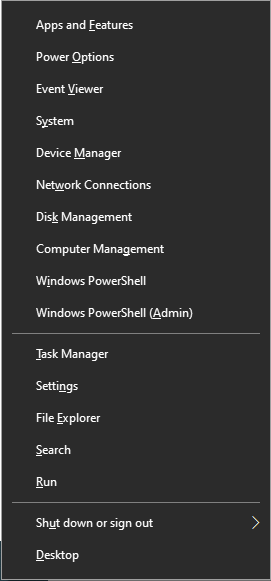
- 2. Expand the Universal Serial Bus controllers section.
- 3. Look for any entry with a yellow warning icon or labeled “Unknown USB Device.”
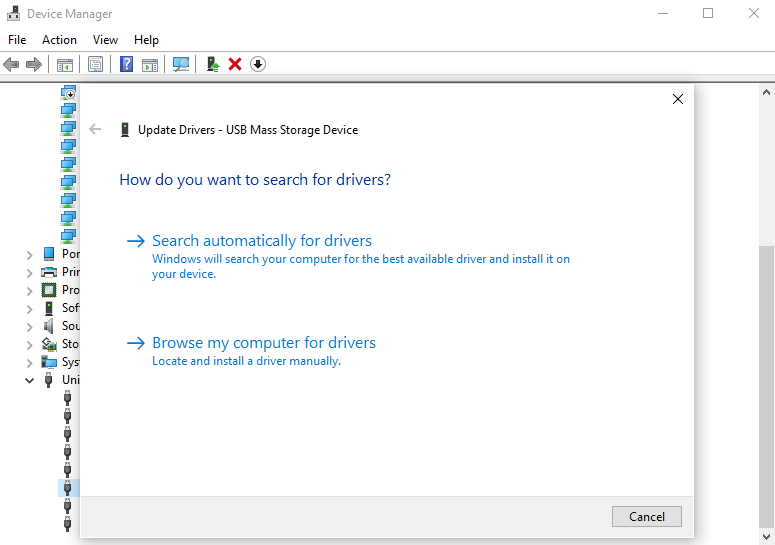
- 4. Right-click it and select Update driver, then choose “Search automatically for drivers.”
If updating does not help, right-click the device and select Uninstall device. Once the process finishes, unplug the USB drive and restart your computer. When you plug the drive back in, Windows will automatically reinstall fresh drivers. This often resolves detection issues caused by software conflicts or incomplete driver installations.
Use Disk Management to Assign a Drive Letter
Sometimes the USB drive appears in the backend system but lacks a “name” or letter. Without a letter (like D: or E:), Windows won’t show it in File Explorer.
- 1. Press Windows Key + X and select Disk Management.
- 2. Locate your USB drive in the list (it usually shows up as “Removable”).
- 3. If it shows “Unallocated” or has no letter, right-click the partition block.
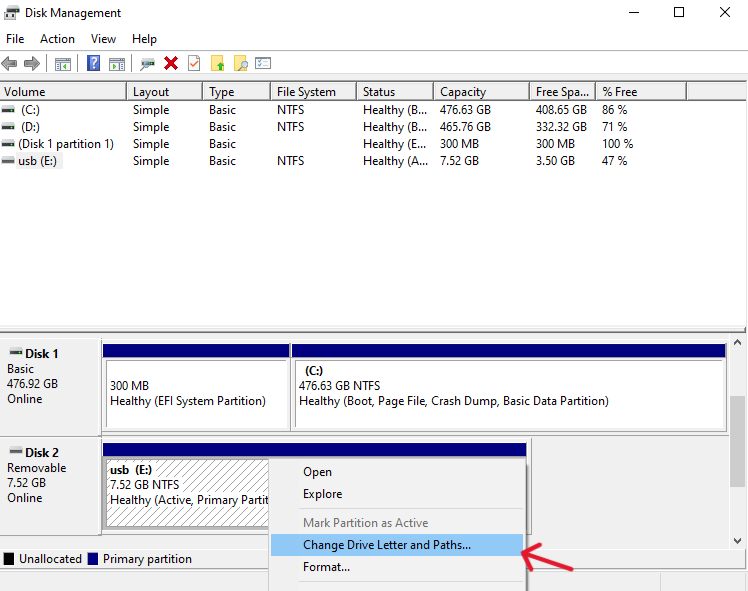
- 4. Choose Change Drive Letter and Paths….
- 5. Click Add, select a letter, and click OK.
Instantly, the drive should become visible in your folders. It is like giving your house a street address—without it, no one knows where to find the data.
Repair Corrupted USB Flash Memory
If your USB asks to be formatted before use, or if you see a “File system is RAW” error, the internal index is likely corrupted. You can often fix usb flash memory errors like these using built-in Windows repair tools.
Run CHKDSK to Fix File System Errors
The CHKDSK (Check Disk) command scans and repairs logical file system errors without necessarily deleting your files.
- 1. Type cmd in the Windows search bar, right-click Command Prompt, and select Run as administrator.
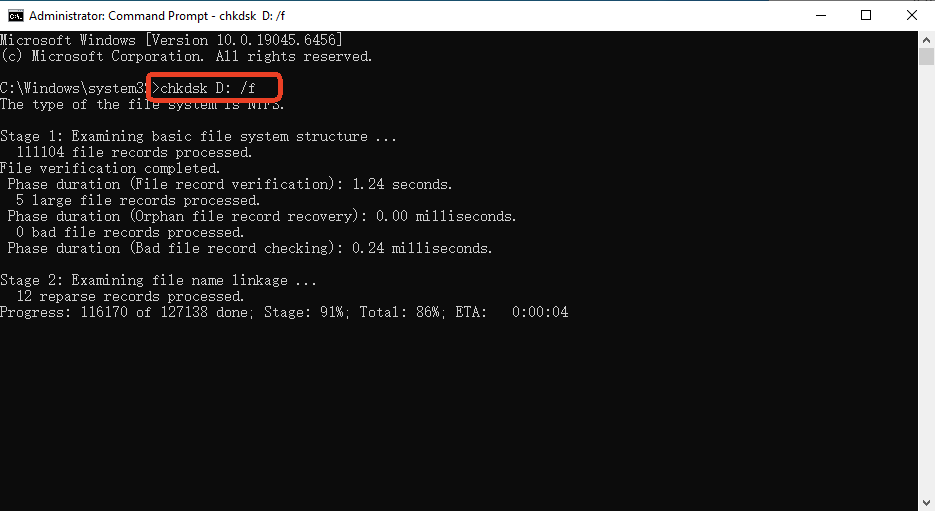
- 2. In the black window, type the following command:
chkdsk X: /f /r(Note: Replace X with the actual letter of your USB drive). - 3. Press Enter.
The /f parameter tells the tool to fix errors, while /r tells it to locate bad sectors and recover readable information. This command checks the integrity of the file system and attempts recovery. It may take several minutes depending on the drive size and damage level. CHKDSK often restores accessibility and is a primary way to fix usb storage problems.
Format the USB Flash Drive
If the repair fails and you have already backed up your data (or decided the data isn’t worth saving), formatting is the most effective way to fix usb flash memory functionality. Formatting erases all data but restores file system integrity.
| File System | Best For | Max File Size | Compatibility |
| FAT32 | Small drives/Old devices | 4GB | Universal (Consoles, TVs, Cars) |
| exFAT | Modern USB drives | No limit | Windows, macOS, Linux |
| NTFS | Windows-only systems | No limit | Best for Windows internal use |
To format, right-click your drive in File Explorer, select Format, choose exFAT for modern compatibility, and click Start. This is like resetting your phone—it clears corruption but removes all stored content.
Fix USB Flash Memory Showing Wrong Capacity
Have you ever noticed that your 64GB drive suddenly only shows 2MB of space? This usually happens after creating a bootable Linux drive or if a partition table becomes damaged. To fix usb flash memory capacity issues, you need to use the Diskpart utility.
Use Diskpart to Clean and Repartition
This process will wipe the drive completely, so ensure you have no important files left on it.
- Open Command Prompt as administrator.
- Type
diskpartand press Enter. - Type
list diskto see all connected drives. Identify your USB (look at the size). - Type
select disk X(Replace X with your USB’s disk number—be extremely careful here!). - Type
cleanto remove all partition information. - Type
create partition primary. - Type
format fs=exfat quick. - Type
exit.
The clean command is powerful because it removes hidden partitions that Windows Disk Management sometimes cannot see. This is a “factory reset” for the drive’s structure.
Recover Data from a Damaged USB Flash Drive
If your files are critical and the drive is showing as “RAW” or “Inaccessible,” do not format it yet! You need to use professional usb flash memory recovery programs. One of the most effective tools for this task is PandaOffice Drecov.
Use Data Recovery Software: PandaOffice Drecov
PandaOffice Drecov is designed to bypass the Windows file system and read the raw data directly from the NAND flash chips. This allows it to find files even when the drive tells you it is empty.
⚠ Warning: Install it on a drive different from the one where your data was lost to prevent overwriting.
- Step 1: Connect and Select. Plug in your problematic USB drive. Open PandaOffice Drecov and select the USB drive from the list of external devices.

- Step 2: Deep Scan. Click the Scan button. The software will perform a “Quick Scan” followed by a “Deep Scan.” The Deep Scan looks for file signatures (like .jpg or .docx) even if the file names are lost.

- Step 3: Preview and Filter. Once the scan is complete, use the sidebar to filter by file type. You can double-click images or documents to preview them before recovery.

- Step 4: Recover. Select the files you want to keep and click Recover.
Warning: Always save your recovered files to your computer’s hard drive or a different cloud storage—never save them back to the corrupted USB drive, as this will overwrite other lost data.
Using professional usb flash memory recovery programs like Drecov significantly increases your chances of success compared to free, basic tools.
Fix Write-Protected USB Flash Memory
Write protection is a security feature that prevents any data from being deleted or written to the drive. Sometimes this triggers accidentally due to a registry error or a physical switch.
Remove Write Protection via Registry or CMD
If your drive has a physical “Lock” switch on the side, ensure it is in the “Unlock” position. If there is no switch, try the Command Prompt method:
- 1. Open CMD as administrator.
- 2. Type
diskpart, thenlist disk, thenselect disk X(your USB). - 3. Type
attributes disk clear readonly.
If this does not work, you can check the Windows Registry:
- Press Win + R, type
regedit, and hit Enter. - Navigate to:
HKEY_LOCAL_MACHINE\SYSTEM\CurrentControlSet\Control\StorageDevicePolicies. - Find the WriteProtect key, double-click it, and change the value to 0.
Note: If the “StorageDevicePolicies” folder doesn’t exist, you may need to create it.
Prevent USB Flash Memory Problems in the Future
Once you successfully fix usb flash memory issues, your goal should be to ensure they never happen again. Most USB failures are preventable with better habits.
Safe Removal Practices
We all tend to yank a USB drive out as soon as we finish our work. However, Windows often performs ‘cached writes,’ which means the system tells you it saved a file while it actually still finishes the background transfer. Always click the ‘Safely Remove Hardware’ icon in the system tray. This action ensures the OS ceases all communication with the flash memory, preventing file system corruption.
Regular Backups and Maintenance
A USB flash drive should be treated as a vehicle for moving data, not a permanent home for it.
- Sync to Cloud: Use services like Google Drive or OneDrive to keep a copy of your USB’s contents.
- Antivirus Scans: Run a scan every time you plug your drive into a public computer (like at a library or print shop).
- Check Integrity: Every few months, run a quick
chkdskto ensure no errors are accumulating.
More USB Flash Data Recovery Tips
If you have managed to fix usb flash memory issues but still want to optimize your drive for the future, check out these specialized guides:
- Format for Compatibility: Learn how to format USB to FAT32: The ultimate 128GB fix for 2026 to ensure your drive works on every device you own.
- Find Missing Files: If your drive looks empty but the space is taken, discover how to show hidden files on USB via CMD in seconds.
- Security First: If your files were replaced by shortcuts, read about how to defeat a USB virus and reclaim your files.
When to Replace Your USB Flash Drive
If you have tried to fix usb flash memory using all the methods above and the drive continues to disconnect, overheat, or show “I/O Device Error,” it is time to retire it. Flash memory has a lifespan. Continuing to use a failing drive is like driving a car with a cracked engine block—it’s only a matter of time before it leaves you stranded.
Modern USB 3.2 drives are very affordable. Replacing a $15 drive is much cheaper and less stressful than spending days trying to recover data from a dead chip. Think of it like replacing worn tires—you don’t wait for a blowout on the highway.
USB Flash Drive Repair FAQs
1. Can a physically damaged USB flash drive be repaired?
Physical damage, such as a snapped connector, usually requires professional micro-soldering. DIY fixes are risky and rarely work for internal chip damage.
2. Does formatting fix all USB problems?
Formatting fixes almost all software-based file system corruption, but it will not fix hardware wear or a dead NAND controller.
3. Why does my USB keep disconnecting and reconnecting?
This is often a sign of an unstable power supply from the USB port, a loose physical connection, or “dying” flash cells that the controller is struggling to read.
4. Is CHKDSK safe to use on my files?
Yes, it is generally safe. However, if the drive is severely corrupted, CHKDSK might move “unreadable” file fragments into a hidden folder, making them hard to find without recovery software.
5. How long do USB flash drives typically last?
Most high-quality drives last between 3 to 10 years, depending on how often you write and erase data.
Conclusion
To fix usb flash memory is not a task reserved only for IT professionals. By understanding the difference between logical corruption and physical failure, you can use tools like Disk Management, CHKDSK, and PandaOffice Drecov to reclaim your digital life. Start with the simplest checks, move to system repairs, and only use formatting as a last resort. Treat your USB drive with care, back up your critical files, and always practice safe removal. With the right approach, most USB problems are repairable without spending a cent.






