







The sun was dipping below the horizon in Santorini, painting the white-washed walls in hues of gold and violet. Sarah, an avid travel blogger, had just captured the “perfect” shot—a frame she intended to lead her next viral post. But as she tapped the playback button on her camera, the screen flickered and displayed a chilling message: “Memory Card Error. Please Format Card.” Her heart dropped. On that tiny sliver of plastic were three weeks of irreplaceable memories, from the bustling markets of Istanbul to the quiet peaks of the Alps. Like many of us, Sarah faced the ultimate digital nightmare. She hadn’t backed up her files yet. Her first instinct was to panic, thinking her photos were gone forever. However, what Sarah didn’t know—and what you are about to learn—is that micro sd card recovery is not just possible; it is often highly successful if you follow the right steps.
This guide serves as your comprehensive roadmap to understanding the science of data retrieval and mastering the art of micro sd card recovery. Whether you accidentally hit “Delete All” or your card has seemingly “died,” we will explore the tools and techniques that can bring your digital life back from the brink.
Part 1: The Magic Behind the Curtain—How Data Recovery Works
Before we dive into the “how,” we must understand the “why.” How can a computer find something that you supposedly deleted? To understand micro sd card recovery, think of your Micro SD card as a massive library.
The Library Metaphor
Imagine a library with thousands of books. To help you find a book, the library has a Card Catalog (the File System, like FAT32 or exFAT). This catalog tells you exactly which shelf and which row holds “The Santorini Sunset Photo.”
When you “delete” a file or format the card, the computer doesn’t go into the stacks and burn the book. Instead, it simply takes a black marker and crosses out the entry in the Card Catalog. The book is still sitting on the shelf! The space is now marked as “available,” meaning the library can put a new book there whenever it wants.
As long as you do not “overwrite” that space with a new book (a new photo or video), a specialized micro sd card recovery tool can walk into the stacks, ignore the messy catalog, and find the original book sitting exactly where you left it.
The Golden Rule: Stop Using the Card!
The moment you realize you need micro sd card recovery, you must immediately remove the card from your camera, phone, or drone. If you keep taking photos, the device will write new data over the “deleted” files. Once a file is overwritten, even the most advanced micro sd card recovery techniques cannot bring it back. The physical “books” have been replaced.
Part 2: Essential Precautions and Proven Recovery Methods
Now that we understand the underlying physics of storage, let’s move into the practical application. Micro sd card recovery requires a methodical approach. We will start with basic system-level fixes and move toward professional-grade software solutions.
Method 1: The First Line of Defense—Windows CHKDSK
Sometimes, the files aren’t deleted; the “Card Catalog” is just slightly torn. Windows has a built-in tool called CHKDSK (Check Disk) that can often perform a basic micro sd card recovery by repairing the file system structure.
- Step 1: Connect your Micro SD card to your computer using a high-quality card reader. Note the drive letter assigned to it (e.g., Drive
E:).
- Step 2: Press the
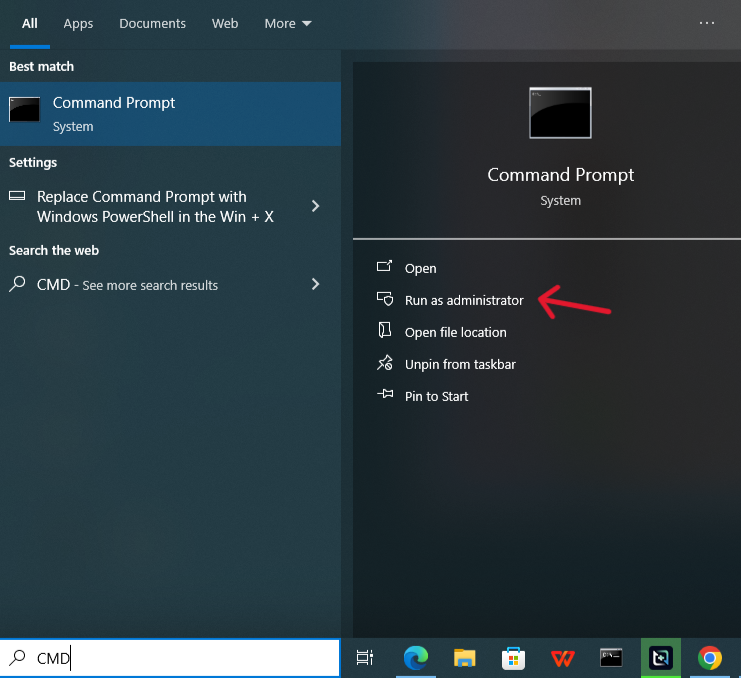
Windows Key + Sand typecmd. Right-click the Command Prompt and select Run as Administrator.
- Step 3: In the black window, type
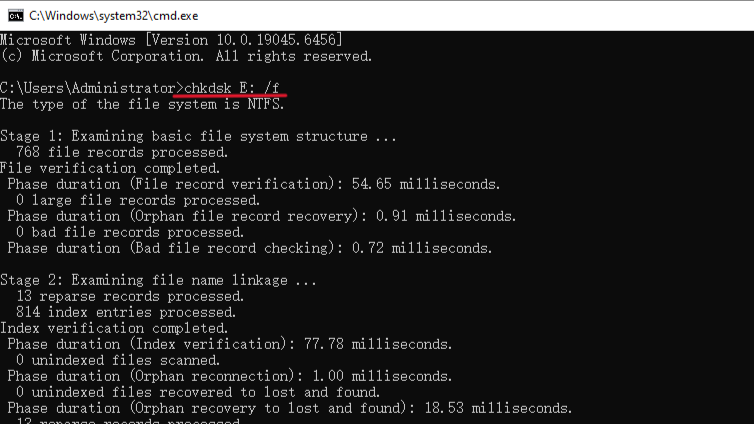
chkdsk E: /f(replaceEwith your specific drive letter) and hit Enter. - Step 4: Windows will now scan the card for logical errors and attempt to fix them. If successful, your files may reappear instantly.
Warning: CHKDSK is great for “unreadable” cards, but it doesn’t “undelete” files. For that, we need specialized micro sd card recovery software.
Method 2: The Efficiency Champion—PandaOffice Drecov
When manual commands fail, most users turn to specialized software. Among the sea of options, PandaOffice Drecov stands out for its balance of deep-scanning power and user-friendly design. It is specifically optimized for flash storage, making it a premier choice for micro sd card recovery.
- Versatility: It recovers photos, videos, audio, compressed files (ZIP/RAR), and even system files like EXEs.
- Accidental deletion from your computer desktop.
- Files lost after emptying the Recycle Bin.
- Data loss from disk formatting.
- Accidental deletion or formatting of SD cards/U disks.
- Sync error occurring with deleted OneDrive files
- Restore deleted Chrome bookmarked
- Privacy First: All recovery happens locally on your machine, so you don’t have to worry about your private data leaking to the web.
Here is how you can use the “Three-Step Operation” to reclaim your lost data:
- Step 1: Connection and Selection
First, download and install the latest version of PandaOffice Drecov. Insert your Micro SD card into your PC’s card slot. Open the software. You will see a clean dashboard listing all available drives. Locate your Micro SD card under the “Removable Drives” section. Hover your mouse over the drive and click the Scan button.

- Step 2: Intelligent Scanning and Analysis
The software will now initiate a dual-layer scan. It starts with a Quick Scan to find recently deleted items and then automatically transitions into a Deep Scan. This deep scan looks at the raw data bits, performing a comprehensive data recovery by piecing together fragmented files. You can watch the files appear in real-time. Use the filter options (e.g., “Photos,” “Videos,” or “Documents”) to narrow down the results if the card is large.

- Step 3: Preview and One-Click Restoration
This is the most critical step. PandaOffice Drecov allows you to click on a file (like a JPEG or a MP4) to see a Preview. If you can see the image in the preview window, the file is 100% recoverable. Select the files you want to save and click the Recover button.
Pro Tip: Never save the recovered files back onto the same Micro SD card during this process. Save them to your computer’s Desktop or an external hard drive first to prevent accidental overwriting.
Method 3: Official Brand Recovery Utilities
Many high-end Micro SD card manufacturers provide their own proprietary tools for micro sd card recovery. Brands like SanDisk and Samsung recognize that their hardware is only as good as the data it holds.
SanDisk RescuePRO
If you purchased a “Pro” or “Extreme” SanDisk card, it often comes with a one-year subscription to RescuePRO.
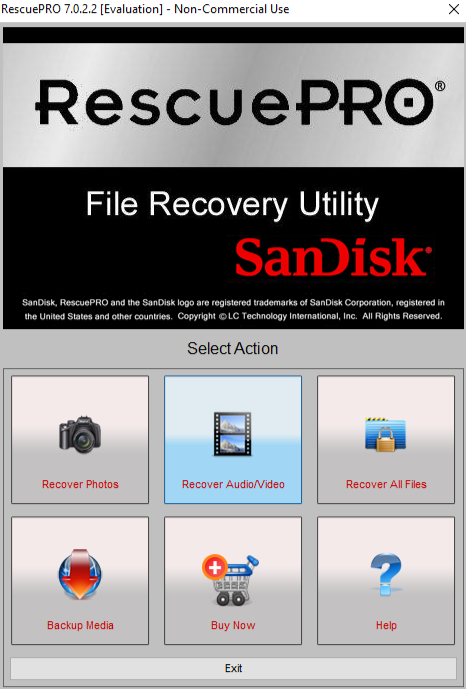
- Step 1: Go to the official SanDisk (Western Digital) website and download the RescuePRO installer.
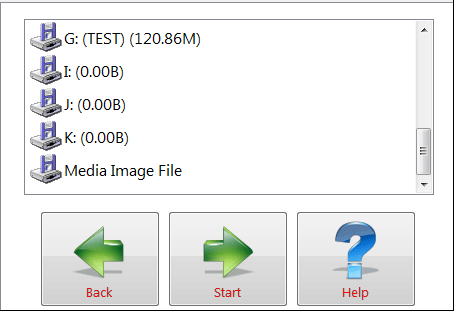
- Step 2: Enter the activation code found on the inside of your card’s original packaging (if you still have it).
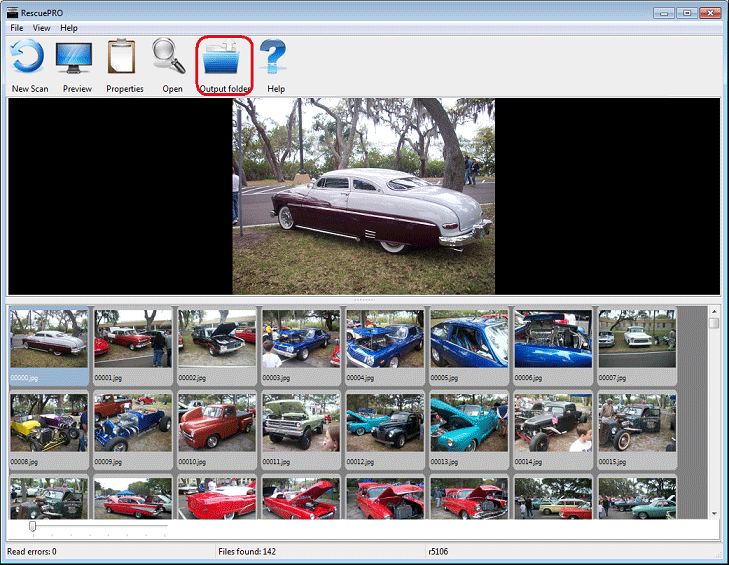
- Step 3: Select “Recover Photos” or “Recover Video.” The tool uses algorithms specifically tuned for SanDisk’s internal controller architecture, which can sometimes yield better results for heavily corrupted SanDisk media.
Samsung Magician and Support Tools
While Samsung Magician is primarily for SSDs, Samsung offers specific memory card “Authenticity and Recovery” guides. If your card is physically failing, Samsung’s official support may offer a warranty replacement, though they rarely provide data recovery services themselves. Always check the “Support” section of your specific card’s manufacturer website for a “First-Party” micro sd card recovery utility.
Method 4: Advanced Recovery via Command Prompt (Attrib Command)
Occasionally, files aren’t “gone” or “corrupted”—they are just “hidden” by a virus or a system glitch. In these cases, micro sd card recovery involves changing the file attributes.
- Step 1: Open the Command Prompt as an administrator.
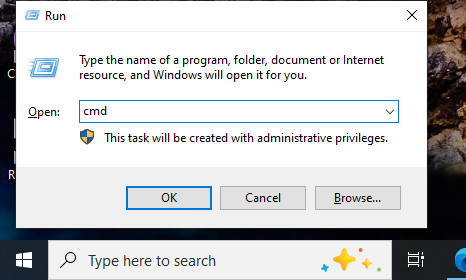
- Step 2: Type the following command:
attrib -h -r -s /s /d E:\*.*(ReplaceEwith your card’s drive letter).
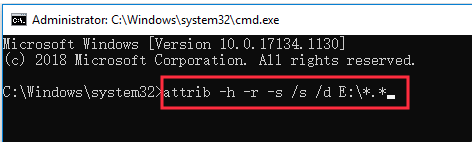
- Step 3: Press Enter. This command strips away the “Hidden” (
-h), “Read-only” (-r), and “System” (-s) attributes from every file on the card. - Step 4: Check your Micro SD card folder. Often, a new “Untitled” folder will appear containing all your “lost” files.
Method 5: The “Technical” Route—PhotoRec (Open Source)
For those who are comfortable with a text-based interface and want a free, powerful tool, PhotoRec is a legend in the micro sd card recovery world. It ignores the file system entirely and goes after the “Raw Data.”
- Step 1: Download the PhotoRec bundle. It doesn’t require installation; just unzip the folder.
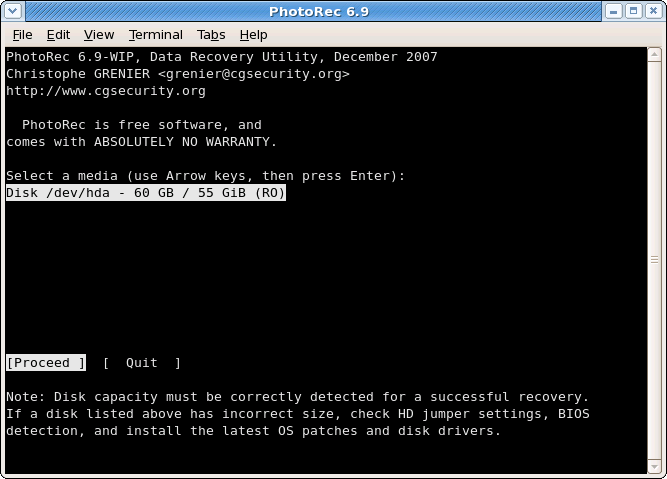
- Step 2: Run
photorec_win.exe. Use the arrow keys to select your Micro SD card. - Step 3: Select the partition (usually labeled FAT32 or “Whole Disk”).
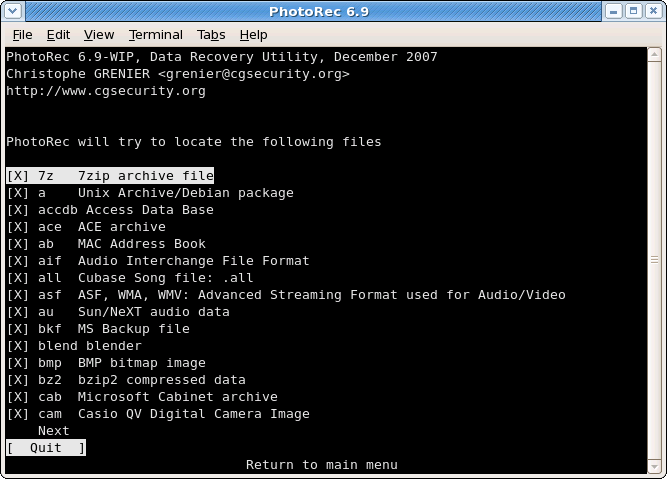
- Step 4: Choose the “File Opt” menu if you only want to search for specific formats (like
.cr2for Canon Raw or.jpg). - Step 5: Select a destination folder on your C: drive and press
Cto start the search.
PhotoRec is a “carving” tool. It looks for the “headers” and “footers” of files. While highly effective, it doesn’t recover file names—you will get files named f12345.jpg, requiring you to manually sort them later.
Part 3: Comparing the Best Micro SD Card Recovery Solutions
To help you decide which path to take, I have organized the aforementioned methods into a comparison table. Choosing the right tool for micro sd card recovery depends on your technical comfort level and the severity of the data loss.
| Recovery Method | Ease of Use | Success Rate | Best For… | Key Advantage |
| Windows CHKDSK | Moderate | Low | File system errors | Built-in, no download required. |
| PandaOffice Drecov | High | Very High | Accidental deletion, formatting, corruption | 3-step workflow; visual preview before recovery. |
| Manufacturer Tools | Moderate | High | Brand-specific hardware issues | Optimized for specific NAND controllers. |
| CMD Attrib | Low | Low | Virus-hidden files | Fast fix for attribute glitches. |
| PhotoRec | Very Low | High | Severe corruption | Completely free and open source. |
Why PandaOffice Drecov Often Wins
While the official tools are great for their specific brands, PandaOffice Drecov offers a universal algorithm. Most people don’t want to mess with code (CMD) or sort through thousands of unnamed files (PhotoRec). PandaOffice provides a “What You See Is What You Get” experience. Its ability to reconstruct fragmented video files—which are notoriously difficult in micro sd card recovery—gives it a significant edge for drone pilots and videographers.
Part 4: Proactive Protection—How to Never Need Recovery Again
While knowing how to perform micro sd card recovery is a vital skill, preventing the need for it is even better. Digital data is fragile, but these five steps will act as armor for your memories.
- The “Two-Copy” Rule (Syncing): Never let your data exist in only one place. As soon as you finish a shoot, use a mobile card reader to sync your photos to a cloud service like Google Photos, iCloud, or Dropbox.
- Proper Ejection Protocol: We all do it—we pull the card out of the computer as soon as the progress bar finishes. Stop. Always right-click the drive and select “Eject.” This ensures the “Write Cache” is cleared and the “Card Catalog” is properly closed.
- Invest in Quality (Class 10/V30+): Cheap, generic Micro SD cards have high failure rates. Spend the extra $10 on a high-end card with a “V30” or “V60” rating. These cards are designed to handle the heat and electrical stress of modern 4K video.
- Format in Camera, Not PC: When you want to clear your card, don’t just delete files on your computer. Put the card in your camera and use the “Format” function. This ensures the card’s file system is perfectly aligned with the device that writes to it.
- Environment Protection: Micro SD cards are susceptible to static electricity and extreme heat. Store them in a dedicated, anti-static plastic case. If a card gets wet, let it dry for 48 hours before inserting it into a reader—water is the enemy of micro sd card .
Part 5: Common Questions
1.Can I perform micro sd card recovery if the card is physically snapped?
Unfortunately, if the internal NAND flash chip is physically cracked or snapped, software-based data recovery will not work. In these rare cases, you would need to contact a professional clean-room laboratory, which can cost thousands of dollars.
2.How much does professional micro sd card recovery cost?
If you use software like PandaOffice Drecov, the cost is usually the price of a single license. However, if you send the card to a lab for hardware repair, prices typically range from $300 to $2,000 depending on the complexity of the “chip-off” recovery.
3.Why do some files look “garbled” after micro sd card recovery?
This usually happens due to fragmentation. If the card was nearly full when the files were deleted, the computer might have scattered pieces of the file in different physical locations. Advanced tools like PandaOffice Drecov are better at “stitching” these pieces back together than basic tools.
4.Can I recover data from an “encrypted” Micro SD card?
If the card was encrypted as “Internal Storage” on an Android device, data recovery is significantly harder. You generally need the original device and the security key to decrypt the data once it is recovered.
5.Will formatting the card make micro sd card recovery impossible?
No! A “Quick Format” only erases the catalog. As mentioned in our library metaphor, the books are still there. However, a “Low-Level Format” or “Full Format” writes zeros over the entire card, which does make recovery impossible. Always choose “Quick Format” if you must format.
Conclusion
Data loss feels like a gut punch, but it doesn’t have to be a permanent loss. By understanding the underlying principles of how flash memory stores data, you can approach micro sd card recovery with a calm, logical mind.
Whether you opt for the built-in simplicity of Windows commands, the professional-grade precision of PandaOffice Drecov, or the deep-carving power of PhotoRec, the key is to act quickly and avoid overwriting the card. You now possess the knowledge to be your own data recovery expert. Treat your Micro SD cards with care, back up frequently, and keep a reliable recovery tool in your digital toolkit.






