







Few things feel more frustrating than plugging in an external hard drive and realizing something is terribly wrong. Maybe the drive no longer shows up, an entire folder has vanished, or a simple click on “Delete” wiped out months of work. For photographers, designers, students, and office professionals alike, external hard drives often act as silent vaults for irreplaceable data—until the day they fail.
This is exactly why data recovery from external hard drive has become such a widely searched topic. Data loss may feel sudden and final, but in reality, most external hard drive data loss scenarios are far from hopeless. With the right understanding, correct timing, and proper tools, recovering lost files is often very achievable.
This guide walks you through how data recovery from external hard drive actually works, what mistakes to avoid, and which recovery methods are most effective under different circumstances. Whether your files were deleted, formatted, corrupted, or lost due to system errors, this article will help you make informed decisions—step by step.
How Data Recovery from External Hard Drive Really Works
Before jumping into recovery methods, it helps to understand what actually happens when data “disappears” from an external hard drive.
A Simple Analogy: The Library Index Card
Think of your external hard drive as a large library. Every file is a book, and the file system acts like an index card system telling the computer where each book is stored.
When a file is deleted, the book is not immediately burned or removed. Instead, the index card is taken out. The shelf still holds the book—it just no longer appears in the catalog.
This is the core principle behind data recovery from external hard drive: as long as new data has not overwritten the original storage space, recovery remains possible.
Why Timing Matters More Than People Realize
Once data loss occurs, the operating system may reuse that “empty” space for new files, cache data, or system logs. When that happens, recovery becomes much harder—or even impossible.
That is why the first and most important rule of data recovery from external hard drive is:
🚨 Stop using the drive immediately after data loss is discovered.
Critical Things to Do Before Starting External Hard Drive Data Recovery
Before choosing any recovery method, a few key precautions can significantly improve success rates.
Disconnect the External Hard Drive
Unplug the drive safely as soon as data loss is noticed. Continued use increases the risk of data being overwritten.
Avoid Writing Anything to the Same Drive
Recovery software should always be installed on your computer’s internal drive—not on the external hard drive you are trying to recover.
Identify the Data Loss Scenario Clearly
Different problems require different approaches. Ask yourself:
- Were the files accidentally deleted?
- Was the external hard drive formatted?
- Does the drive show up as RAW?
- Is the drive not recognized at all?
Knowing this helps you select the most effective data recovery from external hard drive method.
Method 1: Check File System Errors and Simple Visibility Issues
Before assuming the worst, it is worth ruling out basic issues that can make files appear missing when they are still present.
Common Situations This Method Applies To
- Files disappeared after unsafe removal
- External hard drive shows but folders are empty
- File system errors after power loss
Step-by-Step: Using Windows Error Checking
- Step 1: Connect the external hard drive to your PC.
- Step 2: Open File Explorer using
Win + E.
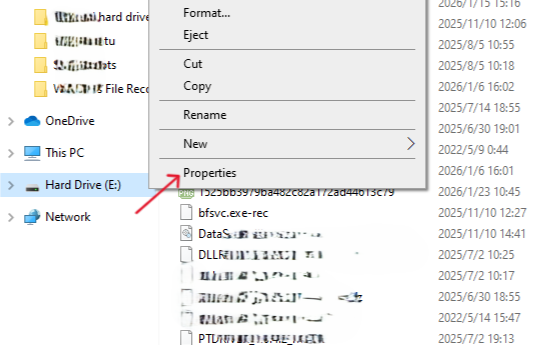
- Step 3: Right-click the external hard drive and select Properties.
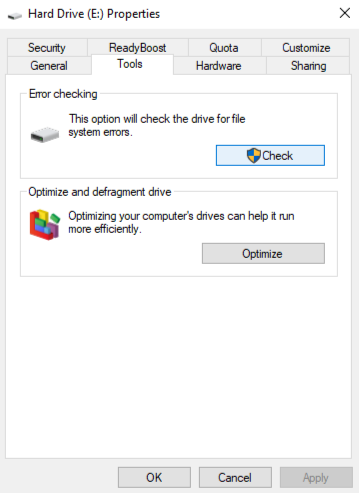
- Step 4: Open the Tools tab. Under Error checking, click Check. Windows may automatically fix logical errors that were hiding files.
🚨 Important Warning:
If Windows prompts you to format the drive, do not proceed. Formatting can overwrite metadata required for data recovery from external hard drive.
Method 2: Data Recovery from External Hard Drive Using PandaOffice Drecov
When files have been deleted, formatted, or lost due to corruption, professional recovery software becomes the most reliable solution. Among modern tools, PandaOffice Drecov stands out for its balance of power, accuracy, and usability.
Why PandaOffice Drecov Is Especially Effective
Most importantly, PandaOffice Drecov operates in read-only mode, which is essential for safe data recovery from external hard drive.
- Recover data from external hard drives, USB drives, SD cards, and SSDs
- Support recovery after accidental deletion, formatting, RAW errors, and partition loss
- Preserve original file names and folder structures whenever possible
- Perform deep scans without modifying original data
Step-by-Step Guide: Using PandaOffice Drecov
- Step 1: Download and Install PandaOffice Drecov. Install the software on your internal system drive, not the external hard drive
- Step 2: Select the External Hard Drive. Launch PandaOffice Drecov. Choose the external hard drive from the list of available devices
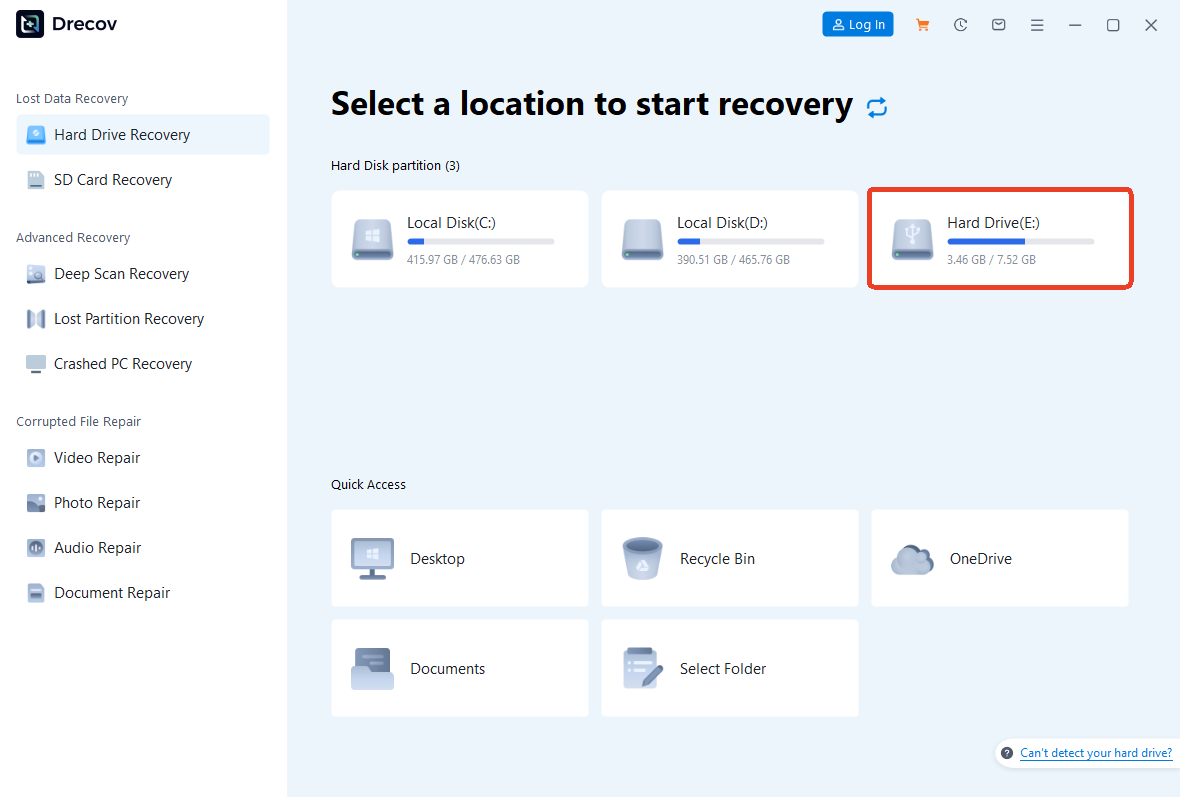
- Step 3: Start the Scan. Click Scan .A quick scan starts automatically, followed by a deep scan if necessary

- Step 4: Preview and Recover. Use the built-in preview feature to check file integrity. Select the files you want to recover. Click Recover and save recovered files to a different storage device.
🚨 Critical Tip:
Recovered files should never be saved back to the same external hard drive.
🎬 Step-by-Step Visual Walkthrough
If you learn better through visual demonstration, watch our comprehensive video tutorial below. This concise guide simplifies the process of data recovery from external hard drive, covering everything from the initial device connection to the final file export. See exactly how the PandaOffice DRecov interface handles complex scans to rescue your lost documents and photos in just a few clicks.
Key Advantages of PandaOffice Drecov for External Hard Drives
- High Recovery Accuracy: Advanced scanning algorithms identify fragmented files
- User-Friendly Interface: Clear steps reduce the chance of mistakes
- Wide File Type Support: Documents, photos, videos, archives, and more
- Minimal Technical Knowledge Required: Ideal for non-experts
- Optimized for External Devices: Especially effective for USB and portable drives
For most users, PandaOffice Drecov offers the highest success rate for data recovery from external hard drive without requiring professional lab services.
Method 3: Official System Recovery Options (Built-In Tools)
Operating systems provide limited official recovery methods that can help in specific situations.
Windows File History (If Previously Enabled)
Step-by-Step: Restoring Files with File History
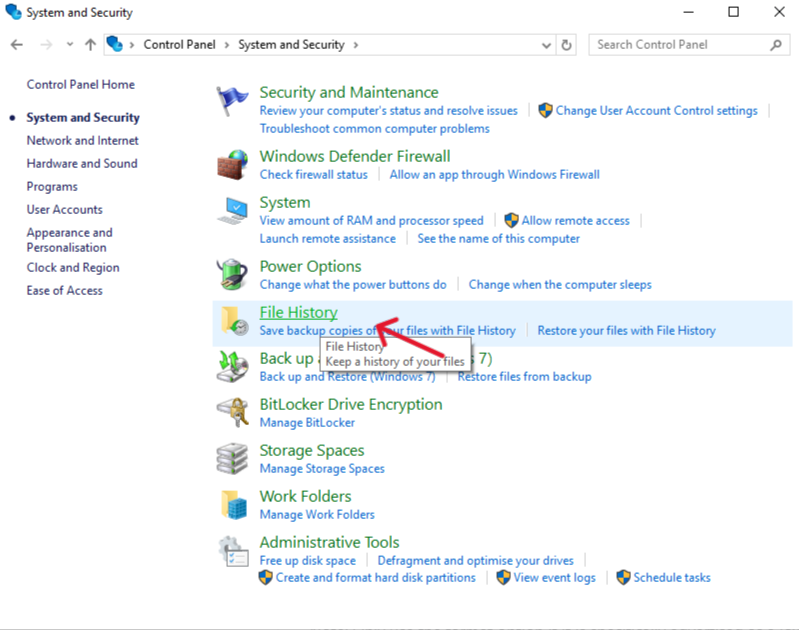
- Step 1: Open Control Panel
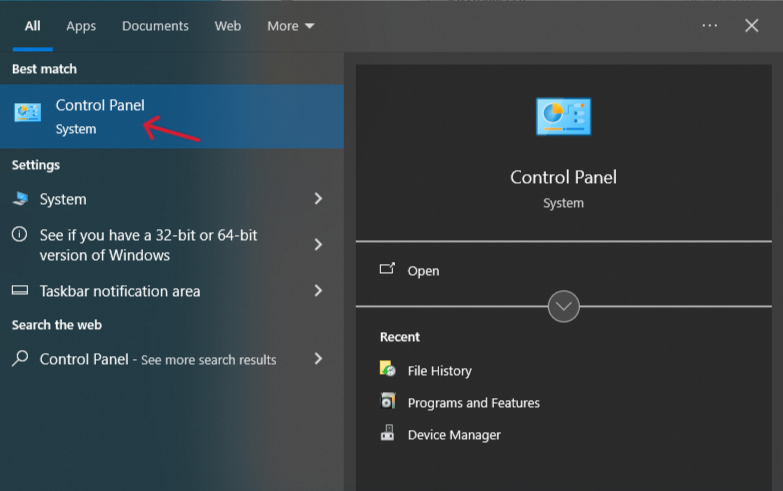
- Step 2: Navigate to System and Security > File History
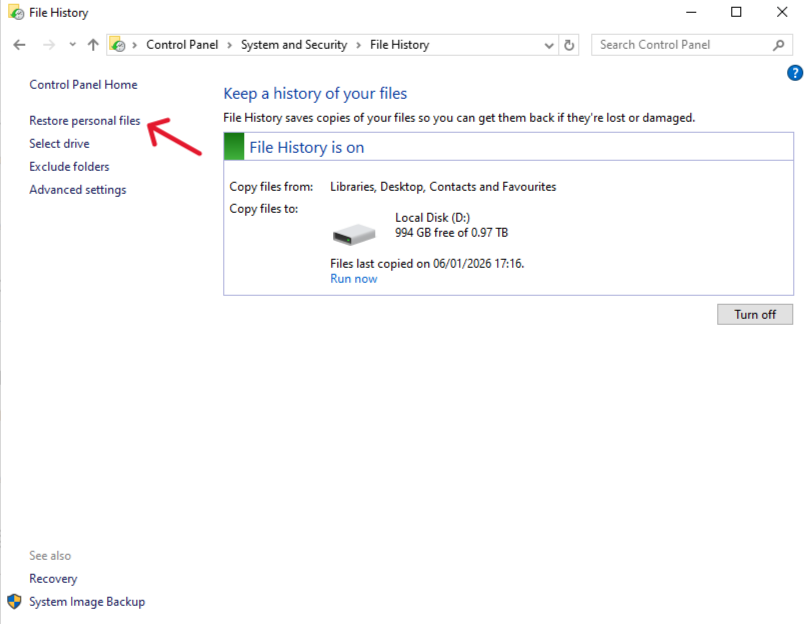
- Step 3: Click Restore personal files
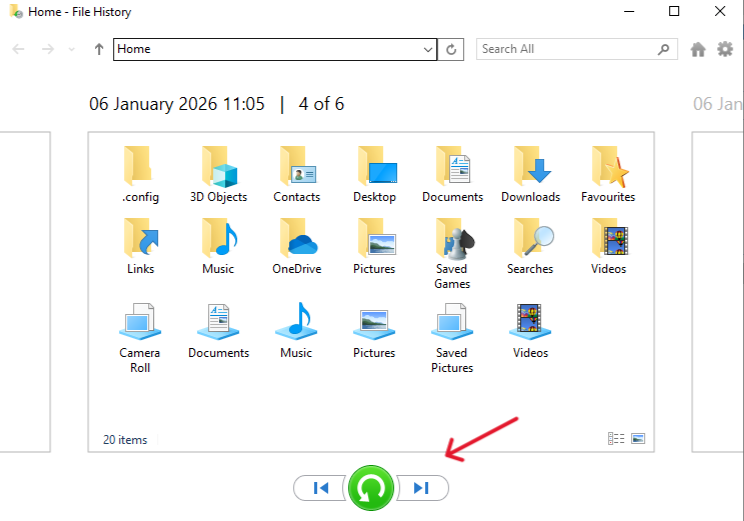
- Step 4: Browse available backups and restore the needed files
This method only works if File History was enabled before data loss occurred.
macOS Time Machine (For macOS-Formatted External Drives)
If the external hard drive was included in Time Machine backups:
- Connect the backup disk
- Open Time Machine
- Navigate to the missing files
- Restore them
While official tools are safe, their scope is limited. They cannot perform deep data recovery from external hard drive after formatting or corruption.
Method 4: Command-Line Repair for Logical Issues
Advanced users may attempt command-line repair when the drive is detected but inaccessible.
Using CHKDSK on Windows
- Step 1: Press
Win + S, type cmd
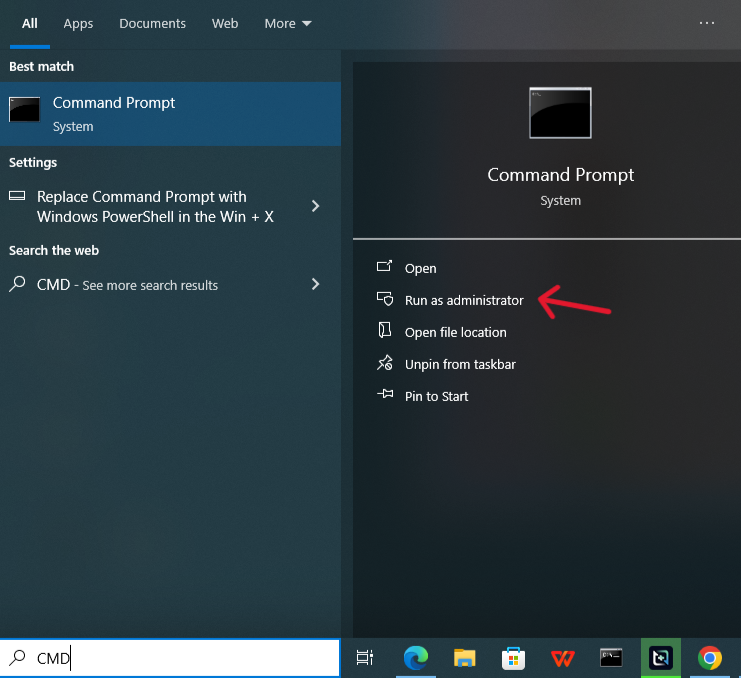
- Step 2: Right-click Command Prompt and choose Run as administrator
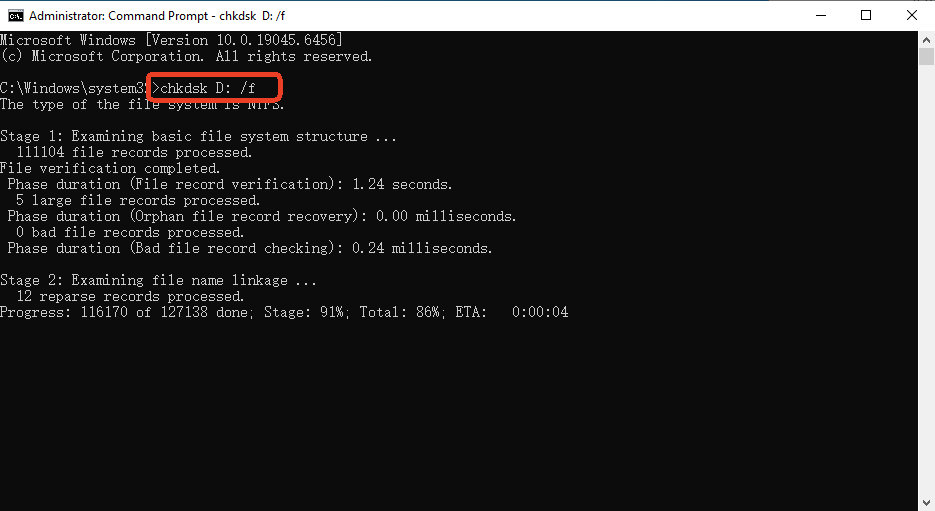
- Step 3: Enter: chkdsk X: /f (Replace
Xwith the external drive letter.)
🚨 Caution:
While CHKDSK can fix logical errors, it may also remove damaged file entries. This method should be used after data recovery software when data is critical.
Method 5: Professional Data Recovery Services
When hardware damage occurs—such as clicking noises, burnt circuits, or complete non-recognition—software solutions may fail.
Professional labs:
- Use cleanroom environments
- Repair physical components
- Extract data directly from platters
However, this method is:
- Extremely expensive
- Time-consuming
- Not always guaranteed
For most logical failures, data recovery from external hard drive software remains the preferred first step.
Comparison Table: External Hard Drive Data Recovery Methods
| Method | Best For | Pros | Cons |
|---|---|---|---|
| File System Check | Minor logical errors | Free, quick | Limited effectiveness |
| PandaOffice Drecov | Deleted, formatted, corrupted data | High success rate, user-friendly, deep scan | Requires installation |
| Official Backups | Backup-enabled systems | Safe, built-in | Only works if pre-configured |
| Command Line Tools | Logical errors | No extra software | Risky if misused |
| Professional Services | Physical damage | Hardware-level recovery | Very expensive |
PandaOffice Drecov clearly stands out as the most balanced solution for data recovery from external hard drive in everyday scenarios.
How to Prevent External Hard Drive Data Loss in the Future
Prevention is always easier than recovery. A few habits can drastically reduce risk:
- Create at least one additional backup using cloud or another drive
- Always use “Safely Remove Hardware”
- Avoid sudden power disconnections
- Do not overload portable drives with constant read/write cycles
- Periodically check drive health using SMART monitoring tools
Conclusion
Data loss from an external hard drive is stressful—but rarely hopeless. Understanding how data recovery from external hard drive works allows you to act calmly and effectively.
Key takeaways:
- Deleted data is not immediately destroyed
- Timing and correct actions matter more than panic
- PandaOffice Drecov provides a reliable, user-friendly recovery solution
- Built-in tools and command-line methods have limited scope
- Prevention strategies save time, money, and stress
With the right knowledge and tools, external hard drive data recovery becomes a manageable problem rather than a disaster.






