







Introduction to CRC Errors
What is a CRC Error?
A CRC error (Cyclic Redundancy Check error) occurs when a storage device detects that data being read does not match the expected checksum. In simple terms, it’s a verification failure that ensures data integrity. If your system reports a CRC error, it means the data may be corrupted or unreadable.
The term CRC stands for Cyclic Redundancy Check, a method widely used in computer systems to detect errors in storage devices and data transfers. By comparing calculated checksums during read/write operations, systems identify mismatches and flag potential issues.
⚠️Warning: Repeated CRC errors may indicate failing hardware, so avoid using the affected drive for critical operations until resolved.
Why Understanding CRC Errors is Important
Recognizing CRC errors helps in taking timely action before permanent data loss occurs. Drives showing frequent errors may eventually become inaccessible. What is a CRC error can also help differentiate between software corruption and hardware failure, enabling more targeted recovery strategies.
Systems that rely on CRC checks include HDDs, SSDs, external drives, and optical media. Professionals use this understanding to prevent CRC errors from escalating into full-scale data loss.
Common Causes of CRC Errors
Hardware Issues Triggering CRC Errors
Physical problems like bad sectors, failing read/write heads, or damaged cables often result in CRC errors. Drives that are physically degraded may repeatedly trigger CRC failures when trying to read files.
Test Environment:
- Windows 10 PC
- Seagate HDD with known bad sectors
- USB and SATA connections tested
In this environment, a drive with damaged sectors consistently caused CRC errors during file access, demonstrating the hardware-related cause.
Software or System Errors Leading to CRC Failures
Corrupt file systems, interrupted transfers, or improper formatting can also cause CRC errors. Malware and system crashes may damage the drive’s file structure, producing persistent CRC mismatches during read/write operations.
External Factors: Cables, Ports, and Connectivity
Sometimes, faulty USB ports or damaged SATA cables can trigger CRC errors. Even if the drive is physically sound, connectivity problems may prevent accurate data transmission, leading to CRC verification failures.
⚠️Warning: Always check connections and cables before concluding that a drive has failed.
Solutions to Fix CRC Errors
Method 1: Using Windows CHKDSK Command
Test Environment:
- Windows 10 PC
- Drive showing CRC errors
- Administrative Command Prompt access
The built-in CHKDSK utility scans drives for errors and attempts to repair them. To fix a CRC error, run:
chkdsk X: /f /r
Replace X with the drive letter. The /f flag fixes logical errors, while /r locates bad sectors and recovers readable data. This method resolves many CRC errors caused by minor file system or sector issues.
Method 2: Changing the SATA/USB Connection
Test Environment:
- Affected HDD/SSD
- Alternate USB/SATA ports and cables
- Secondary PC for testing
If a CRC error persists, reconnect the drive using a different port or cable. Unstable connections often generate false CRC failures. Testing on a different PC ensures the error is not system-specific.
Method 3: Reinstalling or Updating Drivers
Test Environment:
- PC experiencing CRC errors on external drive
- Latest chipset and storage drivers installed
Outdated or corrupt drivers may cause communication issues between the OS and storage device. Updating drivers can prevent CRC errors from recurring. Steps:
- Open Device Manager.
- Locate the affected drive under Disk Drives.
- Update driver or uninstall and reinstall.
This method is effective when CRC errors are caused by software rather than hardware.
Method 4: Professional Recovery Using Pandaoffice Drecov
Download DrecovTest Environment:
- Drive with persistent CRC errors
- Secondary PC for recovery
- External storage for recovered files
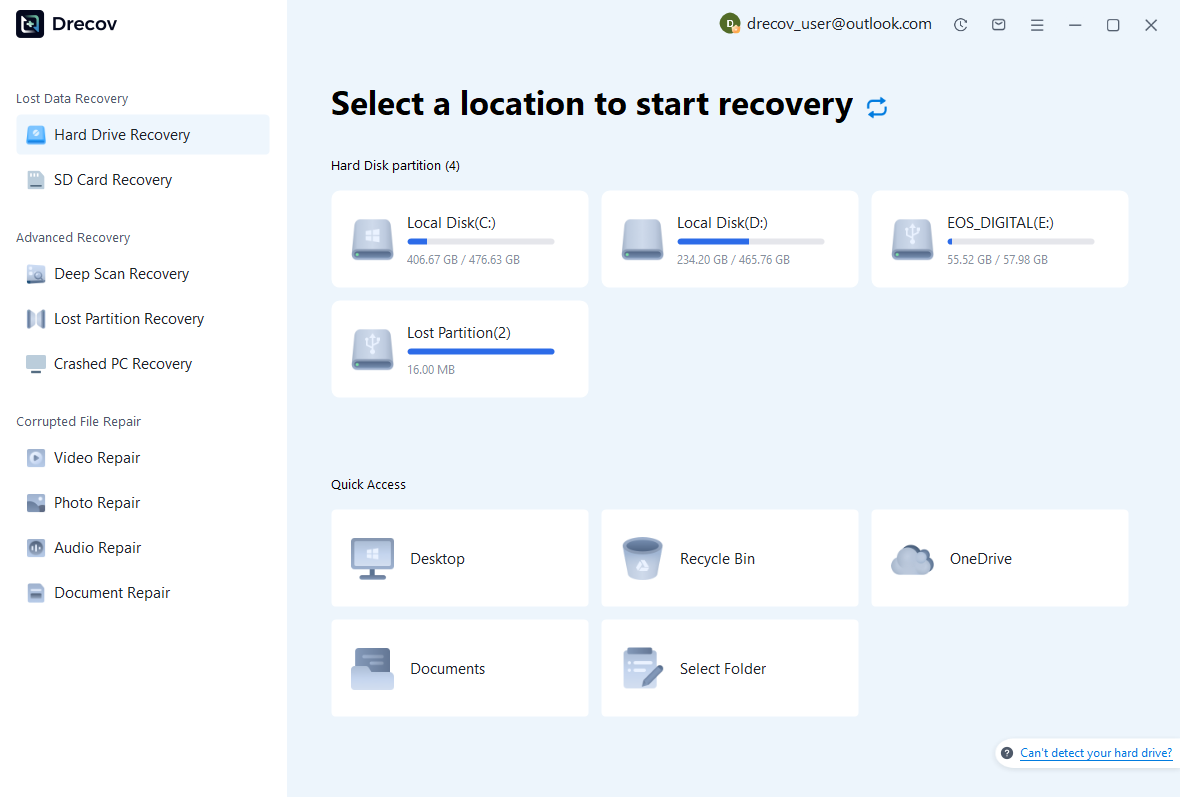
When CRC errors prevent access to critical files, Pandaoffice Drecov can perform deep scans to recover data safely. Steps:
- Connect the problematic drive to a working PC.
- Launch Pandaoffice Drecov and select the affected drive.
- Perform a thorough scan and save recovered files to a separate storage device.
This ensures recovery of important files even when traditional methods fail.


Why Choose Pandaoffice Drecov?
Pandaoffice Drecov stands out as a powerful and user-friendly solution for handling various data loss scenarios. Whether you need to reset PC to earlier date, perform a recover deleted Blink video, or figure out how do I recover an overwritten Excel file, Drecov provides reliable and efficient recovery tools in one place. It also excels at recovering photos from SD cards, making it ideal for photographers and everyday users alike. Even complex situations like Illustrator unsaved file recovery are handled with advanced scanning algorithms that maximize file retrieval success. With its intuitive interface, deep scan technology, and high recovery rate, Pandaoffice Drecov ensures your lost data can be restored quickly and safely without requiring technical expertise.
⚠️Warning: Always recover data to a separate drive to avoid overwriting files during CRC error recovery.
Method 5: Recovering Files from Bad Sectors
Test Environment:
- HDD with multiple bad sectors
- Secondary PC for data access
- External storage for recovered files
If your drive shows CRC errors due to bad sectors, creating a sector-by-sector image can preserve data. Specialized tools can then extract readable files from the image, minimizing the risk of further corruption. This method is particularly useful for drives with physical degradation.
Method 6: Formatting the Drive After Recovery
Test Environment:
- Drive successfully scanned and backed up
- Windows 10 system
- External backup storage
After safely recovering data with Pandaoffice Drecov or other methods, you can format the drive to fix persistent CRC errors caused by file system corruption. Formatting resets the drive structure, making it ready for reliable future use.
⚠️Warning: Formatting will erase all data—ensure recovery is complete before proceeding.
Method 7: Replacing Faulty Hardware
Test Environment:
- PC experiencing repeated CRC errors
- Known working SATA/USB cables and ports
- Replacement HDD/SSD for comparison
When errors persist even after software fixes, the issue may be hardware-related. Replacing cables, ports, or the storage device itself can eliminate CRC errors caused by physical faults.
Method 8: Using Disk Imaging for Recovery
Test Environment:
- Affected drive with read errors
- Secondary PC
- Large external storage for disk image
Creating a full disk image allows you to recover files without repeatedly accessing the failing drive. Once the image is created, recovery software can safely extract data, avoiding further CRC errors on the original media.
Frequently Asked Questions About CRC Errors
What does CRC stand for?
CRC stands for Cyclic Redundancy Check, a method used to detect errors in digital data. It helps ensure data integrity during storage or transmission.
Why am I getting CRC errors?
Common causes include:
- Bad sectors or failing hardware
- Corrupted file systems
- Faulty cables or ports
- Software or driver issues
Identifying the root cause helps select the appropriate CRC error recovery method.
Can CRC errors be fixed without data loss?
Yes, using tools like Pandaoffice Drecov or Windows utilities like CHKDSK, you can recover files first and then repair the drive safely.
Are CRC errors permanent?
Not always. Minor CRC errors due to file system inconsistencies can be fixed. Persistent errors caused by physical damage may require professional recovery or hardware replacement.
Best Practices to Avoid CRC Errors
Key Takeaways
- Always back up important files regularly to avoid permanent loss.
- Check and replace faulty cables, ports, or hardware components.
- Use professional recovery tools like Pandaoffice Drecov for inaccessible files.
- Avoid using drives with repeated CRC errors until data is recovered.
- Scan drives periodically with utilities like CHKDSK to detect early signs of corruption.
Following these practices ensures data integrity and reduces the risk of future CRC errors.
⚠️Warning: Mishandling drives with CRC errors may worsen data corruption. Always recover files before performing repairs.






