







Losing important files can be a frustrating experience, especially when they’re accidentally deleted from the Recycle Bin. But don’t worry—recovering deleted files from the Recycle Bin is possible. Whether it’s due to a misclick, system crash, or other unforeseen circumstances, there are several methods to recover your lost files. This guide will walk you through practical steps and introduce reliable recovery tools to help you restore your deleted data.
What Happens When You Empty the Recycle Bin?
Before diving into recovery methods, let’s understand how the Recycle Bin works. When you delete a file, it isn’t immediately erased from your computer. Instead, it’s temporarily stored in the Recycle Bin, allowing you a chance to recover it. Once you empty the Recycle Bin, the file is marked as deleted, but the actual data remains on the hard drive until it’s overwritten by new data.
This is where recovery becomes possible—even if you’ve emptied the Recycle Bin. As long as the space hasn’t been overwritten, there’s a good chance you can restore your deleted files.
How to Recover Recycle Bin Deleted Files
If you’ve accidentally deleted files from your Recycle Bin, don’t worry! There are multiple ways to recover them, depending on the tools and techniques you use. Here’s a detailed breakdown of the options available to you.
1. Check the Recycle Bin Again
It may sound simple, but the first step is to ensure the files are truly gone. Sometimes, users mistakenly think they’ve emptied the Recycle Bin, only to find that the files are still there.
To check, right-click the Recycle Bin icon on your desktop and select Open. Look through the files to see if what you’re missing is still present. If you find the files, right-click them and select Restore to recover them to their original location.
2. Use Windows File History
If you have File History enabled on your Windows computer, there’s a chance your files may be backed up and available for restoration. File History automatically saves copies of your documents, photos, and other important files, providing an easy way to retrieve lost data.
Here’s how to use File History for recovery:
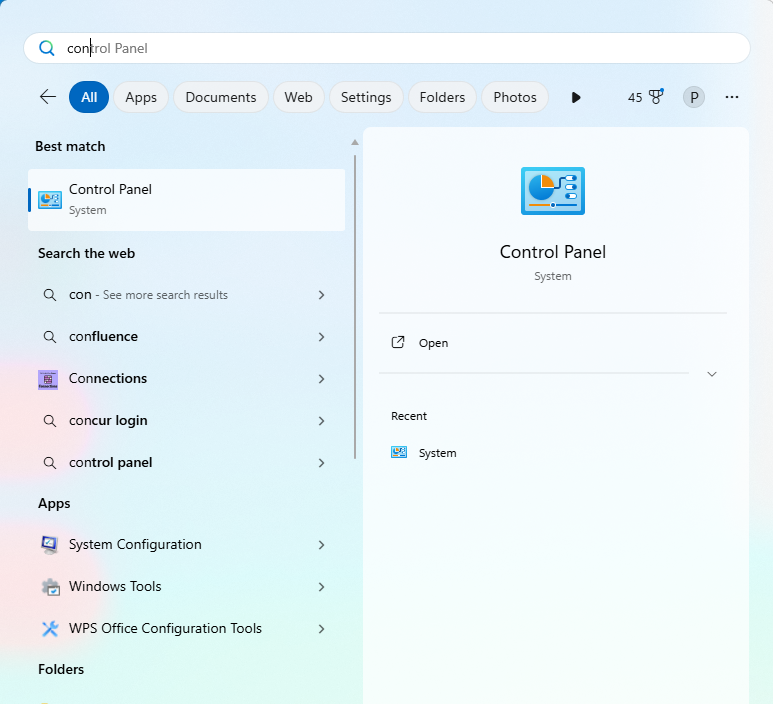
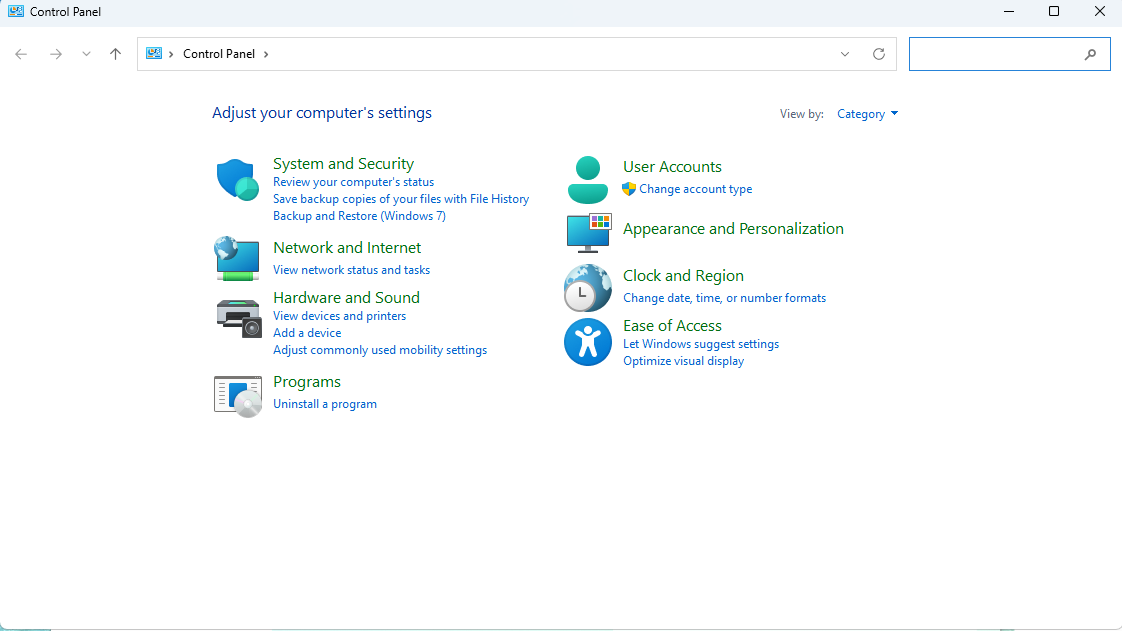
- Open the Control Panel and click on File History.
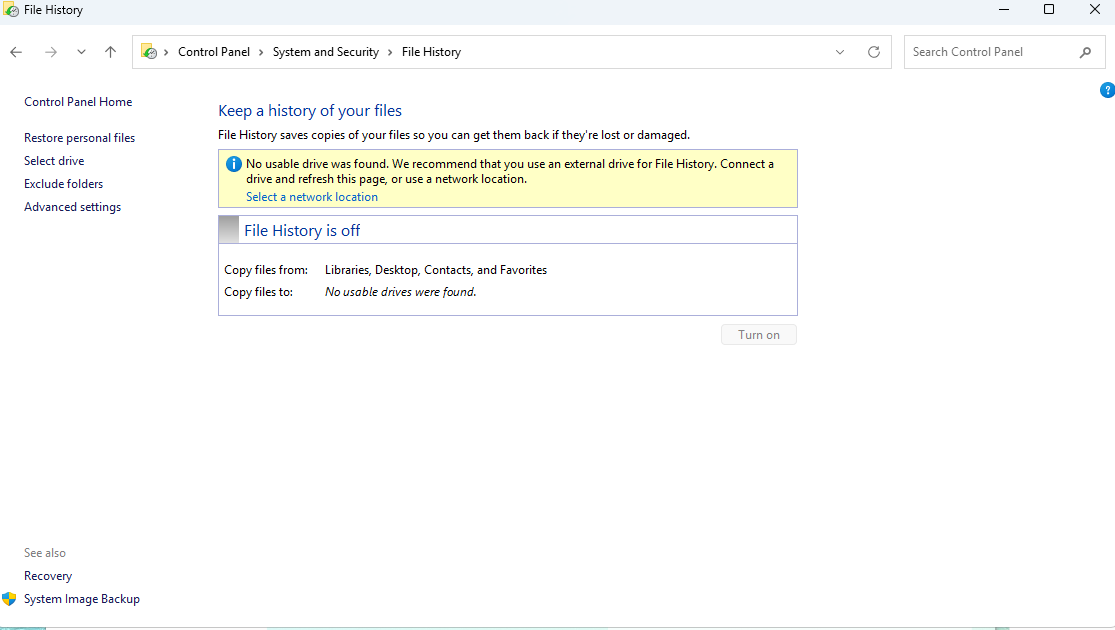
- Click on Restore Personal Files.
- Navigate to the folder where the deleted file was stored.
- Use the arrows to browse through previous versions of the file.
- Select the version you want to restore and click Restore.
Note: File History is only available if it was enabled beforehand. If you didn’t have it set up, you’ll need to use other methods.
3. Use Windows Previous Versions
Another built-in feature in Windows is Previous Versions, which allows you to restore previous versions of files and folders. This feature is based on your system restore points and may include the version of the file that existed before it was deleted.
To recover a deleted file using Previous Versions:
- Navigate to the folder where the file was originally located.
- Right-click the folder and select Restore Previous Versions.
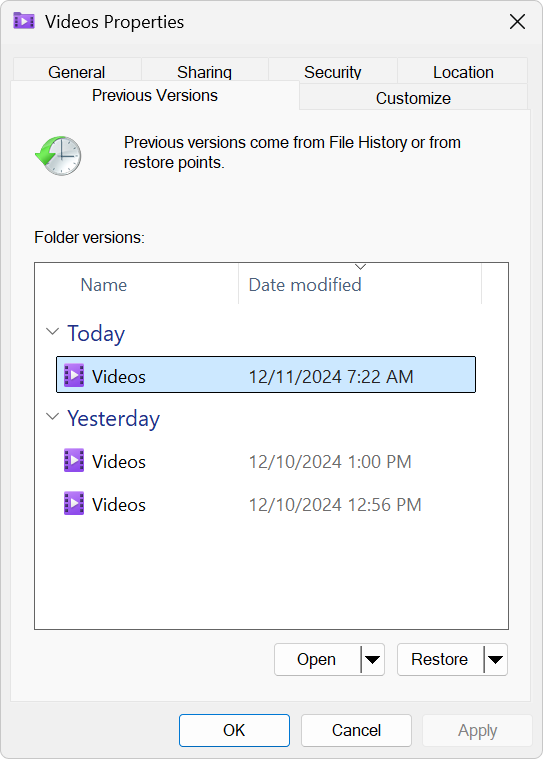
- Choose the version that includes your deleted file and click Restore.
This method works well if your files were part of a backup or a system restore point.
4. Use Data Recovery Software
If the above methods don’t work, data recovery software is your best bet. One of the most reliable data recovery tools available is PandaOffice Drecov, which specializes in recovering deleted files—even those emptied from the Recycle Bin.
PandaOffice Drecov is an excellent tool because it can scan your hard drive and recover a wide range of file types, such as documents, photos, videos, and audio files. This tool is not limited to just the Recycle Bin—it can also help recover files from formatted drives, USB devices, SD cards, and other storage media.
Here’s how to use PandaOffice Drecov to recover files:
- Download and Install PandaOffice Drecov on your computer.
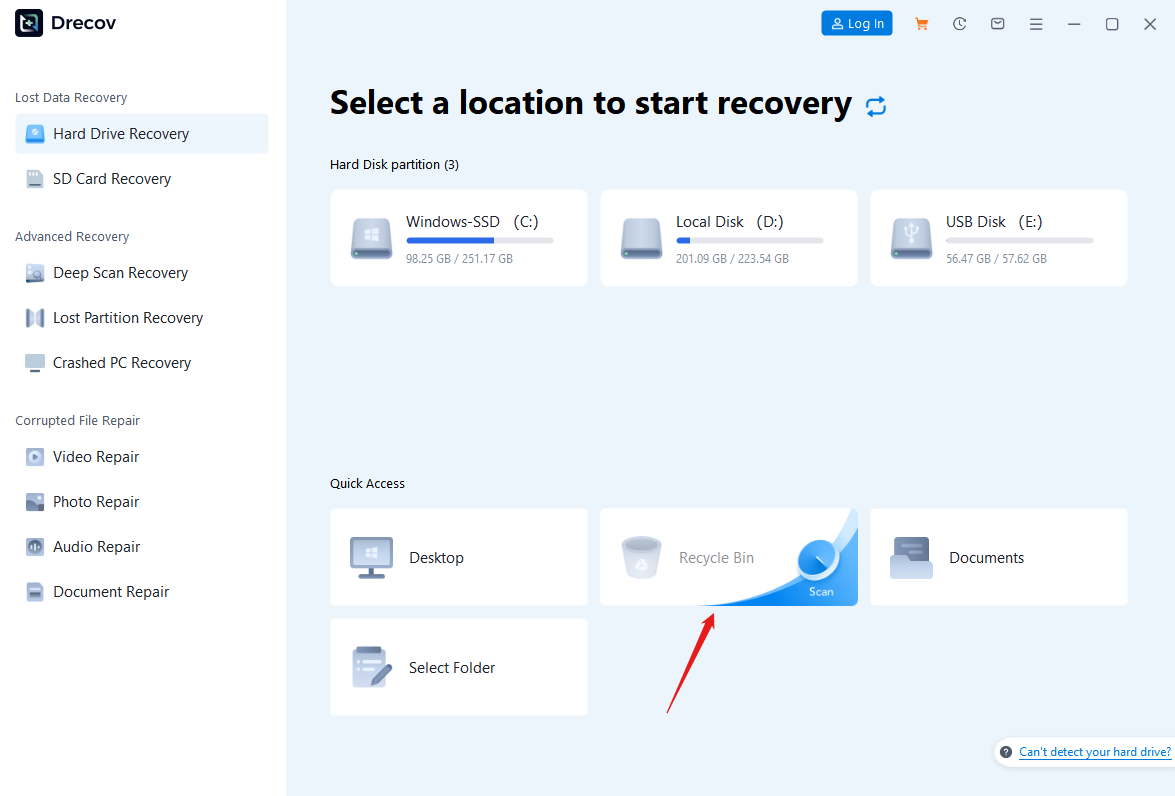
- Launch the Program and select the drive or device from which you want to recover deleted files.
- Scan for Deleted Files: The program will scan the selected drive for deleted files. This process may take a few minutes, depending on the size of the drive.
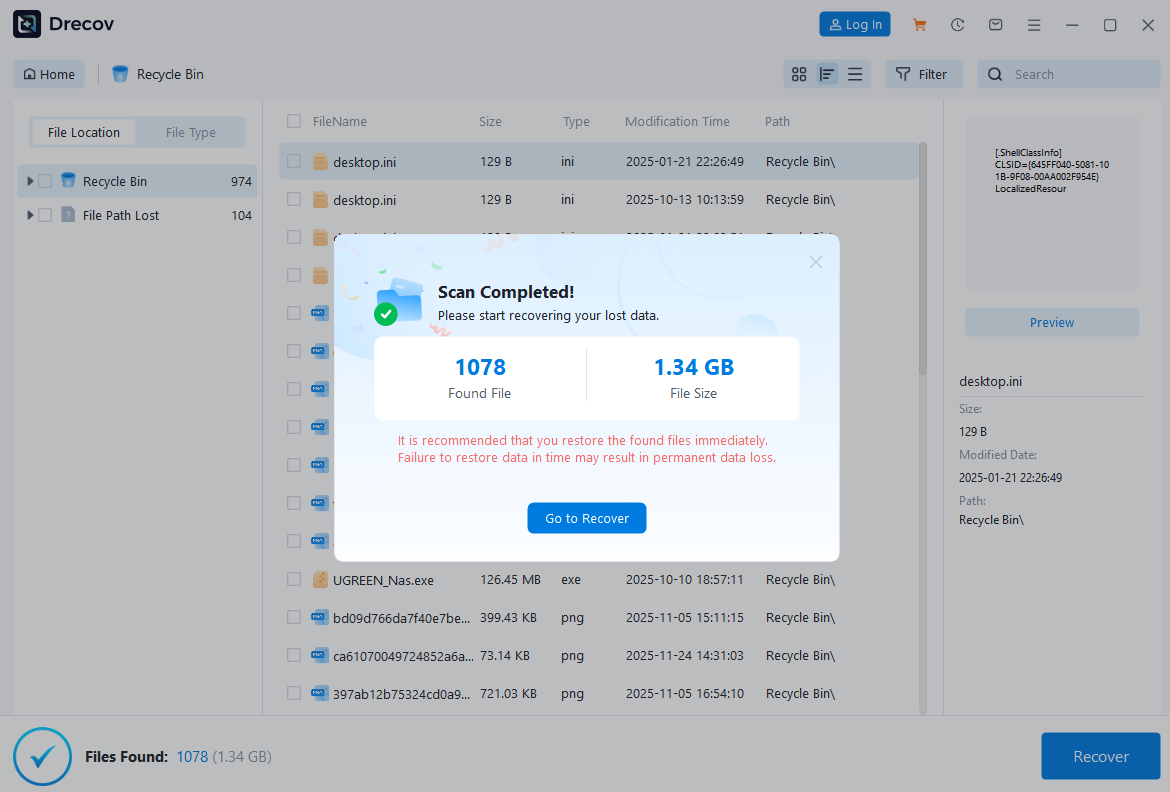
- Preview and Select Files: Once the scan is complete, you can preview the files that can be recovered. Choose the files you want to restore.
- Recover Files: Click the Recover button to restore the selected files to their original location or a new folder.
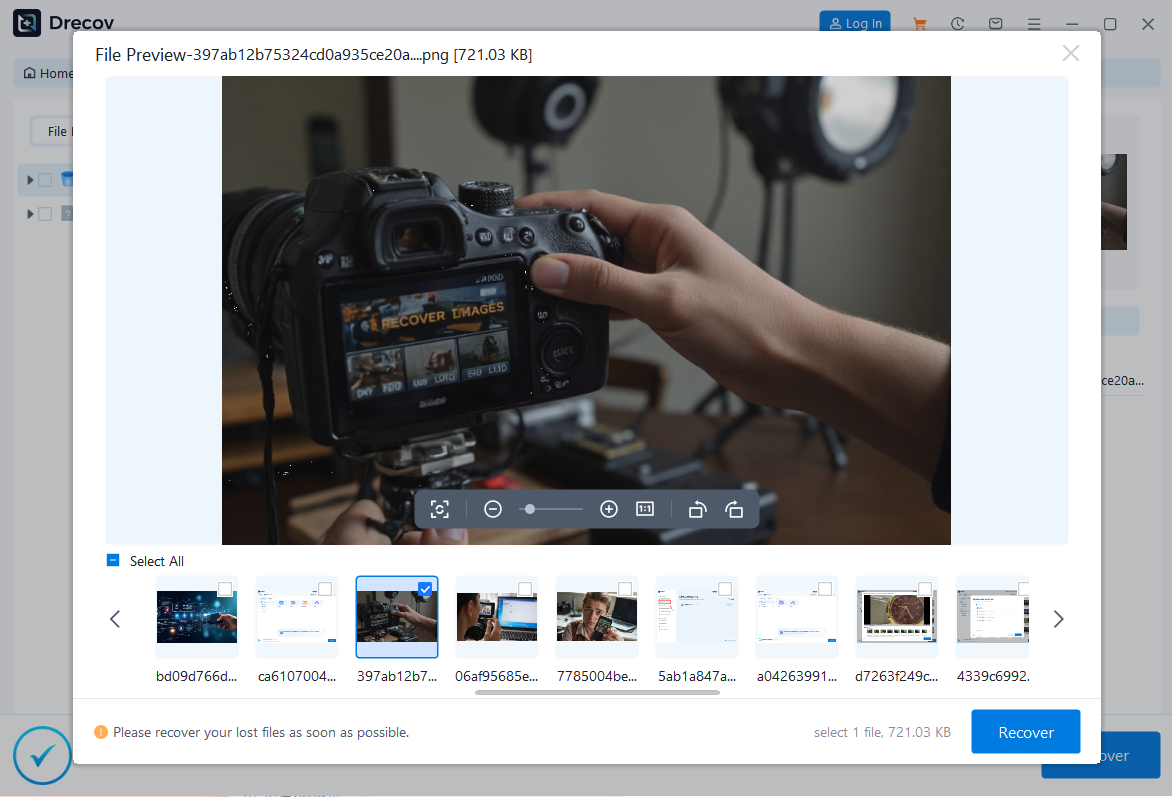
PandaOffice Drecov is easy to use, and it provides a high recovery success rate. It’s especially useful if you’re dealing with files that have been permanently deleted or are not accessible via the built-in Windows recovery options.
Tips for Preventing Future Data Loss
While it’s important to know how to recover deleted files, it’s even more important to take proactive measures to prevent data loss in the first place. Here are some tips to help you safeguard your important files:
- Enable Automatic Backups: Make use of cloud storage services like Google Drive, Dropbox, or OneDrive to back up your files. Regular backups will ensure you have access to your data in case of accidental deletion or hardware failure.
- Use a File Recovery Tool Regularly: Consider running data recovery software periodically to check for hidden or inaccessible files on your system.
- Avoid Emptying the Recycle Bin Too Often: Only empty your Recycle Bin when you’re completely sure you no longer need the files stored in it. This gives you extra time to recover files if needed.
- Create Restore Points: Set up system restore points to capture the current state of your system. In case something goes wrong, you can restore your system to a previous state.
Common Issues and FAQs
Q: Can deleted files from the Recycle Bin be recovered forever?
A: In most cases, as long as the space on your hard drive has not been overwritten, deleted files can be recovered even after the Recycle Bin has been emptied. However, the longer you wait to attempt recovery, the higher the chance that the data may be permanently overwritten.
Q: Will my files be damaged during recovery?
A: Reliable data recovery software, like PandaOffice Drecov, ensures that recovered files remain intact. However, it’s essential to use trusted tools to avoid file corruption or further damage during the recovery process.
Q: Can I recover deleted files from an SD card or USB drive?
A: Yes! PandaOffice Drecov can recover files from various storage devices, including SD cards, USB drives, external hard drives, and more. Simply connect the device to your computer and follow the recovery steps.
Conclusion
Losing important files is stressful, but with the right tools and methods, you can recover deleted files from the Recycle Bin and restore your important data. Whether you use built-in Windows tools like File History and Previous Versions, or a powerful data recovery tool like PandaOffice Drecov, there are always ways to retrieve your lost files.
If you’ve emptied the Recycle Bin and need to recover your files now, PandaOffice Drecov is a trusted solution to help you get your files back quickly and safely. Don’t let accidental deletions cause panic—recover your files with ease!







