







A common issue many Windows users face is low hard drive space, which shows up as a red bar in the “Devices and drives” section of your computer. The most straightforward solution that comes to mind for most users is to delete unnecessary files to free up space—like emptying files from the Recycle Bin. But wait, that’s where the problem often lies, especially when you later realize you need to know How to Recover Deleted Files from Recycle Bin.
What Is the Recycle Bin ?
First, let’s clarify: What exactly is the Recycle Bin? It’s a built-in “file safety buffer” for Windows systems, essentially a dedicated storage space reserved by the system on each disk partition (by default, 10-15% of the partition capacity). Its core function is to temporarily store files deleted by users, preventing permanent data loss due to accidental deletions. Its most notable feature is “recoverability”—when you delete a file, the data isn’t actually removed from the hard drive; it’s just temporarily stored here for easy retrieval later. Only when you perform the “Empty Recycle Bin” operation will the system mark the space occupied by the files as “reusable.”
Some people might wonder: What happens if I delete files from the Recycle Bin? This is a question that requires caution, and the outcome depends on the type of files you delete. If the Recycle Bin contains useless data like browser cache files or expired installation packages, emptying it will safely free up space without any impact on your computer. However, if you accidentally delete system-related files or software configuration documents stored in the Recycle Bin, you’ll run into trouble—you may find that frequently used software fails to launch, or even encounter “file missing” error messages when booting up, affecting your computer’s normal operation.
Scenario 1: Recycle Bin Not Emptied – Recover in 3 Clicks
If you accidentally dragged a file to the Recycle Bin but haven’t emptied it yet, you can recover the file without any additional tools. This is the simplest scenario in How to Recover Deleted Files from Recycle Bin, and the process is easy to follow.
Applicable Situations:
The deleted file is still in the Recycle Bin list; you want to recover a specific file from the Recycle Bin without retaining other deleted files.
Step 1: Double-click the Recycle Bin icon on your desktop. Press “Ctrl+F” to bring up the search box, then enter the file name or extension (e.g., “*.docx”) to locate the target file.
Step 2: Right-click the target file and select the “Restore” option.
Step 3: The file will be restored to its original location before deletion.
![How to Recover Deleted Files from Recycle Bin [2025 Guide]](https://media.pandaoffice.com/wp-content/uploads/2025/11/how-to-recover-deleted-files-from-recycle-bin-2025-guide-8.png)
To recover multiple files, hold down the “Ctrl” key and click to select the target files, then right-click to restore them in bulk. Files in the Recycle Bin are sorted by deletion time by default. Click “Date modified” to sort them in reverse chronological order, making it easy to quickly find recently deleted files.
Scenario 2: Recycle Bin Emptied – Data Recovery Software Is the Most Effective Solution
Once you’ve emptied the Recycle Bin, manual restoration is no longer possible. This is a trickier part of How to Recover Deleted Files from Recycle Bin—you’ll need to use professional data recovery software to scan for residual data on the hard drive. Such software can identify file traces marked as “reusable” by the system but not yet overwritten.
Applicable Scenarios:
Need to recover files after actively emptying the Recycle Bin; Recycle Bin files automatically deleted due to expiration (the system retains files for 30 days by default, which can be modified in settings); the target partition hasn’t been overwritten with a large amount of new data after accidental deletion. When the Recycle Bin is nearly full, the system will automatically delete the oldest files, so important files shouldn’t be stored here for a long time.
Recommended Tool:
PandaOffice Drecov supports Windows systems, features a user-friendly interface, and works efficiently. It offers free deep scanning and preview functions in advance.
Operation Process :
Step 1: Software Installation – Download the installation package from the official website and install it on the C drive or an external USB drive (do NOT install it on the D drive). After launching the software, select the “Recycle Bin Recovery” module.
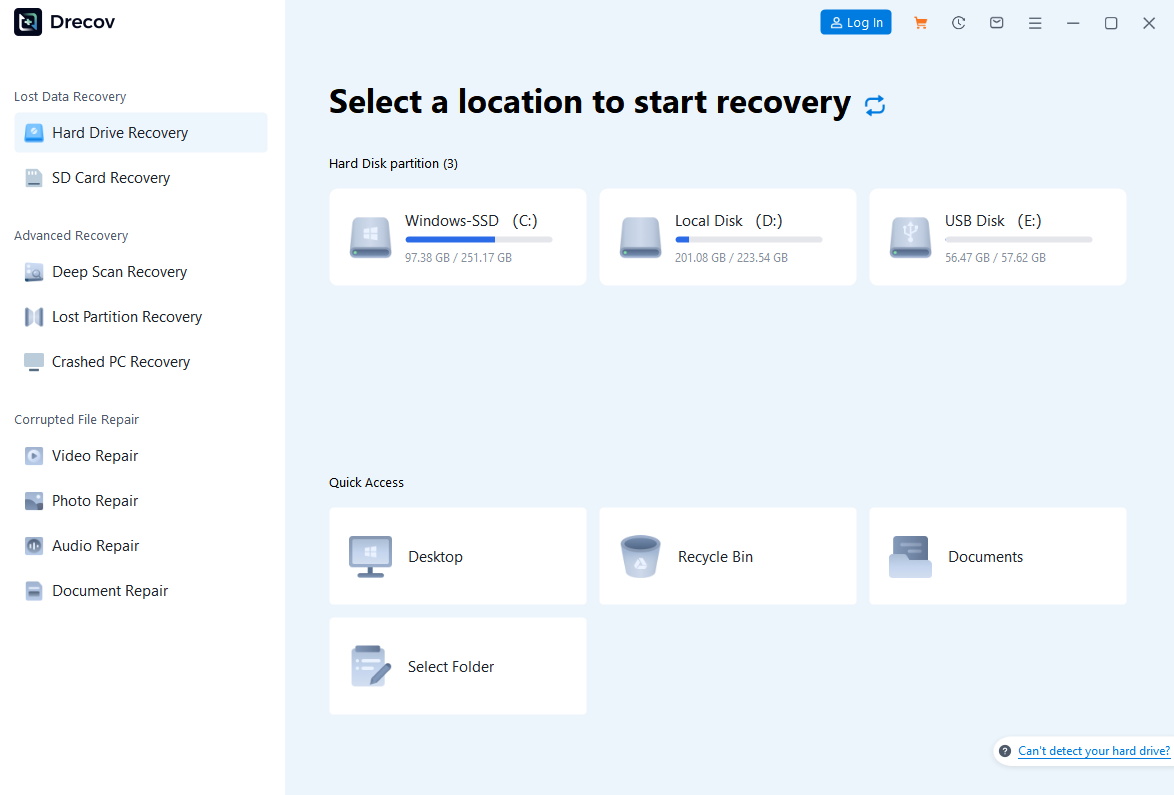
Step 2: File Preview – During the scan, you can preview files such as Word documents, Excel spreadsheets, and images. If a file is previewable, it means it can be recovered.

Step 3: File Recovery – Check the files you need to recover, click “Recover,” and save the files to the C drive or an external hard drive (do NOT save them back to the D drive). After completion, locate the files in the save path.
Prioritize using “Quick Scan,” which takes 5-10 minutes and can cover most recently deleted files. If the target file isn’t found, use “Deep Scan”—it’s more thorough but takes longer.
Scenario 3: System Backup Recovery – File History/System Protection
If you’ve enabled Windows “File History” or “System Protection,” you can recover files using the system’s built-in features. This method is a preventive and reliable option in the overall guide of How to Recover Deleted Files from Recycle Bin, though it requires setup before the file is deleted.
Applicable Scenarios: System backup features have been enabled; recovering files from the local hard drive (this feature isn’t supported for USB drives or external hard drives); needing to retrieve previous edited versions of a file.
Steps (Taking Windows 11 as an Example):
Step 1: Open the folder where the file was originally stored (e.g., “E Drive – Design Materials”). Right-click on an empty space and select “Properties.”
Step 2: Switch to the “Previous Versions” tab. Here, you’ll see a list of automatically backed-up versions of the folder, each marked with a creation time.
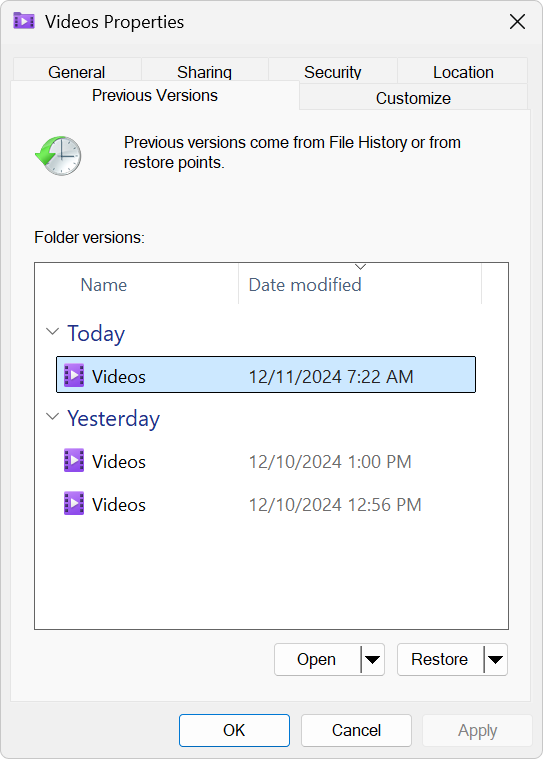
Step 3: Select a version from before the file was deleted (e.g., if the file was deleted today, choose yesterday’s backup) and click “Restore.” The folder will revert to its state at that time, and the accidentally deleted file will be recovered.
How to Enable System Protection:
Step 1: Right-click “This PC” → “Properties” → “System Protection.”
![How to Recover Deleted Files from Recycle Bin [2025 Guide]](https://media.pandaoffice.com/wp-content/uploads/2025/11/how-to-recover-deleted-files-from-recycle-bin-2025-guide-3.png)
Step 2: Select frequently used disks (e.g., D drive, E drive), click “Configure” → “Turn on system protection,” and allocate 10-20GB of storage space for backups. System Protection creates “snapshots” of folders for backup, which works differently from the Recycle Bin and can retrieve permanently deleted files.
![How to Recover Deleted Files from Recycle Bin [2025 Guide]](https://media.pandaoffice.com/wp-content/uploads/2025/11/how-to-recover-deleted-files-from-recycle-bin-2025-guide-4.png)
Extreme Cases: Professional Data Recovery Services
Seek help from professional data recovery agencies in the following situations:
- Physical hard drive failure: Unusual clicking noises when powered on, or the computer fails to recognize the hard drive;
- Severe data overwriting: A large amount of new data has been written to the target partition after the file was deleted;
- High-value files: Contracts, project data, and other files that require 100% complete recovery.
When choosing an agency, prioritize those with a “dust-free disk opening lab” and a “recover first, pay later” guarantee.
Common Mistakes in Recycle Bin Recovery
- Mistake 1: Restarting immediately after deletion – Restarting the system may clear temporary files and overwrite the data waiting to be recovered;
- Mistake 2: Using “Disk Cleanup” – This feature deletes residual data on the hard drive, causing secondary damage;
- Mistake 3: Using little-known software – Some untrusted software may tamper with the disk partition table, leading to data loss;
- Mistake 4: Saving recovered files back to the original partition – This may overwrite other unrecovered files, reducing the overall success rate.
Basic Recycle Bin Settings
Properly configuring the Recycle Bin can reduce the risk of accidental deletion:
Step 1:Adjust space: Right-click “Recycle Bin” → “Properties” to allocate independent space for each partition (e.g., 20GB for the D drive), preventing large files from bypassing the Recycle Bin directly;
![How to Recover Deleted Files from Recycle Bin [2025 Guide]](https://media.pandaoffice.com/wp-content/uploads/2025/11/how-to-recover-deleted-files-from-recycle-bin-2025-guide-2.png)
Step 2:Enable deletion prompts: Check “Display delete confirmation dialog” in properties;
![How to Recover Deleted Files from Recycle Bin [2025 Guide]](https://media.pandaoffice.com/wp-content/uploads/2025/11/how-to-recover-deleted-files-from-recycle-bin-2025-guide-7.png)
Customize retention time:
For Windows Pro/Enterprise/Education (Group Policy)
1.Open Group Policy Editor
- Press Win+R, type gpedit.msc, and press Enter. If it fails, confirm your edition is not Home.
![How to Recover Deleted Files from Recycle Bin [2025 Guide]](https://media.pandaoffice.com/wp-content/uploads/2025/11/how-to-recover-deleted-files-from-recycle-bin-2025-guide-9.png)
2.Navigate to the Policy Path
- Go to Computer Configuration > Administrative Templates > Windows Components > Windows Backup/System Restore (path may vary slightly by Windows version).
![How to Recover Deleted Files from Recycle Bin [2025 Guide]](https://media.pandaoffice.com/wp-content/uploads/2025/11/how-to-recover-deleted-files-from-recycle-bin-2025-guide-10.png)
3.Locate and Enable the Retention Policy
- Find the policy named “Set restore point retention period” or similar. Double-click it.
- Select Enabled. Enter your desired retention days (e.g., 90, 180, 365) in the specified field.
- Click Apply > OK to save the policy.
![How to Recover Deleted Files from Recycle Bin [2025 Guide]](https://media.pandaoffice.com/wp-content/uploads/2025/11/how-to-recover-deleted-files-from-recycle-bin-2025-guide-11.png)
4.Adjust System Protection Disk Space
- Press Win+Pause/Break to open System > System Protection.
- Select the system drive (usually C:), click Configure.
- Move the slider to increase the maximum disk space allocated (e.g., 10–15% of the drive). Click Apply > OK.
5.Enforce Policy and Restart
- Open Command Prompt as Administrator. Run gpupdate /force to apply the policy immediately.
- Restart your computer to ensure all changes take effect.
For Windows Home (Registry, No gpedit.msc)
Windows Home lacks gpedit.msc by default. Use the Registry to set retention time and adjust disk space via System Protection.
1.Backup Registry (Critical)
- Press Win+R, type regedit, and press Enter.
- Click File > Export. Save the backup to an external drive or a safe folder (name it Registry_Backup_Date.reg).
![How to Recover Deleted Files from Recycle Bin [2025 Guide]](https://media.pandaoffice.com/wp-content/uploads/2025/11/how-to-recover-deleted-files-from-recycle-bin-2025-guide-12.png)
2.Modify Retention Time (RPLifeInterval)
- Navigate to: HKEY_LOCAL_MACHINE\SOFTWARE\Microsoft\Windows NT\CurrentVersion\SystemRestore
- Right-click the right pane, select New > DWORD (32-bit) Value, and name it RPLifeInterval (if it doesn’t exist).
![How to Recover Deleted Files from Recycle Bin [2025 Guide]](https://media.pandaoffice.com/wp-content/uploads/2025/11/how-to-recover-deleted-files-from-recycle-bin-2025-guide-13.png)
- Double-click RPLifeInterval, select Decimal, and enter the value in seconds:
- 30 days: 2592000
- 90 days: 7776000
- 180 days: 15552000
- 365 days: 31536000
- Click OK to save the value.
3.Adjust System Protection Disk Space
- Follow Step 4 from the Pro/Enterprise/Education section above to increase the allocated disk space for system protection.
4.Restart and Validate
- Restart your computer. Create a test restore point and monitor its presence over the next few days to ensure retention works as expected.
Optional: Install gpedit.msc on Windows Home (Temporary)
If you need Group Policy for other tasks, you can install it temporarily, but Registry is more reliable for single policies like retention time.
1.Create a Batch File
- Open Notepad, paste the following commands:bat
@echo off net session >nul 2>&1 || (echo Run as Administrator && pause && exit /b 1) for /f %%i in ('dir /b "%SystemRoot%\servicing\Packages\Microsoft-Windows-GroupPolicy-ClientTools-Package~3*.mum"') do DISM /Online /NoRestart /Add-Package:"%SystemRoot%\servicing\Packages\%%i" for /f %%i in ('dir /b "%SystemRoot%\servicing\Packages\Microsoft-Windows-GroupPolicy-ClientExtensions-Package~3*.mum"') do DISM /Online /NoRestart /Add-Package:"%SystemRoot%\servicing\Packages\%%i" echo Installation complete. Restart your PC. pause
![How to Recover Deleted Files from Recycle Bin [2025 Guide]](https://media.pandaoffice.com/wp-content/uploads/2025/11/how-to-recover-deleted-files-from-recycle-bin-2025-guide-5.png)
- Save the file as gpedit-install.bat (set Save as type to All Files).
2.Run as Administrator
- Right-click the batch file and select Run as Administrator. Wait for the process to complete, then restart your PC.
3.Open gpedit.msc
- Press Win+R, type gpedit.msc, and press Enter. Note that some ADMX/ADML templates may be missing, which could affect certain policies. Use the Registry method if you encounter policy errors.
Use the Group Policy Editor (press Win+R, enter “gpedit.msc”) to extend the file retention time beyond the default 30 days, providing a longer recovery window.
Data Protection Recommendations
Tip 1: Cloud drive synchronization – Store frequently used files in widely used cloud storage services like Google Drive , Dropbox , or Microsoft OneDrive , and enable the “automatic sync” feature.
Tip 2: External hard drive backup – Regularly back up critical data to an external hard drive, ideally once a week.
Optimize Recycle Bin settings: Right-click “Recycle Bin” → “Properties,” uncheck “Don’t move files to the Recycle Bin (remove files immediately when deleted),” and increase the partition space to extend the file retention time.
How to Recover Deleted Files from Recycle Bin requires targeted solutions based on the scenario: Restore directly if the Recycle Bin isn’t emptied, use PandaOffice DRecov for scanning if it’s emptied, and use the “Previous Versions” feature if system backups are enabled. The key to successful recovery is to stop writing operations to the target partition immediately after accidental deletion—timely action can increase the success rate to over 90%. With this guide, you now have a complete answer to How to Recover Deleted Files from Recycle Bin.






