







In the world of digital organization, the desktop serves as your primary workspace. However, for many users, the presence of system icons can feel like unnecessary clutter. Learning how to hide recycle bin icons is one of the first steps toward achieving a clean, professional aesthetic. Whether you are a creative professional who wants a distraction-free view of your wallpaper or a power user who prefers navigating via shortcuts, managing your desktop icons is essential.
In this comprehensive guide, we will explore every method to hide the recycle bin from the desktop, ranging from simple settings to advanced registry tweaks. Furthermore, we will delve into the critical world of data recovery, ensuring that even if you hide or empty your bin, your files remain protected.
Understanding the Recycle Bin and Its Role in Windows
What the Recycle Bin Actually Does
Every Windows computer includes a small but important feature called the Recycle Bin. Think of it as a digital trash can sitting on your desktop. Whenever you delete a file, Windows usually sends it to this bin instead of removing it permanently. This means if you accidentally delete something—maybe an important document or a favorite photo—you still have a second chance to recover it.
The Recycle Bin stores deleted files temporarily until you decide to empty it. Once emptied, the files are removed from the system’s directory and the storage space becomes available for new data. This process makes file deletion safer because it prevents accidental permanent loss.
Why Some Users Prefer to Hide It
Even though the Recycle Bin plays an essential role, not everyone likes seeing it on the desktop. Some people prefer a minimalist desktop layout, where only essential icons appear. Others want a clean workspace for presentations, screenshots, or aesthetic reasons. After all, your desktop is like the front desk of your computer—it’s the first thing you see when you turn on your system.
How to hide recycle bin functionality? It is important to note that hiding the icon doesn’t remove its functionality. The system will still send deleted files to the bin unless you change other settings. The icon simply disappears from the desktop interface.
The Easiest Way to Hide the Recycle Bin Icon
Using Windows Desktop Icon Settings
The simplest and most common way to hide the Recycle Bin is through Desktop Icon Settings. This built-in feature allows users to control which system icons appear on the desktop. Windows includes several default desktop icons such as This PC, Network, Control Panel, and the Recycle Bin. These icons can be toggled on or off depending on your personal preference.
Hide Recycle Bin Windows 10 and Windows 11
While the interface looks slightly different between versions, the logic remains the same. Follow these steps to hide recycle bin windows 10 or 11:
- Step 1: Right-click on an empty space on your desktop and select Personalize.
- Step 2: In the Settings window, navigate to the Themes tab on the left (Windows 10) or center (Windows 11).
- Step 3: Scroll down or look to the right sidebar to find Desktop icon settings.
- Step 4: A small window will pop up. Under the “Desktop Icons” section, find the Recycle Bin checkbox.
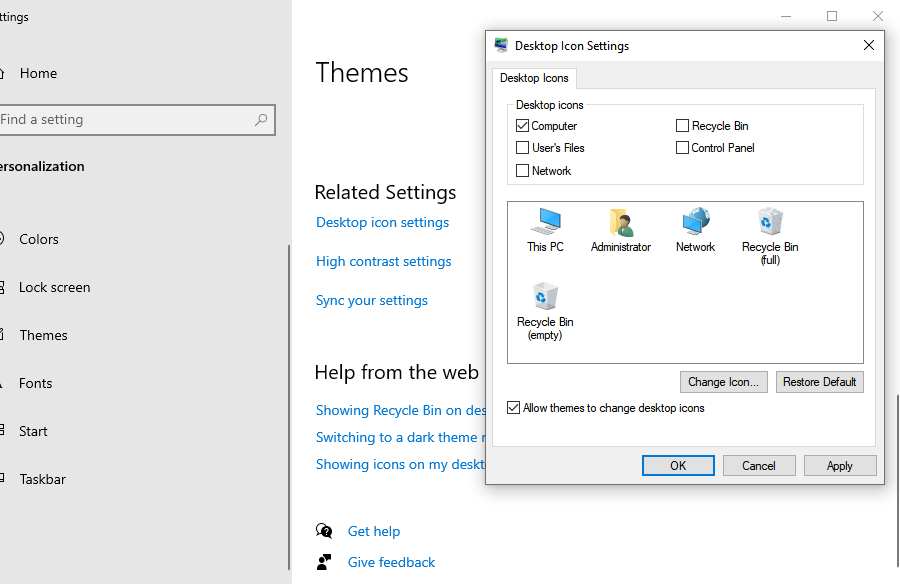
- Step 5: Uncheck the box next to Recycle Bin.
- Step 6: Click Apply and then OK.
By following these instructions, you successfully hide recycle bin win 11 and 10 icons instantly. This method is preferred because it uses official system settings and is completely reversible. For more official documentation, you can visit the Microsoft Support page on desktop icons.
Hiding Recycle Bin Using Desktop Context Menu
How the “Show Desktop Icons” Feature Works
If you want to know how to hide recycle bin from desktop along with every other icon, this is the “nuclear option.” This method doesn’t just hide the bin; it wipes the entire desktop clean of all shortcuts and files visually.
- Step 1: Right-click any empty area on your desktop.
- Step 2: Hover your mouse over the View option.
- Step 3: Locate Show desktop icons at the bottom of the sub-menu.
- Step 4: Click it to uncheck the option.
Pros and Cons of This Method
| Feature | Advantage | Disadvantage |
| Speed | Hides icons in two clicks | Removes everything from view |
| Simplicity | No menus or settings needed | Harder to access specific shortcuts |
| Reversibility | Toggle it back on instantly | Can be confusing for beginners |
This is the fastest way to hide recycle bin icons during a screen-sharing session or when taking a clean screenshot of your wallpaper.
Advanced Method: Hide Recycle Bin Using Group Policy Editor
When to Use Group Policy Editor
For advanced users or IT administrators, the Group Policy Editor offers another way to manage desktop visibility. This is particularly useful if you are managing multiple workstations and want to ensure a uniform look. Note that this feature is generally available only on Windows Pro, Enterprise, and Education editions.
Step-by-Step Configuration
To use this advanced method to hide the recycle bin from the desktop, follow these precise steps:
- Step 1: Press Windows Key + R to open the Run dialog box.
- Step 2: Type
gpedit.mscand press Enter. - Step 3: Navigate through the folder tree:
User Configuration>Administrative Templates>Desktop. - Step 4: In the right-hand pane, look for the policy named Remove Recycle Bin icon from desktop.
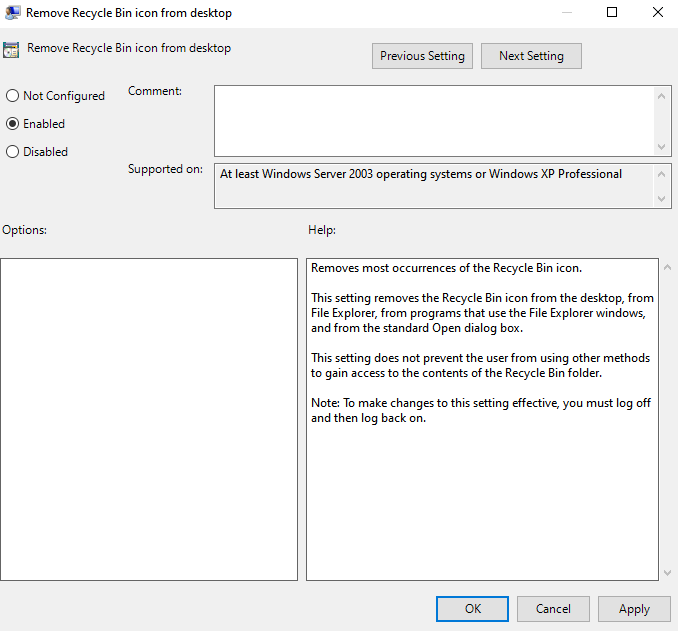
- Step 5: Double-click this policy to open its settings.
- Step 6: Select the Enabled radio button.
- Step 7: Click Apply and OK.
Enabling the Policy to Remove Desktop Icons
Once enabled, you may need to refresh your desktop or restart Windows Explorer for the changes to take effect. This method is more permanent than the settings menu and prevents other users of the computer from easily toggling the icon back on through standard personalization settings.
Advanced Method: Hide Recycle Bin Using Registry Editor
Understanding Registry Settings
The Windows Registry is the “brain” of the operating system. Modifying it can change almost any behavior in Windows. However, you should always back up your registry before making changes, as errors can lead to system instability.
Steps to Modify Registry Values
If you want to manually hide recycle bin win 11 or 10 via the registry, follow these steps:
- Step 1: Press Windows Key + R, type
regedit, and hit Enter. - Step 2: Navigate to the following path:
HKEY_CURRENT_USER\Software\Microsoft\Windows\CurrentVersion\Explorer\HideDesktopIcons\NewStartPanel - Step 3: Look for a DWORD value named
{645FF040-5081-101B-9F08-00AA002F954E}. - Step 4: If it doesn’t exist, right-click, select New > DWORD (32-bit) Value, and name it exactly as shown above.
- Step 5: Double-click the entry and set the Value data to
1to hide the icon. (Set it to0to show it).
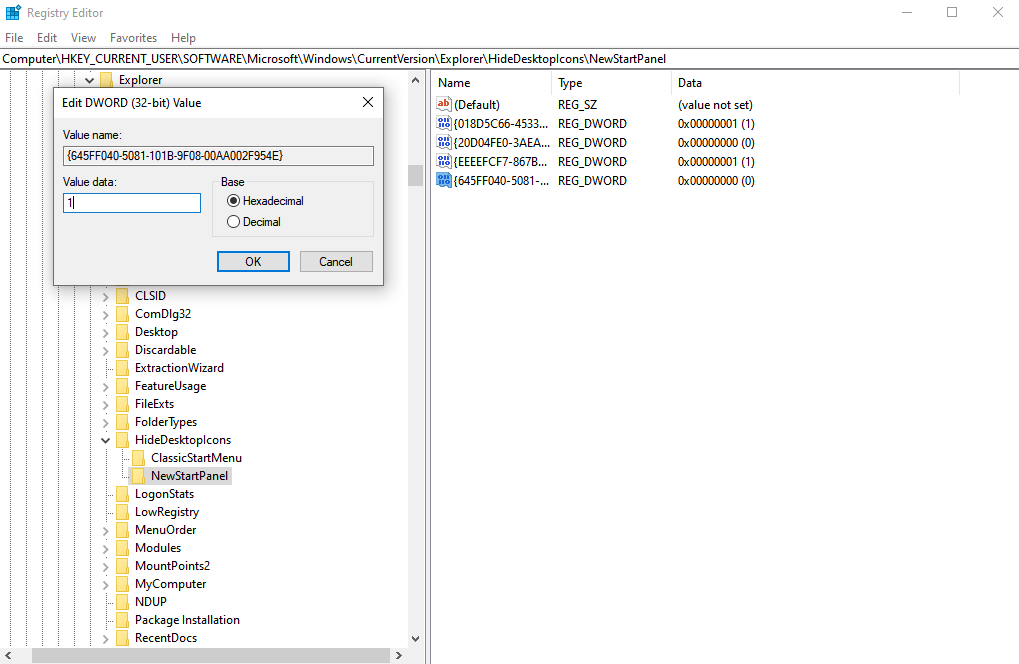
- Step 6: Close the editor and refresh your desktop.
Accessing the Recycle Bin After Hiding It
Opening Recycle Bin from File Explorer
Once you hide recycle bin, you might worry about how to empty it or restore a file. Fortunately, it is still very accessible.
- Open File Explorer (Windows Key + E).
- In the address bar at the top, click the first arrow (
>) or typeRecycle Binand press Enter. - Alternatively, you can pin the Recycle Bin to your Quick Access or Start Menu before hiding it from the desktop.
Restoring the Icon if Needed
If you ever feel that your minimalist journey has gone too far, restoring the icon is just as easy as hiding it. Simply return to the Desktop icon settings and re-check the box. Windows handles the rest.
The Risk of Hiding Icons: Accidental Data Loss
When you hide the recycle bin from the desktop, the “out of sight, out of mind” phenomenon often occurs. You might forget how much data is accumulating in the bin, or worse, you might use the Shift + Delete shortcut to bypass the bin entirely to keep things “clean.”
If you realize you deleted a file and the bin was recently emptied or bypassed, you need a professional solution. This is where PandaOffice Drecov becomes your best friend.
⚠ Warning: Install it on a drive different from the one where your data was lost to prevent overwriting.
How to Recover Deleted Files with PandaOffice Drecov
PandaOffice Drecov is a powerful, user-friendly data recovery tool designed to retrieve lost photos, documents, and videos from your hard drive, even after the Recycle Bin has been emptied.
- Step 1: Select Location: Launch the software. You will see a list of drives and common locations. Select the Recycle Bin icon or the specific drive where your deleted file was originally located.
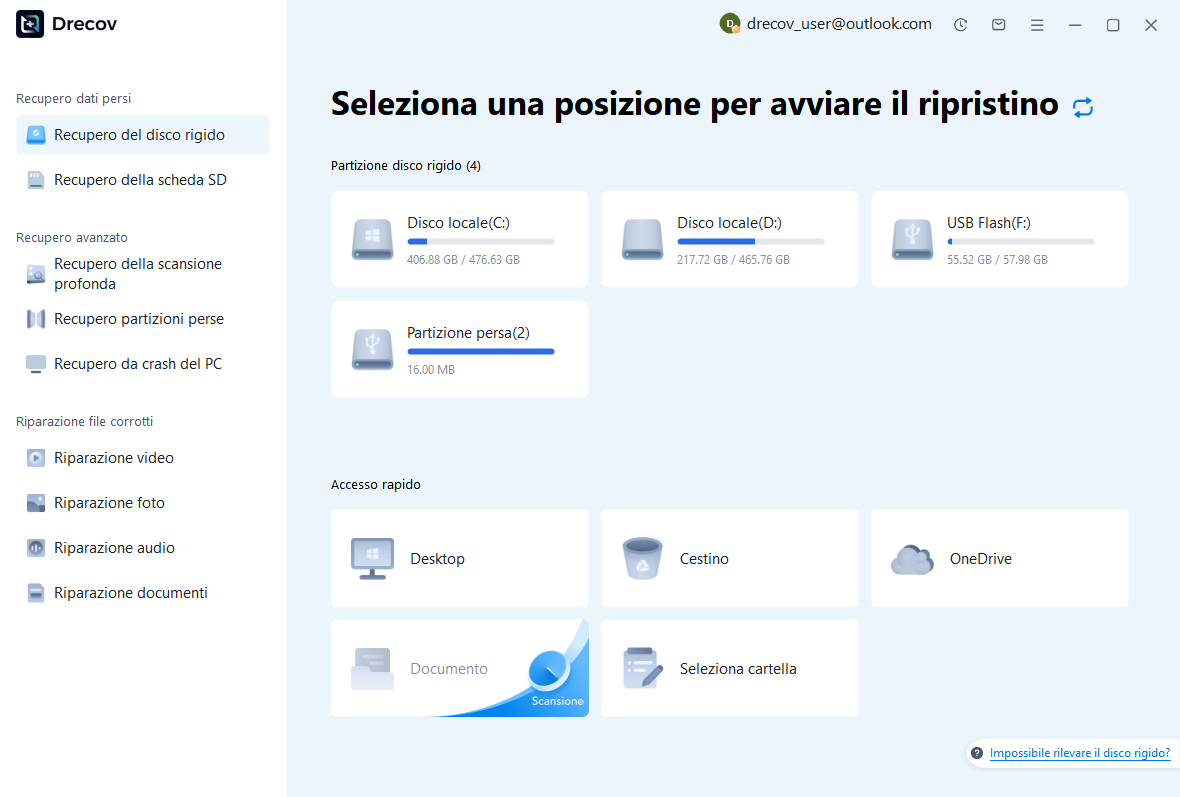
- Step 2: Scan for Data: Click the Scan button. PandaOffice Drecov will perform a “Quick Scan” followed by a “Deep Scan” to find fragments of files that Windows no longer “sees.”
- Warning: Do not turn off your computer or remove external drives during the scanning process.

- Step 3: Preview and Filter: Use the built-in previewer to look at images or text files. This ensures you are recovering the correct version of your document.

- Step 4: Recover: Select the files you want back and click Recover.
Key Operation Point: Always save the recovered files to a different drive (like a USB stick) to ensure the recovery process is 100% successful.
More Data Recovery Insights
Hiding your icons is a great way to stay organized, but knowing where your data goes is even more important for long-term system health. If you are still curious about the mechanics of the bin, you might find these resources helpful:
- Where is Recycle Bin in Windows 10? 3 Quick Ways to Find It
- Where Do I Find Recycle Bin in Windows 10?
Benefits of Hiding the Recycle Bin
Beyond just looking “cool,” there are psychological and technical benefits to learning how to hide recycle bin:
- Reduced Anxiety: A cluttered desktop often mirrors a cluttered mind. Reducing visual noise can help you focus on the task at hand.
- Privacy: If you are sharing your screen in a professional meeting, you might not want others to see how many files you’ve recently tossed.
- Wallpaper Appreciation: If you use high-resolution photography or dynamic wallpapers, system icons often block the best parts of the image.
Tips for Keeping Your Desktop Clean and Organized
Learning how to hide recycle bin from desktop is just the start. Try these additional tips:
- Use Taskbar Pinning: Pin your most-used apps to the taskbar instead of having shortcuts on the desktop.
- The “Folders” Rule: Try to keep no more than five folders on your desktop. Move everything else to the “Documents” or “Projects” folder.
- Automate Cleanup: Use Windows “Storage Sense” to automatically clear out the Recycle Bin every 30 days.
Hide Recycle Bin FAQs
1. Does hiding the Recycle Bin save disk space?
No. Hiding the icon only changes the visual interface. To save space, you must actually empty the bin or use a tool like PandaOffice Drecov if you accidentally empty something important.
2. Can I hide the Recycle Bin on a Mac?
While this guide focuses on Windows, macOS users typically find their trash in the Dock. You cannot “hide” it as easily as in Windows, but you can use third-party tools to modify Dock behavior.
3. Is it safe to use the Registry Editor to hide icons?
It is safe as long as you follow the steps exactly. However, for 99% of users, the Desktop Icon Settings method is the best and safest way to hide recycle bin windows 10.
4. What if I Shift+Deleted a file while the bin was hidden?
Shift + Delete bypasses the Recycle Bin entirely. In this case, your only option is to use a recovery tool like PandaOffice Drecov immediately before the data is overwritten by new files.
Conclusion
Mastering how to hide recycle bin icons is a simple yet effective way to take control of your Windows experience. Whether you choose the user-friendly path of Desktop Icon Settings or the technical route of the Registry Editor, the result is a cleaner, more focused workspace.
Remember, a hidden bin is still a functional bin. Keep your data safe by performing regular backups, and should you ever encounter an accidental deletion, rely on professional tools like PandaOffice Drecov to bridge the gap between loss and recovery.






