







How do you check an SSD’s health on Windows 10/11?—ask from Quora
Understanding SSD Health
What SSD Health Means
SSD health refers to the overall condition of your solid-state drive and its ability to store and access data efficiently. When you perform a check ssd health, you are evaluating its performance, lifespan, and potential risk of failure. Modern SSDs store data using NAND flash memory, which can degrade over time. Monitoring health ensures you can detect early signs of wear and avoid unexpected data loss.
There are multiple ways to perform a ssd disk health check, from simple system tools to advanced CMD commands. A health check helps identify issues such as declining read/write speeds, worn-out memory cells, or bad blocks. Knowing how to check health of ssd allows you to maintain performance, prevent corruption, and plan for data recovery if necessary.
Most SSDs include built-in SMART (Self-Monitoring, Analysis, and Reporting Technology) attributes. These indicators provide a snapshot of wear levels, error rates, and other vital statistics. Regular ssd health checker routines help keep these metrics in check, ensuring reliable operation for personal and professional data storage needs.
Why Regular SSD Health Checks Are Important
Regularly performing an ssd check health is crucial because SSDs have a limited lifespan, measured in terabytes written (TBW). Over time, memory cells wear out, which can lead to slower performance or even sudden failure. By conducting frequent health check ssd procedures, you can proactively identify issues before they result in data loss.
Checking SSD health also helps maintain optimal system performance. A drive with degraded health may cause longer boot times, lagging applications, or errors when saving files. For those using SSDs in work environments or for critical projects, maintaining proper check ssd drive health ensures smooth operation and reliability.
Routine checks can prepare you for data recovery scenarios. If your SSD begins to show warning signs, having recovery software like Pandaoffice Drecov on hand allows you to restore important files safely. Understanding how to check the health of an ssd empowers users to take preventative action, ensuring their data is always protected.
Common Signs of SSD Degradation
Identifying early warning signs of SSD degradation is essential. Common symptoms include slower read/write speeds, frequent system crashes, and unexplained file corruption. Monitoring these indicators through a ssd drive health checker or built-in Windows tools allows you to perform timely interventions.
SMART attributes often show signs of wear long before you notice performance issues. Attributes such as reallocated sectors, wear leveling counts, or pending sectors indicate potential failure. Running a check health of ssd regularly helps detect these problems early.
Other signs include the system failing to recognize the SSD intermittently or repeated error messages during file operations. These warnings suggest the SSD may require attention, such as formatting, firmware updates, or data recovery using Pandaoffice Drecov. Recognizing these signs ensures that minor issues don’t escalate into major data loss events.
Preparing to Check SSD Health
Checking SSD Connections and System Requirements
Before conducting a health check, ensure the SSD is properly connected to your system. Loose cables, faulty SATA/USB connections, or outdated drivers can affect the results of a ssd check health test. Confirm that Windows 10 or 11 recognizes the drive, and that you have administrator access to run CMD commands.
Understanding how to check ssd health windows 11 or Windows 10 requires meeting certain system requirements. Ensure the drive is formatted correctly and accessible, and that SMART monitoring is enabled in the system BIOS or UEFI. This allows commands like WMIC or PowerShell to report accurate results.
Performing these preliminary steps reduces errors during check health of ssd processes and ensures accurate diagnostics. A well-prepared system lays the foundation for effective health monitoring and prevents false alarms about SSD performance.
Backing Up Important Data Before Health Checks
Even though checking SSD health is generally safe, it’s wise to back up important data beforehand. Unexpected issues may arise if the drive has serious degradation, including potential data corruption. Using backup drives or cloud storage ensures your files remain safe.
By taking precautionary measures, you’re also ready for scenarios where recovery is necessary. Pandaoffice Drecov is an excellent tool for restoring lost or accidentally deleted documents, providing peace of mind while performing advanced ssd health checker tasks. Regular backups combined with health checks form a solid strategy for data protection.
Recommended Tools for SSD Health Monitoring
Windows provides several built-in tools for monitoring SSD health. CMD commands like WMIC, PowerShell scripts, or third-party ssd health checker utilities can report SMART attributes and overall drive condition. These tools allow you to perform a reliable check ssd drive health without installing unnecessary software.
For users who want to proactively protect data, combining these monitoring tools with Pandaoffice Drecov ensures that files are recoverable if the SSD shows warning signs. A proper toolkit allows you to track wear levels, detect errors early, and maintain long-term SSD performance.
Methods to Check SSD Health Using CMD
Using WMIC Command to Check SSD Health
The Windows Management Instrumentation Command-line (WMIC) tool is a simple and effective way to perform a ssd check health. First, open CMD as an administrator. Then type wmic diskdrive get status and press Enter. This command will display the health status of all connected drives, showing “OK” for healthy drives.
This method provides a quick overview of your SSD’s condition, helping you identify potential issues before they escalate. While it doesn’t give in-depth metrics like SMART attributes, it is useful for routine checks and beginner users who want to know how to check health of ssd quickly.
For more detailed monitoring, you can combine WMIC with additional CMD commands to inspect drive properties, error counts, and read/write statistics. Pairing this approach with Pandaoffice Drecov ensures that any unexpected problems, such as accidental formatting or corruption during monitoring, can be recovered efficiently.
Using PowerShell Commands for SSD Diagnostics
PowerShell offers a more advanced method for check ssd drive health. Commands like Get-PhysicalDisk or Get-StorageReliabilityCounter provide detailed insight into wear levels, operational hours, and failure predictions. This allows you to perform a professional-grade ssd health checker evaluation.
Running these commands on Windows 10 or 11 gives you the ability to detect subtle performance degradation before it becomes critical. For example, you can view read/write error counts or lifetime writes to understand the current condition of the SSD. This is particularly helpful for users managing multiple drives or high-demand storage setups.
If data issues arise during these checks, Pandaoffice Drecov can recover accidentally deleted or corrupted documents. Combining CMD or PowerShell diagnostics with reliable recovery tools ensures that your SSD health is properly monitored and your data remains safe.
Understanding SMART Attributes in CMD
SMART (Self-Monitoring, Analysis, and Reporting Technology) provides detailed health metrics for SSDs. Using CMD commands such as wmic diskdrive get status, model, size or Get-PhysicalDisk | Format-Table -Property FriendlyName, OperationalStatus, HealthStatus, you can view SMART attributes directly.
Key SMART indicators include wear leveling, read/write errors, and reallocated sectors. Monitoring these values regularly is crucial for performing a reliable ssd disk health check. If values indicate degradation, immediate action, such as backing up files or using Pandaoffice Drecov, can prevent data loss.
Understanding how to interpret these attributes helps you perform a complete check health of ssd, giving insight into both current performance and future longevity. Regular SMART monitoring is essential for any SSD user who wants to ensure maximum reliability.
Interpreting SSD Health Results
Key Metrics to Monitor (Wear Level, Read/Write Errors)
When analyzing your SSD health, focus on key metrics such as wear leveling count, reallocated sectors, and read/write error rates. These figures provide insight into the drive’s lifespan and operational reliability. High error counts or low wear levels indicate that your SSD may require attention soon.
Monitoring these metrics through CMD or PowerShell is part of performing a thorough ssd health checker routine. Regular evaluation helps you plan backups, optimize performance, and avoid unexpected drive failures. For users who want additional safety, pairing these checks with Pandaoffice Drecov ensures that important data remains recoverable even if issues arise.
What to Do if SSD Health Is Poor
If your SSD shows poor health indicators, immediate action is recommended. Start by backing up all essential data to another storage device. Avoid writing new data to the failing SSD to prevent further damage. Running firmware updates or performing secure erases may improve performance temporarily, but underlying wear cannot be reversed.
Recovery tools like Pandaoffice Drecov are invaluable in these situations. They allow users to retrieve accidentally lost or corrupted files during diagnostics, formatting, or drive maintenance. Combining proper monitoring with professional recovery ensures your data is safe even when SSD health deteriorates.
Using Pandaoffice Drecov to Recover Data from SSDs With Issues
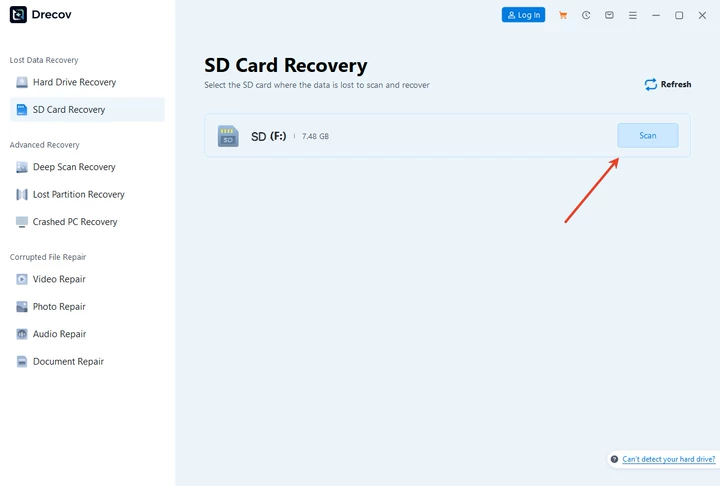
Accidental file loss can occur during health checks or when an SSD begins failing. Pandaoffice Drecov specializes in recovering formatted, deleted, or corrupted documents safely and efficiently. Simply install the software, select the affected SSD, and run a scan to preview recoverable files.
Download DrecovFor anyone learning how to check the health of an ssd, having Pandaoffice Drecov as a backup plan ensures peace of mind. Even if the drive begins showing errors, you can restore essential documents without stress. Regular monitoring combined with recovery software makes SSD management secure and reliable.


Maintaining SSD Health
Tips for Extending SSD Lifespan
To extend your SSD’s life, avoid filling it to full capacity, enable TRIM in Windows, and keep firmware updated. Avoid frequent full-formatting or unnecessary heavy write operations, which can accelerate wear. Performing regular ssd check health evaluations ensures that these maintenance practices are effective.
Monitoring tools and CMD commands allow you to track wear levels and take proactive action when needed. Proper care not only improves performance but also prolongs the SSD’s operational lifespan, giving you consistent reliability over time.
Regular Health Checks and Monitoring
Routine check ssd health is essential. Schedule monthly or quarterly inspections using CMD or PowerShell commands. Keep an eye on SMART attributes and operational warnings. Early detection of potential failures helps prevent data loss and improves overall system stability.
For critical drives or drives storing essential documents, combining monitoring with Pandaoffice Drecov ensures a safety net for data recovery. This approach minimizes risks while maintaining optimal SSD health.
Best Practices for SSD Usage on Windows 10/11
When using an SSD on Windows 10 or 11, always avoid excessive writes, maintain sufficient free space, and periodically check the drive using built-in or third-party ssd health checker tools. Avoid storing temporary or non-essential files on primary SSDs.
Implementing these best practices, combined with frequent health evaluations, allows for consistent performance and reduces the chance of unexpected failure. In case of accidental formatting or corruption, Pandaoffice Drecov provides reliable document recovery, making SSD management safe and stress-free.
FAQs About SSD Health
How Often Should You Check SSD Health?
It is recommended to perform an SSD health check at least once a month, or more frequently for drives used in high-demand environments. Regular ssd check health ensures early detection of potential issues and protects your data.
Can SSD Health Be Restored After Degradation?
No, once NAND cells wear out, physical degradation cannot be reversed. However, proper maintenance and monitoring can extend the usable life of the SSD. Using Pandaoffice Drecov ensures data safety even as health declines.
How to Check SSD Health Without CMD?
If you prefer not to use CMD, Windows 10/11 users can rely on PowerShell, third-party ssd health checker tools, or built-in disk utilities to perform health checks. Most options display SMART metrics and operational status for easy interpretation.





