







Losing important digital assets can feel like dropping your phone into the ocean—sudden, stressful, and seemingly irreversible. Fortunately, Microsoft OneDrive includes several built-in recovery tools that help users restore OneDrive files and retrieve deleted or modified data. Whether you accidentally deleted a crucial document, overwrote a month-long project, or experienced a frustrating syncing issue, there are multiple sophisticated ways to regain your data.
Understanding OneDrive File Recovery
Cloud storage platforms are designed with redundancy and high-level recovery systems. In the OneDrive ecosystem, deleted files usually move to a cloud-based recycle bin, and changes made to files are tracked meticulously through version history. This means even if a document is edited incorrectly or corrupted by a software glitch, you can revert to an earlier version without losing your entire workflow.
According to official Microsoft Support documentation, OneDrive stores deleted files in its recycle bin for up to 30 days for personal accounts. Meanwhile, work or school accounts may keep deleted items for up to 93 days, depending on specific administrator settings. Think of OneDrive as a digital time machine for your files; instead of permanent loss, most mistakes can be undone with a few strategic clicks. Understanding how these recovery systems work is the first essential step toward protecting your data and avoiding unnecessary panic.
To effectively restore OneDrive files, one must understand the underlying architecture of cloud synchronization. OneDrive isn’t just a folder on your computer; it is a dynamic bridge between your local hardware and Microsoft’s secure servers. This dual-existence provides multiple “catch nets” for your data.
What Happens When Files Are Deleted in OneDrive
When you delete a file in OneDrive, it doesn’t vanish into the digital void immediately. Instead, the system moves it to the OneDrive Recycle Bin, where it stays temporarily before permanent removal. This design is intentional—it acts as a vital safety net for accidental deletions. During this period, you can restore OneDrive files quickly without needing specialized third-party software. If the recycle bin becomes full, the oldest files may be removed automatically to make room for new ones, so acting quickly is always the best policy.
How OneDrive Protects Your Files with Cloud Backup
Another significant advantage of OneDrive is its cloud-based backup system. Files synced to the cloud are stored on remote servers rather than just your local hard drive. This means even if your physical device fails, is stolen, or is lost, your data remains accessible online. Furthermore, OneDrive tracks file activity and version changes. If someone accidentally edits or overwrites a file, the version history allows you to roll back to an earlier saved state, ensuring that a single mistake doesn’t ruin hours of labor.
Common Reasons Files Disappear from OneDrive
Before you attempt to restore OneDrive files, it helps to diagnose why they disappeared in the first place. Not all missing files are permanently deleted—sometimes they are moved, renamed, or temporarily hidden by sync errors.
Accidental Deletion
The most common cause of missing files is simple human error. It only takes one misclick or a stray “Delete” key press to remove a folder containing hundreds of documents. Since the sync client mirrors these actions, the file disappears from both your computer and the cloud simultaneously.
Sync Errors and Device Conflicts
OneDrive syncs files across multiple devices such as laptops, phones, and tablets. Occasionally, sync conflicts occur when two devices attempt to update the same file at the same time. This can cause duplicates, missing versions, or overwritten documents. Sync interruptions may also happen due to internet connectivity problems or outdated versions of the OneDrive application.
Malware or Ransomware Attacks
Cyber threats are a growing reason why files might disappear or become corrupted. Ransomware attacks sometimes encrypt cloud-synced files, making them inaccessible. Microsoft designed the restore OneDrive files feature specifically to address these catastrophic events, allowing users to bypass the encryption by jumping back in time.
How to Restore OneDrive Files from the Recycle Bin
The primary method to restore OneDrive files is through the web-based Recycle Bin. This is often more reliable than the local computer bin because it reflects the true state of the cloud server.
Step-by-Step Guide to Recover Deleted Files
If you need to know how to restore OneDrive files that were recently deleted, follow these precise steps:
- Step 1: Open your preferred web browser, go to the OneDrive website, and sign in with your Microsoft credentials.
- Step 2: In the navigation pane on the left side of the screen, click on Recycle Bin.
- Step 3: Browse the list or use the search bar to locate the file or folder you want to recover.
- Step 4: Select the item by clicking the circle checkmark next to it.
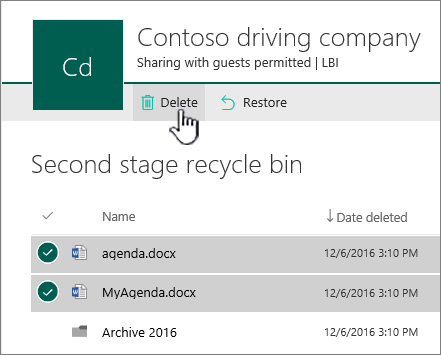
- Step 5: Click the Restore button located at the top of the page.
Once these steps are finished, the file will return to its original location in your OneDrive storage, and the sync client will automatically download it back to your connected devices.
Time Limits for File Recovery
It is crucial to remember that the window to restore OneDrive files is not infinite.
| Account Type | File Retention Time | Status After Deadline |
| Personal OneDrive | 30 Days | Permanently Deleted |
| Work/School Account | 93 Days | Administrator Recovery Only |
| Emptying Bin Manually | 0 Days | Extremely Hard to Recover |
If files remain in the recycle bin beyond the retention period, they are purged. At this stage, standard cloud tools will no longer work.
Restore Previous Versions of OneDrive Files
Sometimes a file isn’t actually deleted; it has simply been edited incorrectly or corrupted. In this scenario, you don’t need to find a deleted file, but rather restore OneDrive files to a previous state using Version History.
Using Version History in OneDrive
Version history is a lifesaver for collaborative projects. To restore an earlier version of a document:
- Step 1: Log into OneDrive on the web.
- Step 2: Locate the file that has the unwanted changes.
- Step 3: Right-click the file and select Version History from the context menu.
- Step 4: A list of older versions with timestamps and user names will appear. Select the version you want.
- Step 5: Click Restore to overwrite the current version, or Open File to view it first.
How to restore a folder from OneDrive to Documents
Many users ask how to restore a folder from OneDrive to Documents when they want to move their cloud data back to a local, non-synced environment.
- Step 1: Open your OneDrive folder in File Explorer (Win + E).
- Step 2: Locate the specific folder you wish to move.
- Step 3: Right-click the folder and select Copy (or press Ctrl + C).
- Step 4: Navigate to your local Documents folder (usually
C:\Users\[Username]\Documents). - Step 5: Right-click an empty space and select Paste (Ctrl + V).
- Step 6: To ensure the folder no longer stays in the cloud, you may delete the original in the OneDrive directory after the copy is verified.
Using PandaOffice Drecov for Advanced Recovery
When the OneDrive Recycle Bin is empty and Version History shows nothing, you need a professional-grade tool. PandaOffice Drecov is a powerful data recovery product designed to find “invisible” data that the operating system has marked as deleted but hasn’t yet overwritten.
⚠ Warning: Install it on a drive different from the one where your data was lost to prevent overwriting.
Step-by-Step Guide to Using PandaOffice Drecov
- Step 1: Select Location. Launch the software. You will see a list of drives. Select the local drive where your OneDrive folder was mapped (usually the C: Drive).

- Step 2: Deep Scan. Click the Scan button. PandaOffice Drecov will perform a “Quick Scan” followed by a “Deep Scan” to locate fragmented file remains.

- Step 3: Filter Results. Use the search bar to look for specific file extensions like
.docxor.jpg, or search for the keyword OneDrive to find the directory structure.

- Step 4: Preview and Recover. Select the files you found. Warning: Always use the “Preview” feature to ensure the file is intact.
- Step 5: Save Data. Click Recover and choose a destination—ideally an external hard drive or a USB flash drive—to finalize the process to restore OneDrive files.
Restore Entire OneDrive to a Previous Date
For catastrophic events, Microsoft offers a “nuclear option” to restore OneDrive files en masse.
When You Should Use Full OneDrive Restore
This feature is intended for situations where a large-scale disaster has occurred, such as a ransomware infection that encrypted thousands of files or a mass-deletion event caused by a buggy third-party script.
How the Restore Timeline Works
- Step 1: Go to the OneDrive website and click the Settings (gear icon) at the top right.
- Step 2: Select Restore your OneDrive.
- Step 3: On the next page, verify your identity if prompted.
- Step 4: Choose a date from the dropdown menu (e.g., “Yesterday,” “One week ago,” or “Custom date and time”).
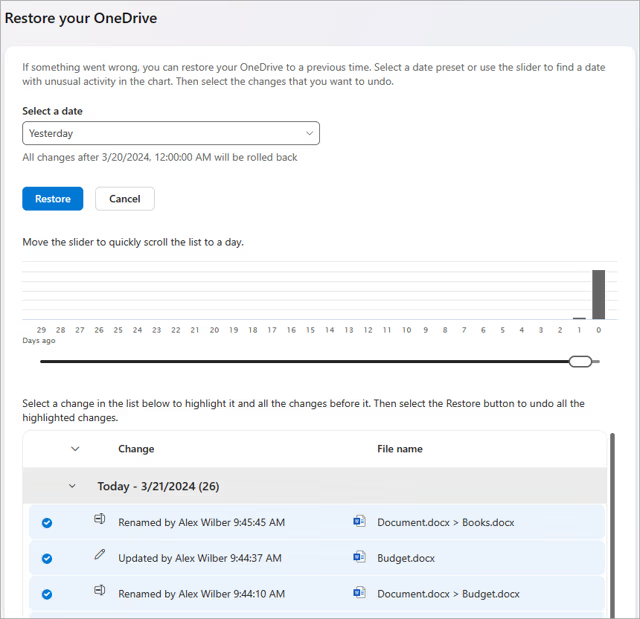
- Step 5: Use the activity chart to find the exact moment before the files were lost.
- Step 6: Click Restore.
Key Operation Point: This process undoes all actions. If you created new files after the restore point, they will be moved to the Recycle Bin. Always back up your current work before performing a full account rollback.
Recover OneDrive Files from Your Computer
Sometimes, the quickest way to restore OneDrive files is to look at your local machine before the sync client tells the cloud what happened.
Restoring Files from Windows Recycle Bin
If you deleted a file in the OneDrive folder on your PC, it usually goes to the local Windows Recycle Bin first.
- Step 1: Open the Recycle Bin on your desktop.
- Step 2: Find the missing OneDrive file.
- Step 3: Right-click and select Restore.
Recovering Files from Mac Trash
On macOS, the process is nearly identical.
- Step 1: Open the Trash icon in your Dock.
- Step 2: Locate the file.
- Step 3: Right-click and select Put Back.
Tips to Prevent Losing OneDrive Files
While knowing how to restore OneDrive files is essential, prevention is the hallmark of a true data expert.
Enable Version History and Backups
Ensure that your “Files On-Demand” settings are configured correctly. If you have enough local storage, keeping a physical copy of important files (“Always keep on this device”) adds a layer of protection. Additionally, consider a “3-2-1” backup strategy: 3 copies of your data, on 2 different media types, with 1 copy off-site (OneDrive counts as the off-site copy).
Security Tips to Protect Cloud Files
To avoid needing to restore OneDrive files due to hacking:
- Enable Multi-Factor Authentication (MFA): This prevents unauthorized access even if your password is stolen.
- Monitor Sign-in Activity: Regularly check your Microsoft account security page for suspicious logins.
- Update Software: Keep your Windows/macOS and OneDrive app updated to the latest versions to patch security vulnerabilities.
Advanced Data Recovery & OneDrive Management
If you are looking to refine how you manage your cloud storage or need to troubleshoot specific configuration issues that led to data loss, explore these in-depth guides:
- Learn how to disable a folder from OneDrive and recover lost files to prevent unwanted syncing.
- Fix issues where Windows “Save As” default location is stuck on OneDrive, ensuring your files go where you want them.
- If you’ve had enough of cloud syncing, follow the guide on how to uninstall OneDrive on Windows or Mac.
- Avoid a disaster by learning how to delete OneDrive the right way so you don’t lose your life’s work.
- Check out the 2026 updated guide on removing OneDrive from Windows 11 for the latest system optimization tips.
Restore OneDrive Files FAQs
1. Can permanently deleted OneDrive files be recovered?
If they are purged from the online Recycle Bin and the second-stage bin, they are generally unrecoverable via Microsoft. However, local recovery tools like PandaOffice Drecov might still find traces on your hard drive if the sectors haven’t been overwritten.
2. How long does OneDrive keep deleted files?
Standard personal accounts keep files for 30 days. For Microsoft 365 Business users, this window extends to 93 days.
3. Does OneDrive save file version history automatically?
Yes, for almost all file types stored in OneDrive, Microsoft maintains a version history automatically. You can usually access the last 25 to 500 versions depending on your account configuration.
4. Can I restore my entire OneDrive storage?
Yes, by using the “Restore your OneDrive” feature in settings, you can roll back the entire drive to any point in the last 30 days.
5. What should I do if I cannot find a missing file in OneDrive?
First, check the online Recycle Bin. Second, check the local Windows Recycle Bin. Third, search for the file using the web search bar in case it was moved. Finally, use a tool like PandaOffice Drecov for deep system scanning.
Conclusion
In the modern era, data is our most valuable currency. Whether it is a collection of family photos or a critical business presentation, losing access to your files is a significant setback. Fortunately, the ability to restore OneDrive files is built into the very fabric of Microsoft’s cloud ecosystem.
By mastering the use of the Recycle Bin, Version History, and advanced rollback features, you can navigate digital mishaps with confidence. For those rare occasions where the built-in tools fail, professional solutions like PandaOffice Drecov provide a necessary safety net to pull your data back from the brink. Remember: stay calm, act quickly, and always keep your recovery tools ready.






