







Ever tried to save a fresh document on your PC, only to realize Windows keeps pushing it to the cloud? You change the folder to “Documents,” hit save, and feel a sense of relief—until next time. Boom. It’s back to OneDrive again. If your windows save as default location stuck on onedrive, you are certainly not alone in this digital tug-of-war.
What the Issue Looks Like
The problem typically manifests as a stubborn persistence. No matter how many times you manually select a local folder, the “Save As” dialog box defaults back to a OneDrive subdirectory. You might see file paths starting with C:\Users\Name\OneDrive\Documents instead of the local path you’ve used for years.
Why It Frustrates Users
This behavior is incredibly frustrating because it strips away user agency. When a windows save as default location stuck on onedrive scenario occurs, it can lead to:
- Slow saving speeds due to internet latency.
- Privacy concerns for sensitive offline documents.
- Accidental data usage on metered connections.
- Confusion when files “disappear” because they were synced to a cloud folder rather than a local one.
Who Is Affected?
This issue primarily affects Windows 10 and Windows 11 users, especially after a major Windows Update or when setting up a new Microsoft account. Microsoft aims for a “cloud-first” experience, but for many, the windows save as default location stuck on onedrive error is an intrusive feature rather than a benefit.
Why Windows Keeps Saving Files to OneDrive
Before we dive into the fixes, we must understand the mechanics behind this behavior. Knowledge is power, and knowing why the windows save as default location stuck on onedrive happens will help you prevent it from recurring.
OneDrive Backup Feature
When you sign in to Windows with a Microsoft account, OneDrive often enables the “Folder Backup” feature by default. This feature intercepts your standard user folders—Desktop, Documents, and Pictures—and redirects them to the OneDrive sync folder. Consequently, Windows views the OneDrive path as the “official” path for your files.
Default Save Location Settings in Windows
In the modern Windows UI, there are specific toggles for where new content is saved. However, even if you set these to “This PC,” the OneDrive backup service can override these preferences during a system sync or update, leading to the windows save as default location stuck on onedrive loop.
Microsoft Office Save Preferences
Applications like Microsoft Word, Excel, and PowerPoint have their own internal logic. Because these apps are part of the Microsoft 365 ecosystem, they are hardcoded to prioritize cloud storage to enable features like “AutoSave.” If you haven’t adjusted the internal app settings, you’ll find your windows save as default location stuck on onedrive specifically within Office products.
Account Sync Settings
If you use a Microsoft Account (MSA) instead of a Local Account, your preferences are synced across the cloud. If you once accepted a prompt to “Protect your files with OneDrive” on a laptop, those settings might migrate to your desktop, causing the windows save as default location stuck on onedrive issue to follow you across devices.
How OneDrive Takes Control of Your Folders
To effectively manage your files, you need to recognize how the redirection works. It isn’t just a shortcut; it is a fundamental change to your file system structure.
Desktop, Documents, and Pictures Folder Redirection
OneDrive employs a technique where it changes the shell folder path in the Windows Registry. Instead of your files living in the standard user profile, they are moved to:
C:\Users\YourName\OneDrive\DocumentsC:\Users\YourName\OneDrive\Desktop
This is why you feel like your windows save as default location stuck on onedrive—because, as far as the OS is concerned, that is the location of your Documents folder.
Known Folder Move (KFM) Explained
This technology is called Known Folder Move. It allows users to move their key folders to OneDrive without changing how they work, but it often causes headaches for those who prefer local-only storage.
How to Check If It’s Enabled
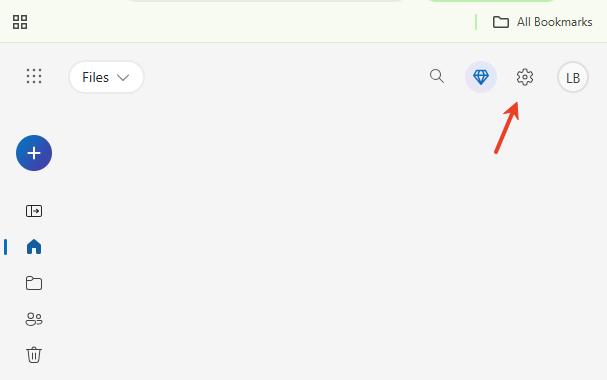
- Step 1: Look at the bottom right of your taskbar and right-click the OneDrive cloud icon.
- Step 2: Select the gear icon and click Settings.
- Step 3: Navigate to the Sync and Backup tab.
- Step 4: Click Manage Backup.
- Step 5: If you see “Files are backed up” under Documents or Desktop, then KFM is the reason your windows save as default location stuck on onedrive. If the icon is missing entirely, you may need to re-download the client from the official OneDrive website.
Quick Fix 1 – Change Default Save Location in Windows Settings
The first step in resolving the windows save as default location stuck on onedrive dilemma is to check the native Windows storage settings. This is the most “user-friendly” way to redirect your data.
Step-by-Step Guide
- Step 1: Press Windows + I on your keyboard to open the Settings menu.
- Step 2: Click on System in the left sidebar, then select Storage.
- Step 3: Locate and click on Advanced storage settings to expand the menu.
- Step 4: Click Where new content is saved.
- Step 5: Look for the dropdown menus for “New documents,” “New pictures,” etc.
- Step 6: Change the selection from “OneDrive” to This PC or Local Disk (C:).
- Step 7: Ensure you click Apply for every single category you change.
Restart and Test
After applying these changes, it is wise to restart your computer. Once rebooted, open a simple app like Notepad, type a few words, and hit “Save As.” If the windows save as default location stuck on onedrive issue persists, proceed to the next method.
Quick Fix 2 – Disable OneDrive Folder Backup
If the previous step failed, the Folder Backup feature is likely “locking” the path. You must release this lock to stop the windows save as default location stuck on onedrive behavior.
Step-by-Step Instructions
- Step 1: Click the OneDrive icon (blue or white cloud) in your system tray.
- Step 2: Click the Settings (gear) icon and select Settings.
- Step 3: Go to the Sync and Backup tab and select Manage Backup.
- Step 4: You will see toggles for Desktop, Documents, and Pictures. Toggle them OFF.
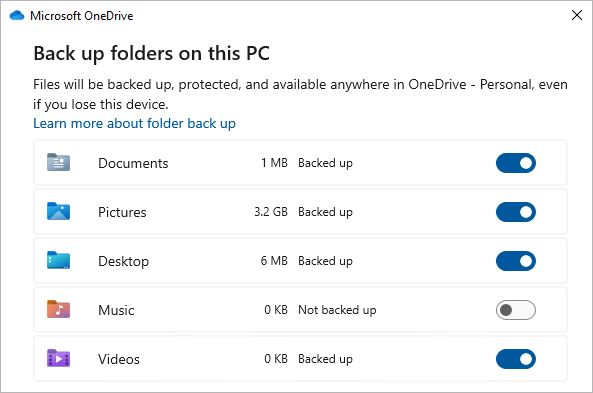
- Step 5: A dialog will appear warning you that files will stay in OneDrive. Confirm by clicking Stop backup.
What Happens After Disabling?
Your folders will return to their local paths. However, you might notice your “Documents” folder looks empty. Do not panic! Your files are still safe in the OneDrive folder; they just weren’t moved back automatically. You will need to manually drag them from the OneDrive folder back to the local C:\Users\YourName\Documents path. This is a crucial step to finalize the fix for the windows save as default location stuck on onedrive error.
Fix 3 – Change Microsoft Office Default Save Location
Even if Windows is configured correctly, Microsoft Office often has a mind of its own. To remove onedrive as default save location windows 11 for your productivity apps, follow these steps.
For Microsoft Word
- Step 1: Launch Microsoft Word.
- Step 2: Click on File in the top left corner, then select Options at the bottom.
- Step 3: In the Word Options window, click the Save tab.
- Step 4: Look for the checkbox that says Save to Computer by default. Check it.
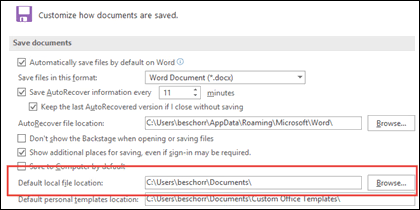
- Step 5: In the “Default local file location” box, ensure it points to your local user path (e.g.,
C:\Users\YourName\Documents\). - Step 6: Click OK to save.
For Excel and PowerPoint
While some versions of Office sync these settings, it is best to check Excel and PowerPoint individually using the same steps. This ensures that the windows save as default location stuck on onedrive issue is cleared across the entire suite.
Fix 4 – Modify OneDrive Sync Settings
Sometimes, the best way to deal with the windows save as default location stuck on onedrive problem is to limit how OneDrive interacts with your PC entirely.
Unlink This PC
If you don’t use OneDrive at all, unlinking it is a very effective solution.
- Step 1: Open OneDrive Settings.
- Step 2: Go to the Account tab.
- Step 3: Click Unlink this PC and then confirm Unlink account.This effectively kills the connection, forcing Windows to stop defaulting to the cloud.
Pause or Stop Sync
If you only want a temporary reprieve from the windows save as default location stuck on onedrive annoyance, you can click the OneDrive icon and select Pause syncing. Choose a time frame that suits your needs.
Fix 5 – Restore Default Folder Paths Manually
If your system folders are still acting strangely, you can manually force Windows to “Home” them back to the local drive.
Using Folder Properties
- Step 1: Open File Explorer and go to This PC.
- Step 2: Right-click the Documents folder and select Properties.
- Step 3: Click on the Location tab.
- Step 4: You will likely see a path containing “OneDrive.” Click the Restore Default button.
- Step 5: Click Apply.
- Step 6: Windows will ask if you want to move all files from the old location to the new one. Usually, clicking Yes is the best choice to ensure no data loss.
Fix 6 – Using PandaOffice Drecov Tool
If your windows save as default location stuck on onedrive and you’ve attempted to move files back to your local drive only to find them missing or “zero-byte” corrupted, a specialized tool like PandaOffice Drecov is essential. Unlike standard system settings, Drecov is a dedicated data recovery and file repair solution designed to retrieve lost data from nearly any storage scenario.
Key Features of PandaOffice Drecov
- High Success Rate: Boasts a 99.8% recovery success rate for documents, photos, and videos.
- Broad Format Support: Can recover and repair over 2,000 file types, including Word, Excel, and PDF.
- Deep Scan Technology: Thrives where standard tools fail, searching deep within the file system to uncover data lost during sync errors or accidental deletions.
- Safe Read-Only Mode: Ensures your data remains untouched and uncorrupted during the scanning process.
Step-by-Step Recovery Guide
- Step 1: Select the specific location where your files were “stuck” (usually the OneDrive folder or your local Documents path).
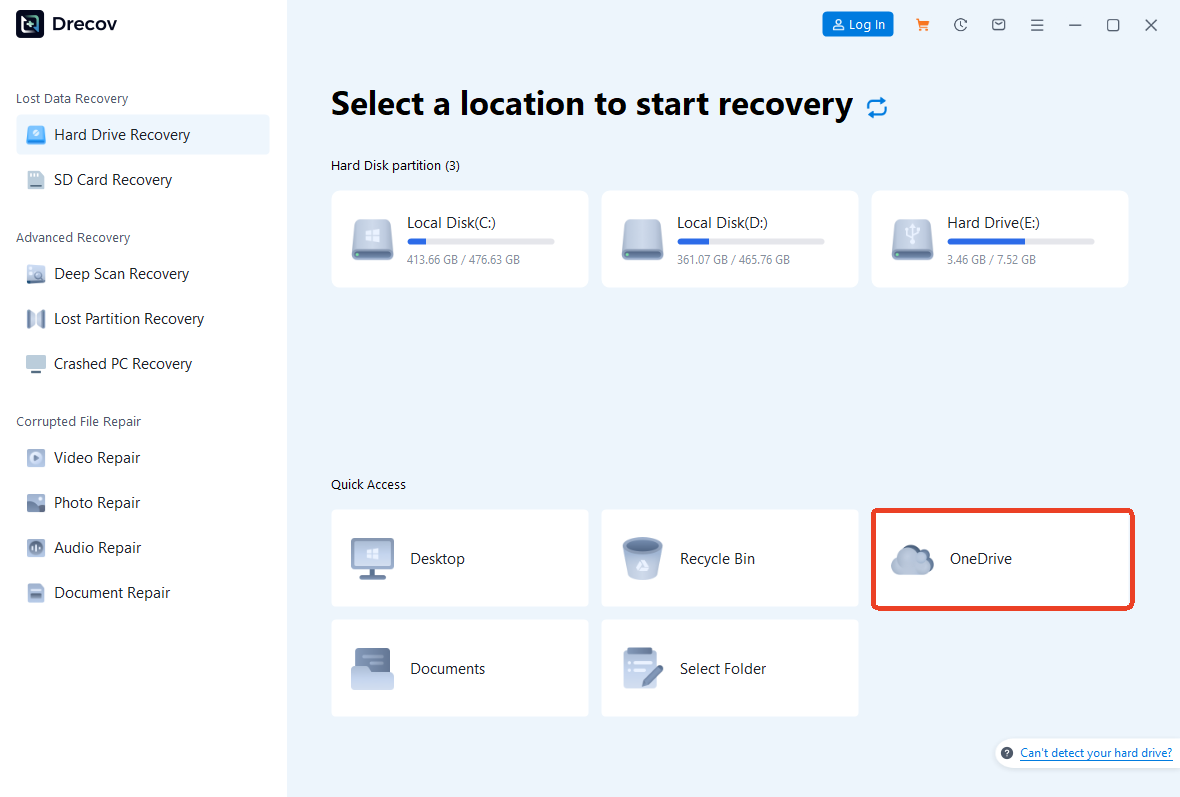
- Step 2: Click Scan. You can use the built-in filters to sort by file type or modification date while the scan is running.

- Step 3: Preview your files. Drecov allows you to open documents and view photos within the app to ensure they are intact before finalizing.

- Step 4: Select your files and click Recover
Warning: Always save the recovered files to a different drive (like a USB or external HDD) to prevent overwriting data on your primary disk.
Using PandaOffice Drecov provides a safety net if your struggle with the windows save as default location stuck on onedrive issue results in accidental data loss or sync-related corruption.ply won’t “stick” after a reboot.For more information on OneDrive data recovery, please see the Comprehensive Guide.
Advanced Fix – Registry Editor Method
[!WARNING] The Registry Editor is a powerful tool. Incorrect changes can make your system unstable. Always back up your registry before proceeding.
Registry Path to Modify
To fix the windows save as default location stuck on onedrive issue at the root, you can edit the User Shell Folders directly.
- Step 1: Press Windows + R, type
regedit, and press Enter. - Step 2: Navigate to the following path:
HKEY_CURRENT_USER\Software\Microsoft\Windows\CurrentVersion\Explorer\User Shell Folders - Step 3: On the right side, look for entries like Personal, Desktop, and {f42ee2d3-c2ab-428a-8207-287321c24722}.
- Step 4: If the Data column shows a OneDrive path, double-click the entry.
- Step 5: Change the value to the standard local path, such as
%USERPROFILE%\Documents.
How do I turn off OneDrive as default save location?
If you are asking yourself, “how do i turn off onedrive as default save location,” the most permanent answer lies in the Group Policy Editor (for Windows Pro and Enterprise users). This prevents the “Save As” dialog from even seeing OneDrive as a primary option.
Open Local Group Policy Editor
- Step 1: Press Windows + R, type
gpedit.msc, and hit Enter. - Step 2: Go to Computer Configuration > Administrative Templates > Windows Components > OneDrive.
Disable OneDrive File Sync
- Step 1: Find the policy named Prevent the usage of OneDrive for file storage.
- Step 2: Double-click it and select Enabled.
- Step 3: Click Apply and OK.This is the nuclear option for the windows save as default location stuck on onedrive problem, but it is highly effective for those who never intend to use the service.
Remove onedrive as default save location windows 11
To specifically remove onedrive as default save location windows 11, you may need to go beyond settings and look at the app level. Windows 11 integrates OneDrive more deeply into the File Explorer than previous versions.
Move Files Back Safely
Before you fully disconnect, you must ensure your data is local.
- Navigate to
C:\Users\YourName\OneDrive. - Copy the folders (Documents, Pictures, etc.).
- Paste them into
C:\Users\YourName\. - Only after this should you proceed to uninstall or disable the app to fix the windows save as default location stuck on onedrive loop.
What If Files Are Already Saved to OneDrive?
If you’ve been living with the windows save as default location stuck on onedrive issue for months, your files are likely scattered.
Avoid Duplicate Files
When you move files back to your local drive, you might find duplicates. Use a file cleanup tool or manually compare sizes. Always keep the most recent version. Remember, once you fix the windows save as default location stuck on onedrive error, you are responsible for your own backups—consider using an external drive.
How to Completely Remove OneDrive
If you’ve decided that OneDrive is more trouble than it’s worth, you can remove it entirely from your system.
Uninstall from Windows Settings
- Step 1: Go to Settings > Apps > Installed Apps.
- Step 2: Search for Microsoft OneDrive.
- Step 3: Click the three dots and select Uninstall.
Command Prompt Removal
For a deeper clean to ensure the windows save as default location stuck on onedrive issue never returns:
- Step 1: Open CMD as Administrator.
- Step 2: Type
taskkill /f /im OneDrive.exeand press Enter. - Step 3: Type
%SystemRoot%\SysWOW64\OneDriveSetup.exe /uninstall(for 64-bit systems) and press Enter.
Prevent Windows from Resetting the Default Save Location Again
Microsoft often tries to re-enable cloud features during “Feature Updates.” To keep your windows save as default location stuck on onedrive fix permanent:
- Turn Off Backup Prompts: Periodically check OneDrive settings to ensure “Manage Backup” hasn’t been re-engaged.
- Check Windows Updates: After an update, verify your “Where new content is saved” settings.
- Use a Local Account: If possible, switch from a Microsoft Account to a Local Account in Settings > Accounts > Your Info.
Common Mistakes to Avoid
- Disabling before moving: Never unlink OneDrive or uninstall it until you have confirmed your files are physically on your local hard drive.
- Ignoring Office Settings: Many users fix the Windows settings but forget Word/Excel, leading to continued windows save as default location stuck on onedrive behavior in those apps.
- Registry Errors: Editing the wrong key in the registry can cause “Desktop not found” errors. Always use the
%USERPROFILE%variable rather than hardcoding paths if possible.
Remove onedrive as default save location FAQs
1. Why does Windows automatically switch back to OneDrive?
This is usually triggered by the “Known Folder Move” feature or a system update that resets “suggested” settings to encourage cloud usage.
2. Is it safe to disable OneDrive?
Absolutely. It is a service, not a core OS component. Disabling it will not break Windows, provided you have moved your files to a local directory first.
3. Will uninstalling OneDrive delete my files?
No. Your files stored in the cloud will stay at OneDrive.com. Files on your hard drive will remain in the OneDrive folder unless you move them.
4. How do I stop Microsoft Word from saving to OneDrive?
Go to File > Options > Save and check the box “Save to Computer by default.”
5. Can I use both local storage and OneDrive?
Yes! The best setup is to disable automatic “Folder Backup” so your default location is local, and then manually drag only the files you want to sync into the OneDrive folder.
Conclusion
To wrap things up, resolving the issue where your windows save as default location stuck on onedrive is essential for regaining control over your local file system. By following the steps to remove onedrive as default save location windows 11, you ensure that your Documents and Desktop folders stay exactly where you want them: on your hard drive.
Whether you adjust Windows Storage settings or use the PandaOffice Drecov tool to safeguard your data during the transition, the goal is a seamless, local-first experience. PandaOffice Drecov acts as a critical safety net, providing professional-grade recovery if any files become “stuck” or corrupted during the unlinking process. Once you’ve tamed these cloud settings, your PC will finally stop forcing every “Save As” command toward the web.






