







Whether you are looking to declutter your system or transition to a different cloud storage provider, learning how to uninstall OneDrive is a fundamental skill for maintaining a clean and efficient digital workspace. While Microsoft integrates this tool deeply into its ecosystem, many users find it intrusive or simply unnecessary for their daily needs. In this extensive guide, we will explore every technical layer of uninstalling OneDrive, from basic settings to advanced registry modifications, while ensuring your precious data remains safe.
What Is Microsoft OneDrive?
Microsoft OneDrive is the cornerstone of Microsoft’s cloud-first strategy. If you are currently using Windows 11 or Windows 10, this service is already sitting quietly in the background, often pre-configured to handle your file synchronization. It is designed to bridge the gap between your local hardware and the cloud, providing a seamless experience across multiple devices.
Key Features of OneDrive
Beyond simple storage, the platform offers several advanced functionalities:
- Cloud file storage: Store up to 5GB for free (or more with a subscription).
- Automatic device syncing: Changes made on your PC reflect on your mobile devices instantly.
- File sharing: Collaborate on documents with simple link-based sharing.
- Version history: Restore previous versions of files if a mistake is made.
- Ransomware detection: Advanced security features to protect your data from malicious encryption.
How OneDrive Integrates with Windows
In modern operating systems, OneDrive isn’t just an app; it is a system-level component. It appears prominently in:
- File Explorer: It has its own dedicated node in the navigation pane.
- System Tray: The small cloud icon provides real-time status updates.
- Startup Programs: It typically launches the moment you log in.
- Backup Settings: Windows often suggests “backing up” your Desktop, Documents, and Pictures folders directly to it.
It acts like a digital roommate who moved in during the installation process and often stays even if you never invited them to participate in your workflow.
Why Do People Want to Uninstall OneDrive?
Despite its utility, many users seek out methods for uninstalling OneDrive for several practical reasons.
Storage Limitations
The most common driver for removal is the restrictive storage limit. Free Microsoft accounts only provide 5GB of space. Once you hit this limit, Windows will frequently nag you with notifications, and email services (Outlook) may even stop functioning if your cloud storage is full.
Privacy Concerns
In an era of increasing data awareness, some users prefer keeping their sensitive files strictly offline. The idea of an automated service scanning and uploading personal documents to a remote server can be unsettling for privacy-conscious individuals.
Sync Errors and Performance Issues
Have you ever seen the dreaded “Sync Paused” or “Sync Error” message? These glitches can consume significant CPU and RAM resources as the app tries—and fails—to reconcile file differences. This can lead to system slowdowns, especially on older hardware.
Preference for Other Cloud Services
With competitors like Google Drive, Dropbox, and pCloud offering different features and pricing models, many users simply don’t want redundant services running. If you have already committed to another ecosystem, uninstalling OneDrive is a logical step to streamline your PC.
Before You Uninstall OneDrive
Before you proceed with the removal process, a moment of caution is necessary. Diving straight into uninstallation without preparation can lead to “missing” files that were actually stored only in the cloud.
Backup Important Files
The most critical step is ensuring all your data is physically present on your hard drive.
- Open File Explorer.
- Navigate to your OneDrive folder.
- Right-click any folder with a “cloud” icon.
- Select “Always keep on this device.” Wait for the status icons to turn into solid green circles with checkmarks.
Understand What Gets Deleted
It is vital to understand that uninstalling OneDrive does NOT delete your files from the cloud. Your data remains safe at OneDrive.com. The uninstallation process merely removes the application and severs the link between your PC and Microsoft’s servers.
How to Uninstall OneDrive on Windows 11
Windows 11 makes the process relatively straightforward compared to older versions where the app was more “locked” into the OS.
Method 1 – Using Settings
This is the standard approach for 99% of users.
- Press Windows + I on your keyboard to open the Settings menu.
- Navigate to Apps and then click on Installed apps.
- In the search bar, type “OneDrive” to filter the list.
- Locate Microsoft OneDrive, click the three dots (…) on the right, and select Uninstall.
- Confirm the prompt. The system will handle the rest.
Method 2 – Using Control Panel
If the Settings app is being stubborn, the classic Control Panel remains a reliable fallback.
- Press Windows + R, type
appwiz.cpl, and hit Enter. - Scroll through the list of programs until you find Microsoft OneDrive.
- Click it and then click the Uninstall button at the top of the window.
Method 3 – Using Command Prompt
For those who prefer a “silent” or more technical approach, the command line is highly effective.
- For 64-bit Windows:
%SystemRoot%\SysWOW64\OneDriveSetup.exe /uninstall - For 32-bit Windows:
%SystemRoot%\System32\OneDriveSetup.exe /uninstall
Simply paste the correct line into an administrative Command Prompt and press Enter. There won’t be a confirmation message, but the app will vanish shortly after.
How to Uninstall OneDrive on Windows 10
While Windows 10 is older, the logic for uninstalling OneDrive remains remarkably similar to its successor.
Remove via Settings
- Open the Start menu and click the Gear icon (Settings).
- Select Apps.
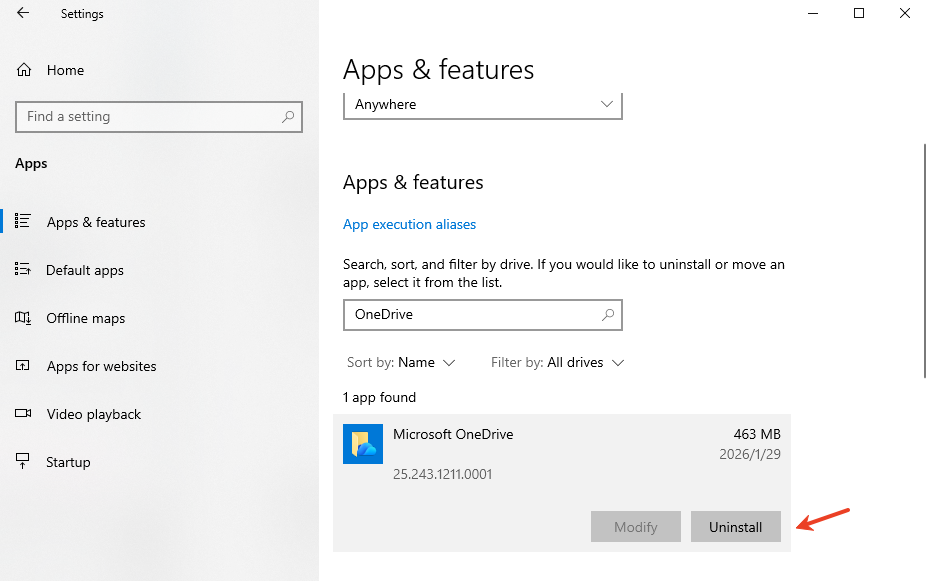
- Find Microsoft OneDrive in the “Apps & features” list.
- Click it once to reveal the Uninstall button and follow the prompts.
Remove via Command Line
The same commands used for Windows 11 work here as well. This is particularly useful if the GUI (Graphical User Interface) fails to respond or if you are managing multiple computers.
How to Uninstall OneDrive on Mac
Apple users often install OneDrive for work or school, but removing it requires a few extra steps to ensure no residual “junk” files are left behind.
Step 1: Quit OneDrive
You cannot delete an app that is currently running. Click the Cloud icon in the top menu bar, select the Gear icon (Settings), and click Quit OneDrive.
Step 2: Remove from Applications
- Open Finder and go to your Applications folder.
- Find the OneDrive app.
- Drag it to the Trash or right-click and select Move to Trash.
Step 3: Delete Remaining Files
To truly finish uninstalling OneDrive, you must clear the library files:
- In Finder, press Command + Shift + G.
- Search for and delete contents in these paths:
~/Library/Containers/com.microsoft.OneDrive-mac~/Library/Application Support/OneDrive
- Empty your Trash and restart your Mac.
Advanced Data Recovery: Using PandaOffice Drecov
Sometimes, in the rush of uninstalling OneDrive, users accidentally delete folders that weren’t fully synced or mistakenly wipe their local copies. This is where professional-grade tools like PandaOffice Drecov become essential.
⚠ Warning: Install it on a drive different from the one where your data was lost to prevent overwriting.
If you find that your files have vanished after a failed uninstallation or accidental deletion, follow these steps to retrieve them:
Step 1: Select the Scan Location
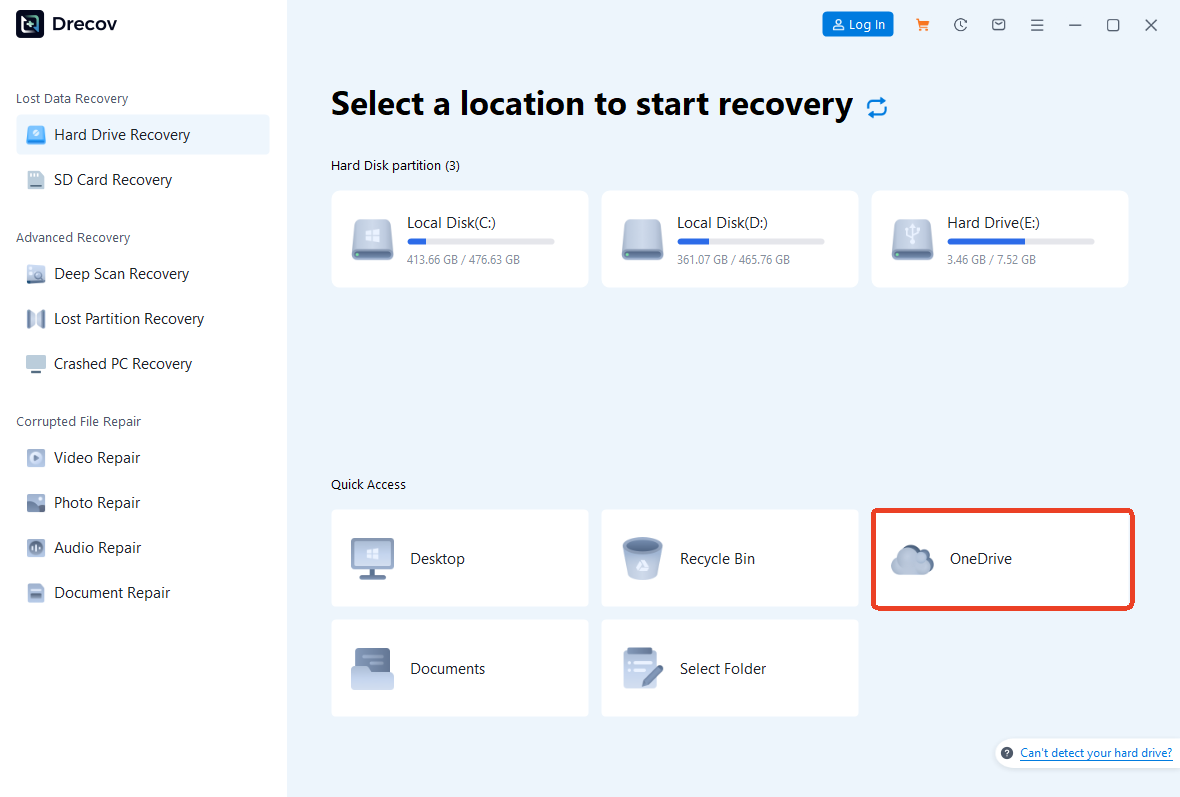
Once the software is open, you will see a list of drives. Select the partition where your OneDrive folder was located (usually the C: drive) and click “Scan.”
Step 2: Filter and Preview Results
Drecov allows you to filter by file type (e.g., .docx, .jpg). You can use the Preview feature to see the contents of a file before actually recovering it. This ensures you aren’t wasting time on corrupted data.

Step 3: Execute Recovery
Select the files you need and click the “Recover” button. Always save the recovered files to an external drive or a different partition to ensure data integrity.
How to Disable OneDrive Without Uninstalling
If you think you might need the service again in the future, uninstalling OneDrive might be overkill. You can simply “neuter” it instead.
Pause Sync
Right-click the cloud icon in the taskbar, click the Gear icon, and choose “Pause syncing” for 2, 8, or 24 hours.
Unlink Account
Go to Settings > Account and click “Unlink this PC.” This keeps the app on your computer but stops all communication with the cloud.
Disable Startup
- Press Ctrl + Shift + Esc to open Task Manager.
- Go to the Startup apps tab.
- Find Microsoft OneDrive, right-click it, and select Disable.
How to Remove OneDrive from File Explorer
Even after uninstalling OneDrive, a “ghost” folder often remains in the File Explorer sidebar. This requires a quick trip into the Windows Registry.
Using Registry Editor
- Press Windows + R, type
regedit, and hit Enter. - Navigate to this precise path:
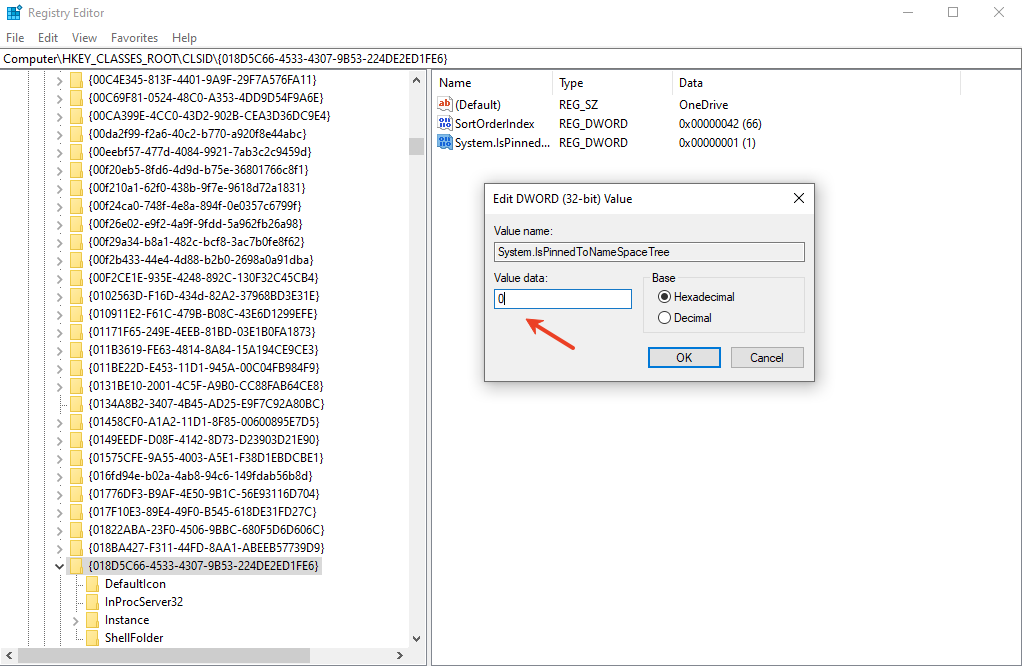
HKEY_CLASSES_ROOT\CLSID\{018D5C66-4533-4307-9B53-224DE2ED1FE6} - Look for the entry System.IsPinnedToNameSpaceTree.
- Double-click it and change the Value data from 1 to 0.
- Restart your PC.
⚠ Warning: Editing the Registry can be risky. Always create a System Restore point before proceeding.
What Happens After You Uninstall OneDrive?
Many users worry about the “void” left behind. Here is the reality:
Local Files
The physical folder C:\Users\[YourName]\OneDrive will still exist. However, the files inside will no longer have sync icons. They are now just standard local files.
Cloud Files
Your files remain on Microsoft’s servers. You can access them by going to the Microsoft OneDrive Official Site. Nothing is deleted from the cloud unless you manually go there and trash it.
How to Reinstall OneDrive If Needed
If you realize that life without cloud sync is harder than expected, bringing it back is a breeze.
Download from Official Website
You can always grab the latest installer directly from Microsoft. This is often the best way to ensure you have the most stable version.
Install via Microsoft Store
Open the Microsoft Store app on your Windows PC, search for “OneDrive,” and click Get. This version is easier to keep updated as it follows the Store’s automated update rules.
Common Problems When Uninstalling OneDrive
OneDrive Won’t Uninstall
This usually happens if a sync process is hung. Restart your computer in Safe Mode and try the uninstallation again.
Access Denied Error
This occurs when you don’t have administrative privileges. Ensure you are logged into an Admin account or right-click the Command Prompt and select “Run as Administrator.”
OneDrive Reinstalls Automatically
Windows “Feature Updates” (like the transition from one version of Windows 11 to another) sometimes treat OneDrive as a “critical” component and reinstall it. You may simply need to repeat the uninstallation process once every year or so.
Is It Safe to Uninstall OneDrive?
Yes, it is completely safe. Microsoft makes it seem like a vital part of the OS, but Windows functions perfectly fine without it. As long as you have confirmed that your files are saved locally (using the “Always keep on this device” setting mentioned earlier), you have nothing to fear.
OneDrive vs Other Cloud Services
| Feature | OneDrive | Google Drive | Dropbox |
| Free Storage | 5 GB | 15 GB | 2 GB |
| Windows Integration | Native / Deep | Excellent | Good |
| Best For | Office 365 Users | Gmail / Android Users | Power Users / Speed |
While uninstalling OneDrive helps clear system resources, make sure you have an alternative backup plan in place. Data redundancy is the only true protection against hardware failure.
Expanding Your Data Recovery Knowledge
Once you have mastered the art of managing your cloud storage, you might find yourself needing to recover data in other common scenarios. For instance, if you’ve accidentally closed important work in your browser, check out how to restore tabs in Google Chrome instantly.
Furthermore, as we move into the future, staying updated on the latest software techniques is vital. You can learn how to restore Google Chrome tabs in 2026 to keep your browsing sessions safe. If you find yourself switching to a new machine after cleaning up your old one, don’t forget to look into 3 faster ways to migrate Firefox bookmarks to your new PC to ensure a smooth transition.
Can I uninstall OneDrive FAQs
1. Will uninstalling OneDrive delete my files?
No. It only removes the application. Your files stay on your hard drive (if downloaded) and in the cloud at OneDrive.com.+1
2. Can I reinstall OneDrive later?
Absolutely. You can download the installer from Microsoft at any time or get it from the Microsoft Store.
3. Why does OneDrive keep reinstalling?
Major Windows updates occasionally reset system apps to their default state. If this happens, just follow the “How to uninstall OneDrive” steps again.
4. Is disabling better than uninstalling?
If you think you might use it in a few months, disabling is faster. If you hate the app and never want to see it again, uninstallation is the better path.
5. Does uninstalling improve performance?
Yes, especially on PCs with limited RAM. Removing background sync processes frees up resources for your other applications.
Conclusion
Uninstalling OneDrive is a powerful way to reclaim control over your Windows or Mac environment. Whether you are doing it for privacy, performance, or simply because you prefer a different tool, the steps outlined above will help you achieve a cleaner system. Remember: cloud storage should serve you, not the other way around. If a tool isn’t adding value to your life, don’t be afraid to remove it.






