







Imagine this: Your laptop is screaming about low disk space. You see the OneDrive icon, realize you rarely use the cloud, and decide it’s time for a cleanup. You select and Delete OneDrive. Within seconds, your Desktop icons vanish. Your Documents folder is an empty shell. Your “Pictures” folder—years of memories—is gone. Panicked, you check the Recycle Bin. It’s empty. You check the web version of OneDrive. Nothing.
This isn’t a ghost story; it’s a daily reality for thousands of users searching for how to delete OneDrive. The “Delete” key on OneDrive doesn’t just remove a shortcut; because of its “Files On-Demand” architecture, it often acts as a remote trigger that wipes your local existence.
Before you take another step to delete OneDrive, you must understand the “self-destruct” logic of cloud synchronization and how to navigate it without becoming a data loss statistic.
Part 1: What Exactly Is This “Cloud” Inside Your PC?
Before we dive into the mechanics of how to delete OneDrive, we must define what we are dealing with. Launched by Microsoft as a seamless bridge between local storage and the cloud, OneDrive is deeply integrated into the Windows 10 and 11 ecosystems. It isn’t just a simple app; it is a system-level service that manages three distinct states of your data:
- Online-Only: Files that exist only on Microsoft servers (saving you disk space but requiring internet to open).
- Locally Available: Files you’ve opened recently that are cached on your drive.
- Always Keep on This Device: Files that are physically stored on your hardware and mirrored to the cloud.
When you decide to remove OneDrive, you are essentially asking Windows to untangle these three states. Without a proper roadmap, the system often defaults to “cleaning up” the local path, which is why so many users inadvertently delete OneDrive content they intended to keep. Understanding this architecture is the first step toward reclaiming your disk space without sacrificing your digital life.
Part2:The Mirror and the Shredder—How OneDrive Logic Works
To safely remove OneDrive, you first need to understand what it actually is. Most users treat it like a secondary USB drive. It isn’t.
The Mirror Metaphor
Think of OneDrive as a haunted mirror.
- Standard Storage: A box where you put things. If you throw away the box, you lose the things.
- OneDrive: A mirror that reflects your “Desktop,” “Documents,” and “Pictures” folders.
When you delete OneDrive files while the “mirror” is still active, you aren’t just breaking the glass; you are telling the mirror to reach out and shred the original items in the real world. If you uninstall the app without “unlinking” it first, the mirror turns opaque, often hiding your files in a local cache that is inaccessible to the Windows File Explorer.
Index Deletion vs. Sector Erasure
When you accidentally delete OneDrive data, two things happen:
- Index Deletion: The File System (NTFS) marks the space as “empty.” The data is still there, but the “address book” no longer knows where to find it.
- Sector Erasure: Over time, Windows writes new data over those “empty” spots.
Pro Tip: If you realize you’ve deleted something vital, STOP using the computer immediately. Every minute you browse the web or download apps increases the chance of permanent sector erasure.
Part 3: The “Safe Way” Workflow to Deactivate OneDrive
If your goal is to disable OneDrive permanently without losing a single byte, follow these audited technical workflows.
Method 1: The Official Unlinking Process (Standard Way)
This is the only way to delete OneDrive’s influence over your files without triggering a mass deletion event.
- Step 1: Click the OneDrive icon (blue or white cloud) in your system tray.
- Step 2: Select the Gear Icon (Settings) > Settings.
- Step 3: Go to the Account tab.
- Step 4: Click Unlink this PC. Confirm by clicking Unlink account.
- Step 5: Now that the “Mirror” is broken, you can safely go to Settings > Apps > Installed Apps and click Uninstall to remove OneDrive from the OS.
Technical Verification: > While the steps above are optimized for data safety, you can also cross-reference the official Microsoft documentation regarding the specific behaviors of different Windows versions. For the most recent updates on subscription-based account behavior, visit the official guide on How to Turn Off, Disable, or Uninstall OneDrive.
Method 2: PandaOffice Drecov — The Emergency Rescue for Accidental Deletion
What if you already messed up? If you tried to delete OneDrive and your local files vanished, or if you uninstalled the app and found your local “Desktop” folder empty, you need professional-grade recovery.
This is where PandaOffice Drecov becomes essential. When OneDrive “deletes” a file locally to save space, it often leaves a “shadow” in the local cache or simply hides the pointers.
How to Recover Lost OneDrive Data with PandaOffice Drecov:
- Step 1: Deep Scan Selection. Launch PandaOffice Drecov and select the
C:\Users\[YourName]\OneDrivepath or your primary system drive.

- Step 2: Signature-Based Recognition. Unlike basic undelete tools, Drecov uses a Deep Scan algorithm that looks for file signatures (like .docx, .jpg, .pdf) directly in the disk sectors, bypassing the corrupted OneDrive index.

- Step 3: Filter and Restore. Once the scan completes, use the filter to find files deleted within the last 24 hours. Preview the files to ensure they aren’t corrupted, then click Recover to a different drive (e.g., an external USB) to prevent overwriting.
Technical Note: If you delete OneDrive and your files were “Online Only,” they might not be on your hard drive. However, Drecov can often find the locally cached thumbnails or temporary versions that Windows created, which is often the last line of defense. For a comprehensive list of alternative manual and technical solutions, check out our extended guide on [ Recover Deleted Files Like a Pro] to ensure no file is left behind.
Method 3: The “Clean Sweep” (Removing Residual Registry Junk)
Even after you uninstall OneDrive, the “OneDrive” folder often lingers in the File Explorer sidebar like a ghost. To deactivate OneDrive traces fully, you must touch the registry.
- 1. Press
Win + R, typeregedit, and hit Enter. - 2. Navigate to:
HKEY_CLASSES_ROOT\CLSID\{018D5C66-4533-4307-9B53-224DE2ED1FE6}.
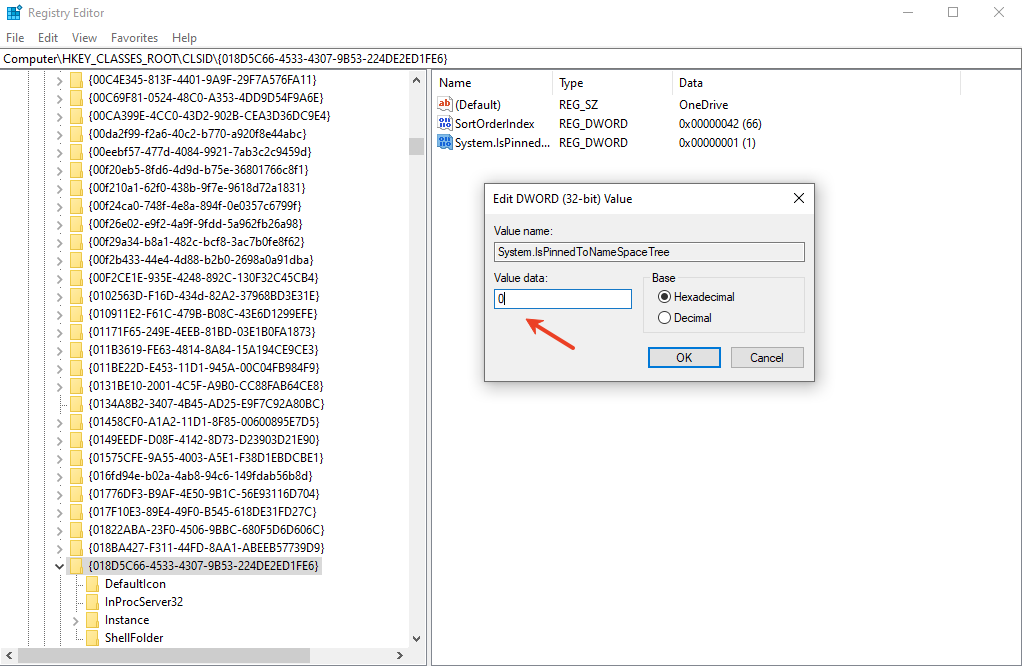
- 3. Find the value System.IsPinnedToNameSpaceTree and change it from
1to0. - 4. Restart your PC. The ghost folder is gone.
Method 4: Cloud-Side Recovery (The Second Chance)
If you delete OneDrive data while online, check the OneDrive Recycle Bin via a web browser. Microsoft keeps deleted files for 30 days (for personal accounts) or 93 days (for business).
- 1. Log in to OneDrive.com.
- 2. Click Recycle Bin on the left sidebar.
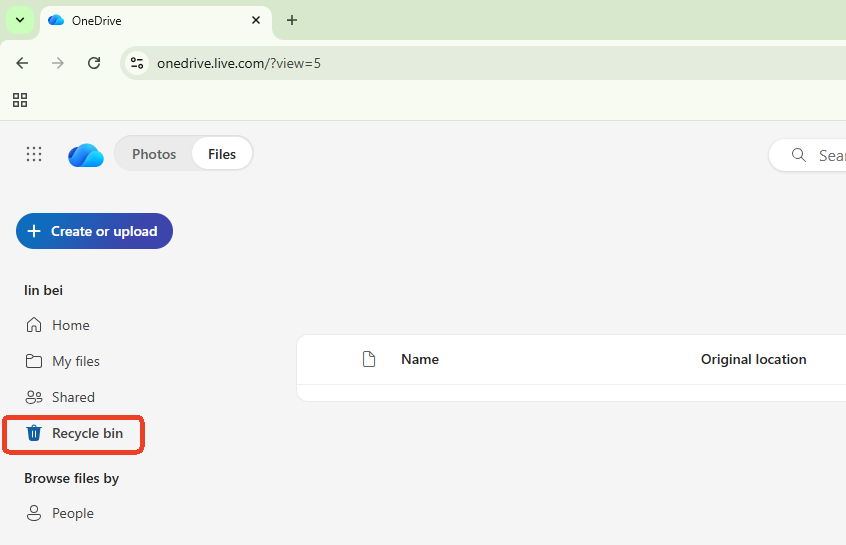
- 3. If it’s not there, check the Second-stage recycle bin at the bottom of the page.
Part 4: Proactive Protection—Before You Delete OneDrive
Before you attempt to remove OneDrive, implement the “Triple-Check” backup strategy:
- Change Settings to “Always Keep on This Device”: Right-click your OneDrive folder and select this option. Wait for all green checkmarks to appear. This ensures the files are physical, not just “ghost” icons.
- External Hardware Mirror: Copy the entire folder to a physical external SSD.
- The Unlink Test: Unlink the account (Method 1) and wait 24 hours before you actually delete OneDrive the application. If your files stay put, you are safe.
Common Concerns When You Delete OneDrive
1.Can I delete OneDrive and keep my files?
Yes, but only if you Unlink the account first. If you simply select the files and hit delete while the sync is active, they will be deleted from both your PC and the cloud.
2.What happens to my files if I uninstall OneDrive?
The files currently synced to your hard drive remain there, but they will no longer sync with the cloud. However, files marked as “Online Only” will disappear from your local view until you reinstall the app or download them from the web.
3.Why does OneDrive keep coming back after I delete it?
Windows Update often re-installs OneDrive. To disable OneDrive permanently, you may need to use the Group Policy Editor (for Pro users) to set “Prevent the usage of OneDrive for file storage” to Enabled.
Conclusion
To delete OneDrive is to perform surgery on your computer’s file system. It requires a steady hand and a clear understanding of where your data actually lives. Whether you are seeking to free up resources or move to a different provider, remember: Unlink first, Uninstall second.






