







In the modern digital landscape, the data stored on our devices is often more valuable than the hardware itself. Whether it’s a collection of family photos, a semester’s worth of college assignments, or critical business documents, your local storage is a repository of your hard work and memories. However, many users face a recurring nightmare: a system glitch or a forgotten password forces them to restore Chromebook to factory settings.
The “Powerwash” feature is a double-edged sword. While it fixes performance issues and resets the OS, it acts as a digital incinerator. Once you choose to restore Chromebook to factory parameters, every single file stored in your “Downloads” folder is marked for permanent deletion. The pain point isn’t just the inconvenience of a reset; it’s the sudden, irreversible disappearance of your local life.
Before you touch that reset button, you need a safety net. In the world of data preservation, professional recovery tools like PandaOffice Drecov serve as your final line of defense, ensuring that a factory reset doesn’t result in a total data blackout.
Part 1: Rescuing Data Before and After the Reset
Most guides tell you how to wipe your device immediately. We believe in a “Recovery First” philosophy. Whether you are planning a reset or have already executed one, your data’s fate isn’t sealed yet.
Scenario 1: Proactive Backup (When You Can Still Log In)
If your device is sluggish and you are planning to restore Chromebook to factory settings to speed it up, don’t rely solely on Google Drive. Syncing errors happen, and local files aren’t always backed up to the cloud automatically.
- Run a Pre-emptive Scan: Use PandaOffice Drecov to scan your local storage. It identifies files that might have been hidden or partially corrupted by system errors.
- Export to External Media: Move your identified critical files to a high-speed USB drive or an SD card.
- Verify Integrity: Drecov ensures that the files you are moving are healthy and readable, preventing the “blank file” syndrome after a transfer.
Scenario 2: Post-Reset Recovery (The “Oops” Moment)
If you have already performed a Powerwash and realized too late that your thesis or project was in the local folder, don’t panic. When you restore Chromebook to factory settings, the system performs a high-level wipe. This erases the “address book” of your files, but the actual raw data often remains on the physical storage chips until it is overwritten by new information.
How to Recover Using PandaOffice Drecov:
- Step 1: Access the Storage. Since ChromeOS is a locked-down environment, you may need to connect the Chromebook’s SSD/eMMC to another computer (via a technician) or use a Linux-based recovery environment.

- Step 2: Deep Scan. Launch PandaOffice Drecov and select the “Deep Scan” mode. This bypasses the empty file directory and looks for file signatures directly on the disk clusters.

- Step 3: Preview and Retrieve. Once the scan is complete, Drecov allows you to preview images and documents before saving them to a safe location.
Crucial Tip: The moment you realize you need to recover data after you restore Chromebook to factory, stop using the device. Every new file created or app downloaded increases the risk of overwriting your lost data.
Part 2: How to Restore Chromebook to Factory
If you have secured your data using Drecov, you can now proceed with the reset. There are two primary ways to do this, depending on whether you can access the login screen.
Method 1: The Keyboard Shortcut (The “No Password” Method)
This is the most common way to restore Chromebook to factory settings if you are locked out.
- 1. Sign Out: Go to the main login screen.
- 2. Trigger the Reset: Press and hold Ctrl + Alt + Shift + R.
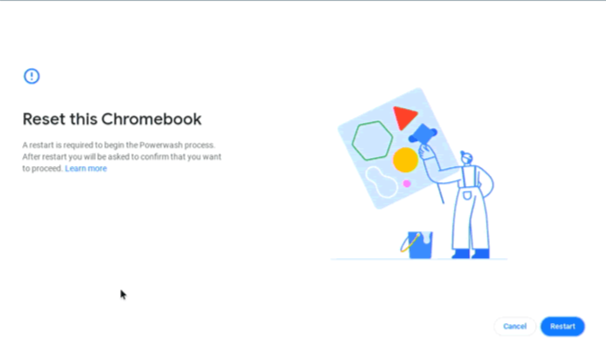
- 3. Confirm the Prompt: A window will appear asking if you want to “Reset this Chrome device.”
Stop! Have you recovered your files? If not, use PandaOffice Drecov first to ensure nothing valuable is lost.
- 4. Powerwash: Click “Restart,” then select “Powerwash” in the following menu.
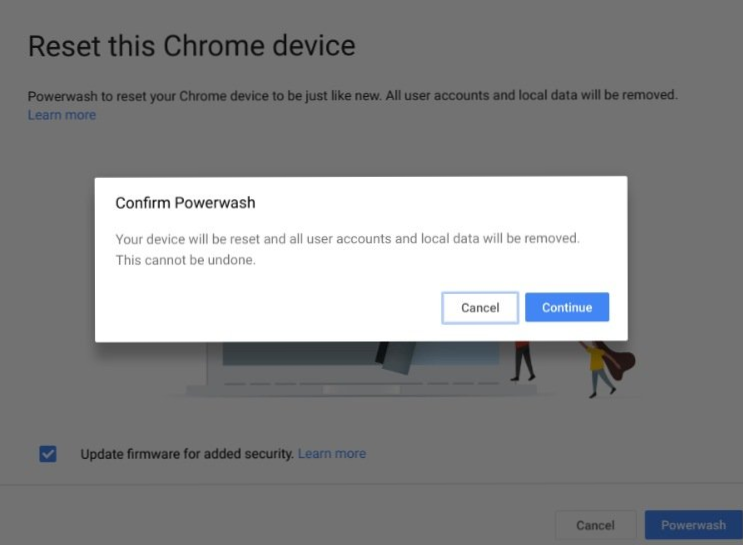
- 5. Finalize: Confirm the final prompt. The device will reboot, and you will be greeted by the “Welcome!” setup screen.
Method 2: Reset via Settings (The “Performance Boost” Method)
If you can still log in but the system is buggy:
- 1. Click the time in the bottom right corner and select the Settings (gear icon).
- 2. Expand the Advanced section on the left sidebar.
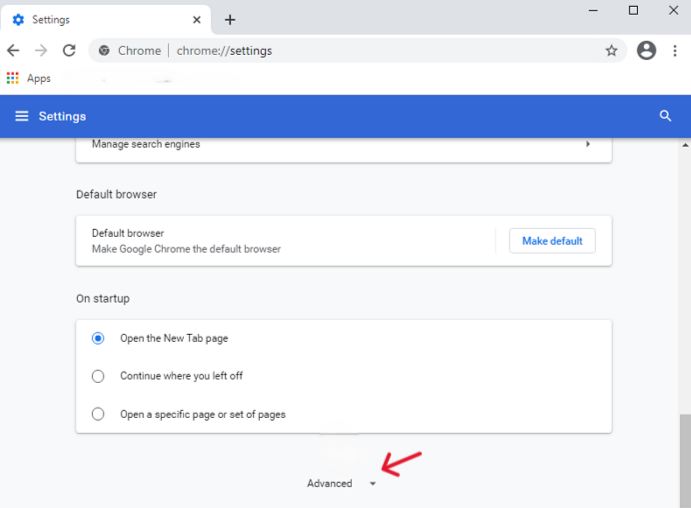
- 3. Click Reset settings.
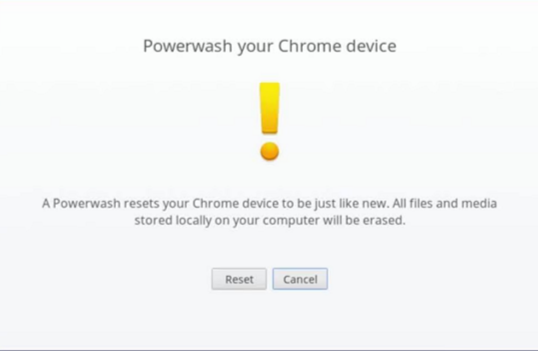
- 4. Select Powerwash and click Reset.
Warning: This will permanently delete local data. Run a PandaOffice Drecov scan now if you haven’t backed up your downloads!
Part 3: Why PandaOffice Drecov is Essential for Chromebook Users
Chromebooks use a unique file system structure based on the Linux kernel (typically ext4 or encrypted variations). Standard “undelete” tools often fail to recognize these formats. This is where PandaOffice Drecov stands out.
1. High Success Rate with ChromeOS Formats
Drecov is optimized for the specific way ChromeOS handles data blocks. When you restore Chromebook to factory, the tool understands the specific metadata remnants left behind, allowing for a much higher recovery rate than generic software.This makes it an indispensable tool for a wide range of data loss scenarios, including:
- Accidental Desktop Deletions: Instantly retrieving files wiped from your local workspace.
- Disk Formatting Errors: Salvaging files from drives that have been completely wiped or reformatted.
- External Media Rescue: Recovering lost data from formatted or corrupted SD cards and USB flash drives.
- Sync Conflict Resolution: Reversing data loss caused by synchronization errors between your PC and the OneDrive cloud.
- Browser Metadata Recovery: Restoring lost Chrome bookmarks and other essential application data.”
2. Support for All Vital File Types
It doesn’t just find JPEGs. Drecov is designed to recover:
- Documents: .docx, .pdf, .gdoc (cached versions).
- Media: High-resolution video files and raw images.
- Browser Data: Specifically, it can help find local Chrome bookmark HTML files that didn’t sync to the cloud.
3. Read-Only Scanning Technology
Data recovery can be risky; if a tool tries to “fix” the drive while scanning, it might destroy the data it’s trying to save. PandaOffice Drecov uses a strict read-only protocol. It “looks” at the drive without writing a single bit of new data, ensuring the original state of your lost files remains pristine.
Part 4: Beyond Local Files—Web and Cloud Data Recovery
Sometimes the need to restore Chromebook to factory settings comes after a massive browser crash. Users often think that because ChromeOS is “in the cloud,” they don’t need local recovery. This is a misconception.
Google Drive Caching
When you work on a Google Doc offline, a temporary version is stored locally. If the system crashes and you restore Chromebook to factory, that offline progress is gone. PandaOffice Drecov can often find these temporary cache files in the system’s “temp” directories, saving hours of rewritten work.
Browser Metadata
Lost your browsing history or specific local web-app data? These are stored in the “User Profile” folder. While a factory reset wipes the profile, Drecov can often reconstruct these folders, allowing you to regain access to local databases used by web apps.
How to factory reset a chromebook FAQs
1. Can I recover my files after a Powerwash without a backup?
Yes, it is possible. When you restore Chromebook to factory, the OS performs a “Quick Format” of sorts. As long as you don’t fill up the storage with new movies or apps immediately, PandaOffice Drecov can scan the unallocated space and pull back your files.
2. Why does ChromeOS make it so easy to lose local data?
Google designed ChromeOS to be “stateless,” meaning they want you to keep everything in the cloud. However, they provide a “Downloads” folder for convenience. The problem is that many users treat this folder as permanent storage. Because the system clears this folder during a reset to ensure security and privacy, having a tool like Drecov is the only way to bypass this “security-first” deletion.
3. Does Drecov work if my Chromebook won’t turn on at all?
If the hardware is dead, you would need to remove the storage chip (if it’s not soldered) or use a professional hardware recovery service. However, if the device turns on but the OS is corrupted, Drecov is your best bet for software-level retrieval.
4.What should I do if the Ctrl + Alt + Shift + R shortcut doesn’t work?
If the hardware keys are unresponsive, ensure you are at the initial sign-in screen, not the guest mode or a locked user session. If the keyboard remains unmapped, you can perform a “Hard Refresh” by holding the Refresh button and tapping the Power button simultaneously, then try the shortcut again during reboot.
Conclusion
The decision to restore Chromebook to factory settings is often a stressful one, usually born out of necessity. Whether you are troubleshooting a black screen or preparing the device for a new owner, the loss of data should not be a foregone conclusion.
By understanding the mechanics of how ChromeOS handles data and utilizing the power of PandaOffice Drecov, you can perform a factory reset with total peace of mind. Remember: hardware can be replaced, and software can be reinstalled, but your data is unique. Protect it before you reset.






