







We’ve all been there: you’ve spent hours editing an important document or organizing your files, and just when you need them the most, something goes wrong. Maybe you accidentally deleted a crucial file from OneDrive, or perhaps it simply disappeared due to syncing issues or a software glitch. Whatever the cause, it’s incredibly frustrating to lose important data. Fortunately, OneDrive offers several methods to recover deleted files, and in this guide, we’ll walk you through the best ways to get your data back, with a special focus on using PandaOffice Drecov for deeper recovery.
Cloud storage services like OneDrive have revolutionized how we store and access files. However, they also raise important questions: What happens if you delete something by mistake? Can you recover lost files? How long do you have before they’re permanently gone? Let’s dive into these questions and explore how to recover deleted files in OneDrive.
Understanding OneDrive Data Storage and Deletion
Before we dive into recovery methods, let’s first understand how OneDrive handles your data and what happens when you delete a file.
OneDrive, like many cloud storage platforms, temporarily retains deleted files in a “Recycle Bin.” Think of it like the trash bin on your computer: when you delete a file, it doesn’t vanish into thin air. Instead, it goes into this temporary storage, where it stays for a while before being permanently removed.
One of the key aspects to understand is that files in OneDrive’s Recycle Bin are typically retained for 30 days. After this period, the files are automatically and permanently deleted. However, as long as the file hasn’t been overwritten, you can still recover it.
Additionally, OneDrive also keeps version history for many files, meaning that even if a file was changed or corrupted, you might be able to restore an earlier version.
Common Scenarios for Data Loss
Understanding common data loss scenarios can help you act quickly and effectively when something goes wrong. Here are a few situations where you might need to recover deleted files in OneDrive:
- Accidental Deletion: You might have accidentally deleted a file while cleaning up your OneDrive storage or moving files around.
- Syncing Issues: Sometimes, OneDrive syncing errors can cause files to disappear or become corrupted, even though they were never manually deleted.
- File Corruption: A corrupted file might become unreadable, leading you to think it was deleted.
- Version Problems: Changes to a document may render it unusable, but you may want to recover an older version.
In all of these cases, you don’t have to panic—there are ways to recover the lost data.
How OneDrive Handles Deleted Files
When you delete a file from OneDrive, it’s moved to the Recycle Bin, where it stays temporarily. The file will remain in the Recycle Bin for 30 days unless you permanently delete it from there. During this time, you can easily restore the file by going into the Recycle Bin and selecting “Restore.”
If the file is no longer in the Recycle Bin, don’t worry! You can still try to recover it by using version history or a more advanced recovery tool like PandaOffice Drecov.
What sets PandaOffice Drecov apart is its ability to bypass the operating system’s limitations; it performs a deep scan of the raw disk sectors to reconstruct files that Windows no longer recognizes. This makes it an indispensable tool for a wide range of data loss scenarios, including:
- Accidental Desktop Deletions: Instantly retrieving files wiped from your local workspace.
- Post-Recycle Bin Recovery: Restoring data even after the trash has been permanently emptied.
- Disk Formatting Errors: Salvaging files from drives that have been completely wiped or reformatted.
- External Media Rescue: Recovering lost data from formatted or corrupted SD cards and USB flash drives.
- Sync Conflict Resolution: Reversing data loss caused by synchronization errors between your PC and the OneDrive cloud.
- Browser Metadata Recovery: Restoring lost Chrome bookmarks and other essential application data.”
Different Ways to Recover Deleted Files in OneDrive
There are several ways to recover deleted files from OneDrive. Let’s explore the most common methods:
Method 1: Restore from OneDrive’s Recycle Bin
This is the simplest method, and it works for most cases. When you delete a file, it first goes into the Recycle Bin, and you can restore it from there easily.
Steps:
- 1.Log in to OneDrive: Open onedrive.com and log into your Microsoft account.
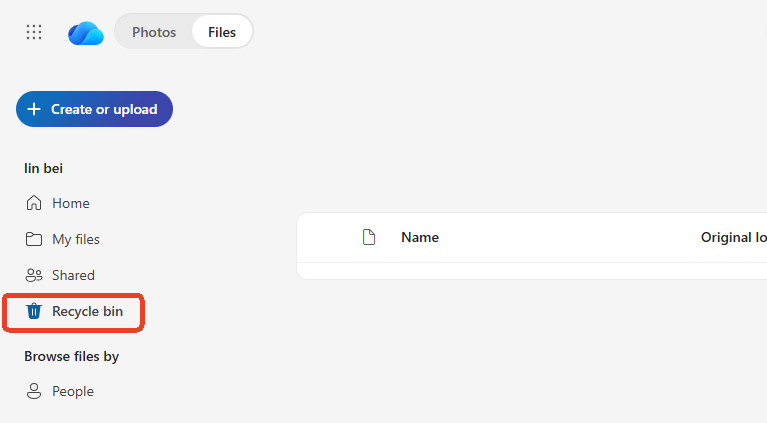
- 2.Navigate to the Recycle Bin: On the left-hand panel, click Recycle Bin.
- 3.Select the Files to Restore: Browse through the list of deleted files and select the ones you want to restore.
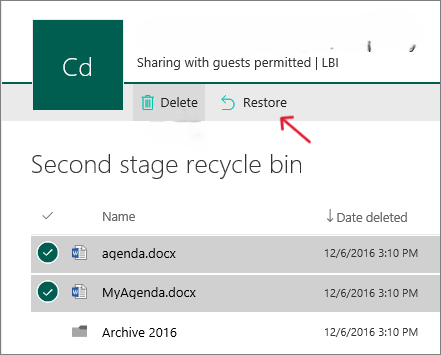
- 4.Restore the Files: Click the “Restore” button at the top of the page. Your files will be returned to their original locations.
Note: Files stay in the Recycle Bin for 30 days. After that, they will be permanently deleted.
Method 2: Use PandaOffice Drecov for Advanced Recovery
If the files are no longer in the Recycle Bin or if they were deleted more than 30 days ago, PandaOffice Drecov is an excellent choice for advanced recovery.
Steps:
- 1.Launch and Locate:
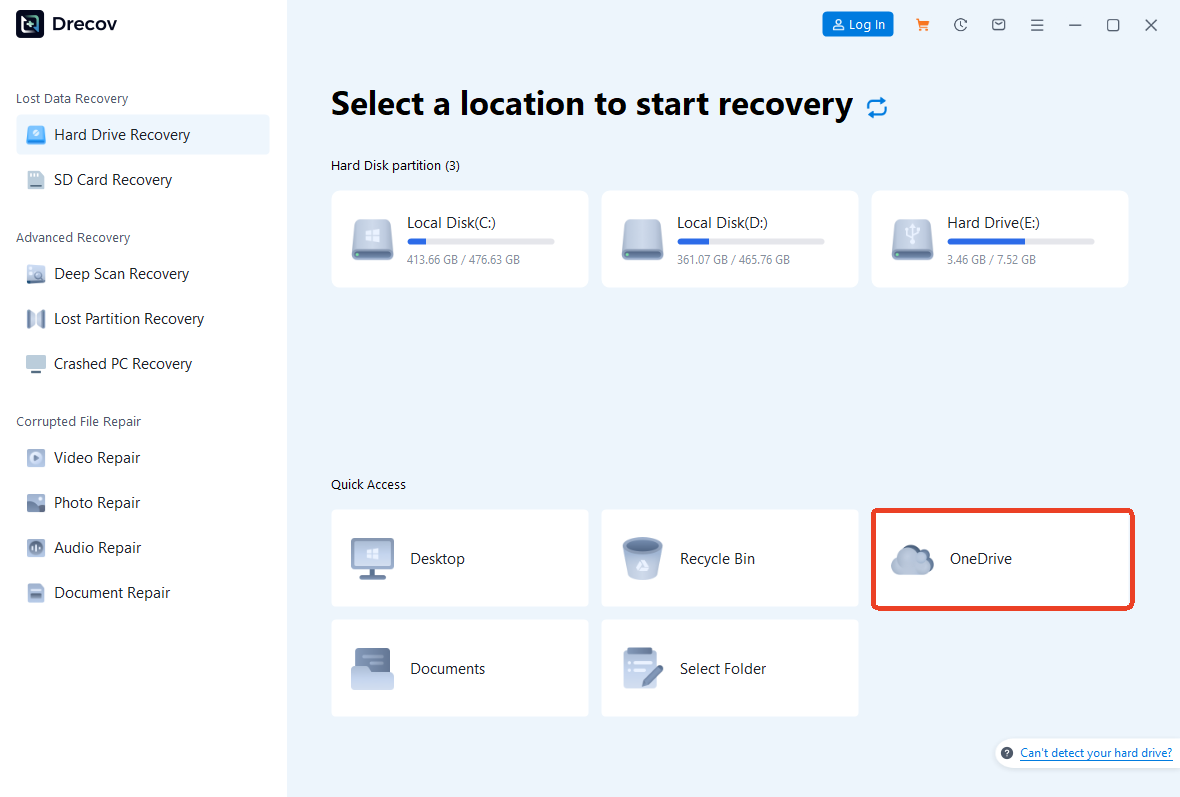
- Open PandaOffice Drecov. On the main interface, select the specific drive or OneDrive (usually the C: Drive)
- 2.Run a Deep Scan:
- Click on the Scan button to begin a deep scan of your OneDrive storage.
- The software will scan your OneDrive for deleted files and display them in a list.

- 3.Preview and Select Files:
- After the scan, you can preview the files to ensure they are the ones you want to recover.
- Select the files and click Restore to recover them.

- 4.Save Recovered Files:
- Choose a safe location to save your recovered files (make sure not to overwrite existing data).
Warning: It may take time for the software to scan your account, especially if you have a large amount of data.
Method 3: Restore from Previous Versions
If you are looking to recover a previous version of a file (for example, an older version of a document), OneDrive’s version history feature can help.
Steps:
- 1.Log in to OneDrive:
Go to onedrive.com and log in to your account. - 2.Navigate to the File:
Find the file you want to restore and right-click on it.
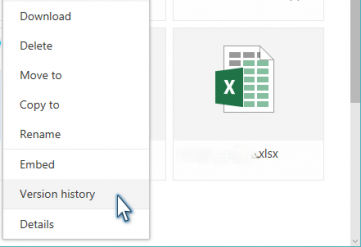
- 3.Click on “Version History”:
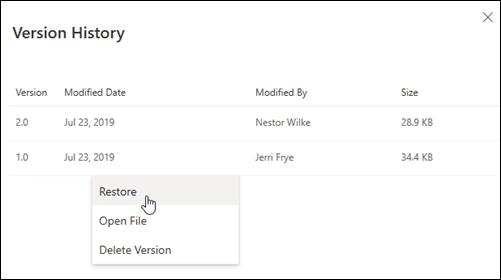
In the drop-down menu, select Version History.
- 4.Select the Version to Restore:
A list of previous versions will appear. Select the version you want to restore and click Restore.
Method 4: Contact Microsoft Support
If none of the above methods work, or if you’ve lost important data beyond the 30-day window, you can contact Microsoft Support for assistance.
Comparison of Recovery Methods
| Method | Pros | Cons |
|---|---|---|
| Recycle Bin Recovery | Quick and easy to use, no additional software required. | Only works for recently deleted files (within 30 days). |
| PandaOffice Drecov | Can recover files even after 30 days, or if overwritten. | Requires download and installation. |
| Previous Version Recovery | No third-party software needed, useful for document versions. | Only works for files with versioning enabled. |
| Microsoft Support | Useful if other methods fail, professional support. | May take time for resolution, especially for older files. |
Preventive Measures to Avoid Data Loss
The best way to avoid data loss is to implement preventive measures. Here are some tips:
- Enable File Versioning: Ensure version history is enabled for all important files.
- Regular Backups: Use a third-party backup solution to back up your OneDrive files periodically.
- Two-Factor Authentication (2FA): Enable 2FA on your OneDrive account to prevent unauthorized access.
Recover Deleted Files in OneDrive FAQs
1.Can I recover files that were deleted more than 30 days ago?
Once files are permanently deleted after 30 days in the Recycle Bin, they cannot be recovered through OneDrive’s standard features. However, you may still have a chance to recover them using PandaOffice Drecov , which scans your OneDrive account for deleted files that are no longer visible in the Recycle Bin.
2.What should I do if I accidentally deleted an important file from OneDrive and it’s not in the Recycle Bin?
If a file was removed from the Recycle Bin, it might still be recoverable with advanced recovery tools. You can use PandaOffice Drecov to perform a deep scan of your OneDrive and recover deleted files that have been removed from the Recycle Bin. For step-by-step instructions, check out our guide above.
3.How can I prevent accidental deletion of important files in OneDrive?
To prevent data loss, you can enable file versioning in OneDrive, which allows you to revert to previous versions of files. Additionally, setting up automatic backups using third-party tools, along with enabling two-factor authentication (2FA) for account security, can further safeguard your data.
Conclusion
Knowing how to recover deleted files in OneDrive is crucial for avoiding data loss disasters. Whether you’re using the built-in Recycle Bin feature, restoring previous versions, or employing advanced recovery tools like PandaOffice Drecov, there’s always a way to get your files back. By following the methods outlined above, you can stay confident that your data is safe and recoverable, even in the worst-case scenario.






