







We have all been there. You open your browser to finish a project or revisit a favorite resource, only to find your bookmark bar completely empty. Whether a sudden system crash wiped your data or you accidentally hit “Delete” on a folder you spent years curating, the anxiety is real. You might find yourself frantically asking, “How do I recover bookmarks in chrome ?“
The good news is that you can breathe a sigh of relief. Google Chrome doesn’t usually “shred” your bookmarks instantly; it often leaves a digital footprint or a backup file behind. This article explores several proven strategies to get your folders back. From simple browser tricks to professional restoration tools, we will guide you through the process of reclaiming your lost links.
Why Did My Bookmarks Disappear?
Understanding the “why” is the first step toward finding the right “how.” Several technical glitches can lead to bookmark loss. Identifying these helps refine your search for “how do i recover bookmarks in chrome.”
- Accidental Human Error: A slip of the mouse while organizing folders is the leading cause of data loss.
- Syncing Conflicts: If you log into Chrome on a new device, an outdated sync profile might overwrite your current, organized bookmarks.
- Browser Updates: Occasionally, a major Chrome version update resets the local user profile folder.
- Unexpected Crashes: A sudden power failure or a forced system restart can corrupt the
Bookmarksfile located in your local app data.
Step-by-Step Solutions: From Quick Fixes to Professional Tools
If you are currently wondering, “how do i recover bookmarks in chrome,” start with the easiest method and move down the list.
Method 1: The Undo Shortcut (Immediate Action)
If you deleted the bookmark only seconds ago, Chrome has a built-in temporary memory that can reverse the action.
- Step 1: Do not close your Chrome browser.
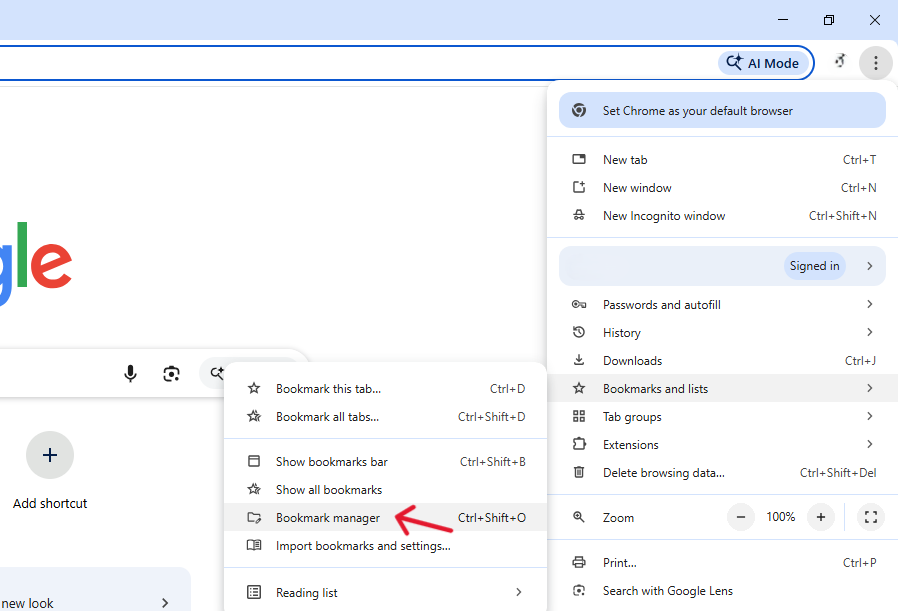
- Step 2: Open the Bookmark Manager by pressing
Ctrl + Shift + O. - Step 3: Press
Ctrl + Zon your keyboard.
The Underlying Principle: This works because of RAM-based Session History. Chrome maintains a temporary “undo buffer” in your computer’s active memory (RAM) for the current session. As long as the process remains open, the deletion record is stored in a stack that can be popped back to its previous state.
Method 2: Use PandaOffice Drecov
When manual methods fail—especially if the files are physically missing from your hard drive—PandaOffice Drecov is the most effective professional tool. It specializes in scanning deep system sectors to find “invisible” browser data.This makes it an indispensable tool for a wide range of data loss scenarios, including:
- Accidental Desktop Deletions: Instantly retrieving files wiped from your local workspace.
- Disk Formatting Errors: Salvaging files from drives that have been completely wiped or reformatted.
- External Media Rescue: Recovering lost data from formatted or corrupted SD cards and USB flash drives.
- Sync Conflict Resolution: Reversing data loss caused by synchronization errors between your PC and the OneDrive cloud.
- Files lost after emptying the Recycle Bin.
- Step 1: Launch the software and select the “Deep Scan” mode specifically for your user profile directory.

- Step 2: Use the search bar within the tool to look for files named
Bookmarks.
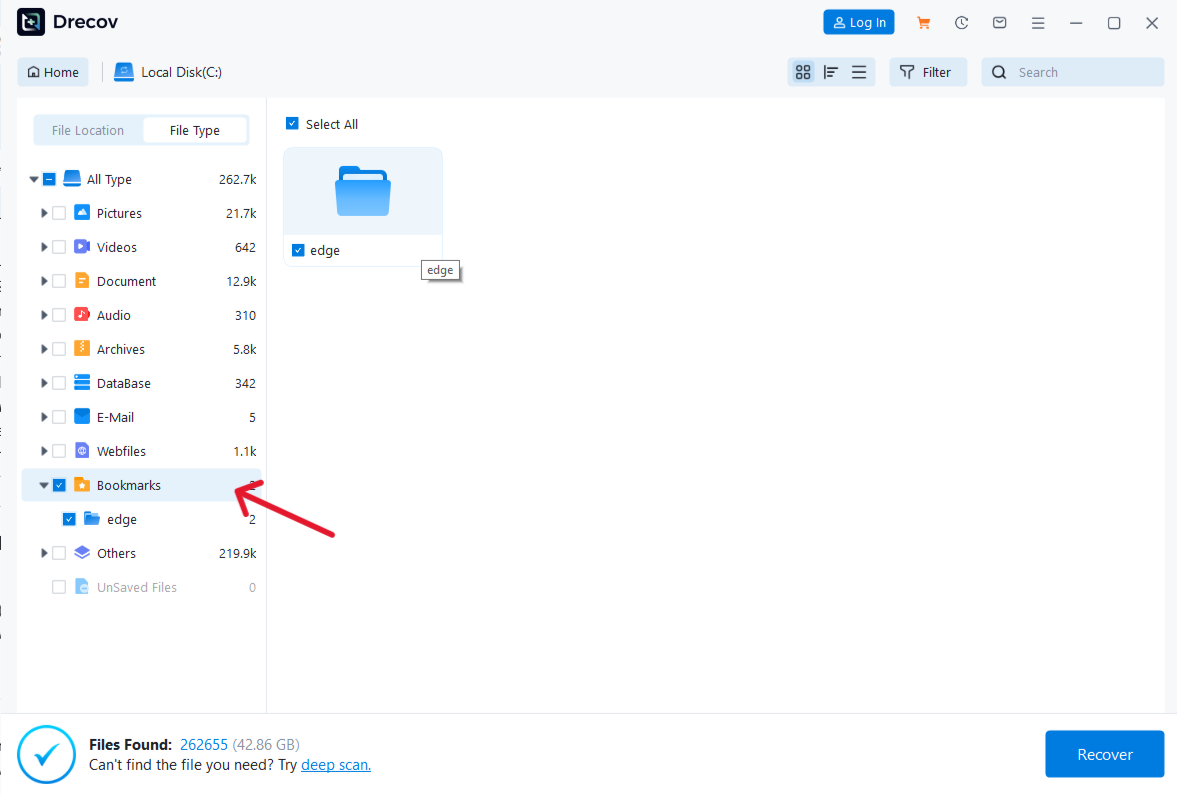
- Step 3: Preview the found files to check their timestamps. Select the version from before the loss and click “Recover.”
The Underlying Principle: This relies on Sector-Level Carving. When a file is deleted, Windows only removes the “pointer” in the Master File Table (MFT), marking the space as “available.” The tool bypasses the operating system’s file directory and scans the physical magnetic or flash sectors of the drive to find the original binary patterns of your JSON-formatted bookmarks before they are overwritten by new data.
Method 3: The Manual .bak Restoration
Chrome creates a hidden backup file called Bookmarks.bak. Swapping this with your current file is a classic answer to how do i recover bookmarks in chrome.
- Step 1: Close all instances of Chrome completely.
- Step 2: Open Windows Explorer and paste this path:
%localappdata%\Google\Chrome\User Data\Default
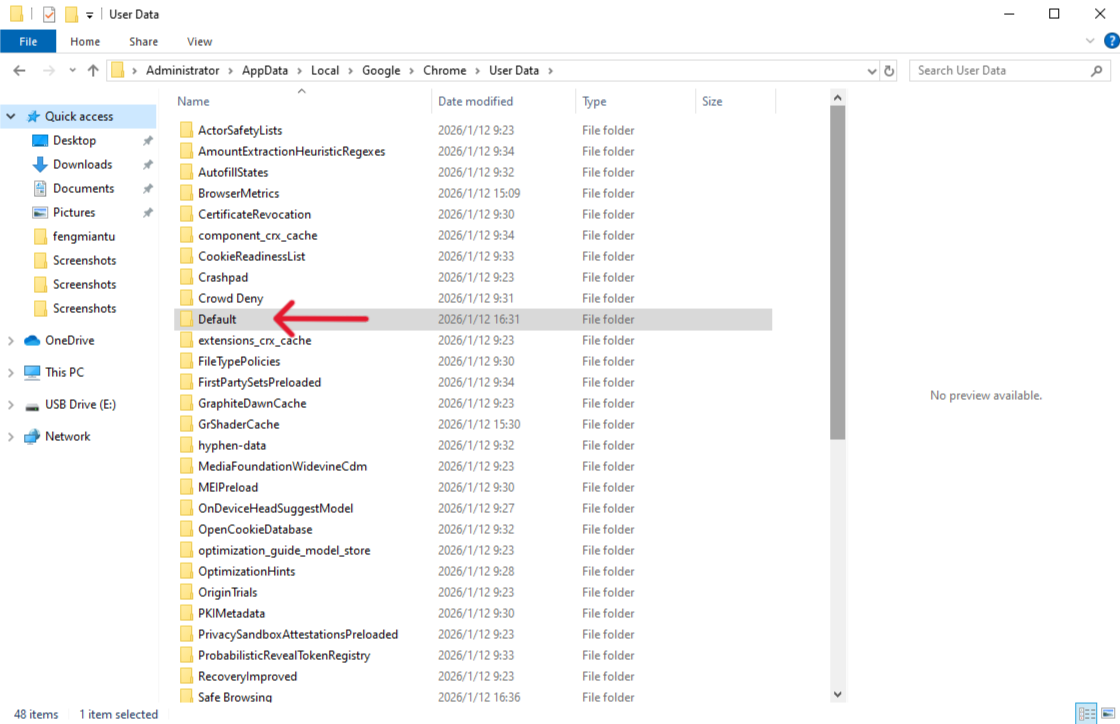
- Step 3: Locate the file named
Bookmarks(the broken one) and rename it toBookmarks.old.
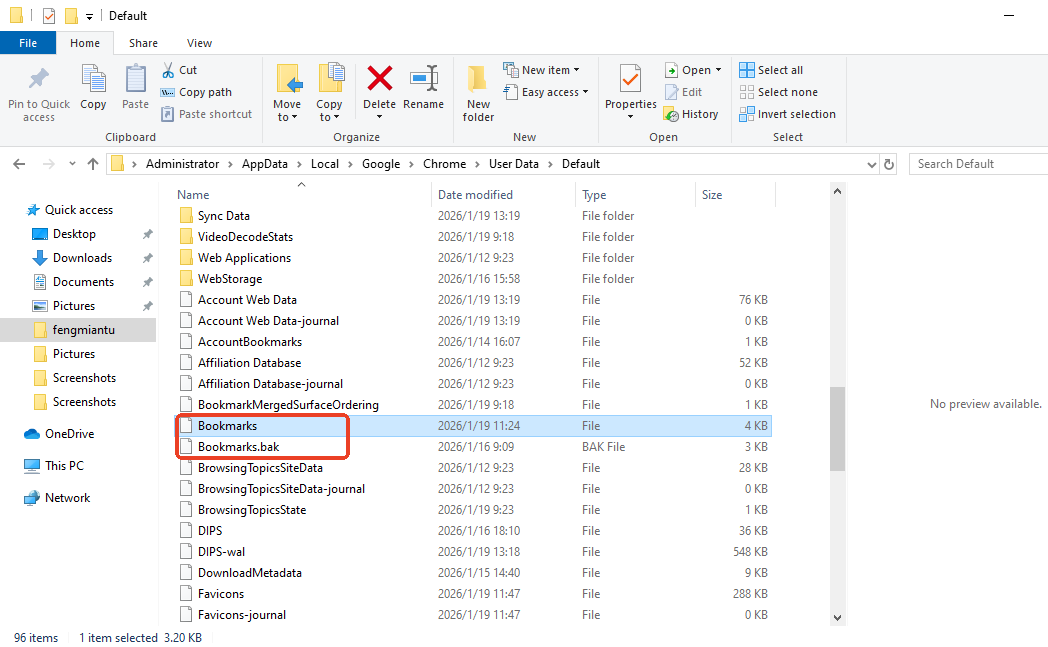
- Step 4: Find
Bookmarks.bakand rename it toBookmarks.
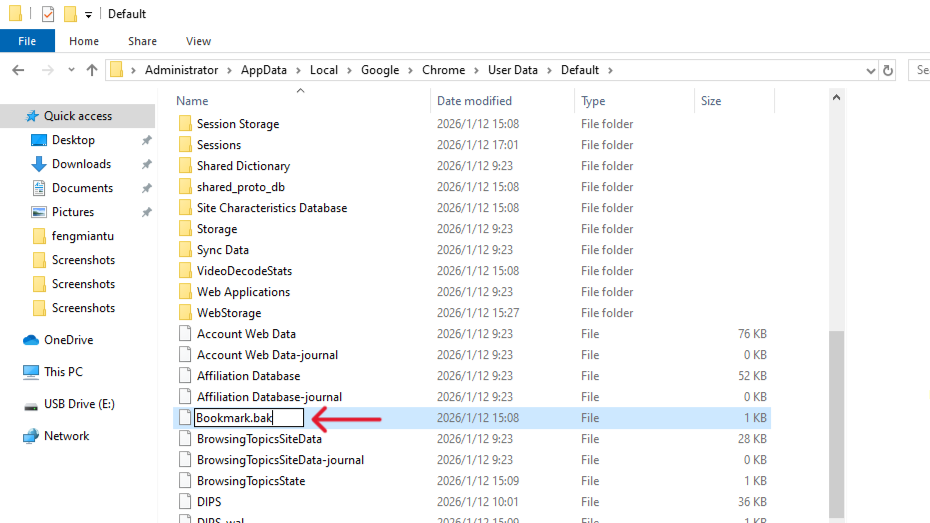
- Step 5: Reopen Chrome. Your bookmarks should reappear exactly as they were during your last session.
The Underlying Principle: This utilizes Shadow Copy Redundancy. Every time Chrome launches successfully, it archives the previous session’s bookmark state into a .bak file. By renaming the files, you are performing a manual “Rollback,” replacing the corrupted or empty primary database with the redundant secondary snapshot taken just before the error occurred.
Bonus Tips: Prevention is Better Than Cure
Once you successfully resolve the issue of how do i recover bookmarks in chrome, you should take steps to ensure it never happens again.
- Regular Manual Exports: Once a month, go to the Bookmark Manager, click the “Organize” menu, and select Export Bookmarks. You can follow the official steps from Google Help to create a secure HTML backup file.
- Enable Chrome Sync: Ensure “Sync” is turned on in your Google Account settings. This keeps a copy of your bookmarks on Google’s encrypted servers.
- Periodic Data Maintenance: Use the “Chrome Cleanup” tool to remove buggy extensions that might interfere with your browser’s local storage files.
How Do I Recover Bookmarks in Chrome FAQs
1.Can I recover bookmarks if I never signed into a Google Account?
Yes! You can still use the PandaOffice Drecov tool or the .bak file method, as these rely on local data stored on your hard drive rather than the cloud.
2.Why can’t I find the Bookmarks.bak file?
You may have “Hidden Items” turned off in Windows. In File Explorer, go to the “View” tab and check the box for Hidden items.
3.Does clearing my browser history delete my bookmarks?
No, clearing your history only removes the list of sites you visited. Your saved bookmarks remain intact unless you specifically check “Bookmarks” in the advanced clear-data settings.
4.Why is “Speed” the most critical factor in recovery?
Because of Data Overwriting. Once the OS marks a sector as “free,” any new activity—background updates, temp files, or even web browsing—can write new bits over the old ones. Once a physical 1 is flipped to a 0 by a new file, the original data is lost forever.
5.Does an SSD make recovery harder than an HDD?
Yes, due to the TRIM Command. On an SSD, the system actively wipes “free” blocks to maintain high write speeds. This makes the window for using tools like PandaOffice Drecov much shorter compared to traditional mechanical hard drives.
Conclusion
If you came here asking “how do i recover bookmarks in chrome,” you now have three distinct paths to success. Whether you use the quick Undo shortcut, the deep-scanning power of PandaOffice Drecov, or the manual file swap, your data is likely recoverable.






