







Mark, an avid traveler who just spent three weeks trekking through the vibrant landscapes of Iceland. He captured thousands of RAW images of the Aurora Borealis and cinematic drone footage of black sand beaches. Upon returning home, Mark eagerly connects his 256GB SDXC card to his laptop to begin the backup. Suddenly, a window pops up: “Location is not available. The file or directory is corrupted and unreadable.“ His heart stops. His entire journey, documented in high-definition, feels like it has vanished into a digital abyss. In this moment of crisis, Mark’s first instinct is to search for free sd memory card recovery software.
Mark isn’t alone; millions of users face this “digital heart attack” every year. However, data loss doesn’t have to be permanent. With the right knowledge and the correct recovery software, you can perform what seems like a digital miracle. This article will demystify the science of data restoration and provide you with a toolkit to save your memories.
Part 1: The “Invisible Ink” Mystery—How Data Recovery Works
To use free sd memory card recovery software effectively, you must understand the “secret life” of your files. Many people believe that deleting a file is like burning a piece of paper. In reality, it is much more like erasing an entry in a library’s table of contents.
The Library Metaphor
Think of your SD card as a massive library. Your photos and videos are the books on the shelves. The SD card has a “Master File Table” (MFT) or “File Allocation Table” (FAT), which acts as the library’s index. When you delete a photo, the computer does not go to the shelf to shred the book. Instead, it simply takes a pencil and crosses out the title in the index. It then marks that shelf space as “Available for new books.”
The “book” (your data) remains on the shelf, invisible to the computer’s normal operating system, until a new file is written directly over it. This is why data recovery software is so effective—it ignores the “broken” index and manually scans every single “shelf” (sector) to see what is actually there. It looks for “headers” (the first few lines of a file’s code) to identify if a block of data is a JPEG, a PDF, or an MP4.
Part 2: Critical “Safety First” Rules
Before you run any free sd memory card recovery software, you must follow these golden rules. Failure to do so could result in permanent data destruction.
- Rule 1: Immediate Cessation. Stop using the SD card the moment you suspect data loss. If you keep taking photos, you are literally writing new “books” over the old ones you want to save.
- Rule 2: No In-Place Installation. Never download data recovery software onto the card you are trying to recover. Install the software on your local C: drive.
- Rule 3: Avoid Formatting. If Windows asks, “Do you want to format this disk?”, always click Cancel. Formatting can complicate the recovery process by creating a new, blank file system.
Part 3: Top Methods to Recover Your Files
Let’s explore the most reliable ways to get your data back, ranging from built-in Windows features to professional-grade free sd memory card recovery software.
Method 1: Using Windows File Recovery (CMD Tool)
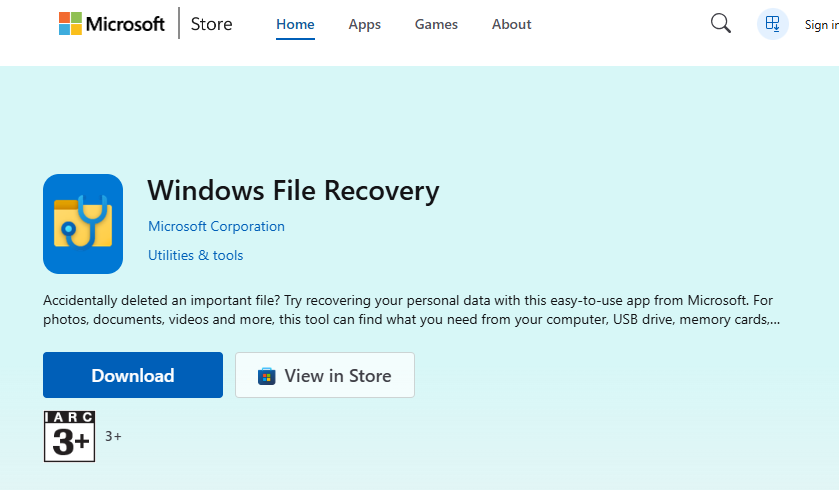
Microsoft offers its own command-line free sd memory card recovery software called “Windows File Recovery,” available on the Microsoft Store. This is best for users who are comfortable with a bit of typing.
- Step 1: Download “Windows File Recovery” from the Microsoft Store.
- Step 2: Open the app. It will launch a Command Prompt (CMD) window.
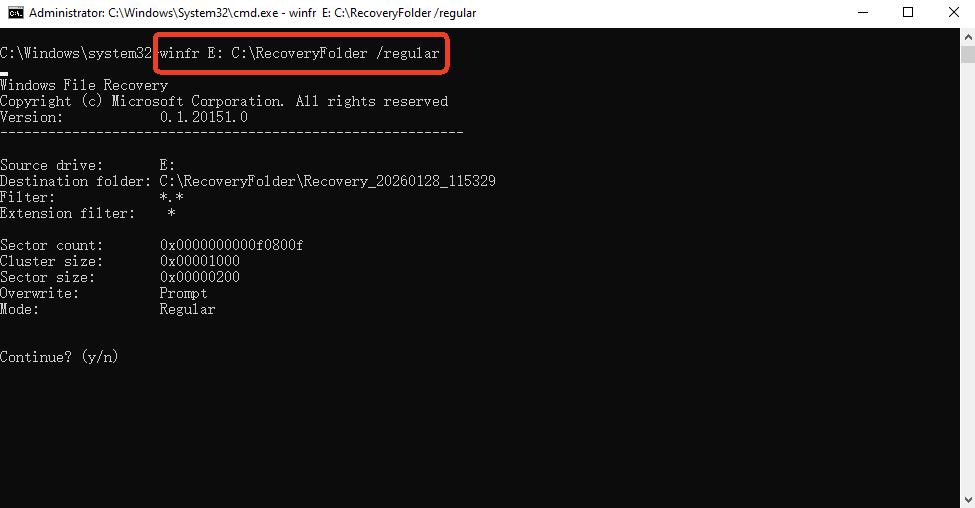
- Step 3: Use the basic syntax:
winfr source-drive: destination-drive: [/mode] [/switches]. For an SD card at drive E: saving to C:, you would type:winfr E: C:\RecoveryFolder /regular. - Step 4: Review the results in the newly created folder on your C: drive.
Method 2: High-Success Restoration with PandaOffice Drecov (Recommended)
When you need a more intuitive and powerful free sd memory card recovery software, PandaOffice Drecov is the gold standard. It balances professional scanning algorithms with a “Three-Step Operation” designed for everyday users. One of its best features is the Free Scan and Preview, allowing you to see exactly what is recoverable before you commit.
- Versatility: It recovers photos, videos, audio, compressed files (ZIP/RAR), and even system files like EXEs.
- Accidental deletion from your computer desktop.
- Files lost after emptying the Recycle Bin.
- Data loss from disk formatting.
- Accidental deletion or formatting of SD cards/U disks.
- Sync error occurring with deleted OneDrive files
- Restore deleted Chrome bookmarked
- Privacy First: All recovery happens locally on your machine, so you don’t have to worry about your private data leaking to the web.
Here is how you use it:
- Step 1: Identify the Device.Connect your SD card and launch PandaOffice Drecov. The software will list all connected drives. Select your SD card from the “Removable Drives” list.

- Step 2: Intelligent Deep Scan.Click the Scan button. The software uses a proprietary dual-scanning engine. First, it performs a Quick Scan for recently deleted files. Then, it automatically transitions into a Deep Scan, searching the raw sectors of the card. You can watch the files appear in real-time, sorted by file type (PNG, JPG, MOV, etc.).

- Step 3: Preview and Save.This is the most critical step. Double-click on any found photo or document to open the Preview Window. If the image appears clearly in the preview, it means the data is intact. Check the boxes for the files you want and click Recover.
Pro Tip: Always save recovered files to your computer’s hard drive, never back onto the same SD card.
Method 3: Using PhotoRec (The Open-Source Powerhouse)
PhotoRec is a famous free sd memory card recovery software that focuses purely on data signatures. It doesn’t have a modern “mouse-and-click” interface, but it is incredibly powerful for corrupted cards.
- Step 1: Download the TestDisk/PhotoRec folder and run
photorec_win.exe.
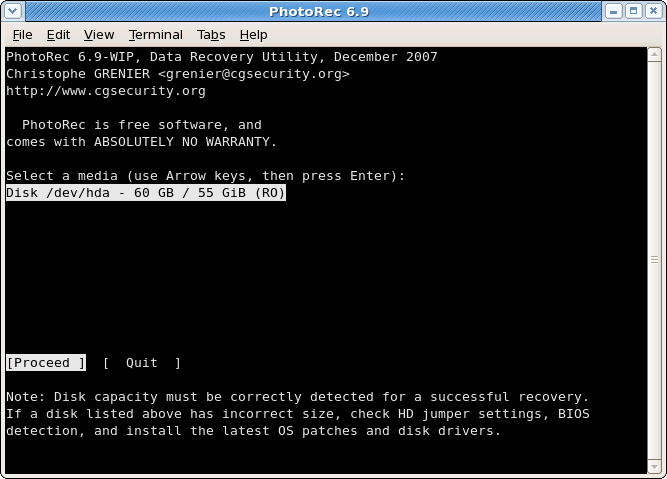
- Step 2: Use your arrow keys to select the SD card. Press Enter.
- Step 3: Select the Partition type (usually
[FAT32]or[Unknown]).
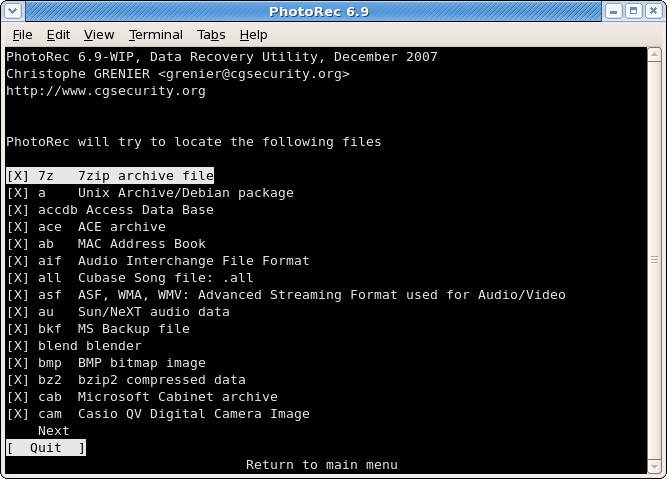
- Step 4: Choose [Whole] to scan the entire card. Select a destination folder on your PC.
- Step 5: Wait for the “Pass 1” to complete. The files will be saved in folders named
recup_dir.1,recup_dir.2, etc.
Method 4: Fixing Logical Errors with CHKDSK
Sometimes you don’t need free sd memory card recovery software to extract files; you just need to repair the “Index” we talked about earlier.
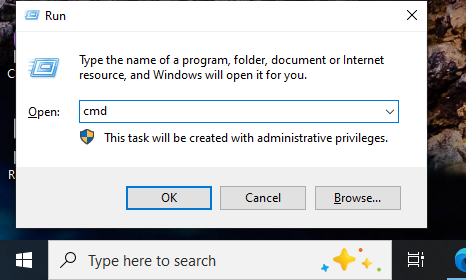
- Step 1: Press
Win + Sand type “CMD.” Right-click it and “Run as Administrator.”
- Step 2: Type
chkdsk E: /f(Replace E with your SD card’s drive letter).
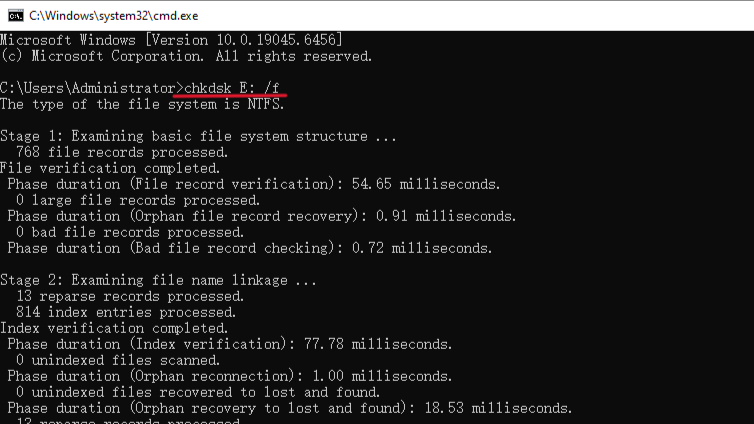
- Step 3: Windows will attempt to fix the file system errors. If successful, your files will reappear in File Explorer immediately.
Part 4: Comparing Different Data Recovery Solutions
Choosing the right free sd memory card recovery software depends on your technical comfort and the severity of the data loss.
| Software | Best For | Interface Type | Preview Feature | Success Rate |
| Windows File Recovery | Recent deletions | Command Line | None | Medium |
| PandaOffice Drecov | Corrupted/RAW/Formatted Cards | Modern 3-Step GUI | Full Visual Preview | Very High |
| PhotoRec | Hardcore corruption | Text-based | None | High |
| CHKDSK | Minor file system errors | Command Line | N/A | Low |
Part 5: Proactive Prevention—The Best Recovery is No Recovery
While free sd memory card recovery software is a powerful tool, it should be your last resort. Use these habits to protect your data from the start:
- Format in the Device: When using a new SD card, always format it within the camera or drone settings, not your PC. This ensures the file system is optimized for that specific device.
- The 3-2-1 Backup Rule: Always keep 3 copies of your data, on 2 different storage types, with 1 copy stored in the cloud (like Google Drive or OneDrive).
- Safe Ejection: Never pull an SD card out while the camera is on or while the computer is accessing it. Always use the “Safely Remove Hardware” icon in the Windows taskbar.
- Replace Regularly: SD cards have a finite lifespan. If you use yours for professional work, replace your primary cards every two years to avoid hardware degradation.
Common Questions about Free SD Memory Card Recovery Software
1.Is it really possible for software to be 100% free?
Some free sd memory card recovery software options like PhotoRec are completely open-source. Others, like PandaOffice Drecov, offer a free version that allows you to scan and preview every file, ensuring you only pay if you know for a fact your files are salvageable.
2.My SD card is physically cracked. Can software fix it?
No. If the NAND flash chip inside is physically broken, no free sd memory card recovery software can help. You will need to contact a physical data recovery lab, which involves disassembling the card in a cleanroom.
3.Why do some recovered files look like gibberish?
This happens when a file has been “overwritten.” If the software finds the file name but some of the internal data has been replaced by a new file, the file header becomes corrupted, and the file won’t open.
4.Can I recover data from a card that was formatted?
Yes! A standard format only clears the index. Most free sd memory card recovery software can easily recover data from a formatted card as long as you haven’t written new files to it.
Conclusion
Data loss is a stressful experience, but the development of advanced free sd memory card recovery software has made it a solvable problem. Whether you prefer the simplicity and preview capabilities of PandaOffice Drecov or the technical depth of open-source tools like PhotoRec, the most important factor is speed.
By acting quickly, avoiding further use of the card, and following the structured steps in this guide, you can successfully rescue your irreplaceable photos and documents. Data recovery isn’t just about bits and bytes; it’s about preserving the moments that matter most.






